Introduction
In today's security-conscious environment, understanding who is accessing your organization's mailboxes and what they are doing is not just a best practice—it's a critical component of a robust security and compliance strategy. Exchange Online Mailbox Auditing provides the essential tools to monitor and log mailbox activities, offering a clear view into actions performed by mailbox owners, delegates, and administrators.
Since 2019, Microsoft has enabled mailbox auditing by default for all Exchange Online organizations. This means that a baseline of critical activities is already being logged for every user, shared, and resource mailbox in your tenant without any manual setup. This proactive approach ensures that you have a foundational audit trail from day one, helping you meet compliance requirements, investigate security incidents, and maintain control over your email environment.
This article will guide you through the essentials of Exchange Online mailbox auditing, from understanding the default settings to customizing them for specific compliance needs. We will cover best practices, common mistakes to avoid, and provide practical, step-by-step PowerShell commands to help you manage and leverage mailbox audit logs effectively.
Prerequisites
Before you begin, ensure you have the following:
-
Licensing:
An Exchange Online Plan 1 or Plan 2 license is required. Certain advanced features, such as extended audit log retention and the
MailItemsAccessedaction, require an E5/A5/G5 license. - Permissions: You must be a member of the Exchange Administrator or Compliance Administrator role group in Microsoft 365.
- PowerShell: The ExchangeOnlineManagement PowerShell module must be installed on your local machine. You can install it with the following command:
Install-Module -Name ExchangeOnlineManagement
Understanding Default Mailbox Auditing
By default, Exchange Online audits a predefined set of actions for three distinct sign-in types:
- Owner: The primary user of the mailbox.
-
Delegate:
A user with
SendAs,SendOnBehalf, orFullAccesspermissions to another mailbox. - Admin: An administrator performing eDiscovery searches or accessing a mailbox via tools like the MAPI Editor.
The table below summarizes the key actions logged by default for each sign-in type. These actions provide a strong baseline for monitoring critical mailbox events.
| Action | Admin | Delegate | Owner |
|---|---|---|---|
HardDelete
|
✔ | ✔ | ✔ |
SoftDelete
|
✔ | ✔ | ✔ |
MoveToDeletedItems
|
✔ | ✔ | ✔ |
SendAs
|
✔ | ✔ | - |
SendOnBehalf
|
✔ | ✔ | - |
Update
|
✔ | ✔ | ✔ |
UpdateInboxRules
|
✔ | ✔ | ✔ |
MailItemsAccessed
(E5)
|
✔ | ✔ | ✔ |
Step-by-Step Configuration Guide
While the default settings are sufficient for most organizations, you may need to customize them to meet specific compliance or security requirements. The following steps will guide you through the process using PowerShell.
Step 1: Connect to Exchange Online PowerShell
First, connect to your Exchange Online environment. You will be prompted to sign in with your administrator credentials.
Connect-ExchangeOnline -UserPrincipalName Tiago.Carvalho@tiagoscarvalho.com
Step 2: Verify Mailbox Auditing is Enabled for Your Organization
Confirm that mailbox auditing is enabled at the organizational level. The
AuditDisabled
property should return
False
.
Get-OrganizationConfig | Format-List AuditDisabled
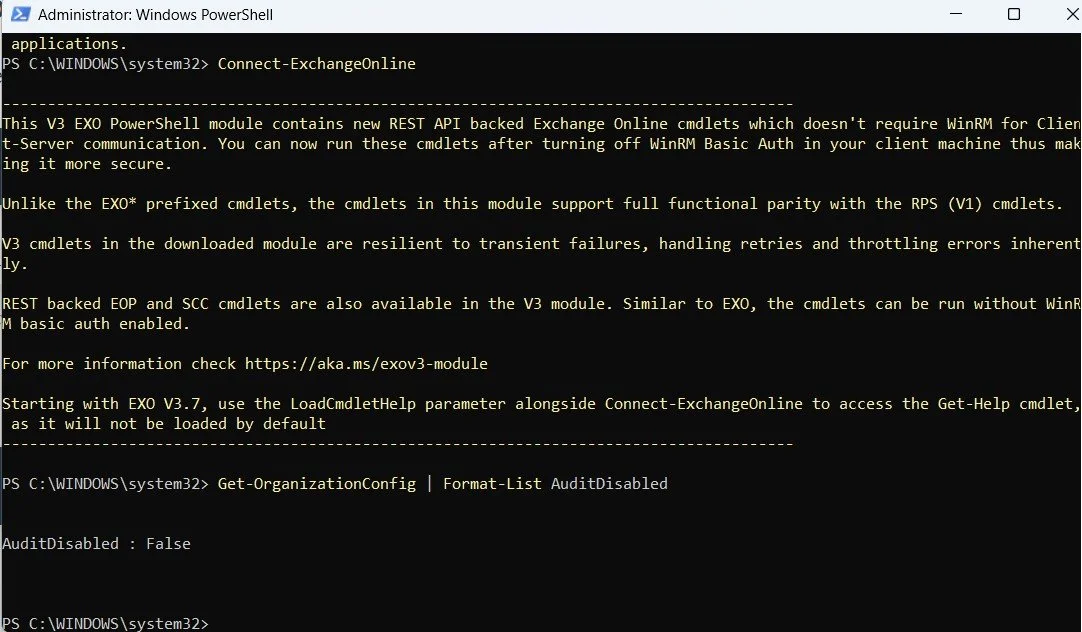
Screenshot 1: Verifying that organization-wide auditing is enabled.
Expected Output:
AuditDisabled : False
Step 3: Check the Audit Status of a Specific Mailbox
To see the audit configuration for a specific mailbox, use the
Get-Mailbox
cmdlet. This will show you whether the mailbox is using the default audit set.
Get-Mailbox -Identity "Tiago.Carvalho@tiagoscarvalho.com" | Format-List Name,AuditEnabled,DefaultAuditSet
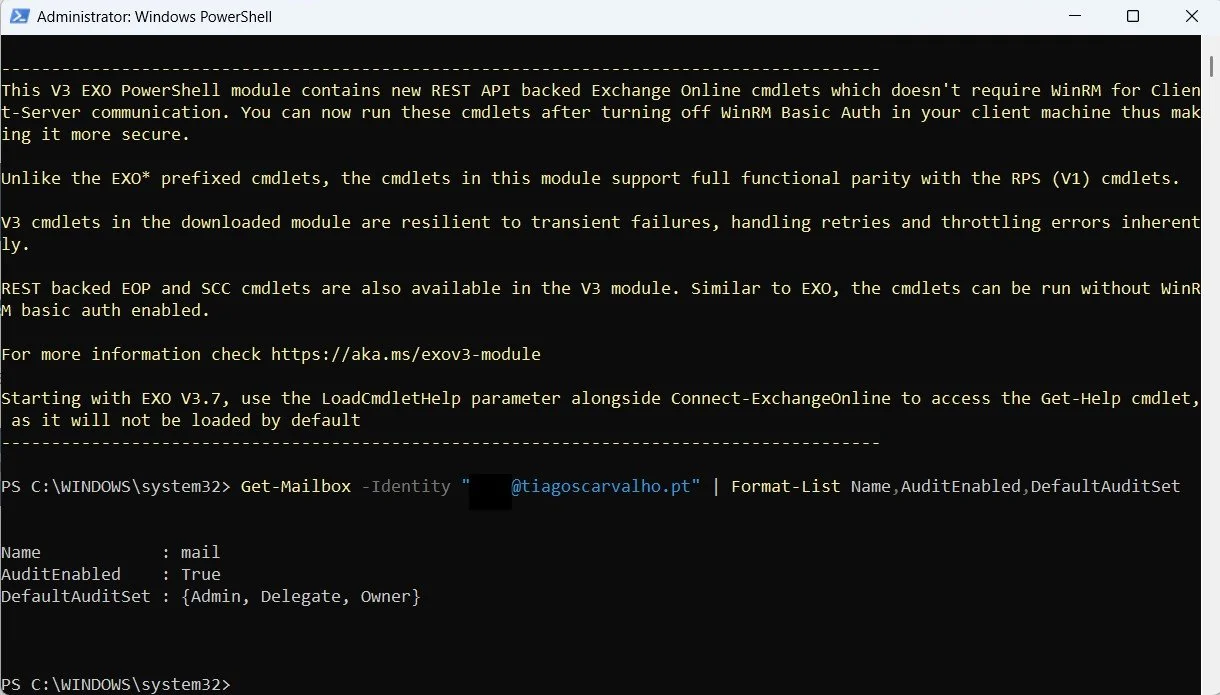
Screenshot 2: Checking the audit status of a specific mailbox.
Expected Output:
Name            : Tiago Carvalho
AuditEnabled    : True
DefaultAuditSet : {Admin, Delegate, Owner}
Step 4: View the Specific Actions Being Logged
You can view the exact actions being logged for each sign-in type. This is useful for verifying that the default actions meet your needs.
# View Admin actions
Get-Mailbox -Identity "Tiago.Carvalho@tiagoscarvalho.com" | Select-Object -ExpandProperty AuditAdmin

# View Delegate actions
Get-Mailbox -Identity "Tiago.Carvalho@tiagoscarvalho.com" | Select-Object -ExpandProperty AuditDelegate

# View Owner actions
Get-Mailbox -Identity "Tiago.Carvalho@tiagoscarvalho.com" | Select-Object -ExpandProperty AuditOwner
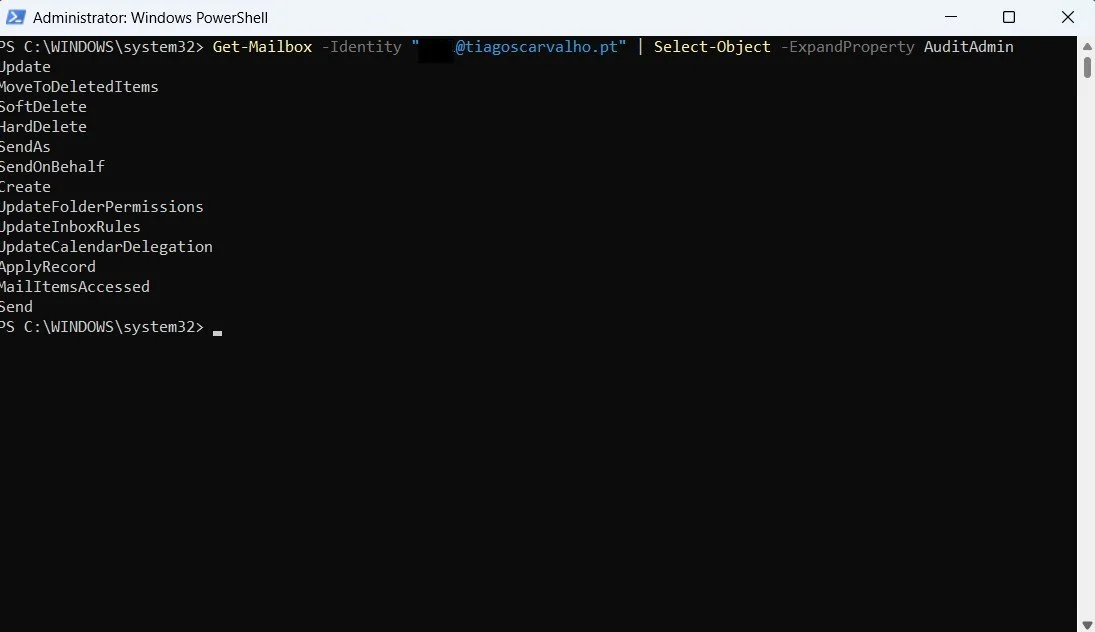
Screenshot 3: Viewing the specific audit actions being logged.
Step 5: Customize Audit Actions (If Necessary)
If you have a specific compliance requirement to log an action that is not enabled by default (e.g.,
MailboxLogin
for owners), you can add it to the audit set.
Use caution
when adding actions, as it can significantly increase the volume of audit logs.
# Example: Add MailboxLogin tracking for the owner
Set-Mailbox -Identity "Tiago.Carvalho@tiagoscarvalho.com" -AuditOwner @{Add="MailboxLogin"}
To restore a mailbox to the default Microsoft audit settings, use the
-DefaultAuditSet
parameter:
Set-Mailbox -Identity "Tiago.Carvalho@tiagoscarvalho.com" -DefaultAuditSet Admin,Delegate,Owner
Step 6: Configure Audit Bypass for Service Accounts
It is a best practice to prevent service accounts or automation scripts from generating unnecessary audit log noise. You can configure a bypass for specific accounts.
Set-MailboxAuditBypassAssociation -Identity "svc-automation@tiagoscarvalho.com" -AuditBypassEnabled $true
Step 7: Configure Audit Log Retention
The default retention period for audit logs is 90 days . For organizations with E5/A5/G5 licenses, this can be extended. You can configure retention policies in the Microsoft Purview compliance portal under Audit > Retention policies .
Searching and Analyzing Audit Logs
Audit logs can be searched and analyzed through the Microsoft Purview compliance portal or via PowerShell.
Using the Microsoft Purview Compliance Portal
- Navigate to the Microsoft Purview compliance portal .
- Go to Audit in the left navigation.
- On the Search tab, configure your search criteria:
- Activities: Select "Mailbox activities" to filter for Exchange-related events.
- Users: Specify the mailboxes you want to investigate.
- Date range: Define the time frame for your search.
- Review the search results in the portal or export them to a CSV file for further analysis.
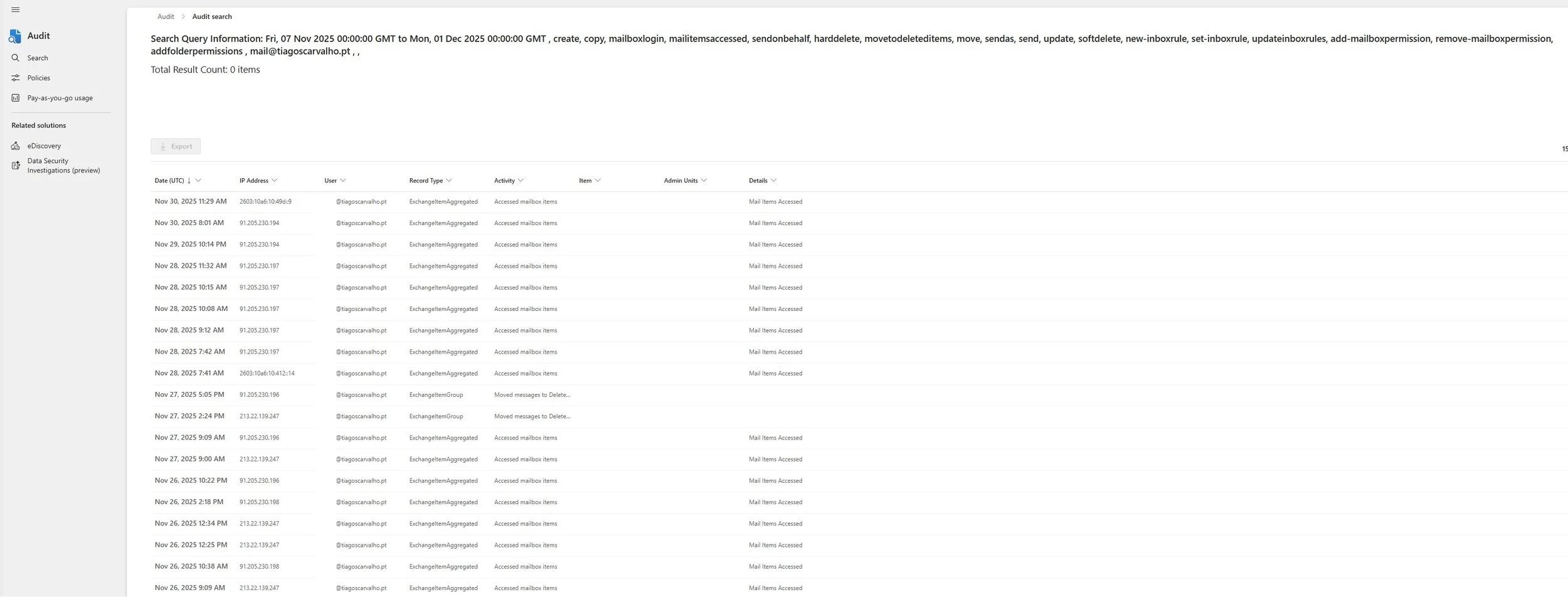
Screenshot 4: Searching for mailbox audit logs in the Microsoft Purview compliance portal.
Advanced Search with KQL
For even more powerful and flexible searches, you can use Kusto Query Language (KQL) directly in the Purview audit search. This allows you to build complex queries that are not possible with the standard UI filters.
After running a search in the Purview portal, click on "Search results" and then select the "KQL editor" to enter your query. This provides a much faster and more efficient way to sift through large volumes of logs.
Here is an example query to find all
HardDelete
events, projecting the results into a clean, readable format:
AuditLogs
| where RecordType == "ExchangeItem"
| where Operation == "HardDelete"
| project UserId, Operation, ItemName, MailboxOwnerUPN, Timestamp
Using PowerShell
For more advanced or automated searches, use the
Search-UnifiedAuditLog
cmdlet.
# Search for all HardDelete actions performed by Tiago.Carvalho in the last 7 days
Search-UnifiedAuditLog -StartDate (Get-Date).AddDays(-7) -EndDate (Get-Date) -RecordType ExchangeMailbox -Operations HardDelete -UserIds "Tiago.Carvalho@tiagoscarvalho.com"
Best Practices
- Stick to the Defaults: For most organizations, the default audit settings are sufficient and recommended by Microsoft.
- Customize with Caution: Only add new audit actions if required for specific compliance or investigative purposes.
- Bypass Service Accounts: Prevent unnecessary log noise by configuring audit bypass for automation and service accounts.
- Monitor Storage: Be aware that audit logs are stored in the Recoverable Items folder of each mailbox and count against the quota.
- Plan for Retention: Align your audit log retention policy with your organization's compliance and legal requirements.
Common Mistakes to Avoid
-
Enabling
FolderBindandMessageBindfor Owners: These actions generate a massive volume of logs from normal user activity, creating significant noise and consuming storage without providing much value for routine monitoring. - Disabling Organization-Wide Auditing: Turning off default auditing at the organizational level is strongly discouraged as it creates a significant security and compliance gap.
- Forgetting about Retention Limits: Ensure your retention policy meets your compliance needs. Data older than your retention period will be permanently deleted.
Licensing Considerations
| Feature | Standard Licenses (E1/E3) | Premium Licenses (E5/A5/G5) |
|---|---|---|
| Default Auditing | ✔ | ✔ |
| Audit Log Retention | 90 days | Up to 1 year (or 10 years with add-on) |
MailItemsAccessed
Action
|
✖ | ✔ |
Conclusion
Exchange Online Mailbox Auditing is a powerful and essential tool for maintaining a secure and compliant email environment. By leveraging the default, always-on auditing and understanding how to customize it for specific needs, administrators can gain valuable insights into mailbox activity, respond effectively to security incidents, and confidently meet regulatory requirements. By following the best practices outlined in this guide, you can build a comprehensive and manageable audit strategy that enhances the security posture of your Microsoft 365 tenant.
References
- Microsoft Learn: Manage mailbox auditing
- Action to Add:
MailboxLogin(Owner),Send(Owner),MessageBind(Owner). - Why: This provides a detailed log of when the user signs in, what they are viewing, and what they are sending, which can be critical evidence in a formal investigation.
- Action to Add:
FolderBind(Delegate, Admin),MessageBind(Delegate, Admin). - Why: Regulations may require proof that only authorized individuals accessed specific information. Logging folder and message access by delegates and admins provides this audit trail, demonstrating compliance during an external audit.
- Action to Add:
UpdateInboxRules(Owner),UpdateFolderPermissions(Owner). - Why: A common attack vector is to create a malicious inbox rule that auto-forwards sensitive emails to an external address. Auditing owner-level changes to inbox rules and folder permissions provides an early warning of potential account compromise.
When Should You Customize Auditing?
While the default audit settings are robust, certain scenarios demand more granular tracking. Customizing auditing should be a deliberate decision based on specific, high-value needs rather than a blanket policy. Here are three clear scenarios where customizing audit actions is justified:
1. Internal Investigations (HR and Legal Cases)
Scenario: An employee is involved in an HR investigation or legal dispute. The organization needs to monitor their mailbox activity for potential data exfiltration or inappropriate communication.
Customization:
2. Strict Regulatory Compliance
Scenario: Your organization operates in a highly regulated industry, such as finance (e.g., SEC, FINRA) or healthcare (e.g., HIPAA), which mandates the logging of all access to sensitive data.
Customization:
3. Enhanced Monitoring for VIP Mailboxes
Scenario: The mailboxes of C-level executives (CEO, CFO, etc.) contain highly sensitive company information, making them prime targets for sophisticated attacks like Business Email Compromise (BEC).
Customization:
Quick Troubleshooting
Even with a well-configured system, you might run into issues. Here’s a quick guide to troubleshooting common problems related to mailbox auditing.
| Symptom | Possible Cause | Solution |
|---|---|---|
| No audit logs are found for a mailbox. | The specific action is not being audited for that user type, or the search query is incorrect (e.g., wrong date range). |
Use
Get-Mailbox -Identity "user" | Select -ExpandProperty AuditAdmin
(or
AuditDelegate
/
AuditOwner
) to verify the audited actions. Double-check your search filters in Purview.
|
| Users receive a "Recoverable Items folder is full" warning. |
Excessive logging is enabled, most commonly
FolderBind
or
MessageBind
for the Owner, which generates massive log volume.
|
Revert the mailbox to the default audit set using
Set-Mailbox -Identity "user" -DefaultAuditSet Admin,Delegate,Owner
. Avoid enabling noisy actions unless essential for an investigation.
|
| Audit logs older than 90 days are missing. | Your organization's license does not support extended retention, or a specific audit log retention policy has not been configured. | Verify you have the necessary Microsoft 365 E5/A5/G5 licenses and configure a new retention policy in the Microsoft Purview portal under Audit > Retention policies . |