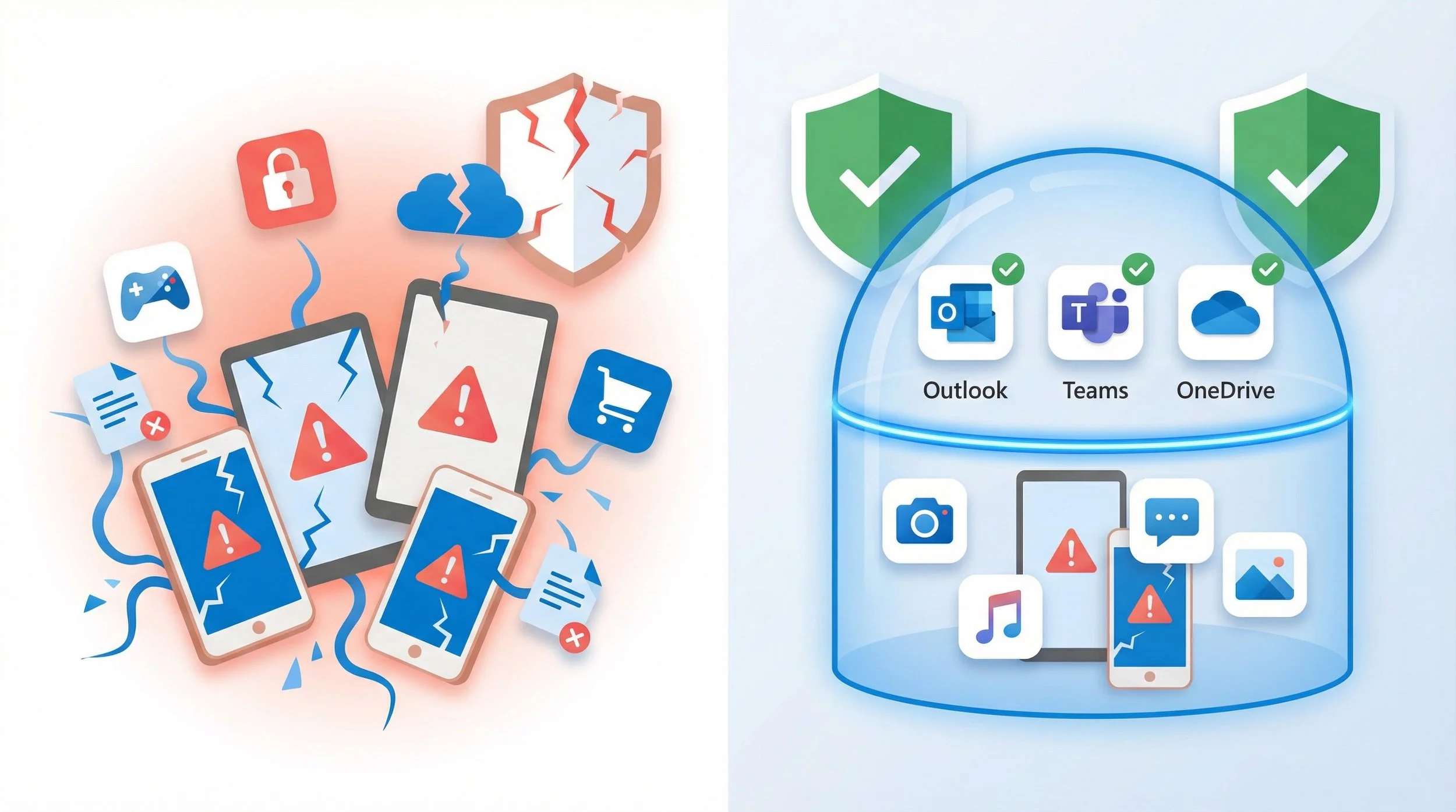
Every IT admin has faced this conversation: an executive wants to access a sensitive report on their personal iPad, but your security policy requires full device enrollment. The employee pushes back — "It's my device." This guide provides the solution: a practical, step-by-step approach to implementing a secure Bring Your Own Device strategy using Intune App Protection Policies (MAM), allowing you to prevent data leakage on unmanaged devices while fully respecting employee privacy concerns.
TL;DR for IT & Security Leaders
- → The Problem: Unmanaged BYOD creates a massive blind spot, exposing corporate data to leakage, theft, and compliance violations.
- → The Solution: Intune App Protection Policies (MAM) protect data within the app, not the device, creating a logical data boundary.
- → Key Principle: This MAM-WE (MAM without enrollment) model focuses on application-level controls without needing full MDM enrollment.
- → Core Enabler: Microsoft Entra Conditional Access is the enforcement engine — it ensures that access is granted only when the application is protected by an App Protection Policy.
- → The Goal: Enable secure productivity on unmanaged devices, reduce the attack surface, and respect employee privacy.
- → Zero Trust Alignment: MAM + CA creates a data control plane that combines identity, app, and data controls — the pillars of a modern Zero Trust architecture.
The Dilemma: Productivity vs. Data Sovereignty
Bring Your Own Device (BYOD) is the default operational model for many organizations. However, it introduces a critical risk. Imagine an employee copying sensitive financial data from an Excel file in the OneDrive app and pasting it into a personal note-taking app. Or using "Save As" to store a confidential report to their personal iCloud Drive. These simple actions — common data leakage vectors — are invisible to traditional security controls and happen every day on unmanaged devices.
💰 The Hidden Cost of Unsecured BYOD
The financial fallout from a data leak on a personal device goes far beyond the incident itself. Consider the cascading costs:
- Incident Response & Forensics: Investigating a breach on a device you don't own is a legal and technical nightmare.
- Regulatory Fines (GDPR, CCPA): Failing to protect data on any device, regardless of ownership, can result in severe penalties.
- Reputational Damage: A public data breach erodes customer trust and brand value.
- Intellectual Property Loss: Sensitive business strategies and customer lists can be exfiltrated with a single misplaced file or copy-paste action.
The Solution: A Zero Trust Data Control Plane
Instead of managing the device, Mobile Application Management (MAM) focuses on the data. Also known as App Protection Policies (APP), this model creates a secure container around corporate applications using the Intune SDK or app wrapping. This establishes a logical data boundary on the device, separating corporate and personal data at the application level. Only apps that integrate the Intune SDK (or are wrapped) can be protected — this is not a blanket control for every app on the device.

This approach allows IT to enforce security policies like requiring a PIN to open Outlook, preventing copy-paste from Teams to a personal app, or blocking "Save As" to personal storage. The employee's personal apps, photos, and data remain completely untouched. This aligns with a Zero Trust strategy that combines identity, app, and data controls into a unified data protection layer.
🔎 Why Security & Privacy Teams Embrace MAM
- Data-Centric Control: Policies are tied to the user identity and the app, not the hardware.
- Privacy by Design: IT has no visibility into personal content, personal apps, or personal data. Only corporate app data is managed.
- Granular DLP: Prevents common data leakage vectors — copy/paste, save-as, backups — between managed and unmanaged apps.
- Reduced Data Exposure: Reduces data exposure in scenarios of device compromise, as corporate data remains encrypted and contained within the logical boundary.
- MAM as DLP Layer: Think of MAM not as a mobile policy, but as a data protection strategy for unmanaged devices — a DLP layer that travels with the user.
✅ What This Model Does NOT Require
One of the most common objections to BYOD security comes from employees who fear invasive device controls. MAM-WE eliminates these concerns entirely:
- ✔ No full device enrollment — the device is never "managed" by IT.
- ✔ No device ownership transfer — the employee retains full control of their personal device.
- ✔ No invasive device controls — IT has no visibility into personal content, personal apps, browsing history, or location.
- ✔ No remote wipe of personal data — selective wipe only removes corporate app data, never personal content.
This is the message that drives user adoption: "We protect our data. We don't touch yours."
A Practical 4-Step Rollout Guide
📋 Prerequisites
Before starting, ensure the following are in place:
- Microsoft Intune license — required to create and assign App Protection Policies.
- Microsoft Entra ID P1 (or higher) — required for Conditional Access policies.
- Apps that support the Intune SDK — only apps that integrate the Intune App SDK or are wrapped with the Intune App Wrapping Tool can be protected. See the list of supported apps.
Reference: Microsoft Intune licensing
🔎 Step 1: Define Your Target Audience & Apps
Start with a pilot group and define the core Microsoft 365 apps that handle sensitive data. Identify the users most likely to access corporate resources from personal devices — typically executives, field workers, and remote employees.
✅ Pro Tip: Start with the Core Suite
Your initial scope should almost always include: Outlook, OneDrive, Teams, Word, Excel, and PowerPoint. These are the apps where the majority of data leakage risk exists on personal devices.
📝 Step 2: Create the App Protection Policy
Navigate to the Microsoft Intune admin center > Apps > App protection policies. Create a new policy for iOS/iPadOS or Android. Focus on the Data protection tab — this is where the DLP magic happens:

| Setting | Recommended Value | Why It Matters |
|---|---|---|
| Send org data to other apps | Policy managed apps | Prevents sharing corporate data to unmanaged apps |
| Restrict cut, copy, and paste | Policy managed apps with paste in | Blocks the copy-paste leakage vector |
| Save copies of org data | Block | Prevents "Save As" to personal storage (iCloud, Google Drive) |
| Backup org data to… iOS: iTunes/iCloud backups Android: Android backup services |
Block | Prevents corporate data from leaking into personal device backups |
❌ Common Mistake: Forgetting "Save copies of org data"
Many admins configure copy-paste restrictions but forget to block Save copies of org data. This leaves a wide-open door: users can still use "Save As" to store corporate files directly to personal cloud storage. Always block both vectors to complete your DLP narrative.
🚪 Step 3: Enforce Access with Conditional Access
An App Protection Policy without an enforcement engine is a passive control. It defines what should happen, but it cannot prevent a user from accessing corporate data through an unprotected app or browser. Microsoft Entra Conditional Access is the enforcement engine that closes this gap.
❌ Common Mistake: APP without Conditional Access
Deploying App Protection Policies without a corresponding Conditional Access policy is one of the most common oversights. Without CA, users can still access corporate data through unprotected apps or the native browser.
APP defines the data protection controls. Conditional Access enforces them. Without CA, APP is a passive control — it protects data inside managed apps, but cannot prevent access through unmanaged channels.
Navigate to the Microsoft Entra admin center > Protection > Conditional Access. Create a new policy:

| CA Policy Setting | Recommended Value | Notes |
|---|---|---|
| Assignments > Users | Pilot group (then expand) | Start with a targeted group for validation |
| Target resources | Microsoft 365 (recommended starting point) | Start with Microsoft 365 to minimize impact on legacy or incompatible apps. Expand to “All cloud apps” only after validating with well-designed exclusions (break-glass accounts, service principals, apps that don’t support APP). |
| Conditions > Device platforms | iOS and Android | Scope to mobile platforms where MAM applies |
| Grant | Require app protection policy AND Require approved client app |
Combining both grant controls provides stronger enforcement: “Require app protection policy” ensures data protection is active, while “Require approved client app” blocks access from unsupported apps and browsers. Use “Require one of the selected controls.” |
✅ Pro Tip: CA as Compliance Gating
Conditional Access ensures that access is granted only when the application is protected by an App Protection Policy. This transforms CA from a simple access gate into a compliance enforcement layer — users on unmanaged devices must use a protected app, or they simply cannot access corporate data.
Note: “Require approved client app” as a standalone grant control is being deprecated. However, when combined with “Require app protection policy” using “Require one of the selected controls,” it provides broader coverage by blocking access from apps and browsers that don’t support APP.
For scenarios where users access resources via a mobile browser, consider adding Session controls (Conditional Access App Control or App Enforced Restrictions) to extend protection to browser-based access.
⚠️ Expected User Prompts (Prepare Your Helpdesk)
When users first access corporate resources under this policy, they will encounter specific prompts. Communicate these proactively to reduce support tickets:
- Install a broker app: Users may be prompted to install Microsoft Authenticator (iOS) or Company Portal (Android) to complete Entra ID device registration and enable policy enforcement.
- Switch to a managed app: Users accessing email via the native Mail app or browser will be redirected to use Outlook, Teams, or OneDrive instead.
- Set an app PIN: On first launch of a protected app, users will be asked to create an app-level PIN or configure biometric access.
📈 Step 4: Monitor, Validate, and Expand
Deployment is only the beginning. Continuous monitoring ensures your policies are working as intended and identifies gaps before they become incidents.
Use the App Protection Status report in the Intune admin center and Entra ID sign-in logs to validate policy enforcement and user experience. Key monitoring actions include:
- App Protection Status Report: Navigate to Intune admin center > Apps > Monitor > App protection status to verify policies are applied to the correct users and apps.
- Conditional Access Insights: Use the Entra admin center > Protection > Conditional Access > Insights and reporting to review policy hit rates and failure reasons.
- Sign-in Logs: Review Entra ID sign-in logs to identify users who are being blocked or prompted, and validate that the user experience is smooth.
- Helpdesk Tickets: Monitor support tickets related to app access issues to catch edge cases early.
✅ Pro Tip: Phased Expansion
Once your pilot group is validated (typically 2–4 weeks), expand the policy in phases: first to all remote workers, then to the broader organization. Use Report-only mode in Conditional Access before enforcing to preview the impact without blocking users.
MAM vs. MDM: When to Use Each
| Capability | MAM (App Protection) | MDM (Device Management) |
|---|---|---|
| Device enrollment required | ❌ No | ✅ Yes |
| Data leakage prevention (DLP) | ✅ Yes (app-level) | ✅ Yes (device-level) |
| Wi-Fi / VPN profile deployment | ❌ No | ✅ Yes |
| Device-level certificates | ❌ No | ✅ Yes |
| OS compliance enforcement | ❌ No | ✅ Yes |
| Employee privacy preserved | ✅ Full privacy | ⚠ Limited (IT has device visibility) |
| Best for | Personal BYOD devices | Corporate-owned devices |
💡 When MAM is NOT Enough
MAM is a data protection strategy, not a full device management solution. There are scenarios where you still need MDM capabilities:
- ⚠ Deploying Wi-Fi or VPN profiles to connect to corporate networks.
- ⚠ Pushing device-level certificates for authentication or encryption.
- ⚠ Enforcing OS-level compliance (minimum OS version, disk encryption, jailbreak detection at device level).
- ⚠ Managing non-Microsoft apps that don't support the Intune SDK.
App Protection Policies protect data within apps. Device Compliance Policies validate device health and configuration. They serve different purposes and can be combined for corporate devices, but for personal BYOD, MAM is the appropriate and privacy-respecting choice.
From Device Management to Data Protection
BYOD no longer needs to be a battle between security and privacy. By shifting the focus from device control to data protection, you empower productivity while ensuring corporate data remains protected, private, and compliant — regardless of who owns the device.
MAM is a data protection strategy, not just a mobile policy. It is a core tenet of a modern, Zero Trust security architecture.
References
[1] Microsoft Learn: App protection policies overview — Microsoft Intune
[2] Microsoft Learn: Require an app protection policy on mobile devices — Microsoft Entra
[3] Microsoft Learn: How to monitor app protection policies — Microsoft Intune
[4] Microsoft Learn: Data protection framework using app protection policies
[5] Microsoft Learn: Grant controls in Conditional Access policy — Microsoft Entra
[6] Microsoft Learn: Conditional Access with Microsoft Intune
[7] Microsoft Learn: Microsoft Intune licensing
Join the Conversation
Have you implemented MAM-WE in your organization? What were your biggest challenges with BYOD security and employee privacy concerns? Share your story in the comments below.