With the rise of Apple devices in the workplace, Small and Medium-sized Businesses (SMBs) face a critical challenge: securing corporate data without compromising the user experience. This comprehensive guide provides a clear, step-by-step path to mastering iOS and iPadOS management using the powerful tools you likely already own with Microsoft 365.

Step 1: The Foundation – Apple MDM Push Certificate
Before you can manage any Apple device, there is a non-negotiable first step: creating and configuring the Apple MDM Push Certificate (APNs). This certificate is the secure bridge that allows Intune to communicate with your iPhones and iPads. Without it, your Intune environment is effectively blind to any Apple product. This communication is essential for sending policies, commands, and app deployment instructions to your devices.
The APNs certificate establishes a trusted relationship between your Intune tenant and Apple's Push Notification Service. Every time you want to send a configuration, check compliance, or deploy an app, that instruction flows through this certificate. It's the foundation upon which all iOS management is built.
This certificate is free and valid for one year. It is crucial to renew it annually to maintain management of your devices. Use a corporate Apple ID (e.g., it.admin@yourcompany.com), not a personal one, to ensure long-term access for renewal. Failure to renew before expiration will require you to re-enroll all existing Apple devices, a significant administrative burden.
How to Configure the APNs Certificate:
- Navigate to the Microsoft Intune admin center.
- Go to Devices > iOS/iPadOS > iOS/iPadOS enrollment.
- Select Apple MDM Push Certificate and follow the wizard.
- Download the Certificate Signing Request (CSR) file from Intune.
- Navigate to the Apple Push Certificates Portal and sign in with your corporate Apple ID.
- Upload the CSR file to Apple's portal and download the resulting certificate (.pem file).
- Return to the Intune portal and upload the certificate you received from Apple.
Once uploaded, your APNs certificate status will show as active, and you're ready to begin enrolling devices. Remember to set a calendar reminder for renewal 30 days before expiration to avoid any service disruption.
Step 2: Choosing the Right Enrollment Strategy
For an SMB, the enrollment strategy depends on who owns the device. Each scenario has a tailored approach that balances security with user experience. Understanding the difference between these two models is critical to implementing the right solution for your organization.
Scenario A: Personal Devices (BYOD) - The User Experience
This is the most common model in SMBs. Employees use their personal iPhones and iPads to access company email, files, and applications. The enrollment process for BYOD is designed to be user-friendly and privacy-respecting.
The user experience is simple: they download the Intune Company Portal app from the App Store, sign in with their corporate credentials, and follow the prompts. This method respects user privacy while giving IT the necessary control over corporate data. The enrollment process is transparent, informing the user exactly what the organization can and cannot see on their device.
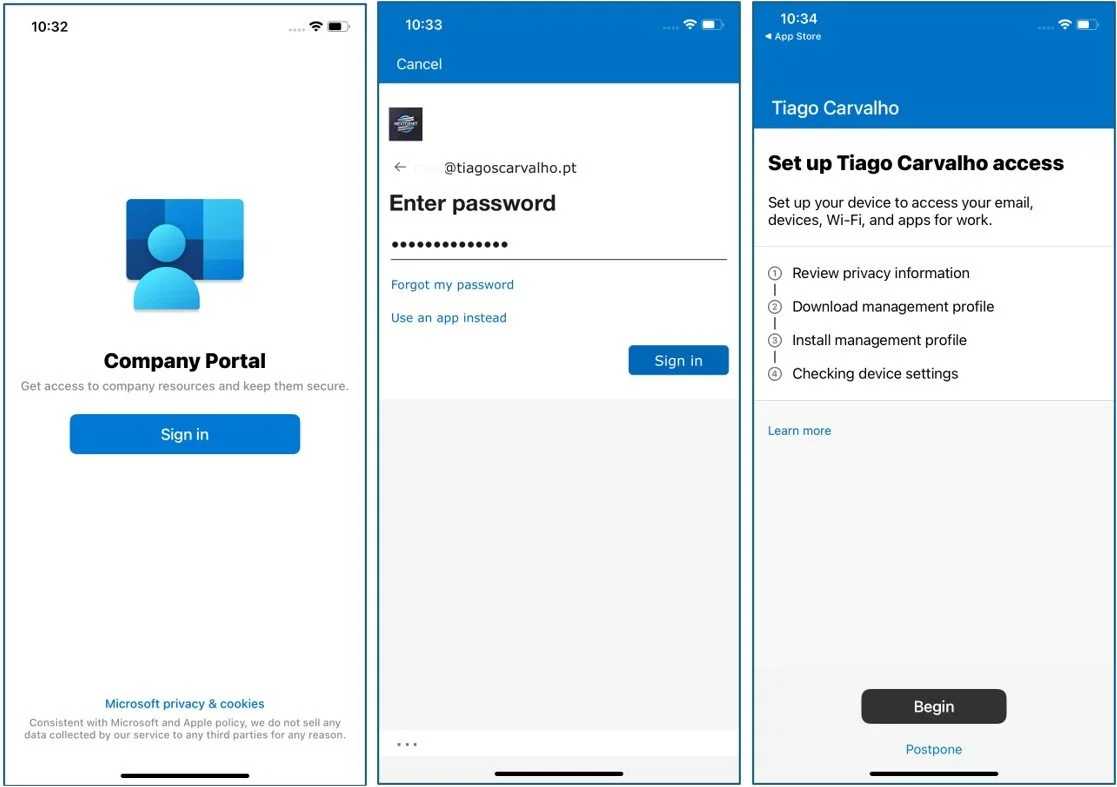
As shown above, the user is guided through a transparent process where they are informed about what the organization can and cannot see on their device, building trust and encouraging adoption. This transparency is key to successful BYOD adoption, as employees are more likely to enroll when they understand that their personal data remains private.
Scenario B: Company-Owned Devices (ADE)
If your company provides devices to employees, Automated Device Enrollment (ADE) is the gold standard. Formerly known as the Device Enrollment Program (DEP), ADE provides a "zero-touch" experience where devices are automatically enrolled and configured right out of the box.
This requires an account in Apple Business Manager (ABM), which also serves as the hub for purchasing apps in volume through the Volume Purchase Program (VPP). While the initial setup of ABM requires coordination with Apple or an authorized reseller, the long-term benefits are substantial: devices can be pre-configured, apps can be silently installed, and the entire provisioning process can be automated.
With ADE, when an employee unboxes a new iPhone or iPad, the device automatically connects to your Intune environment during the setup assistant. The user is guided through a customized setup experience, and by the time they reach the home screen, all corporate apps, Wi-Fi profiles, and security policies are already in place.
At a Glance: BYOD vs. Corporate-Owned
Choosing the right strategy is crucial. This table summarizes the key differences to help you decide which approach best fits your organization's needs.
| Feature | BYOD (User Enrollment) | Corporate-Owned (ADE) |
|---|---|---|
| Ownership | Employee-owned | Company-owned |
| Enrollment Method | Company Portal App | Automated (out-of-box) via ABM |
| Level of Control | Limited to corporate data/apps | Full device control (Supervised) |
| User Experience | User-initiated, privacy-focused | Seamless, zero-touch setup |
| App Deployment | Users install from Company Portal | Apps can be silently pushed |
| Best For | Flexibility, cost-saving, user choice | Standardization, high security needs |
Step 3: Defining Security Rules
With devices ready for enrollment, the next step is to define your security standards through policies. This is where you translate your organization's security requirements into enforceable rules.
Compliance Policies: Defining a "Secure" Device
A compliance policy sets the minimum security baseline a device must meet to access corporate resources. If a device falls out of compliance—for example, if the user disables their passcode or jailbreaks the device—access can be automatically blocked. This is a cornerstone of a Zero Trust architecture, where trust is never assumed and always verified.
| Category | Setting | Recommended Value |
|---|---|---|
| Device Health | Jailbroken devices | Block |
| Device Properties | Minimum OS version | 16.0 (or latest supported) |
| System Security | Require a password to unlock mobile devices | Require |
| Simple passwords | Block |
|
| Minimum password length | 6 |
|
| Required password type | Alphanumeric |
Configuration Profiles: Automating Device Settings
Configuration profiles push settings to devices automatically, saving time and ensuring consistency across your fleet. Rather than relying on users to manually configure settings, you can deploy profiles that handle this automatically. Common examples include:
- Wi-Fi Profiles: Automatically configure devices to connect to the corporate Wi-Fi network, removing the need for users to manually enter passwords. This is especially useful for networks that use certificate-based authentication.
- Email Profiles: Pre-configure the native Mail app with the user's corporate email account, including server settings, authentication, and security policies.
- VPN Profiles: Deploy VPN configurations that allow users to securely access internal resources when working remotely.
- Device Restrictions: Disable features like the camera, AirDrop, or installing apps from the App Store on corporate devices to meet compliance requirements.
Step 4: Application Management and Protection
Device management is incomplete without application management. After all, users don't interact with policies—they interact with apps. Intune provides robust tools for both deploying and securing apps.
App Protection Policies (APP): The Key to BYOD Security
This is arguably the most powerful feature for SMBs. App Protection Policies (APP) safeguard your company's data inside of applications, regardless of whether the device itself is fully managed. This allows you to protect corporate data even on personal devices, making it the cornerstone of any BYOD strategy.
With an App Protection Policy, you can prevent users from copying data from their corporate Outlook to a personal Gmail account, block screenshots of sensitive data, and require a PIN to open corporate apps, ensuring your information remains secure within its designated boundary.
App Protection Policies work by creating a secure container around managed apps. Data can flow freely between managed apps (Outlook to OneDrive, for example), but cannot be copied or shared with unmanaged apps. This ensures that corporate data remains under your control, even on a device you don't fully manage.
Best Practices and Next Steps
Implementing the basics is a great start, but to truly mature your iOS management practice, consider these best practices that will take your security posture to the next level.
1. Create Dynamic Groups for iOS/iPadOS Devices
Instead of manually assigning devices to groups, create dynamic Entra ID groups based on device properties. This ensures that all iOS and iPadOS devices automatically receive the correct policies without any manual intervention. Use a membership rule like (device.deviceOSType -eq "iOS") -or (device.deviceOSType -eq "iPadOS") to automatically include all Apple mobile devices.
Dynamic groups scale effortlessly as your fleet grows. When a new device enrolls, it's automatically added to the appropriate group and receives all the necessary policies within minutes.
2. Use App Protection Policies on ALL Devices
Don't assume that corporate-owned devices are immune to data leakage. Apply App Protection Policies to both BYOD and corporate devices to create a consistent layer of data security across your entire fleet. This defense-in-depth approach ensures that even if a device is compromised, your data remains protected at the application layer.
3. Implement Recommended Conditional Access Rules for iOS
Conditional Access is the final gatekeeper that ties everything together. Create rules that ensure only trusted users, on compliant devices, using protected apps, can access your data:
- Rule 1: Require MFA for all users on iOS/iPadOS. Multi-factor authentication is the most effective defense against credential theft.
- Rule 2: Require devices to be marked as compliant. This ensures that only devices meeting your security baseline can access corporate resources.
- Rule 3: Require approved client apps (e.g., Outlook Mobile) and App Protection. This prevents users from accessing corporate data through unmanaged apps.
These three rules create a powerful security framework that protects your data without creating friction for your users.
Conclusion: iOS Management, Demystified
Managing iPhones and iPads in your SMB doesn't have to be a daunting task. By following these foundational steps—configuring the APNs certificate, choosing the right enrollment strategy, defining clear security policies, protecting applications, and implementing best practices—you can build a robust and secure mobile device management practice that rivals enterprise-level security.
Microsoft Intune provides enterprise-grade tools in an accessible package, empowering any SMB to protect its data in the modern, mobile-first world. The key is to start with the fundamentals, build incrementally, and continuously refine your approach based on your organization's evolving needs.