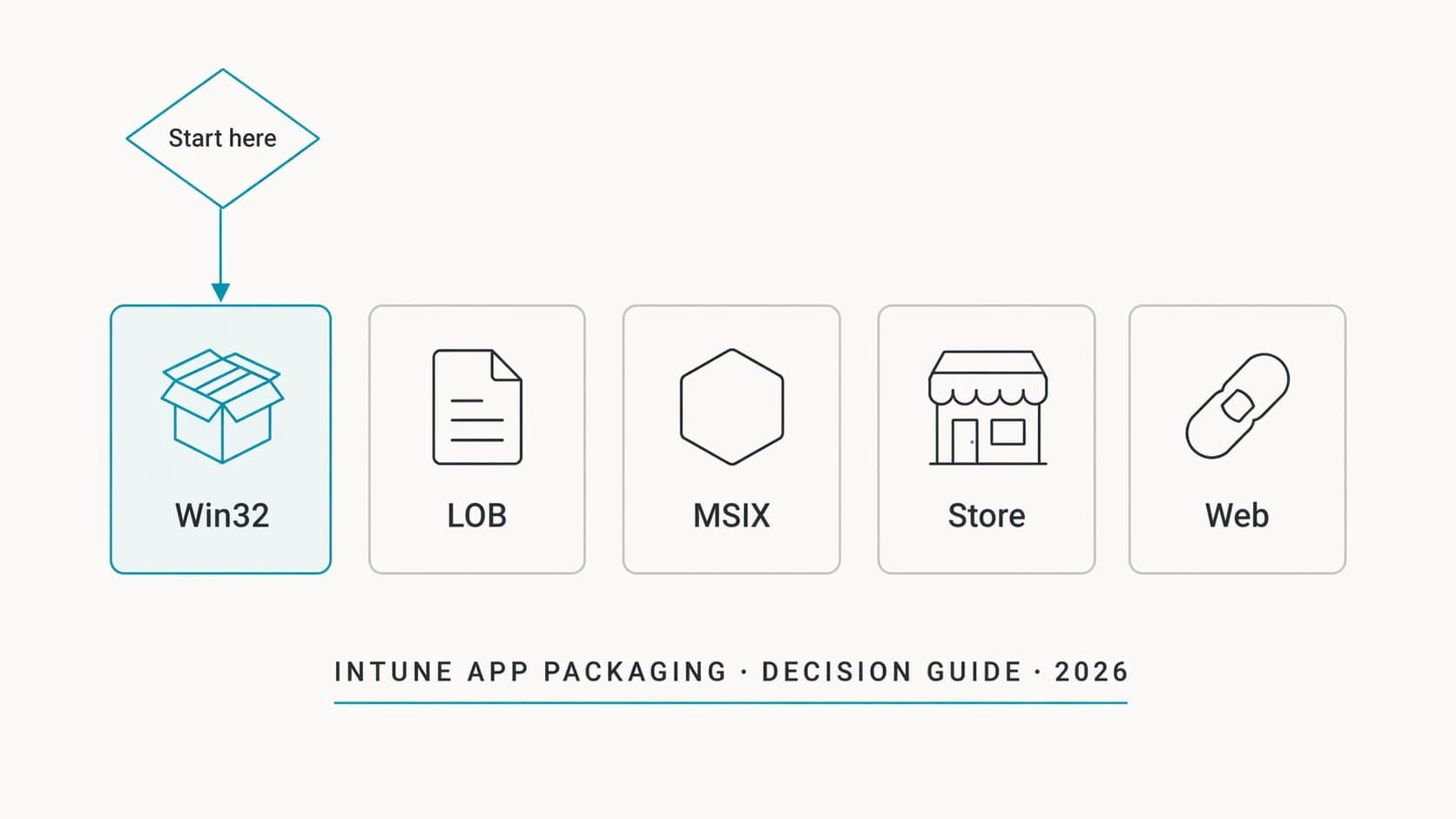
Five app types in the Intune admin center. Microsoft documents each one separately, but there is no single decision guide that makes the choice obvious in day-to-day admin work. Every admin figures it out the hard way after a failed deployment and two hours reading logs.
Published April 2026 · 20 min read
Contents
- The problem: too many app types, not enough clarity
- The five app types explained
- Decision table: which type for which scenario
- Win32 apps: the packaging workflow
- Detection rules: the part that breaks everything
- Supersedence and dependencies
- Microsoft Store apps and winget integration
- PSADT: when you need more than a silent install
- The 32-bit trap and other gotchas
- Common packaging mistakes
- What I would do first in an SMB tenant this week
- App packaging audit checklist
Win32 is the default choice for most app deployments in Intune. It supports detection rules, dependencies, supersedence, requirements rules, and custom install/uninstall commands. If you're unsure which type to use, start here.
LOB (Line-of-Business) is a simpler path for single-file MSI or MSIX packages that don't need custom logic. But it lacks detection rules, supersedence, and dependencies. For anything beyond a straightforward silent MSI, Win32 is better.
Microsoft Store apps (via winget) are now a real option for common tools. Auto-updates, no packaging needed, and the catalogue covers many common tools. But you trade control for convenience.
Detection rules are where most deployments fail. The app installs fine, but Intune reports "Not detected" because the detection rule doesn't match the actual install outcome. Getting detection right is more important than getting the install command right.
The Problem: Too Many App Types, Not Enough Clarity
Open the Intune admin center, go to Apps > Windows, and click Add. You see at least five options: Microsoft Store app (new), Windows app (Win32), Line-of-business app, Microsoft 365 Apps, and Web link. For MSIX, you upload it as either a LOB app or wrap it as Win32. For an EXE installer, you must use Win32. For a plain MSI, you can use either LOB or Win32, and the choice matters more than it looks.
Microsoft's documentation explains each type individually, but there is no single page that tells you: given this installer, this use case, and these requirements, use this type. So every admin builds their own mental model through trial and error. Someone deploys an MSI as LOB, it works, but then they need to update it and discover there is no supersedence for LOB apps. Someone else packages an EXE as Win32, forgets to set the right detection rule, and spends an afternoon staring at the IntuneManagementExtension log trying to figure out why Intune says "Not detected" on a machine where the app is clearly installed.
This article is the decision guide I wish existed when I started deploying apps through Intune. It covers when to use each type, how to package Win32 apps properly, how to write detection rules that actually work, and the gotchas that catch everyone at least once.
This article is for you if...
You deploy applications through Intune and you've ever been unsure which app type to pick, had a detection rule fail, or lost time debugging a deployment that worked locally but not through Intune. Whether you manage 20 devices or 2,000, the decisions are the same.
This article is not...
A guide to mobile app deployment (iOS, Android). Not a deep dive on Microsoft 365 Apps deployment (that's its own topic). The focus is Windows application packaging and deployment through Intune.
The Five App Types Explained
Before the decision table, here is what each type actually is and what it can and can't do.
Win32 apps
This is the most capable app type in Intune. You take your installer (MSI, EXE, or a folder of files), run it through the IntuneWinAppUtil packaging tool to produce an .intunewin file, and upload it. From there you get full control: custom install and uninstall commands, detection rules (file, registry, MSI code, or PowerShell script), requirements rules (OS version, disk space, architecture), dependencies on other Win32 apps, and supersedence for version updates or app replacement.
Win32 is the closest thing Intune has to the SCCM Application Model. If you've worked with ConfigMgr before, this will feel familiar. If you haven't, it's worth learning because it covers about 90% of the app deployment scenarios you'll face.
Line-of-Business (LOB) apps
LOB is the simpler path. You upload a single file (MSI, MSIX, MSIXBUNDLE, APPX, or APPXBUNDLE) directly to Intune without any wrapping tool. Intune handles the silent install. For MSI files, it runs msiexec /i with the quiet flag. For MSIX, it sideloads the package.
The trade-off is significant: no custom detection rules (Intune uses the MSI product code or MSIX package identity), no dependencies, no supersedence, and no custom install parameters, no transforms (.mst), and none of the administrative control that Win32 gives you over the install sequence. If your MSI needs custom properties, a transform, or any pre/post-install logic, LOB won't cover it. You need Win32.
Microsoft Store apps (winget)
The new Microsoft Store integration in Intune uses the Windows Package Manager (winget) under the hood. You search for an app in the Intune admin center, select it, assign it to a group, and Intune handles the rest. No packaging. No installer files. The catalogue covers many common tools such as 7-Zip, Notepad++, VLC, Google Chrome, and many others.
The big advantage is auto-updates: once deployed, the app updates itself through the Store without any admin intervention. The trade-off is less control. You can't customise the install, you can't control the exact version (you get whatever is current in the winget repository), and you can't add custom detection logic. For common utilities where you just need the app installed and updated, this is the fastest path.
MSIX
MSIX is Microsoft's modern application packaging format. It runs in a container, installs cleanly, uninstalls completely, and supports features like auto-repair and user-initiated reset. You can deploy MSIX through Intune as a LOB app (direct upload) or wrap it as a Win32 app if you need detection rules or dependencies.
In practice, most commercial software vendors don't ship MSIX packages yet. If your vendor provides an MSIX, it's a good format. If they provide an EXE or MSI, converting to MSIX is possible but adds packaging complexity that may not be worth it unless you have a specific reason (S-mode devices, containerised install/uninstall, self-service repair).
Web links
Not really an "app" in the traditional sense. A web link adds a shortcut to the Start menu or desktop pointing to a URL. It's useful for web apps (SaaS tools, internal portals), but there's no installer, no detection, and no real management. Mentioning it here for completeness.
Decision Table: Which Type for Which Scenario
| Scenario | Use this type | Why |
|---|---|---|
| EXE installer (any complexity) | Win32 | LOB doesn't support EXE files. Win32 is the only option. |
| MSI with custom properties, transforms (.mst), or specific flags | Win32 | LOB only runs a basic msiexec /i. Custom parameters require Win32. |
| Simple MSI with no custom logic needed | LOB or Win32 | LOB works for a quick deploy. But if you think you'll need to update this app later, start with Win32 so you have supersedence from the beginning. |
| Common utility (Chrome, 7-Zip, VLC, Notepad++, etc.) | Microsoft Store (winget) | No packaging needed. Auto-updates. If the app is in the winget catalogue and you don't need to pin a specific version, this is the fastest path. |
| App that must stay on a specific version (regulated environment, compatibility) | Win32 | Microsoft Store doesn't let you pin versions. Win32 gives you full control over which version is deployed and when updates happen. |
| MSIX package from the vendor | LOB (simple) or Win32 (if you need detection/dependencies) | MSIX as LOB is the simplest path if no custom logic is needed. Wrap as Win32 if you need supersedence or dependencies. |
| Multi-file installer (EXE + config files + scripts) | Win32 | IntuneWinAppUtil packages the entire folder. LOB only handles single files. |
| App requires a prerequisite (e.g. .NET runtime, Visual C++ Redistributable) | Win32 with dependency | Win32 dependency chains let you declare that App A requires App B. Intune installs B first. LOB and Store don't support this. |
| Replacing an older app version with a new one | Win32 with supersedence | Supersedence lets you upgrade or replace an existing Win32 app. Neither LOB nor Store support this workflow. |
| Web-based SaaS tool (no local install) | Web link | Just a shortcut. No installer to manage. |
.intunewin package, and that takes about 30 seconds per app. Starting with Win32 saves you from having to re-package later when you discover you need detection rules or supersedence.
Win32 Apps: The Packaging Workflow
The Win32 packaging process has three stages: prepare, package, and upload. Here's each one in enough detail that you can follow it without guessing.
1. Prepare your source folder
Create a folder with everything the installer needs. The EXE or MSI, any configuration files, any transform files, and any scripts you want to run. Keep the structure flat if possible. Use short folder paths to avoid issues with path length limits in the packaging tool.
2. Package with IntuneWinAppUtil
Download the Microsoft Win32 Content Prep Tool from GitHub. Run it from the command line:
-cis the source folder containing all your files.-sis the main setup file (the one Intune will execute).-ois the output folder where the.intunewinfile will be created.
The tool compresses everything in the source folder into a single encrypted .intunewin file. This is what you upload to Intune.
3. Upload and configure in Intune
Intune admin center: Apps > Windows > Add > Windows app (Win32)
Upload the .intunewin file, then configure:
- Install command: The full silent install command. For MSI:
msiexec /i "7z2409-x64.msi" /qn. For EXE: whatever the vendor documents as the silent switch (usually/S,/silent,/quiet, or/verysilent). - Uninstall command: The full silent uninstall command. For MSI:
msiexec /x "{product-code}" /qn. For EXE: check the vendor docs. - Install behavior: System (installs for all users, runs as SYSTEM) or User (installs for the signed-in user). Most apps should be System.
- Requirements: Minimum OS version, architecture (64-bit or 32-bit), disk space. Set these to avoid deploying an app to a device that can't run it.
- Detection rules: How Intune knows whether the app is already installed. This is the most important part. See the next section.
Detection Rules: The Part That Breaks Everything
If there is one section of this article you read carefully, make it this one. Detection rules are the number one cause of app deployment confusion in Intune. The app installs successfully, the user has it on their desktop, and Intune reports "Not detected." Or the app fails to install, and Intune reports "Installed" because the detection rule found a leftover file from a previous version.
Understanding what happens: after the install command runs, the Intune Management Extension evaluates the detection rule. If the rule finds what it's looking for, the app is "detected" (installed). If not, it's "not detected." There is no connection between the exit code of the installer and the detection result. They're independent checks.
Detection rule types
| Type | How it works | Best for | Watch out for |
|---|---|---|---|
| MSI product code | Checks the Windows Installer database for a specific product code (GUID) | MSI installations. Simple and reliable if the product code doesn't change between versions. | Some vendors change the product code with every minor update. If you need version-specific detection, add a version check. |
| File | Checks for a file or folder at a specific path. Can check existence, version, size, or modified date. | EXE installations. Most reliable when you check the main executable's version number. | Use the full path to the exact file. Don't rely on file existence alone if multiple versions could leave the file in place. Check the version. |
| Registry | Checks for a registry key or value. Can check existence, string match, integer comparison. | Apps that write a version number or uninstall entry to the registry. | Be specific about the registry hive (HKLM vs HKCU). For system installs, use HKLM. Check whether the app writes to the 32-bit or 64-bit registry view. |
| PowerShell script | Runs a custom script. If the script exits with code 0 and writes output to STDOUT, the app is detected. | Complex scenarios where file/registry checks aren't sufficient. Multiple conditions. Version parsing. | The script runs in a 32-bit PowerShell context by default. If you're checking 64-bit paths or registry keys, you need to handle this in the script or toggle the 64-bit option. |
The detection rule I use most often
For the majority of apps, I use a file-based detection rule that checks the version of the main executable. Example for 7-Zip:
- Path:
C:\Program Files\7-Zip - File:
7zFM.exe - Detection method: Version. Operator: greater than or equal to. Value:
24.09
This approach survives minor updates (the version goes up, the rule still matches) and doesn't break if the product code changes. It also gives you a clear upgrade path when you deploy a newer version: the new detection rule checks for the new minimum version.
Supersedence and Dependencies
These are two features that only Win32 apps support, and they're the main reason I recommend Win32 over LOB for anything you plan to update.
Supersedence: updating or replacing apps
Supersedence tells Intune: "This new app replaces that old app." When Intune evaluates the assignment, it checks whether the old app is present, and if so, it either upgrades in place or uninstalls the old one first, depending on your configuration.
The key toggle is "Uninstall previous version":
- Disabled (update): Intune runs the new installer on top of the old one. Good for apps that handle in-place upgrades (most MSIs do this natively).
- Enabled (replace): Intune uninstalls the old app first, then installs the new one. Use this when the new app is fundamentally different or when the vendor's installer doesn't handle upgrades cleanly.
Dependencies: install prerequisites first
Dependencies tell Intune: "Before you install App A, make sure App B is installed." If App B isn't present, Intune installs it first. Common use cases: deploying the .NET runtime before a .NET app, or deploying the Visual C++ Redistributable before a C++ application.
Dependencies can resolve across assignments, but how Intune evaluates them depends on the relationship model and the assignment context. In practice, the prerequisite app does not always need to be assigned to the same group, but you should test the specific combination in your environment rather than assuming it will resolve silently. The safest approach is to assign the dependency app explicitly, even if Intune can sometimes pull it in on its own.
Microsoft Store Apps and Winget Integration
The old Microsoft Store for Business is retired. The new integration works directly from the Intune admin center and uses the winget package repository.
Intune admin center: Apps > Windows > Add > Microsoft Store app (new)
Search for the app, select it, assign it to a group, and you're done. No packaging, no detection rules, no install commands. Intune handles everything through winget.
When Store apps work well
- Common utilities where you want auto-updates: browser, PDF reader, compression tool, media player, terminal emulator
- Apps where you don't need to pin a specific version
- Environments where simplicity matters more than granular control
- Company Portal self-service: users can browse and install available apps without admin intervention
When Store apps don't work
- Regulated environments where you need to control exactly which version is deployed
- Apps that aren't in the winget catalogue (internal tools, niche vendor software)
- Scenarios where you need custom install parameters or post-install configuration
- Deployments that require dependencies or supersedence chains
PSADT: When You Need More Than a Silent Install
The PowerShell App Deployment Toolkit (PSADT) is an open-source framework for wrapping application installers with custom logic. It sits between the installer and Intune, giving you control over things that a plain silent install doesn't handle: pre-install checks, prompting the user to close running applications, custom logging, reboot management, and post-install configuration.
When you need PSADT
- The app requires a running process to be closed before install (and you want to warn the user instead of just killing it)
- You need to run pre-install or post-install scripts (registry changes, config file edits, service restarts)
- The vendor's installer has quirks that need workarounds (non-standard exit codes, reboot requirements that shouldn't be honoured, setup dialogs that won't suppress cleanly)
- You want consistent logging across all your app deployments
How it works with Intune
You download the PSADT framework, copy your installer into the Files folder, edit the Deploy-Application.ps1 script to define your install/uninstall logic, and then package the whole thing with IntuneWinAppUtil. In Intune, the install command is Deploy-Application.exe and the uninstall command is Deploy-Application.exe -DeploymentType Uninstall.
C:\Windows\Logs\Software. If you change the log path to C:\ProgramData\Microsoft\IntuneManagementExtension\Logs, you can collect PSADT logs remotely from the Intune portal alongside the standard IME logs. This saves a lot of time when troubleshooting deployments on remote devices.
The 32-bit Trap and Other Gotchas
These are the things that catch nearly everyone at least once. They're documented if you know where to look, but they're not obvious from the Intune UI.
The 32-bit execution context
In practice, many Win32 deployment scenarios through the Intune Management Extension behave in a 32-bit process context on 64-bit Windows. Unlike SCCM, which gives you a checkbox to choose, Intune does not offer an explicit option to control this. You need to validate paths, registry views, and SysNative usage carefully.
What this means in practice: when you test an installer locally from an elevated command prompt, it runs as 64-bit. Everything works. When the same package runs through Intune, the process is 32-bit. The command prompt resolves C:\Windows\System32 to C:\Windows\SysWOW64. 64-bit executables in System32 aren't found. Registry paths resolve to the WOW6432Node. File system redirection kicks in.
The fix: use the SysNative alias in your install commands to force 64-bit execution. For example, if your script calls %SystemRoot%\System32\WindowsPowerShell\v1.0\powershell.exe, change it to %SystemRoot%\SysNative\WindowsPowerShell\v1.0\powershell.exe. This tells the 32-bit process to reach the real 64-bit System32 folder.
Detection runs in SYSTEM context, even for user installs
If you deploy a Win32 app with install behavior set to "User," you might expect the detection rule to also run in the user's context. It doesn't. Detection always runs as SYSTEM. This means registry checks against HKCU won't find what you expect, and file checks in user profile paths may not resolve correctly. For user-context apps, use detection rules that check locations accessible to SYSTEM, or use a PowerShell detection script that explicitly handles the context difference.
Installer exit codes
Intune evaluates two things after running an install command: the exit code and the detection rule. They're independent. An exit code of 0 means the installer reported success, but Intune still runs the detection rule to confirm. An exit code of 3010 means success with reboot pending. An exit code of 1618 means another MSI install is in progress.
If you see "Installation failed" with an exit code that looks unusual, check the vendor's documentation. Some installers use custom exit codes that Intune doesn't recognise. You can define custom return codes in the Intune app configuration to tell Intune how to interpret them.
Content download vs install failure
When a deployment fails, the first question is: did the content download to the device, or did the install itself fail? The IntuneManagementExtension.log shows both phases. Look for the content download phase first. If the content didn't download (network issues, proxy blocking, content size), the install never even started.
Common Packaging Mistakes
I see these repeatedly. They're avoidable, but they keep happening because the first deployment "works" and nobody checks the details until something breaks.
.intunewin file contains the tool itself or a nested output directory, and the install command can't find the installer. Double-check that your -c (source folder) and -o (output folder) are different directories.
What I Would Do First in an SMB Tenant This Week
If you're managing a small tenant and you want to get your app deployment on solid ground, here's where I'd focus:
- Standardise on Win32 for all new deployments. Stop using LOB for MSIs. The overhead of running IntuneWinAppUtil is minimal, and you get detection rules, supersedence, and dependencies from the start.
- Audit your existing LOB apps. Check if any of them need updates or version management. If they do, start migrating them to Win32 now, before the next update cycle forces you to do it under pressure.
- Move common utilities to the Microsoft Store. Chrome, 7-Zip, Adobe Reader, Notepad++, VLC. If it's in the winget catalogue and you don't need to pin a version, the Store handles updates for you. That's less work.
- Fix your detection rules. Go through your Win32 apps and check the detection method. If any of them use file existence without a version check, update them. This prevents the "Intune says installed but it's the wrong version" problem.
- Document your install and uninstall commands. Create a simple spreadsheet or wiki page: app name, installer type, install command, uninstall command, detection rule. When someone else needs to update or troubleshoot a deployment, they shouldn't have to reverse-engineer it.
App Packaging Audit Checklist
Use this when reviewing an Intune tenant's application deployment posture:
Summary
Intune gives you five different ways to deploy a Windows app and very little guidance on which one to pick. The reality is simpler than it looks. Win32 is the right choice for most deployments because it gives you detection rules, supersedence, dependencies, and custom install logic. LOB exists for quick, simple MSI or MSIX deployments where you don't need any of that. The Microsoft Store works for common utilities you want auto-updated without any packaging effort. MSIX is worth using when the vendor provides it. Web links are just shortcuts.
The part that trips people up isn't choosing the app type. It's the detection rule. Get that right and most of the "app shows as not installed even though it is" problems go away. Get the 32-bit context issue sorted and most of the "works locally but fails in Intune" problems go away too. The rest is documentation and discipline.
Start with Win32 as your default for managed Windows software, and move away from that only when Store or LOB clearly gives you a simpler fit. Move common utilities to the Store. Write detection rules that check versions, not just file existence. Document your install commands. That covers most of what you'll run into.
Found this useful?
I write about Microsoft Intune, Entra ID, and Microsoft 365 administration from a real-world admin perspective. Follow the blog for more articles like this.
More articlesReference Material
- Add and assign Win32 apps to Microsoft Intune (Microsoft Learn)
- Win32 app management in Microsoft Intune (Microsoft Learn)
- Add Win32 app supersedence (Microsoft Learn)
- Add Microsoft Store apps to Intune (Microsoft Learn)
- Prepare a Win32 app to be uploaded (Microsoft Learn)
- Troubleshooting Win32 app installations (Microsoft Learn)
- Deploy MSIX apps with Microsoft Intune (Microsoft Learn)
- Microsoft Win32 Content Prep Tool (GitHub)
- PowerShell App Deployment Toolkit (PSADT)