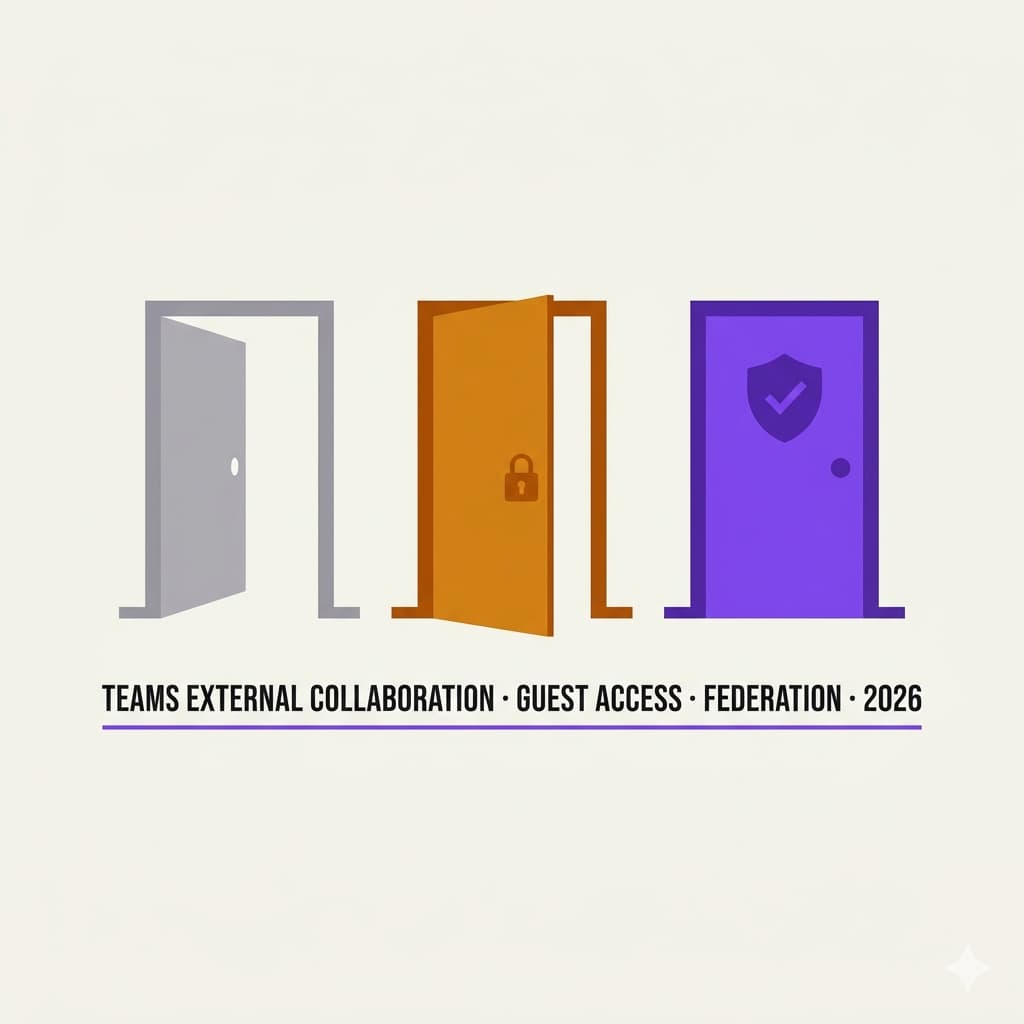
Three collaboration mechanisms, three different security models, and in many tenants all of them are left on default settings with no real governance in place.
Published April 2026 · 22 min read
Contents
- The problem: three doors, no locks
- Decision table: external access vs guest access vs shared channels
- External access (federation): configuration and domain control
- Guest access: Entra B2B and cross-tenant trust
- Shared channels and B2B Direct Connect
- Anonymous and unverified users in meetings
- Conditional Access for guests and external users
- Lifecycle management: access reviews, expiration, and cleanup
- Common mistakes
- What I would do first in an SMB tenant this week
- External collaboration audit checklist
External access (federation), guest access (B2B), and shared channels (B2B Direct Connect) solve different problems. In many tenant reviews, I find all three enabled by default or left effectively unrestricted, with no real governance in place.
Skype Consumer interoperability ended in May 2025. Skype for Business Online was already retired. External communication with people outside your organisation now goes through Teams-to-Teams federation or guest invitations.
Cross-tenant access settings in Entra ID control MFA trust, device compliance trust, and automatic redemption for B2B guests. Most SMB tenants never configure these, which often means guests face extra MFA prompts, re-registration requirements, or outright access failures.
In 2026, Microsoft is enforcing guest billing for Entra ID Governance guest capabilities. Check your current guest add-on and Azure subscription linkage before relying on guest access reviews.
The Problem: Three Doors, No Locks
Microsoft Teams gives you three separate mechanisms for collaborating with people outside your organisation. Each one works differently, is configured in a different admin portal, and has a different security model. The problem is not that these options exist. The problem is that most admins never sat down to decide which one should be active, what each one actually allows, and who owns the review process.
In a typical SMB tenant review, I find all three mechanisms enabled with default settings. External access is open to all domains. Guest access is turned on with no expiration policy. Shared channels exist but nobody configured the Entra ID cross-tenant access settings that make them work securely. And nobody is reviewing who has access to what.
The result is what you'd expect. External users with stale access. Guest accounts from a project that ended a year ago. Federated chat sessions with domains nobody explicitly approved. That is not a security posture. That is a liability sitting quietly in your tenant.
This article is for you if...
You manage a Microsoft 365 tenant where users collaborate with external partners, vendors, or clients. You need to understand which collaboration mechanism to use, how to configure each one securely, and how to build a governance process that prevents stale access from accumulating.
This article is not...
A developer guide to building custom Teams apps for external users. Not a deep dive on Teams Phone or PSTN federation. The focus is admin-level configuration and governance for the three primary external collaboration mechanisms.
Decision Table: When to Use What
Before you touch any settings, sit down and decide which mechanism fits which real scenario in your organisation. This table is the starting point:
| Scenario | Use this | Why |
|---|---|---|
| Ad-hoc chat or call with someone at another M365 organisation | External access (federation) | No account needed in your tenant. Users stay in their own tenant. Quick, lightweight. |
| Ongoing project collaboration with file sharing, channel access, and app usage | Guest access (B2B invitation) | Guest gets an Entra B2B account in your directory and can participate in teams, channels, meetings, and file collaboration within the controls you configure. |
| Cross-org channel collaboration where both sides keep their own Teams experience | Shared channels (B2B Direct Connect) | Uses the B2B Direct Connect model: no guest account is created in your directory. Users access the shared channel from their home tenant. Requires bilateral Entra cross-tenant access configuration. |
| One-off meeting with someone who doesn't have a Microsoft account | Anonymous join (meeting policy) | No federation or guest setup needed. Attendee joins via link. Limited permissions, no persistent access. |
| Collaboration with a partner using a non-Microsoft platform (Slack, Zoom) | Guest access or email-based sharing | Federation only works between M365 tenants. For non-Microsoft platforms, you need B2B invitations or SharePoint external sharing. |
| Tightly controlled vendor access to a single channel with no access to the rest of the team | Shared channels | Vendors see only the shared channel. No visibility into other channels, files, or team membership. |
External Access (Federation): Configuration and Domain Control
External access lets your users chat, call, and schedule meetings with people at other Microsoft 365 organisations. The external user stays signed in to their own tenant. No guest account is created in yours, no files are shared through your SharePoint, and nothing is left behind in your directory when the conversation ends. It is the lightest form of external collaboration Teams offers.
What external access allows
- 1:1 and group chat with users in other M365 tenants
- Audio and video calls
- Presence visibility (if both organisations allow it)
- Meeting invitations and participation (the external user joins as a federated attendee, not as anonymous)
What external access does NOT allow
- Access to your teams or channels
- File sharing through your SharePoint or OneDrive
- Access to apps, tabs, or bots in your Teams environment
- Any persistent identity in your directory
Configuration
Teams admin center: Users > External access
You have three options for managing external domains:
| Setting | What it does | When to use it |
|---|---|---|
| Allow all external domains | Federation is open to every M365 tenant globally | Default setting. Acceptable for organisations with low external risk tolerance. |
| Allow specific external domains | Only listed domains can federate with your tenant | Recommended for organisations with defined partner relationships. |
| Block specific external domains | All domains allowed except the ones you block | Useful when you want open federation but need to block known-bad or competitor domains. |
Skype interoperability is gone
Skype for Business Online was retired in 2021. Skype Consumer interoperability with Teams ended on May 5, 2025. If your tenant still had Skype-related external access toggles, they no longer have any effect. External communication now only works between Microsoft Teams tenants (M365/O365 organisations with Teams licences). If someone outside your organisation uses Skype, they can no longer reach your users through federation.
Guest Access: Entra B2B and Cross-Tenant Trust
Guest access is different. When you invite someone as a guest, Entra ID creates a B2B collaboration account in your directory. That person now has an identity in your tenant. They can join teams, participate in channels, chat, attend meetings, and access shared files. They sign in with their home identity (a Microsoft account, Google, or another Entra ID tenant) and your tenant issues them a session token.
What guest access allows
- Participation in teams and channels within the permissions and policies you configure
- File access through SharePoint and OneDrive (governed by the team's permissions)
- Chat, calls, meetings, and screen sharing
- Use of apps and tabs within the team context
- Subject to your tenant's Conditional Access policies
Configuration
Teams admin center: Users > Guest access > toggle "Allow guest access in Teams" to On.
From here you can control what guests can do: whether they can create/update/delete channels, use private channels, share screen, use video, use chat, edit/delete messages, and more.
Entra admin center: External Identities > External collaboration settings
This is where the real governance lives:
- Guest invite restrictions: Control who can invite guests. Options range from "anyone in the organisation" to "only admins and users in the Guest Inviter role." For most SMB tenants, restricting invitations to specific roles reduces sprawl.
- Collaboration restrictions: Allow or block invitations to specific domains. If you only work with three partner companies, only allow those three domains.
- Guest user access restrictions: Control whether guests can see directory properties (user names, emails, group memberships). The most restrictive setting limits guests to their own profile only.
Cross-tenant access settings: MFA and device trust
Entra admin center: External Identities > Cross-tenant access settings
This is the configuration I see missed most often. By default, your tenant does not trust MFA claims or device compliance claims from external organisations. So when a guest signs in, even if they already completed MFA in their home tenant five minutes ago, your Conditional Access either blocks them or forces them to register MFA again in your directory. The guest calls IT. IT doesn't understand why. The cycle repeats.
For trusted partner organisations, you should configure inbound trust settings:
- Trust multi-factor authentication from the partner's tenant: The guest doesn't need to re-register MFA in your directory. Their home MFA satisfies your policy.
- Trust compliant devices: If the guest's home tenant marks their device as compliant (via Intune), your CA policy can accept that claim instead of blocking the guest.
- Trust Microsoft Entra hybrid joined devices: Same concept for hybrid-joined devices.
- Automatic redemption: When enabled, invited users sign in immediately without the consent prompt. This is a significant UX improvement for frequent guest collaborators.
Guest accounts are real directory objects
Unlike external access (federation), guests exist in your Entra ID directory. This means they appear in your directory, can be targeted by your Conditional Access policies, their sign-ins appear in your logs, and they fall under your tenant's guest governance and billing model. That is the upside. You can govern them properly. It is also the downside, because once they exist in your directory, you own the cleanup.
Shared Channels and B2B Direct Connect
Shared channels are the third option, and they work differently from both of the above. A shared channel belongs to a team in your tenant, but external users can participate in it without ever leaving their home Teams client. No B2B guest account is created in your directory for that collaboration path. The external user stays in their home tenant experience and sees the shared channel in Teams through the B2B Direct Connect model.
This is powered by B2B Direct Connect in Microsoft Entra ID. It is fundamentally different from guest access (B2B Collaboration).
How it works
| Aspect | Guest access (B2B Collaboration) | Shared channels (B2B Direct Connect) |
|---|---|---|
| Account created in your tenant? | Yes, an Entra B2B guest account | No. User stays in their home tenant. |
| User experience | Must switch tenants to see the guest team | Shared channel appears in home tenant sidebar |
| File access | Full SharePoint site of the team | Only the shared channel's SharePoint folder |
| Conditional Access | Your tenant's policies apply via the guest account | Host tenant's CA policies apply; home tenant's MFA can be trusted |
| Configuration required | Entra external collaboration settings | Bilateral B2B Direct Connect setup in both tenants' cross-tenant access settings |
| Licensing | Guest consumes a guest licence slot | No B2B guest account is created for this path. Users access the shared channel through their home tenant identity and licensing model. |
Setting up B2B Direct Connect
Both organisations must configure their cross-tenant access settings to allow B2B Direct Connect. If only your side is set up, it simply won't work. The other tenant's admin has to do their part too, and that coordination step is where most setups stall.
In your tenant (Entra admin center > External Identities > Cross-tenant access settings):
- Add the partner organisation by tenant ID
- Under B2B direct connect (not B2B collaboration), configure inbound settings to allow users from the partner to access your shared channels
- Configure outbound settings to allow your users to access the partner's shared channels
- Ensure the Office 365 application is enabled in the trust configuration (this includes Teams and SharePoint)
The partner organisation must do the same in their tenant, pointing at your tenant ID.
Anonymous and Unverified Users in Meetings
Not everyone joins your meetings through federation or a guest account. Someone who clicks a meeting link without being signed in to any trusted organisation lands as anonymous. Someone who is signed in, but to an organisation your tenant has no relationship with, shows up as unverified. Both can enter the meeting, but the controls around them are different.
The policy change: org-wide setting is going away
Microsoft is moving anonymous meeting join control away from the old organisation-wide model and toward per-organizer meeting policy. This means you control anonymous access at the policy level, not as a global on/off switch.
Teams admin center: Meetings > Meeting policies > select or create a policy > "Anonymous users can join a meeting" and "Anonymous users and dial-in callers can start a meeting".
Microsoft recommends keeping anonymous join enabled (it is needed for legitimate external meetings) and controlling it through meeting policies assigned to specific user groups. If you disable it globally, your users can no longer host meetings with people outside your organisation who don't have an M365 account.
Verification and lobby controls
For meetings where verification matters, organisers can enable a setting that requires unverified anonymous users to enter a one-time passcode sent to their email before joining. Combined with lobby controls, this gives the organiser a clear view of who is waiting and whether they are verified.
Lobby settings worth configuring:
- Who can bypass the lobby: "People in my org" or "People in my org and trusted organisations" are the most common settings. Anonymous users should always go through the lobby.
- People dialing in can bypass the lobby: Consider disabling this if PSTN join is not a regular use case.
- Let anonymous people join a meeting: Keep this on, but combine it with lobby controls and the per-organizer policy.
Conditional Access for Guests and External Users
This is where guest governance actually gets teeth. Without CA policies targeting guests, a guest account in your directory gets roughly the same default access as any internal user, minus whatever explicit restrictions you've set in Teams or SharePoint. That's rarely what anyone intended.
Policy targeting
Entra Conditional Access supports a specific user type filter: "Guest or external users". Within this, you can target:
- B2B collaboration guest users: Invited guests with an Entra B2B account in your directory
- B2B direct connect users: External users accessing shared channels via Direct Connect
- Local guest users: Guest-type accounts created directly in your directory (not via B2B invitation)
- Service provider users: Users from Cloud Solution Provider (CSP) organisations
- Other external users: Anyone who doesn't fall into the above categories
Recommended CA policies for external users
| Policy | Target | Controls |
|---|---|---|
| Require MFA for all guests | B2B collaboration guest users + B2B direct connect users | Grant: Require multifactor authentication |
| Block guest access from untrusted locations | B2B collaboration guest users | Conditions: exclude trusted named locations. Grant: Block access. |
| Require compliant device for sensitive apps | B2B collaboration guest users | Resources: SharePoint, Exchange. Grant: Require compliant device (only works if you trust device claims via cross-tenant settings). |
| Block legacy authentication for guests | All guest and external users | Conditions: Client apps > Other clients. Grant: Block access. |
Lifecycle Management: Access Reviews, Expiration, and Cleanup
Setting up guest access is not hard. Cleaning it up is. Guest accounts accumulate quietly. A project ends but the guest account stays. A team owner leaves the company but the guests they invited remain. Give it two years and nobody can explain why half the guest accounts exist.
Guest account expiration
Guest lifecycle can be controlled through Entra external identity settings, entitlement management, and access reviews, depending on your licensing and governance model. This is not a Teams-specific setting.
Entra admin center: External Identities > External collaboration settings > configure "Collaboration restrictions" and expiration policies.
For entitlement management (Entra ID Governance), you can set access package assignments to expire after a set number of days, on a specific date, or never. For guest accounts created outside entitlement management, there is no automatic expiration. You need access reviews to catch them.
Access reviews for guests
Access reviews are the main tool for this. You create a review targeting guest users in a specific team, group, or across the whole directory. Reviewers (usually team owners or designated admins) go through the list and confirm whether each guest still needs access. If someone doesn't respond, you can set the default action to remove access automatically.
Entra admin center: Identity Governance > Access reviews > New access review
Recommended configuration:
- Scope: Guest users only, across all Microsoft 365 groups (or specific teams)
- Reviewers: Group owners (the people who actually know whether the guest is still needed)
- Frequency: Quarterly for active collaboration groups, semi-annually for low-activity teams
- If reviewers don't respond: Remove access
- Action on denied guest users: Block sign-in for 30 days, then remove the user from the tenant
Manual cleanup with PowerShell
If you don't have Entra ID Governance licensing, you can still identify stale guests with Microsoft Graph PowerShell:
signInActivity property requires AuditLog.Read.All permissions and may not be populated for all users in all tenants. Availability can depend on licence level and data retention. In large tenants, you may need to use delta queries or export sign-in data through Entra reporting instead of querying each user object directly.
This exports all guest users who haven't signed in within 90 days (or have never signed in). Review the list with team owners before taking any action. Some guests may be legitimate but inactive because the collaboration is seasonal or project-based.
Common Mistakes
I see these in almost every review. They are predictable and fixable, but they keep showing up:
What I Would Do First in an SMB Tenant This Week
If you're running a small or mid-sized tenant and want to get external collaboration under control without a month-long project, start with these five things:
- Export all guest users. Run the PowerShell script above or go to Entra admin center > Users > filter by "Guest" user type. Get a CSV with names, email domains, creation dates, and last sign-in dates. This is your baseline.
- Check your external access domain policy. Teams admin center > Users > External access. Is it open to all? If yes, decide whether that's intentional. If you only work with five partner companies, switch to an allow list.
- Check who can invite guests. Entra admin center > External Identities > External collaboration settings. If "Everyone in the organization" can invite guests, consider restricting to "Member users and users assigned to specific admin roles."
- Configure cross-tenant access for your top 3 partners. Add their tenant IDs, enable MFA trust and automatic redemption. This is usually quick to configure per partner and can dramatically improve the guest experience.
- Identify guests with no sign-in in 90 days. Review the list with team owners. Disable accounts that are confirmed stale. Don't delete without validating first.
External Collaboration Audit Checklist
Use this when reviewing a tenant's external collaboration posture:
Summary
External collaboration in Microsoft Teams is not one feature. It is three separate mechanisms, each with its own security model, its own admin portal, and its own governance requirements. External access is lightweight and leaves nothing behind in your directory. Guest access creates a real identity you can govern with CA policies, sign-in logs, and access reviews. Shared channels sit in between: cross-org channel access without creating guest accounts, but only if both sides configure B2B Direct Connect properly.
In many real tenants, all three end up enabled by default or left broader than the business actually needs. Enabling the features is the easy part. The hard part is deciding which model fits each relationship, restricting what you don't need, configuring cross-tenant trust for the partners you actually work with, and then keeping the whole thing under control over time.
Those guest accounts from the project that ended three months ago? Still in your directory. The external access federation? Probably open to every M365 tenant on the internet. That shared channel a team owner set up with a vendor? Likely never backed by a B2B Direct Connect configuration in Entra. Fix those three things and you have already moved ahead of most tenants I review.
Found this useful?
I write about Microsoft 365 security, Entra ID, and Teams administration from a real-world admin perspective. Follow the blog for more articles like this.
More articlesReference Material
- Use guest access and external access to collaborate (Microsoft Learn)
- Manage external meetings and chat with trusted organisations
- Guest access in Microsoft Teams
- Shared channels in Microsoft Teams
- Cross-tenant access overview (Microsoft Entra)
- B2B Direct Connect setup
- Manage guest access with access reviews
- Manage anonymous participant access to meetings
- Authentication and Conditional Access for B2B users