TL;DR
- What's being retired: Office 365 Connectors in Microsoft Teams — the legacy service that posts third-party alerts into channels via
webhook.office.comURLs. - Final deadline: April 30, 2026. Extended from March 31 — confirmed by Microsoft on February 12, 2026 via the Microsoft 365 Developer Blog. Do not wait for another extension.
- Replacement: The Workflows app in Teams, powered by Power Automate. An Incoming Webhook trigger in Workflows is the direct equivalent for most scenarios.
- Migration friction has improved: Microsoft added MessageCard payload support to Workflows webhooks in late 2025. However, public documentation remains inconsistent on the details — validate your existing payloads in a test channel before assuming a URL-only migration.
- The failure mode can be easy to miss. After the deadline, legacy connectors stop posting without surfacing a clear error to the source system. Do not assume the failure will be obvious — validate delivery actively after each migration.
Timeline: Every Date That Matters
- July 2024 Microsoft announces retirement. Original deadline: October 1, 2024.
- August 2024 New connector creation blocked across all clouds. Existing connectors still work.
- December 2024 URL migration required — all webhook.office.com URLs must be updated to a new structure or connectors stop working.
- December 2025 MessageCard compatibility improvements and channel support updates announced for Workflows webhooks. Migration friction reduced, but Workflows behaviour still differs from legacy connectors in some channel scenarios.
- Feb 12, 2026 Microsoft updates MC1181996 — deadline extended from March 31 to April 30, 2026. Source: Microsoft 365 Developer Blog.
- April 30, 2026 All legacy connectors stop working. Do not plan on another extension.
Identifying Legacy vs Modern Webhooks
https://outlook.office.com/webhook/...https://outlook.office365.com/webhook/...https://webhook.office.com/webhookb2/...https://prod-XX.westeurope.logic.azure.com/...https://api.powerautomate.com/...https://flow.microsoft.com/...PowerShell Inventory via Microsoft Graph
Connect-MgGraph -Scopes "Group.Read.All", "TeamSettings.Read.All"

$teams = Get-MgGroup `
    -Filter "resourceProvisioningOptions/Any(x:x eq 'Team')" `
    -All

$report = @()

foreach ($team in $teams) {
    $channels = Get-MgTeamChannel -TeamId $team.Id -ErrorAction SilentlyContinue

    foreach ($channel in $channels) {
        $hooks = Invoke-MgGraphRequest `
            -Method GET `
            -Uri "https://graph.microsoft.com/beta/teams/$($team.Id)/channels/$($channel.Id)/incomingWebhooks" `
            -ErrorAction SilentlyContinue

        if ($hooks.value) {
            foreach ($hook in $hooks.value) {
                $report += [PSCustomObject]@{
                    TeamName    = $team.DisplayName
                    ChannelName = $channel.DisplayName
                    HookName    = $hook.name
                    WebhookUrl  = $hook.webhookUrl
                    IsLegacy    = ($hook.webhookUrl -like "*webhook.office*")
                }
            }
        }
    }
}

$report | Export-Csv ".\ConnectorInventory_$(Get-Date -Format 'yyyyMMdd').csv" -NoTypeInformation

Write-Host "Total webhooks found: $($report.Count)"
Write-Host "Legacy (webhook.office.com): $(($report | Where-Object IsLegacy).Count)"/beta/teams/{id}/channels/{id}/incomingWebhooks, which is a Microsoft Graph beta endpoint. Beta endpoints are subject to change without notice and are not covered by Microsoft's production SLA. Validate the output in your tenant before treating it as authoritative, especially in larger environments. If the endpoint returns no results, check permissions or test manually via the Teams admin center on a known team.
Migration Paths: Choosing the Right Replacement
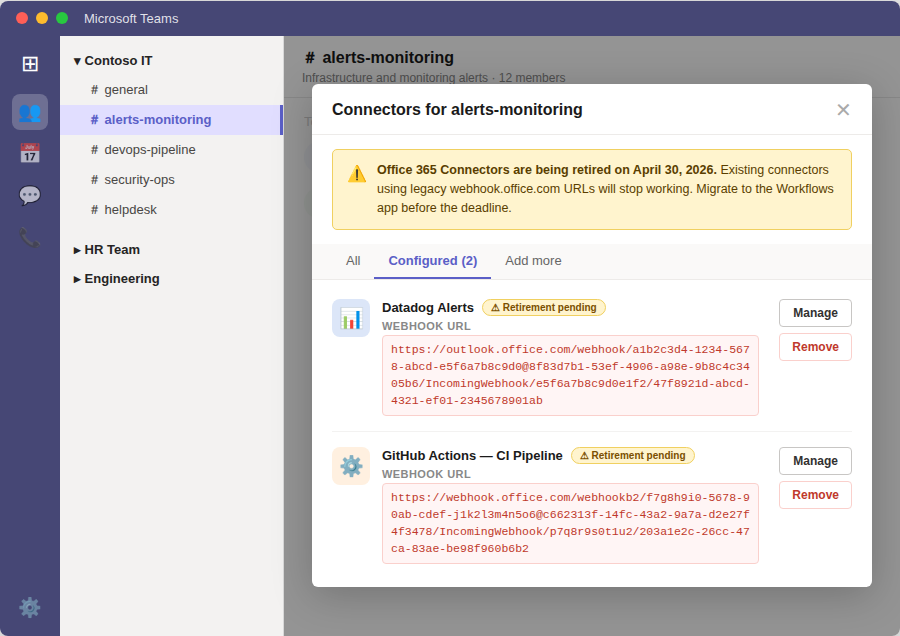
Illustrative example of the migration flow — Teams channel → Connectors → Configured: legacy connectors with outlook.office.com and webhook.office.com URLs flagged for retirement. UI may vary.
Step-by-Step: Create a Workflows Incoming Webhook
This covers the most common scenario: replacing a legacy Incoming Webhook connector with a Workflows equivalent. The process takes about two minutes per channel. For full official guidance, see Create incoming webhooks with Workflows for Microsoft Teams on Microsoft Learn.
- 1 Navigate to the target channel Open the channel in Teams where the legacy connector was posting messages.
- 2 Open the Workflows app Click + next to the channel tabs → search for Workflows → open the app. Alternatively, find Workflows in the left sidebar.
- 3 Select the webhook template Click Create a flow → search for "Post to a channel when a webhook request is received" → select the template → click Next.
- 4 Sign in and configure Sign in with your Microsoft 365 account when prompted. Select the correct Team and Channel from the dropdowns.
-
5
Create and copy the webhook URL
Click Add workflow. After creation, copy the webhook URL shown on the confirmation screen — it starts with
https://prod-XX.... This is the only time it's shown in full. - 6 Store the URL as a secret The webhook URL is the sole credential for posting to that channel. Store it in Azure Key Vault, your CI/CD secrets manager, or a team password vault. Never hardcode it in a script or commit it to a repository.
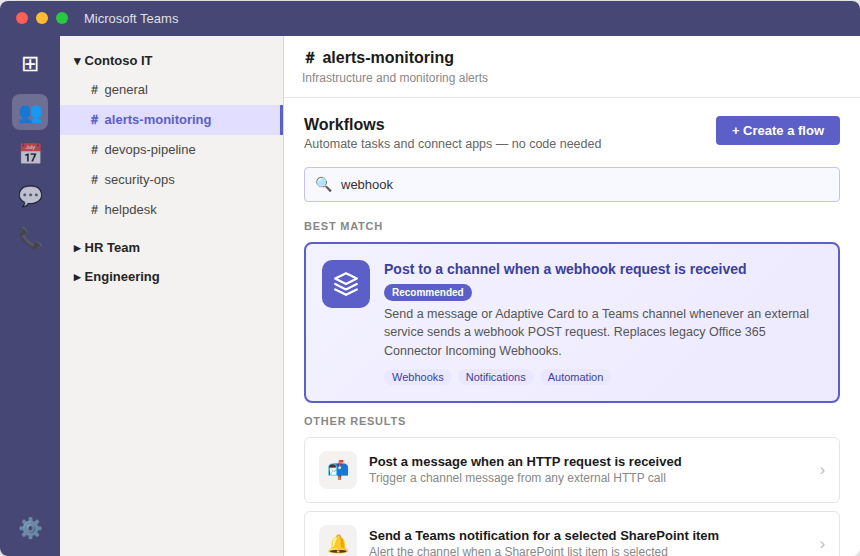
Illustrative example — the Workflows app in Teams with the webhook template highlighted. Search "webhook" to find it. UI may vary.
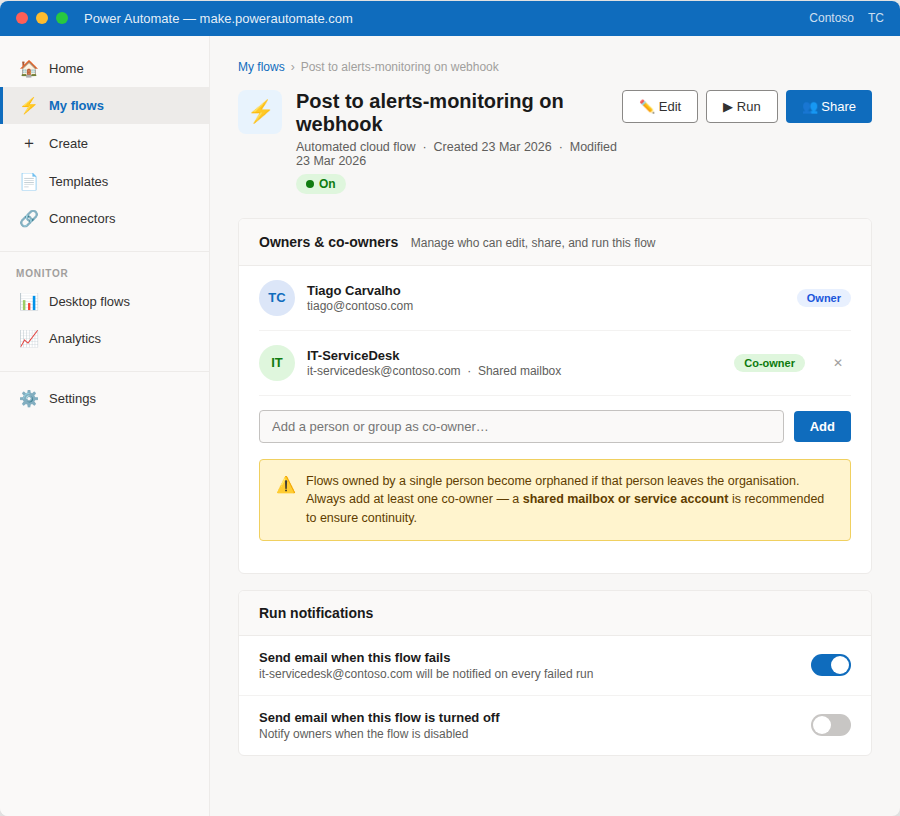
Illustrative example — Power Automate Owners & co-owners panel. Add a shared mailbox or service account as co-owner and enable failure notifications before considering the migration complete. UI may vary.
Updating the Source Systems
Once you have the new Workflows webhook URL, update wherever the old webhook.office.com URL was configured. The most common source systems are below.
# Before — legacy connector URL hardcoded in workflow
- name: Notify Teams
  run: |
    curl -H "Content-Type: application/json" \
         -d '{"text":"Build completed: ${{ github.ref_name }}"}' \
         https://outlook.office.com/webhook/xxxxxxxx...

# After — Workflows webhook URL stored as a repository secret
- name: Notify Teams
  run: |
    curl -H "Content-Type: application/json" \
         -d '{"text":"Build completed: ${{ github.ref_name }}"}' \
         ${{ secrets.TEAMS_WEBHOOK_URL }}

# Store the new URL: Repository → Settings → Secrets → Actions → New secret
# Name: TEAMS_WEBHOOK_URL Value: https://prod-XX...# In Azure DevOps:
# Project Settings → Service hooks → find the Teams entry → Edit
# Replace the webhook URL with the new Workflows URL
# Click Test to confirm delivery before saving
# If the project uses multiple webhook-based hooks, check all of them:
# Service hooks support: Build completed, Release deployed,
# Work item created/updated, Pull request events# Scan a scripts share for any hardcoded legacy webhook URLs
Get-ChildItem -Path "\\fileserver\scripts" -Recurse -Include "*.ps1","*.py","*.sh","*.yml" |
Select-String -Pattern "webhook\.office\.com|outlook\.office365\.com/webhook" |
Select-Object Path, LineNumber, Line |
Export-Csv ".\LegacyWebhookReferences.csv" -NoTypeInformation
# Update each script to read the URL from an environment variable
# rather than hardcoding the new URL — enables rotation without touching the script
$webhookUrl = $env:TEAMS_WEBHOOK_URL
Invoke-RestMethod -Uri $webhookUrl -Method POST -Body ($payload | ConvertTo-Json) -ContentType "application/json"The MessageCard Question
MessageCard was the biggest migration blocker for most environments. Legacy connectors accepted the @type: MessageCard format — sections, facts, colours, and action buttons. Workflows previously required Adaptive Cards only, meaning every payload needed a full rewrite before migration was feasible.
One known limitation that is not in dispute: action buttons (potentialAction) in MessageCards are not rendered in Workflows webhooks. If your connectors post interactive cards with buttons, those will need to be converted to Adaptive Cards regardless of payload format support.
{
  "@type": "MessageCard",
  "@context": "http://schema.org/extensions",
  "themeColor": "0076D7",
  "summary": "Deployment completed",
  "sections": [{
    "activityTitle": "Production deploy — v2.4.1",
    "activitySubtitle": "Triggered by CI pipeline",
    "facts": [
      { "name": "Environment", "value": "Production" },
      { "name": "Status",      "value": "Success" },
      { "name": "Duration",    "value": "4m 32s" }
    ],
    "markdown": true
  }]
  // No potentialAction block — test this format first before assuming it renders correctly
  // Always validate against a test channel before cutting over production connectors
}
Governance: What to Get Right During the Migration
- Use a service account or co-owner for every flowFlows owned by personal accounts orphan when the user leaves. Create webhooks using a shared service account, or add a co-owner immediately after creation: open the flow → Share → add your team admin account.
- Store webhook URLs centrally — never hardcode themWebhook URLs scattered across scripts, pipelines, and monitoring configs owned by different teams are impossible to rotate cleanly. Store them in Azure Key Vault, your CI/CD platform's secrets manager, or at minimum a shared IT vault.
- Enable failure notifications on business-critical flowsIn Power Automate, every run is logged. Open each critical flow → Edit → Settings → enable Send email when this flow fails. Point it to your team inbox or ticketing system, not a personal address.
- Document each flow after migrationMaintain a simple register: flow name, source system, target channel, owner, last validated date. The Power Automate run history gives you audit data — the register tells you what you're supposed to be monitoring.
- Remove migrated legacy connectors from Teams channelsAfter confirming the Workflows webhook is delivering correctly, remove the old connector: channel settings → Connectors → find the legacy entry → Remove. This prevents confusion and ensures no one accidentally re-enables it.
Migration Checklist
-
Run the PowerShell inventoryExport all connectors per team and channel. Filter for
webhook.office.comURLs. This CSV is your migration workbook. - Contact team owners for unknown connectorsConnectors without identifiable owners or recent activity should be investigated before migrating — many will turn out to be unused and can simply be removed.
- Remove connectors with no recent activityDon't migrate what's already dead. Check the channel history — if nothing has been posted in 90+ days, remove the connector rather than migrating it.
- For each active connector: create a Workflows webhookUse the Workflows app in Teams → template "Post to a channel when a webhook request is received" → select the correct team and channel → copy the new URL.
- Store the new webhook URL as a secretAzure Key Vault, CI/CD secrets manager, or team vault. Never hardcode it directly in a script or pipeline YAML.
- Update the source system and send a test messageReplace the old webhook URL in the source system configuration. Trigger a test notification and confirm it arrives in the correct channel before removing the legacy connector.
- Monitor for 48 hours — verify scheduled alerts arriveA test message confirms the URL works. Monitoring for 48 hours confirms that the source system is actually using the new URL for all its notification events, including scheduled ones.
- Remove the legacy connector from the Teams channelChannel settings → Connectors → find the legacy entry → Remove. Prevents confusion and ensures a clean state after the migration.
- Add a co-owner or service account to each flowPrevents orphaned flows when team members change. Power Automate → open the flow → Share → add the team admin or a shared mailbox as co-owner.
- Enable failure email notifications on critical flowsPower Automate → open flow → Edit → Settings → Send email when this flow fails → point to team inbox or ticketing system.