TL;DR for IT & Security Leaders
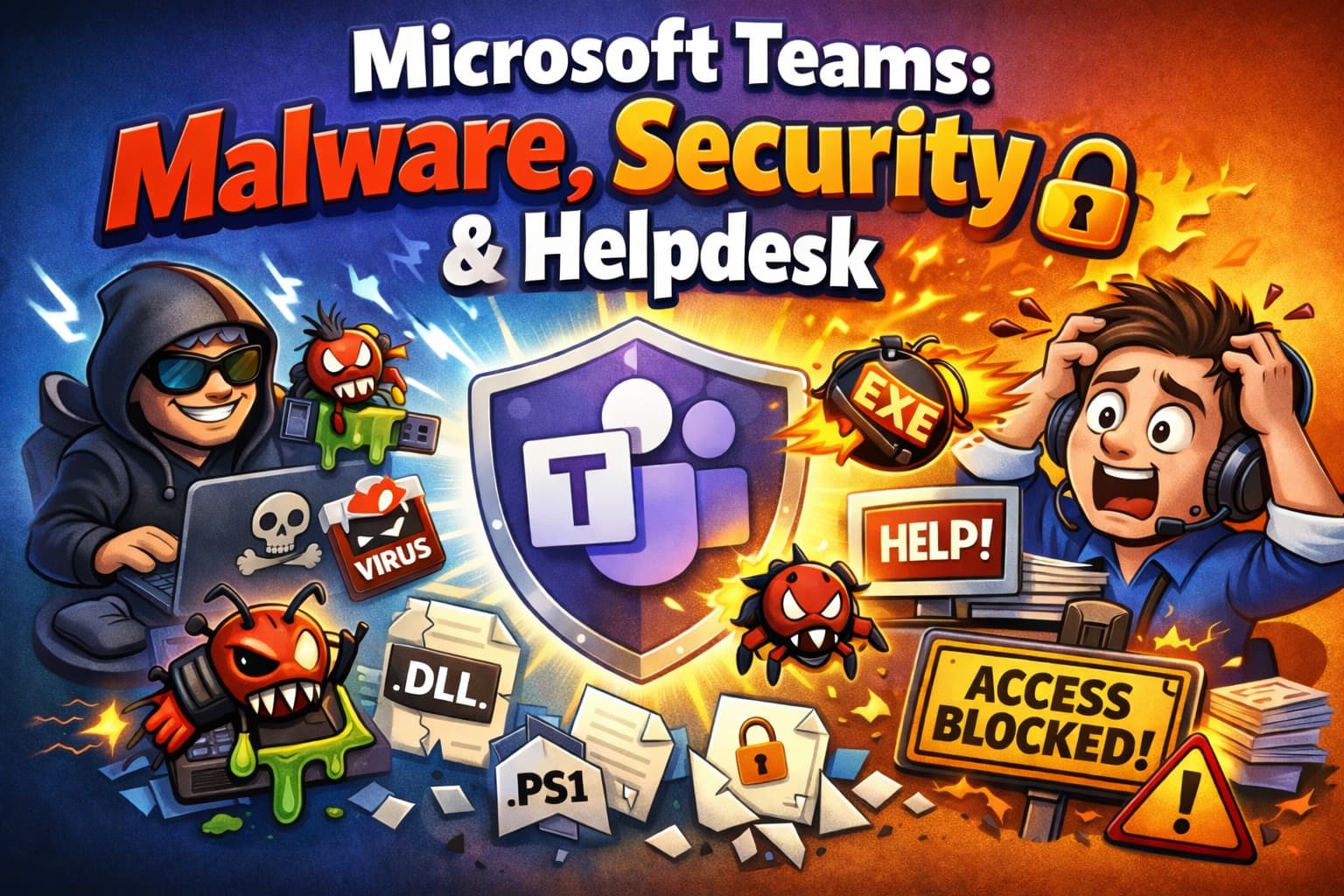
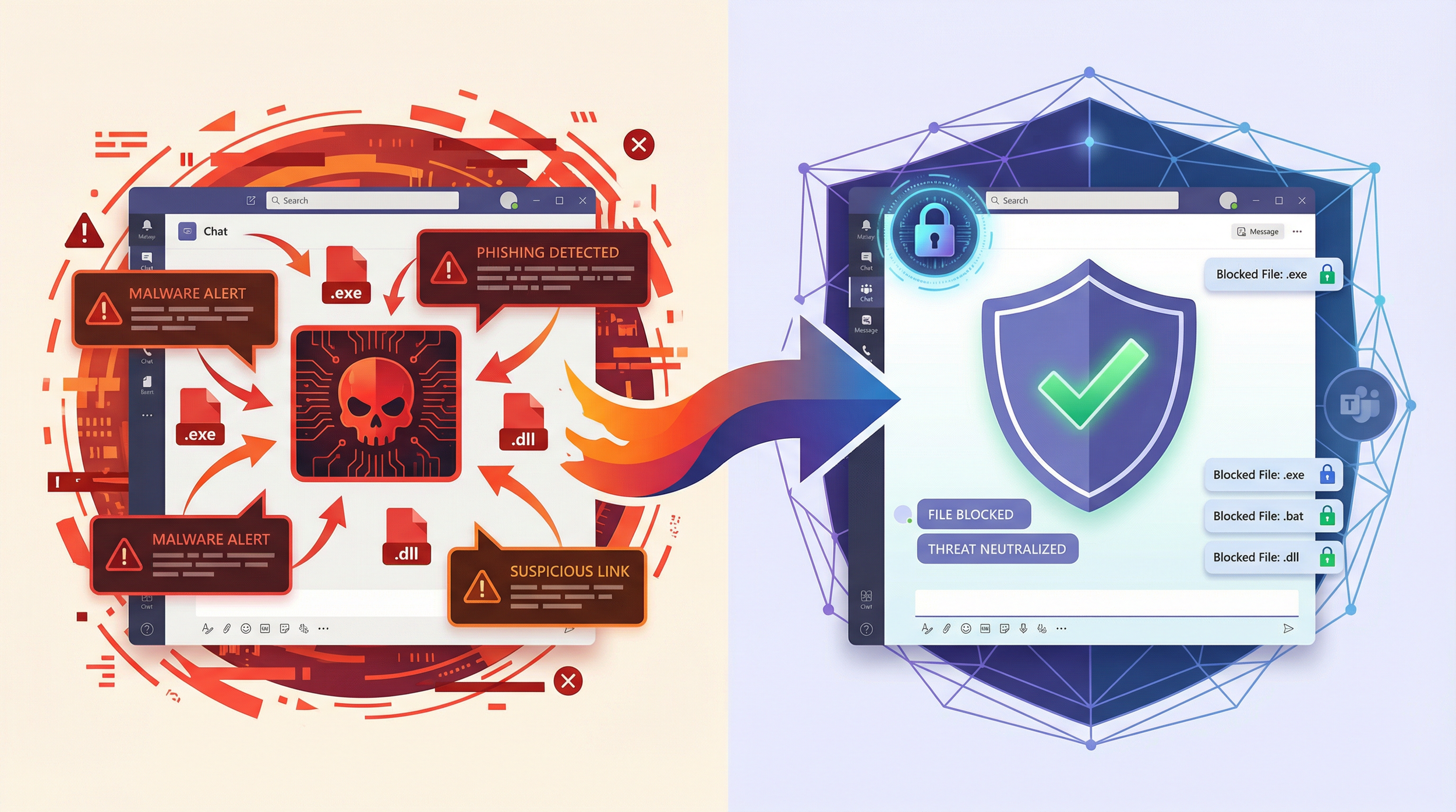
- Microsoft is introducing and enforcing weaponizable file protection in Teams to block malware at the source, a key part of its Secure-by-Default strategy.
- This Microsoft Teams malware protection mechanism blocks messages containing weaponizable file types like .exe, .dll, and .ps1. The policy is controlled via a tenant-level toggle.
- An unmanaged rollout will break legitimate workflows and flood the helpdesk. Without prior communication, this typically results in a spike of ‘Teams is broken’ tickets.
- The key is a proactive operational rollout: assess your status, define secure alternative workflows, and prepare your helpdesk and users for the change.
- Not enabling this feature leaves a significant gap in your Zero Trust architecture, exposing the organization to Teams-based malware delivery.
Email is no longer the only delivery truck for malware. The modern workplace runs on chat and real-time file sharing, and where users collaborate, attackers follow. Microsoft Teams, the central nervous system for many organizations, has become a prime channel for initial access, phishing, and malware delivery.
The Problem: The Unmanaged Risk in Real-Time Collaboration
Unlike email, where users have been trained to be skeptical, Teams messages often carry an implicit layer of trust. This speed and trust create a dangerous blind spot. Recent Microsoft threat reports highlight adversaries abusing every facet of Teams to achieve their goals. Attackers have successfully impersonated IT and helpdesk staff via Teams to deploy ransomware, proving that the helpdesk identity is one of today's most effective social-engineering masks.
💰 The Hidden Cost of an Unsecured Teams Environment
Ignoring this threat vector isn't just a security risk; it's a direct financial liability. The costs of inaction manifest as:
- Incident Response: A single malware incident originating from Teams can cost thousands in remediation, data recovery, and reputational damage.
- Productivity Loss: When security incidents occur, legitimate work stops. The time spent by IT, security, and end-users dealing with the fallout is a direct hit to operational efficiency.
- Helpdesk Overload: Without clear security policies, the helpdesk is flooded with tickets that are actually security events in disguise, wasting valuable triage time and masking real IT issues.
The Solution: Proactive Defense with Weaponizable File Protection
To counter this, Microsoft is shifting Teams toward a secure-by-default posture. This Microsoft Teams malware protection mechanism, known as Weaponizable File Protection, blocks potentially malicious file types at the moment of sending. To enforce this, Microsoft may automatically enable this protection for tenants using default settings. This is a powerful defensive layer, but an unmanaged rollout can cause significant operational friction.
🔐 Why Security Teams Embrace This Feature
This isn't just another setting; it's a fundamental shift in how Teams handles threats. Security teams champion this because it provides:
- Zero-Hour Blocking: It stops threats before they are delivered, drastically reducing the attack surface.
- Reduced Alert Fatigue: By preventing the initial delivery, it reduces the number of downstream alerts from endpoint detection, sandboxing, and user-reported phishing.
- Consistent Policy Enforcement: The policy applies tenant-wide, including to external chats, ensuring a baseline level of security that can't be easily bypassed by users.
- Closes a Major Phishing Vector: It directly addresses the trend of attackers using Teams for initial access and malware distribution, aligning with a Zero Trust strategy.
User and Helpdesk Experience: Understanding the Impact
When a user attempts to send a message containing one of the blocked file types, the experience is immediate and clear. The Teams client will display a notification directly under the message stating, "This message was blocked because it contains a file type that’s not permitted." Blocked messages are an expected security behavior, not a Teams malfunction. Without prior communication, this typically results in a spike of ‘Teams is broken’ tickets.
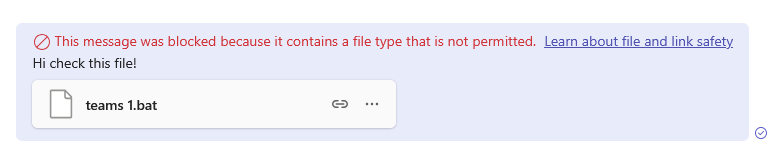
The sender receives immediate feedback that their message was blocked.
📖 The Helpdesk Playbook: From "Broken" to "Secure"
Arm your helpdesk with this simple playbook to turn a potential complaint into a security awareness moment.
- Quick Classification: Ask the user for a screenshot. If it shows "message blocked," it's a security feature. If there's no error, investigate normally.
- Explain the "Why": "Teams isn’t broken; it’s actively protecting you. This is a new security feature to block potentially harmful files from being shared."
- State the Policy: "We can’t unblock this specific file type, as the policy is in place to protect the entire organization from malware and phishing attacks."
- Provide the Solution: "For sharing this type of file, please use our approved secure method: [Link to your SharePoint site, OneDrive guide, or other solution]."
Rollout Survival Guide: A 3-Step Governance Plan
🔍Step 1: Assess and Govern
First, understand your current state and establish governance. Navigate to the Teams Admin Center → Messaging settings. Under the Messaging safety section, find the toggle for the Messaging safety policy, "Scan messages for file types that are not allowed."
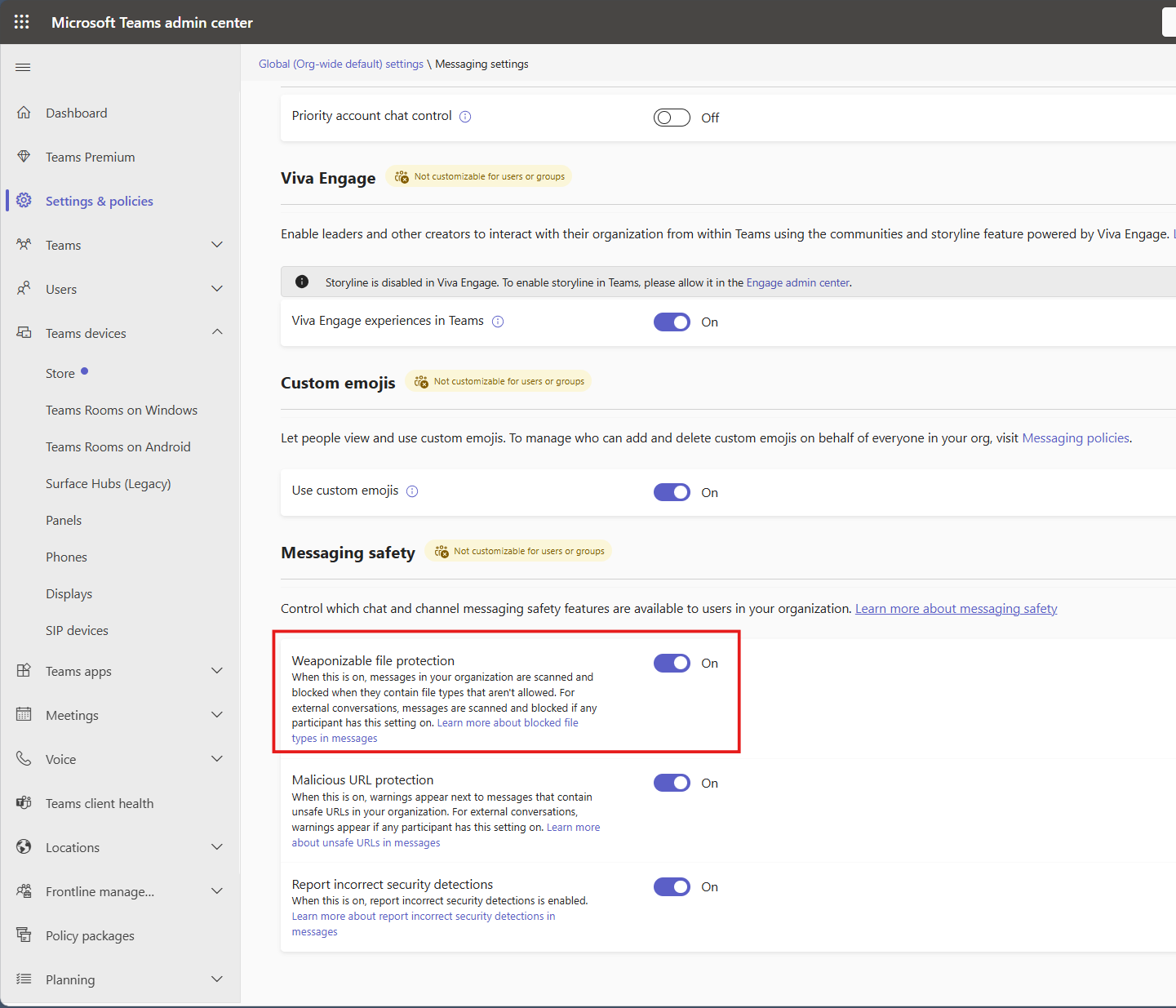
This is a tenant-level policy toggle. If it's on, the policy is active. If it's off, you should plan a phased rollout before Microsoft potentially enables it for you. Start with a pilot group of IT users to understand the impact before a full deployment.
❌ Common Mistake: Ignoring External Chats. This policy also applies to chats involving external communications. If your user is in a chat with an external partner whose organization has this feature enabled, your user may be blocked from sending prohibited file types, which can lead to confusing helpdesk tickets. Prepare your team for these scenarios.
🗺️Step 2: Identify Friction and Define Secure Alternatives
Since the list of Teams blocked file types is not customizable, you cannot create technical exceptions. Instead, you must create process exceptions. Identify which legitimate business workflows will break:
- IT Admins sharing PowerShell scripts (.ps1) or diagnostic tools.
- Developers sharing test builds (.exe, .dll) or setup files (.msi).
- Finance/Data Teams using macro-enabled Excel files (.docm, .xll).
For each scenario, define and document an approved, secure alternative channel, such as a designated SharePoint site with strict permissions or distributing applications via the Intune Company Portal.
📢Step 3: Communicate Clearly and Train Your Users
A proactive communication plan is the final piece. Before the feature is enabled, send out a clear announcement. Explain what is changing, why it's important for security, and what they need to do differently. Focus on the solution, not just the problem.
"To enhance our security against malware, Microsoft Teams will now automatically block the sharing of potentially dangerous file types (like .exe, .ps1). If you need to share these files for legitimate business purposes, please use our approved secure file transfer solution at [link to your solution]. This change helps protect our entire organization."
The Unconfigurable Block List
Blocked file types (subject to change by Microsoft). For the latest list, refer to Microsoft documentation: It is critical to understand that administrators cannot currently add or remove file types from this list. The protection is based on a static list defined by Microsoft to cover the most common vectors for file-based attacks. The complete list is:
ace, ani, apk, app, appx, arj, bat, cab, cmd, com, deb, dex, dll, docm, elf, exe, hta, img, iso, jar, jnlp, kext, lha, lib, library, lnk, lzh, macho, msc, msi, msix, msp, mst, pif, ppa, ppam, reg, rev, scf, scr, sct, sys, uif, vb, vbe, vbs, vxd, wsc, wsf, wsh, xll, xz, z
Conclusion: From Reactive Problem to Proactive Security Posture
Weaponizable File Protection in Teams is a core part of the modern, secure-by-default Microsoft 365 ecosystem. By treating this as a strategic operational rollout—with proper governance, change management, and helpdesk readiness—you can implement a powerful security control while avoiding a helpdesk ticket storm and strengthening your Zero Trust posture.
Blocking a malicious file in Teams is not a bug. It's a feature.Have you already experienced blocked files or malware attempts via Teams? Share your story in the comments.