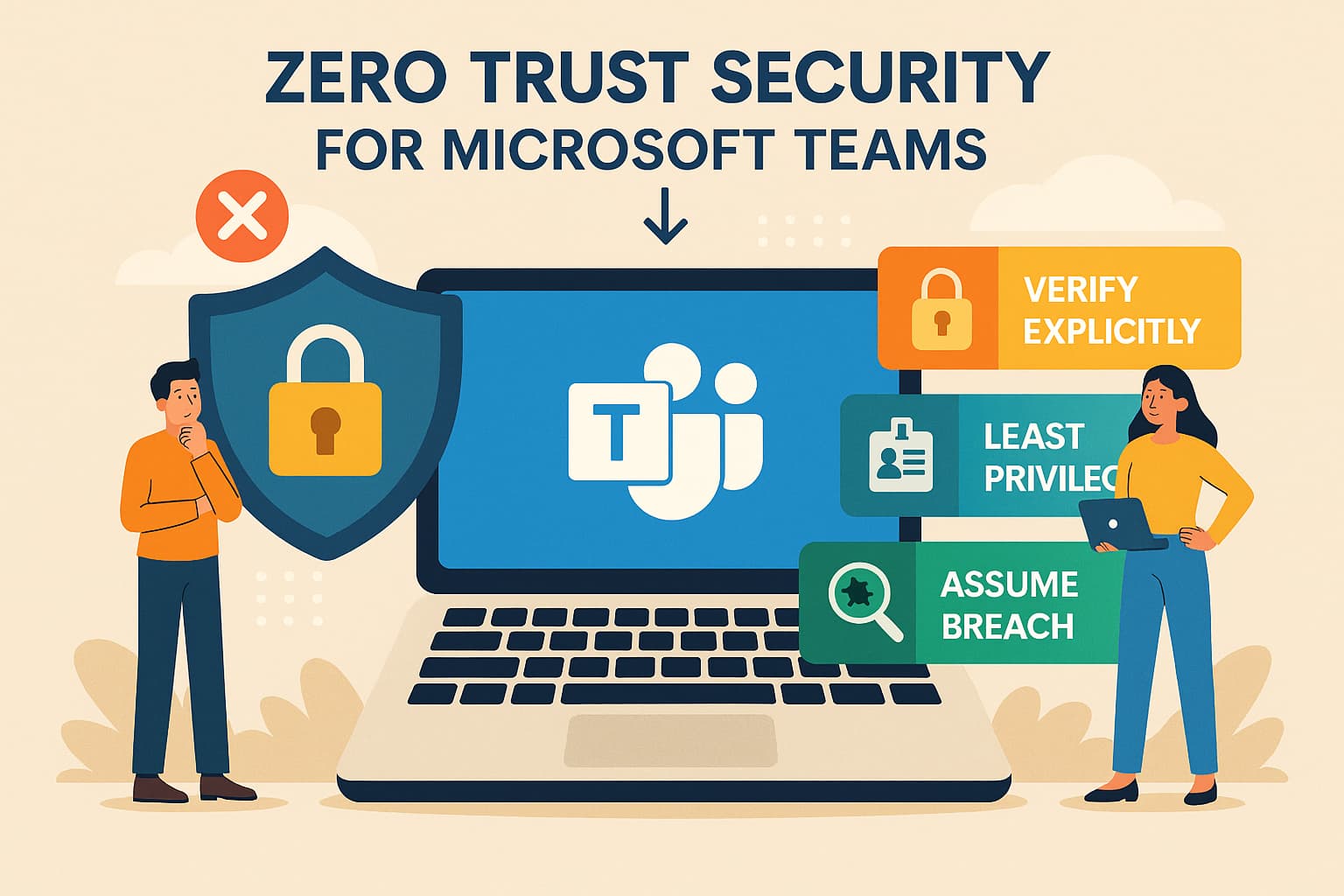
Short Summary: Take your Microsoft Teams security to the next level with advanced Zero Trust controls. This comprehensive guide covers App Protection Policies for BYOD scenarios, Conditional Access session controls to prevent data exfiltration, advanced threat hunting with Microsoft Sentinel and KQL, and Communication Compliance to detect inappropriate content. Learn how to implement enterprise-grade security controls that protect your organization without compromising user productivity.
From Foundation to Advanced: The Evolution of Teams Security
In our previous articles, we established the foundational pillars of Microsoft Teams governance and built a comprehensive Zero Trust architecture using Conditional Access, device compliance, and data protection. These controls form the bedrock of a secure Teams environment. However, in today's threat landscape, foundational security is no longer sufficient. Organizations face sophisticated attacks, insider threats, and complex compliance requirements that demand advanced security controls.
This article explores the advanced tier of Zero Trust implementation for Microsoft Teams. We will address scenarios that go beyond the basics: protecting corporate data on personal devices without requiring full device management, preventing data exfiltration in real-time through session controls, proactively hunting for threats using advanced analytics, and ensuring that all communication complies with regulatory and organizational policies. These are the controls that separate a secure environment from a truly resilient one.
Prerequisites: This article assumes you have already implemented the foundational Zero Trust controls covered in our previous guide, including Multi-Factor Authentication, Conditional Access policies, device compliance, and sensitivity labels. If you have not yet implemented these controls, we strongly recommend starting with the foundational architecture before proceeding with advanced controls.
Challenge 1: Securing Teams on Unmanaged Devices (BYOD)
The rise of remote work and bring-your-own-device (BYOD) policies has created a significant security challenge. Users expect to access Teams from their personal devices, but traditional Mobile Device Management (MDM) solutions require full device enrollment, which many users resist for privacy reasons. How do you protect corporate data on a device you do not control?
The answer lies in App Protection Policies, also known as Mobile Application Management (MAM). Unlike MDM, which manages the entire device, MAM focuses exclusively on protecting corporate data within specific apps, such as Microsoft Teams. This approach allows you to enforce security policies on the app level without requiring device enrollment or accessing personal data.
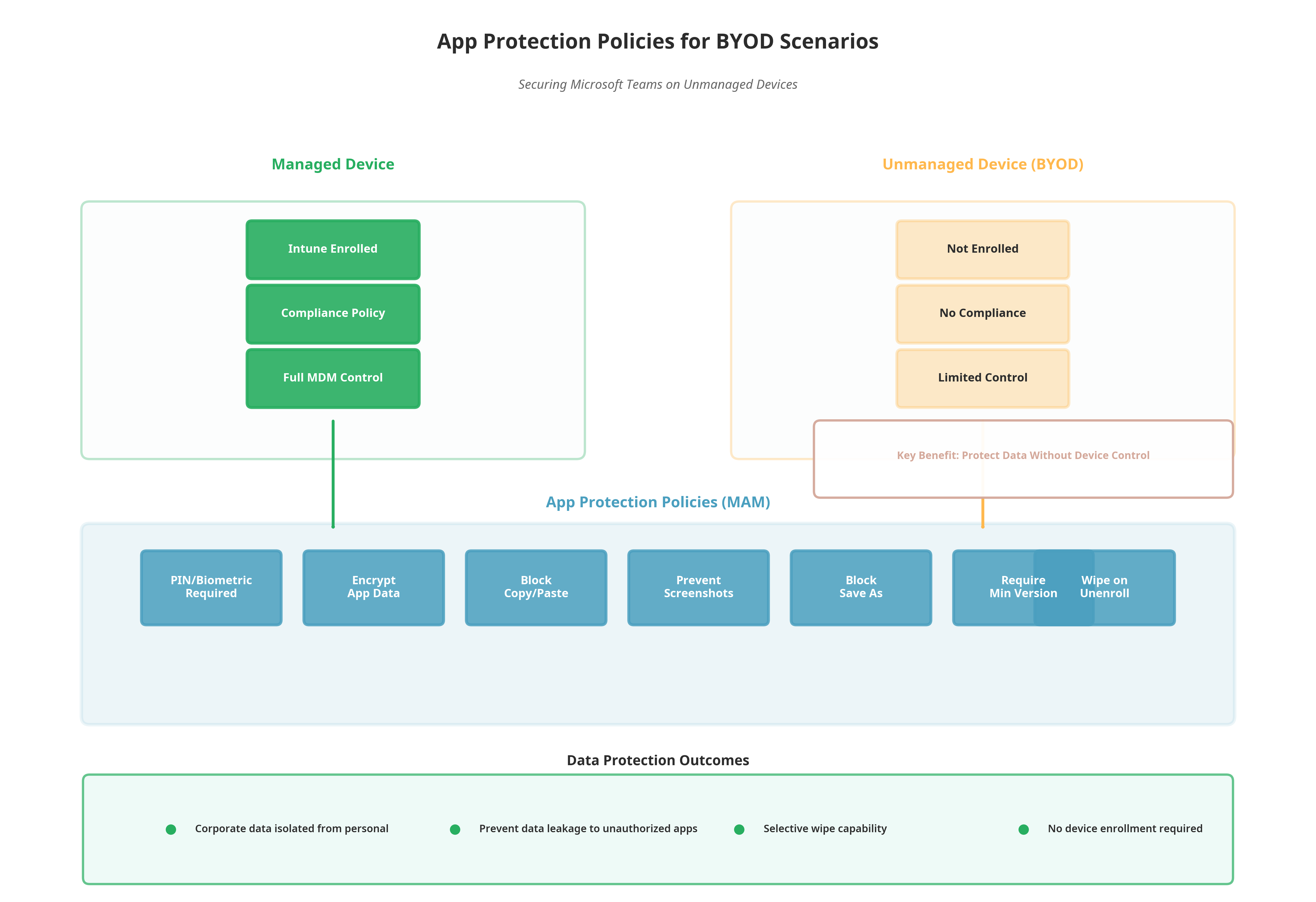
Figure 1: App Protection Policies enable data protection on unmanaged devices without requiring full device enrollment
Understanding App Protection Policies
App Protection Policies create a secure container around the Teams app on a user's device. Within this container, corporate data is encrypted, isolated from personal apps, and subject to your organization's security policies. The user can still use their personal device for personal tasks, but corporate data remains protected and under your control.
App Protection Policies can enforce a wide range of security controls, including requiring a PIN or biometric authentication to access the app, encrypting all app data at rest, blocking copy-paste operations between corporate and personal apps, preventing screenshots of sensitive content, and even performing a selective wipe of corporate data if the device is lost or the user leaves the organization.
Create an App Protection Policy for Teams
Your first step is to create an App Protection Policy that targets the Microsoft Teams mobile app. This policy will define the security requirements that must be met before a user can access corporate data within Teams.
How-to: Configure App Protection Policy for iOS and Android
- In the Microsoft Intune admin center (
intune.microsoft.com), navigate to Apps > App protection policies.- Click Create policy and select the platform (
iOS/iPadOSorAndroid).- Name the policy
Teams - App Protection for BYOD.- Under Apps, select
Microsoft Teams.- Under Data protection, configure:
- Prevent backups:
Yes(prevent corporate data from being backed up to personal cloud storage).- Send org data to other apps:
Policy managed apps(allow data sharing only with other protected apps).- Receive data from other apps:
Policy managed apps.- Restrict cut, copy, and paste:
Policy managed apps with paste in.- Screen capture and Google Assistant:
Block(prevent screenshots).- Under Access requirements, configure:
- PIN for access:
Require.- Biometric instead of PIN:
Allow.- Recheck access requirements after (minutes):
30.- Under Conditional launch, configure:
- Max PIN attempts:
5→Wipe data.- Offline grace period:
720 minutes→Wipe data.- Jailbroken/rooted devices:
Block access.- Min OS version: Set to your organization's minimum supported version →
Block access.- Assign the policy to your target user groups (e.g.,
All UsersorBYOD Users).- Click Create.
Result: Users can now access Teams on their personal devices without enrolling them in Intune. Corporate data within Teams is protected by encryption, access controls, and data loss prevention policies, while personal data on the device remains private and untouched.
Standard and High Security) based on the sensitivity of the data users access.
Challenge 2: Preventing Data Exfiltration with Session Controls
Even with strong authentication and device compliance, there is still a risk of data exfiltration. A user with valid credentials and a compliant device could still download sensitive files, copy confidential information, or share data with unauthorized parties. How do you prevent these actions in real-time without blocking legitimate work?
The answer is Conditional Access session controls, powered by Microsoft Defender for Cloud Apps. Session controls act as a reverse proxy, sitting between the user and Teams, monitoring every action in real-time, and enforcing granular policies based on risk. Unlike traditional access controls that simply allow or block access, session controls allow access but limit what the user can do within the session.
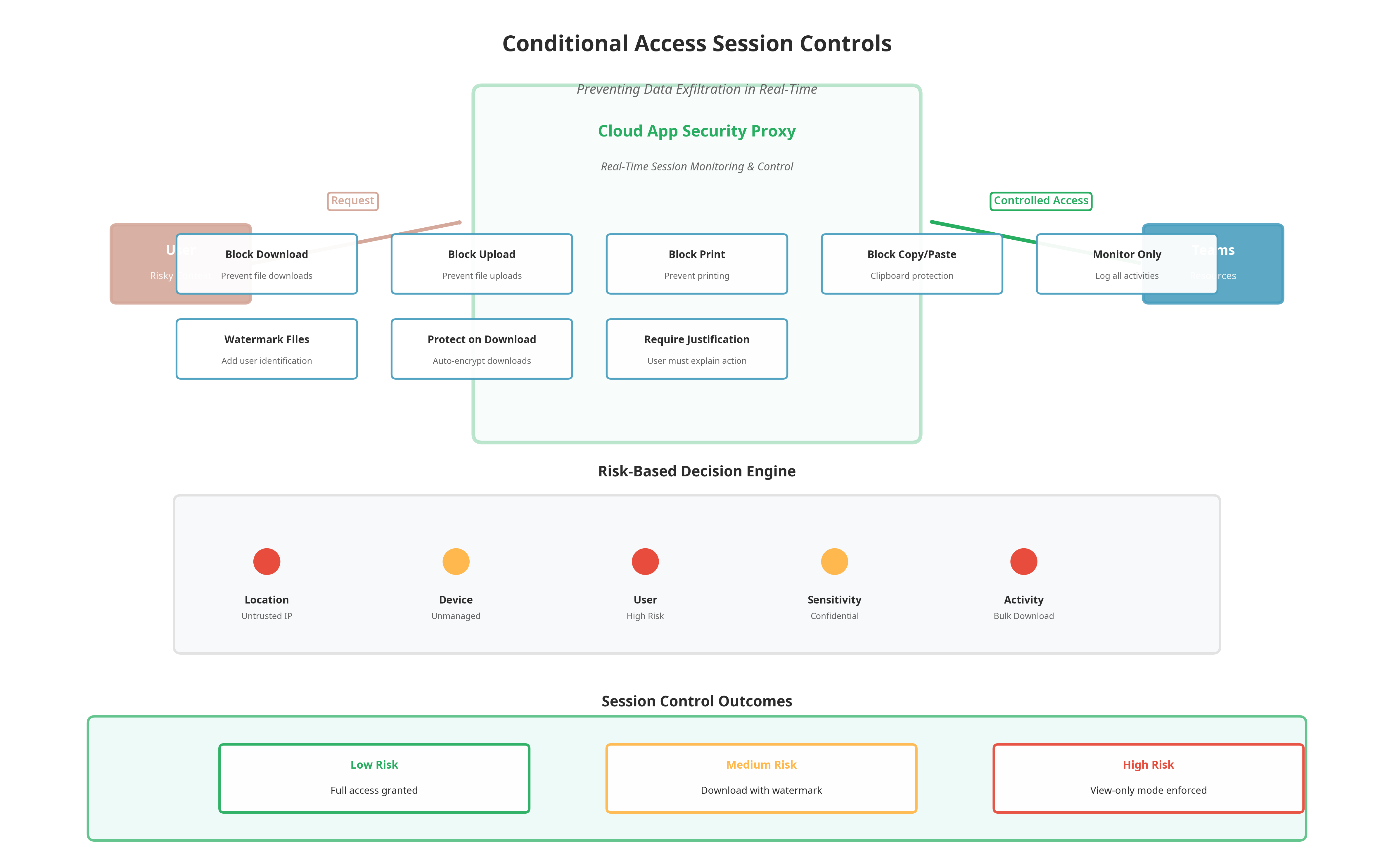
Figure 2: Session controls provide real-time monitoring and enforcement to prevent data exfiltration while maintaining user productivity
How Session Controls Work
When a user accesses Teams from a risky context (such as an untrusted location, an unmanaged device, or after a medium-risk sign-in), Conditional Access can redirect the session through the Defender for Cloud Apps proxy. This proxy inspects every action the user takes, such as downloading a file, uploading a document, copying text, or printing a page, and applies policies in real-time. For example, you can allow a user to view a confidential document but block them from downloading or printing it. You can also apply a watermark to downloaded files that includes the user's email address and timestamp, creating a forensic trail.
Configure Conditional Access with Session Controls
To enable session controls, you must first integrate Defender for Cloud Apps with Conditional Access, and then create a policy that applies session controls based on risk.
How-to: Enable Session Controls for Teams
- Ensure you have Microsoft Defender for Cloud Apps (included in Microsoft 365 E5 or as a standalone license).
- In the Microsoft Defender portal (
security.microsoft.com), navigate to Cloud Apps > Connected apps.- Verify that Microsoft 365 is connected as an app connector.
- Navigate to Cloud Apps > Policies > Policy management.
- Create a new Session policy named
Teams - Block Download for Risky Sessions.- Under Session control type, select
Control file download (with inspection).- Under Activity source, configure:
- Activities matching all of the following:
- App:
Microsoft Teams.- User:
All users(or a specific group).- Under Files matching all of the following, configure:
- Sensitivity label:
Highly Confidential(or your organization's equivalent).- Under Actions, select
Block.- Save the policy.
- Return to the Microsoft Entra admin center and create a new Conditional Access policy named
Teams - Apply Session Controls for Risky Contexts.- Under Assignments:
- Users:
All users.- Cloud apps:
Microsoft Teams.- Conditions: Configure
Locationsto apply when the user isNot on trusted network, or configureSign-in riskto apply when risk isMedium or High.- Under Session:
- Select
Use Conditional Access App Control.- Choose
Use custom policy(this will apply the session policy you created in Defender for Cloud Apps).- Enable the policy and test with a user in the target scenario.
Use Case Example: A sales executive is traveling abroad and accesses Teams from a hotel Wi-Fi network (untrusted location). Conditional Access allows the sign-in but applies session controls. The executive can view all files and participate in chats, but when they attempt to download a file labeled Highly Confidential, the download is blocked, and an alert is sent to the security team. This prevents data exfiltration while still allowing the user to work.
Challenge 3: Proactive Threat Hunting with Microsoft Sentinel
Traditional security tools are reactive: they respond to known threats and generate alerts when something goes wrong. But what about unknown threats, advanced persistent threats (APTs), or insider threats that operate below the radar? To detect these, you need to move from reactive defense to proactive threat hunting.
Microsoft Sentinel is a cloud-native Security Information and Event Management (SIEM) and Security Orchestration, Automation, and Response (SOAR) solution. It ingests data from across your Microsoft 365 environment, including Teams, Entra ID, Defender for Office 365, and Defender for Endpoint, and uses advanced analytics, machine learning, and threat intelligence to detect anomalies and suspicious behavior.
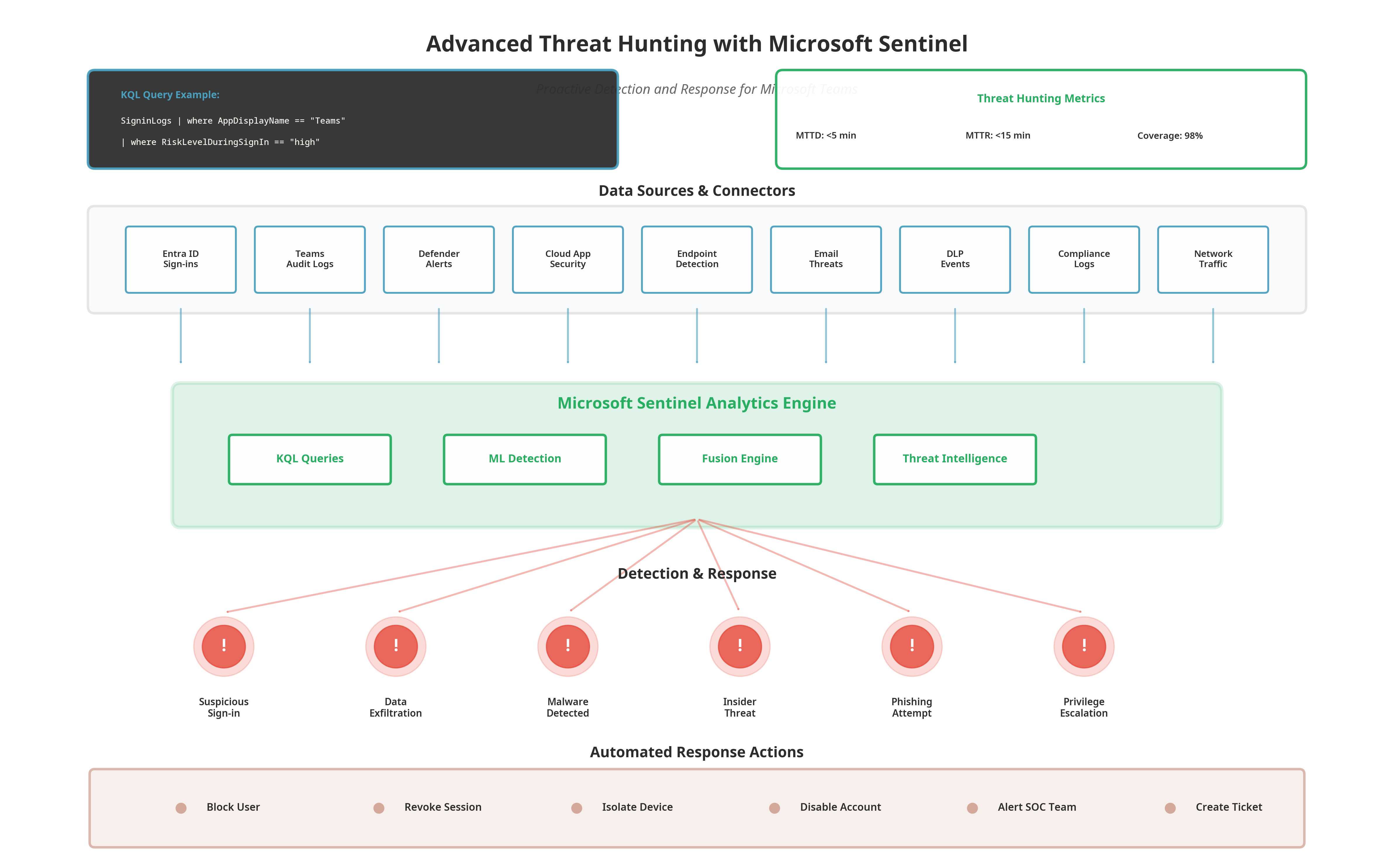
Figure 3: Microsoft Sentinel provides centralized threat detection and response across all data sources, enabling proactive threat hunting
Building a Threat Hunting Practice
Threat hunting is not a tool; it is a practice. It requires a combination of technology (Sentinel), data (logs and telemetry), expertise (security analysts), and process (hypothesis-driven investigation). The goal is to proactively search for indicators of compromise (IOCs) and tactics, techniques, and procedures (TTPs) used by attackers, rather than waiting for an alert.
Sentinel uses the Kusto Query Language (KQL) to query and analyze data. KQL is a powerful, SQL-like language that allows you to filter, aggregate, and visualize data from billions of events. Learning KQL is essential for effective threat hunting.
Deploy Microsoft Sentinel and Connect Data Sources
Your first step is to deploy Sentinel and connect it to your Microsoft 365 data sources, including Teams audit logs, Entra ID sign-ins, and Defender alerts.
How-to: Set Up Sentinel for Teams Threat Hunting
- In the Azure portal (
portal.azure.com), search for Microsoft Sentinel.- Click Create and select an existing Log Analytics workspace or create a new one.
- Once Sentinel is deployed, navigate to Configuration > Data connectors.
- Search for and enable the following connectors:
- Microsoft 365 (includes Teams, Exchange, SharePoint audit logs).
- Microsoft Entra ID (sign-in logs, audit logs).
- Microsoft Defender for Office 365 (email threats, Safe Links, Safe Attachments).
- Microsoft Defender for Endpoint (device alerts).
- Microsoft Defender for Cloud Apps (Cloud App Security alerts).
- For each connector, click Open connector page and follow the instructions to authorize data collection.
- Wait 15-30 minutes for data to begin flowing into Sentinel.
- Navigate to Logs and run a test query to verify data ingestion:
SigninLogs
| where AppDisplayName == "Microsoft Teams"
| take 10
Create Analytics Rules for Automated Detection
While threat hunting is proactive, you should also configure automated detection rules that continuously monitor for known threats and suspicious patterns. Sentinel includes a library of pre-built analytics rules that you can enable with a single click.
How-to: Enable Analytics Rules for Teams
- In Microsoft Sentinel, navigate to Configuration > Analytics.
- Click Rule templates and filter by
Microsoft TeamsorOffice 365.- Review and enable relevant rules, such as:
- Multiple Teams deleted by a single user (detects potential insider threat).
- Mass download of Teams files (detects data exfiltration).
- External user added to multiple Teams (detects unauthorized guest access).
- Suspicious sign-in to Teams from risky location (detects compromised accounts).
- For each rule, click Create rule and configure the severity, frequency, and alert grouping.
- Assign the rule to an Incident so that alerts are automatically grouped and triaged.
Hunt for Threats Using KQL Queries
Beyond automated rules, you should regularly perform manual threat hunting using custom KQL queries. Here are some example queries to get you started.
Example 1: Detect Users Accessing Teams from Multiple Countries in a Short Time
SigninLogs
| where AppDisplayName == "Microsoft Teams"
| where TimeGenerated > ago(1h)
| summarize Countries = make_set(Location), Count = count() by UserPrincipalName
| where Count > 1 and array_length(Countries) > 1
| project UserPrincipalName, Countries, Count
Example 2: Detect Mass File Downloads from Teams
OfficeActivity
| where OfficeWorkload == "MicrosoftTeams"
| where Operation == "FileDownloaded"
| where TimeGenerated > ago(1h)
| summarize DownloadCount = count() by UserId
| where DownloadCount > 50
| project UserId, DownloadCount
Example 3: Detect Guest Users with Owner Permissions
OfficeActivity
| where OfficeWorkload == "MicrosoftTeams"
| where Operation == "MemberRoleChanged"
| where Members has "Guest"
| where Members has "Owner"
| project TimeGenerated, UserId, TeamName, Members
Key Takeaway
Threat hunting is an iterative process. Start with hypotheses (e.g., "Are there any users accessing Teams from impossible travel locations?"), write KQL queries to test those hypotheses, investigate any anomalies, and refine your queries based on what you learn. Over time, you will build a library of queries and playbooks that are tailored to your organization's unique risk profile.
Challenge 4: Ensuring Compliance with Communication Compliance
Microsoft Teams is not just a collaboration tool; it is also a communication platform where employees exchange messages, share files, and hold meetings. This creates a compliance risk. How do you ensure that all communication complies with your organization's policies and regulatory requirements? How do you detect and respond to inappropriate language, harassment, or the sharing of confidential information?
The answer is Communication Compliance, a feature of Microsoft Purview that uses machine learning and natural language processing to detect policy violations in Teams messages, chats, and channel posts. Communication Compliance can detect offensive language, harassment, discrimination, sharing of sensitive information, and even regulatory violations such as insider trading or conflicts of interest.
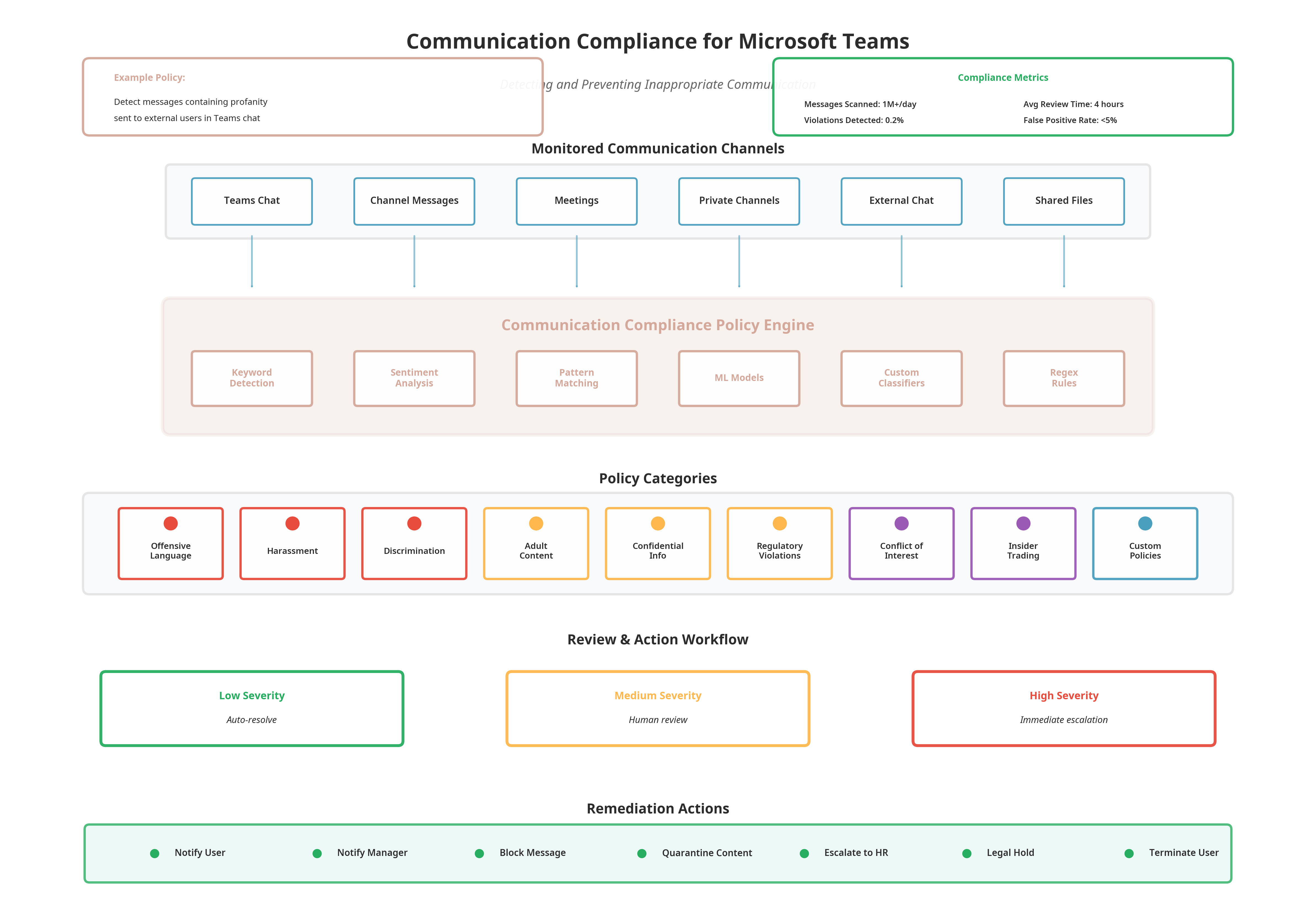
Figure 4: Communication Compliance monitors all Teams communication and uses AI to detect policy violations in real-time
How Communication Compliance Works
Communication Compliance continuously monitors all communication in Teams (and other channels such as Exchange and Yammer). When a message is sent, it is evaluated against your organization's policies. If a potential violation is detected, the message is flagged for review by a compliance officer. The reviewer can then investigate the context, view the conversation history, and take action, such as notifying the user, escalating to HR, or even deleting the message.
Communication Compliance uses a combination of keyword detection, pattern matching, sentiment analysis, and machine learning models to detect violations. Microsoft provides pre-built classifiers for common scenarios, such as offensive language, adult content, and harassment, but you can also create custom classifiers tailored to your organization's policies.
Create a Communication Compliance Policy
Your first step is to create a policy that defines what types of communication you want to monitor and what actions should be taken when a violation is detected.
How-to: Configure Communication Compliance for Teams
- Ensure you have Microsoft Purview Communication Compliance (included in Microsoft 365 E5 Compliance or as an add-on).
- In the Microsoft Purview compliance portal (
compliance.microsoft.com), navigate to Communication compliance.- Click Create policy and select a template or
Custom policy.- Name the policy
Teams - Offensive Language Detection.- Under Users and groups, select the users or groups to monitor (e.g.,
All usersor specific departments).- Under Locations, select
Microsoft Teams.- Under Conditions, configure:
- Classifiers: Select
Offensive Language,Targeted Harassment, andProfanity.- Keywords: Add any custom keywords or phrases specific to your organization's policies.
- Direction: Select
Inbound and Outboundto monitor both internal and external communication.- Under Review percentage, set to
100%to review all flagged messages (you can reduce this for high-volume environments).- Under Reviewers, assign compliance officers or HR personnel who will review flagged messages.
- Click Create policy.
- The policy will take effect within 24 hours. Flagged messages will appear in the Communication compliance dashboard for review.
Best Practice: Communication Compliance is a sensitive tool that involves monitoring employee communication. Ensure you have a clear policy that is communicated to all employees, obtain legal approval, and implement strict access controls on who can review flagged messages. Transparency and trust are essential for the success of a Communication Compliance program.
Putting It All Together: A Mature Zero Trust Posture
By implementing the advanced controls covered in this article, you have built a mature, enterprise-grade Zero Trust security posture for Microsoft Teams. You can now protect corporate data on unmanaged devices, prevent data exfiltration in real-time, proactively hunt for threats, and ensure that all communication complies with your policies. This is not just security; it is resilience.
| Control | Capability | Business Impact |
|---|---|---|
| App Protection Policies | Protect data on unmanaged devices without MDM | Enable BYOD while maintaining data security and user privacy |
| Session Controls | Real-time monitoring and enforcement of data actions | Prevent data exfiltration while allowing legitimate access |
| Sentinel Threat Hunting | Proactive detection of advanced threats and insider risks | Reduce dwell time and minimize impact of breaches |
| Communication Compliance | AI-powered detection of policy violations in communication | Meet regulatory requirements and protect organizational culture |
Conclusion: Security as a Competitive Advantage
Advanced Zero Trust controls are not just about preventing breaches; they are about enabling your business. By implementing these controls, you create an environment where users can work from anywhere, on any device, without compromising security. You build trust with customers, partners, and regulators by demonstrating that you take data protection seriously. And you gain visibility and control over your environment that allows you to detect and respond to threats faster than ever before.
The journey to Zero Trust is never complete. Threats evolve, technologies change, and your organization grows. But by building on the foundation we established in our previous articles and adding the advanced controls covered here, you have created a security architecture that is not just reactive, but adaptive. You are not just defending against today's threats; you are prepared for tomorrow's.
References
- App protection policies overview - Microsoft Learn
- Protect apps with Microsoft Defender for Cloud Apps Conditional Access App Control - Microsoft Learn
- What is Microsoft Sentinel? - Microsoft Learn
- Learn about communication compliance - Microsoft Learn
- Kusto Query Language in Microsoft Sentinel - Microsoft Learn