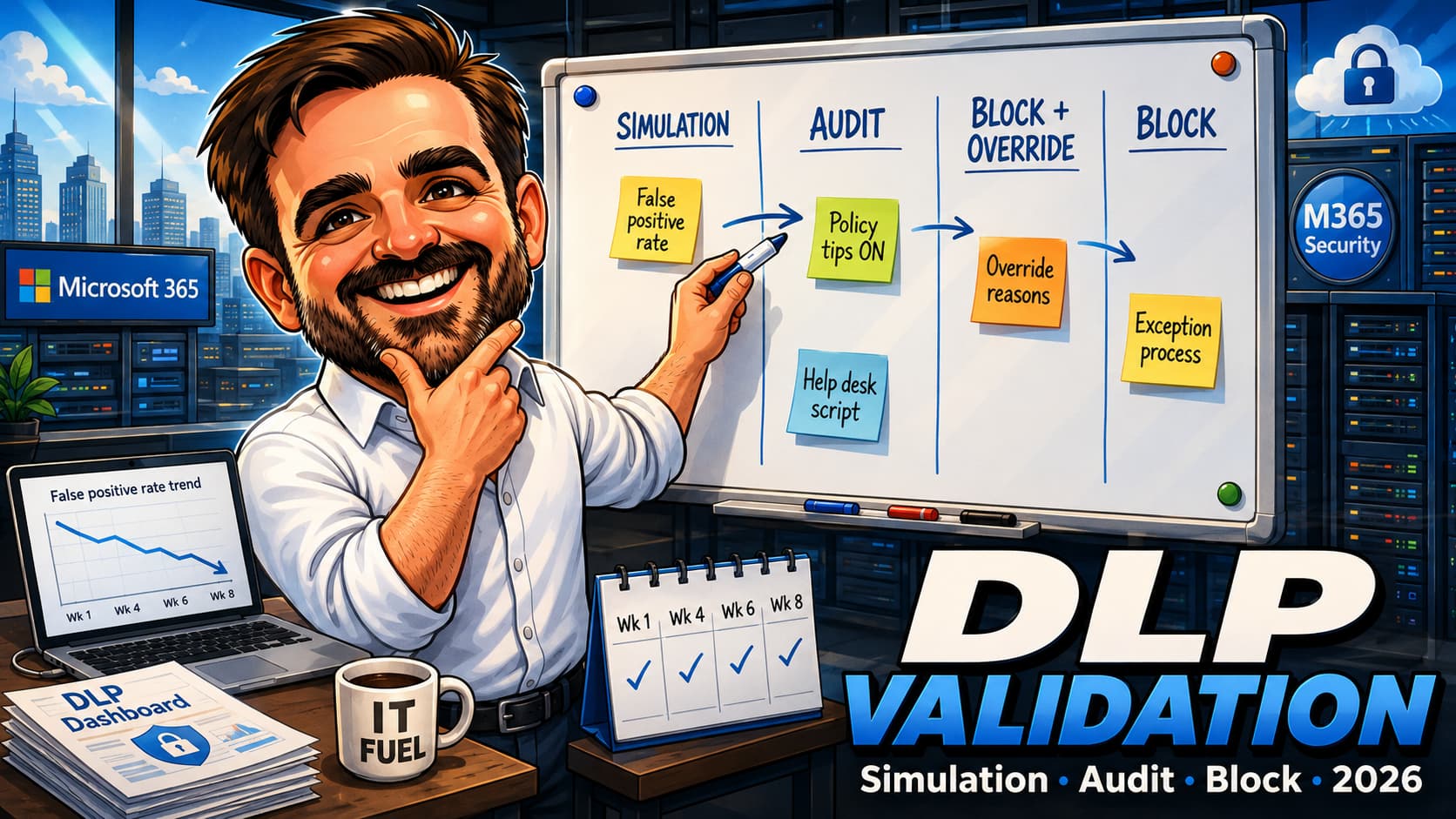
A DLP policy that generates an alert you review tomorrow is not incident response — it is documentation. The gap between when a violation occurs and when a human acts on it is where data exposure lives. In regulated environments, that gap has a cost measured in compliance obligations, not just security risk.
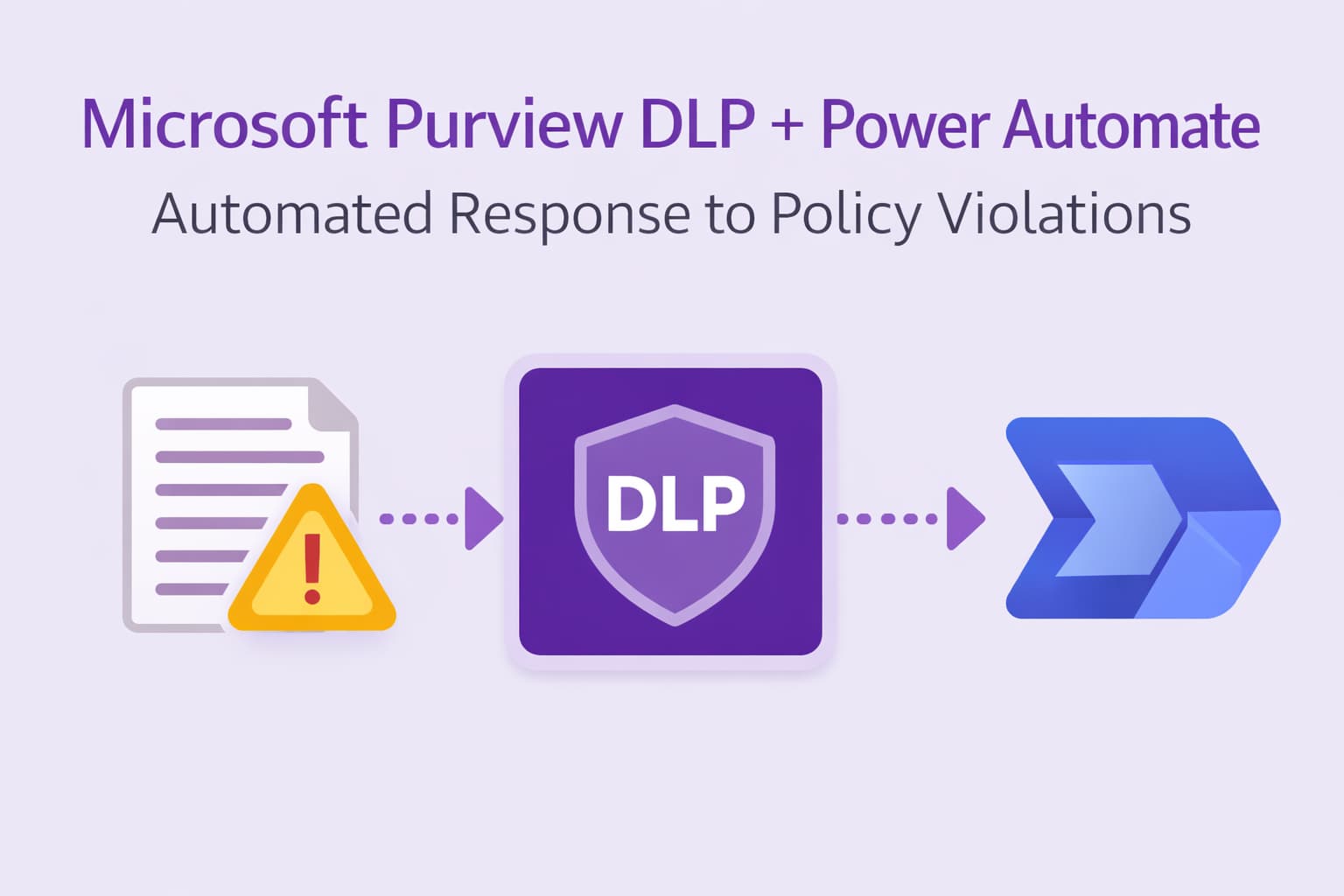
Since early 2025, Microsoft Purview DLP supports a native integration with Power Automate: when a DLP rule fires, it can trigger a custom flow as part of the rule action. No polling. No SIEM middleware. No manual triage before the first notification goes out. The flow runs at the moment the violation is detected.
This article covers how to configure that integration — the DLP rule side, the Power Automate side, the licensing and permissions that must be in place, the supported locations, and three practical flow patterns you can adapt for your environment.
How the integration works
The integration has two components that must be configured independently and then linked together in the DLP rule.
The flow is built first in Power Automate using the Microsoft Purview connector as the trigger. Once the flow is ready, it is linked to the DLP rule in the Purview portal — at the rule level, not the policy level. This means you can have different flows for different rules within the same policy, which matters if you have rules with different severity levels or different response requirements.
Use cases worth automating
Manual DLP alert triage scales poorly. These are the scenarios where automated response delivers the most immediate value:
Prerequisites
Build the flow in Power Automate
The flow must be created before it can be linked to a DLP rule. You can create it from the DLP rule authoring page directly, or build it independently in Power Automate and link it later.
Option A — From the DLP rule authoring page (recommended)
Option B — Build the flow independently in Power Automate
Configure the DLP rule action
Once the flow exists and is shared, linking it to a DLP rule takes a few steps in the Purview portal. The configuration is at the rule level — if you have multiple rules in a policy with different severity levels, you can link different flows to each.
Three flow patterns to adapt
Pattern 1 — Manager notification with Teams escalation
The most common starting point. Notifies the violating user's manager by email and posts a summary to a Teams security channel for high-severity policies.
# Trigger: Microsoft Purview - When a DLP policy is violated
# Available dynamic content from trigger:
#   ViolatingUserEmail, PolicyName, SensitiveInfoTypeDetected,
#   FileURL, Location, RuleName, Timestamp

# Step 1: Get the violating user's manager
# Action: Microsoft 365 Users - Get manager (V2)
# Input: User (UPN) = [ViolatingUserEmail] from trigger dynamic content

# Step 2: Send manager notification email
# Action: Outlook - Send an email (V2)
# To:      [Manager/Mail] from Step 1
# Subject: DLP Policy Violation - [PolicyName]
# Body:    User [ViolatingUserEmail] triggered a DLP rule.
#          Policy: [PolicyName]
#          Rule: [RuleName]
#          Sensitive type detected: [SensitiveInfoTypeDetected]
#          File/location: [FileURL]
#          Time: [Timestamp]
#          Review in Purview: https://compliance.microsoft.com

# Step 3: Post to Teams security channel
# Action: Microsoft Teams - Post a message in a chat or channel
# Team:   Security Operations (your team name)
# Channel: DLP Alerts (your channel name)
# Message: Adaptive card or plain text with same metadata
Pattern 2 — Incident log in SharePoint
Creates a structured record in a SharePoint list for every DLP match. Gives compliance teams a queryable audit trail that persists beyond the 30-day Purview alert window.
# Trigger: Microsoft Purview - When a DLP policy is violated

# Pre-requisite: Create a SharePoint list with these columns:
#   Title (single line text)
#   ViolatingUser (single line text)
#   PolicyName (single line text)
#   RuleName (single line text)
#   SensitiveType (single line text)
#   FileURL (hyperlink)
#   Location (single line text)
#   ViolationTimestamp (date/time)
#   Status (choice: New / Under Review / Resolved)

# Step 1: Create item in SharePoint list
# Action: SharePoint - Create item
# Site: https://contoso.sharepoint.com/sites/Compliance
# List: DLP Incident Log
# Field mapping:
#   Title              = DLP Violation - [PolicyName] - [Timestamp]
#   ViolatingUser      = [ViolatingUserEmail]
#   PolicyName         = [PolicyName]
#   RuleName           = [RuleName]
#   SensitiveType      = [SensitiveInfoTypeDetected]
#   FileURL            = [FileURL]
#   Location           = [Location]
#   ViolationTimestamp = [Timestamp]
#   Status             = New

# Step 2 (optional): Create Planner task for follow-up
# Action: Planner - Create a task
# Assign to: DLP admin or compliance officer
# Due date: +2 business days from trigger
Pattern 3 — Automated sharing restriction (SharePoint / OneDrive)
For high-severity violations on SharePoint or OneDrive files, the flow calls the SharePoint REST API via an HTTP action to remove sharing links from the violating file. This turns detection into immediate remediation.
# Trigger: Microsoft Purview - When a DLP policy is violated
# Only suitable for SharePoint/OneDrive locations

# Step 1: Get file sharing links via Microsoft Graph
# Action: HTTP
# Method: GET
# URI: https://graph.microsoft.com/v1.0/sites/{siteId}/drives/{driveId}/items/{itemId}/permissions
# Authentication: Active Directory OAuth - use a registered app with Sites.ReadWrite.All
# Note: Extract siteId, driveId, itemId from [FileURL] dynamic content
#       Use Parse JSON to extract sharing permission IDs from the response

# Step 2: Apply for each sharing link (loop)
# Action: Apply to each - loop over permissions from Step 1
#   Condition: permission type is sharing link (not direct access)
#   If true:
#     Action: HTTP - DELETE
#     URI: https://graph.microsoft.com/v1.0/sites/{siteId}/drives/{driveId}/items/{itemId}/permissions/{permId}

# Step 3: Notify the file owner that sharing was restricted
# Action: Outlook - Send an email
# To: [ViolatingUserEmail]
# Subject: File sharing restricted - DLP policy
# Body: Explain what was restricted and who to contact for review

# Recommended: Add an Approval step before Step 2
# Action: Approvals - Start and wait for an approval
# Approver: DLP admin or security team
# If approved: proceed with restriction
# If rejected: notify security team that manual review is needed
Limits and caveats to document before you deploy
- Supported locations: Exchange Online, SharePoint Online, OneDrive, and Windows devices (Windows 11 24H2 and above) at the time of writing. Teams and other locations are not currently supported for the Power Automate trigger. Verify the current list before designing flows that depend on specific locations.
- SharePoint and OneDrive — new/modified content only: The flow only fires for content that is new or modified after the DLP rule is active. Existing items at rest that already violate the policy do not trigger the flow. Use DLP alert scanning and the Purview alert dashboard for retrospective coverage.
- Flow availability: The flow must be shared with the DLP policy admin account or owned by a service account. If the flow creator's account is disabled or leaves the organisation, the flow stops working. Plan for continuity at the time of deployment.
- Alert generation is separate: The Power Automate action does not replace the DLP alert. If you want alerts in the Purview portal or Defender XDR, configure alert generation separately in the same rule — both can run simultaneously.
- Audit mode still triggers flows: A rule set to audit mode will still fire the Power Automate action. This is useful for testing, but be aware that your flow's notification and logging actions will run on every match even when the rule is not enforcing.
- Connector preview status: The Microsoft 365 compliance connector reference is currently published as Preview. Validate connector behaviour in your tenant before production rollout — preview connectors can change without notice.
- Power Automate run history: Each flow run is visible in the Power Automate portal under the flow's run history. Use this to debug failed runs and verify that the trigger metadata is being populated correctly.
Deployment checklist
- Verify the DLP policy targets a supported locationThe Power Automate trigger currently supports Exchange Online, SharePoint Online, OneDrive, and Windows devices (24H2 and above). Confirm the policy includes at least one of these locations.
- Confirm the flow creator has Power Automate PremiumThe Microsoft Purview connector is premium. Verify the flow creator's licence covers premium connectors before building the flow.
- Build and test the flow in isolation before linking to DLPUse the flow's manual trigger or test mode to verify each action step — manager lookup, email, Teams post, SharePoint write — before connecting it to a live DLP rule.
- Share the flow with DLP policy owners or use a service accountPrevents the flow from breaking if the creator's account changes. Document the service account and its credentials in your key management process.
- Link the flow to the rule in audit mode firstRun the linked configuration in audit mode for at least one week. Review the flow's run history and the Purview alert dashboard to confirm matches are triggering the flow and that metadata is correct.
- Confirm alert generation is configured separately if neededThe Power Automate action does not generate a Purview alert. If you need alerts in the Purview dashboard or Defender XDR, configure the alert action in the same DLP rule alongside the Power Automate action.
- For remediation flows — add an approval step before enforcementAny flow that modifies permissions or restricts access should include a human approval step before executing. Automated remediation without approval gates can disrupt legitimate workflows.
- Document the flow owner and succession planRecord who owns the flow, what DLP rules it is linked to, and the process for transferring ownership. Review this when the flow owner changes role or leaves.