TL;DR for IT & Security Leaders
- The Problem: Most SMB tenants already have the right tools — they're just misconfigured, incomplete, or never operationalised.
- The Solution: A prioritized checklist across Identity, Conditional Access, Email, Endpoints, and Monitoring — ordered by risk impact.
- The Approach: Identity first, then access control, then endpoint trust, then email and data. Sequence matters more than coverage.
- The Reality: In my field experience, many SMB tenants are operating well below a defensible security baseline. Getting there with Business Premium is realistic — this checklist is the map.
⚠️ Licensing Note
This checklist assumes Microsoft 365 Business Premium. Controls such as Intune, Entra ID Protection, Defender for Business, and Purview require specific plans — and availability varies across tiers, bundles, and add-ons. Not everything listed here will be accessible on Business Basic or Standard without upgrading. Verify your entitlements before planning a deployment using the Microsoft 365 licensing comparison page.
Top Mistakes I See in SMB Microsoft 365 Tenants
Before the checklist, these are the six gaps I find in almost every SMB tenant I assess. If you recognise your environment in any of them, start here.
- 1 MFA enforced only for admins End users have MFA "enabled" but not enforced via Conditional Access. Legacy clients bypass it entirely. If your users aren't all covered by an enforced CA policy, you don't have MFA — you have the appearance of it.
- 2 Conditional Access that looks right but isn't Policies with broad exclusions, missing platform conditions, or gaps in app coverage. Looking configured and being configured are not the same thing — and the difference shows up during an incident.
- 3 SMTP AUTH enabled globally "The printer needs it." Fine — whitelist that account. The rest of the tenant doesn't need SMTP AUTH open, and leaving it on globally is an unnecessary authentication bypass.
- 4 OAuth app consents never reviewed Hundreds of consented apps, some with Mail.ReadWrite or Files.ReadWrite.All, granted years ago and completely forgotten. Persistent access without credentials — invisible unless you specifically go looking for it.
- 5 Intune enrolled but compliance never enforced Enrolled and completely unmanaged personal laptops with identical access to corporate data. Enrolment without a CA enforcement policy is infrastructure, not security.
- 6 Secure Score treated as a security verdict Secure Score measures configuration completeness against Microsoft's recommendations. It does not tell you whether your tenant is secure. It's a useful input — not a verdict.
Why Sequence Matters More Than Coverage
The biggest mistake in M365 hardening is trying to activate everything at once. Security controls depend on each other. The sequence below is how I structure every SMB hardening engagement.
01
Identity First
MFA for all users, block legacy auth, harden admin accounts. Every other control assumes identity is solid — if it isn't, nothing else matters.
02
Then Access Control
Build the Conditional Access baseline. Define who accesses what, from where, and under which conditions. This is where Zero Trust becomes operational policy.
03
Then Endpoint Trust
Enrol devices, enforce compliance, remove local admin rights. CA policies can now enforce device health as an access condition — closing the loop between identity and device posture.
04
Then Email and Data Controls
Harden Exchange Online, deploy Safe Links and Attachments, configure DLP and Sensitivity Labels. Most effective once identity and devices are already solid.
05
Then Monitoring and Detection
Enable audit logging, configure alert policies, review Secure Score. The controls above reduce your attack surface. Monitoring tells you when something slips through anyway.
Multi-Factor Authentication
- Enforce MFA for all users via Conditional AccessA dedicated CA policy targeting all users and all apps. "Enabled but not enforced" is not MFA — verify your policy covers legacy auth clients too.
- Enable number matching in Microsoft AuthenticatorBlocks MFA fatigue attacks. Enforced by default on new tenants — verify it's active on yours.
- Block all legacy authentication protocolsIMAP, POP3, SMTP AUTH, Basic Auth — all of them via CA policy. If there's one control with the highest ratio of risk reduction to configuration effort, this is it.
- Register all Global Admins with FIDO2 or passkeysAuthenticator alone can be phished via AiTM proxy attacks. FIDO2 keys cannot. Admin accounts are the highest-value targets in your tenant.
- Configure SSPR with two authentication methodsReduces helpdesk load. Confirm SSPR methods match those already registered by users — mismatches create lockout scenarios.
Admin Hardening
- Create break-glass emergency accountsTwo cloud-only Global Admins excluded from all CA policies, credentials stored offline. Your recovery path when a CA misconfiguration locks everyone out.
- Apply least-privilege to all admin role assignmentsExchange Admin for Exchange, Intune Admin for Intune. No Global Admin for day-to-day tasks. Review monthly — role creep is real.
- Enable Entra ID Password ProtectionBlocks weak and organisation-specific passwords globally. Extend to on-premises AD via the Password Protection agent in hybrid environments.
💡 Always Test in Report-Only Mode First
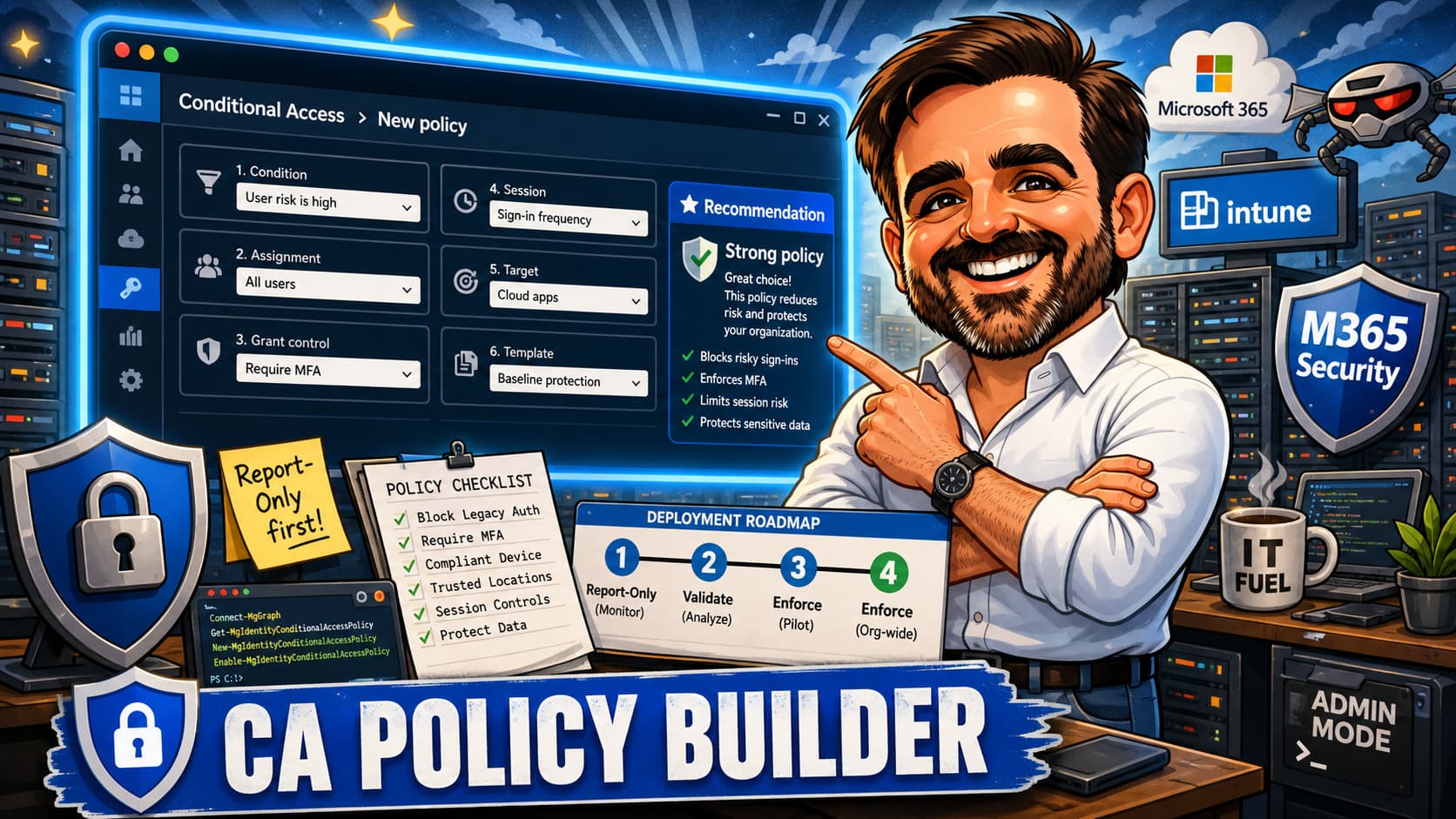
Deploy every new CA policy in Report-Only mode and monitor sign-in logs for 48–72 hours before enforcing. A single misconfigured policy can lock out an entire organisation in under a minute. The logs show exactly who would have been affected — use them before you enforce.
- Require MFA for all users, all appsThe baseline. No exceptions except break-glass accounts.
- Require MFA for all directory rolesSeparate stricter policy for all admin roles — session limits, compliant device requirement, sign-in frequency controls.
- Block high-risk sign-ins via Entra ID ProtectionAutomated block or step-up for sign-ins flagged as high-risk — impossible travel, anonymous IPs, leaked credentials.
- Require compliant or Entra ID joined device for corporate appsFor SharePoint, Exchange, and Teams. Without this, Intune compliance policies are informational — not protective.
- Verify legacy auth block is active and covering all client typesConfigured in identity — confirm here that the CA policy is enforced, not in report-only, and includes all legacy auth client conditions.
-
Configure SPF, DKIM, and DMARC — with enforcementMove to
p=quarantinenow,p=rejectonce your mail flows are validated.p=noneis not protection. - Enable Safe Links and Safe Attachments for all usersNot just a pilot group that never got expanded. All users, validated in the Defender portal.
- Apply Preset Security Policies via the Configuration AnalyzerStrict for executives and high-risk accounts, Standard for everyone else. Lock it in with Preset Policies to prevent future security drift.
- Configure Anti-Phishing with impersonation protectionEnable for CEO, CFO, and key senders. Enable mailbox intelligence. Most BEC attacks impersonate internal executives — this is your primary defence.
- Disable SMTP AUTH globally; whitelist only where truly requiredOne account for the printer is valid. The entire tenant doesn't need it open.
-
Verify mailbox auditing is enabled and retention extendedRun
Get-Mailbox -ResultSize Unlimited | Select AuditEnabled. Extend retention for exec accounts beyond 90 days. You can't investigate what isn't logged.
- Enroll corporate devices via Windows AutopilotUse Pre-Provisioning for zero-touch cloud-native onboarding. BYOD devices: MAM-only (App Protection Policies), no full MDM.
- Configure compliance policies and enforce via Conditional AccessBitLocker enabled, minimum OS version, Defender active, no jailbreak. A compliance policy not connected to a CA block is decorative.
- Deploy the MDM Security Baseline and Defender for Endpoint baselineHundreds of hardening settings, pre-configured by Microsoft. Apply as a starting point and tune from there.
- Remove local admin rights via Endpoint Privilege Management (EPM)Ransomware loves local admin. EPM allows controlled elevation for approved apps without granting permanent local admin. One of the highest-impact controls you can deploy.
- Configure Windows Update RingsPilot → Early Adopter → Broad. Test first, promote after validation. One bad update pushed fleet-wide is a self-inflicted outage.
- Enforce BitLocker with silent encryption via IntuneSilent enablement for Entra ID joined devices. Recovery keys in Entra ID — never locally. A stolen unencrypted laptop is a reportable breach in most jurisdictions.
🚨 The Pattern I See Most in Post-Compromise Tenants
Attacker phishes a user → logs in → creates an inbox rule forwarding all email externally → deletes the rule from the user's Outlook view. The user sees nothing. The attacker reads everything for weeks. Fix: alert on
New-InboxRule and Set-InboxRule events with external forwarding conditions — before you need it.
-
Verify the Unified Audit Log is enabled and retention extendedRun
Get-AdminAuditLogConfig | Select UnifiedAuditLogIngestionEnabled. If it's off, you have no audit trail. 90 days is rarely enough — extend it for regulated workloads. - Use Secure Score as a prioritized work queueAssign ownership per category, treat improvements as tickets. Configuration completeness is not the same as security — but it's a useful starting point.
- Enable Identity Protection risk alerts with automated remediationForce password reset and require MFA for high-risk events. Report-only is for testing — not for production.
- Create alert policies for critical admin and mailbox actionsAlert on: Global Admin role granted, inbox forwarding rules created, new OAuth app consented, eDiscovery searches initiated, mailbox permission changes.
- Audit consented OAuth applications monthlyEntra ID → Enterprise Applications → filter by User consent. Revoke anything unrecognised or over-permissioned. The most consistently neglected control in SMB tenants.
Critical — Week 1
- MFA for all users via Conditional Access
- Block legacy authentication
- Break-glass admin accounts
- SPF / DKIM / DMARC with enforcement
High — Month 1
- Disable SMTP AUTH globally
- Full CA baseline (risk + device compliance)
- Entra ID Protection risk policies
- Safe Links + Safe Attachments
- Intune enrolment + compliance enforcement
- BitLocker via Intune
Medium — Quarter 1
- EPM (remove local admin rights)
- SharePoint external sharing audit
- Sensitivity Labels + DLP policies
- Admin action alert policies
- Audit Log retention extension
Ongoing — Recurring
- Monthly Secure Score reviews
- Quarterly access reviews
- Quarterly Configuration Analyzer
- Monthly OAuth app audits
- Annual IR plan test
| Control | Location | Priority |
|---|---|---|
| MFA via Conditional Access | Entra ID → Security → Conditional Access | Critical |
| Block legacy authentication | Entra ID → Conditional Access policy | Critical |
| Number matching (Authenticator) | Entra ID → Authentication methods | Critical |
| SPF / DKIM / DMARC (p=reject) | DNS + Exchange Admin Center | Critical |
| Disable SMTP AUTH globally | Exchange Admin Center → Settings | High |
| Safe Links + Safe Attachments | Microsoft Defender Portal | High |
| Intune compliance + CA enforcement | Intune + Entra ID | High |
| BitLocker enforcement | Intune → Endpoint Security → Disk encryption | High |
| Entra ID Protection risk policies | Entra ID → Security → Identity Protection | High |
| Endpoint Privilege Management (EPM) | Intune → Endpoint Security → EPM | Medium |
| Sensitivity Labels + DLP | Microsoft Purview | Medium |
| Admin action alert policies | Microsoft Defender Portal → Alerts | Medium |
🔍
This checklist is based on the areas I usually focus on first in SMB Microsoft 365 environments: Conditional Access, identity, email security, and endpoint controls. →
📚 Related Articles
Several controls in this checklist have dedicated deep-dive guides on this blog: