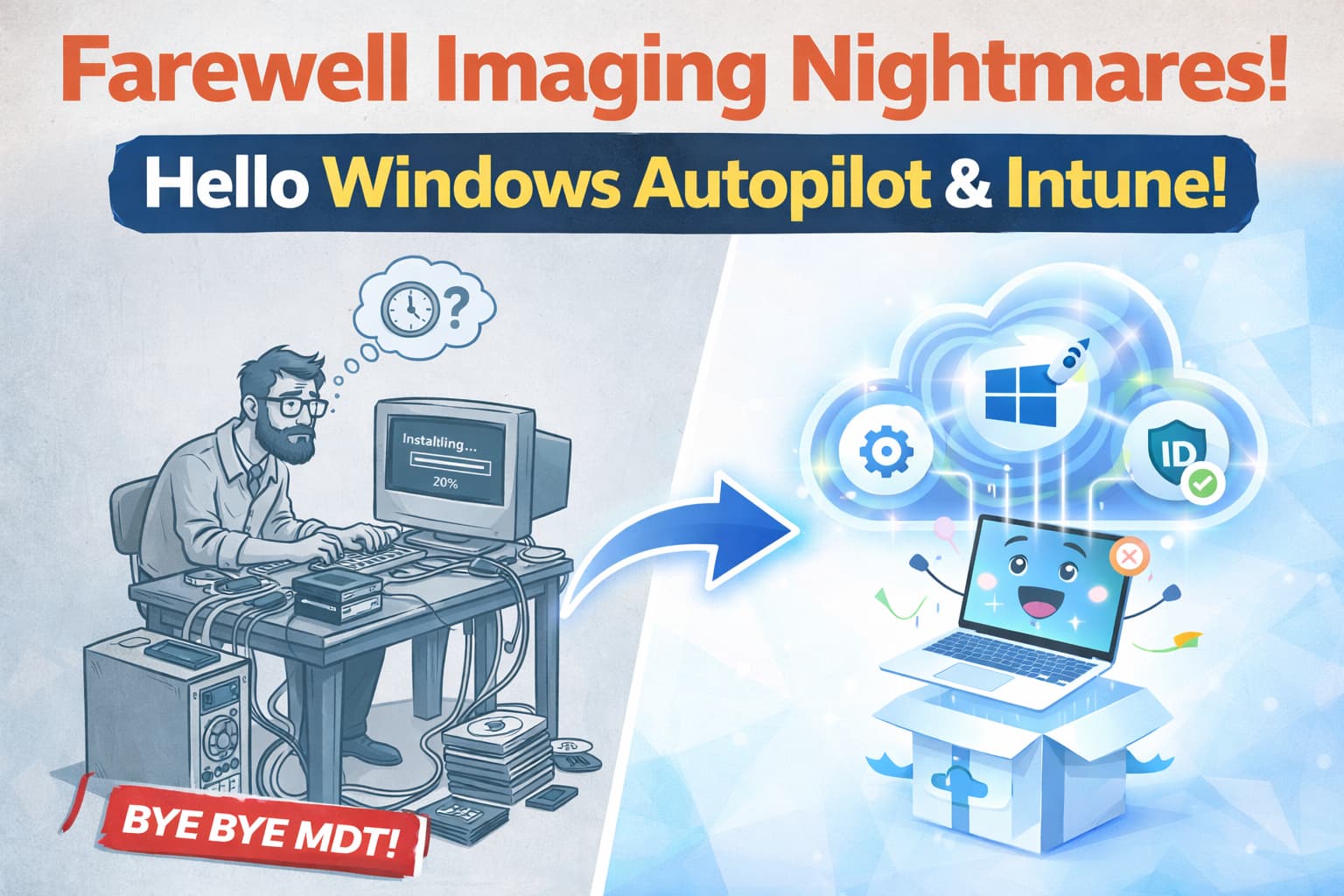
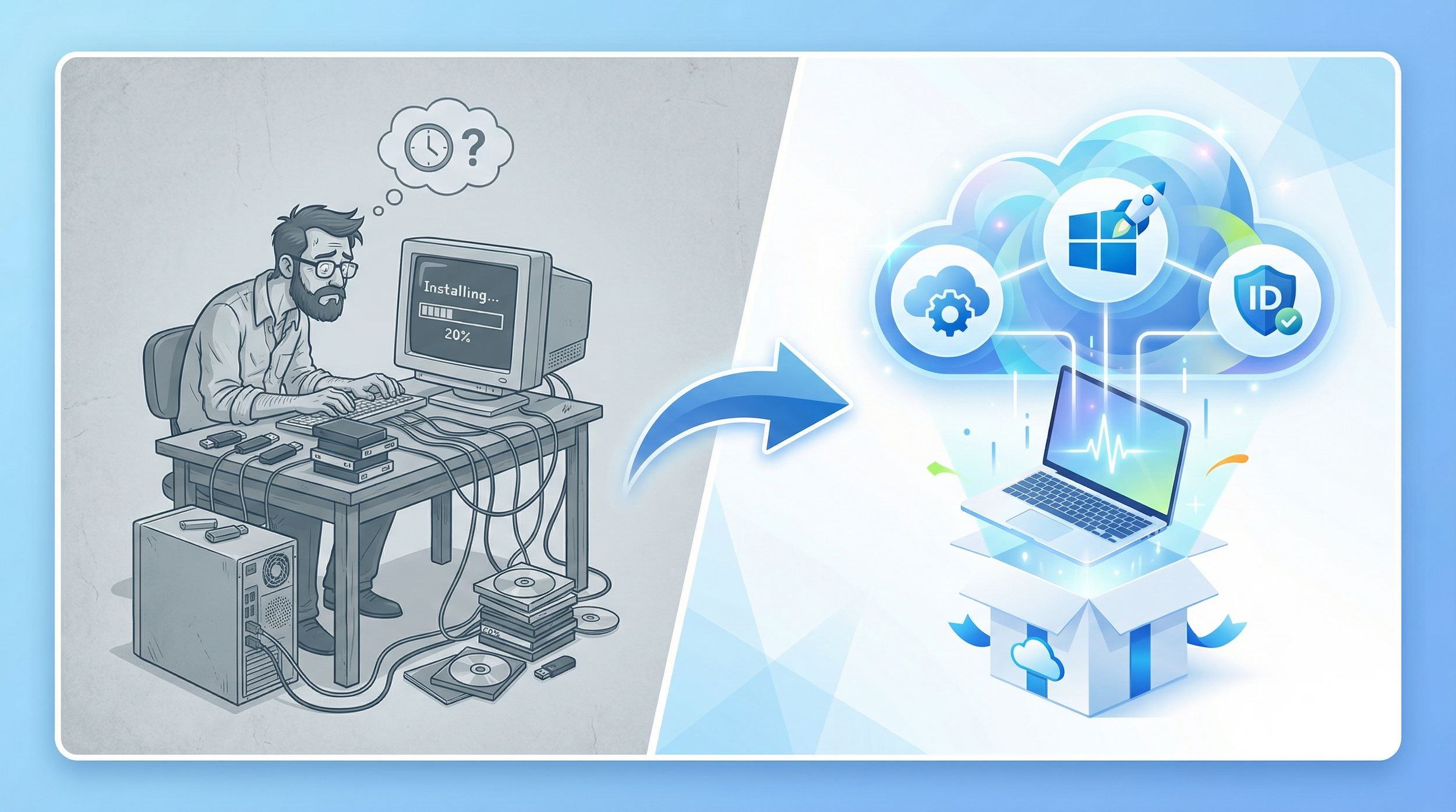
Who doesn't remember the late nights rebuilding base images in MDT, or configuring a USB drive for every new hire? Those days are over. Microsoft has officially retired MDT and is steering organizations toward modern, cloud-based deployment.
This playbook walks you through replacing legacy imaging with Windows Autopilot, Intune, and Pre-Provisioning — so your next PC arrives ready to work, not ready to be reformatted.
TL;DR for IT & Operations Leaders
- The Problem: Legacy imaging (MDT, SCCM Task Sequences, Ghost) is a maintenance nightmare — driver updates, snapshot rebuilds, hardware-specific images. MDT is now officially retired by Microsoft.
- The Solution: Windows Autopilot uses the OEM-preinstalled Windows image as the base, applying policies, apps, and configurations from the cloud via Microsoft Intune.
- The Accelerator: Pre-Provisioning (formerly White Glove) lets IT or the OEM do the heavy lifting before the user ever touches the device.
- Key Metric: The new KPI is Time-to-Productivity — how fast a user goes from unboxing to working.
- Best Practice: New devices should be Microsoft Entra joined (cloud-native). Hybrid join is legacy and should be avoided for new deployments.
- The Goal: Zero-touch provisioning where the device arrives configured, compliant, and ready for the end user.
The End of an Era: Why Legacy Imaging Must Go
For over a decade, the standard PC deployment workflow was: capture a golden image, maintain it with every patch cycle, manage driver packs for each hardware model, and deploy via PXE boot or USB. This approach worked — until it didn't.
The overhead of maintaining images across diverse hardware, the fragility of task sequences, and the dependency on on-premises infrastructure made legacy imaging unsustainable at scale.
Microsoft made this official by retiring the Microsoft Deployment Toolkit (MDT), recommending that organizations "migrate to modern deployment solutions" [1]. The message is clear: the future of device provisioning is cloud-first.
The Hidden Cost of Legacy Imaging
Legacy imaging carries costs that are often invisible in IT budgets but devastating to operational efficiency:
- Image Maintenance: Every Windows update, driver change, or application update requires rebuilding and testing the golden image.
- Hardware Fragmentation: Each hardware model may need its own driver pack or image variant — a combinatorial explosion as the fleet grows.
- On-Premises Dependency: PXE boot, SCCM distribution points, and network bandwidth constraints tie deployments to physical infrastructure.
- Time-to-Productivity: A typical legacy deployment takes 2–4 hours of IT hands-on time per device. Multiply that by hundreds of devices per year.
- Skilled Labor: Task sequence troubleshooting requires specialized knowledge that is increasingly hard to find and retain.
Imaging vs. Provisioning: The Paradigm Shift
The fundamental shift is from imaging (wiping and replacing the OS) to provisioning (configuring the existing OEM-installed OS).
Windows Autopilot "helps organizations easily provision new devices by using the preinstalled OEM image and drivers" [2]. Instead of erasing the factory Windows installation, Autopilot layers corporate identity, policies, and applications on top of it.
| Aspect | Legacy Imaging (MDT/SCCM) | Modern Provisioning (Autopilot) |
|---|---|---|
| OS Source | Custom golden image (maintained by IT) | OEM-preinstalled Windows + drivers |
| Infrastructure | On-premises (PXE, SCCM DPs, network) | Cloud-based (Intune, Microsoft Entra ID) |
| Driver Management | Manual driver packs per hardware model | OEM-provided, factory-installed |
| IT Hands-on Time | 2–4 hours per device | Minutes (or zero with Pre-Provisioning) |
| User Experience | Wait for IT to deliver a "ready" device | Unbox, sign in, start working |
| Scalability | Limited by network and infrastructure | Cloud-scale, location-independent |
| Maintenance Burden | High (image rebuilds, testing, driver updates) | Low (policies and apps managed centrally in Intune) |
Why Security & Operations Teams Embrace Autopilot
- Consistent Baseline: Every device receives the same security policies and compliance configurations from Intune, regardless of who provisions it or where.
- Reduced Attack Surface: No custom images means no risk of outdated or misconfigured base images being deployed.
- Cloud-Native Identity: Microsoft Entra joined devices benefit from Conditional Access, passwordless authentication, and seamless SSO from the first login.
- Audit Trail: Every provisioning step is logged in Intune, providing full visibility into device state and compliance.
- Zero-Touch Capability: Devices can be shipped directly from the OEM to the end user — IT never needs to physically touch the hardware.
Prerequisites
Before starting, ensure the following are in place:
- Microsoft Intune license — required for device enrollment, policy assignment, and app deployment [6].
- Microsoft Entra ID P1 (or higher) — required for dynamic groups and Conditional Access policies.
- Windows 10/11 Pro, Enterprise, or Education — Autopilot is not supported on Windows Home editions.
- Device registration — devices must be registered with the Windows Autopilot service via hardware hash (uploaded by the OEM, partner, or IT admin) [7].
- Network connectivity — devices need internet access during OOBE to reach the Autopilot service and Intune.
- Apps supporting the Intune SDK — only applications that integrate the Intune App SDK (or are wrapped) can be managed through App Protection Policies.
The Autopilot Playbook: A 3-Step Rollout Guide
Step 1: Choose the Right Deployment Scenario
Windows Autopilot supports multiple deployment modes. Choosing the right one upfront avoids rework and ensures the best user experience.
Microsoft documents these scenarios in detail [3]. The table below summarizes the three primary modes:
| Scenario | Best For | How It Works | Key Requirement |
|---|---|---|---|
| User-Driven | Standard laptops/desktops assigned to a single user | User powers on the device, signs in with Microsoft Entra ID credentials, and Autopilot completes the setup | Supports both Microsoft Entra joined and Hybrid Join |
| Self-Deploying | Kiosks, shared devices, digital signage | Fully automated — no user interaction required during setup. Microsoft Entra joined only | Microsoft Entra joined only (Hybrid Join not supported) |
| Pre-Provisioning | User-Driven devices where IT or OEM pre-configures before shipping | IT/OEM completes the device-targeted phase; user completes the user-targeted phase at first login | Combines with User-Driven mode |
Pro Tip: Default to User-Driven + Pre-Provisioning
For most organizations, the combination of User-Driven mode with Pre-Provisioning delivers the best balance of control and user experience. IT handles the heavy lifting (apps, policies, compliance), and the user simply signs in and starts working.
Reserve Self-Deploying mode exclusively for shared or kiosk devices.
Common Mistake: Using Hybrid Join for New Devices
Microsoft recommends that new devices be Microsoft Entra joined (cloud-native) for the best experience [3].
Hybrid Join requires line-of-sight to an on-premises domain controller, adds complexity, and slows down provisioning. It should be treated as the exception, not the default. Only use Hybrid Join if you have a hard dependency on on-premises Active Directory resources that cannot be accessed via other means (e.g., legacy file shares, on-prem applications with Kerberos authentication).
Step 2: Pre-Provisioning — The Heavy Lifting Before the User
With Windows Autopilot Pre-Provisioning (formerly known as "White Glove"), the device is configured before the end user ever touches it. Pre-Provisioning splits the setup into two distinct phases: the device phase (completed by IT or the OEM) and the user phase (completed by the end user at first login).
A technician (or the OEM partner) boots the device, triggers the pre-provisioning flow, and the device automatically joins Microsoft Entra ID, enrolls in Intune, and receives all device-targeted policies and applications [2].
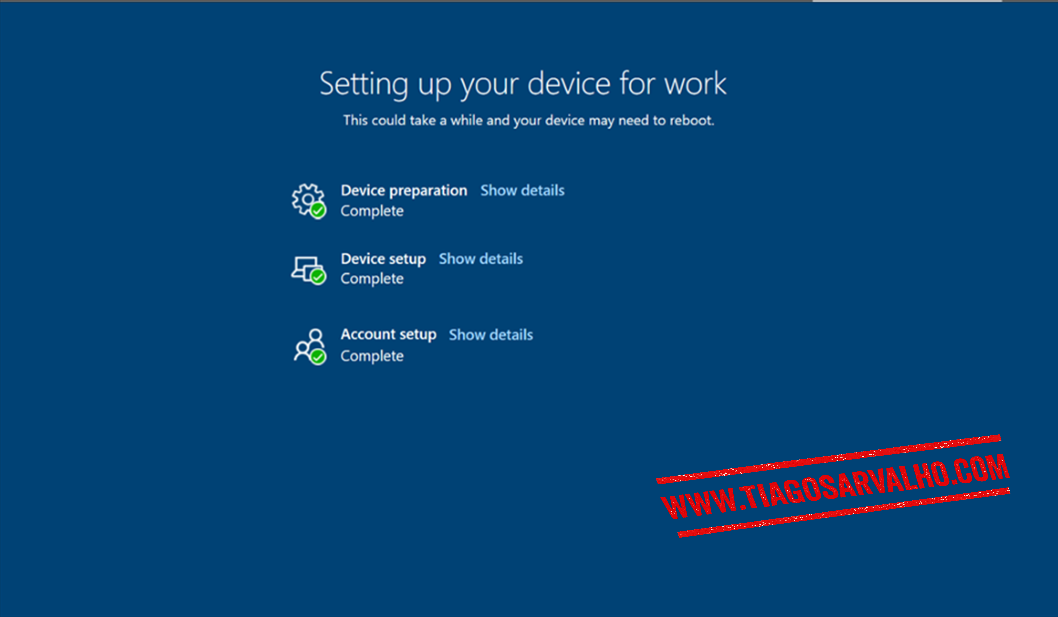
The pre-provisioning workflow follows these steps:
- Boot the device and reach the OOBE (Out-of-Box Experience) screen.
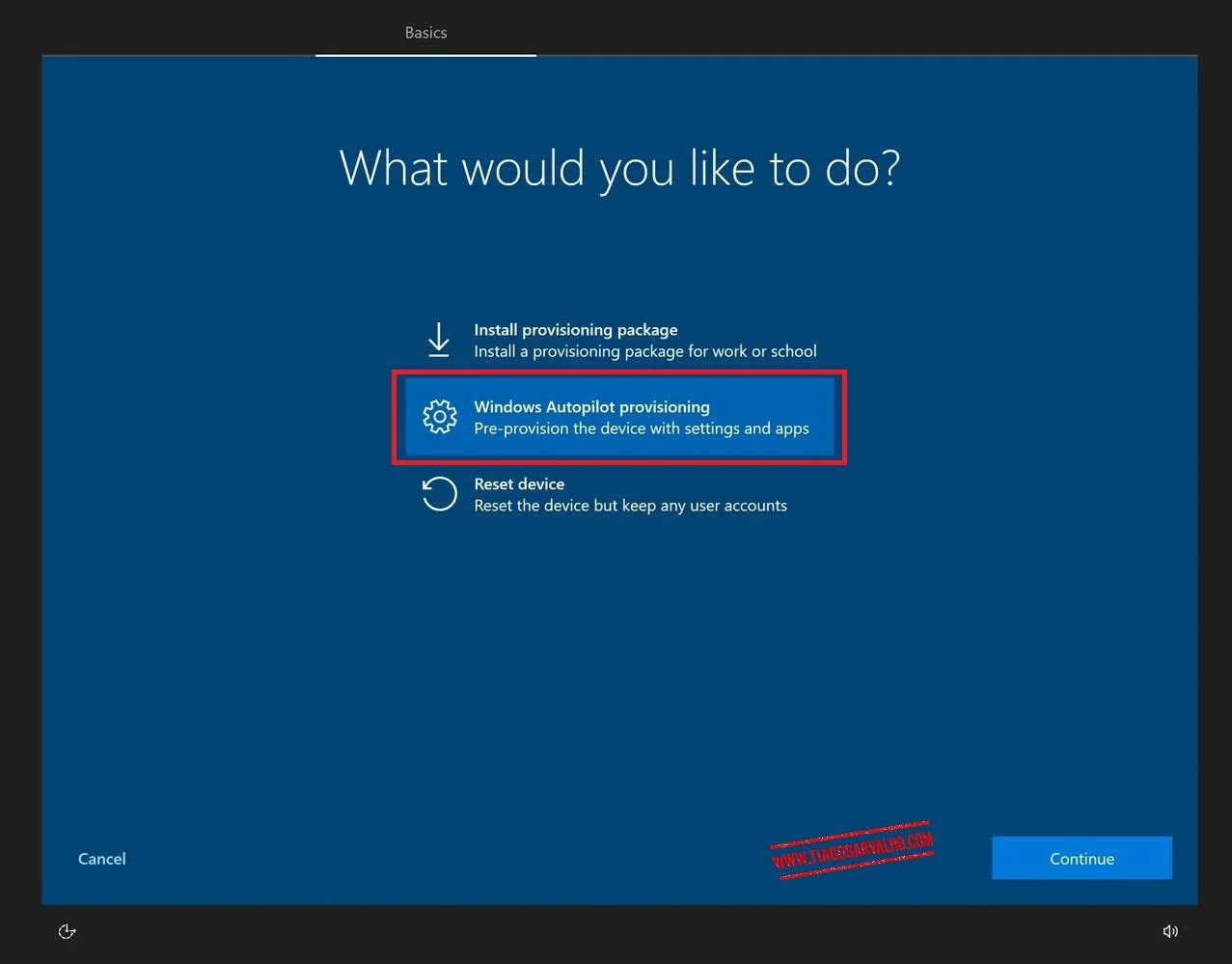
- Press Windows key five times to access the Autopilot provisioning options.
- Select "Windows Autopilot provisioning" and click Continue.
- The device automatically joins Microsoft Entra ID, enrolls in Intune, and installs device-targeted apps and policies.
- Once complete, click "Reseal" to seal the device for the end user.
- Ship (or hand) the device to the user. On first login, only the user-targeted phase runs — typically just minutes.
Pro Tip: Win32 Apps Must Be Device-Context
For applications to install during the pre-provisioning (device) phase, they must be configured as Win32 apps in Intune with the install context set to "Device" (not "User") and the assignment type set to "Required".
Apps assigned in user context will only install during the user phase, after sign-in. Plan your app packaging accordingly — heavy applications like Microsoft 365 Apps, AutoCAD, or engineering tools should be device-context + required to maximize pre-provisioning value and reduce Time-to-Desktop [2].
Common Mistake: Forgetting the Enrollment Status Page (ESP)
Without a properly configured Enrollment Status Page (ESP), users may reach the desktop before all required apps and policies have been applied — creating a gap between login and actual Time-to-Productivity.
The ESP ensures the device is fully configured before the user can access the desktop. Assign an ESP profile to your Autopilot device group and configure it to block device use until all required apps and profiles are installed. Only apps marked as Required are tracked by the ESP [4].
Step 3: Join Strategy, Policy Alignment & Monitoring
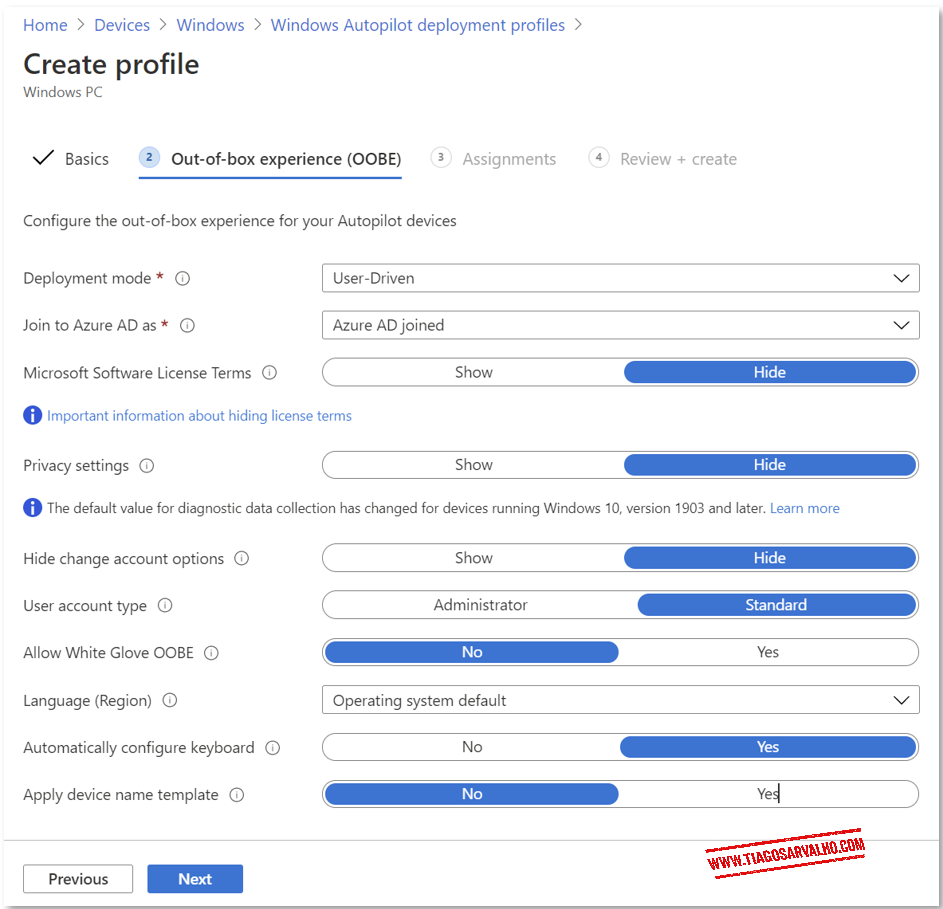
The final step is ensuring your Microsoft Entra ID join strategy, Intune policy targeting, and monitoring are aligned for a smooth, repeatable deployment.
Join Strategy
Microsoft recommends Microsoft Entra joined (cloud-native) for all new devices [3]. Microsoft Entra joined devices receive Intune policies immediately upon enrollment, benefit from Conditional Access, and do not require line-of-sight to an on-premises domain controller.
Reserve Hybrid Join only for scenarios with hard dependencies on on-premises AD resources.
Policy & App Targeting
Use dynamic device groups in Microsoft Entra ID to automatically collect Autopilot-registered devices. A common pattern is to create a dynamic group based on the ZTDID (Zero-Touch Device ID) attribute or the Autopilot OrderID/GroupTag.
Assign your Intune configuration profiles, compliance policies, and app deployments to these groups.
| Configuration Item | Recommended Approach | Why It Matters |
|---|---|---|
| Device Join Type | Microsoft Entra joined | Fastest provisioning, full cloud-native experience, no DC dependency |
| Device Group | Dynamic group based on Autopilot GroupTag or ZTDID | Automatic targeting without manual group membership management |
| ESP Profile | Assigned to Autopilot device group, blocking until required apps install | Ensures device is fully configured before user accesses the desktop |
| App Install Context | Device context for pre-provisioning apps | Apps install during the technician phase, not during user login |
| User Account Type | Standard (not Administrator) | Principle of least privilege — reduces risk of local admin abuse |
Monitoring & Validation
Use the following tools to validate your deployments and catch issues early:
- Intune Autopilot Deployment Report: Navigate to Intune admin center > Devices > Monitor > Windows Autopilot deployment to track success rates and failure reasons.
- ESP Diagnostics: On the device, press Shift + F10 during ESP to open a command prompt for troubleshooting. Review MDMDiagnostics logs for detailed policy and app installation status.
- Microsoft Entra ID Sign-in Logs: Validate that device registration and user sign-in are completing successfully.
- Intune App Install Status: Check per-device app installation status to identify apps that fail during pre-provisioning.
Pro Tip: Pilot Before You Scale
Start with a small pilot group (5–10 devices) to validate your Autopilot profile, ESP configuration, and app deployments. Identify and resolve issues in the pilot before rolling out to the broader organization.
Use the Autopilot GroupTag to separate pilot devices from production.
What You No Longer Need
Migrating to Autopilot eliminates an entire category of legacy infrastructure and processes:
- No golden images — the OEM-installed Windows is your base. No more image maintenance.
- No PXE boot infrastructure — provisioning happens over the internet, not the local network.
- No USB drives or boot media — the device provisions itself from the cloud at first boot.
- No driver pack management — the OEM ships the device with the correct drivers pre-installed.
- No physical IT touch required — devices can ship directly from the OEM or partner to the end user.
The new workflow: Order → Register → Ship → User signs in → Done.
When Autopilot is NOT the Right Fit
Autopilot is the recommended approach for new device provisioning, but there are scenarios where it may not be sufficient on its own.
Scenarios That May Require Additional Tooling
- Bare-metal OS deployment — Autopilot requires a pre-installed Windows OS. For bare-metal scenarios (e.g., repurposing old hardware), you may still need a lightweight imaging solution or Windows Deployment Services (WDS).
- Highly customized OS configurations — if your organization requires deep OS-level customizations that cannot be achieved through Intune configuration profiles, a custom image may still be needed.
- Air-gapped or restricted networks — Autopilot requires internet connectivity during OOBE. Devices in air-gapped environments cannot use Autopilot without network exceptions.
- Legacy application dependencies — some legacy Win32 applications with complex installers or dependencies may not package cleanly as Intune Win32 apps.
Autopilot provisions devices that already have Windows installed. It is not a replacement for bare-metal OS deployment. For new hardware purchases, work with your OEM to ensure devices ship with Windows pre-installed and registered with the Autopilot service.
From Formatting to Provisioning
The era of golden images, USB drives, and late-night task sequence debugging is over. With Windows Autopilot, Intune, and Pre-Provisioning, the focus shifts from "format and install" to "configure from the cloud."
This saves IT hours per device and delivers a modern, consistent onboarding experience that scales with your organization.
Autopilot is not just a deployment tool. It is an operating model for modern device lifecycle management.
The new KPI is Time-to-Productivity. How fast can your users go from unboxing to working? With Autopilot, the answer is minutes, not hours.
References
[1] Microsoft Learn: Microsoft Deployment Toolkit (MDT) — Retirement Notice
[2] Microsoft Learn: Windows Autopilot for pre-provisioned deployment
[3] Microsoft Learn: Windows Autopilot deployment scenarios
[4] Microsoft Learn: Windows Autopilot Enrollment Status Page
[5] Microsoft Learn: Overview of Windows Autopilot
[6] Microsoft Learn: Microsoft Intune licensing
[7] Microsoft Learn: Windows Autopilot registration overview
[8] Microsoft Tech Community: Try out Windows Autopilot White Glove Pre-Provisioning
Join the Conversation
Still formatting PCs with USB drives? Or have you already made the leap to Windows Autopilot? What was your biggest challenge during the migration? Share your experience in the comments below.