🔐 Protect Your SME from 99.9% of Identity Attacks
Deploy Microsoft Entra Conditional Access with confidence using this practical, 4-phase methodology designed specifically for small and medium businesses.
✅ What You'll Learn:
- Zero Trust policy engine fundamentals
- Safe deployment with Report-only mode
- 3 essential baseline policies (MFA, Block legacy auth)
- Emergency access account setup (prevent lockouts!)
- Testing with What If tool and sign-in logs
⏱️ Reading Time: ~12 minutes | 🎯 Target Audience: IT Admins in SMEs with Microsoft 365 Business Premium
Introduction
In today's digital-first economy, the security perimeter has dissolved. For small and medium businesses (SMEs), where employees access company data from anywhere on any device, protecting user identities is no longer just an IT task—it is a fundamental business imperative. With 99.9% of identity-based attacks being preventable with multi-factor authentication (MFA) [1], the question is not if you should secure your identities, but how to do it effectively without overwhelming your users or your IT team. This is where Microsoft Entra Conditional Access emerges as a game-changing solution, especially for SMEs leveraging the Microsoft 365 ecosystem.
Conditional Access is the Zero Trust policy engine at the heart of Microsoft Entra. It moves beyond the outdated, binary model of granting access based solely on a correct password. Instead, it uses an intelligent "if-then" logic, analyzing signals like the user's location, device health, and sign-in risk in real-time. If the conditions are met, access is granted. If not, it can require additional verification steps, like MFA, or block access entirely. For SMEs with Microsoft 365 Business Premium, this enterprise-grade security is built-in, providing a powerful, cost-effective way to secure your digital front door. This guide provides a practical, phased approach to deploying Conditional Access, designed specifically for the needs and constraints of small and medium businesses.
Prerequisites
Before you begin your Conditional Access deployment, it is crucial to ensure you have the necessary foundations in place. A successful rollout depends on having the right licenses, permissions, and preparatory steps completed.
| Requirement | Details |
|---|---|
| Licensing | Microsoft 365 Business Premium (includes Entra ID P1), Microsoft 365 E3, or a standalone Entra ID P1/P2 license. |
| Admin Role | You must have Conditional Access Administrator or Global Administrator privileges to create and manage policies. |
| MFA Registration | All users must have their MFA methods (e.g., Microsoft Authenticator app) registered before you enforce policies. |
| Emergency Accounts | At least two "break-glass" emergency access accounts must be created and excluded from all policies to prevent accidental lockout. |
Emergency Access Accounts are Non-Negotiable
Before creating a single policy, create two cloud-only user accounts with the Global Administrator role. These accounts should have extremely strong, complex passwords stored securely offline and in separate locations. They are your lifeline if a misconfigured policy locks out all other administrators. **Do not skip this step.**
Phase 1: Planning and Preparation
A successful deployment is 80% planning and 20% execution. This initial phase is about laying the groundwork and ensuring your environment is ready for Conditional Access without disrupting your business.
Step 1: Disable Security Defaults
Security Defaults are Microsoft's baseline protection for tenants without Conditional Access. Since you cannot run both simultaneously, you must disable Security Defaults before creating your own policies.
- Navigate to the Microsoft Entra admin center (https://entra.microsoft.com).
- Go to Identity > Overview > Properties.
- Select Manage security defaults.
- Toggle Security defaults to Disabled.
- Choose "My organization is using Conditional Access" as the reason and click Save.
Step 2: Create and Document Emergency Access Accounts
As mentioned in the prerequisites, this is your most critical safety net. Create two accounts (e.g., emergencyadmin1@yourcompany.com and emergencyadmin2@yourcompany.com), assign them the Global Administrator role, and document their credentials securely.
Phase 2: Create Baseline Policies (Step-by-Step)
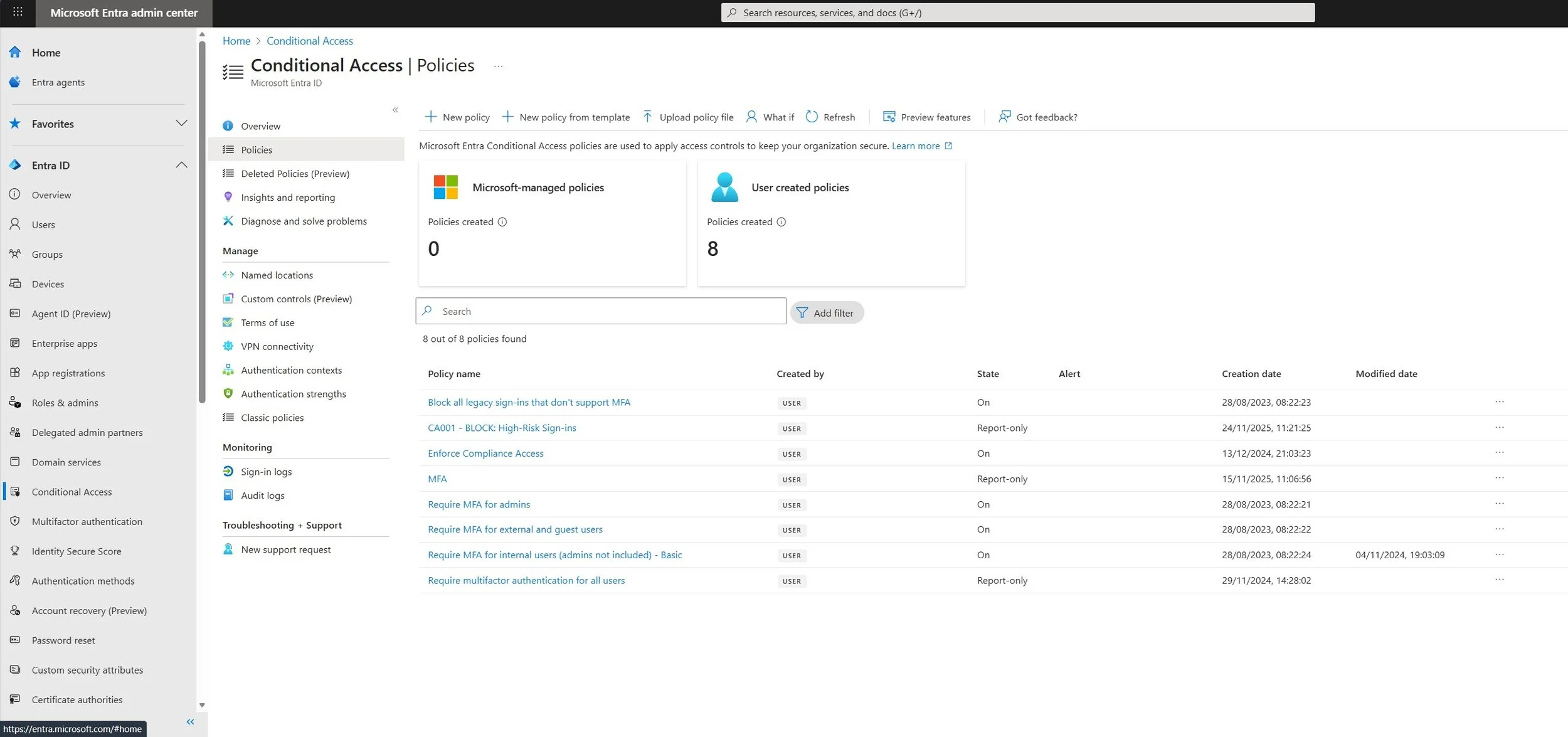
Screenshot 1: The Microsoft Entra admin center showing the Conditional Access policies dashboard.
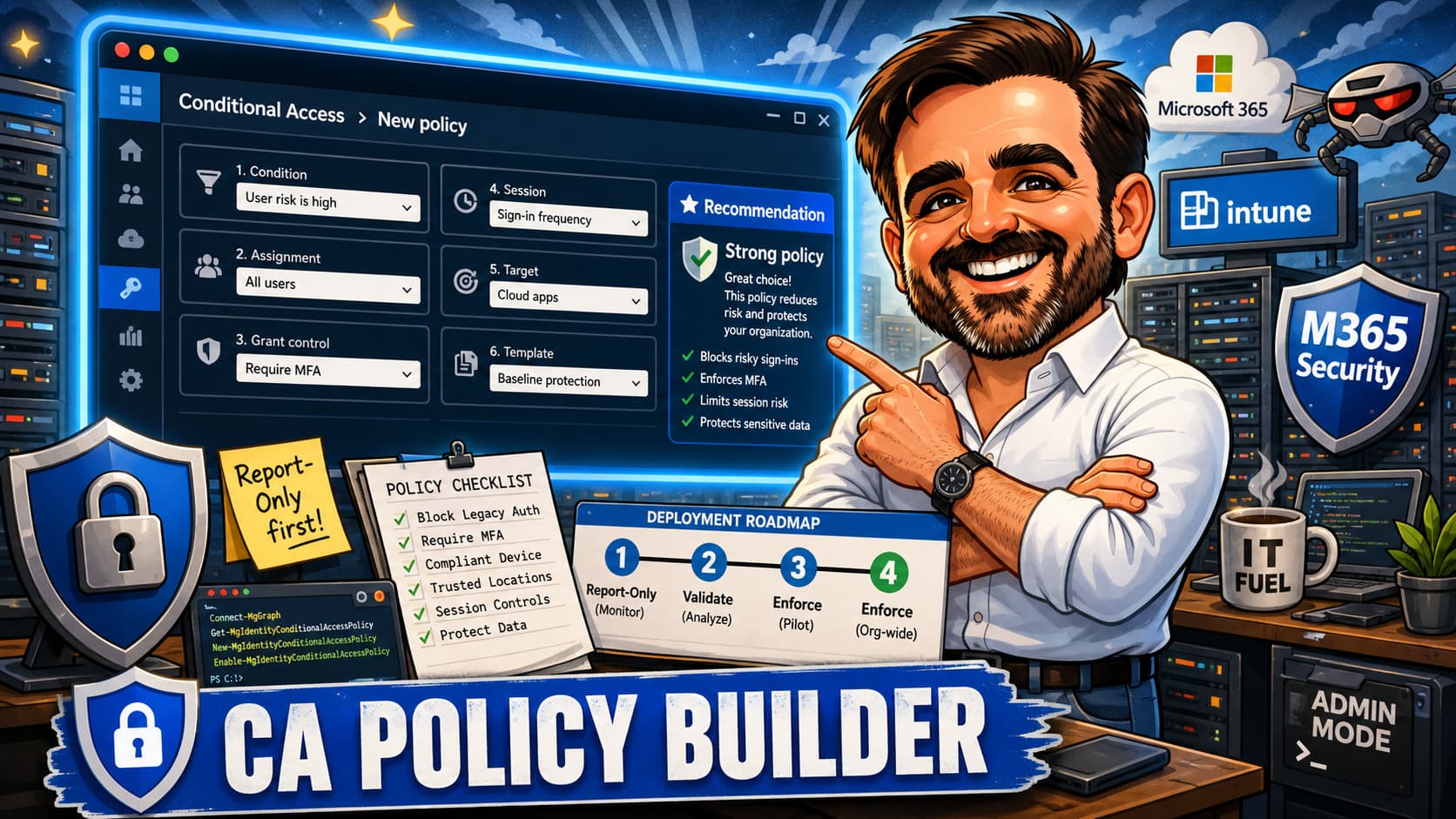
With the groundwork laid, it's time to create your foundational policies. We will start with three essential policies that provide the biggest security impact for any SME. Always create policies in Report-only mode first.
Policy 1: Require MFA for All Users
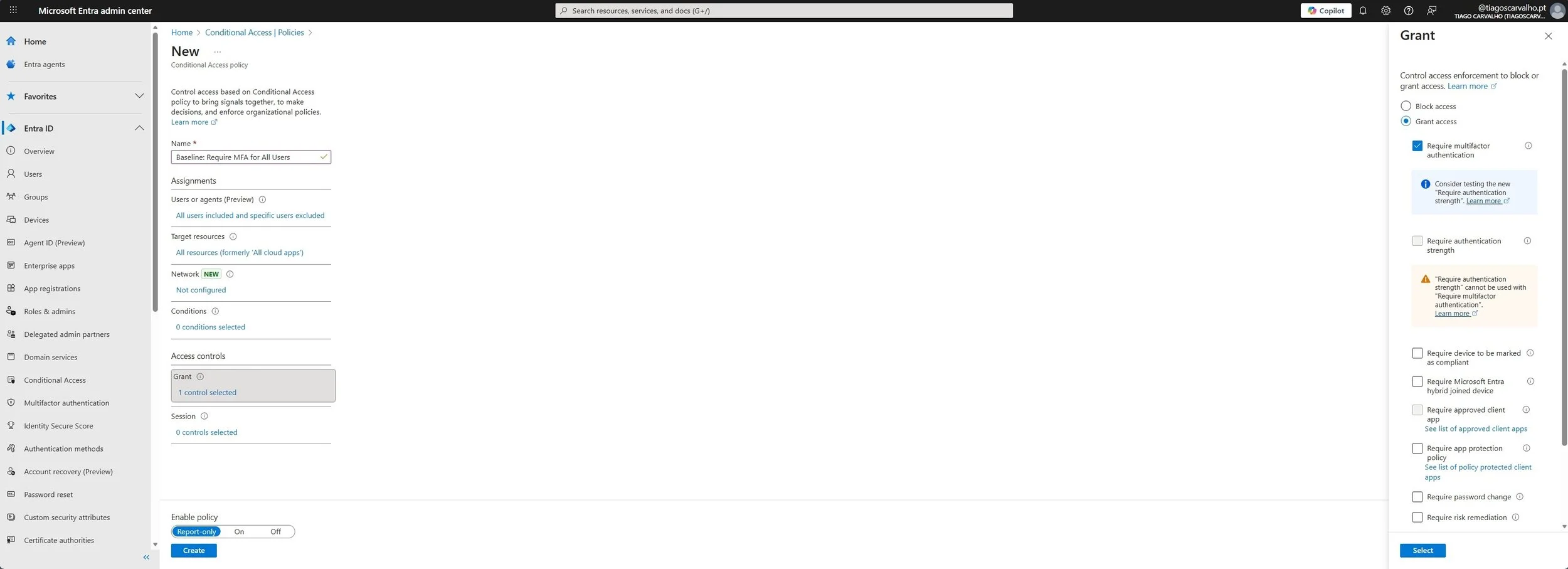
Screenshot 2: Creating the baseline Conditional Access policy to require MFA for all users.
This is the single most effective policy for protecting your organization.
- In the Entra admin center, navigate to Protection > Conditional Access.
- Select + New policy.
- Name:
Baseline: Require MFA for All Users. - Assignments > Users:
- Include: All users.
- Exclude: Select your two emergency access accounts.
- Target resources > Cloud apps:
- Include: All cloud apps.
- Access controls > Grant:
- Select Grant access.
- Check Require multifactor authentication.
- For multiple controls, select Require all the selected controls.
- Enable policy: Set to Report-only.
- Click Create.
Policy 2: Block Legacy Authentication
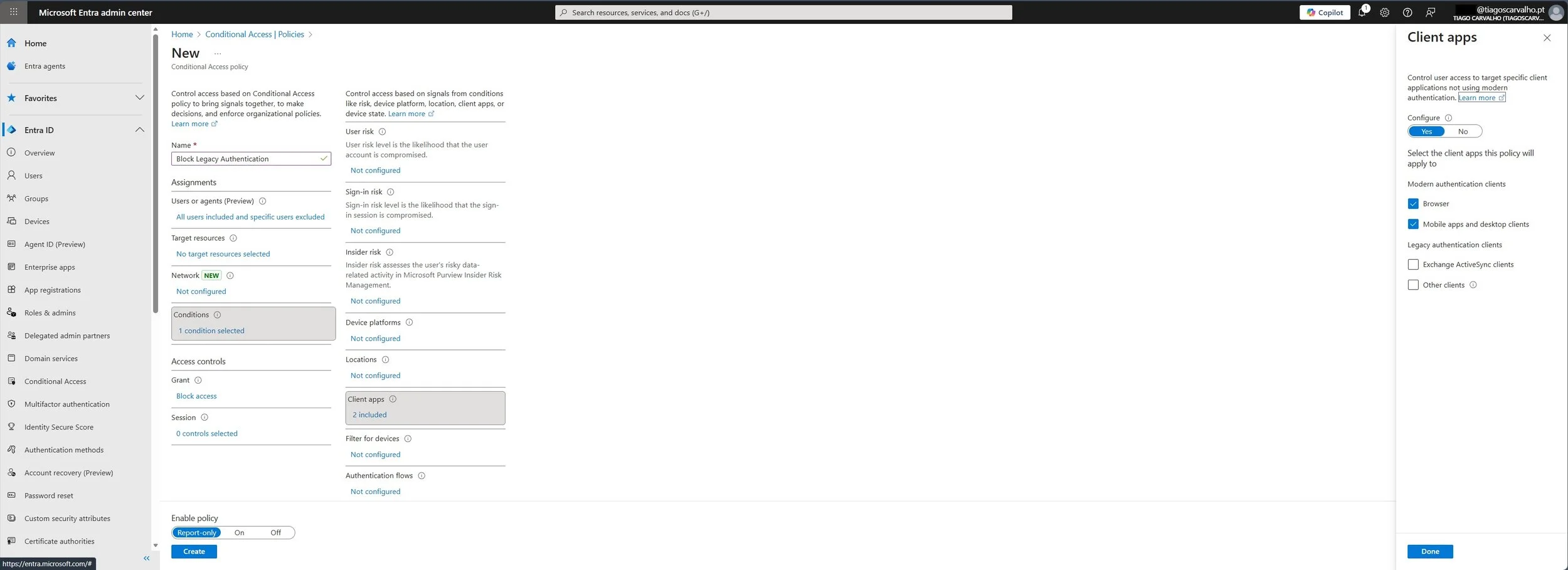
Screenshot 3: Configuring a Conditional Access policy to block legacy authentication protocols.
Legacy protocols like POP, IMAP, and SMTP do not support MFA and are common entry points for attackers.
- Create a new policy.
- Name:
Security: Block Legacy Authentication. - Assignments > Users: Include All users and exclude your emergency accounts.
- Conditions > Client apps:
- Configure: Yes.
- Under Legacy authentication clients, check Exchange ActiveSync clients and Other clients.
- Access controls > Grant:
- Select Block access.
- Enable policy: Set to Report-only.
- Click Create.
Policy 3: Require MFA for Administrators
This policy adds an extra layer of protection for your most privileged accounts.
- Create a new policy.
- Name:
Security: Require MFA for Admin Roles. - Assignments > Users:
- Include: Select users and groups > Directory roles.
- Select all key administrative roles (Global Administrator, Security Administrator, Exchange Administrator, etc.).
- Exclude: Your emergency access accounts.
- Access controls > Grant: Select Require multifactor authentication.
- Enable policy: Set to Report-only.
- Click Create.
Phase 3: Testing and Validation
Never enable a policy without understanding its impact. This phase is dedicated to safe testing.
The Power of Report-Only Mode
Report-only mode is your best friend. It allows you to evaluate the impact of a Conditional Access policy without enforcing it. The policy's potential outcome is logged in the Entra sign-in logs, showing you who would have been prompted for MFA or blocked, allowing you to identify issues before they affect users.
Step 1: Monitor Sign-in Logs
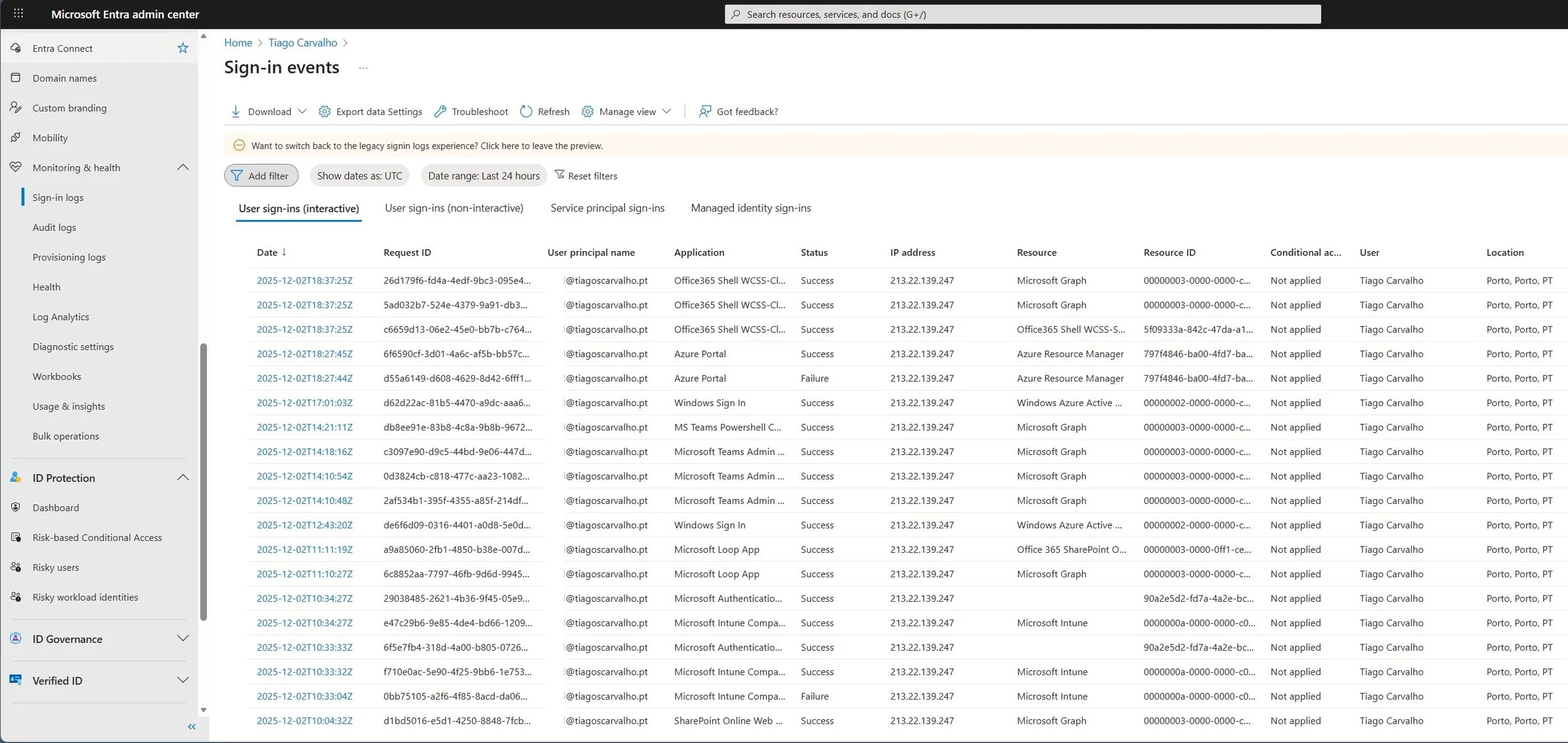
Screenshot 5: Monitoring sign-in logs to review the impact of policies in Report-only mode.
Let your policies run in Report-only mode for at least 7-14 days. During this time:
- Go to Identity > Monitoring & health > Sign-in logs.
- Add a filter for Conditional Access and set it to Report-only.
- Analyze the results. Look for "Report-only: Success" (the policy would have applied correctly) and, more importantly, "Report-only: Failure" (the user would have been blocked). Investigate any failures to understand the cause.
Step 2: Use the "What If" Tool
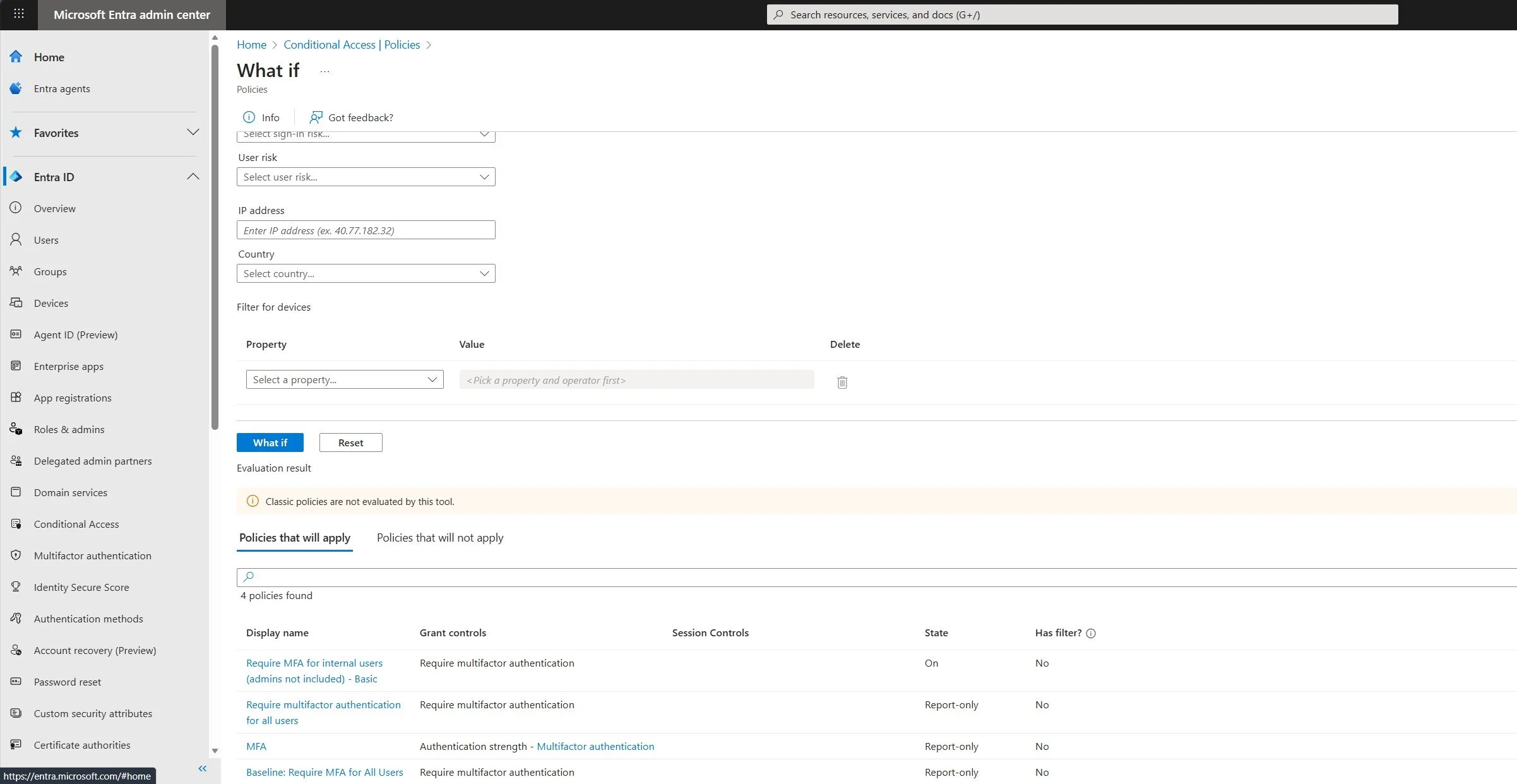
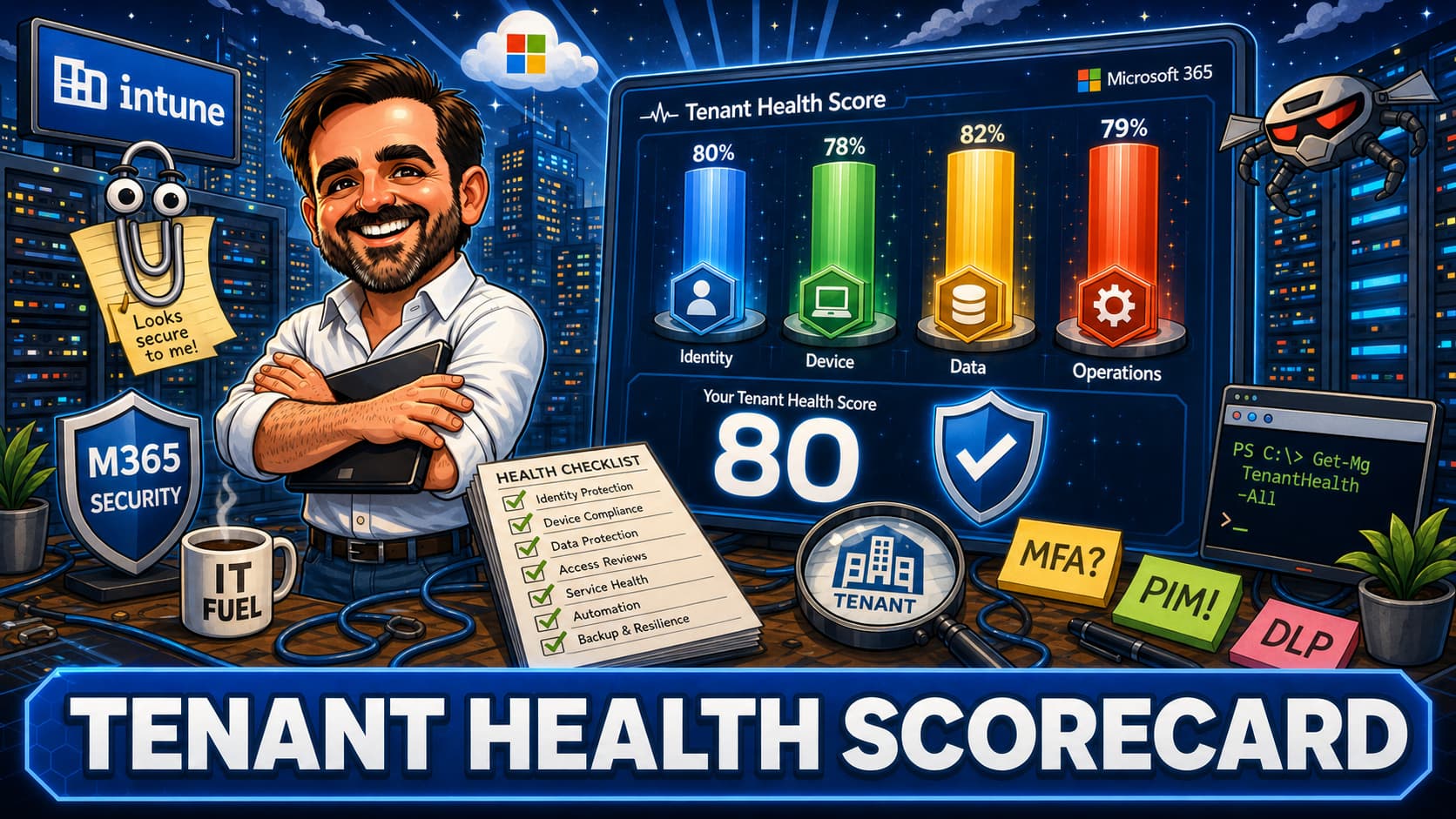
Screenshot 4: Using the What If tool to simulate policy application before enforcement.
The What If tool allows you to simulate a sign-in to see which policies would apply.
- Go to Conditional Access > Policies > What If.
- Enter a test user, the app they are trying to access, their location, and other conditions.
- Click What If. The tool will show you exactly which policies will apply and which will not, helping you troubleshoot your logic.
Phase 4: Production Deployment
After thorough testing and communication with your users, you are ready to go live.
- Enable Policies One by One: Do not turn on all policies at once. Start with the
Block Legacy Authenticationpolicy, as it has the lowest user impact. Wait a day, monitor the logs, and then proceed to theRequire MFA for Admin Rolespolicy. Finally, enable theRequire MFA for All Userspolicy. - Communicate: Send a final reminder to all users before enabling the all-users MFA policy, reminding them of the change and providing links to support resources.
- Monitor: Keep a close eye on the sign-in logs and be prepared to assist users who may encounter issues.
Best Practices for SMEs
- Start Simple: The three baseline policies in this guide are the perfect starting point. Master them before moving to more advanced scenarios.
- Document Everything: Keep a simple spreadsheet documenting each policy, its purpose, and who it applies to.
- Regular Reviews: Review your policies and emergency account credentials every 6-12 months.
Quick Troubleshooting
| Symptom | Possible Cause | Solution |
|---|---|---|
| A user is unexpectedly blocked. | The user's sign-in matched the conditions of a "Block" policy. | Use the What If tool and Sign-in logs to identify which policy blocked them. Adjust the policy's assignments or conditions if necessary. |
| A user is not prompted for MFA. | The user's sign-in did not match any policy conditions, or they were excluded. | Check the policy assignments and conditions. Ensure the user is not in an exclusion group. Verify the policy is set to "On," not "Report-only." |
| An administrator is locked out. | The emergency access accounts were not correctly excluded from all policies. | Use one of the secure, offline emergency access accounts to sign in and correct the misconfigured policy. |
Conclusion
For small and medium businesses, Microsoft Entra Conditional Access is not a luxury; it is an essential security layer that is both powerful and accessible. By moving away from outdated security defaults and adopting a phased, deliberate approach to policy deployment, SMEs can achieve an enterprise-grade security posture without the enterprise-level complexity. The three baseline policies outlined in this guide—enforcing MFA, blocking legacy authentication, and securing admin roles—will dramatically reduce your organization's attack surface and provide a robust foundation for your Zero Trust journey.