Transport rules have been in Exchange since the on-prem days. Microsoft keeps adding newer policy engines, but mail flow rules remain the workhorse for anything those engines do not cover. The problem is not writing a rule. The problem is writing one that does not quietly break something else three months later.
Published April 2026 · 22 min read
Contents
- Why transport rules still matter
- The baseline rules most tenants need
- External sender tagging: custom rules vs native
- Disclaimers: the rule everyone has and nobody loves
- Security-focused patterns
- Encryption and rights protection triggers
- Condition logic: the AND/OR trap
- Rule priority and stop processing
- Where transport rules overlap with Purview and Defender
- PowerShell patterns for transport rules
- Limits and constraints
- Transport rule audit checklist
Transport rules are still the right tool for mail flow logic that Purview DLP and Defender policies do not cover. Disclaimers, header manipulation, SCL overrides, routing decisions, and conditional encryption triggers all live here.
Condition logic is the source of most transport rule bugs. Conditions use AND logic (all must match). Exceptions use OR logic (any one exempts the message). That asymmetry causes more broken rules than anything else.
Native external sender tagging in Outlook now overlaps with custom subject-prepend rules. If you have both, you get double-tagging. Decide which one you keep and remove the other.
Always deploy in audit mode first. The -Mode Audit parameter lets you test a rule against live mail without taking action. Use it.
1. Why transport rules still matter
Every time Microsoft ships a new policy engine, someone asks whether transport rules are being deprecated. The answer keeps being no. Purview DLP handles sensitive information types. Defender for Office 365 handles threat protection. Sensitivity labels handle classification. But none of them do what transport rules do, which is act on arbitrary mail flow conditions with arbitrary actions.
Need to add an X-header for a third-party archival system? Transport rule. Need to BCC a mailbox for a specific sender domain? Transport rule. Need to override the spam confidence level for a partner organisation whose mail keeps landing in junk? Transport rule. Need to strip a header that a legacy application adds and that confuses your downstream filtering? Transport rule.
The newer engines are better at what they do. But they are narrower. Transport rules remain the general-purpose tool for anything that falls outside those narrow scopes. In most tenants I review, there are somewhere between five and thirty transport rules, and at least a few of them are doing things that no other policy engine can replace.
2. The baseline rules most tenants need
Not every tenant needs thirty rules, but there is a core set that comes up in nearly every environment. Here is what that baseline typically looks like.
External sender warning
Prepends a disclaimer or HTML banner to inbound mail from outside the organisation. Helps users spot phishing attempts. Being replaced by native tagging in many environments, but some tenants keep the rule for clients that do not support the native tag.
Outbound disclaimer
Appends legal or confidentiality text to outbound messages. Required by legal in many industries. Stacks on replies and forwards unless you scope it carefully.
Executable attachment block
Rejects or quarantines messages with dangerous attachment extensions: .exe, .bat, .ps1, .js, .vbs, .scr, .cmd. Defender catches many of these, but a transport rule gives you an additional hard block based on attachment type.
Encryption trigger
Applies Office 365 Message Encryption when users type a keyword in the subject line (commonly "Encrypt" or "Secure") or when specific sensitivity headers are present. Gives users a manual override for sensitive messages.
SCL override for partners
Sets the spam confidence level to -1 for mail from specific sender domains or IP ranges that consistently land in junk. Common for payroll providers, CRM systems, or partner organisations with weak SPF/DKIM.
Header manipulation
Adds, removes, or modifies message headers for downstream processing. Common use cases: tagging messages for archival systems, removing headers that break mail flow connectors, or inserting routing hints for hybrid environments.
3. External sender tagging: custom rules vs native
For years, admins built transport rules that prepended "[EXTERNAL]" to the subject line of inbound mail from external senders. It worked. Users got used to it. Then Microsoft shipped native external sender tagging in Outlook, and now many tenants have both running at the same time.
The result is double-tagging. The subject reads "[EXTERNAL] Meeting follow-up" and Outlook also shows the native "External" callout above the message body. Users start ignoring both because the visual noise becomes meaningless.
How native tagging works
Native tagging is controlled at the organisation level with Set-ExternalInOutlook. Check the current state with Get-ExternalInOutlook before assuming it is enabled. When active, it shows a small banner in Outlook (desktop, web, and mobile) for messages from outside the organisation. You can whitelist trusted domains with Set-ExternalInOutlook -AllowList @("partner.com","vendor.com") so those senders do not trigger the tag.
When to keep the custom rule
The native tag only appears in Outlook. If your users rely on third-party mail clients, mobile apps that do not support the tag, or shared mailboxes accessed through non-Outlook interfaces, the subject-line prepend is the only way to surface the external indicator. In that case, disable native tagging and keep the transport rule.
When to drop the custom rule
If your environment is standardised on Outlook (desktop, web, mobile), the native tag is cleaner. It does not pollute the subject line, it does not break threading in replies, and it does not create problems when external users reply to a message that already has "[EXTERNAL]" baked into the subject. Disable the transport rule, confirm native tagging is enabled, and configure the allow list for your trusted partners.
Set-ExternalInOutlook -AllowList) is completely independent from any transport rule exceptions. If you switch from one to the other, you need to rebuild your exceptions in the new system. They do not share configuration.
4. Disclaimers: the rule everyone has and nobody loves
Legal wants a disclaimer on every outbound email. IT creates a transport rule with "Apply disclaimer to the message" using "Append" mode. It works. Then complaints start coming in.
The first complaint: the disclaimer stacks on every reply and forward. A ten-message thread ends up with ten copies of the same legal text at the bottom. The second complaint: the HTML rendering breaks in certain mail clients because the disclaimer HTML conflicts with the message HTML. The third complaint: internal messages between users in the same tenant sometimes get the disclaimer because the rule conditions were too broad.
Getting it right
Scope the rule to outbound only. Use two conditions together: "The sender is located: Inside the organization" and "The recipient is located: Outside the organization." This prevents the disclaimer from firing on internal mail.
For the stacking problem, there is no perfect solution in Exchange Online transport rules. The "Wrap" fallback mode helps when the disclaimer cannot be applied (encrypted messages, IRM-protected messages), but it does not prevent stacking. Some organisations accept the stacking. Others use a third-party signature solution like Exclaimer or CodeTwo that can detect existing disclaimers and skip the append on replies.
Keep the HTML simple. Avoid complex CSS, background images, or table layouts in the disclaimer template. The more complex the HTML, the more likely it breaks in Outlook desktop rendering (which uses the Word rendering engine) or mobile clients.
5. Security-focused patterns
Beyond the baseline rules, transport rules are useful for a few security patterns that Defender and DLP do not cover directly.
Blocking password-protected attachments
Password-protected ZIP files and Office documents are a common phishing vector because content inspection cannot scan what is inside them. A transport rule using the condition "Any attachment is password protected" can reject or quarantine these messages. The trade-off is that legitimate password-protected files also get blocked. In practice, most organisations set this rule and handle the exceptions manually, because the security benefit outweighs the inconvenience.
Auto-forwarding control
Users sometimes create inbox rules that auto-forward mail to personal accounts. A transport rule can block or audit external auto-forwarding by matching on message type "Auto-forward." This is also controllable through outbound spam filter policies in Defender for Office 365, which is the more modern approach. If you use the Defender policy, you do not need a duplicate transport rule. If you want belt-and-suspenders, running both does not conflict, but make sure the Defender policy is the primary control and the transport rule is a fallback.
Blocking mail to specific external domains
Occasionally you need to prevent users from sending email to specific domains (competitor, former client, sanctioned entity). A transport rule with the condition "The recipient address includes" and the action "Reject the message with the explanation" handles this cleanly. This is different from blocking inbound mail (which is handled through the tenant allow/block list or connection filtering). Transport rules are for outbound or intra-org blocking.
6. Encryption and rights protection triggers
Transport rules are one of several ways to trigger Office 365 Message Encryption (OME). The most common pattern: if the subject or body contains the word "Encrypt", apply OME. Users type "Encrypt" in the subject line, the rule fires, and the recipient gets the encrypted message experience.
Setting it up
The action is "Apply Office 365 Message Encryption and rights protection" with the "Encrypt" rights protection template. The condition can be a subject match, a header match, or a sensitive information type match. Subject keywords are the simplest for user-driven encryption. Sensitive information type matches are better for automated encryption (for example, encrypting any message that contains credit card numbers).
Where this overlaps with sensitivity labels
Sensitivity labels can also trigger encryption automatically, and they are the direction Microsoft is pushing. If you have auto-labelling policies in Purview that apply encryption through labels, adding a transport rule on top creates conflicts. The label takes precedence in most scenarios, but the interaction can produce unexpected results, especially with forwarded messages. The cleanest approach: use sensitivity labels for classification-driven encryption, and keep transport rules only for the user-driven keyword trigger or for cases where labels are not deployed.
7. Condition logic: the AND/OR trap
This is where most transport rule bugs come from. The logic is not complicated once you know it, but it is the opposite of what many admins assume on first read.
Conditions are AND
If a rule has three conditions, all three must match for the rule to fire. This is straightforward. The confusion starts when admins add multiple values within a single condition. If you set "The sender address includes" to "partner.com, vendor.com", those values are OR within the condition. Both of these evaluate together: any message from partner.com OR vendor.com will match the sender condition. But if you also add a second condition "The subject includes: Invoice", then the rule only fires when the sender is from one of those domains AND the subject contains "Invoice."
Exceptions are OR
Here is the asymmetry. If a rule has three exceptions, any single one exempts the message. You do not need all three to match. This catches admins who add multiple exceptions expecting them all to apply simultaneously. If you add an exception for "The sender is a member of: Legal" and another exception for "The subject includes: Contract", any message from Legal is exempt, and any message with "Contract" in the subject is also exempt, regardless of who sent it.
Shared mailboxes and group expansion
Rules that match on "The sender is" can behave unexpectedly with shared mailboxes. When a user sends as a shared mailbox (Send As or Send on Behalf), the resolved sender address may differ from what the admin expects. Send As uses the shared mailbox address as the sender. Send on Behalf shows the user's address with "on behalf of" the shared mailbox. The transport rule condition "The sender is" matches on the resolved From address, so Send As matches the shared mailbox and Send on Behalf matches the user. Test both scenarios if your rule targets shared mailbox traffic.
Distribution group expansion also creates edge cases. Depending on when expansion happens relative to rule evaluation, per-recipient conditions may not behave as expected for messages sent to large distribution lists. If a rule needs to act differently based on individual recipients within a group, test it with actual group mail before assuming it works.
8. Rule priority and stop processing
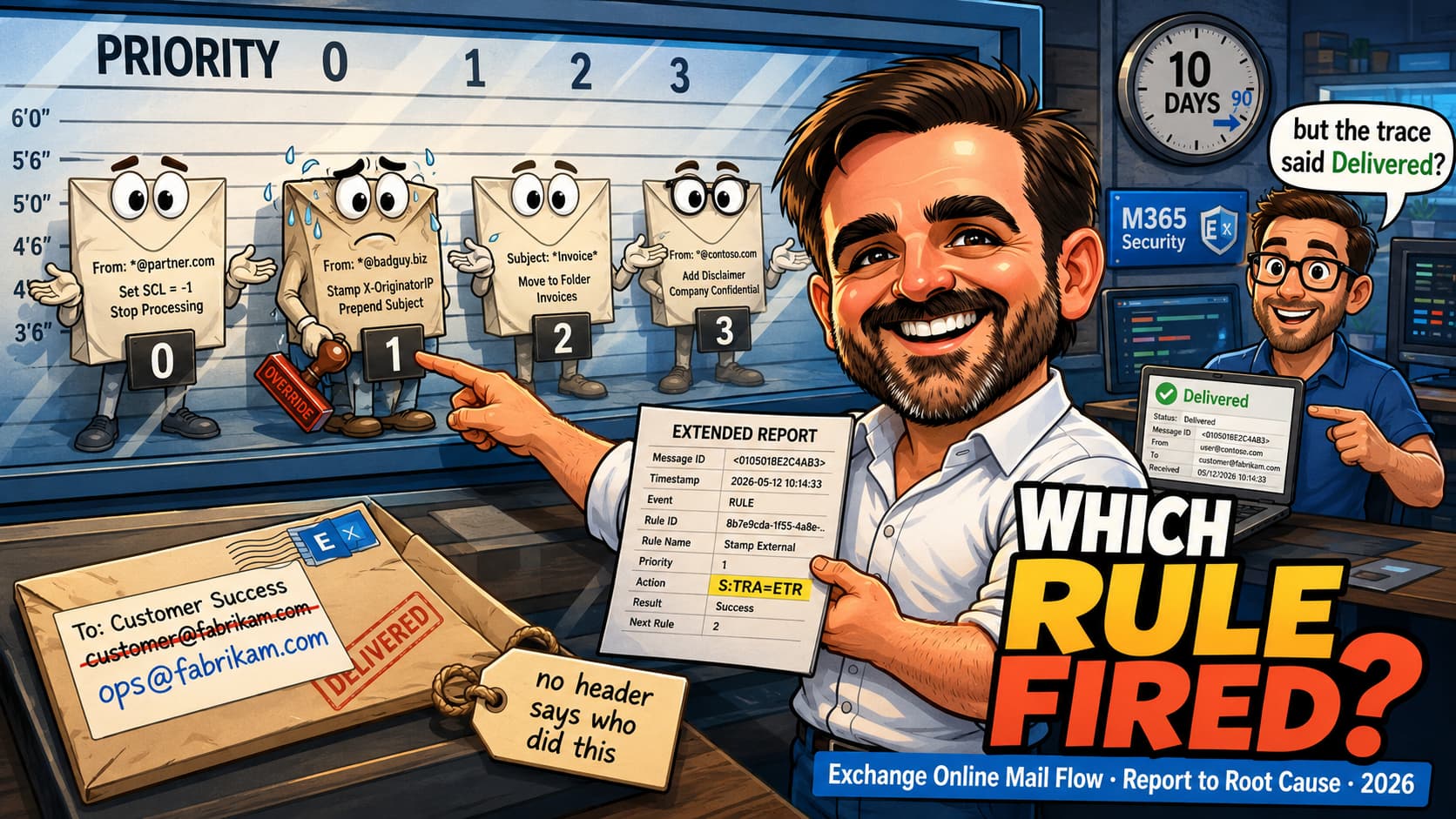
Transport rules evaluate in priority order. Priority 0 is the highest. When you create a new rule in the Exchange admin center, it gets the lowest priority by default (the highest number), which means it runs last.
This matters when multiple rules can match the same message. If a disclaimer rule runs before an encryption rule, the disclaimer is added before encryption is applied, so the disclaimer is encrypted too. If the order is reversed, the encryption is applied first and the disclaimer may not be appended at all (the fallback mode kicks in instead).
The "stop processing more rules" trap
Each rule has an option: "Stop processing more rules." When enabled, if the rule matches a message, all lower-priority rules are skipped entirely. This is rule-level, not action-level. If the rule matches, everything below it is dead.
Admins enable this for legitimate reasons: they want a specific rule to be the final word for certain messages. The problem is that they forget they set it. Six months later, they add a new rule at a lower priority, it never fires, and they spend two hours troubleshooting before they find the "stop processing" flag on a rule they wrote half a year ago.
Get-TransportRule | Where-Object {$_.StopRuleProcessing -eq $true} | Select-Object Name, Priority, State periodically. If you have more than one or two rules with this flag enabled, make sure you understand the interaction. In most tenants, "stop processing" should be rare.
Ordering strategy
A reasonable default: put security rules (attachment blocking, auto-forward blocking) at the top with the highest priority. Put encryption rules in the middle. Put cosmetic rules (disclaimers, subject tagging) at the bottom. This way, security actions fire first and are never skipped by a cosmetic rule that has "stop processing" enabled.
9. Where transport rules overlap with Purview and Defender
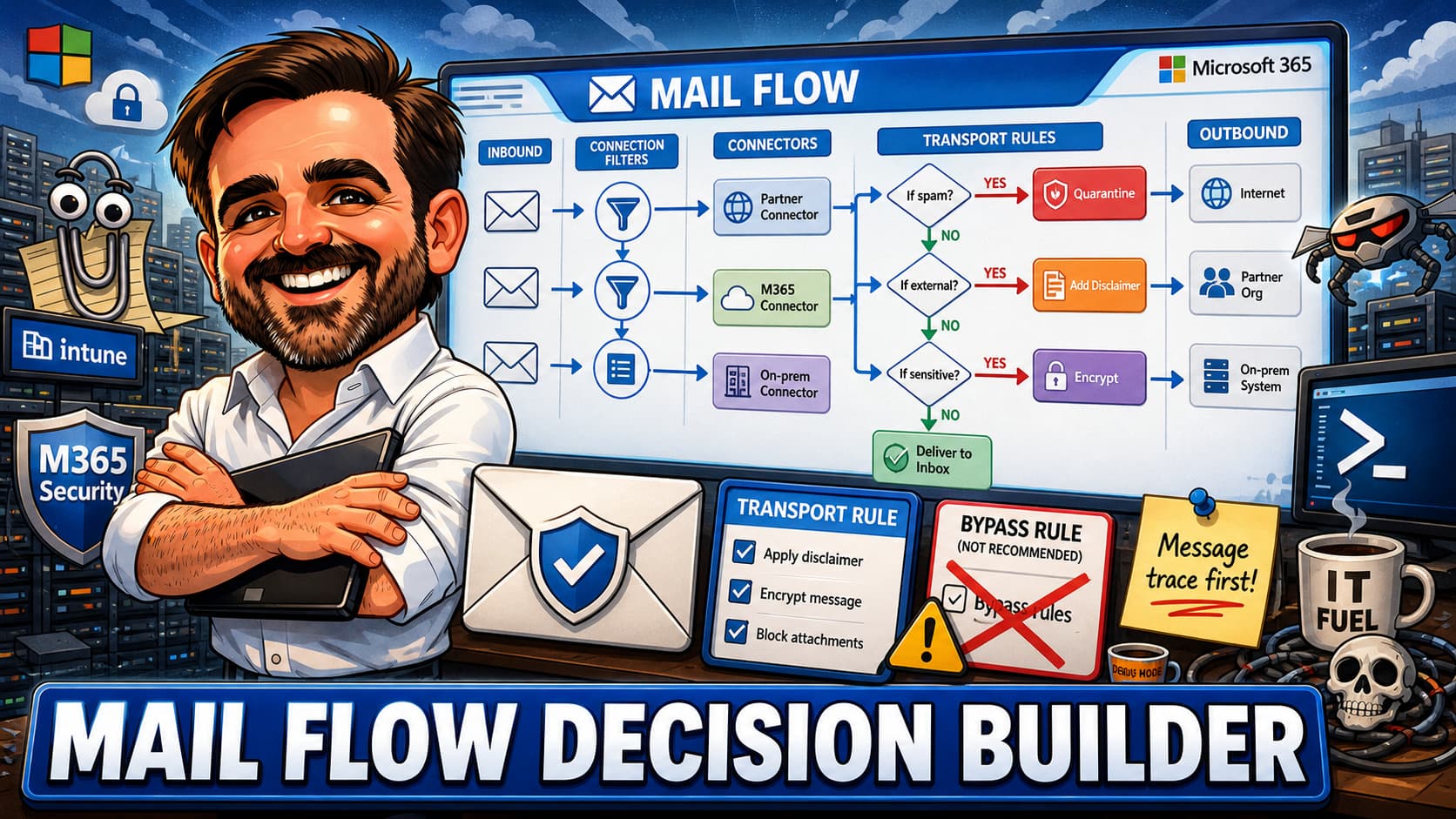
This is the question that keeps coming up: should I use a transport rule, a Purview DLP policy, or a Defender policy? The short answer is that it depends on what you are trying to detect and what action you need to take.
| Scenario | Best tool | Why |
|---|---|---|
| Block messages containing credit card numbers | Purview DLP | DLP has built-in sensitive information types with confidence levels and count thresholds. Transport rules cannot match on content patterns this precisely. |
| Block executable attachments | Transport rule (or both) | Transport rules can block by extension as part of mail flow, while Defender Safe Attachments adds detonation and broader threat analysis. Running both gives you a hard block on known-bad extensions plus sandbox analysis for everything else. |
| Encrypt messages with specific keywords | Transport rule | Simple subject-line keyword triggers are easiest in transport rules. If you need content-based classification, use sensitivity labels and auto-labelling instead. |
| Block external auto-forwarding | Defender outbound spam policy | The Defender policy is the recommended approach. Transport rules work as a fallback, but Defender gives you better reporting and integration with the security portal. |
| Add disclaimers to outbound mail | Transport rule | No other policy engine does this. |
| BCC or redirect messages to another mailbox | Transport rule | BCC and redirect actions are transport rule-specific. Note that using BCC rules for compliance purposes may have journaling, retention, and privacy implications depending on your regulatory requirements. |
| Detect and protect documents with trainable classifiers | Purview DLP | Transport rules have no access to trainable classifiers or exact data match. This is Purview-only. |
| Override spam filtering for a specific sender | Transport rule (or tenant allow/block list) | SCL override rules work. The tenant allow/block list in Defender is the preferred approach for sender allows, but transport rules give more granular conditions. |
Legacy Exchange DLP rules
If your tenant still has Exchange DLP rules (created in the classic Exchange admin center, not in the Purview compliance portal), those count toward your transport rule limits. Microsoft recommends migrating legacy Exchange DLP rules to Purview DLP policies. The legacy rules still work, but they do not have access to the newer sensitive information types, trainable classifiers, or the unified DLP reporting in the Purview portal.
10. PowerShell patterns for transport rules
The Exchange admin center handles simple rules well enough. For anything beyond basic conditions and actions, PowerShell is faster and more reliable. Some conditions and actions are only available through PowerShell.
Audit all active rules
Export rules for backup
Create a rule in audit mode
-Mode Audit parameter lets the rule evaluate against live mail without actually taking the action. Check the message trace for rule hits, confirm the rule matches what you expect, and only then switch to -Mode Enforce with Set-TransportRule -Identity "Rule Name" -Mode Enforce.
Block executable attachments
Encryption trigger on subject keyword
Find rules with stop processing enabled
11. Limits and constraints
Transport rules in Exchange Online have hard limits that you need to be aware of before you build a complex rule set.
| Constraint | Limit |
|---|---|
| Maximum number of transport rules | 300 per organisation |
| Maximum size of a single rule | 8 KB (serialised) |
| Total text for all rule conditions and exceptions | 256 KB combined |
| Disclaimer text per action | 5,000 characters |
| Regular expressions per rule | 20 KB compiled size per pattern |
| Legacy Exchange DLP rules | Count toward the 300-rule cap |
The 300-rule limit sounds generous, but tenants that migrate from on-premises Exchange sometimes bring a large number of rules with them. Add legacy DLP rules on top, and you can approach the limit faster than expected. Audit your rule count periodically and consolidate overlapping rules where possible.
12. Transport rule audit checklist
Export-Clixml)
Final thoughts
Transport rules are not glamorous. They do not get their own product announcements or keynote demos. But they are the part of Exchange Online that catches the things nothing else catches. The ones that cause problems are usually the ones that were written quickly, never tested in audit mode, and then forgotten.
The biggest wins are not exotic patterns. They are basic hygiene: cleaning up rules that overlap, removing dead rules that nobody remembers creating, fixing the exception logic that was silently exempting half the organisation, and making sure the priority order is intentional rather than accidental. Most tenants I review can consolidate their transport rules to a tighter, cleaner set that does the same work with fewer moving parts.
Need a mail flow review?
I review transport rule configurations as part of Exchange Online assessments. If you have accumulated rules over years of migrations and quick fixes and want someone to audit the lot, that is what I do.
Get in touch