Exchange Online · Email Authentication · DMARC · 2026
Most Microsoft 365 tenants publish SPF, enable DKIM, and stop at DMARC p=none. In 2026, that is no longer enough. Gmail and Yahoo now require authenticated, DMARC-aligned mail from any bulk sender. MTA-STS is increasingly relevant for domains that want stronger inbound TLS assurance. TLS-RPT is where you find out what is actually happening on the wire. This article is a practitioner's walk-through of getting all five controls configured correctly on Exchange Online — and reaching DMARC p=reject without breaking mail flow.
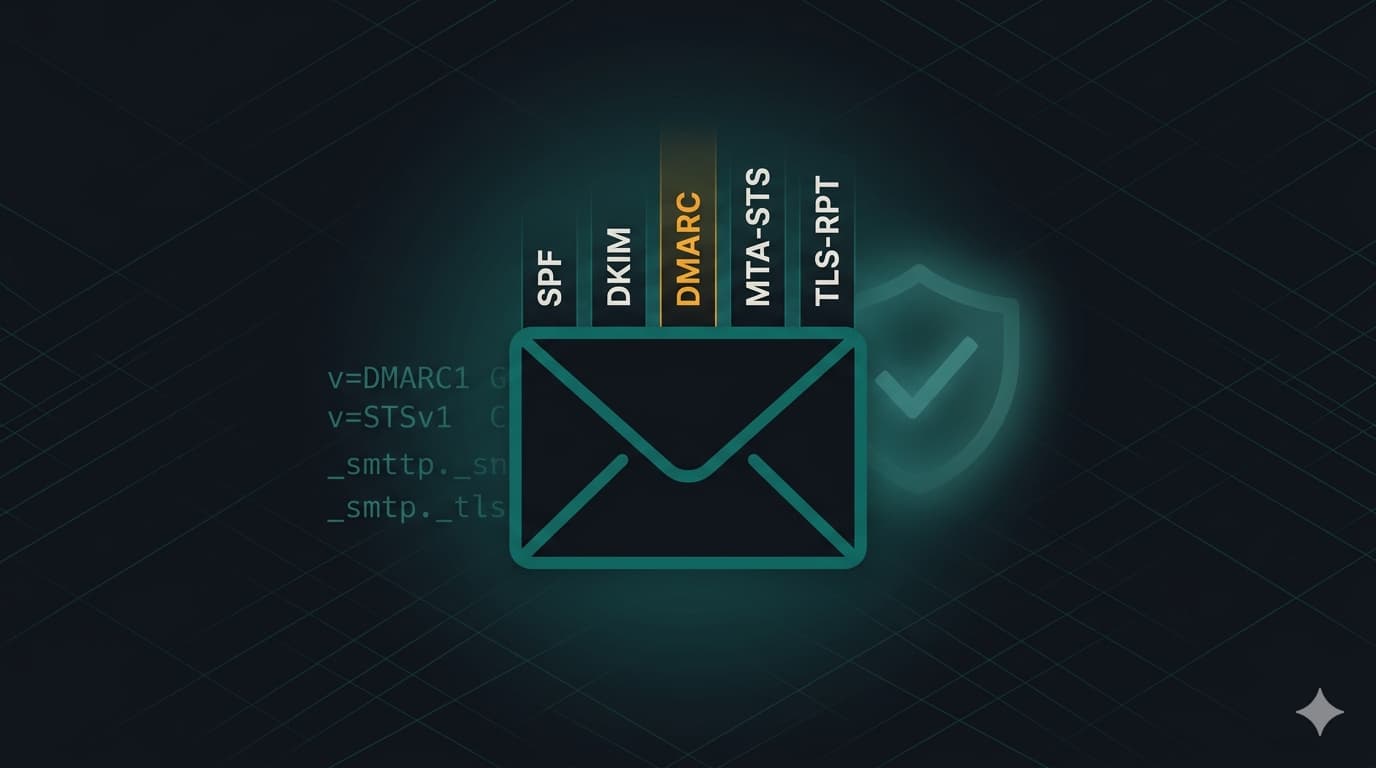
DMARC p=reject. p=none is a reporting mode, not a control — aim to leave it within 90 days of startingtesting policy is quick, and moving to enforce is realistic once TLS-RPT data is cleanEmail authentication is one of those areas where the defaults are good enough to let mail leave your tenant but nowhere near good enough to stop someone spoofing your domain. The five controls covered here — SPF, DKIM, DMARC, MTA-STS and TLS-RPT — work together. SPF and DKIM prove a message came from where it claims to. DMARC tells receivers what to do when it did not. MTA-STS forces the transport between you and the receiver to be properly encrypted. TLS-RPT tells you when it was not.
Exchange Online has specific quirks for each one: the SPF include string, the DKIM rotation model, how autoforwarding breaks DMARC, how MDO's composite authentication interacts with DMARC policy, and what ARC sealing changes in 2026. This article walks the path from "SPF only" to "fully authenticated, fully enforced, fully reported" in the order that actually works in a live Exchange Online tenant.
DMARC p=reject without reporting in place will reject legitimate mail from every third-party sender you have forgotten about — payroll, HR platforms, marketing tools, ticketing systems. Start at p=none, read reports, then move.
Why this matters in 2026
Three things shifted the email authentication landscape in the last two years. The first is Gmail's and Yahoo's sender requirements, which took effect in February 2024 and now apply at the recipient edge — any sender pushing more than 5,000 messages a day to Gmail must have SPF, DKIM, DMARC-aligned mail, a one-click unsubscribe header, and a low spam complaint rate. This is not a future threat. If your marketing platform or notification system is sending from a subdomain of your tenant without alignment, Gmail is already rate-limiting or rejecting it today.
The second is Microsoft's own tightening of inbound handling in Exchange Online Protection and Defender for Office 365. Composite authentication (which combines SPF, DKIM, DMARC and Microsoft's own signals) now plays a larger role in spam and quarantine decisions, and ARC sealing is increasingly relied on for messages that pass through mailing lists or forwarders. A tenant that authenticates its own outbound mail properly gets better inbound handling as a side effect.
The third is MTA-STS becoming more relevant for domains that want stronger inbound TLS assurance. Microsoft has documented native support and an adoption path for Exchange Online, and the control closes the downgrade-attack window that plain opportunistic TLS leaves open. It pairs naturally with the TLS posture Microsoft already enforces on outbound from Exchange Online, and with TLS-RPT for visibility.
Step 1 — SPF: publish the right record, then stop touching it
SPF is the simplest of the five controls and the most often misconfigured. The Exchange Online SPF record for a tenant that sends only through Microsoft 365 is a single TXT record on your root domain:
# Host: @  (or contoso.com, depending on your DNS provider)
# Type: TXT
v=spf1 include:spf.protection.outlook.com -all
The -all is a hard fail. Use it. ~all (soft fail) is tolerated by most receivers but is actively worse for DMARC alignment, because a message that soft-fails SPF can still reach inboxes and dilute your DMARC posture. Published SPF records on production domains should be hard-fail from day one.
Two SPF rules break more tenants than anything else. The first is the 10 DNS lookups limit: every include:, a, mx, ptr, or redirect in your record counts, and nested includes count recursively. It is easy to hit the limit once you add Mailchimp, a CRM, a ticketing system, a payroll platform and a notification service. Exceeding the limit causes PermError, and most receivers treat PermError the same as a fail — the message silently goes away.
The second is the one-record rule: you can only have one SPF TXT record per domain. If you merge with another company and both IT teams publish their own SPF record on the same domain, both become invalid. Every additional sender has to be added as an include: inside the single record, not as a second record.
include: entries with the actual IPs, or remove senders you do not use. Above 10, mail is failing SPF somewhere and you just have not noticed yet.
Step 2 — DKIM: enable it per custom domain, then plan rotation
Exchange Online signs outbound mail with DKIM for every custom domain you enable it on. It is not enabled by default for custom domains — it is enabled by default only for your *.onmicrosoft.com domain. A disturbing number of tenants discover this the day a recipient reports that their mail is landing in Junk because DKIM is missing.
DKIM in Exchange Online uses a dual-selector model. You publish two CNAME records for every domain:
# Replace <initial-domain> with your tenant initial domain
# e.g. contoso-com.onmicrosoft.com becomes contoso-com

selector1._domainkey.contoso.com    CNAME   selector1-contoso-com._domainkey.contoso.onmicrosoft.com
selector2._domainkey.contoso.com    CNAME   selector2-contoso-com._domainkey.contoso.onmicrosoft.com
Once the CNAMEs resolve, enable DKIM signing for the domain. Microsoft rotates the private keys behind the scenes: at any point one selector is "active" and the other is "ready to rotate to". Two selectors exist specifically so rotation can happen without a brief window where signing breaks. Do not manually disable one.
Enable DKIM via PowerShell or the Defender portal. The PowerShell path is faster and auditable:
Connect-ExchangeOnline

# Verify DNS is ready — this returns the CNAME targets you need to publish
Get-DkimSigningConfig -Identity "contoso.com" | Format-List

# Once both CNAMEs resolve, turn signing on
Set-DkimSigningConfig -Identity "contoso.com" -Enabled $true

# Verify
Get-DkimSigningConfig -Identity "contoso.com" | Select-Object Domain, Enabled, Status
Repeat for every domain you send mail from, including parked domains you might send from in the future. An inactive domain with DKIM enabled costs nothing; an active sending domain with DKIM missing costs deliverability.
Step 3 — DMARC: publish, report, and move
DMARC is the control plane that ties SPF and DKIM together. It tells receivers two things: what policy to apply to mail that fails authentication (do nothing, quarantine, or reject), and where to send aggregate reports about what they are seeing from your domain. The reports are the single most useful thing you will ever turn on — they show you every third-party sender using your domain that you did not know about.
The three DMARC policies are the three stages of the rollout:
rua) and investigate every sender shown. Do not enforce.pct.sp=, your subdomains inherit your policy. If you have unused subdomains, explicitly set sp=reject to stop spoofers picking them.A typical starting DMARC record for a tenant that has SPF and DKIM working but has never enforced:
# Host: _dmarc
# Type: TXT
v=DMARC1; p=none; rua=mailto:dmarc-reports@contoso.com; adkim=s; aspf=s; sp=reject
Key choices in that record: adkim=s and aspf=s set strict alignment, which stops a spoofer sending from a lookalike subdomain. sp=reject protects subdomains from the start. rua is the email you will read daily for the first few weeks — point it at a dedicated shared mailbox or, better, a third-party DMARC reporting service that aggregates the XML reports into a usable dashboard. If your reporting workflow can handle it, you can also add ruf=mailto:… and fo=1 for forensic/failure samples, though aggregate rua reporting is the primary signal most teams rely on — forensic reports are inconsistently supported by receivers and often raise privacy and volume concerns.
After 30 days of p=none and a clean report (every legitimate sender aligned, every unexpected sender investigated), move to p=quarantine; pct=25, then pct=50, pct=75, pct=100 at roughly weekly intervals. Then replace quarantine with reject. The entire path from "just published" to p=reject should take about 90 days for most tenants.
p=reject, Gmail may reject messages that would otherwise have been delivered — the forward breaks SPF alignment, and DKIM may or may not survive depending on how the forwarder handles the message. DMARC can still pass if at least one aligned authentication mechanism survives, and ARC sealing helps downstream receivers preserve trust in forwarded mail. Mitigations: disable user-level auto-forwarding in Exchange Online (recommended security posture anyway), rely on ARC sealing, or use a forwarding method that re-signs mail.
Step 4 — MTA-STS: force TLS for inbound mail
MTA-STS (RFC 8461) lets your domain publish a policy that tells sending MTAs: "when you send mail to me, use TLS, and verify the certificate matches one of these hostnames. If you cannot, downgrade is not allowed." It closes the downgrade-attack window that plain opportunistic TLS leaves open. Exchange Online has native support for this since 2024, and publishing the policy is a three-step job.
_mta-sts.contoso.com with value v=STSv1; id=2026041501. The id is any string that changes when you update the policy — a date is the clearest convention.https://mta-sts.contoso.com/.well-known/mta-sts.txt. For Exchange Online, the contents are deterministic: a mode, a list of MX hostnames (mail.protection.outlook.com), and a max_age. Any static hosting with a valid TLS certificate works — Azure Static Web Apps, Cloudflare Pages, GitHub Pages, or an existing web server.mode: testing, move to enforcemode: enforce and change the id.version: STSv1
mode: testing
mx: *.mail.protection.outlook.com
max_age: 86400Once you move to enforce, bump max_age to 604800 (7 days) or higher. That tells senders to cache the policy aggressively and makes downgrade attacks harder to pull off with a short-lived DNS manipulation.
Step 5 — TLS-RPT: see what is happening on the wire
TLS-RPT (RFC 8460) is a single DNS TXT record that asks senders to send you a daily aggregate JSON report of TLS negotiation results for mail they sent to your domain. It pairs with MTA-STS — during testing mode, it is how you find out which senders would have been blocked in enforce mode. Cost: one TXT record.
# Host: _smtp._tls
# Type: TXT
v=TLSRPTv1; rua=mailto:tls-reports@contoso.com
Like DMARC RUA reports, point rua at a dedicated shared mailbox or a reporting service that parses the JSON for you. The reports surface TLS negotiation failures, certificate mismatches, and policy fetch errors — all the things that silently cost deliverability today.
Exchange Online-specific gotchas
The controls above are RFC-standard, but Exchange Online has a handful of behaviours that trip up admins who have done this on other platforms.
compauth result. A message that passes DMARC can still be quarantined by MDO if other signals are bad. Expected behaviour, but worth knowing when a report says "DMARC pass" and the recipient says "in quarantine".p=reject.From: header (for disclaimers, rebranding, or "sent on behalf of" spoofing) will break DMARC alignment. Review transport rules before enforcing — this is the single most common in-house breakage.One more: do not use tenant-wide spoof intelligence allow decisions to mask real DMARC alignment problems. It is tempting when a legitimate third-party sender is failing and your DMARC is on reject. The correct fix is to get the sender aligned (either on your SPF record or by publishing DKIM for the subdomain they send from), not to paper over it with a tenant-scope allow. Allow decisions accumulate and silently erode your DMARC posture.
Rollout checklist
-
Publish a single SPF record with
-alland verify lookup count ≤ 10 Use an SPF validator. If you are close to the limit, flatten third-party includes to IP ranges or remove senders you no longer use. Never publish two SPF records on the same domain. -
Enable DKIM signing for every custom domain that sends mail Publish both
selector1andselector2CNAMEs, then runSet-DkimSigningConfig -Enabled $true. Include parked and dormant domains. -
Publish DMARC at
p=nonewith a reachableruaaddress Includeadkim=s,aspf=s,sp=reject, andfo=1. Pointruaat a shared mailbox or DMARC reporting service that parses the XML for you. -
Run
p=nonefor 30 days and fix every legitimate sender that fails Investigate every domain in the aggregate reports. Authorise legitimate senders via SPF include or their own DKIM on your subdomain. Do not advance while legitimate senders still fail. -
Move DMARC to
p=quarantineand ramppctover 30 days Start atpct=25, increase weekly to50,75,100. Watch reports for complaints and new unauthorised senders. -
Publish MTA-STS in
testingmode with TLS-RPT enabled DNS TXT at_mta-sts, policy file over HTTPS, TLS-RPT at_smtp._tls. Pointruaat a parser. -
Advance MTA-STS to
enforceafter 30 days of clean TLS-RPT data Republish the policy file withmode: enforce, increment theid, extendmax_ageto at least 604800. -
Move DMARC to
p=rejectand hold Full enforcement. Keep reading aggregate reports — new third-party senders will keep appearing and each needs to be aligned, allowed explicitly, or removed. -
Review transport rules and auto-forwarding after enforcement Transport rules that modify
From:will break alignment. User-level auto-forwarding should be disabled or routed through something that preserves authentication (ARC).
DMARC p=reject with MTA-STS enforce and both reporting channels live, you move to "keep watching the reports" mode. New senders get aligned before they go into production. The hard part is the first pass.
- Microsoft Learn — Set up SPF to help prevent spoofing
- Microsoft Learn — Use DKIM to validate outbound email
- Microsoft Learn — Use DMARC to validate email
- Microsoft Learn — Enhance email security with MTA-STS and DANE
- Microsoft Learn — Email authentication in Microsoft 365
- Google — Email sender guidelines
- IETF RFC 7489 — DMARC
- IETF RFC 8461 — MTA-STS
- IETF RFC 8460 — SMTP TLS Reporting