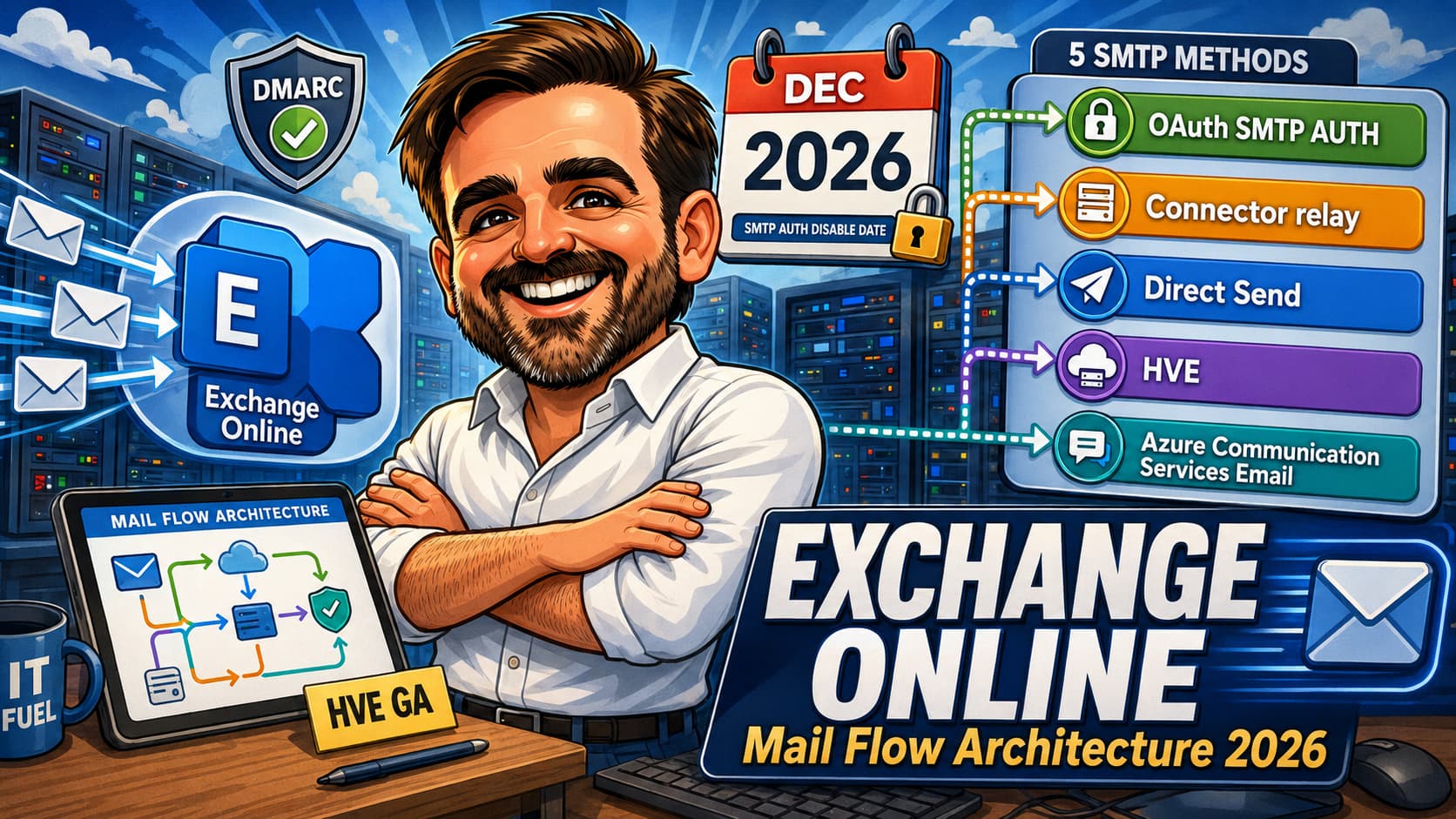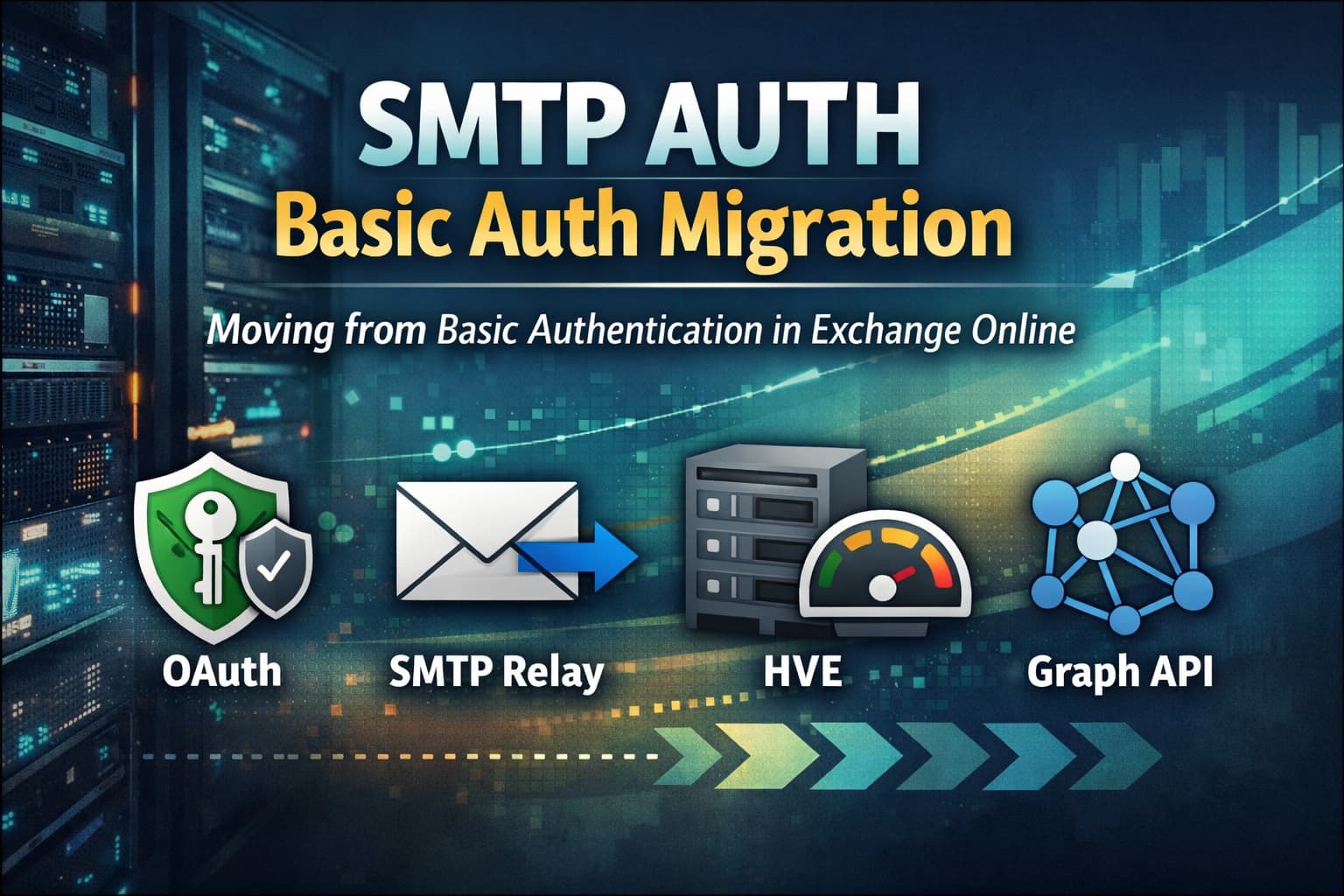
Client Submission via SMTP AUTH — smtp.office365.com:587 with a username and password — is the last remaining use of Basic Authentication in Exchange Online. Every other protocol (EAS, POP, IMAP, EWS, Autodiscover, Remote PowerShell) completed the transition to Modern Auth by the end of 2022. SMTP AUTH was the exception, kept alive because of the sheer number of printers, scanners, LOB applications, and scripts that depend on it.
That exception is ending. Microsoft has updated the timeline twice — most recently in January 2026 — but the direction is unambiguous: Basic Auth for SMTP AUTH will be disabled by default by the end of 2026, with final removal planned for 2027, exact date to be announced by Microsoft. The question is not whether you need to migrate, but which path is right for each sender in your environment.
This article covers how to find every sender still using Basic Auth, how to evaluate the four migration paths, and what to configure in Exchange Online and Entra ID. The PowerShell examples throughout the article illustrate each step — review and adapt them to your environment before running in production.
smtp.office365.com:587 with Basic Auth credentials. IP-based relay via an Exchange Online inbound connector (using source IP verification, not credentials) is not affected by this change. Devices that route through an on-premises SMTP gateway are also not affected. If you are unsure which sending method a device uses, check the SMTP AUTH Clients report — if the device appears there, it is using Client Submission.550 5.7.30 Basic authentication is not supported for Client Submission.smtp-hve.office365.com:587), Basic Auth on that endpoint is supported until September 2028. The HVE endpoint is a separate service with its own deprecation schedule.Timeline — what changes and when
-
NowNo change in behaviourSMTP AUTH Basic Auth continues to function as today for existing tenants. Use this window to complete your inventory and migration.
-
End of Dec 2026Disabled by default for existing tenantsMicrosoft will disable Basic Auth for SMTP AUTH across existing tenants. Admins will still be able to re-enable it if needed — but the default changes. New tenants created after this date will have Basic Auth unavailable by default.
-
H2 2027Final removal date announcedMicrosoft will announce the permanent removal date in the second half of 2027. After that date, Basic Auth cannot be re-enabled under any circumstances.
Step 1 — Find every sender still using Basic Auth
Before you can migrate anything, you need a complete picture of what is using Basic Auth today. Exchange Online provides a dedicated report for this, and you can also query it via PowerShell for bulk export.
Option A — SMTP AUTH Clients report in the Exchange Admin Center
Option B — PowerShell audit
# Connect to Exchange Online
Connect-ExchangeOnline

# Check tenant-wide SMTP AUTH setting
Get-TransportConfig | Select-Object SmtpClientAuthenticationDisabled

# Find mailboxes with per-mailbox SMTP AUTH enabled
# SmtpClientAuthenticationDisabled = False means SMTP AUTH is explicitly enabled
# Blank means the mailbox inherits the tenant-wide setting
Get-CASMailbox -ResultSize Unlimited |
    Where-Object { $_.SmtpClientAuthenticationDisabled -eq $false } |
    Select-Object DisplayName, PrimarySmtpAddress, SmtpClientAuthenticationDisabled |
    Export-Csv -Path "C:\Reports\SmtpAuthEnabled.csv" -NoTypeInformation

# Request a historical SMTP AUTH report via PowerShell
# Replace the NotifyAddress with your email
Start-HistoricalSearch `
    -ReportTitle   "SMTP Basic Auth Audit" `
    -ReportType    "SmtpCSReport" `
    -StartDate     (Get-Date).AddDays(-30) `
    -EndDate       (Get-Date) `
    -NotifyAddress "admin@contoso.com"

# In the downloaded report, look for authMethod = TlsAuthLogin (Basic Auth)
# authMethod = XOAUTH2 means Modern Auth (no action needed)Migration paths — choosing the right one
There is no single right answer. The correct path depends on whether the sending device or application can support OAuth, whether the destination is internal or external, and whether the sending volume is high or low.
smtp.office365.com:587 endpoint — only the authentication method changes. Requires an Entra ID app registration.smtp-hve.office365.com:587. Basic Auth supported until September 2028 on this endpoint — buys time for longer migrations. Internal recipients only.sendMail endpoint. No SMTP at all — more robust but requires code changes.Path 1 — Migrate to OAuth 2.0 with SMTP AUTH
OAuth replaces the username/password with a short-lived access token. The SMTP endpoint and port are identical — only the authentication method changes. This is the right path for applications and scripts that can be updated.
SMTP-OAuth-AppName). For Redirect URI, select Public client (mobile & desktop) and set the value to https://login.microsoftonline.com/common/oauth2/nativeclient. Note the Application (client) ID and Directory (tenant) ID.New-ServicePrincipal in Exchange Online PowerShell to register the service principal. Grant admin consent after adding permissions. Validate which flow applies to your scenario — delegated and application flows have different token acquisition patterns and permission models. See the official OAuth for SMTP documentation before implementing either path.Get-CASMailbox -Identity <address> | Select SmtpClientAuthenticationDisabled. A value of True means SMTP AUTH is disabled for that mailbox. Enable it: Set-CASMailbox -Identity <address> -SmtpClientAuthenticationDisabled $falsehttps://login.microsoftonline.com/<tenantId>/oauth2/v2.0/token and encode it in the SASL XOAUTH2 format before the SMTP AUTH command. See Authenticate an IMAP, POP or SMTP connection using OAuth for the full token request and XOAUTH2 encoding details.# Enable SMTP AUTH for a specific mailbox (required even when using OAuth)
Set-CASMailbox -Identity "app-sender@contoso.com" -SmtpClientAuthenticationDisabled $false
# Verify
Get-CASMailbox -Identity "app-sender@contoso.com" | Select-Object SmtpClientAuthenticationDisabled
# Register service principal for SMTP.SendAsApp (application/daemon flow)
# Run after granting admin consent in Entra ID
# Replace AppId and ObjectId with values from your app registration
New-ServicePrincipal -AppId "<AppId>" -ObjectId "<ObjectId>"
# Grant the service principal Send As permission on the mailbox
# Note: use Add-RecipientPermission for Send As, not Add-MailboxPermission (FullAccess)
# Verify the correct permission model for your OAuth flow in the official documentation:
# learn.microsoft.com/en-us/exchange/client-developer/legacy-protocols/how-to-authenticate-an-imap-pop-smtp-application-by-using-oauth
Add-RecipientPermission -Identity "app-sender@contoso.com" `
-Trustee "<ServicePrincipalObjectId>" `
-AccessRights SendAs `
-Confirm $falsePath 2 — SMTP Relay via Exchange Online connector
An IP-based SMTP relay does not use credentials at all. Instead, Exchange Online accepts mail from a specific IP address (or range) over TLS and relays it on behalf of your domain. This is the recommended path for printers, scanners, and any device that cannot support OAuth and is unlikely to receive a firmware update that adds it.
SMTP Relay - MFP Devices). Set Authenticating sent email to By verifying that the IP address of the sending server matches one of these IP addresses. Enter the static IP(s) of your devices or the IP of your on-premises SMTP relay host.contoso-com.mail.protection.outlook.com) on port 25. This is the relay path — it is not the same as Client Submission (smtp.office365.com:587 with credentials). The device connects to the MX endpoint, Exchange Online verifies the source IP against the connector, and relays the message. Remove any saved credentials — this path uses IP-based trust, not authentication. Test by sending a message from the device and checking message trace in the Exchange Admin Center.Path 3 — High Volume Email (HVE) for internal notifications
If your use case is sending high-volume notifications exclusively to internal recipients, High Volume Email provides a dedicated endpoint that removes the standard Exchange sending limits and continues to support Basic Auth until September 2028. This gives you a longer migration window for applications that cannot yet support OAuth.
Path 4 — Microsoft Graph API (sendMail)
For custom applications and scripts, the Microsoft Graph sendMail endpoint is the most future-proof path — it removes SMTP entirely and uses a standard REST API call authenticated with OAuth. There is no SMTP endpoint to manage, no per-mailbox SMTP AUTH setting to maintain, and the same Entra ID app registration approach applies.
Mail.Send), which requires the app to be granted access to specific mailboxes via Add-MailboxPermission or application access policies — without this, the API call will return a 403 even with admin consent. Delegated flow requires a signed-in user context. Review the sendMail documentation and the permissions model for your scenario before implementing.# Requires: app registration with Mail.Send (delegated) or Mail.Send (application) permission
# Replace the placeholder values with your tenant, app, and secret
$tenantId = "<your-tenant-id>"
$clientId = "<your-app-client-id>"
$clientSecret = "<your-client-secret>"
$fromAddress = "notifications@contoso.com"
# Acquire access token using client credentials flow
$tokenBody = @{
grant_type = "client_credentials"
scope = "https://graph.microsoft.com/.default"
client_id = $clientId
client_secret = $clientSecret
}
$tokenResponse = Invoke-RestMethod `
-Uri "https://login.microsoftonline.com/$tenantId/oauth2/v2.0/token" `
-Method Post `
-Body $tokenBody
$accessToken = $tokenResponse.access_token
# Build the message payload
$message = @{
message = @{
subject = "Automated notification"
body = @{ contentType = "Text"; content = "This is a test message via Graph API." }
toRecipients = @(@{ emailAddress = @{ address = "recipient@contoso.com" } })
}
} | ConvertTo-Json -Depth 5
# Send via Graph API sendMail endpoint
Invoke-RestMethod `
-Uri "https://graph.microsoft.com/v1.0/users/$fromAddress/sendMail" `
-Method Post `
-Headers @{ Authorization = "Bearer $accessToken"; "Content-Type" = "application/json" } `
-Body $messageAfter migration — disable Basic Auth at the mailbox level
Once a mailbox or application has been successfully migrated to one of the paths above, disable Basic Auth for that specific mailbox. Do not wait for Microsoft to disable it at the tenant level — disabling it yourself as you complete each migration reduces your attack surface immediately and confirms the migration is working.
# Disable SMTP AUTH for a migrated mailbox
Set-CASMailbox -Identity "migrated-app@contoso.com" -SmtpClientAuthenticationDisabled $true

# Bulk disable for all mailboxes with SMTP AUTH explicitly enabled
Get-CASMailbox -ResultSize Unlimited |
    Where-Object { $_.SmtpClientAuthenticationDisabled -eq $false } |
    ForEach-Object {
        Set-CASMailbox -Identity $_.Identity -SmtpClientAuthenticationDisabled $true
        Write-Host "Disabled: $($_.PrimarySmtpAddress)"
    }

# Once all mailboxes are migrated, disable SMTP AUTH at tenant level
# Only do this when you are certain no mailbox still needs it
Set-TransportConfig -SmtpClientAuthenticationDisabled $true
Migration checklist
- Check the current timeline before communicating deadlinesThe SMTP AUTH Basic Auth timeline has been revised multiple times. Verify the current schedule at the official Exchange Team Blog before planning or communicating to stakeholders.
- Run the SMTP AUTH Clients report and export all Basic Auth sendersExchange Admin Center → Reports → Mail flow → SMTP AUTH clients. Filter for Basic Authentication in the authentication column. Export to CSV. This is your migration inventory.
- For each sender, document the application/device and OAuth capabilityIdentify whether each sender is a printer/MFP, a LOB application, a script, or a service. Determine whether it supports OAuth — check vendor documentation or firmware release notes. This determines the migration path.
- Assign migration paths: OAuth, SMTP Relay, HVE, or Graph APIOAuth for applications that support it. SMTP Relay for printers and legacy devices. HVE for high-volume internal-only senders that need more time. Graph API for custom code that can switch from SMTP to REST.
-
For OAuth path — register app in Entra ID and grant admin consentCreate the app registration, add SMTP.Send (delegated) or SMTP.SendAsApp (application) permission, grant admin consent. For application flow, register the service principal in Exchange Online with
New-ServicePrincipal. - For SMTP Relay — verify static IP and create inbound connectorConfirm that the sending device has a static IP. Create an inbound connector in Exchange Online with IP-based authentication and TLS enforcement. Update the SMTP server address on the device.
-
Test each migrated sender before disabling Basic AuthSend test messages through each migrated path. Verify delivery in message trace. Confirm the authentication method in message trace: OAuth senders show
XOAUTH2in the SMTP AUTH Clients report; relay senders should appear via the inbound connector in message trace with no authentication entry. Only disable Basic Auth for a mailbox after confirming it has no recent Basic Auth submissions in the report. -
Disable Basic Auth per mailbox as each migration completesDo not wait for the tenant-level cutoff. Use
Set-CASMailbox -SmtpClientAuthenticationDisabled $truefor each mailbox as it is migrated. Re-run the SMTP AUTH report after each batch to track progress. -
Disable SMTP AUTH at tenant level once all mailboxes are migratedWhen all senders have been migrated and verified, run
Set-TransportConfig -SmtpClientAuthenticationDisabled $trueto disable SMTP AUTH tenant-wide. This is the cleanest final state — no per-mailbox exceptions, no residual Basic Auth risk.
- Exchange Team Blog — Updated SMTP AUTH deprecation timeline (Jan 2026)
- Exchange Team Blog — Original retirement announcement
- Microsoft Learn — Enable or disable SMTP AUTH in Exchange Online
- Microsoft Learn — Authenticate SMTP connection using OAuth
- Microsoft Learn — Deprecation of Basic authentication in Exchange Online