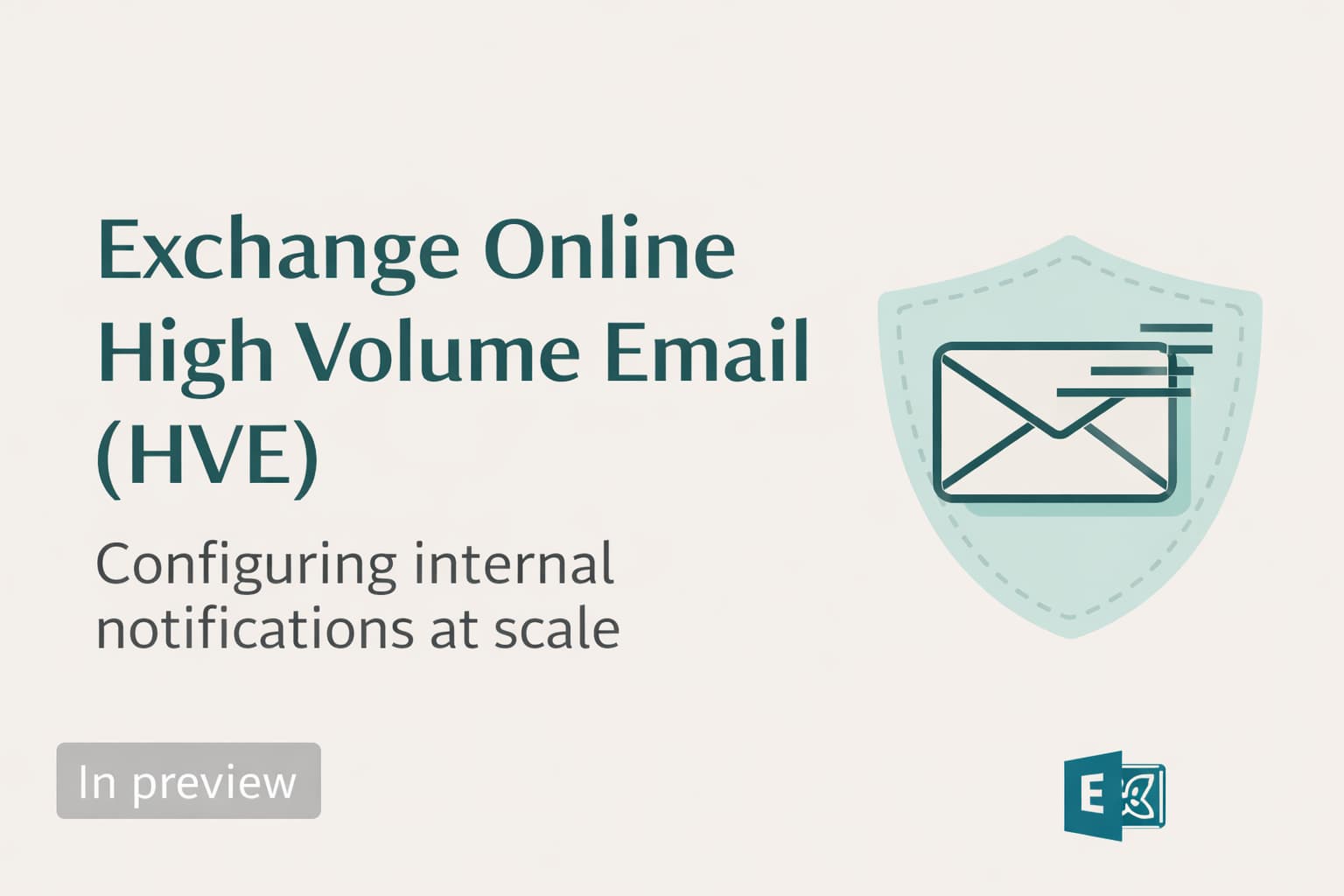
Exchange Online has always had sending limits. The recipient rate limit (10,000 recipients per day per mailbox) and the message rate limit exist to protect the shared infrastructure from abuse — and they work. But for organisations running internal notification systems, HR communications, automated alerting from line-of-business applications, or scan-to-email workflows, these limits become an operational constraint.
High Volume Email (HVE) is Microsoft's answer to that constraint. Microsoft announced a March 2026 GA target, but the official documentation page is still marked as Public Preview at the time of writing — check the official HVE documentation for the current release status before planning a production rollout, and it does something specific: it provides a dedicated SMTP endpoint with no internal recipient rate limit, designed exclusively for sending to recipients inside your tenant. It does not change how regular mailboxes work, it does not affect your existing mail flow rules, and it does not require you to purchase additional licences for the accounts.
This article covers everything you need to configure HVE correctly — account creation, authentication, Conditional Access exemptions, and the errors you will almost certainly encounter on first attempt.
550 5.5.105 External sending is not supported for High Volume Email accounts. For high-volume email to external recipients, use Azure Communication Services Email — Microsoft's dedicated service for programmatic and transactional email to external addresses.smtp-hve.office365.com), separate from the standard endpoint (smtp.office365.com) where Basic Auth is being phased out. OAuth is also supported and recommended for new implementations.Exchange Online limits vs HVE: what changes and what doesn't
HVE does not modify any existing behaviour in your tenant. It adds a separate sending path that operates independently of your standard mailboxes.
Step 1 — Create the HVE account
HVE accounts cannot be converted from existing user accounts or synced from Active Directory. They must be created as new objects. If you need to reuse an existing email address, you must first remove it from the current account before assigning it to the new HVE account.
Option A — Exchange Admin Center (recommended for initial setup)
smtp-hve.office365.com on port 587 with TLS.Option B — PowerShell
New-MailUser -HVEAccount cmdlet may behave differently depending on your Exchange Online PowerShell module version. If you get a "positional parameter" error, ensure you are using named parameters without line-continuation backticks, and that you are connected with Connect-ExchangeOnline and not with legacy MSOL/EXO v1 modules. Verify the current parameter set in the official HVE documentation.# Connect to Exchange Online PowerShell
Connect-ExchangeOnline
# Create the HVE account - prompts for a password securely
$pwd = Read-Host "Enter HVE account password" -AsSecureString
New-MailUser -HVEAccount -Name "HVE-HRNotifications" -DisplayName "HR Notifications" -PrimarySmtpAddress "hr-notify@contoso.com" -Password $pwd
# Verify the account was created
Get-MailUser -HVEAccount | Select-Object DisplayName, PrimarySmtpAddress, RecipientType
# Update the display name if needed (this is what recipients see as sender)
Set-User "HVE-HRNotifications" -DisplayName "HR Notifications - Contoso"Step 2 — Configure authentication
This is the step where most HVE deployments fail. Exchange Online has tenant-level and policy-level controls that block Basic Auth SMTP, and HVE's Basic Auth goes through a different endpoint but still requires an explicit policy allowance. OAuth is supported and recommended for new implementations — it avoids these issues entirely.
Option A — Basic Auth (for legacy devices and LOB apps)
Even though SmtpClientAuthenticationDisabled is set to True at the tenant level, HVE accounts can still use Basic Auth because they use the smtp-hve.office365.com endpoint, not the standard client submission endpoint. However, you still need to ensure the Authentication Policy assigned to the HVE account allows Basic Auth SMTP.
Connect-ExchangeOnline

# Check current authentication policies in your org
Get-AuthenticationPolicy | Format-List Name, AllowBasicAuthSmtp

# Check the org-wide default policy
Get-OrganizationConfig | Select-Object DefaultAuthenticationPolicy

# Check if the default policy blocks SMTP Basic Auth
Get-AuthenticationPolicy -Identity "Default Authentication Policy" |
    Select-Object AllowBasicAuthSmtp

# If AllowBasicAuthSmtp is False on the default policy,
# create a new policy that allows it and assign it to the HVE account
New-AuthenticationPolicy -Name "Allow Basic Auth SMTP - HVE" -AllowBasicAuthSmtp

# Assign the policy to the HVE account
Set-User "hr-notify@contoso.com" -AuthenticationPolicy "Allow Basic Auth SMTP - HVE" -STSRefreshTokensValidFrom (Get-Date)

# The -STSRefreshTokensValidFrom forces immediate token invalidation
# Without it, the new policy can take up to 24 hours to apply

# Verify the policy is assigned
Get-User "hr-notify@contoso.com" | Select-Object AuthenticationPolicy
Option B — OAuth (recommended for new implementations)
OAuth avoids the Basic Auth policy issues entirely and is the right choice for any new integration where the sending application supports it. The configuration uses an Entra ID app registration with the Mail.Send permission — the Exchange Online permission used by HVE for both delegated and application OAuth flows. See the OAuth for HVE documentation for the full configuration.
# Connect to Microsoft Graph (requires Application.ReadWrite.All)
Connect-MgGraph -Scopes "Application.ReadWrite.All"

# Create the app registration
$app = New-MgApplication -DisplayName "HVE-HRNotifications-App"

# Add Mail.Send permission for Exchange Online
# Do NOT hardcode permission GUIDs from this article.
# Confirm the correct ResourceAppId and Mail.Send scope ID in your tenant:
#   Entra admin center > App registrations > [app] > API permissions
#   > Add a permission > APIs my organization uses > Office 365 Exchange Online
#   > Delegated permissions > Mail.Send  (or Application permissions for daemon flows)
# Full guide: learn.microsoft.com/en-us/exchange/mail-flow-best-practices/oauth-high-volume-mails-m365

Write-Host "App ID: $($app.AppId)"
Write-Host "Tenant admin must grant consent at:"
Write-Host "https://login.microsoftonline.com/<tenantId>/adminconsent?client_id=$($app.AppId)"

# Full OAuth configuration guide:
# https://learn.microsoft.com/en-us/exchange/mail-flow-best-practices/oauth-high-volume-mails-m365Step 3 — Conditional Access exemption
This is the second most common failure point. If your tenant has Conditional Access policies that block legacy authentication — including the Microsoft-managed Block legacy authentication policy that is automatically created in newer tenants — HVE accounts using Basic Auth will fail to authenticate with error AADSTS53003: BlockedByConditionalAccess.
Connect-MgGraph -Scopes "Group.ReadWrite.All", "Policy.ReadWrite.ConditionalAccess"

# Create a dedicated security group for all HVE accounts
$group = New-MgGroup `
    -DisplayName     "SG-Exchange-HVEAccounts" `
    -MailEnabled     $false `
    -SecurityEnabled $true `
    -MailNickname    "SG-Exchange-HVEAccounts"

# Add the HVE account to the group
# Note: search by DisplayName, not by email address
$hveUser = Get-MgUser -Filter "displayName eq 'HVE-HRNotifications'"
New-MgGroupMember -GroupId $group.Id -DirectoryObjectId $hveUser.Id

# List all Conditional Access policies to find those blocking legacy auth
Get-MgIdentityConditionalAccessPolicy | Select-Object DisplayName, State |
    Where-Object { $_.DisplayName -like "*legacy*" -or $_.DisplayName -like "*block*" }

# For each relevant policy, add the group to the exclusion list
# This must be done in the Entra admin center UI for Microsoft-managed policies:
# Entra ID > Security > Conditional Access > [policy] > Exclude > Groups
# Add: SG-Exchange-HVEAccounts

# Also exclude from any CA policy requiring MFA, compliant devices, or known device platforms
# HVE SMTP sessions do not report a device platformHVE-HRNotifications (the -Name parameter used during account creation). Plan your naming convention before creating accounts at scale.Step 4 — Test the configuration
Test before updating any production applications. The quickest way is Send-MailKitMessage (recommended — Send-MailMessage is deprecated) or a direct SMTP connection with Telnet or OpenSSL.
# Install Send-MailKitMessage if not already available
Install-Module -Name Send-MailKitMessage -Scope CurrentUser -Force

$credential = Get-Credential # Enter hr-notify@contoso.com and its password

Send-MailKitMessage `
    -SMTPServer  "smtp-hve.office365.com" `
    -Port        587 `
    -Credential  $credential `
    -UseSecureConnectionIfAvailable `
    -From        "hr-notify@contoso.com" `
    -RecipientList "you@contoso.com" `
    -Subject     "HVE Test - please confirm delivery" `
    -TextBody    "This is a test message from the HVE account."

# If this fails, check the error message against the common errors section below.
# Most failures are authentication-related (CA policy or auth policy).
# After a successful test, update your apps/devices to use smtp-hve.office365.comsmtp.office365.com with HVE credentials will fail authentication.Step 5 — Monitor usage
HVE includes a dedicated usage report in the Exchange Admin Center. Monitoring volume per account matters both for governance and to understand future cost exposure when billing starts.
Common errors and what they mean
-AllowBasicAuthSmtp and assign it to the HVE account with Set-User -AuthenticationPolicysmtp-hve.office365.com port 587Connect-SPOService or Exchange cmdlets without a valid session, or token expiredConnect-ExchangeOnline. For HVE SMTP, ensure the authentication policy change has propagated — use -STSRefreshTokensValidFrom (Get-Date) to force immediate effectSet-User -STSRefreshTokensValidFrom (Get-Date) immediately after assigning the new auth policy to force instant propagationConfiguration checklist
-
Create the HVE account with a meaningful display nameThe display name is what recipients see in the From field. Use something recognisable:
HR Notifications,IT Alerts - Contoso. Avoid generic names likeHVE01. - Do not assign a licence to the HVE accountHVE accounts are MailUser objects. A licence is unnecessary and may cause unexpected behaviour.
-
Check and configure the Authentication PolicyRun
Get-AuthenticationPolicy | FL Name, AllowBasicAuthSmtp. If the default policy blocks SMTP, create a dedicated policy with-AllowBasicAuthSmtpand assign it to the HVE account. -
Use -STSRefreshTokensValidFrom to force immediate policy propagationWithout this, the new authentication policy can take up to 24 hours to apply. Include it in the
Set-Usercommand immediately after assigning the policy. -
Create a dedicated Entra ID group for HVE accountsName it clearly:
SG-Exchange-HVEAccounts. Add all HVE accounts to it. Use this group as the exclusion target in Conditional Access policies. - Exclude the HVE group from all relevant Conditional Access policiesThis includes: policies that block legacy auth, policies requiring MFA, policies requiring compliant devices, and policies filtering by device platform. HVE SMTP sessions do not report a device platform.
-
Test with smtp-hve.office365.com on port 587 before updating production appsUse
Send-MailKitMessagefor testing. Confirm the message is received by an internal recipient before pointing any production system at the new endpoint. - Use distribution groups for audiences larger than 50The per-message recipient limit is 50 envelope addresses. Send to a DL that contains your target audience — the DL counts as one recipient regardless of how many members it has.
- Monitor usage in the HVE reportEstablish a baseline of message volume so you can model future costs when billing starts. Verify the current billing status and pricing model in the official HVE documentation.
- Plan migration to OAuth if your sending application supports itBasic Auth on the HVE endpoint is supported until September 2028. Start planning the OAuth migration now for any application that can support it — it removes the Authentication Policy and most Conditional Access complications.