1. Separate the incident from the exercise
Case 02 · Fictional incident
“The support utility is installed, but Intune reports 0x87D1041C: the application was not detected after installation completed.”
This is a teaching ticket. We did not reproduce that error on the tenant in this pilot. The portal screenshot is real; the browser exercise uses a fictional marker held only in browser memory.
Your goal is to reconcile the expected artifact, the detection rule and the execution context. An installer exit code mapped as success is only one part of the deployment result.
The tenant’s inspected device report contained installed or available apps, with no observed detection failure. Do not label the reference application below as broken.
2. Inspect the actual rule, not just the app name
Go to Apps → All Apps → your Windows app (Win32) → Properties. Record Program (install behaviour and return codes), Requirements (architecture and OS), Detection rules, and Assignments. Open a failed device under Device install status if one exists.
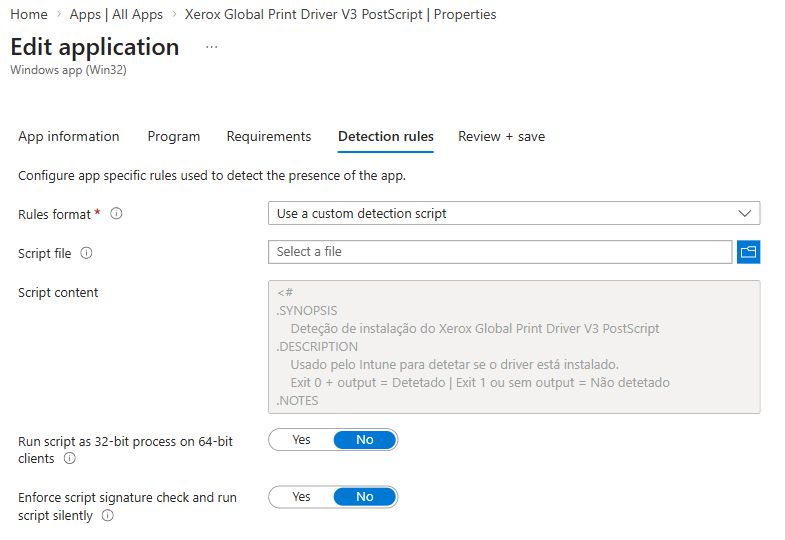
For manual detection, all configured rules must be satisfied. For custom detection scripts, Microsoft requires exit code 0 and non-empty standard output; output on STDERR causes a not-installed result. A script that silently exits 0 does not establish presence. Review the current Win32 detection rules.
3. Reproduce a false negative safely
Try the detector in your browser
This is an interactive model of a detection rule. It does not run PowerShell, install an app or contact Intune.
Fictional marker absent.
Prepare version 1.1.0, then compare the two rules.
- Prepare 1.1.0. The exact-version rule rejects it; the minimum-version rule accepts it.
- Prepare 0.9.0. Both rules must reject it.
- Remove the marker. Both rules must report not detected.
The fictional requirement is version 1.0.0 or newer. Compare a rule that requires exactly 1.0.0 with a rule that accepts the permitted minimum or a later version.
| Marker version | Exact 1.0.0 | Minimum 1.0.0 |
|---|---|---|
| 1.1.0 | Not detected: false negative for this requirement | Detected |
| 1.0.0 | Detected | Detected |
| 0.9.0 | Not detected | Not detected |
| 1.10.0 | Not detected | Detected: numeric version comparison |
Use the controls above to compare the two results. A detected result displays simulated exit code 0, a non-empty STDOUT message and empty STDERR. A rejected marker displays exit code 1 and empty output. Record observations in the worksheet.
Why “version or newer” is not a universal fix
An equality check is correct when the requirement is exactly that version. A greater-than-or-equal check is only correct when newer versions are accepted. The detection rule must encode the actual application requirement, not just return success.
4. Apply the reasoning to a real failed deployment
| Check | Evidence to collect |
|---|---|
| Artifact | The exact file, product code, registry value, driver or other durable artifact after installation. A launcher opening is insufficient. |
| Context | User or System install behaviour; the account and environment in which the artifact exists. A per-user installation may be invisible to SYSTEM. |
| Architecture | 32/64-bit script host and registry/file-system view. Compare the detection configuration with the actual location. |
| Version | Type-aware comparison and the approved version requirement; avoid comparing version strings as plain text. |
| Completion | Whether the install wrapper waits for its child process. Correlate installer logs and the configured return-code mapping. |
| Rule combination | For manual detection, each rule must be true. For a custom script, inspect exit code, STDOUT and STDERR separately. |
On the Windows pilot, collect relevant files from %ProgramData%\Microsoft\IntuneManagementExtension\Logs. Use app ID, device and timestamps to follow one attempt:
- AppWorkload.log: app deployment processing, including installation and detection.
- AppActionProcessor.log: applicability and detection activity.
- IntuneManagementExtension.log: IME policy, check-in and reporting context.
- AgentExecutor.log: relevant PowerShell execution details when present.
Use the Microsoft Win32 troubleshooting guide to interpret the actual log sequence. Reading an old log entry is not evidence of a new attempt.
5. Test absence, clean up and define success
A detector that always says “installed” is not a fix. Complete the negative control in the same browser exercise:
- Return to Try the detector in your browser and select Remove marker. Confirm Fictional marker absent.
- Select Test exact 1.0.0 and record the result.
- Select Test minimum 1.0.0 and record the result separately; the panel replaces the previous result.
- Both must return simulated exit code 1, empty STDOUT and empty STDERR. Leave the marker absent.
Cleanup removes only the fictional marker from this page’s memory. No file, application or tenant setting was created or removed. Keep your observations in the worksheet; the exercise output is not saved with learning progress.
For your real app, preserve the original configuration, change one justified condition, and retest on the approved pilot. Confirm the correct version works, detection fails when the artifact is absent, IME records the expected result and Intune reports Installed with a newer timestamp. Record rollback and cleanup before widening scope.
Exercise handover
“A minimum-version requirement was incorrectly represented by exact equality. The browser model changed from false negative to detected after correcting the comparison; absence still returned not detected. Production app packaging and Intune deployment behaviour were not tested.”
Microsoft references
Checked 6 November 2026. Portal labels and product behaviour can change; follow the linked applicability and permissions guidance for your environment.
Keep going.
Marking a checkpoint records learning progress only. Keep operational test results in your private worksheet.