1. Read the ticket
Case 01 · Evidence-led diagnosis
“The default apps are still on the laptop. Intune must not be sending the policy.”
The ticket wording is a teaching scenario. The screenshots below are real observations from TSC-549 on 6 November 2026. Your task is to determine which part of that claim the evidence supports.
Success means choosing the right investigation branch and writing a defensible next action. You do not need to remove any application to complete this case.
Start a private case worksheet. Record the device, policy, exact setting, OS edition/build, last check-in and report time. Keep identities and raw diagnostics outside public screenshots.
2. Read the status before pressing Sync
Open Intune admin center → Devices → All devices → your pilot → Device configuration. Find the exact profile and open its per-setting result.
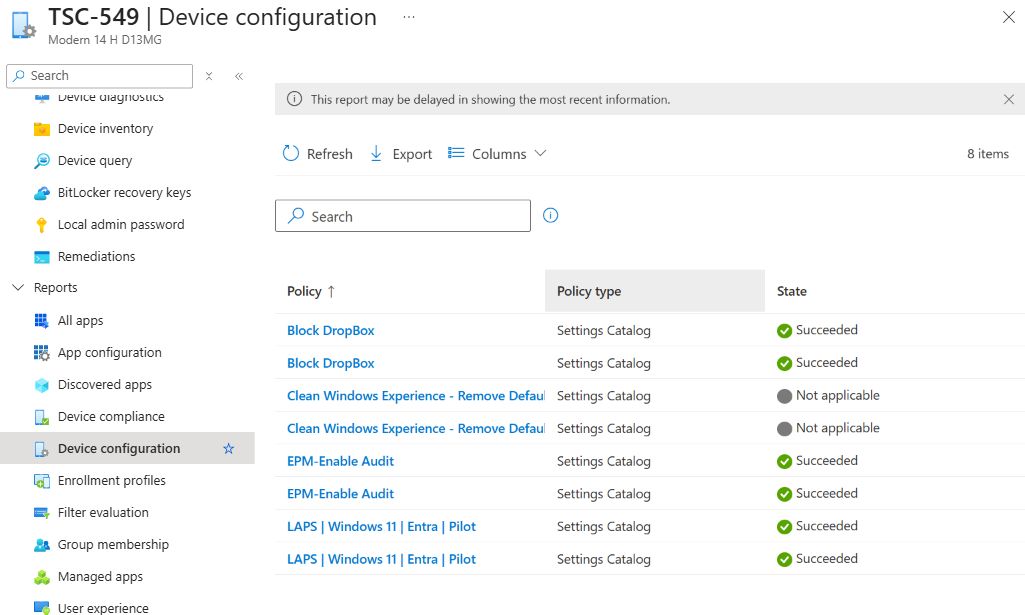
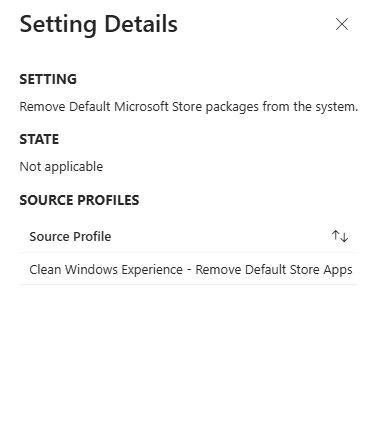
The removal profile is present and reports Not applicable. Other profiles, including LAPS, report Succeeded. This is different from an absent policy or a device that has stopped checking in.
| Observed state | Next question |
|---|---|
| Profile absent / no recent result | Is this the correct managed device and assignment context? Check membership, exclusions, filters and the last contact. |
| Pending | Is the device online and has it processed this assignment? Compare timestamps; allow for reporting delay. |
| Not applicable | Does this exact setting support the device’s edition, build and scope? |
| Conflict / Error | Open per-setting details. Compare conflicting policy values or investigate the recorded error. |
| Succeeded | Check the actual device behaviour and the setting’s documented prerequisites. A status alone is not a functional test. |
3. Check applicability against the device
On the same device, open Overview → Device details → Operating system. Match the device record before comparing results.
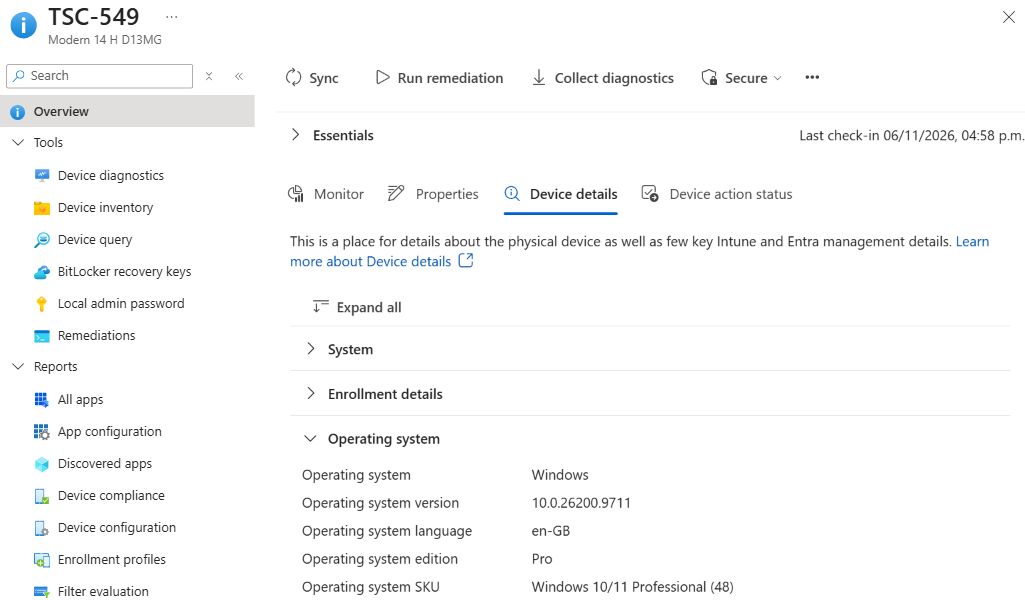
The Microsoft CSP applicability table excludes Pro for this setting. Microsoft’s Windows 11 25H2 guidance describes policy-based inbox app removal for Enterprise and Education. A newer OS build does not override the edition requirement.
Hint: build number and edition answer different questions
A supported Windows release is only one prerequisite. Read the edition, device/user scope and any feature-specific conditions for the exact CSP setting.
4. Use the right branch for a genuinely missing policy
If your own profile is absent rather than Not applicable, follow this sequence. Record the answer at each stage before changing anything.
- Assignment: go to Devices → Configuration → profile → Properties → Assignments. Check included and excluded groups and actual membership. Keep group exclusions in the same context: user groups with user groups, device groups with device groups. Intune does not infer user-to-device relationships to apply a cross-type exclusion. For a policy assigned to users, use a device assignment filter to refine which of their devices qualify. Scope tags control administration and visibility, not deployment targeting. Microsoft assignment guidance.
- Filters: open Devices → All devices → pilot → Filter evaluation. Read the mode and result together:
Filter mode Evaluation result Effect on this assignment Include Match The device passes the filter. Include No match The device is filtered out. Exclude Match The device is filtered out. Exclude No match The device passes the filter. This table describes one otherwise eligible assignment. Passing a filter does not prove that the setting is supported, delivered or successfully applied. If assignments overlap, use Microsoft’s filter conflict-resolution rules before deciding the overall outcome.
Compare Evaluation time with Last modified: the displayed filter name and rules reflect the current configuration and may have changed since that evaluation. Filter reporting can lag. Microsoft filter troubleshooting.
- Contact: compare the last check-in with the policy change. An offline device cannot process the new assignment. Regular maintenance sync is typically around eight hours; initial enrollment and change notifications follow different timing. Microsoft timing guidance.
- One controlled refresh: if appropriate, request a device Sync and record when it was requested. Then verify a newer check-in, a new per-setting result and the endpoint behaviour. A successful Sync request is not proof the setting succeeded.
- Endpoint evidence: if the supported, correctly targeted setting still fails, collect its error and the relevant MDM events from Event Viewer → Applications and Services Logs → Microsoft → Windows → DeviceManagement-Enterprise-Diagnostics-Provider → Admin. Correlate the setting and time; do not reset enrollment as the first step.
5. Close the diagnosis and define the retest
Reveal the case resolution
Diagnosis: the removal setting is not applicable to the observed Windows Pro edition. The evidence supports an applicability issue; it does not support a tenant-wide delivery failure.
Next action: agree on a supported management approach or a separately approved pilot on a supported edition. Do not upgrade a device or replace an app-removal method solely to clear a report.
If you change the deployment later, define these acceptance criteria first:
- The pilot’s edition/build and the setting’s current support requirements match.
- The intended assignment applies, with no unexpected exclusions or conflicts.
- A fresh per-setting result and the actual endpoint behaviour both match the requirement.
- The rollback is documented for the chosen removal method. Do not assume unassigning a removal policy reinstalls removed apps.
Example handover · Diagnosis only
“TSC-549 reports Pro and the inbox-app removal setting reports Not applicable. Microsoft excludes Pro for this setting. No tenant change was made. Owner to choose a supported deployment approach; functional remediation and rollback remain to be tested on an approved device.”
Microsoft references
Checked 6 November 2026. Portal labels and product behaviour can change; follow the linked applicability and permissions guidance for your environment.
Keep going.
Marking a checkpoint records learning progress only. Keep operational test results in your private worksheet.