1. Define which LAPS milestone is missing
Case 03 · Teaching ticket, real evidence
“The LAPS policy says Succeeded. Does that mean the help desk can recover and use the local administrator password?”
Answer the ticket without revealing a secret or interrupting the user’s work. The screenshots combine a documented 16 October pilot with fresh 6 November metadata from the same device.
Your goal is to distinguish four milestones: policy applied → managed account present → password backed up → authorised operator can recover and use it. Evidence for one milestone does not prove all four.
Use a single approved lab device. Password retrieval, authentication and rotation are optional operational tests outside this read-only course exercise; never put passwords in the worksheet or screenshots. Microsoft prerequisites and roles.
2. Read policy and account-management evidence
Go to Endpoint security → Account protection → your Windows LAPS policy → View report. Open the device and its per-setting results. Confirm assignment to the intended pilot group, with no competing policy for the same settings.
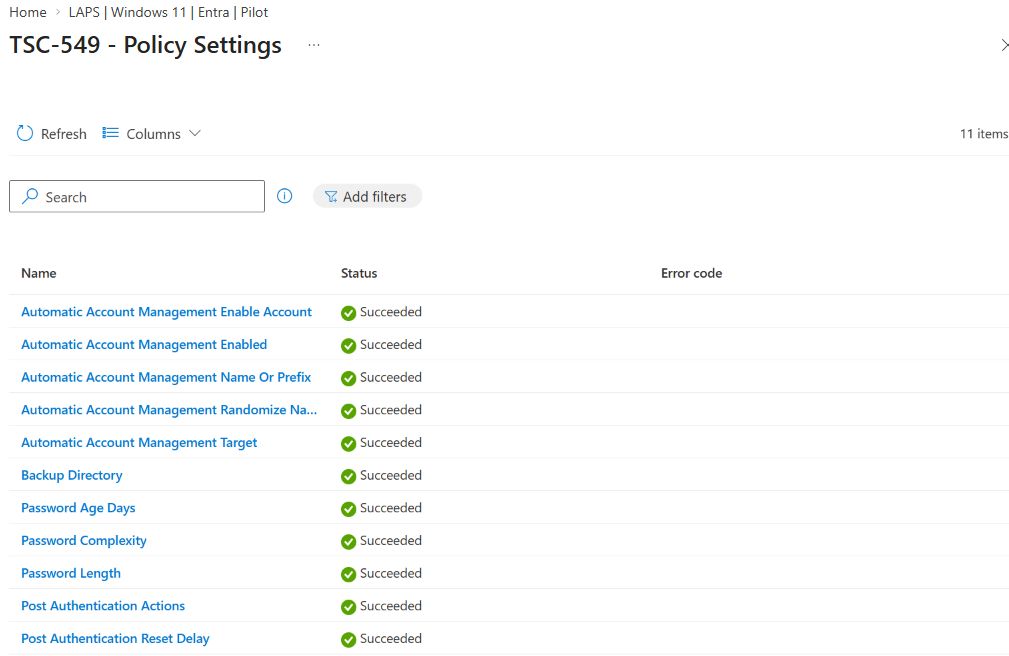
The earlier pilot used automatic account management. This mode creates and manages the account and its local Administrators membership. A competing “create LAPS admin” script is unnecessary for that design and can conflict with its protections. With manual management of a custom account, the account must already exist. Microsoft account-management modes.
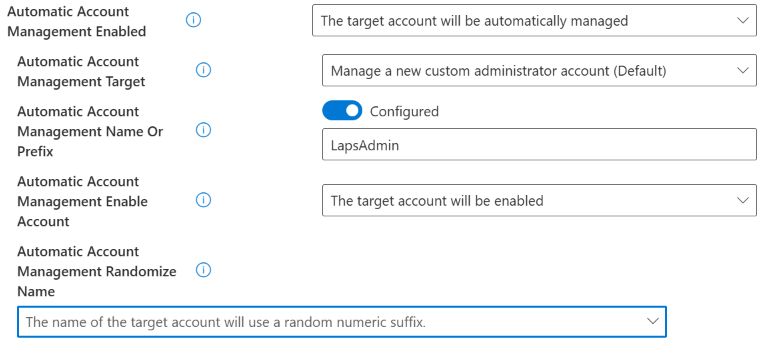
When automatic name randomisation is enabled, the suffix changes with password rotation. Retrieve the current account name when performing an authorised recovery; do not rely on a name copied from an older screenshot. LAPS CSP.
3. Check the directory backup without revealing a password
For the Entra-backed device, open Devices → All devices → pilot → Local admin password. Inspect metadata first. Do not select Show local administrator password for screenshots.
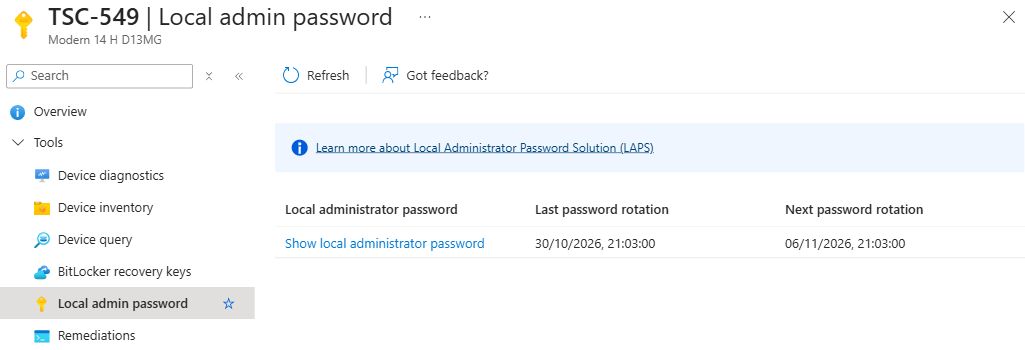
The earlier pilot recorded an initial Entra backup and local password update on 16 October. The fresh screenshot provides current directory metadata. It does not demonstrate that we signed in with the credential or deliberately triggered and validated a new rotation during this session.
On your own endpoint, use Event Viewer → Applications and Services Logs → Microsoft → Windows → LAPS → Operational. If authorised and able to read the log, this command returns selected event metadata without printing passwords:
Get-WinEvent -FilterHashtable @{
  LogName='Microsoft-Windows-LAPS/Operational'
  StartTime=(Get-Date).AddDays(-1)
  Id=10003,10004,10005,10020,10029
} | Select-Object TimeCreated, Id, RecordId| Event | Interpretation |
|---|---|
| 10003 / 10004 / 10005 | Policy processing started / succeeded / failed. Success alone does not prove a new password was backed up. |
| 10029 | Password backup to Microsoft Entra ID succeeded. |
| 10020 | Local managed account password updated. |
Correlate events from the same processing cycle with the device and backup metadata. Missing events in a one-day window may mean no rotation occurred in that interval; expand the time window deliberately. An access-denied error when reading logs is not a LAPS failure. Microsoft event definitions.
If event 10005 reports a failure
- In the same LAPS → Operational log, open the 10005 event matching the recorded time and RecordId.
- On the General tab, read the complete message and error code. The metadata command above intentionally does not display the message.
- Review the events between the matching 10003 start and 10005 failure. Record the exact hexadecimal code, timestamps and relevant event IDs in the private worksheet.
- Use the code and intervening events to choose the next check. A 10005 alone establishes a failed cycle, not its cause. Share only sanitised excerpts through the approved support channel.
4. Diagnose access separately from deployment
First identify the operation that failed. Reading directory credentials and using Intune’s device action are separate permission checks.
| Operation | Permission to verify | What it permits |
|---|---|---|
| Read directory metadata | Microsoft Entra:microsoft.directory/deviceLocalCredentials/standard/read | Read metadata without the password. |
| Retrieve the password | Microsoft Entra:microsoft.directory/deviceLocalCredentials/password/read | Read metadata and the password, within the assigned scope. |
| Use the Intune rotation action | Intune custom role: Managed devices → Read Organization → Read Remote tasks → Rotate Local Admin Password | Request rotation for devices in scope. This does not replace Entra password-read permission. |
These are permission identifiers and categories to check in the operator’s existing role assignments. Confirm the correct signed-in account, assignment scope and any required role activation before requesting a change. Grant only the approved task and device scope. Microsoft LAPS prerequisites and RBAC.
| Symptom | First checks |
|---|---|
| No cloud password/metadata | Correct device, enabled state and join type; Entra LAPS setting; backup directory; policy result; same-cycle endpoint events. |
| Local admin password is greyed out | Microsoft currently documents the Intune Rotate Local Admin Password permission as necessary to access this area. Verify the Intune permission set above and its device scope. A disabled control is not proof of missing backup. |
| Metadata visible, secret unavailable | Check the Entra password/read permission, role scope and activation. standard/read deliberately excludes the password. |
| Rotate action missing or denied | Verify all three Intune permissions above and the scoped role assignment. Entra password retrieval permission alone does not authorise this action. |
| Custom account missing | Automatic or manual mode? Supported OS? Correct target? For manual custom-account management, was the account provisioned? |
| Old account name fails | If randomisation is enabled, re-read the current name and password; old screenshot names are not recovery instructions. |
Role-name trap: the Microsoft Entra Intune Administrator role can retrieve LAPS passwords, but it does not include the Intune Rotate Local Admin Password action. Microsoft requires a custom Intune role for that action; no built-in Intune role includes it. Diagnose the specific permission rather than assuming that an administrator title covers both operations.
5. Write the validation boundary and next test
The recorded pilot used a seven-day password age. With Entra backup, seven days is also the minimum supported PasswordAgeDays. This is a platform constraint, not a universal business recommendation. Microsoft policy settings.
| Milestone | Evidence available in this pilot |
|---|---|
| Policy and managed account | Historical per-setting success and the recorded October account/membership check; fresh November device report still lists the policy as Succeeded. |
| Directory backup | Historical initial backup evidence plus fresh rotation metadata. No secret is included. |
| Interactive local use / elevation | Not demonstrated in this pilot. |
| Deliberate rotation and old/new credential retest | Not demonstrated in this pilot. |
| Denied password retrieval for a low-privilege operator | Not demonstrated in this pilot. |
How to extend the lab with operational tests
- Agree on a maintenance window and an approved disposable device. Record the current metadata without storing the secret.
- Have an authorised operator retrieve the current account name and password privately, perform a concrete local administrative task, and record only success/failure and timestamps.
- Test a separate low-privilege operator. Record the explicit denial; that operator must not receive the secret or inherit an unexpected role.
- If testing rotation, request it with the appropriate scoped role, then correlate new endpoint events and newer directory metadata. Validate new credentials and rejection of the previous credential under the same approved conditions.
- Account for post-authentication actions and their grace period: they can sign out the managed-account session. Record cleanup and restore any temporary lab permissions.
Example handover · Evidence boundary
“Policy processing and directory backup are supported by the recorded evidence. Current metadata was inspected without revealing a password. Interactive use, an explicit access-denial test and a controlled rotation retest remain separate operational checks.”
Microsoft references
Checked 6 November 2026. Portal labels and product behaviour can change; follow the linked applicability and permissions guidance for your environment.
Keep going.
Marking a checkpoint records learning progress only. Keep operational test results in your private worksheet.