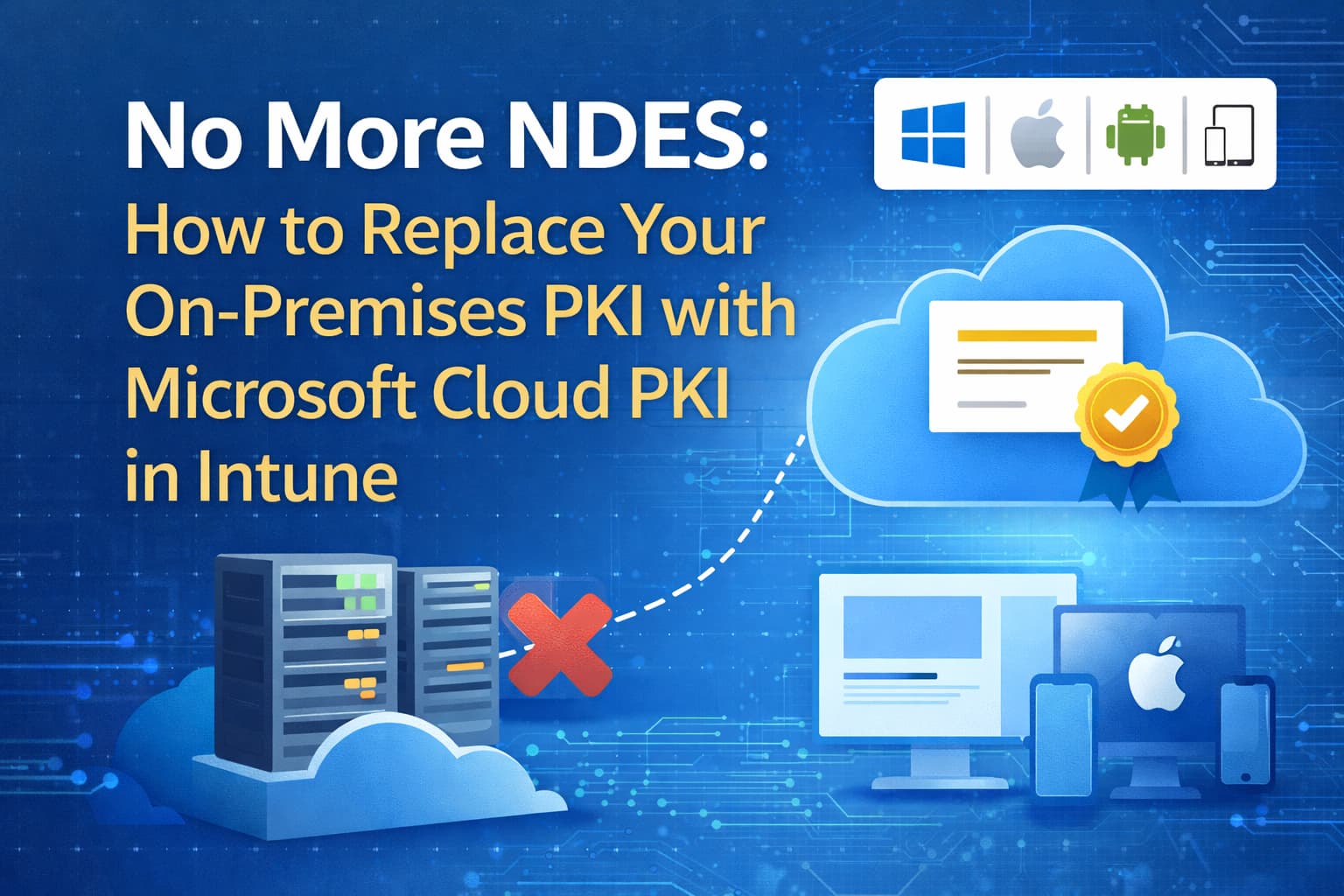
No More NDES: How to Replace Your On-Premises PKI with Microsoft Cloud PKI in Intune
Learn how to replace NDES and the Intune Certificate Connector with Microsoft Cloud PKI in Intune. Step-by-step guide for CA hierarchy, SCEP profiles, Wi-Fi, VPN, and BYOCA migration.
📅 30 March 2026⏱ 15 min read
Microsoft Intune · Endpoint Security · PKI · 2026
Replace your on-premises CA, NDES server, and Intune certificate connector with a fully managed cloud PKI — built into Intune, no infrastructure to maintain.
🔑 Cloud PKI is being added to Microsoft 365 E5 — verify current tenant availability🖥️ Windows · macOS · iOS · Android📡 Wi-Fi · VPN · Certificate-based auth
If you have ever configured certificates for Wi-Fi or VPN authentication in an enterprise environment, you know the infrastructure tax that comes with it: a two-tier CA hierarchy, an NDES server, the Intune Certificate Connector installed on a Windows Server, and a network path that has to stay healthy for certificates to renew. Any of those components fails — or gets patched at the wrong time — and devices start losing access to corporate resources silently.
Microsoft Cloud PKI removes the need for the traditional NDES + Intune Certificate Connector path for SCEP certificate delivery. It is a fully managed cloud service built into the Intune admin center — no NDES server to configure, no connector installation on a Windows Server. Certificate issuance, renewal, and revocation happen entirely in the cloud, against the same SCEP protocol that Intune already uses for certificate profiles. The architecture is the same — only the infrastructure behind it disappears.
!
Licensing: Microsoft Cloud PKI is part of the Intune Suite. Microsoft has announced that Cloud PKI will be added to Microsoft 365 E5. M365 E3 customers receive Remote Help, Advanced Analytics, and Intune Plan 2, but Cloud PKI requires E5 or the standalone Intune Suite add-on. Rollout timing can vary by tenant — verify availability in the Intune admin center and the official Intune licensing documentation before planning production use.
1
For Intune SCEP delivery: Cloud PKI removes the need for the traditional on-premises NDES + Intune Certificate Connector path. Your existing PKI infrastructure may still be required for other certificate scenarios outside Intune — see the BYOCA section below.
2
Supported platforms: Windows, macOS, iOS/iPadOS, Android. A trusted certificate profile and SCEP certificate profile must be created per platform. Trusted certificate and SCEP profiles should be targeted consistently to the same groups — validate deployment sequencing with a pilot group before production rollout.
3
Two deployment models:Cloud-only (Intune creates and hosts both root and issuing CA) or BYOCA (bring your own CA — Intune creates an issuing CA anchored to your existing on-premises CA). BYOCA is the migration path for organisations that cannot retire their on-premises CA immediately.
The certificate flow is identical to what NDES delivers — devices request certificates via SCEP, the registration authority validates the request, and the issuing CA signs and returns the certificate. The difference is where those components run: entirely in Microsoft's cloud, managed through the Intune admin center.
💻
Intune-managed device
Receives SCEP profile, generates CSR, private key never leaves device
The private key is generated on the device and never transmitted. The SCEP challenge is encrypted using the Cloud PKI registration authority keys. Certificate renewal is automatic — by default devices request a new certificate when the existing one is within 20% of its validity period. CRL distribution is cloud-hosted; no DMZ infrastructure is required to publish revocation lists.
Cloud PKI vs the NDES path
Capability
NDES + Connector
Cloud PKI
Infrastructure required
Windows Server (NDES role), on-prem CA, Intune Connector
None
Certificate connector
Required — must be installed and kept healthy
Not required for Cloud PKI SCEP
CRL distribution
Requires DMZ or publicly accessible endpoint
Cloud-hosted
Setup time
Days to weeks (server, NDES, connector, network)
Minutes (admin center)
Certificate renewal
Automatic (via Intune SCEP profile threshold)
Automatic (same threshold, no connector dependency)
Supported platforms
Windows, macOS, iOS, Android
Windows, macOS, iOS, Android
Bring your own CA
Required (on-prem CA is the issuing authority)
Optional (BYOCA model available)
Licensing
Included with Intune Plan 1
Intune Suite / Microsoft 365 E5 (verify tenant availability)
⚠️
Do not mix NDES and Cloud PKI SCEP URLs in the same profile. A SCEP certificate profile must use either an NDES/connector URL or a Cloud PKI SCEP URI — never both in the same profile. If you are migrating from NDES, create new certificate profiles pointing to Cloud PKI and retire the old ones after devices have renewed.
Prerequisites
1
Licensing — Intune Suite, M365 E5, or standalone add-on
Cloud PKI requires Intune Suite (standalone add-on) or an eligible Microsoft 365 E5 entitlement where available. Verify current tenant availability in the Intune admin center under Tenant administration → Cloud PKI — if the option is not visible, the licence has not yet been provisioned. Check the official Intune licensing documentation for current requirements before planning production use.
2
Devices enrolled in Intune
Certificate profiles are delivered via device configuration. Devices must be enrolled in Intune (Entra joined, hybrid joined, or enrolled via Intune MDM). SCEP certificate profiles are supported on Windows 10+, macOS, iOS/iPadOS, and Android. Unenrolled or BYOD-only MAM devices cannot receive Cloud PKI certificates.
3
Intune role permissions for Cloud PKI
The admin creating and managing CAs needs the Cloud PKI CA permissions in a custom Intune role, or the built-in Intune Administrator or Global Administrator role. Permissions include: Read CAs, Create certificate authorities, Revoke issued leaf certificates. Assign the minimum permissions needed for your team structure.
4
Plan your CA hierarchy before creating CAs
Plan CA settings carefully before creation — key CA design choices may require recreating the CA if they need to change later. Plan the full hierarchy (root CA + at least one issuing CA) and document all settings before clicking Create. Use a key algorithm and size supported by the current Cloud PKI documentation — RSA 2048, 3072, or 4096 are documented options. Select SHA-256 as the signing algorithm. Recommend root validity 10 years, issuing validity 5 years.
Step 1 — Create the CA hierarchy
Cloud PKI requires at minimum a root CA and one issuing CA. The root CA is not used to issue certificates directly — it anchors the issuing CA and is distributed to devices as a trusted certificate. All SCEP certificates are issued by the issuing CA.
Set CA type: Root CA. Enter a descriptive name (e.g. Contoso Cloud PKI Root CA). Set validity period (recommend 10 years for root). Choose key algorithm — refer to the current Cloud PKI documentation for supported options. RSA 2048, 3072, and 4096 are documented. Select SHA-256 as the signing algorithm. Add Extended Key Usages appropriate for your use case: Client Authentication for device certs, Server Authentication if applicable.
3
Review carefully — settings are permanent
On the Review + create page, verify every setting. Key CA design choices may require recreating the CA and re-deploying all associated profiles if they need to change later. Verify all settings in the official CA configuration documentation before clicking Create. Select Create when ready.
4
Download the root CA public key
Once created, open the root CA → Properties → Download. Save the .cer file — this is the public key you will deploy to devices via a trusted certificate profile. You will also need to install it on any relying parties (Wi-Fi RADIUS servers, VPN gateways) that validate certificates issued by this hierarchy.
Create the issuing CA
1
Create a second CA with type: Issuing CA
In Tenant administration → Cloud PKI → Create, set CA type: Issuing CA. Under Root CA source, select Intune and choose the root CA you just created. Set a shorter validity period (recommend 5 years). Use the same or smaller key size as the root.
2
Note the SCEP URI after creation
Open the issuing CA → Properties. Copy the SCEP URI — this URL must be pasted into every SCEP certificate profile for every platform. Also download the issuing CA public key (.cer) — devices need to trust both the root and the issuing CA certificates.
Step 2 — Deploy trusted certificate profiles
Before SCEP profiles can issue certificates, devices must trust the CA hierarchy. This is done via trusted certificate profiles — one per CA certificate, one per platform. Devices that do not have the trusted certificate profiles applied will fail to enroll SCEP certificates.
1
Create a trusted certificate profile for the root CA
Intune admin center → Devices → Configuration → Create → New policy. Select your target platform (e.g. Windows 10 and later). Profile type: Templates → Trusted certificate. Upload the root CA .cer file you downloaded. Assign to the same group that will receive the SCEP profile.
2
Create a trusted certificate profile for the issuing CA
Repeat the same process for the issuing CA .cer file. Both trusted certificate profiles must be assigned and applied to the device before the SCEP certificate profile can successfully request a certificate. Assign to the same group.
3
Repeat for every platform you are targeting
Trusted certificate profiles are platform-specific. If you are deploying to Windows, macOS, iOS, and Android, you need separate trusted certificate profiles for each platform × each CA certificate. Four platforms × two CAs = eight trusted certificate profiles minimum.
💡
Install the root CA and issuing CA certificates on your RADIUS server and VPN gateway as well. These relying parties need to trust the certificates issued by Cloud PKI — without the CA certificates in their trust store, certificate-based authentication will fail even after devices receive their SCEP certificates.
💡
Cloud PKI handles certificate issuance — not the full authentication stack. A successful deployment requires correct configuration on the relying party side as well: NPS or RADIUS policy mapping, EAP method (EAP-TLS), certificate trust chain, and revocation checking. A device with a valid certificate will still fail to connect if any of those relying party settings are misconfigured.
Step 3 — Create SCEP certificate profiles
The SCEP certificate profile instructs Intune to request a certificate from the Cloud PKI issuing CA on behalf of the device. One SCEP profile is needed per platform per certificate type (e.g. a Windows device certificate, a macOS user certificate).
1
Create a new SCEP certificate profile
Intune admin center → Devices → Configuration → Create → New policy. Select platform (e.g. Windows 10 and later). Profile type: Templates → SCEP certificate. Give it a descriptive name: Cloud PKI — Windows Device Certificate.
2
Configure the certificate settings
Certificate type: Device (for machine authentication) or User (for user-based auth). Subject name format:CN={{DeviceId}} for device certs, CN={{UserPrincipalName}} for user certs. Certificate validity period: 1 year is common — must not exceed the issuing CA validity. Key size: 2048 (minimum); 4096 for higher security. Note: 1024-bit and SHA-1 are not supported by Cloud PKI. Extended key usage:Client Authentication (OID: 1.3.6.1.5.5.7.3.2) for Wi-Fi/VPN. Must match the EKU configured on the issuing CA.
3
Link to the trusted certificate profile and paste the SCEP URI
Under Root Certificate, select the trusted certificate profile for the root CA (the top of the chain). Under SCEP Server URLs, paste the SCEP URI from the issuing CA properties. Do not mix Cloud PKI SCEP URIs with NDES URLs in the same profile.
4
Assign to a pilot group first
Assign the SCEP profile to a small pilot group — the same group the trusted certificate profiles are assigned to. Let devices check in and verify certificates are issued. Review the Cloud PKI → Issued certificates view in the admin center to confirm. Expand to production groups after validation.
Step 4 — Configure Wi-Fi and VPN profiles to use the certificate
Certificates issued by Cloud PKI are most commonly used for 802.1X Wi-Fi authentication (WPA2/WPA3-Enterprise) and certificate-based VPN authentication. The certificate profile is referenced in the Wi-Fi or VPN profile — the device uses it when authenticating to the RADIUS server or VPN gateway.
1
Create a Wi-Fi profile (for 802.1X)
Intune admin center → Devices → Configuration → Create → New policy → [platform] → Wi-Fi. Set Wi-Fi type: Enterprise. Set EAP type: EAP-TLS (certificate-based). Under Client Authentication Method, select Certificate and link the SCEP certificate profile you created. Under Server Trust, link a trusted certificate profile for your RADIUS server's certificate chain.
2
Configure your RADIUS server to trust the Cloud PKI hierarchy
Import the Cloud PKI root CA and issuing CA certificates into your RADIUS server's trusted CA store. Without this, the RADIUS server will reject the client certificate even if it is valid. The exact steps depend on your RADIUS implementation (NPS, Cisco ISE, Aruba ClearPass, etc.).
3
Assign Wi-Fi profile to the same group as the certificate profiles
The Wi-Fi profile, the SCEP certificate profile, and the trusted certificate profiles must all be assigned to the same target group. If the certificate profile is not applied before the Wi-Fi profile tries to authenticate, the Wi-Fi connection will fail. Intune processes profiles in order — certificate profiles typically deploy before Wi-Fi profiles, but test with a pilot group to confirm sequencing in your environment.
BYOCA — Migrating from an existing on-premises CA
If your organisation cannot retire its on-premises CA immediately — because it issues certificates for servers, smart cards, or other services not managed by Intune — the BYOCA (Bring Your Own CA) model lets you use Cloud PKI for device certificates while keeping your existing CA hierarchy intact.
With BYOCA, you create an issuing CA in Cloud PKI that is subordinated to your existing on-premises root CA. The Cloud PKI issuing CA handles the SCEP service for Intune-managed devices, but its chain of trust runs up through your private CA. Relying parties that already trust your on-premises CA hierarchy will automatically trust certificates issued by the Cloud PKI BYOCA issuing CA.
💡
BYOCA requires your on-premises CA to sign the Cloud PKI issuing CA certificate. You export a CSR from the Intune admin center, submit it to your on-premises CA, and import the signed certificate back into Intune. This is a one-time operation. After that, Cloud PKI operates independently — no ongoing connectivity to the on-premises CA is required for certificate issuance to devices.
1
Create a Cloud PKI issuing CA with Root CA source: Private
In Tenant administration → Cloud PKI → Create, set CA type: Issuing CA and Root CA source: Private. Configure the key settings and validity. When you create the CA, Intune generates a CSR for the issuing CA certificate.
2
Download the CSR and submit it to your on-premises CA
Download the CSR from the Cloud PKI issuing CA properties. Submit it to your on-premises ADCS CA as a subordinate CA certificate request. Use the Subordinate Certification Authority certificate template (or equivalent). Export the signed certificate and any intermediate CA certificates in the chain.
3
Upload the signed certificate back to Cloud PKI
In the Cloud PKI issuing CA → Upload, import the signed .cer file. The CA status will change from Pending to Active. The SCEP URI is then available — copy it for use in your SCEP certificate profiles. From this point, the Cloud PKI service issues SCEP certificates without any further dependency on the on-premises CA.
Monitoring issued certificates
The Cloud PKI section of the Intune admin center provides visibility into every certificate issued by your CAs — issued count, expiry dates, and individual certificate status. You can also revoke individual leaf certificates directly from the admin center, which adds them to the CRL immediately.
1
View issued certificates per CA
Tenant administration → Cloud PKI → [Issuing CA] → Issued certificates. Filterable by status, expiry date, and device. Use this view to confirm certificates were issued after deploying SCEP profiles, and to identify certificates approaching expiry ahead of automatic renewal.
2
Revoke a certificate
Select a certificate → Revoke. The certificate is added to the CRL immediately. Relying parties that check the CRL will reject the revoked certificate on the next CRL refresh. Note: revocation applies to the leaf certificate only — the device will request a new certificate on the next Intune check-in based on the SCEP profile.
3
Monitor SCEP profile deployment in device configuration reports
Devices → Configuration → [SCEP profile] → Device and user check-in status. Devices that fail to receive a certificate will show an error state. Common errors: trusted certificate profile not applied before SCEP profile, EKU mismatch between SCEP profile and issuing CA, subject name format references an attribute not present on the Entra ID object.
Deployment checklist
Verify licence — Intune Suite or M365 E5, and confirm the Cloud PKI blade is visible in the tenantNavigate to Tenant administration → Cloud PKI in the Intune admin center. If the option is not visible, the licence has not been provisioned yet. Rollout timing can vary by tenant — verify availability before planning production timelines.
Plan and document CA settings before creating CAsPlan the full CA hierarchy on paper first. Key CA design choices may require recreating the CA if they need to change — verify all settings against the official documentation before clicking Create.
Create root CA then issuing CA — in that orderThe issuing CA must be anchored to a root CA. Create and verify the root CA first, then create the issuing CA referencing it.
Download and store both CA public keysYou need the root CA and issuing CA .cer files for trusted certificate profiles and for installing on relying parties (RADIUS, VPN gateway). Store them somewhere accessible — not just in Intune.
Create trusted certificate profiles for both CAs — per platformOne profile per CA per platform. Assign to the same groups as the SCEP profiles. These must be applied before SCEP certificates can be requested.
Install CA certificates on RADIUS/VPN relying partiesDevices will have valid certificates, but if the RADIUS server or VPN gateway does not trust the Cloud PKI CA chain, authentication will be rejected. Install root and issuing CA certs on every relying party before testing.
Paste the SCEP URI from the issuing CA into each SCEP profileCopy from Tenant administration → Cloud PKI → [Issuing CA] → Properties → SCEP URI. Do not type it manually — any error will cause all certificate requests to fail.
Pilot with a small group before production rolloutAssign all profiles (trusted certs + SCEP) to a pilot group. Let devices check in. Verify certificates appear in Cloud PKI → Issued certificates. Confirm Wi-Fi/VPN authentication works end-to-end before expanding.
Do not mix Cloud PKI and NDES SCEP URLs in the same profileIf migrating from NDES, create new certificate profiles for Cloud PKI. Do not modify existing NDES-based profiles to add Cloud PKI URIs. Retire old profiles after devices have migrated.
Get in touch
Need help with Cloud PKI or certificate-based authentication?
Get in touch if you want help designing your Cloud PKI hierarchy, migrating from NDES, or configuring 802.1X Wi-Fi with Intune-managed certificates.