Intune Enterprise Application Management: Deploy Third-Party Apps Without Packaging
Learn how the Enterprise App Catalog in Microsoft Intune helps you deploy and update Win32 apps faster, reduce manual packaging work, manage supersedence, and understand the real limits before adopting it at scale.
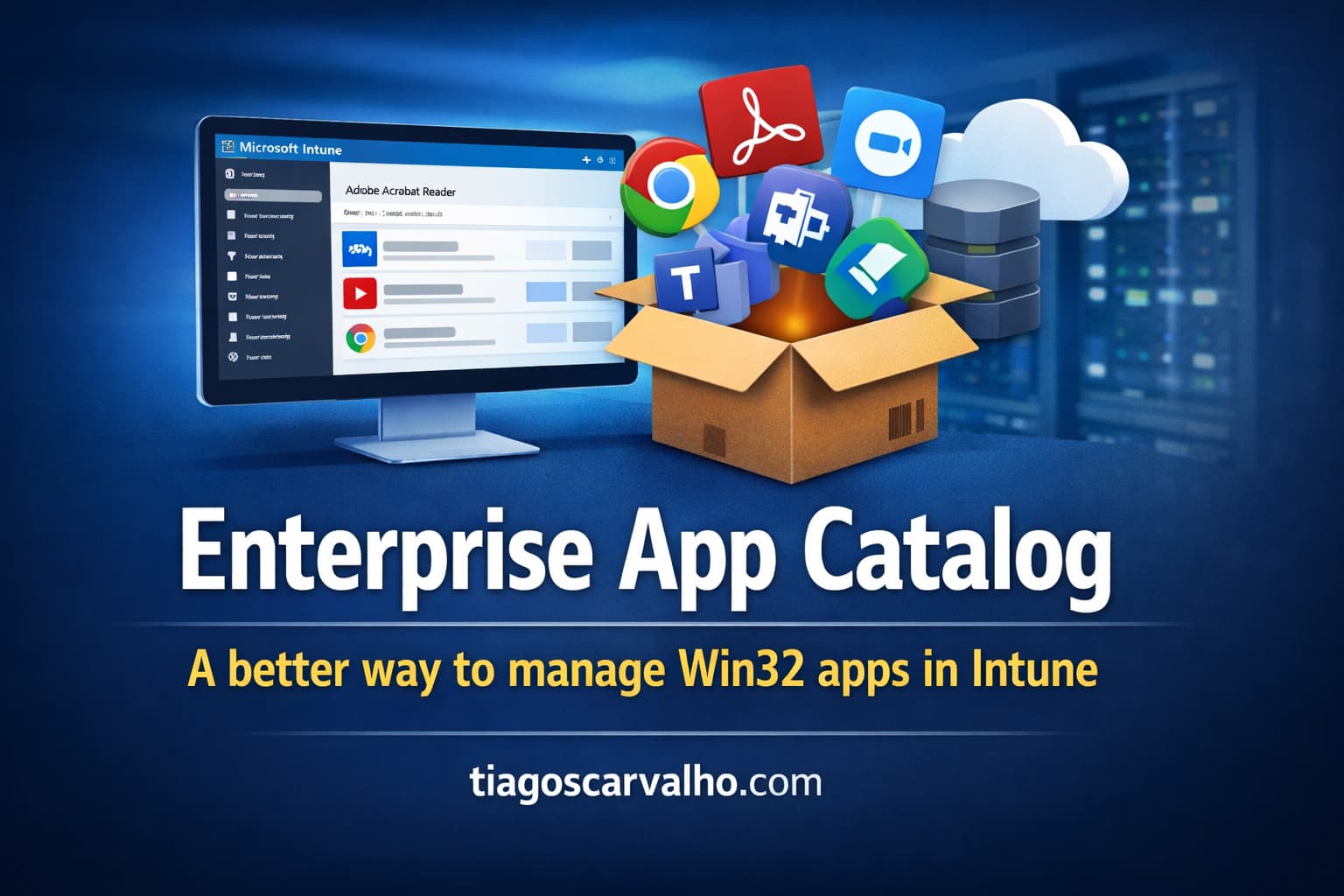
Stop packaging Chrome, Zoom, and 7-Zip manually. The Enterprise App Catalog gives you hundreds of pre-packaged Win32 apps ready to deploy from the Intune admin center — with updates typically published quickly after vendor release, subject to Microsoft validation.
📦 Growing catalog of pre-packaged Win32 apps🖥️ Windows Win32 only🔑 Intune Suite / M365 E5 (rollout timing varies by tenant)
Every IT team has a list of apps that should be simple to deploy but never quite is. Google Chrome needs a packaging wrapper. Zoom releases a new version and breaks the detection rule. 7-Zip is on version 24 on some machines and version 22 on others. Nobody is quite sure who last updated the Adobe Reader package, or whether the silent install switch is still correct.
Enterprise Application Management (EAM) addresses that problem directly. Instead of downloading installers, writing detection logic, and maintaining packages manually, you select apps from a Microsoft-hosted catalog and deploy them as Win32 apps — with installation commands, detection rules, and requirements already configured. When a new version is released, you get notified in Intune and can initiate a guided update that handles the supersedence relationship automatically.
This article covers how EAM works, how to deploy and update catalog apps, and what to check before adopting it at scale. One point upfront: EAM is not a replacement for a Win32 app packaging strategy — it significantly reduces the packaging workload for common software, but niche, licensed, or platform-specific apps will still require manual packaging. The two approaches are complementary, not mutually exclusive.
!
Licensing: Enterprise Application Management is part of the Intune Suite. Microsoft has also announced it will be added to Microsoft 365 E5, with rollout timing varying by tenant. Verify current availability in your tenant before planning production use — check the official EAM documentation for current requirements.
1
Windows Win32 only: The Enterprise App Catalog covers Windows 64-bit devices. macOS, iOS, and Android are not currently supported for catalog apps. If your environment is primarily Windows-managed via Intune, EAM covers the majority of your packaging workload — for other platforms, standard app deployment methods still apply.
2
Updates are not automatic: EAM notifies you when new versions are available, but does not apply updates automatically. You initiate a guided supersedence from the Intune admin center. Assignments and scope tags from the original app are not copied to the superseding app — plan for this in your update workflow.
3
Catalog size: A growing catalog of apps, with Microsoft adding more over time. Common enterprise software is well represented, but niche or industry-specific apps may still require manual packaging. Check the current catalog in the Intune admin center before committing to EAM as your sole packaging solution.
When you add an app from the Enterprise App Catalog, Microsoft pre-fills all the configuration that you would otherwise have to research and maintain yourself:
What Microsoft provides for every catalog app
Installation command and switches · Uninstallation command · Detection rules (registry, file, or MSI product code) · OS architecture requirement (64-bit) · Minimum OS version · App version metadata · Publisher information · App icon
What you still configure yourself
Assignments (which users or devices receive the app) · Scope tags · Required vs available deployment intent · Enrollment Status Page inclusion · Custom PowerShell script installers (if needed) · Supersedence decisions for updates
The app type in Intune appears as Windows catalog app (Win32). Under the hood it behaves identically to a manually packaged Win32 app — same deployment engine, same detection logic, same compliance reporting. The difference is that Microsoft has done the packaging work and hosts the content in Microsoft-managed Azure storage, so you do not need to maintain separate hosting infrastructure on your side.
💡
EAM can take control of manually installed apps. If a user has already installed Zoom or Chrome without going through Intune, the catalog package's detection rules will recognise the existing installation and bring it under Intune management — provided the detection rule matches the installed version. This means you can deploy EAM apps to an existing device fleet without forcing a reinstall on devices that already have the app.
EAM vs manual Win32 packaging
Capability
Manual Win32 packaging
EAM catalog app
Initial setup time
Hours — download, package, write detection, test
Minutes — select and assign
Detection rules
Written and maintained manually
Pre-configured by Microsoft
App update notifications
Manual monitoring of vendor releases
In-console notification
Update SLO
Depends on your team's capacity
Microsoft publishes updates based on validation workflow — check current SLOs in official docs
Content hosting
Your storage or CDN
Microsoft Azure storage
Autopilot ESP support
Yes (standard Win32)
Yes
Custom install parameters
Full control
Pre-filled, editable; PowerShell script support (2025+)
macOS / iOS / Android
Yes (platform-specific methods)
Windows only
Niche / industry apps
Yes — anything you can package
Catalog coverage varies
ConfigMgr support
Works with your existing packaging workflow
Co-management only (via Intune workload)
Deploy a catalog app
Adding an app from the Enterprise App Catalog takes a few minutes. The main decisions are the deployment intent (required vs available) and the target group — everything else is pre-filled.
1
Navigate to Apps → Create → Enterprise App Catalog app
Open intune.microsoft.com → Apps → All apps → Create. On the "Select app type" pane, scroll to Other and select Enterprise App Catalog app. Click Select.
2
Search the catalog and select the app
The catalog opens with a searchable list. Search by app name or publisher. Each app shows the available architectures, language variants, and current version. Select the package that matches your environment — for example, Google Chrome for Business (x64) rather than the consumer Chrome package. Click the package name, then Select.
3
Review the pre-filled configuration
The App information tab is pre-filled by Microsoft: name, description, publisher, version, install and uninstall commands, detection rules, and OS requirements. Review these — you can edit them, but for most catalog apps the defaults are correct and Microsoft-validated. Note whether the app is flagged as self-updating (publisher-delivered updates) or non-self-updating (requires supersedence via Intune).
4
Configure assignments
Assignments are the main thing you configure. Choose Required for apps that must be installed on all devices in a group, or Available for apps that users can install from the Company Portal on request. Assign to a pilot group first — EAM apps deploy via the standard Win32 engine and you want to validate detection rules work correctly in your environment before broad rollout.
5
Monitor installation status
Go to Apps → All apps → [app] → Device install status. The report shows installed, failed, and pending devices with error codes. Intune uses the detection rules built into the catalog package to verify successful installation — if the detection rule doesn't find the app, the device shows as failed. Common causes include pre-existing app installations, delayed device check-in, or detection logic not matching the installed state on that device.
Managing app updates with supersedence
When a vendor releases a new version, Microsoft validates it and makes it available in the catalog — subject to Microsoft's validation workflow — automated validation is faster, manual validation takes longer. Check the EAM documentation for current SLO details. Intune then shows the available update in two places: a banner on the app detail page, and the Enterprise App Catalog apps with updates report.
Vendor releases update
New version available
Vendor publishes new installer
→
Microsoft validates
Added to catalog
Timing depends on validation type
→
You see the banner
Notification in Intune
App detail + updates report
→
You initiate update
Guided supersedence
New app created, old version superseded
→
Devices update
Deployed to devices
Old version uninstalled, new version installed
How to update a catalog app via supersedence
1
Open the updates report
Apps → Monitor → Enterprise App Catalog apps with updates. This report lists all catalog apps you have deployed that have a newer version available in the catalog. Columns show the currently deployed version and the latest available version. You can also initiate the update directly from the app detail page if a banner is shown.
2
Click the app and select Update → Supersede app
Intune creates a new app object with the updated package, pre-filling the configuration from the catalog. The supersedence relationship is set up automatically — the new app will uninstall the old version and install the new one on managed devices.
3
Reconfigure assignments — they are not copied
This is the step most often missed. Scope tags and assignments are not carried over from the original app to the superseding app. After creating the superseding app, go to the Assignments tab and re-add your target groups, deployment intent (Required/Available), and filters before saving. If you forget this, the update will not be deployed to any device.
4
Choose whether to uninstall the previous version
In the Supersedence section, you decide whether Intune should uninstall the old app version before installing the new one. For most third-party apps, select Yes — uninstall the previous version. Some apps handle their own in-place upgrades and can be updated without uninstalling the old version first — check the app's vendor documentation if unsure.
⚠️
Export your original app configuration before updating. The new superseding app is created fresh from the catalog — not as a copy of your existing app. Any customisations you made to the original app (custom requirements, install scripts, modified detection rules) are not carried forward. Note them before initiating supersedence so you can replicate them in the new app.
Self-updating apps — a different model
Some apps in the catalog are flagged as self-updating and handle their own updates via the publisher's built-in update mechanism. The Intune deployment gets the app onto the device, and from that point the app keeps itself current outside of Intune's update flow. Which apps fall into this category is indicated in the catalog when you add the app — check the app detail page for the self-updating flag.
This means the version shown in the Intune console for a self-updating app may differ from the version actually installed on the device, and the "Enterprise App Catalog apps with updates" report may not show an update for it even if a new version is available in the catalog. This is by design — the detection rule was satisfied when the app was first installed, and Intune treats it as compliant.
💡
If you need to enforce a specific minimum version of a self-updating app for compliance or security reasons, use a compliance policy or app protection policy that checks the installed version — not the EAM deployment intent. The EAM deployment ensures the app is present; version enforcement is a separate configuration.
Autopilot and ESP integration
Catalog apps are fully supported in Windows Autopilot deployments and can be included in the Enrollment Status Page (ESP) and Device Preparation Page (DPP) as blocking apps. This means a device will not complete provisioning and reach the desktop until the required catalog apps are installed.
1
Assign catalog apps in device context for ESP
For apps to install during the device phase of Autopilot (before the user signs in), assign them as Required to a device group (not a user group). Apps assigned to user groups only install during the user phase, after the first login. Catalog apps assigned to device groups behave identically to standard Win32 apps in this respect.
2
Add to the ESP blocking app list
In your Enrollment Status Page profile, enable Show app and profile configuration progress and add the catalog apps to the list of apps that must install before the device is considered ready. This ensures the device is not handed to the user before the required apps are present.
3
Test provisioning time impact
Each app added to the ESP blocking list extends provisioning time. Large catalog apps (Adobe Acrobat, development tools, security agents) can add several minutes. Test your full app list in a pilot Autopilot provisioning to understand the impact on Time-to-Desktop before deploying broadly.
Limits and caveats to know before you commit
Windows 64-bit only. EAM does not support 32-bit Windows OS or non-Windows platforms. If your Intune environment includes macOS, iOS, or Android devices that need the same apps, you need separate deployment methods for those platforms.
ConfigMgr co-management required for ConfigMgr clients. If you manage devices via Configuration Manager only, catalog apps are not directly available. You need co-management with the Apps workload pointed to Intune to deliver catalog apps to those devices.
Assignments and scope tags are not copied on update. Every time you supersede an app, you must manually reconfigure the assignments. Build this into your update workflow — a superseding app without assignments deploys to nobody.
Catalog coverage is not universal. A growing catalog of apps, with Microsoft adding more over time. Common enterprise software is well represented, but niche or industry-specific apps may still require manual packaging. Check before committing to EAM as your sole packaging method — you will likely still need manual Win32 packaging for some apps.
Updates require your initiation. EAM does not apply updates automatically. Intune notifies you when new versions are validated and available in the catalog, but you must initiate each supersedence. Consider a weekly or bi-weekly review of the updates report as part of your patching process.
Licensed apps require separate licence management. EAM can deploy licensed apps (software that requires a serial number or activation), but Intune does not handle licence distribution. You are responsible for purchasing the licence from the vendor and distributing it through your existing licence management process.
Microsoft does not guarantee compliance, authenticity, or integrity of catalog apps. The Enterprise App Catalog is hosted and maintained by Microsoft, but the official documentation notes that Microsoft does not certify the apps for security compliance or guarantee their integrity beyond what the vendor provides. Treat catalog apps with the same security scrutiny you apply to any third-party software deployment — verify the publisher, test in a pilot group, and monitor installation behaviour before broad rollout.
Some vendors have requested removal from the catalog. App vendors can request removal of their apps from the Enterprise App Catalog at any time. If a catalog app you rely on is removed, your existing deployments continue to work — but you will no longer receive catalog-managed updates and will need to switch to manual packaging for future versions. Monitor the official changelog.
Deployment checklist
Verify licensing — Intune Suite or eligible Microsoft 365 E5 entitlementNavigate to Apps in the Intune admin center and attempt to create an Enterprise App Catalog app. If the option is not visible, EAM is not yet provisioned on the tenant.
Check the catalog before committing EAM as your packaging standardReview the current catalog for the apps you need to deploy. Apps not in the catalog still require manual Win32 packaging. EAM covers common apps well but is not a complete replacement for manual packaging in every environment.
Note whether each app is self-updating or requires supersedenceCheck the app detail page when adding from the catalog. Self-updating apps maintain themselves via the publisher mechanism. Non-self-updating apps require you to initiate supersedence when new versions appear in the catalog. Check the self-updating flag on the app detail page in the catalog — do not assume any specific app self-updates without verifying in your tenant.
Deploy to a pilot group first and validate detection rulesEven though detection rules are pre-configured, verify they work correctly in your environment — particularly if devices already have an existing version of the app installed. Check the device install status report after the pilot group's devices check in.
Document your assignment configuration before each updateScope tags and assignments are not copied to superseding apps. Before initiating any supersedence, note the existing assignments (groups, filters, deployment intent) so you can replicate them exactly in the new app.
Add a recurring task to review the updates reportApps → Monitor → Enterprise App Catalog apps with updates. Build this into a weekly or bi-weekly patching review. EAM does not apply updates automatically — if nobody reviews the report, apps fall behind even though Intune has the newer version available.
For Autopilot deployments — assign catalog apps to device groups, not user groupsApps assigned to user groups install during the user phase (after first login). For apps that must be present before the user reaches the desktop, assign as Required to a device group and add to the ESP blocking app list.
Manage licensed app activations separatelyEAM deploys the installer but does not manage software licence keys or activation. If the catalog app requires a licence, handle distribution through your existing licence management process — the EAM deployment only gets the binary onto the device.
Get in touch
Need help with Intune app management?
Get in touch if you want help evaluating EAM for your environment, migrating from manual Win32 packaging, or designing an app lifecycle management process in Intune.