Microsoft Intune · Endpoint Management · SMB · 2026
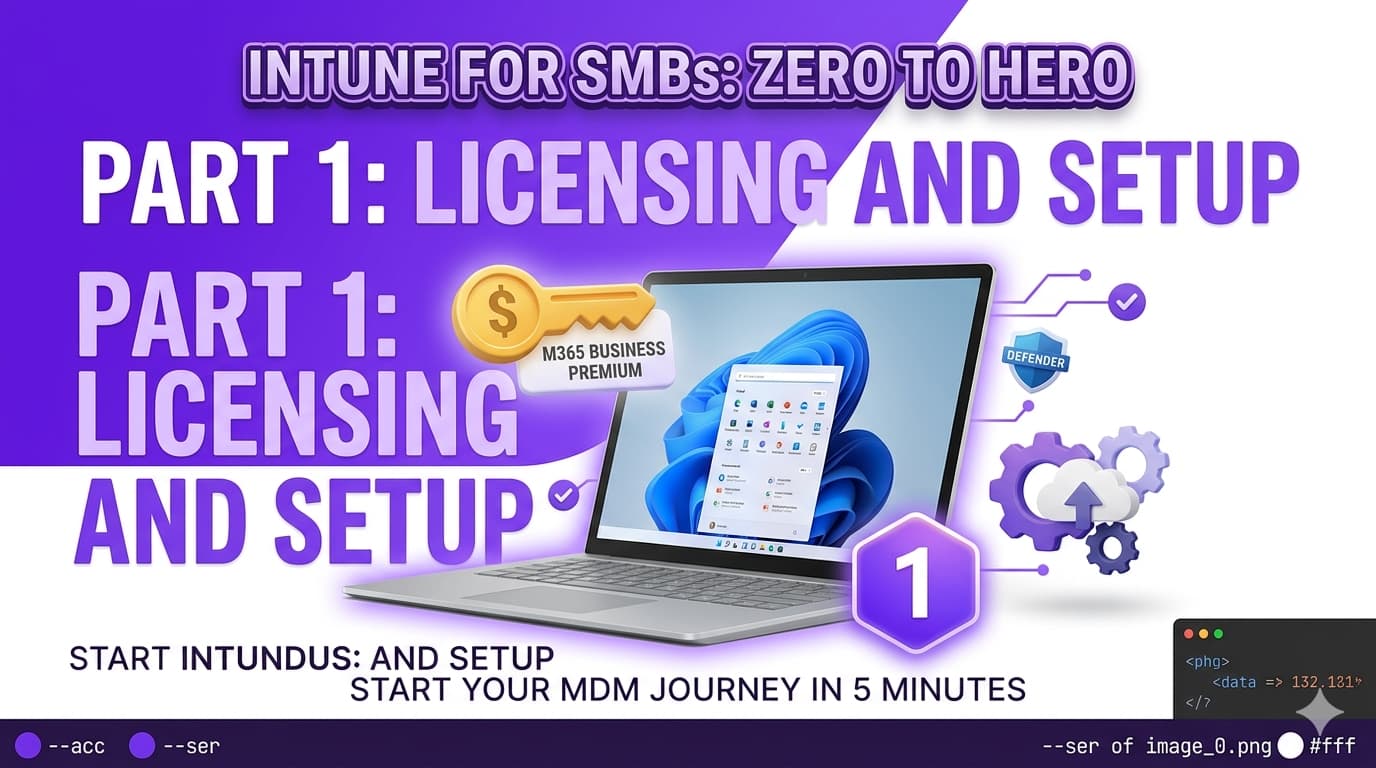
Most Intune guides jump straight into compliance policies and configuration profiles — and skip the part that determines whether any of it actually works. Before you can push a single policy to a device, you need the right licence, a correctly configured tenant, and at least one enrolled device to test against. This first article in the series covers exactly that: the decisions and steps you take before touching any device.
Choosing your licence — what SMBs actually need
The right licence for an SMB deploying Intune for the first time is almost always Microsoft 365 Business Premium. It includes everything you need to get through this entire series: Intune Plan 1 for device management, Microsoft Defender for Business for endpoint protection, Entra ID P1 for Conditional Access and dynamic groups, and Defender for Office 365 Plan 1 for email security. You are not paying for separate add-ons — it is all in one SKU.
The one constraint that matters: Business plans cap at 300 users. If your organisation is approaching or over that number, the decision changes. Below that limit, Business Premium is the correct answer for most SMBs and is significantly cheaper than an equivalent E3 configuration with the necessary security add-ons.
Business Premium vs Microsoft 365 E3 — which and when
| Feature | M365 Business Premium | M365 E3 |
|---|---|---|
| Microsoft Intune Plan 1 | ✓ Included | ✓ Included |
| Microsoft Entra ID P1 | ✓ Included | ✓ Included |
| Microsoft Defender for Business | ✓ Included | ✗ Add-on required |
| Defender for Office 365 Plan 1 | ✓ Included | ✗ Add-on required |
| Windows Enterprise licence | ✗ Not included | ✓ Included |
| User limit | 300 users maximum | No limit |
| Price (approx.) | ~$22/user/month | ~$36/user/month |
| Best for | SMBs up to 300 users | Organisations over 300, or those needing Windows Enterprise features |
Tenant setup — do these in order
New Intune tenants require a small set of one-time configurations before any device can be enrolled. Skipping or reordering these steps creates problems later that are hard to trace. Work through them in the sequence below.
Groups strategy — start simple, stay consistent
Everything in Intune is assigned to groups. Compliance policies, configuration profiles, apps, update rings — all of it targets Entra ID groups. If your group structure is chaotic, your Intune deployment will be too. For an SMB starting from scratch, the right approach is to create a small number of purpose-built groups and resist the temptation to add more before you need them.
Create these four groups before your first policy deployment:
| Group name | Type | Membership rule / notes | Used for |
|---|---|---|---|
| SG-Intune-Pilot | Security — Assigned | Add your IT team and 2–3 volunteer testers manually | Testing all new policies before broad rollout |
| SG-Intune-AllUsers | Security — Assigned | All licensed users (or use the built-in "All Users" carefully) | Policies and apps that apply to everyone |
| SG-Windows-Devices | Security — Dynamic Device | (device.deviceOSType -eq "Windows") |
Device-targeted Windows policies |
| SG-Corporate-Devices | Security — Dynamic Device | (device.deviceOwnership -eq "Company") |
Policies that should only apply to organisation-owned devices |
Entra Join or Hybrid Join — the SMB decision
This is the most consequential architectural decision in this series. Get it right at the start and everything that follows is simpler. Get it wrong and you are rebuilding later.
Microsoft Entra Join — recommended for SMBs
With Entra Join, Windows devices join Microsoft Entra ID directly — there is no on-premises Active Directory involved. The user signs in with their M365 work account at first setup, the device registers in Entra ID, and automatic MDM enrolment drops it straight into Intune. No domain controller, no AD sync dependency, no NDES, no on-prem infrastructure required for device management.
For an SMB that runs primarily on Microsoft 365 cloud services — Teams, SharePoint, Exchange Online — Entra Join is the correct choice in 2026. Microsoft's own guidance is explicit that Entra Join is the strategic direction and that Hybrid Join is a transitional state, not a destination.
Hybrid Entra Join — only if you have on-prem dependencies
Hybrid Join keeps devices joined to on-premises Active Directory while also registering them in Entra ID. This enables both cloud SSO and traditional Kerberos/NTLM authentication for legacy applications running on-prem. If your organisation still relies on file servers with Kerberos, on-prem applications, or GPO-dependent software that cannot be replaced, Hybrid Join may be necessary as a transitional step.
Hybrid Join requires the Entra ID Connect sync tool, the Intune Connector for Active Directory (for Autopilot scenarios), and a working AD infrastructure. It adds complexity that most SMBs do not need.
Enrolling your first Windows device
With licences assigned, automatic enrolment enabled, and groups created, enrolling a Windows device into Intune takes less than five minutes. There are two paths depending on whether the device is new or already in use.
Path A — New device (Out-of-Box Experience)
During the Windows setup experience, on the "Set up for work or school" screen, sign in with the user's M365 work account. Windows joins Entra ID, triggers automatic MDM enrolment, and the device appears in Intune within a few minutes. This is the recommended approach for any new device being deployed to a user.
Path B — Existing device already running Windows
On an existing device: Settings → Accounts → Access work or school → Connect. Enter the user's work email address, sign in with M365 credentials, and select Join this device to Microsoft Entra ID. Automatic MDM enrolment triggers in the background once the join completes. The device will restart.
Verify the device is enrolled via PowerShell
On the device itself, open PowerShell and run the following to confirm the join type and MDM enrolment state:
# Run on the Windows device after joining

# Check Entra ID join status
dsregcmd /status

# Key fields to look for in the output:
# AzureAdJoined    : YES    → device is Entra Joined
# MDMUrl           : https://enrollment.manage.microsoft.com  → MDM enrolled
# WorkplaceJoined  : NO     → should be NO for a full Entra Join

# If MDMUrl is blank, automatic enrolment has not triggered yet.
# Wait 5–10 minutes after the Entra Join and check again,
# or trigger a manual sync: Settings → Accounts → Access work or school
# → click the account → Info → Sync
Verify it worked in the Intune admin centre
Once a device has enrolled, open the Intune admin centre → Devices → All devices. Your device should appear within 5–15 minutes of enrolment. Check three things:
| Field | Expected value | If different |
|---|---|---|
| Managed by | Intune | Check MDM authority and automatic enrolment settings |
| Ownership | Corporate (for org-owned devices) | Can be changed manually — or use enrolment restrictions to set default |
| Compliance | Not evaluated | This is expected — you have not created compliance policies yet (Part 2) |
| Last check-in | Within the last 30 minutes | Trigger a manual sync from the device if stale |
Part 1 checklist
-
Confirm licence — M365 Business Premium (or E3 for 300+ users) Verify Intune Plan 1 is enabled in the licence assignment for all users. M365 admin centre → Users → Active users → select a user → Licences.
-
Set MDM Authority to Intune Intune admin centre → Devices → Enroll devices. Look for the orange banner. Select Intune MDM Authority if not already set.
-
Enable automatic MDM enrolment — MDM User Scope: All Intune admin centre → Devices → Enrollment → Windows → Automatic Enrollment. Set MDM User Scope to All.
-
Configure Company Portal branding and support contacts Tenant administration → Customization. Add organisation name, logo, support email, and phone number.
-
Review enrolment restrictions Devices → Enrollment → Enrollment device platform restrictions. Allow Windows, set minimum OS version, set device limit per user.
-
Create the four starter groups in Entra ID SG-Intune-Pilot (assigned), SG-Intune-AllUsers (assigned), SG-Windows-Devices (dynamic device), SG-Corporate-Devices (dynamic device).
-
Enrol a test device and verify in Intune admin centre Run
dsregcmd /statuson the device. Confirm AzureAdJoined: YES and MDMUrl is populated. Device appears in Intune → Devices → All devices.