Microsoft Intune · Compliance · Conditional Access · SMB · 2026
You enrolled your first device in Part 1. Now it sits in Intune — visible, manageable — but nothing is actually enforced yet. Compliance policies and Conditional Access are what turn Intune from a visibility tool into a real security control. Get this layer right and every other policy you push from Part 3 onwards lands on a device you can trust. Get it wrong and you have a false sense of security: policies applied, but no gate blocking non-compliant devices from reaching your data.
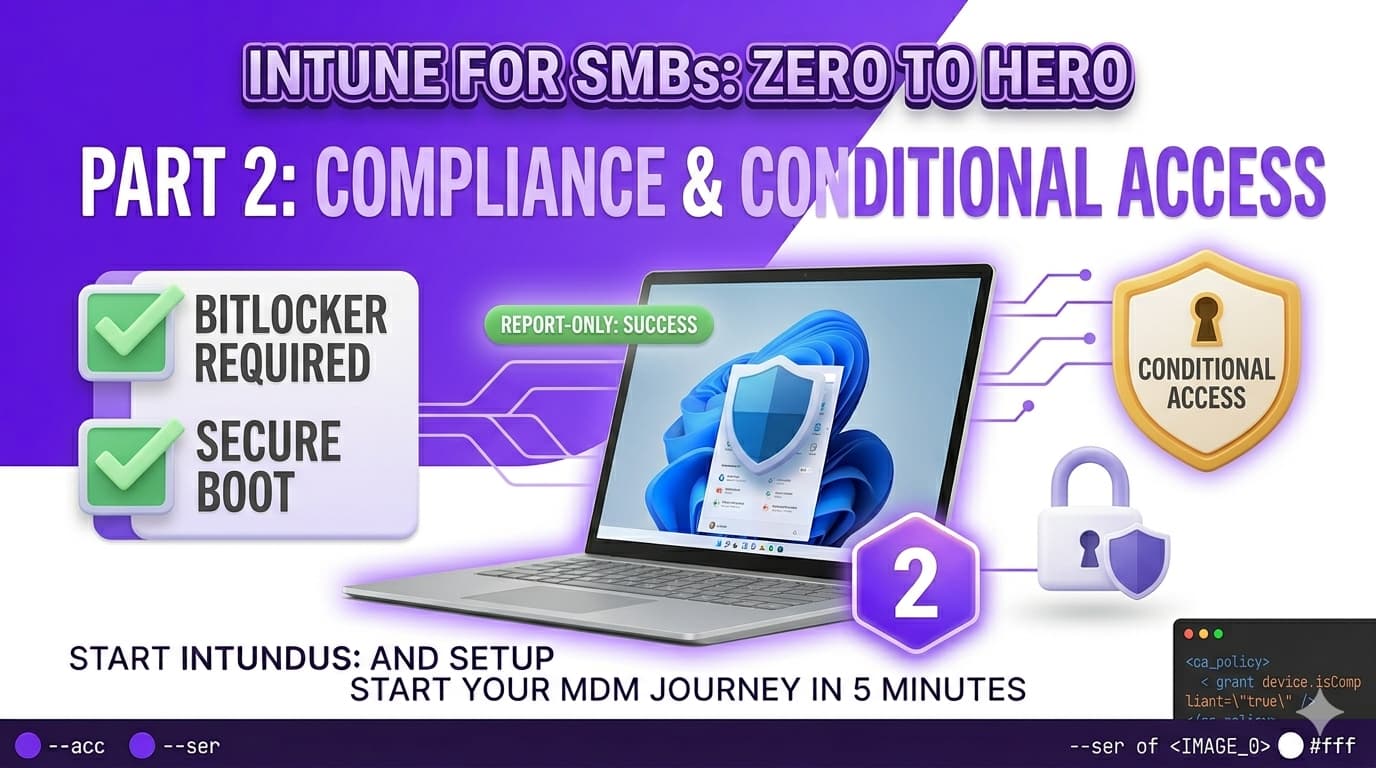
This part covers the four Windows compliance settings every SMB needs on day one, what happens during the grace period, the one tenant setting that changes everything, and how to wire compliance into Conditional Access without locking anyone out on day one.
What compliance policies actually do — and don't do
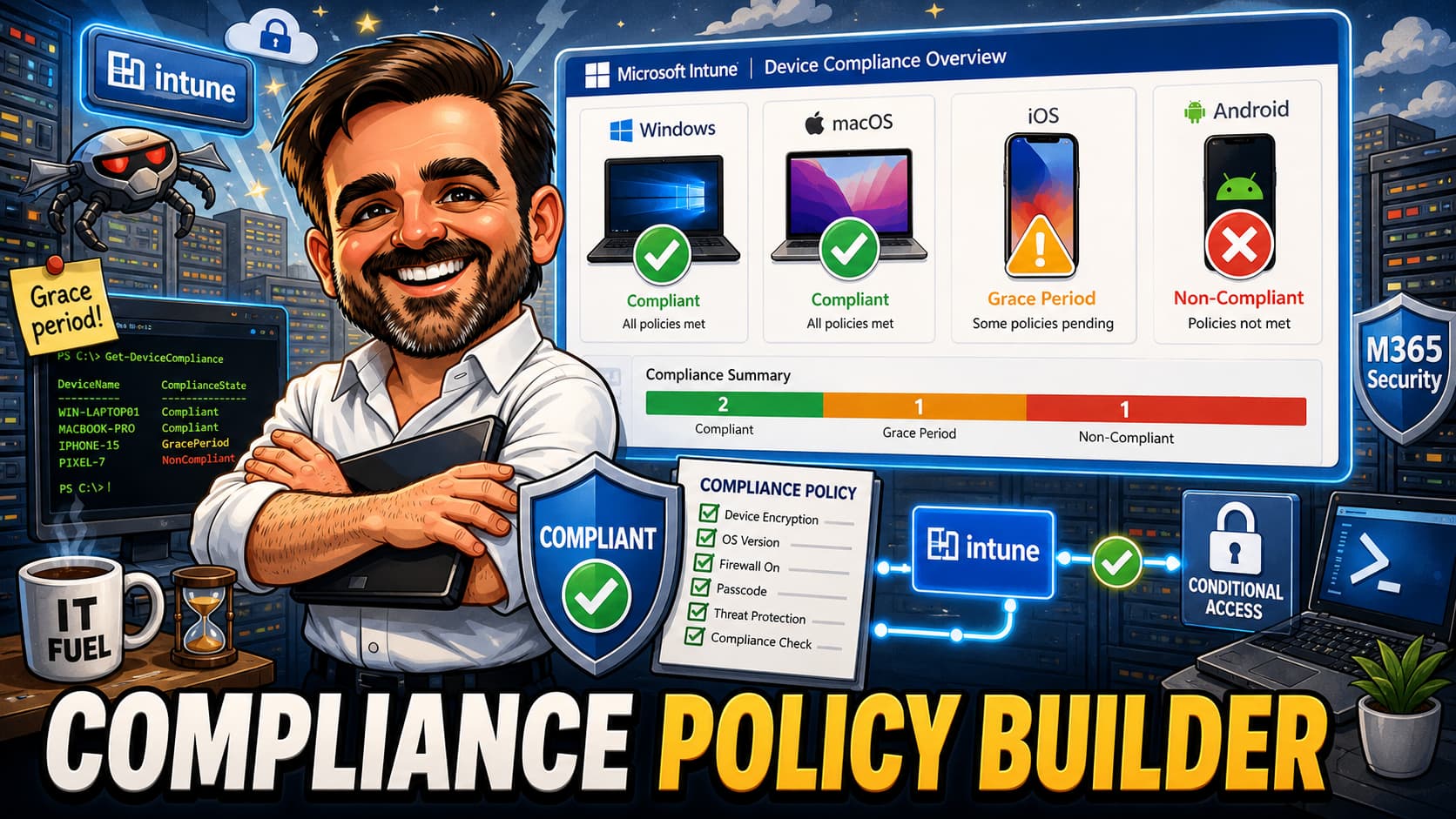
A compliance policy is a set of rules that Intune evaluates against a device and returns a verdict: Compliant or Non-compliant. That verdict is a signal — most importantly, a signal that Conditional Access policies in Entra ID can act on.
The key distinction that trips up many admins is this: compliance policies evaluate state; they do not set state. If you create a compliance policy requiring BitLocker encryption and assign it to a device that has BitLocker disabled, the device will be marked Non-compliant. BitLocker will not automatically be turned on. To configure the device, you need a Settings Catalog profile — covered in Part 3. The correct order for any setting you want to enforce is: configure it first (profile), then check it (compliance policy).
The one tenant setting you must change first
Before you create a single compliance policy, change this setting: Devices → Compliance → Compliance settings → Mark devices with no compliance policy as. The default value is Compliant.
This default means that any enrolled device without a compliance policy assigned to it is automatically considered compliant — and will therefore pass any Conditional Access check that requires a compliant device. In an SMB tenant with a handful of devices, this is easy to miss: you assign your compliance policy to a group, forget a device, and that device sails through your access controls unchecked.
The path to change this in Intune admin centre is: Devices → Compliance → Compliance settings. Set it to Not compliant once your policy is ready to assign.
Building your Windows compliance policy
For a typical SMB on Microsoft 365 Business Premium, four compliance checks give you the most security value for the least operational friction. These are the settings to configure first — treat this as a day-one baseline, not a complete compliance strategy. A well-run environment will add more checks over time; starting here means you have something enforced and meaningful from week one, rather than nothing deployed while you perfect an exhaustive list.
The four essential settings
| Setting | Recommended value | Why it matters |
|---|---|---|
| BitLocker Device Health → BitLocker |
Require | Encrypts the drive at rest. Without this, a stolen laptop is a data breach waiting to happen. |
| Secure Boot Device Health → Secure Boot |
Require | Validates firmware integrity on boot. Blocks bootkits and low-level malware that loads before Windows. |
| Microsoft Defender Antimalware Microsoft Defender for Endpoint → Antimalware |
Require | Ensures Defender is not disabled. Any device that has switched off real-time protection is a risk to your environment. |
| Minimum OS version Device Properties → Minimum OS version |
Target: 10.0.22621Windows 11 22H2 Transitional: 10.0.19045Windows 10 22H2 — while migration is in progress |
Keeps devices on a supported, patched OS. Devices running older builds should not be considered compliant — they are missing security patches that cannot be retroactively applied. |
10.0.22621 (Windows 11 22H2) and move forward. If you still have Windows 10 devices in migration, use 10.0.19045 (Windows 10 22H2 — the last supported build) as a transitional floor. This keeps those devices compliant while you migrate, without compromising on patching standards. Windows 10 reached end of support in October 2025 — any device still on it should have an active migration plan, not a permanent compliance exemption.
Settings to consider adding later
Once your baseline is stable, these are worth adding in a second pass:
- Password complexity: Require a PIN or password meeting your organisation's policy. For devices with Windows Hello for Business configured (from Part 3), most users will authenticate with biometrics or a PIN — set this to match your Hello policy.
- Firewall: Require Windows Defender Firewall to be enabled. Simple check, easy win.
- Antivirus signature version: Mark devices non-compliant if definitions are more than a set number of days old. Useful but can generate noise if devices are offline for extended periods.
- Microsoft Defender for Endpoint — Machine risk score: Requires the Intune and Defender for Business (or Defender for Endpoint) integration to be explicitly configured first — it does not activate automatically from the licence alone. Once the connector is set up in the Intune admin centre under Endpoint security → Microsoft Defender for Endpoint, you can require the device risk level to be at or below Medium or Low. This ties real endpoint telemetry directly into the compliance verdict. Part 5 of this series covers the integration setup in full.
Creating the policy — step by step
WIN-Compliance-SMB-Baseline-v1 is clear and searchable. Add a description noting the date created and the settings it checks.Grace period and actions for non-compliance
The Actions for non-compliance section defines what happens when a device fails a check — and when. The default action, Mark device non-compliant, fires on first evaluation. If your Conditional Access policy is already in Enforce mode, that verdict blocks access immediately.
For a first rollout, that is too aggressive. A better sequence for most SMBs:
| Day | Action | Purpose |
|---|---|---|
| Day 0 | Mark device non-compliant | The verdict is set in Intune — visible to admins, but Conditional Access is still in Report-only so no access is blocked. |
| Day 1 | Send email to end user | User receives a notification that their device has a compliance issue. They can self-remediate common problems (e.g. a PIN not set) before access is affected. |
| Day 3 | Send push notification | Follow-up if the first email was missed. Appears in the Company Portal app on the device. |
| Day 7 | (Switch CA to Enabled) | By this point you switch Conditional Access from Report-only to Enabled. Devices that are still non-compliant after a full week will be blocked from accessing cloud resources. |
Assigning the policy — and the tenant toggle
Assign your compliance policy to your Windows device group. Then, once the policy is assigned and you can verify at least one device has received and evaluated it, go to Devices → Compliance → Compliance settings and change Mark devices with no compliance policy as from Compliant to Not compliant.
The order is important: policy assigned first, tenant setting changed second. Doing it in the wrong order — changing the tenant setting before any policy is assigned — will mark every enrolled device as non-compliant simultaneously.
Checking that a device has received the policy
In the Intune admin centre go to Devices → All devices, select a device, and choose Device compliance. You should see your policy listed with a status. If it shows Not applicable, the device is not in the assigned group. If it shows Pending, the device has not checked in yet — trigger a manual sync from the device in Settings → Accounts → Access work or school → Info → Sync, or issue a Sync action from the Intune portal.
Connecting compliance to Conditional Access
Conditional Access policies live in Entra ID but consume the compliance signal Intune produces. The policy you build here says: require a Compliant device to access cloud apps — block anything else.
For an SMB, start broad: all users, all cloud apps, require compliant device. Add Named Locations and exclusions later. The sequence is always: Report-only first, validate, then enforce.
Create the Conditional Access policy
CA-Require-Compliant-Device-v1.Reading Report-only data before you enforce
With your Conditional Access policy in Report-only mode, every sign-in attempt generates a result showing whether it would have been allowed or blocked. You read this data from the Entra sign-in logs.
Go to entra.microsoft.com → Monitoring & health → Sign-in logs. Filter by date (last 7 days) and look at the Conditional Access tab on any sign-in entry. You will see your policy listed with a result of either Report-only: Success (would be allowed) or Report-only: Failure (would be blocked).
What to look for before enabling
Run Report-only for at least 5–7 working days before enabling enforcement. Cover as many sign-in scenarios as possible: normal user sign-ins, mobile apps, desktop Office applications, shared devices. Once you are satisfied the data looks correct, switch the policy state from Report-only to On.
Verifying compliance status across your fleet
Once devices have checked in, the compliance report gives you a fleet-wide view before you switch Conditional Access to Enforce.
Go to Devices → Monitor → Device compliance. States shown: Compliant, Non-compliant, In grace period, Not evaluated, Error. Before enabling enforcement, get Non-compliant to zero — or to a count you can individually explain.
Drilling into individual non-compliant settings
Select any non-compliant device, then choose Device compliance from the left menu. Expand the compliance policy and you will see each individual setting with its evaluation result. This tells you exactly which check failed — BitLocker not enabled, OS version below minimum, and so on. This is also the fastest way to prove to a user (or a manager) what is wrong and what they need to fix.
For remote remediation of simple issues, you can trigger a compliance re-evaluation after a fix by selecting the device in Intune and choosing Sync from the action menu. The device will check in within a few minutes and update its compliance state.
Part 2 checklist — before moving to Part 3
-
Windows compliance policy created and named Policy named clearly (e.g.
WIN-Compliance-SMB-Baseline-v1) and saved in Intune with the four baseline settings configured. -
Actions for non-compliance configured Day 0: Mark non-compliant. Day 1: Email notification to end user. Optionally Day 3: Push notification via Company Portal.
-
Policy assigned to Windows device group Assigned to your
Intune-Devices-Windowsgroup (or equivalent). At least one test device confirmed as having received and evaluated the policy. -
Tenant compliance setting updated Devices → Compliance → Compliance settings → Mark devices with no compliance policy as → changed to Not compliant.
-
Conditional Access policy created in Report-only mode Policy targets All users / All cloud apps / Require compliant device grant. Break Glass accounts excluded. Policy state: Report-only.
-
Report-only data reviewed for 5–7 days Sign-in logs reviewed. All corporate enrolled devices show Report-only: Success. Any Report-only: Failure entries investigated and explained or excluded.
-
Fleet compliance verified in Device compliance report Devices → Monitor → Device compliance reviewed. Non-compliant count understood and addressed before enabling enforcement.
-
Conditional Access policy switched to Enabled (after validation) Once 5–7 days of clean Report-only data confirmed, policy state changed from Report-only to On. Access tested from a compliant device and a non-enrolled device.