Microsoft Intune · Configuration Profiles · Settings Catalog · SMB · 2026
In Part 2 you built the compliance layer — the system that evaluates device state and reports verdicts. The problem is that compliance only checks what already exists on a device. If BitLocker is off, the device fails the check. What turns BitLocker on, sets the PIN policy, silently moves user files to OneDrive, and hardens the browser is a configuration profile.
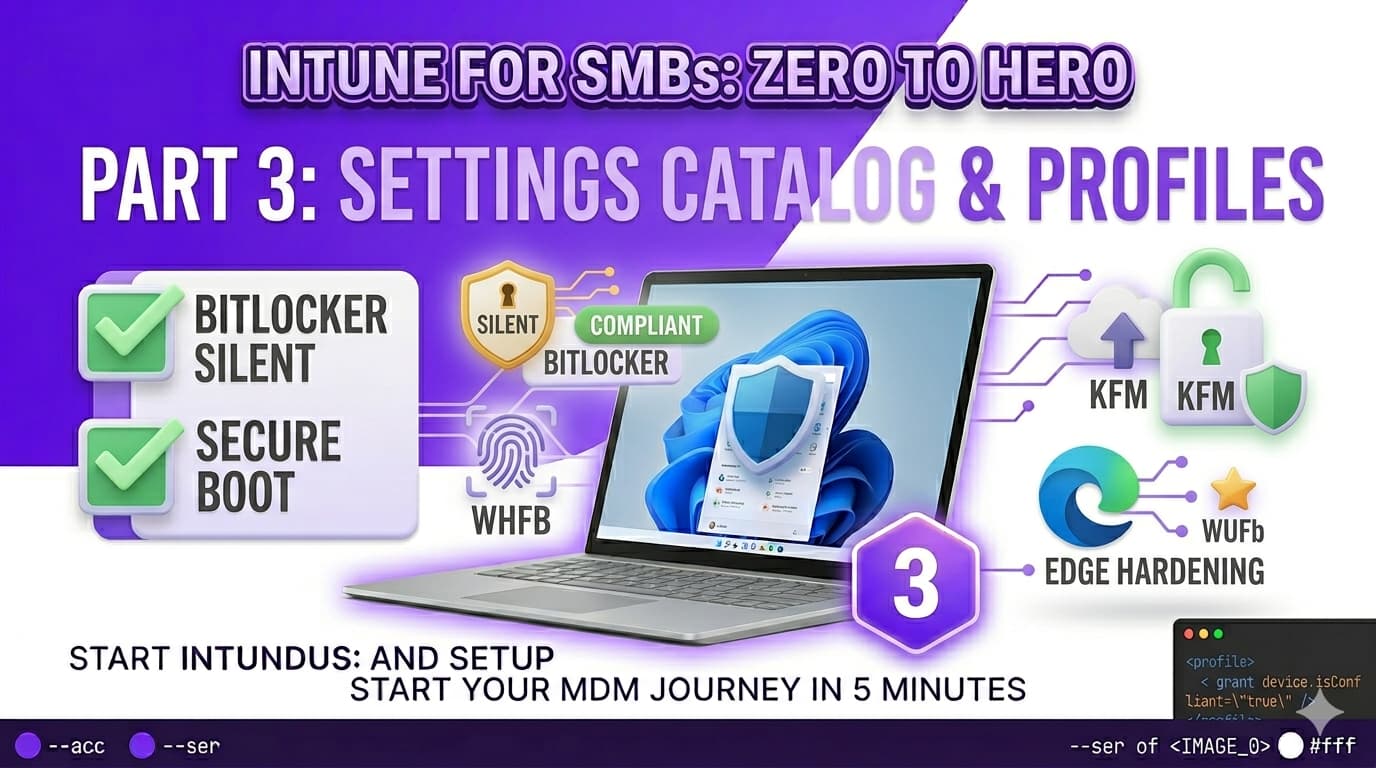
This part covers the five configuration profiles every SMB should deploy before anything else: BitLocker silent encryption, Windows Hello for Business, OneDrive Known Folder Move, Microsoft Edge hardening, and Windows Update rings. Each one is a standalone profile you build in the Settings Catalog — the modern, searchable interface that replaces legacy Administrative Templates and OMA-URI for most day-to-day configuration work.
Settings Catalog vs the alternatives
There are three ways to configure Windows settings through Intune: the Settings Catalog, Administrative Templates (ADMX), and raw OMA-URI custom profiles. Understanding when each applies prevents you from using the wrong tool and ending up with conflicting or unsupported settings.
| Method | When to use it | SMB verdict |
|---|---|---|
| Settings Catalog | The default choice for all new profiles. Covers the vast majority of Windows, Edge, and Microsoft 365 settings. Searchable, validated, and conflict-aware. | Use for everything first |
| Administrative Templates | Legacy ADMX-based policies, equivalent to Group Policy settings. Still valid but being absorbed into the Settings Catalog. Use only if the setting you need is not yet in the Catalog. | Avoid for new profiles |
| OMA-URI (Custom) | Raw MDM CSP values for settings not exposed in the Catalog or ADMX. Requires the exact CSP path and value type. Error-prone and unvalidated. | Last resort only |
| Endpoint Security templates | Pre-built security baseline templates (covered in Part 5). Separate from configuration profiles but complementary. | Used in Part 5 |
For everything in this article, you will use the Settings Catalog. The path in the Intune admin centre is: Devices → Configuration → Create → New policy → Windows 10 and later → Settings Catalog.
How configuration profiles work
A configuration profile is a collection of settings packaged together and assigned to a group of users or devices. When a device checks in to Intune (which it does automatically every 8 hours, and immediately after enrolment), it downloads all applicable profiles and applies them. Changes to a profile are pushed on the next check-in cycle — for urgent changes, you can trigger a manual sync from the device or from the Intune portal.
Each profile has a scope — device or user — which determines what Intune targets when it applies the settings. Device-scoped profiles apply to the machine regardless of who is signed in. User-scoped profiles apply to the signed-in user account on any enrolled device. For SMBs with one user per device, the distinction is less critical, but it matters for shared devices and for settings like OneDrive that are tied to a user identity.
Profile 1 — BitLocker silent encryption
Encrypts the drive silently — no user prompt, no interruption — and escrows the recovery key automatically to Entra ID. On a modern Windows 11 device with a TPM 2.0 chip (standard on all hardware shipping in the last 5 years), the entire process happens in the background while the user works.
- Require Device Encryption Enabled — triggers encryption without user interaction
- Allow Warning For Other Disk Encryption Block — suppresses the prompt asking if other disk encryption is in use
- Allow Standard User Encryption Allow — permits encryption to start without admin rights (required for silent encryption to work)
- Configure Recovery Password Rotation Refresh on for Azure AD-joined devices — rotates the recovery key after it is used
- OS Drive: Choose how BitLocker-protected drives can be recovered Enabled → Save BitLocker recovery information to AD DS: Yes → Store recovery passwords and key packages
- OS Drive: Configure TPM startup Do not allow TPM is unchecked; leave at Allow TPM — TPM-only auth means no PIN prompt at boot
After the profile applies, verify that recovery keys are being escrowed: go to Devices → All devices → [device] → Recovery keys in the Intune portal. You should see a BitLocker recovery key listed. If it is absent after 24 hours, check that the profile applied without conflicts and that the device has TPM enabled in firmware.
Profile 2 — Windows Hello for Business
Windows Hello for Business replaces the user's password at Windows sign-in with a PIN or biometric (face/fingerprint). The credential is device-bound and backed by the TPM — it cannot be stolen from the network like a password can. For SMBs on Entra Join (the path recommended in Part 1), the simplest deployment model in 2026 is Cloud Kerberos Trust, which works with Entra ID alone and requires no on-premises infrastructure.
- Use Windows Hello for Business Enabled — forces WHfB setup for all users on the device
- Use a Trusted Platform Module (TPM) Enabled — requires TPM to store the credential; cannot be roamed to another device
- PIN Minimum Length 6 digits minimum
- PIN Maximum Length 127 (default)
- Use Enhanced Sign-in Security Enabled — requires anti-spoofing for biometrics on supported hardware
- Allow Biometric Authentication Allowed — enables face and fingerprint sign-in where hardware supports it
- Use Cloud Trust For On Premises Auth Enabled — activates Cloud Kerberos Trust; required for Entra-joined devices accessing on-prem resources
When this profile applies, users will be prompted to set up a PIN during their next sign-in. The setup wizard is built into Windows — no additional software needed. First-time setup takes under two minutes. After setup, the password sign-in option is still available as a fallback (do not disable it until WHfB adoption is near 100%).
Profile 3 — OneDrive Known Folder Move
Known Folder Move (KFM) silently redirects a user's Desktop, Documents, and Pictures folders from the local drive to their OneDrive. From the user's perspective, nothing changes — files are where they always were. From an IT perspective, every file in those folders is now backed up, version-controlled, and accessible from any device. This is the single highest-value, lowest-friction profile in this series for SMBs.
Search for "OneDrive" in the Settings Catalog to find all OneDrive CSP settings. The key settings for silent KFM are under OneDrive → OneDrive (administrative templates).
- Silently sign in users to the OneDrive sync app with their Windows credentials Enabled — signs the OneDrive client in automatically using the Windows work account; no separate sign-in prompt
-
Silently move Windows known folders to OneDrive
Enabled → Tenant ID:
[your Entra tenant ID]→ Show notification to users after folders redirected: Yes - Prevent users from redirecting their Windows known folders to their PC Enabled — prevents users from moving the folders back to local storage once redirected
- Set the maximum size of a user's OneDrive that can download automatically Optional — set to 5120 MB (5 GB) to prevent very large OneDrives from immediately syncing on first sign-in and consuming bandwidth
Your Entra tenant ID is visible in the Entra admin centre at Overview → Tenant ID, or by running Get-MgOrganization | Select-Object Id in PowerShell. This value must be entered exactly — KFM will silently fail if the tenant ID is wrong.
Profile 4 — Microsoft Edge hardening
Microsoft Edge ships with sensible defaults but several settings benefit from explicit configuration in a managed environment. The goal for an SMB is not maximum restriction — it is turning on the security features that are off by default and removing user controls that create risk (like saving passwords in the browser when a dedicated password manager is in use).
Search for "Microsoft Edge" in the Settings Catalog to access the full Edge CSP. There are over 600 settings — the ones below are the high-value subset for SMBs.
- Configure Microsoft Defender SmartScreen Enabled — blocks known phishing sites and malicious downloads; users cannot disable it
- Prevent bypassing Microsoft Defender SmartScreen warnings for sites Enabled — removes the "proceed anyway" option on SmartScreen warnings
- Prevent bypassing Microsoft Defender SmartScreen warnings for downloads Enabled — removes the override option for flagged downloads
- Enable saving passwords to the password manager Disabled — only if your organisation uses a dedicated password manager (1Password, Bitwarden, etc.). Leave Enabled otherwise.
- Configure the home page URL Optional — set to your intranet, SharePoint hub, or company homepage
- Configure the new tab page URL Optional — same as above, or leave unset to use the Edge default new tab page
- Allow InPrivate mode Leave Allowed unless your DLP or compliance policy explicitly requires blocking private browsing
If your organisation uses Conditional Access with Entra ID, also enable Configure Edge sign-in to force users to sign into Edge with their work account. This enables token binding between the browser session and Entra ID, which is required for some Conditional Access policies to work correctly.
Profile 5 — Windows Update for Business rings
Windows Update for Business (WUfB) lets you control when devices receive Windows quality updates (monthly security patches) and feature updates (annual OS upgrades) without needing WSUS or any on-premises infrastructure. For SMBs, a simple two-ring model — a small pilot ring and a broader production ring — gives you patch validation without complexity.
Pilot ring — IT / early adopters
- Quality update deferral 0 days — pilot devices receive patches as soon as Microsoft releases them
- Feature update deferral 0 days — pilot devices receive annual feature updates immediately
- Automatic update behaviour Auto install and restart at scheduled time
- Active hours start / end 08:00 – 18:00 — device will not force restart during working hours
- Deadline for quality updates 2 days — forces restart within 2 days of update availability if user keeps postponing
Production ring — all other users
- Quality update deferral 7 days — production devices receive patches 7 days after Microsoft releases them, giving you a window to catch regressions seen in the pilot ring
- Feature update deferral 30 days — production devices receive annual OS upgrades 30 days after pilot
- Automatic update behaviour Auto install and restart at scheduled time
- Active hours start / end 08:00 – 18:00
- Deadline for quality updates 5 days — more generous than pilot, but still ensures patches land within a compliance-friendly window
Profile conflicts — why they happen and how to avoid them
When two profiles assign different values to the same setting, Intune marks that setting as Conflict on the device. Neither value is applied — the setting falls back to whatever the device's default is. This is one of the most common causes of policies appearing to apply in Intune but having no visible effect on the device.
The most frequent sources of conflicts in SMB tenants are:
- Settings Catalog profile + Administrative Template profile configuring the same setting — they look different in the Intune UI but map to the same registry key or CSP node.
- Security baselines (Part 5) overlapping with a configuration profile you built manually. Security baselines include a large number of settings — check for overlap before deploying both.
- Two profiles assigned via different groups that both include the same device — for example, one profile assigned to All Devices and another assigned to a subgroup the device also belongs to.
To investigate a conflict, go to Devices → All devices → [device] → Device configuration. Expand the profile showing a Conflict state and look at the per-setting result. The status will show which profiles are in conflict for that specific setting. Remove the duplicate setting from one profile and the conflict resolves on the next check-in.
Verifying profiles landed correctly
After assigning a profile, verify it against a specific device before assuming it is working fleet-wide. The device view in Intune is the primary tool.
manage-bde -status C:. Look for Encryption Method: XTS-AES 128 and Protection Status: Protection On. In the Intune portal, check Devices → [device] → Recovery keys to confirm the key was escrowed.dsregcmd /status and looking for NgcSet: YES in the SSO State section.C:\Users\[username]\OneDrive - [company]\Desktop) rather than the local path. The OneDrive system tray icon should show a sync in progress or a green tick.Part 3 checklist — before moving to Part 4
-
BitLocker profile created and assigned Silent encryption enabled, recovery key escrowed to Entra ID confirmed via Devices → [device] → Recovery keys. Test device shows encryption active via
manage-bde -status C:. -
Windows Hello for Business profile created and assigned Cloud Kerberos Trust enabled, PIN minimum 6 digits, biometrics allowed. At least one test user has completed PIN setup and
dsregcmd /statusshows NgcSet: YES. -
OneDrive KFM profile created and assigned to user group Tenant ID entered correctly. Test user's Desktop and Documents folders show OneDrive path in Properties → Location. Files visible in OneDrive web at onedrive.com.
-
Edge hardening profile created and assigned SmartScreen enabled and bypass blocked. Password manager setting matches your organisation's policy. Profile shows Succeeded on test device.
-
Windows Update rings created — pilot and production Pilot ring: 0-day deferral, 2-day deadline. Production ring: 7-day quality deferral, 30-day feature deferral, 5-day deadline. Active hours set to business hours. Groups assigned without overlap.
-
All five profiles show Succeeded on test device Devices → [device] → Device configuration — no Conflict or Error states across any profile. Any Pending items resolved via manual Sync.
-
Compliance policy BitLocker check re-evaluated After BitLocker profile lands, trigger a compliance re-evaluation (Sync from Intune portal). Device that was previously Non-compliant on BitLocker should now show Compliant.