Microsoft Intune · App Deployment · Company Portal · SMB · 2026
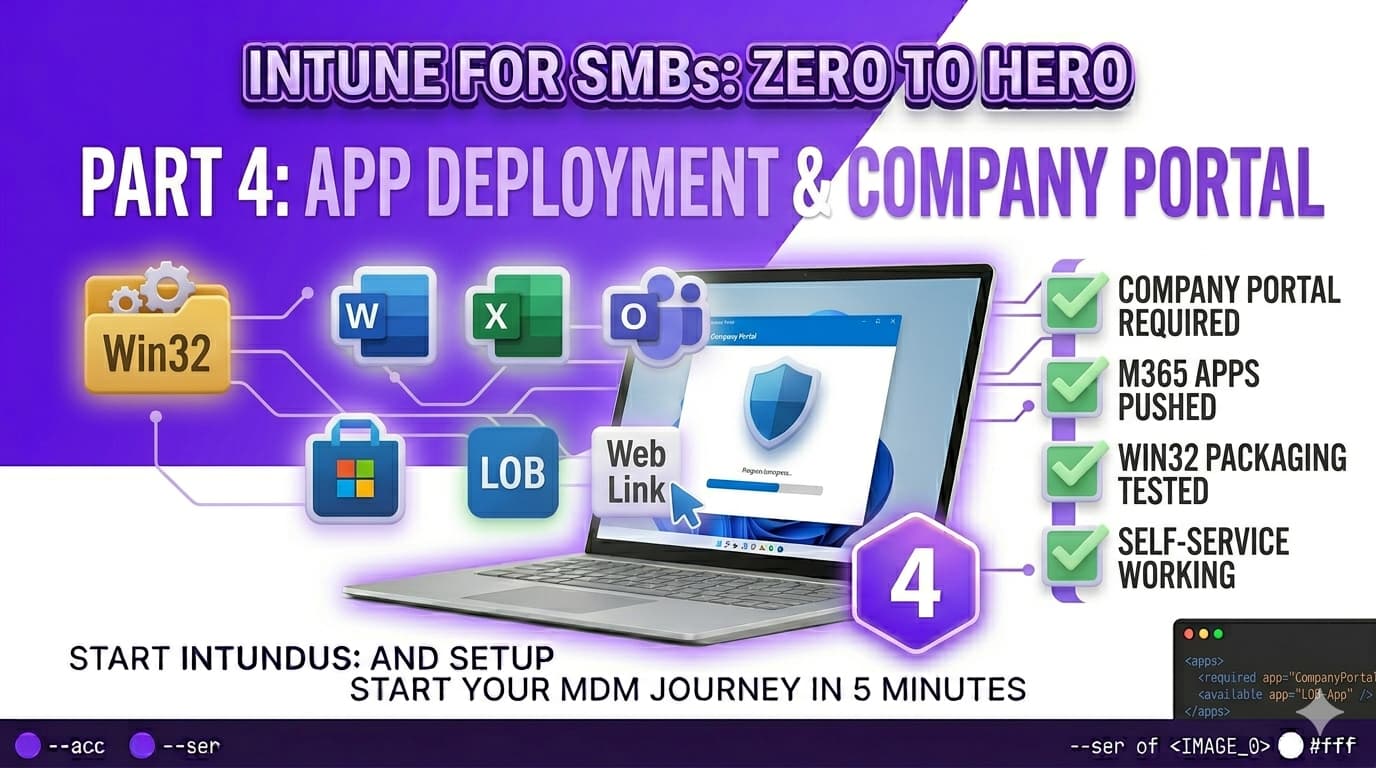
Devices are enrolled, compliant, and configured. The next question every SMB admin faces is software: how do you get the right applications onto every device without imaging, USB sticks, or manual installs? Intune handles app deployment end to end — from Microsoft 365 Apps pushed silently to all devices, to a Win32 application packaged from an installer you already have, to Company Portal as a self-service catalogue where users request what they need without raising a ticket.
This part covers the four app delivery methods you will actually use, the required–available assignment model that underpins all of them, and the full Win32 packaging workflow from installer to deployed app — including the detection rule that determines whether Intune considers a deployment successful.
IntuneWinAppUtil.exe first, but that process takes under five minutes for a standard installer.App types in Intune
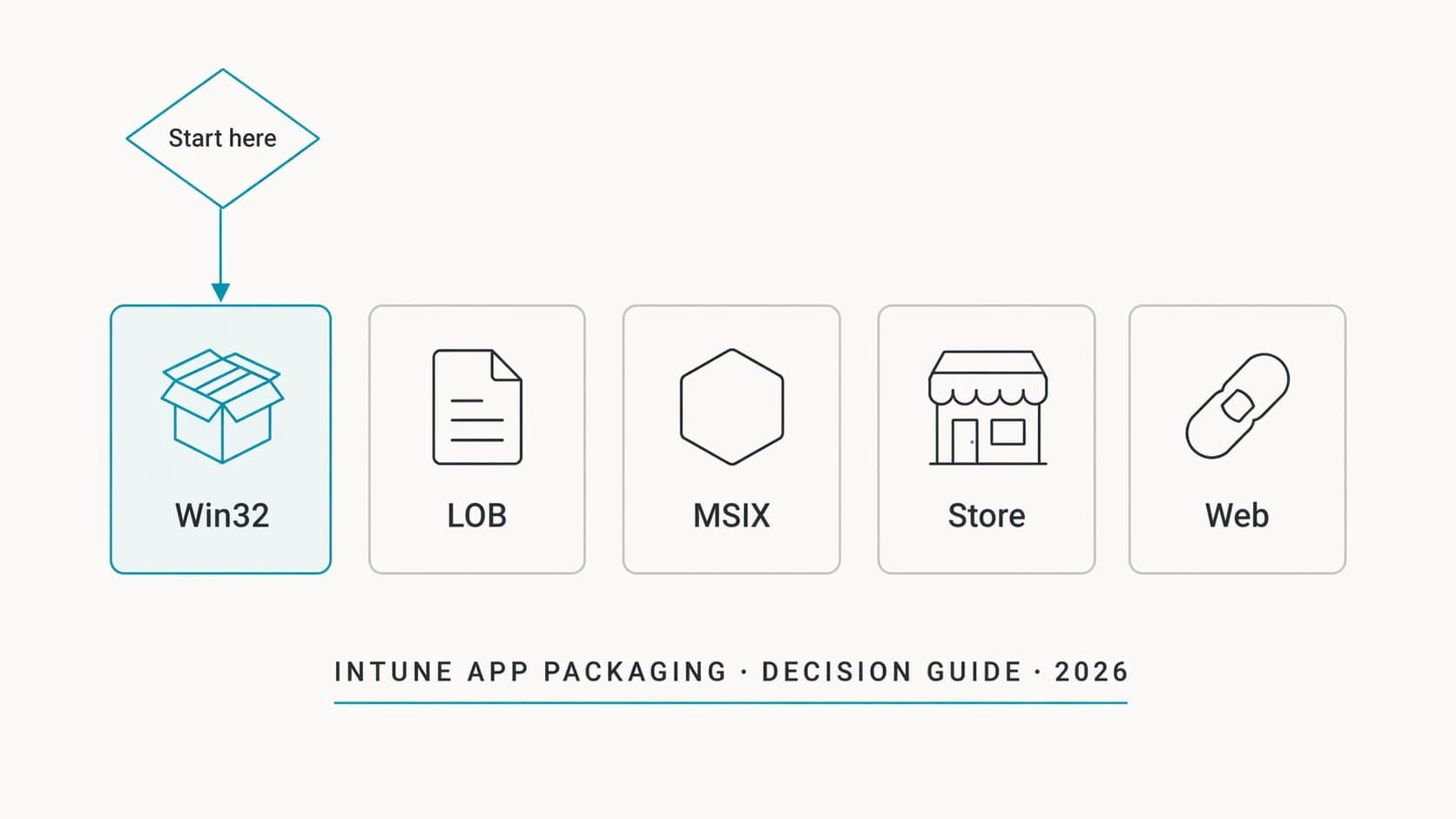
Intune supports several app deployment types. For an SMB, four are relevant in practice:
| Type | Best for | Packaging required | SMB use |
|---|---|---|---|
| Microsoft 365 Apps | Word, Excel, Outlook, Teams, and the full M365 suite | None — built-in connector | Deploy to all devices |
| Win32 | Any EXE or MSI installer — LOB apps, utilities, agents | IntuneWinAppUtil.exe | Primary for third-party apps |
| Microsoft Store (new) | Store apps with automatic updates — 7-Zip, VLC, Zoom, etc. | None — pulled from Store | Good for common utilities |
| Web link | Creates a pinned shortcut to a web app in Company Portal | None | Useful for SaaS tools |
| Line-of-business (LOB) | Simple MSI deployments — no detection rule needed | None — upload the MSI directly | Superseded by Win32 for most cases |
Required vs Available — the assignment model
Every app you add to Intune can be assigned to groups with one of three intents:
| Intent | Behaviour | When to use it |
|---|---|---|
| Required | Intune installs the app silently. If the app is removed by the user, Intune reinstalls it on the next check-in. No user interaction needed. | Apps every device or user must have — M365 Apps, Company Portal, endpoint agents, mandatory LOB apps. |
| Available | The app appears in Company Portal. The user can choose to install it. Intune does not force installation. | Departmental apps, optional tools, apps different teams need — legal's document management, finance's PDF tool. |
| Uninstall | Intune removes the app from the device. Useful for enforcing software standards or removing replaced applications. | Retiring a legacy app after migration, removing a consumer app from managed devices. |
A single app can have both Required and Available assignments to different groups. For example, you might require Microsoft 365 Apps for all users and make it available to device groups not covered by a user licence. The assignment with the stricter intent always wins for any given device or user.
Deploying Microsoft 365 Apps
Microsoft 365 Apps (Word, Excel, Outlook, PowerPoint, Teams, OneNote) are deployed through a dedicated connector in Intune — no packaging, no installer download, no CDN to manage. Intune pulls the suite directly from Microsoft's Office CDN and installs it silently.
Intune-Users-Licensed group) with intent Required. Intune will install M365 Apps on every enrolled Windows device where the assigned user signs in. Initial installation takes 15–30 minutes depending on connection speed — plan user communications accordingly.Company Portal — your self-service catalogue
Company Portal is the user-facing application that surfaces everything Intune-managed on a device: available apps to install, device compliance status, corporate contact details, and support links. Without it, users have no self-service interface — every app request becomes a helpdesk ticket.
Company Portal must be deployed as a Required app to all devices. It does not install itself as part of enrolment — many admins assume it appears automatically once a device is enrolled. It does not. The app is available directly from the Microsoft Store app type in Intune — no packaging needed.
What users see in Company Portal
Once deployed, users open Company Portal and see three things: their device's compliance status (the verdict from Part 2), a list of apps marked as Available for them to install, and the organisation's contact information and support links. It is the single pane of glass for the end-user experience of Intune — and for many SMB users, it is the only visible sign that their device is being managed.
Win32 app packaging with IntuneWinAppUtil
Win32 deployment handles any Windows installer — EXE or MSI — and is the right choice for any application not available in the Microsoft Store. The process involves wrapping the installer in a .intunewin container file that Intune can upload, distribute, and decrypt on the target device.
The packaging tool is IntuneWinAppUtil.exe, a free command-line utility from Microsoft. Download it from the Microsoft Win32 Content Prep Tool GitHub repository. No installation is required — it is a standalone executable.
Worked example: packaging 7-Zip
7-Zip is a useful packaging example because it uses a standard MSI installer, is freely downloadable, and the detection logic is straightforward. Replace the installer and product code with your own application and the process is identical.
C:\IntuneApps\7-Zip\ containing 7z2407-x64.msi.:: Package 7-Zip MSI into an .intunewin file
IntuneWinAppUtil.exe -c "C:\IntuneApps\7-Zip" -s "7z2407-x64.msi" -o "C:\IntuneApps\Output"
:: Output: C:\IntuneApps\Output\7z2407-x64.intunewin
:: Packaging takes 5–30 seconds depending on installer sizemsiexec /i "7z2407-x64.msi" /qn and the uninstall command is msiexec /x {ProductCode} /qn where the product code is the GUID from the MSI's property table (visible in tools like Orca or by running Get-AppLockerFileInformation against the MSI). For EXE installers, check the vendor's documentation for silent install switches — /S, /silent, and /quiet are common patterns.Uploading and configuring a Win32 app
.intunewin file. Intune will extract the app name, version, and publisher automatically from the MSI database. Verify and correct these fields — they appear in Company Portal and in deployment reports.Install command:
msiexec /i "7z2407-x64.msi" /qnUninstall command:
msiexec /x {23170F69-40C1-2702-2407-000001000000} /qnInstall behaviour: System (installs for all users on the device, not just the signed-in user). Use User only for per-user applications that explicitly require it.
Detection rules — the most important step
A detection rule tells Intune how to check whether an app is already installed on a device. After every installation attempt — and on every subsequent check-in — Intune runs the detection rule. If it evaluates to detected, the app is considered installed and Intune stops acting on it. If it evaluates to not detected, Intune will attempt to install the app again.
A wrong detection rule is the most common cause of Win32 deployment problems. The three rule types and when to use each:
| Rule type | What it checks | Best for |
|---|---|---|
| Registry | Presence of a registry key or value, optionally checking the value's content | MSI installs (check the Uninstall key), apps that write a registry entry on install. Most reliable method. |
| File | Existence of a file or folder, optionally checking version or date | Apps that install to a known path. Use version check to distinguish between old and new versions. |
| MSI product code | Presence of an MSI product code in Windows Installer database | MSI-only deployments — automatic if Intune detects a valid product code in the package. |
| Script | Exit code from a PowerShell detection script (0 = detected, 1 = not detected) | Complex detection logic that cannot be expressed as a single registry or file check. |
Detection rule for 7-Zip (Registry method)
MSI packages create an Uninstall registry key when installed. This is the most reliable detection target for MSI-based apps — it exists as long as the app is installed and is removed when it is uninstalled.
- Rule type Registry
-
Key path
HKEY_LOCAL_MACHINE\SOFTWARE\Microsoft\Windows\CurrentVersion\Uninstall\{23170F69-40C1-2702-2407-000001000000} -
Value name
DisplayVersion - Detection method String comparison → Equals → 24.07 — confirms the correct version is installed, not just any version of 7-Zip
- Associated with a 32-bit app on 64-bit clients No — 7-Zip 64-bit writes to the native (non-WOW6432Node) registry path
To find the product code and Uninstall key for any MSI, run Get-Package -Name "7-Zip*" in PowerShell on a machine where the app is already installed, or inspect the MSI with a tool like Orca (part of the Windows SDK) before packaging.
Monitoring app deployments
.intunewin package (size and bandwidth dependent), runs the installer, then runs the detection rule to confirm success. An app assigned at 09:00 may not show as Installed until mid-afternoon. Trigger a manual Sync from the Intune portal or from the device to accelerate this during testing.
After assigning an app, the deployment status is visible in two places: the app-level view (how is this app doing across all assigned devices?) and the device-level view (what is the status of all apps on this specific device?).
For the app-level view, go to Apps → Windows → [app name] → Device install status or User install status. Each device or user is listed with one of these states:
| Status | Meaning | What to do |
|---|---|---|
| Installed | Detection rule evaluated to true — app confirmed present | Nothing. This is the expected end state. |
| Install Pending | Intune has queued the installation; device has not yet checked in or the install is in progress | Wait for the next check-in cycle (up to 8 hours) or trigger a manual Sync from the portal. |
| Not Applicable | Device does not meet the requirements configured in the app (OS version, architecture) | Review the requirements tab on the app — the device likely falls outside your defined scope. |
| Failed | The installation attempt returned a non-zero exit code | Check the error code. Common causes: installer requires a reboot before proceeding, dependency not met, silent install switch incorrect. Review install command and test manually on the device. |
| Detection Failed | Installation reported success but the detection rule did not find the app | Fix the detection rule. The most common cause is a wrong registry path, wrong product code, or version mismatch in the detection value. |
C:\ProgramData\Microsoft\IntuneManagementExtension\Logs\IntuneManagementExtension.log — this log shows the exact command Intune ran, the exit code it received, and whether the detection rule passed. Pair it with the Event Viewer under Applications and Services Logs → Microsoft → Windows → DeviceManagement-Enterprise-Diagnostics-Provider for deeper MDM-level detail.
Common mistakes — and how to avoid them
These four issues account for the majority of app deployment problems in new Intune environments:
/qn. EXE installers vary: /S, /silent, /quiet, /norestart — check the vendor's documentation before deploying. An incorrect flag causes the installer to open an interactive UI on the device, which Intune's SYSTEM context cannot interact with, and the deployment times out after the configured retry period..intunewin container — every file present in that folder is included. If you place two installers in the same folder and point the tool at one of them, both are packaged and uploaded. Use one dedicated folder per application. This also prevents accidentally deploying old versions of an installer you forgot to remove.Part 4 checklist — before moving to Part 5
-
Company Portal deployed as Required to All Devices App shows Installed status on at least one test device. Company Portal branding configured with org name, logo, and support contact in Tenant administration → Customisation.
-
Microsoft 365 Apps deployed as Required to licensed users 64-bit, Monthly Enterprise Channel. Suite includes Word, Excel, Outlook, PowerPoint, OneNote, Teams. At least one test device shows Installed status after waiting 30+ minutes.
-
IntuneWinAppUtil.exe downloaded and packaging workflow tested At least one Win32 app packaged and uploaded to Intune. Install command, uninstall command, and detection rule configured. App assigned to a test group.
-
Win32 detection rule validated on a test device App status shows Installed (not Detection Failed) after deployment. Detection rule includes a version check, not just key presence.
-
At least one Available app visible in Company Portal A test user can sign into Company Portal on an enrolled device, see the Available app, install it, and confirm successful installation.
-
Store apps considered for common utilities Any app available in the new Microsoft Store integration (7-Zip, Adobe Acrobat Reader, Zoom, VLC) deployed via Store rather than Win32 where possible — simpler to maintain and auto-updating.
-
IME log location noted for troubleshooting
C:\ProgramData\Microsoft\IntuneManagementExtension\Logs\IntuneManagementExtension.logreviewed at least once on a test device to confirm familiarity with the format before encountering a real failure.