Microsoft Intune · Security Baselines · Defender for Business · SMB · 2026
You have enrolled devices, enforced compliance, configured Windows settings, and deployed software. Everything so far has been about controlling the device. This part shifts the focus to defending it — and to hardening the settings that the previous parts left at their defaults.
Security baselines apply hundreds of Microsoft-recommended settings in a single policy, closing the configuration gaps that manual profiles miss — but that does not mean they should be deployed blindly. Defender for Business — included in Microsoft 365 Business Premium — turns every enrolled device into a threat sensor connected to a central detection and response console. Connecting the two through Intune is what makes the machine risk score in your compliance policy (from Part 2) actually meaningful.
Security baselines vs configuration profiles
A security baseline is a pre-built, versioned policy that Microsoft publishes based on its own hardening guidance. Each baseline contains a curated set of settings — the Windows Security Baseline, for example, covers over 350 settings across BitLocker, Windows Defender, Windows Firewall, account policies, and system auditing. You deploy it as a single unit and Microsoft updates it with each new Windows release.
The distinction from the configuration profiles you built in Part 3 is important. With profiles, you choose every setting intentionally — you know exactly what is configured and why. With baselines, you inherit Microsoft's recommendations in bulk. That bulk coverage is the point: baselines close the gaps you did not know to think about. The tradeoff is that some baseline settings may be more restrictive than your environment needs, and a few may conflict with things you already configured.
| Security Baseline | Configuration Profile | |
|---|---|---|
| Source of settings | Microsoft-curated, version-controlled | Admin-defined, fully custom |
| Coverage | Hundreds of settings in one policy | Exactly what you configure |
| Conflict with other policies | Will conflict if the same setting exists in a profile | Will conflict if two profiles set the same value differently |
| Update model | Versioned — you opt in to new versions manually | You control all changes |
| Use for | Hardening floor — broad coverage with one assignment | Specific overrides and settings not in a baseline |
The three baselines every SMB should deploy
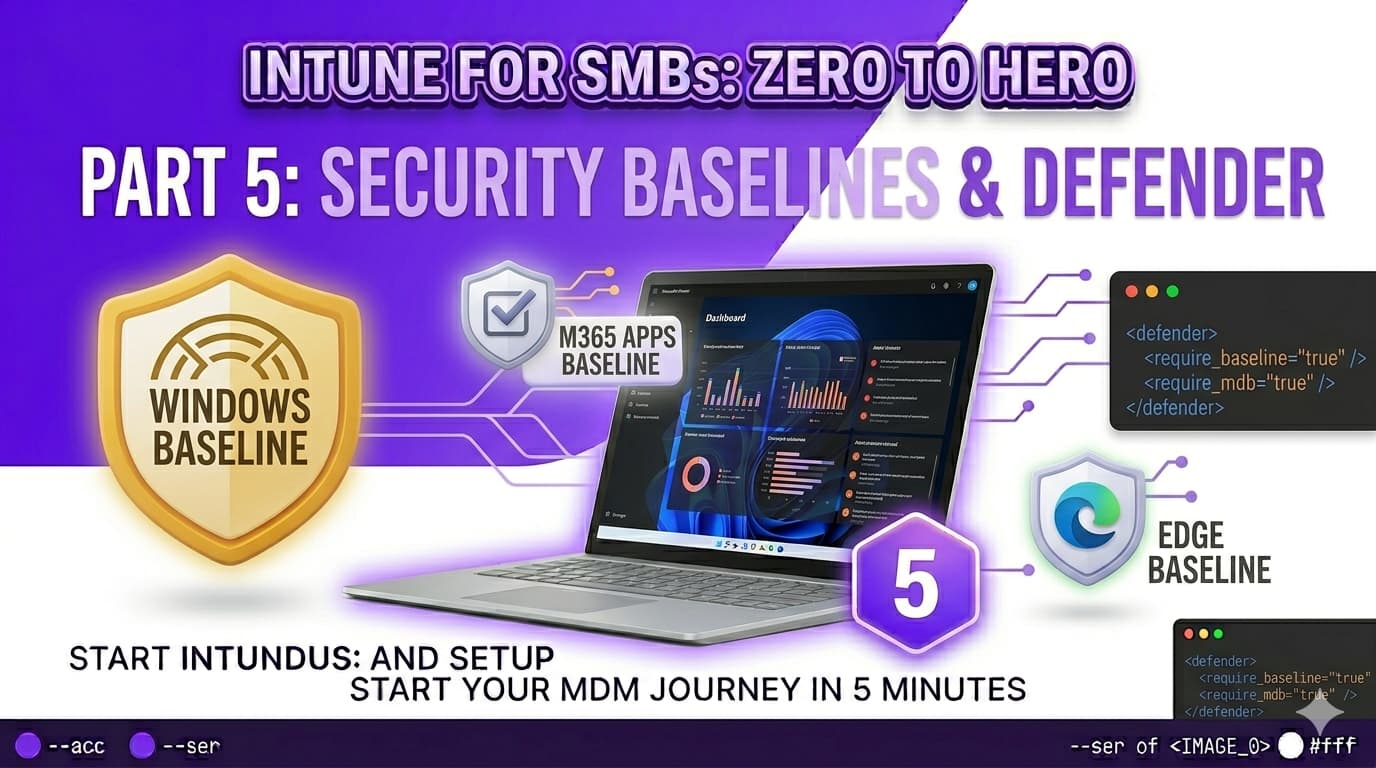
Security baselines in Intune are found at Endpoint security → Security baselines. Three are relevant for a Business Premium SMB in 2026, listed in the order you should deploy them. If you only deploy one baseline, make it the Windows Security Baseline — it covers the widest surface and delivers the most immediate hardening value.
The primary hardening baseline for Windows devices. Covers account lockout policies, audit logging, Windows Defender configuration, Windows Firewall rules, credential guard, exploit protection, and dozens of settings across UAC, Remote Desktop, Windows Installer, and Windows Remote Management.
When deploying, select the most recent version available in your tenant. Use the default settings for initial deployment — resist the temptation to customise everything before you understand what is in it. Deploy to a pilot group first, review the Conflict and Error states on test devices, then expand to your full device group.
Hardens the Microsoft 365 Apps suite (Word, Excel, Outlook, PowerPoint) against macro-based attacks, Office file format exploits, and add-in abuse. Key settings include: blocking macros from internet-sourced files, disabling legacy Office file formats (e.g. .doc, .xls) in favour of the Open XML formats, and controlling add-in trust.
This baseline is particularly high value for SMBs because macro-enabled Office documents from unknown sources are one of the most common initial access vectors in ransomware campaigns targeting small businesses. The baseline does not block macros entirely — it blocks macros that originate from outside your organisation's trusted locations.
Hardens the Edge browser with settings covering SmartScreen, certificate handling, extension management, and security zones. If you deployed a manual Edge hardening profile in Part 3, some settings will overlap.
Before deploying this baseline, compare it against your Part 3 Edge profile. The safest approach is to remove any settings from your manual Edge profile that the baseline also configures, keeping only the organisation-specific settings (homepage URL, password manager policy, sign-in enforcement) in the profile. This eliminates the conflict surface entirely.
Handling baseline conflicts
After deploying a baseline, check the per-device status before expanding to your full fleet. Go to Endpoint security → Security baselines → [baseline] → [version] → Device status. Look for devices showing Conflict.
To investigate a specific conflict: go to Devices → All devices → [device] → Device configuration, find the baseline entry, and expand it to see which individual settings are in conflict. The status view shows both the conflicting baseline value and the conflicting profile, making it straightforward to identify which profile to edit.
Defender for Business — what you actually get
Defender for Business is Microsoft's endpoint detection and response (EDR) product for organisations under 300 users. It is included with Microsoft 365 Business Premium at no additional cost. Understanding what it includes — and what it does not — matters before you configure it.
| Capability | Defender for Business | Defender for Endpoint Plan 2 |
|---|---|---|
| Next-generation antivirus (cloud-delivered) | Included | Included |
| Endpoint detection & response (EDR) | Included | Included |
| Attack Surface Reduction (ASR) rules | Included | Included |
| Threat & Vulnerability Management | Included, with a simplified SMB-focused experience | Included, full feature set |
| Automated investigation & remediation | Included | Included |
| Advanced hunting (custom KQL queries) | Not included | Included |
| Microsoft Threat Experts | Not included | Included |
| Intune connector (machine risk score) | Included | Included |
| Defender portal (security.microsoft.com) | Included | Included |
| User limit | 300 users | Unlimited |
For most SMBs, Defender for Business covers everything needed: alerts when a device shows suspicious behaviour, automated remediation of common threats, vulnerability reporting showing which devices are missing patches or running software with known CVEs, and the machine risk score that feeds into Intune compliance.
Connecting Defender for Business to Intune
The connector between Intune and Defender must be activated from both sides — in the Intune admin centre and in the Defender portal. The process takes about five minutes but is not discoverable unless you know to look for it.
WIN-Compliance-SMB-Baseline-v1). Under Microsoft Defender for Endpoint, set Require the device to be at or under the machine risk score to Medium. Now that the connector is active, this setting will evaluate against real Defender telemetry.Onboarding devices to Defender via Intune
With the connector active, Intune can push the Defender onboarding configuration to devices automatically — no separate onboarding package to manage, no script to deploy. The onboarding policy is created under Endpoint security in Intune.
WIN-Defender-EDR-Onboarding-v1. The only required setting is Microsoft Defender for Endpoint client configuration package type → set to Auto from connector. This instructs Intune to pull the onboarding package directly from your connected Defender tenant — no manual package export needed.Attack Surface Reduction rules
Attack Surface Reduction (ASR) rules block specific behaviours that malware commonly exploits — macros spawning child processes, Office apps writing executables, credential theft from LSASS, untrusted code running from USB. Each rule can be set to Not configured, Audit (log only), or Block.
ASR policies are created under Endpoint security → Attack surface reduction → Create policy → Windows 10 and later → Attack surface reduction rules.
Recommended ASR rules for SMBs — start in Audit, move to Block
| Rule | What it blocks | Risk of false positive |
|---|---|---|
| Block credential stealing from the Windows local security authority subsystem (lsass.exe) | Prevents tools like Mimikatz from dumping credentials from LSASS memory. High-impact protection against lateral movement. | Low — rarely affects legitimate software. Prioritise this for Block mode. |
| Block all Office applications from creating child processes | Stops Word, Excel, and Outlook from spawning cmd.exe, PowerShell, or other shells — the classic macro-to-shell attack chain. | Medium — some Office add-ins and macro-based automation tools trigger this. Audit carefully before blocking. |
| Block executable content from email client and webmail | Prevents executing attachments directly from email — EXE, DLL, scripts, Office files with macros. | Low — this blocks execution from email, not downloading. Legitimate workflows rarely need to execute directly from an email client. |
| Block Office applications from creating executable content | Prevents Office from writing EXE or DLL files to disk — a common malware delivery method via malicious documents. | Low — legitimate Office applications do not write executables. Safe to move to Block after a short Audit period. |
| Block untrusted and unsigned processes that run from USB | Prevents unsigned code from running directly from USB drives — relevant in environments where physical access to devices is possible. | Medium — if your organisation uses USB-based tools or scripts for legitimate purposes, these will be blocked. Audit first. |
| Block Adobe Reader from creating child processes | Prevents malicious PDFs from spawning shells via Adobe Reader vulnerabilities. | Low — if Adobe Reader is in use. Not applicable if using Edge or another PDF viewer as the default. |
For most SMBs, LSASS credential protection and Office executable blocking are the first low-regret candidates to move from Audit to Block — they have minimal false-positive surface in typical office environments and protect against the highest-impact attack techniques. Start there, then work through the others as your Audit data accumulates.
Create one policy with all six rules set to Audit. Assign to your Windows device group. After 7–14 days, review the Defender portal and Event Viewer for flagged events. For any rule with zero legitimate blocks, switch to Block. For rules that flagged real applications, add exclusions for those paths before switching to Block. Keep the two-phase naming convention (-Audit-v1 → -Block-v1) so the version history in Intune is clear.
Verifying the full Defender + Intune setup
After deploying the onboarding policy and baselines, verify the setup from both sides — Intune and the Defender portal.
From Intune
From the Defender portal
Part 5 checklist — before moving to Part 6
-
Windows Security Baseline deployed to pilot group Latest version selected. Deployed to a pilot group first. No Conflict states on test devices. Expanded to full device group after validation.
-
M365 Apps Security Baseline deployed Macro protection and Office hardening settings active. No Conflict with existing configuration profiles.
-
Edge Security Baseline deployed (after profile cleanup) Any overlapping settings removed from the Part 3 manual Edge profile before deploying the baseline. No Conflict states on test devices.
-
Defender for Business connector activated Intune connection enabled in Defender portal → Advanced features. Connection status shows Enabled in Intune admin centre → Endpoint security → Microsoft Defender for Endpoint. Compliance sync toggle On.
-
EDR onboarding policy deployed Policy
WIN-Defender-EDR-Onboarding-v1assigned to Windows device group. Test devices visible in Defender portal → Assets → Devices with status Onboarded. -
Compliance policy machine risk score check updated Part 2 compliance policy (
WIN-Compliance-SMB-Baseline-v1) updated with machine risk score → Medium or lower. Setting now evaluates against live Defender telemetry. -
ASR rules deployed in Audit mode All six recommended rules set to Audit. Policy assigned to Windows device group. Audit period of 7–14 days scheduled before reviewing for Block migration.
-
Defender vulnerability dashboard reviewed Devices visible in security.microsoft.com → Vulnerability management. Exposure score and top recommendations reviewed to identify quick wins before Part 6.