PowerShell · Microsoft 365 · Microsoft Graph · Exchange Online · 2026
Every Microsoft 365 administrator or consultant has been through it: new machine, new project, or a colleague asking for help — and the first half hour disappears installing modules one by one, dealing with version conflicts, discovering that AzureAD is deprecated, or realising that PSGallery isn't configured as trusted. It's repetitive work that adds no value.
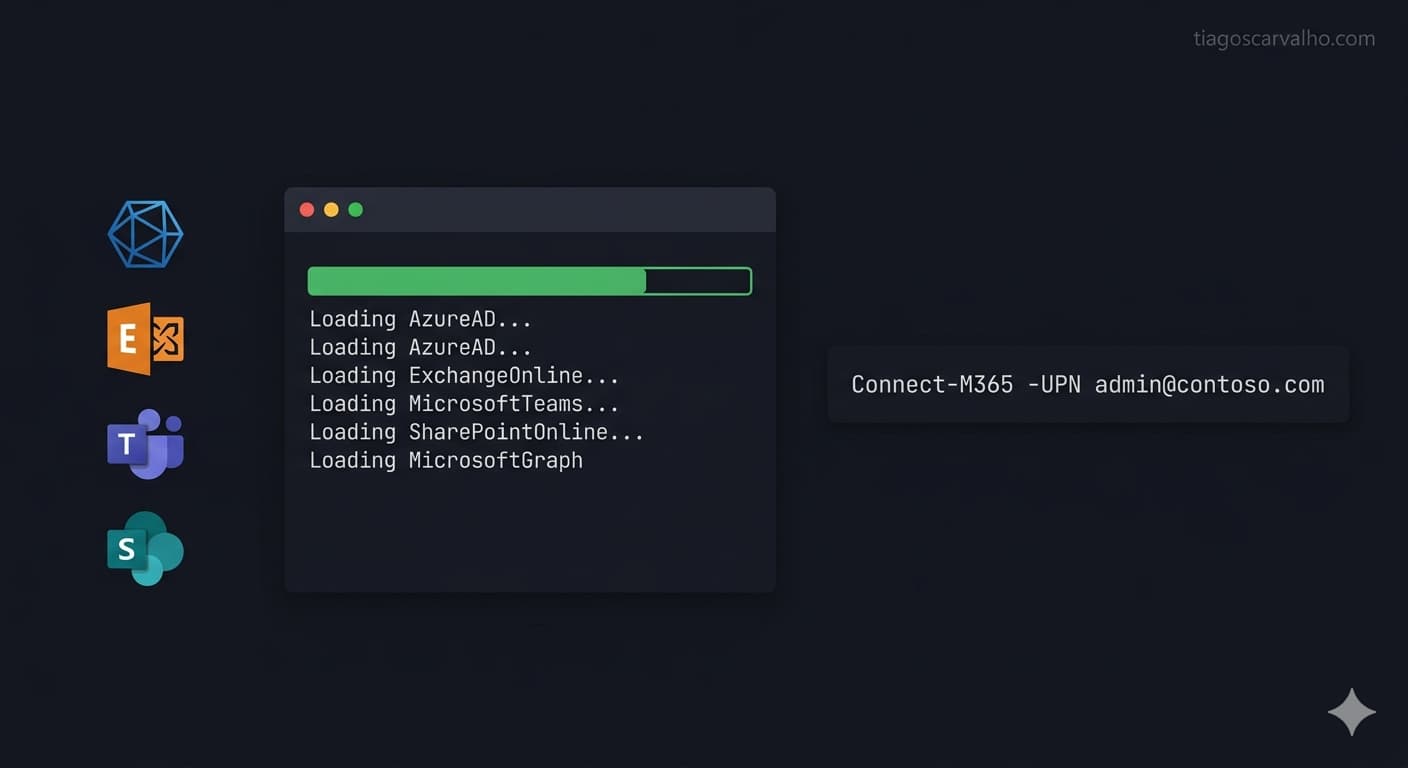
This script solves exactly that. In a single run, it verifies prerequisites, installs or updates all essential M365 modules, optionally removes the legacy modules that cause conflicts, and sets up your PowerShell profile with a Connect-M365 function that connects to every service — Graph, Exchange, SharePoint, Teams, and more — with one line.
Connect-M365. Beyond the installation, the script can create a profile with three functions — Connect-M365, Disconnect-M365 and Get-M365ModuleStatus — plus quick aliases. Once set up, connecting to every service is a single line.AllUsers). Without elevation, it installs for the current user only (CurrentUser) without failing.Prerequisites
The script automatically checks everything it needs before installing anything. There is no manual environment preparation required — that is precisely the starting point.
| Requirement | Check | Behaviour if missing |
|---|---|---|
| PowerShell 7.x | Automatic | WARN if 5.1, ERROR and exit if lower |
| Administrator privileges | Automatic | WARN — installs to CurrentUser instead of AllUsers |
| NuGet Provider ≥ 2.8.5.201 | Automatic | Installed automatically |
| PSGallery as Trusted | Automatic | Configured automatically |
| Internet connectivity | Implicit | Module downloads fail |
Installed modules
The script covers the 10 modules that make up a complete M365 environment for administration and consulting. For each one, it checks whether a version is already installed — if so, it compares against the latest version on PSGallery and updates only if needed. If not present, it installs from scratch.
| Module | Service | Notes |
|---|---|---|
| Microsoft.Graph | Microsoft Graph API | Meta-module that includes all Graph sub-modules. Replaces AzureAD and MSOnline for user, group, Entra ID, mail management and more. |
| ExchangeOnlineManagement | Exchange Online & Security/Compliance | Includes Connect-ExchangeOnline and Connect-IPPSSession for the Security & Compliance Center. |
| Microsoft.Online.SharePoint.PowerShell | SharePoint Online | SharePoint tenant administration — sites, site collections, tenant-level settings. |
| PnP.PowerShell | SharePoint / Teams | PnP Provisioning & Management — more granular than the native SPO module. Used for provisioning, templates and advanced automation. |
| MicrosoftTeams | Microsoft Teams | Teams administration — policies, channels, meetings, tenant-level configuration. |
| Microsoft.PowerApps.Administration.PowerShell | Power Platform | Environment management, DLP policies, and tenant-level Power Platform administration. |
| Microsoft.PowerApps.PowerShell | Power Apps | Maker tools — app, flow and connector management at the user level. |
| ORCA | Exchange Online / Defender | Office 365 ATP Recommended Configuration Analyzer. Generates a security recommendations report for Exchange Online and Defender for Office 365. |
| Microsoft365DSC | M365 (all services) | Desired State Configuration for M365 — useful for configuration auditing, exporting tenant state as code, and compliance reporting. |
| MSCommerce | M365 Licensing | License and subscription management — includes control over Self-Service Purchase by end users. |
Legacy modules: AzureAD and MSOnline
The script asks whether you want to remove the AzureAD, AzureADPreview and MSOnline modules. The answer depends on context, but on new machines or environments that have already migrated to the Graph SDK, removal is recommended.
AzureAD, AzureADPreview and MSOnline were deprecated by Microsoft from March 30, 2024, with limited support continuing through March 30, 2025. Keeping them installed alongside Microsoft.Graph can cause type conflicts, cmdlet name collisions between modules, and unexpected behaviour when PowerShell resolves which version to invoke. Microsoft Graph PowerShell is the official replacement and covers the modern administration path for the scenarios previously handled by those legacy modules — but migration requires careful script review, as the syntax is not a direct 1:1 replacement.
| Deprecated module | Graph SDK replacement | Status |
|---|---|---|
| AzureAD | Microsoft.Graph.Users, Microsoft.Graph.Groups, Microsoft.Graph.Identity.DirectoryManagement |
Deprecated |
| AzureADPreview | Microsoft.Graph.* (depends on feature) |
Deprecated |
| MSOnline | Microsoft.Graph.Identity.DirectoryManagement, Microsoft.Graph.Users |
Deprecated |
The Connect-M365 function
The most useful part of the script is not the installation — it is what comes after. The script offers to configure your PowerShell profile with three functions that are available in every future session.
Connect-M365
Connects to all M365 services at once, or only to the ones you specify. It eliminates the need to remember Connect-ExchangeOnline, Connect-MgGraph, Connect-SPOService and the rest — everything in one command.
# Connect to all services
Connect-M365 -UPN admin@contoso.com

# Connect to Graph and Exchange Online only
Connect-M365 -UPN admin@contoso.com -ServicesOnly Graph,EXO

# Quick alias
cm365 -UPN admin@contoso.com
The -ServicesOnly parameter accepts any combination of: Graph, EXO, SPO, Teams, PnP, SEC. If omitted, the function connects to all of them.
Disconnect-M365 and Get-M365ModuleStatus
Disconnect-M365 (alias dm365) safely disconnects from all active services without errors if any session is not currently connected. Get-M365ModuleStatus (alias gm365) displays a table of all modules, their installation state and current version — useful for quickly verifying the environment or troubleshooting issues.
Connect-M365 function requests Directory.ReadWrite.All and Sites.FullControl.All, which are appropriate for a consultant toolkit with full tenant access. In automation scripts or environments where least privilege applies, reduce the scopes to the minimum required for the task at hand.How to run the script
- Download the script — save
Install-M365Modules.ps1to a local folder, for exampleC:\Scripts\. - Open PowerShell as Administrator — right-click PowerShell and select "Run as administrator". If you use Windows Terminal, open an elevated tab. Installing to
AllUsersrequires admin privileges. - Navigate to the script folder —
cd C:\Scripts - Run the script — if the execution policy has not been configured yet, use
powershell -ExecutionPolicy Bypass -File .\Install-M365Modules.ps1. The script sets the execution policy automatically during the run. - Answer the two interactive prompts — whether to remove legacy modules (Y/N) and whether to create the profile with the Connect-M365 functions (Y/N). Both default to N if you press Enter without answering.
- Restart PowerShell — required for the profile to be loaded and for
Connect-M365,dm365andgm365to become available.
# Run from an elevated PowerShell session
Set-Location "C:\Scripts"
powershell -ExecutionPolicy Bypass -File .\Install-M365Modules.ps1

# Or, if the execution policy is already configured
.\Install-M365Modules.ps1
Script output
The script uses a status bar with colour-coded prefixes for each action — [OK] in green, [WARN] in yellow, [ERROR] in red, [SKIP] in grey. At the end, it prints a tabular summary with the status and version of each module.
======================================================================
  5. INSTALLATION SUMMARY
======================================================================

Module                                          Status        Version
------                                          ------        -------
Microsoft.Graph                                 Installed     2.26.1
ExchangeOnlineManagement                        Installed     3.7.1
Microsoft.Online.SharePoint.PowerShell          Installed     16.0.25514.12000
PnP.PowerShell                                  Installed     2.12.0
MicrosoftTeams                                  Installed     6.9.0
Microsoft.PowerApps.Administration.PowerShell   Installed     2.0.201
Microsoft.PowerApps.PowerShell                  Installed     1.0.44
ORCA                                            Installed     3.1.1
Microsoft365DSC                                 Installed     1.25.416.1
MSCommerce                                      Up to date    0.9

  Installed: 9 | Updated: 0 | Already current: 1 | Errors: 0

  NEXT STEP: To connect to all M365 services, run:
    Connect-M365 -UPN admin@yourdomain.com
Setup checklist
-
PowerShell 7.x installed Download from github.com/PowerShell/PowerShell. The script works with 5.1, but 7.x is recommended for the Graph SDK.
-
Script run as Administrator Ensures installation to
AllUsers— all users on the machine have access to the modules. -
Legacy modules removed (if applicable) AzureAD, AzureADPreview and MSOnline removed if existing scripts have already been migrated to the Graph SDK.
-
PowerShell profile created with Connect-M365 Answer
Ywhen the script prompts. The profile is created at$PROFILE.CurrentUserAllHostsand is loaded automatically in every new session. -
PowerShell restarted Required to load the profile and activate
Connect-M365,Disconnect-M365andGet-M365ModuleStatus. -
Environment verified with
gm365RunGet-M365ModuleStatus(orgm365) to confirm all modules are installed at the correct version.