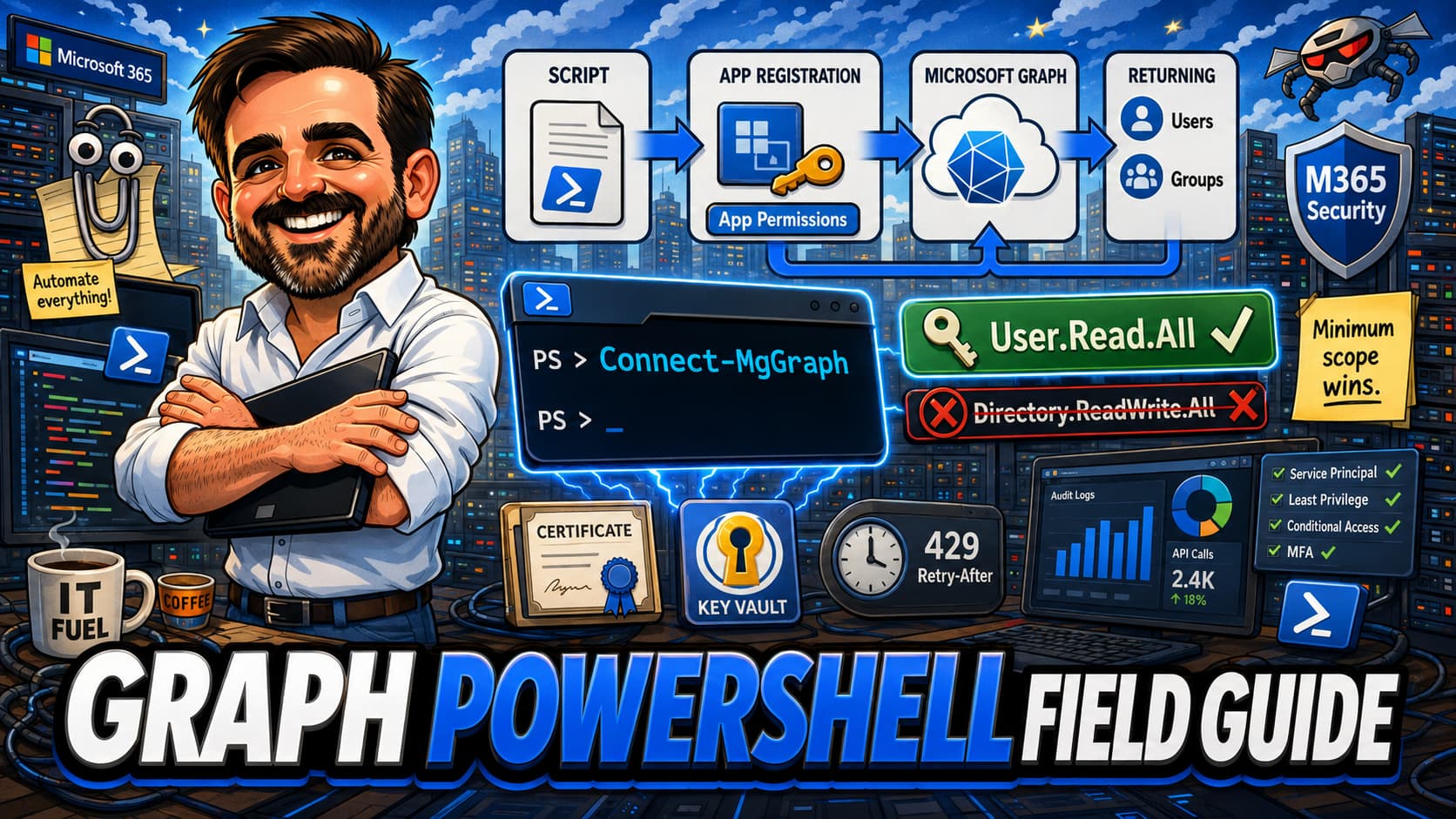
Microsoft Graph PowerShell is the operational backbone of every Microsoft 365 script published on this site. But there is a gap between Install-Module Microsoft.Graph and a script that runs unattended in production at 6am every morning — and most admins lose a week falling into it. This field guide is the bridge: connection patterns, the permissions model that catches everyone the first time, app registrations for automation, throttling and paging that the lab hides from you, and the production patterns that keep a Graph script alive past the first 90 days.
Install-Module Microsoft.Graph to a script you trust in Azure Automation tomorrow is where most admins lose a week. Authentication choice, permission scoping and production patterns are the work, not the install.Directory.ReadWrite.All is the *.* of Graph permissions. It is sometimes required for specific directory-write automation, but it should be treated as an exception, not a default. Use Find-MgGraphCommand to discover the permissions a cmdlet actually needs, and Find-MgGraphPermission to validate the specific scope you intend to grant. Overscoping is the most common Graph mistake in assessments.429 Too Many Requests with Retry-After backoff and either use -All on supported cmdlets or follow @odata.nextLink via Invoke-MgGraphRequest.1. First Graph script: read top to bottom, follow the implementation steps, run the validation checklist.
2. Existing scripts to harden: jump straight to "What to fix first" and work backwards.
3. Designing automation that survives audit: use the decision framework, the operational model, and the common mistakes list as your review template.
Introduction
For years, Microsoft warned that the AzureAD and MSOnline modules would be retired. MSOnline retired in waves between early April and late May 2025. AzureAD and AzureAD-Preview stopped working in mid-October 2025 after a series of temporary outage tests in September 2025 — the conceptual background to that transition is covered in The End of an Era. Every Microsoft 365 admin and consultant who used those modules now has the same forward path: Microsoft Graph PowerShell. The good news is that there is no longer a fork in the road. The bad news is that the road has more turns than the AzureAD module ever had.
Graph PowerShell looks similar to what came before, but it is not a drop-in replacement. The cmdlet names are different. The authentication model is different. The permissions model is different. The endpoint versioning is new. Throttling and paging behave differently from anything in the legacy modules. And the production patterns — scheduling, secret management, certificate rotation, error handling — have shifted from "write the script, schedule it, forget it" to "the script is the easy part."
This field guide is the path I follow on every new Graph PowerShell engagement. It is not a cmdlet reference. It picks up where the Microsoft 365 PowerShell environment setup ends — modules installed, ready to connect — and walks through the order of decisions, the permissions model that catches everyone the first time, the app registration patterns, and the operational habits that keep a Graph script alive past the first 90 days.
Who this article is for
Microsoft 365 administrators writing or maintaining PowerShell automation. Consultants who have just had a tenant hand them their first Graph PowerShell task. Anyone migrating scripts from the retired AzureAD module who now needs to do the same thing differently. Security teams who own privileged automation and need a framework for reviewing it.
It assumes you can read PowerShell. It does not assume you know what an admin consent grant is, or why Connect-MgGraph -Scopes "User.Read.All" can produce a different result depending on who you are and how you authenticated.
What you are trying to achieve
A defensible Graph PowerShell setup leaves you with the following state.
- Microsoft Graph PowerShell SDK installed and working — verified with a non-trivial query, not just
Connect-MgGraph. - A clear pattern for interactive sessions (admin tasks) versus unattended automation (scheduled scripts).
- For unattended automation: an app registration with a documented purpose, minimum-required Graph application permissions, granted admin consent, and credentials stored outside the script (certificate or Key Vault-managed secret, never plaintext).
- Knowledge of which Graph permission each cmdlet you call actually needs, and confidence that you are not over-scoped.
- A consistent connection pattern in every script —
-NoWelcome, error handling forInsufficientPermissions, explicit disconnect at the end. - Paging implemented with
-Allon supported cmdlets, or by following@odata.nextLinkviaInvoke-MgGraphRequest, for any query that may return more than one page of results. - Throttling handling — at minimum, retry-on-429 with respect for the
Retry-Afterheader. - An operating model: who owns the app registration, when credentials rotate, how failures are surfaced, where logs go, and how the script gets retired when it is no longer needed.
That is the bar for a Graph PowerShell setup that does not become a security or operational problem six months in.
Architecture context
Microsoft Graph PowerShell SDK is a wrapper around the Microsoft Graph REST API. Every cmdlet ultimately becomes an HTTP call to graph.microsoft.com. Understanding that one fact removes most of the surprises: Graph has two endpoints (v1.0 and beta), permission scopes (the same ones a Graph API call would use), throttling at the HTTP layer, and paging defined by the REST API specification, not by PowerShell.
The SDK is split into many submodules — Microsoft.Graph.Users, Microsoft.Graph.Groups, Microsoft.Graph.Identity.DirectoryManagement, Microsoft.Graph.Authentication and dozens more. Installing the meta-package Microsoft.Graph pulls all of them. In production, it is often cleaner to install only the submodules you actually use, both for install time and module surface area.
Authentication is where Graph PowerShell diverges most from the old modules. There are five practical ways to authenticate, and the right one depends on whether you are an admin running an ad-hoc command, a scheduled task on a server, an Azure Automation runbook, an Azure Function, or a script that needs to act as a specific user. Picking the wrong one is the most common reason new Graph scripts get rewritten three weeks later.
Permissions are the second source of surprise. Graph permissions come in two flavours — delegated (the app acts on behalf of a signed-in user) and application (the app acts as itself). They look similar in the documentation. They are not similar in practice. Delegated permissions inherit the user's effective rights and are subject to the user's Conditional Access policies. Application permissions are direct app grants and do not use the signed-in user context. They are not governed by the user's Conditional Access policies, although workload identity Conditional Access may apply where configured. The difference matters enormously for design, audit and incident response.
Finally, scoping. Graph permissions like User.Read.All are the right grain. Directory.ReadWrite.All is too broad for almost anything. Most teams default to the broad scope on the first try because the documentation example uses it. That habit becomes the highest-risk standing grant in the tenant.
Decision framework
Five decisions to make explicitly before writing the first Connect-MgGraph in a new script.
Authentication method
| Method | When to use | Permission type | Notes |
|---|---|---|---|
Interactive Connect-MgGraph -Scopes "..." | Ad-hoc admin tasks, exploration, first-time setup | Delegated | Opens a browser. Subject to your CA policies. Cannot be automated. |
Device code -UseDeviceAuthentication | WSL, SSH, headless workstations, environments without a default browser | Delegated | Prompts a code to enter at microsoft.com/devicelogin. Same CA scope as interactive. |
Certificate-based -ClientId ... -TenantId ... -CertificateThumbprint ... | Scheduled automation on a server or workstation | Application | Recommended for on-premises automation. No secret rotation pain if certificate is well-managed. |
Client secret -ClientSecretCredential | Automation where certificate management is impractical | Application | Acceptable, weaker than certificate. Store secret in Key Vault, not the script. |
Managed identity -Identity | Azure Automation, Azure Functions, Azure VMs — anything running inside Azure with a managed identity assigned | Application | Preferred for cloud-native automation. No credentials to rotate. Identity is bound to the resource. |
Permission type
| Property | Delegated | Application |
|---|---|---|
| Acts as | The signed-in user | The application itself |
| Requires a user account | Yes | No |
| Subject to Conditional Access | Yes (the user's CA policies apply) | No (unless workload identity CA is configured) |
| Inherits user roles | Yes (effective permission = scope ∩ user’s rights) | No (scope is the entire grant) |
| Admin consent required | Often, depends on scope | Always for tenant-wide scopes |
| Typical use | Admin interactive sessions | Unattended automation |
Endpoint version
| Endpoint | Stability | When to use |
|---|---|---|
| v1.0 (default) | Production. Stable. Backwards-compatible changes only. | Anything you run in production. Default for all scripts. |
| beta | Preview. Breaking changes possible. No SLA. | Only when v1.0 does not have the property or operation you need. Document why beta is required in the script. |
Scope granularity
The most consequential decision in the whole setup. Always start by identifying the narrowest scope that allows the cmdlet to run, not the broadest scope that lets everything work.
# Use Find-MgGraphCommand to discover which cmdlet maps to a Graph operation,
# and what permissions that cmdlet requires.
Find-MgGraphCommand -Command "Get-MgUser"
Find-MgGraphCommand -Uri "/users" -Method GET

# Use Find-MgGraphPermission to validate a specific permission,
# filtered by type (Delegated or Application).
Find-MgGraphPermission -SearchString "User.Read.All" -ExactMatch -PermissionType Application
Module installation profile
| Install | Pros | Cons |
|---|---|---|
Microsoft.Graph meta-module | One install, every cmdlet available | Slow install. Hundreds of MB. Large surface area. |
Selected submodules (e.g. Microsoft.Graph.Authentication + Microsoft.Graph.Users) | Faster install. Smaller surface. Clearer dependencies. | Have to know which submodule holds the cmdlet you need. |
Microsoft.Graph.Beta | Beta endpoints | Beta = preview. Install alongside v1.0 only when needed. |
Recommended baseline
Minimum baseline
The minimum baseline I would defend in any review of a Graph PowerShell environment is the following. Microsoft Graph PowerShell SDK installed and working with a verified non-trivial query (not just Connect-MgGraph). A clear separation of interactive admin sessions (delegated permissions, the admin's identity) from unattended automation (application permissions, an app registration). For every app registration: a documented purpose in a register the team can find, the minimum Graph application permissions required, admin consent granted, and credentials stored outside the script. Every production script uses -NoWelcome on connect, handles InsufficientPermissions errors explicitly, and disconnects cleanly at the end.
Recommended baseline (adds on top)
Certificate-based authentication preferred over client secrets where the runtime supports it (use managed identity instead if running in Azure). All paging queries use -All on supported cmdlets, or follow @odata.nextLink via Invoke-MgGraphRequest. For scripts that regularly hit throttling, tune the SDK request context explicitly, for example Set-MgRequestContext -MaxRetry 10 -RetryDelay 5. For small scripts, the SDK defaults may be enough, but the settings should be understood and documented. The custom retry helper is reserved for endpoints that exhaust whatever you set. A named owner per app registration, with monthly sign-in log review and quarterly permission audits. A retirement path for unused app registrations — orphaned apps are the most common silent privilege creep in any Graph environment.
Recommended first 3 actions
If you cannot do the full setup today, do these three things first. Each is independently valuable and each unblocks the next layer.
| First action | Why |
|---|---|
| Verify the install with a non-trivial query, not just Connect-MgGraph | The connect can succeed and the queries still fail because of missing scopes or missing submodules. Run Get-MgUser -Top 1 to prove the chain end-to-end. |
| Pick the right authentication method before writing the first line of automation | Choosing certificate, secret or managed identity later is a rewrite. Picking it once at the start saves a week. |
| Find the minimum permission for the cmdlets you actually call — before the first admin consent | Find-MgGraphPermission takes 30 seconds. Reducing an overscoped grant after rollout takes a re-consent and a regression test cycle. |
Common mistakes
Some of these appear in almost every Graph PowerShell assessment.
- Asking for
Directory.ReadWrite.AllwhenUser.Read.Allis enough.The documentation example uses the broad scope because it always works. Production scripts should not. UseFind-MgGraphPermissionon the cmdlet you actually call. - Storing the client secret in the script.A script in version control with a client secret in plaintext is a credential leak the moment the repo or share is touched by the wrong person. Use a certificate or Key Vault.
- Using application permissions for tasks that should be delegated.If the task is "the admin runs this manually," delegated is the right choice. Application permissions remove the audit trail of who ran it, bypass Conditional Access and break least-privilege accounting.
- Missing
-NoWelcomeonConnect-MgGraph.The welcome banner pollutes script output and breaks parsers that consume stdout.Connect-MgGraph -NoWelcome ...on every production script. - Forgetting paging.Many Graph PowerShell list cmdlets return only the first page of results unless
-Allor pagination is used. Works in the lab. Misses most of the tenant in production. Use-Allwhere supported, or useInvoke-MgGraphRequestand follow the@odata.nextLinkvalue in the response. - No throttling handling.Graph throttles aggressively, especially on user and group endpoints. A script without
429retry-on-Retry-Aftercan fail or become unreliable in larger tenants. Build the retry helper once and reuse it. - Hardcoding the tenant ID.Tenant IDs change between dev, test and production. Read from a config file or parameter. The same applies to client IDs and certificate thumbprints.
- Mixing v1.0 and beta in the same script without saying so.Some cmdlets default to v1.0, some require the
Microsoft.Graph.Betasubmodule. A mix can produce inconsistent objects. Document why beta is in use. Pin the version. - Importing the entire
Microsoft.Graphmeta-module when you only call three cmdlets.Module import time becomes the slowest part of the script. Import only the submodules you use:Import-Module Microsoft.Graph.Authentication, Microsoft.Graph.Users. - AzureAD-module muscle memory.Filters, select and properties behave differently in Graph PowerShell.
-Filteruses OData syntax, not where-object semantics.-Propertyoften requires-ConsistencyLevel eventualand-CountVariablefor certain queries. Read the docs once; do not assume. - Skipping
Disconnect-MgGraph.In long-running runbooks and shared sessions, leaving the connection open can hide the next failure or cause unexpected behaviour when another script connects. Always disconnect at the end of automation runs. - Orphaned app registrations.An app registration created for a project two years ago, still with
Directory.ReadWrite.Allconsented, with a secret nobody rotated. Every tenant has at least one. Quarterly review with named owners is the only fix.
Implementation guide
The order below assumes you have PowerShell 7 and the Microsoft Graph SDK already installed (covered in the related Install M365 Modules article). Where it differs is the path from "module installed" to "production-ready script."
Step 1 — Verify the install with a non-trivial query
Connect interactively and prove the chain end-to-end. Do not stop at Connect-MgGraph succeeding — that only proves authentication.
Connect-MgGraph -Scopes "User.Read.All" -NoWelcome
Get-MgUser -Top 1 -Property DisplayName, UserPrincipalName
Disconnect-MgGraph
If Get-MgUser returns nothing or an error, the install is not complete. Common cause: the Microsoft.Graph.Users submodule is missing or out of date.
Step 2 — Decide the authentication method for the script
Use the decision table above. For most on-premises scheduled automation, certificate-based with an app registration. For Azure Automation and Functions, managed identity. For interactive admin sessions, delegated with Connect-MgGraph -Scopes. Write the decision down before you write the script.
Step 3 — Create the app registration (automation only)
In Microsoft Entra admin center → Applications → App registrations → New registration. Name it after the script's purpose, not the team that owns it ("M365-License-Report-Automation", not "Tiago-Test"). Single tenant. No redirect URI for automation. After creation, note the Application (client) ID and Directory (tenant) ID. The governance cadence for app registrations is covered in detail in the Microsoft 365 Admin Roles Builder 2026 — the same audit rhythm that applies to admin role assignments should apply to every app registration in this article.
Step 4 — Find the minimum permissions and add them
For every cmdlet your script will call, run Find-MgGraphPermission against the relevant Graph permission name. Pick the least-privilege option, almost always the read-only one if your script does not write. In the app registration, go to API permissions → Add a permission → Microsoft Graph → Application permissions, search for and add each one.
# Cmdlet → required permissions (the direction you usually want)
Find-MgGraphCommand -Command "Get-MgUser"
Find-MgGraphCommand -Command "Get-MgUserMessage"

# Validate a specific permission (shows delegated and application variants)
Find-MgGraphPermission -SearchString "User.Read" -ExactMatch
Find-MgGraphPermission -SearchString "Mail.Read" -ExactMatch
Step 5 — Grant admin consent
In the app registration's API permissions blade, click Grant admin consent for [tenant]. This requires Global Administrator, Privileged Role Administrator, or a role with consent grant permission for the specific permission set. The grant is tenant-wide. Document who granted what, when, and why.
Step 6 — Configure credentials
For certificate-based authentication: generate a self-signed certificate (or use a CA-issued one), upload the public key in Certificates & secrets → Certificates → Upload certificate, and install the certificate with its private key in the user store of the account that will run the script. For client secret: Certificates & secrets → New client secret, set a short expiry, and store the secret in Azure Key Vault — not the script.
For Task Scheduler running under a service account, the service account must have logged on interactively at least once for the user profile (and CurrentUser\My store) to exist. If that is impractical, install the certificate in LocalMachine\My and grant the service account read access to the private key (Certificates MMC → certificate → All Tasks → Manage Private Keys). Mixing CurrentUser and LocalMachine stores is the most common cause of "Certificate not found" errors covered later in Troubleshooting.
Step 7 — First unattended connect, test interactively
# Certificate-based connect
Connect-MgGraph `
  -ClientId "<app-client-id>" `
  -TenantId "<tenant-id>" `
  -CertificateThumbprint "<thumbprint>" `
  -NoWelcome

# Verify it’s using application context, not delegated
Get-MgContext | Select-Object AuthType, ClientId, Scopes
AuthType should be AppOnly. If it says Delegated, your script is going to behave differently in production from how you tested it.
Step 8 — Add paging and throttling handling
Every query that may return more than one page of results should use -All where supported, or implement explicit pagination:
Get-MgUser -All -Property Id, DisplayName, UserPrincipalName, AccountEnabledBefore writing a retry helper, know that the Graph SDK already has one. Get-MgRequestContext shows current settings (defaults: 3 retries, 3-second delay). Set-MgRequestContext -MaxRetry 10 -RetryDelay 5 adjusts them for the session. For most scripts, tuning these settings is enough. The helper below is for cases where the built-in handler is not sufficient — typically Intune or Devices endpoints that throttle aggressively and exhaust the default retries.
function Invoke-GraphWithRetry {
    param([scriptblock]$ScriptBlock, [int]$MaxAttempts = 5)
    for ($i = 1; $i -le $MaxAttempts; $i++) {
        try { return & $ScriptBlock }
        catch {
            $isThrottled = $false
            $retryAfter  = 5
            if ($_.Exception.Response -and $_.Exception.Response.StatusCode) {
                $code = [int]$_.Exception.Response.StatusCode
                if ($code -eq 429 -or $code -eq 503) {
                    $isThrottled = $true
                    if ($_.Exception.Response.Headers['Retry-After']) {
                        $retryAfter = [int]$_.Exception.Response.Headers['Retry-After']
                    }
                }
            } elseif ($_.Exception.Message -match 'TooManyRequests|429') {
                $isThrottled = $true
            }
            if ($isThrottled) {
                Write-Verbose "Throttled. Waiting $retryAfter s (attempt $i/$MaxAttempts)"
                Start-Sleep -Seconds $retryAfter
            } else { throw }
        }
    }
    throw "Exceeded retry attempts"
}Invoke-MgGraphRequest exposes Response.StatusCode; strongly-typed Get-Mg* cmdlets often only surface the condition in the exception message. In production, also handle missing Retry-After headers (some Intune endpoints omit it — fall back to exponential backoff), transient network errors, and bounded total wait time. Log every retry with context so you can spot throttling patterns over time.
Step 9 — Add error handling for permission failures
Wrap the script body so InsufficientPermissions errors are caught and surfaced clearly, not buried in a generic exception message.
try {
    Connect-MgGraph -ClientId $clientId -TenantId $tenantId -CertificateThumbprint $thumbprint -NoWelcome -ErrorAction Stop
    # script body
} catch {
    if ($_.Exception.Message -match "Insufficient privileges|InsufficientPermissions|Authorization_RequestDenied" -or
        $_.FullyQualifiedErrorId -match "Authorization_RequestDenied") {
        Write-Error "Permission missing. Check API permissions on app registration $clientId."
    } else { throw }
} finally {
    Disconnect-MgGraph -ErrorAction SilentlyContinue
}
FullyQualifiedErrorId is more stable across SDK versions than the exception text. Catch both so the script keeps working when the message wording changes.
Step 10 — Schedule the automation
For Azure Automation, import the script as a runbook and configure the runbook to use a managed identity (preferred) or an automation credential pointing at the app registration. For Windows Task Scheduler, run as a service account with the certificate installed in its user store; do not use SYSTEM unless you understand why the certificate store path matters. Document the schedule and the expected runtime in the same register that holds the app registration entry.
Validation checklist
After implementation, the following must be true. Each item is a yes/no. Any "no" should stop production rollout until the gap is understood and either fixed or formally accepted as an exception.
-
Modules installed and verified with a non-trivial query.
Get-MgUser -Top 1returns a real user, not just an authentication success. -
App registration created with a documented purpose. Named after the script's purpose. Recorded in a register the team can find. Owner assigned.
-
Permissions are the minimum required for the cmdlets called. Validated with
Find-MgGraphPermission. NoDirectory.ReadWrite.Allunless genuinely needed. -
Admin consent granted and recorded. Who granted, when, which permissions.
-
Credentials stored outside the script. Certificate in user store, secret in Key Vault, or managed identity. Never plaintext in the script or in version control.
-
Get-MgContext shows AppOnly for unattended scripts. Confirms the script is running as the application, not under delegated context.
-
Paging implemented for queries that may return more than one page of results.
-Allon supported cmdlets, or follow@odata.nextLinkviaInvoke-MgGraphRequest. -
Throttling-aware retry on 429. Respects
Retry-Afterheader. Bounded number of retries. -
Connect uses -NoWelcome. No banner pollution in script output.
-
Disconnect-MgGraph at end of script. Cleanup in a
finallyblock. Avoids context leaking between runs. -
Error handling distinguishes permission failures from other errors.
InsufficientPermissionssurfaced clearly so the diagnosis is one step, not five. -
Tenant ID, client ID and credentials read from parameters or config, not hardcoded. Same script can run against dev, test and production.
Putting it together — end-to-end example
Everything above as a single script. This is not an example to copy and run blind — it is the smallest realistic script that exercises every pattern in the validation checklist, written so you can adapt the body for your own use case. The task is intentionally simple: list users with no interactive sign-in in the last 90 days, export to CSV.
What this demonstrates: certificate-based authentication, Set-MgRequestContext tuning, custom retry helper for endpoints that exhaust the default, AuthType validation, -All paging, robust permission error handling using FullyQualifiedErrorId, and clean disconnect in a finally block. The required permissions for this example are User.Read.All to list users and AuditLog.Read.All to retrieve signInActivity — not Directory.Read.All. Note that signInActivity also requires Microsoft Entra ID P1 or P2 licensing.
<#
.SYNOPSIS
    Lists users with no interactive sign-in in the last N days.
.NOTES
    Required Graph application permissions: AuditLog.Read.All, User.Read.All
    Run interactively first to validate. Schedule via Task Scheduler or Azure Automation.
#>

param(
    [Parameter(Mandatory)] [string] $TenantId,
    [Parameter(Mandatory)] [string] $ClientId,
    [Parameter(Mandatory)] [string] $CertificateThumbprint,
    [int] $DaysInactive = 90
)

# Retry helper for endpoints that exhaust the SDK’s built-in retries
function Invoke-GraphWithRetry {
    param([scriptblock]$ScriptBlock, [int]$MaxAttempts = 5)
    for ($i = 1; $i -le $MaxAttempts; $i++) {
        try { return & $ScriptBlock }
        catch {
            $isThrottled = $false; $retryAfter = 5
            if ($_.Exception.Response -and $_.Exception.Response.StatusCode) {
                $code = [int]$_.Exception.Response.StatusCode
                if ($code -eq 429 -or $code -eq 503) {
                    $isThrottled = $true
                    if ($_.Exception.Response.Headers['Retry-After']) {
                        $retryAfter = [int]$_.Exception.Response.Headers['Retry-After']
                    }
                }
            } elseif ($_.Exception.Message -match 'TooManyRequests|429') {
                $isThrottled = $true
            }
            if ($isThrottled) { Start-Sleep -Seconds $retryAfter } else { throw }
        }
    }
    throw "Exceeded retry attempts"
}

try {
    # 1. Certificate-based connect (no secrets in script)
    Connect-MgGraph `
        -ClientId $ClientId `
        -TenantId $TenantId `
        -CertificateThumbprint $CertificateThumbprint `
        -NoWelcome -ErrorAction Stop

    # 2. Tune the SDK’s built-in throttling resilience for this session
    Set-MgRequestContext -MaxRetry 10 -RetryDelay 5

    # 3. Validate context — must be AppOnly for unattended automation
    $ctx = Get-MgContext
    if ($ctx.AuthType -ne 'AppOnly') {
        throw "Expected AppOnly context, got $($ctx.AuthType)"
    }

    # 4. Page through all users with -All. SignInActivity must be explicitly selected.
    #    ConsistencyLevel eventual is only required when using advanced query patterns
    #    such as $count, $search, or supported advanced $filter/$orderby. The simple
    #    $select case below does not require it.
    $cutoff = (Get-Date).AddDays(-$DaysInactive)
    $users = Invoke-GraphWithRetry {
        Get-MgUser -All `
            -Property Id, DisplayName, UserPrincipalName, SignInActivity, AccountEnabled
    }

    # 5. Filter for enabled accounts that have been inactive for the threshold
    $inactive = $users | Where-Object {
        $_.AccountEnabled -and
        ( -not $_.SignInActivity.LastSignInDateTime -or
          $_.SignInActivity.LastSignInDateTime -lt $cutoff )
    }

    # 6. Export — one row per inactive user
    $inactive |
        Select-Object DisplayName, UserPrincipalName,
            @{N='LastSignIn';E={$_.SignInActivity.LastSignInDateTime}} |
        Export-Csv -Path "inactive-users-$(Get-Date -Format yyyy-MM-dd).csv" -NoTypeInformation

    Write-Host "Exported $($inactive.Count) inactive users."
}
catch {
    if ($_.Exception.Message -match "Insufficient privileges|InsufficientPermissions|Authorization_RequestDenied" -or
        $_.FullyQualifiedErrorId -match "Authorization_RequestDenied") {
        Write-Error "Permission missing. Verify AuditLog.Read.All and User.Read.All are granted and consented."
    } else { throw }
}
finally {
    Disconnect-MgGraph -ErrorAction SilentlyContinue
}What to fix first
When auditing an existing Graph PowerShell setup, fix in this order. Each row addresses a different gap; do not parallelise without ownership.
| Finding | Fix first | Why |
|---|---|---|
| Client secrets stored in script or version control | Move to certificate or Key Vault and rotate the leaked secret | Treat as a credential leak. Time-sensitive. |
App registration with Directory.ReadWrite.All or similar broad grants | Identify the actual cmdlets used, find the minimum scopes, re-consent narrower, remove the broad grant | Standing privilege is the highest-impact reduction available. |
| App registrations without documented owners | Build the register first. Owners attach to the register, not the script. | Without owners, nothing is reviewed and nothing is retired. |
| Queries without paging in tenants over 5,000 users | Add -All or NextLink handling. Re-run and validate counts against the admin centre. | The script is reporting incomplete data — usually worse than no data, because no one realises. |
| No throttling retry | Add the retry helper and reuse it across scripts | One helper protects every Graph script in the estate. |
| AzureAD module still referenced | Inventory remaining scripts, replace cmdlets one-for-one with Graph equivalents, retire AzureAD module | AzureAD / AzureAD-Preview stopped working in mid-October 2025. Any remaining dependency should be treated as unsupported legacy code. |
| Orphaned app registrations | Audit owners. Disable unused apps. Delete after a 30-day cooling-off period. | Unused privilege accumulates faster than anyone reviews it. |
Troubleshooting notes
Connect-MgGraph succeeds but every cmdlet returns "Insufficient privileges"
The connect proved authentication, not authorisation. Check Get-MgContext: is AuthType what you expected, and are the listed scopes the ones the cmdlet needs? For application context, the scope set is whatever was admin-consented — it does not respect what you pass to -Scopes on a certificate or secret connect.
Cmdlet returns no results, but you can see the data in the Entra admin centre
Most often paging. Without -All, many list cmdlets only return the first page of results. Less commonly, the query has an implicit filter (advanced query, eventual consistency) that requires -ConsistencyLevel eventual -CountVariable count.
Beta cmdlet returns "The term 'Get-MgBeta…' is not recognized"
Beta cmdlets live in Microsoft.Graph.Beta.* submodules. They are installed separately from the v1.0 modules. Install-Module Microsoft.Graph.Beta.Users (or the specific submodule you need). Confirm with Get-Module -ListAvailable Microsoft.Graph.Beta.*.
Script works locally but fails in Azure Automation
Likely causes: required submodule not imported into the Automation Account, managed identity not granted the same Graph permissions as the local app registration, or PowerShell version mismatch (Automation defaults can lag behind local). Import the submodule into the Automation Account explicitly. Managed identities are not configurable through the App registrations → API permissions blade. To grant Graph permissions to a managed identity, use New-MgServicePrincipalAppRoleAssignment against the managed identity's service principal (visible under Enterprise Applications, filtered by application type "Managed Identity"). The permissions show up in the managed identity's service principal, not in any App registration. This is one of the few places where portal-only admins get stuck.
429 Too Many Requests at unpredictable points
Graph throttling is per-tenant and per-service. Heavy Get-MgUser loops on a large tenant trip the user service throttle. Single-threaded scripts hit the limit too. Add the retry helper, respect Retry-After, and where possible use batched queries (Invoke-MgGraphRequest with $batch) to reduce request count.
429 automatically. Inspect it with Get-MgRequestContext and adjust with Set-MgRequestContext -MaxRetry 10 -RetryDelay 5 -RetriesTimeLimit '00:05:00'. For most production scripts, raising MaxRetry from the default of 3 to 10 is the single highest-value change you can make for throttling resilience — before you write a single line of custom retry code. However, throttled requests inside JSON batch responses are not automatically retried by the SDK. If you use $batch, inspect each sub-response and retry failed 429 responses manually.
Certificate-based connect fails with "Certificate not found"
The connect runs in the user context of the account executing the script. The certificate must be in CurrentUser\My for that user, or in LocalMachine\My if running as SYSTEM. Mixing the two is the most common cause. Confirm with Get-ChildItem Cert:\CurrentUser\My\<thumbprint> under the right identity.
Operational model
Graph PowerShell is not a one-time setup. After a script ships, the following cadence keeps it alive and the privilege surface under control.
| Cadence | Owner | Activity |
|---|---|---|
| Daily | Script owner | Monitor automation failure alerts. Investigate any InsufficientPermissions or 429 spikes. |
| Weekly | Identity / security team | Review app registration sign-in logs in Entra (Sign-in logs → Service principal sign-ins). Confirm scripts are running and from expected sources. |
| Monthly | Script owner | Review the actual permissions used vs the permissions granted. Reduce where possible. |
| Quarterly | Identity / security team | Full app registration audit: owners, last sign-in, permission set, secret/certificate expiry. Disable orphans. |
| Annually | Architecture review | Re-audit. Graph endpoints, cmdlet surface and best practices evolve. A pattern that was correct last year is rarely the optimal pattern this year. |
Ownership matters. Every app registration has a named owner. Every script has a named operator. The two may be the same person, but the role is separate. When the owner leaves the organisation, ownership transfers as a formal step, not a discovery six months later.
Permission register — one row per app registration
The single most useful artefact in a Graph PowerShell environment is the permission register: one row per app registration, kept somewhere the team can find. It is what turns an ad-hoc estate into an auditable one. Below is the minimum set of fields. A spreadsheet, Microsoft List or Confluence page is fine — the format matters less than the discipline of keeping it current.
| Field | Example |
|---|---|
| App name | M365-License-Report-Automation |
| Owner | Identity Team |
| Purpose | Weekly licensing report |
| Permissions | User.Read.All, Organization.Read.All |
| Auth method | Certificate |
| Credential expiry | 2027-05-01 |
| Last reviewed | 2026-05-19 |
| Retirement criteria | No successful run in 90 days |
The retirement criteria field is the one most teams skip and most regret. Without an explicit retirement criterion, every app registration lives forever — including the ones whose purpose nobody remembers. Make the criterion measurable: "no run in 90 days," "project closed," "owner left the organisation." Quarterly review then becomes a single SQL-like query, not a debate. Pair this register with the quarterly admin role access reviews described in the Microsoft 365 Admin Roles Builder 2026 — both cadences cover privileged identities, just on different surfaces.
Final thoughts
Microsoft Graph PowerShell is a better foundation than the modules it replaced, but it is not a simpler one. The cmdlets are similar enough to AzureAD that muscle memory works for the first 80% and fails on the last 20%, which is where data integrity, permission audit and production reliability live. The teams that get Graph PowerShell right are the ones that treat it as a permissions system first and a scripting system second.
If you have Graph scripts running in production and you cannot answer "yes" to every item in the validation checklist, the gap is rarely about the code. It is about the operating model around the code — ownership, permission audit, credential management, retirement of unused apps. The code is the easy part. The model is what survives the second year.
- Microsoft Graph PowerShell SDK overview
- Authentication scenarios with Microsoft Graph PowerShell
- Microsoft Graph permissions reference
- Find-MgGraphCommand and Find-MgGraphPermission
- Microsoft Graph throttling guidance
- Paging Microsoft Graph data in your app
- Choose a Microsoft Graph authentication provider
- Best practices for using Microsoft Graph
- Migrate from AzureAD PowerShell to Microsoft Graph PowerShell
- Microsoft Entra Blog — AzureAD and MSOnline PowerShell module retirement announcements
- Azure Automation runbooks (managed identity scenarios)
Run the validation checklist against your scripts
Every Graph script in production should pass every row in the validation checklist. The ones that do not are where the next security finding will come from. Fix in the order of the "What to fix first" table.
Start with the Validation Checklist