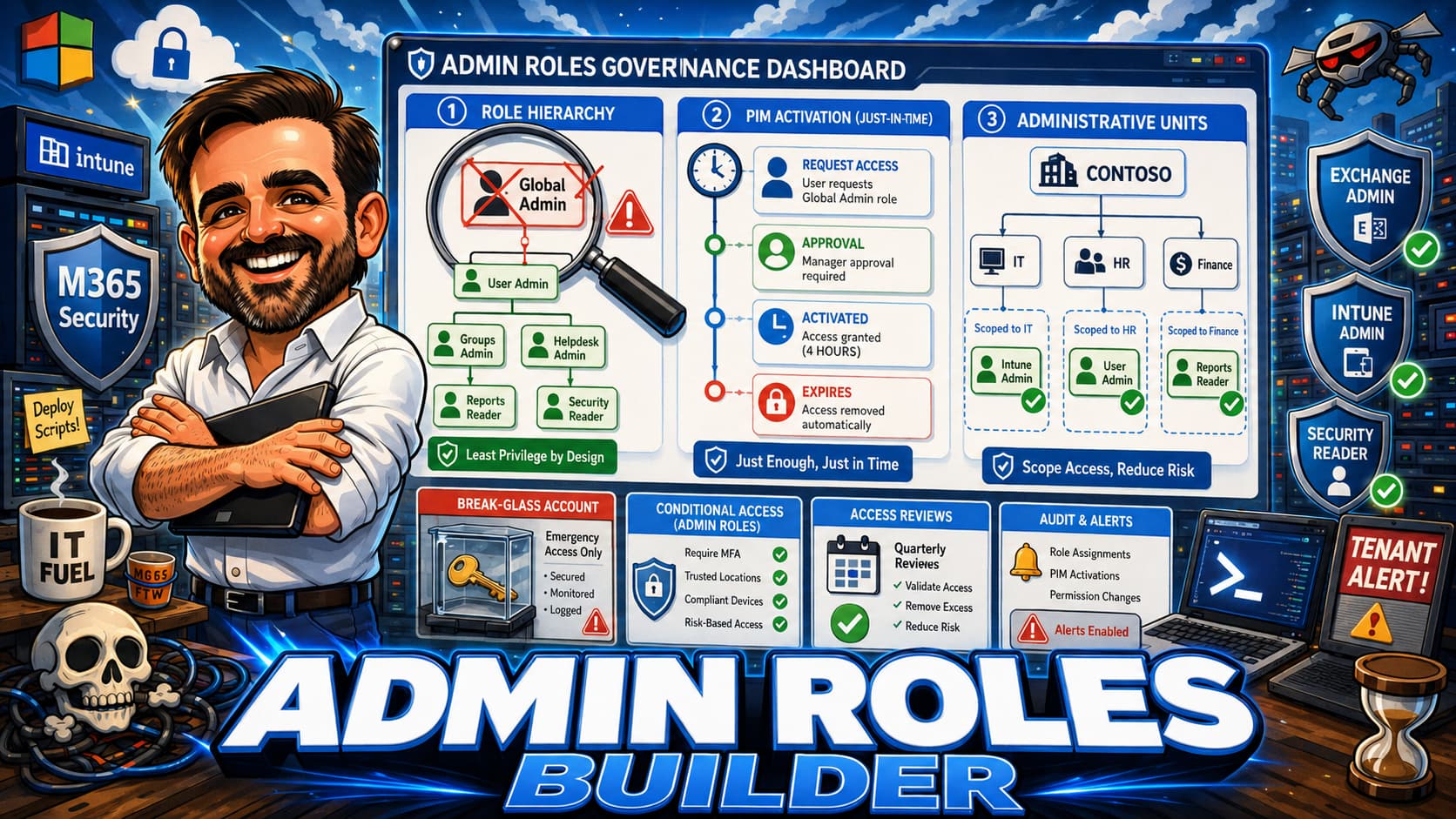
Global Administrator should be the exception, not the operating model. Microsoft 365 and Entra ID include dozens of built-in admin roles, but most tenants only use three to five. The result is predictable: admins either hold Global Admin or have no admin access at all, with nothing in between. This interactive guide helps you map real admin tasks to least-privileged roles, scope them where possible, activate them just in time with PIM, and review them on a regular cadence.
- Interactive admin roles builder with 10 inputs and privilege risk scoring across 6 pillars
- Admin task to least-privileged role mapping framework with scope options
- Privileged Identity Management (PIM) setup, just-in-time activation and approval workflows
- Administrative Unit scoped roles for delegated administration
- Emergency access (break-glass) account setup and monitoring
- Conditional Access policies for admin roles with phishing-resistant MFA
- Custom roles in Entra ID: when to create, limitations and governance
- Access review process with quarterly cadence and ownership
- Safe rollout phases and 15+ common admin role mistakes from real tenants
- Global Admin should be limited to break-glass accounts and rare PIM activations.
- Every admin task has a least-privileged built-in role. Find it.
- PIM converts permanent access into just-in-time access with logging and approval.
- Emergency access accounts must exist, be excluded from blocking CA policies, protected with independent phishing-resistant authentication, and tested regularly.
- Access reviews catch role drift before it becomes a security problem.
Table of contents
- Introduction
- Important admin roles disclaimer
- What this guide helps you decide
- Before you start
- Licensing and prerequisites
- Admin roles decision framework
- Interactive Admin Roles Builder
- Recommended role baseline models
- Least privilege in practice
- Privileged Identity Management (PIM)
- Scoped and Administrative Unit roles
- Emergency access (break-glass) accounts
- When Global Admin is actually needed
- Custom roles in Entra ID
- Conditional Access for admin roles
- Access review process
- Rollout order
- Common mistakes
- Field notes
- What to fix first
- Recommended first 3 actions
- What good looks like
- Save as PDF
- Microsoft references
- Related content
Introduction
In most Microsoft 365 tenants, the admin role model looks the same. A small group of people have Global Administrator. Everyone else has no admin access at all. When someone needs to reset a password, manage a group, or configure a SharePoint setting, they either ask a Global Admin to do it or they get Global Admin themselves. Over time, the number of Global Admins grows. Nobody removes the role after the task is done. Nobody reviews who has it.
This creates two problems. The first is security exposure. Global Administrator can manage almost every administrative setting in Microsoft Entra ID and Microsoft 365. In many scenarios, it can also grant itself or others access paths to sensitive data, including mailbox content, files and application credentials. A compromised Global Admin account should be treated as a full tenant compromise. The second problem is operational. When everyone has the same role, there is no separation of duties, no audit trail that is meaningful, and no way to understand who is responsible for what.
Least privilege only works when admin tasks are mapped to real roles, scoped where possible, activated just in time and reviewed regularly.
Microsoft 365 and Entra ID have over 80 built-in roles. Most tenants use fewer than five. The gap between what is available and what is used is where the risk lives. This guide closes that gap. It provides a structured framework for mapping every admin task to the minimum role required, deciding whether that role should be permanent or eligible, scoping it to an Administrative Unit where appropriate, and building the governance process around it.
This is not a general overview of Entra ID roles. It is a practical decision tool for Microsoft 365 architects, security teams and IT managers who need to reduce their Global Admin count and implement a defensible admin role model.
Important admin roles disclaimer
Key points to keep in mind:
- Role permissions vary by service and are updated by Microsoft without notice. Always verify current permissions in the Entra admin center before making role assignments.
- Some roles require specific licensing (Entra ID P2 for PIM, for example). Confirm your licence position before configuring eligible assignments or access reviews.
- This guide covers Entra ID built-in and custom roles, Microsoft 365 service-specific admin roles, and PIM. It does not cover Azure resource roles (Azure RBAC), which use a separate role system.
- Administrative Units, custom roles and some PIM features are not available in all Entra ID editions. Check your tenant licence before planning your deployment.
- The recommendations in this guide are based on common enterprise scenarios. Your specific regulatory, compliance and organisational requirements may require different configurations.
What this guide helps you decide
This guide is designed to answer the specific questions that come up when you sit down to redesign your admin role model. It is structured around decisions, not features.
- Which role for which task? A mapping of common admin tasks to the minimum built-in role required, what that role can and cannot do, and whether scope restrictions are available.
- Permanent or eligible? Guidance on which roles should be permanently assigned (very few) and which should be eligible through PIM with just-in-time activation.
- Tenant-wide or scoped? When to use Administrative Units to limit a role to a subset of users, groups or devices rather than the entire tenant.
- How many Global Admins? The realistic minimum for operational continuity, the maximum for security, and the break-glass account strategy that sits underneath.
- What governance process? Review cadence, ownership model, documentation requirements, and what to check in each quarterly review.
- Where to start? A phased rollout order that reduces risk incrementally without disrupting daily operations.
Before you start
Before redesigning your admin role model, gather the following information. Missing any of these will cause gaps in your plan or surprises during rollout.
Pre-flight checklist
- Export your current role assignments from Entra ID (Roles and administrators > Export). Count the number of users per role, especially Global Administrator.
- Identify every account with Global Administrator. For each one, document who uses it, what they use it for, and whether they need it daily, weekly or rarely.
- Check your Entra ID licence edition. Confirm whether you have Entra ID P1, P2, or Entra ID Governance. PIM requires P2. Access reviews require P2 or Governance.
- Inventory your break-glass accounts. If you do not have any, flag this as a critical gap to address before removing any Global Admin assignments.
- Document your current Conditional Access policies that target admin roles. If you have no CA policies for admins, flag this as a gap.
- List all service-specific admin roles in use (Exchange admin, SharePoint admin, Teams admin, Intune admin, etc.) and who holds them.
- Identify any third-party tools, scripts or service accounts that authenticate with admin roles. These often break when roles are changed.
- Confirm whether your tenant uses Administrative Units today. If not, determine whether your delegation model requires them.
- Review your current access review process. If you do not have one, plan to build one as part of this project.
- Get stakeholder agreement that the goal is to reduce Global Admin to the minimum viable count and move to least-privileged roles with PIM.
Licensing and prerequisites
Admin role features in Microsoft 365 are gated by your Entra ID licence edition. The table below maps each capability to its minimum licence requirement.
| Capability | Minimum licence | Notes |
|---|---|---|
| Built-in Entra ID roles (permanent assignment) | Entra ID Free / M365 | Available in all editions. No additional licence needed for permanent role assignments. |
| Privileged Identity Management (PIM) | Entra ID P2 | Required for eligible (just-in-time) role assignments, activation workflows, and time-bound access. |
| PIM approval workflows | Entra ID P2 | Configurable approvers per role. Requires PIM to be enabled. |
| Access reviews for roles | Entra ID P2 or Entra ID Governance | Automated recurring reviews of role assignments with attestation tracking. |
| Custom roles in Microsoft Entra ID | Microsoft Entra ID P1 for each user with a custom role assignment | Used for Microsoft Entra RBAC scenarios. Custom roles can be assigned at tenant scope or supported resource scopes such as application registrations, enterprise applications or groups. They do not replace service-specific RBAC in Exchange, SharePoint, Intune, Defender or Purview. Validate supported permissions before design. |
| Administrative Units | Entra ID P1 | Scope roles to subsets of users, groups or devices. Restricted management AUs require P2. |
| Conditional Access targeting roles | Entra ID P1 | CA policies can target users in directory roles. Authentication strength requires P1. |
| Authentication strength (phishing-resistant MFA) | Entra ID P1 | Require FIDO2, Windows Hello or certificate-based auth for admin roles via CA. |
| Entra ID Identity Protection | Entra ID P2 | Risk-based CA policies that detect and respond to compromised admin accounts. |
| Workload identities | Microsoft Entra Workload ID Premium | Required to create or modify Conditional Access policies scoped to service principals. Applies to supported single-tenant service principals. Third-party SaaS, multitenant apps and managed identities have limitations and must be validated separately. |
Admin roles decision framework
The table below maps common admin tasks to the recommended least-privileged built-in role. For each role, it lists what the role can do, what it cannot do, and whether scope restrictions (Administrative Units) are available. Use this as your primary reference when deciding which role to assign.
| Admin task | Recommended role | What it can do | What it cannot do | Scope options |
|---|---|---|---|---|
| Reset user passwords | Helpdesk Administrator | Reset passwords for non-admin users, force sign-out, manage service requests | Cannot reset passwords for other admins, cannot manage MFA settings, cannot create users | Administrative Unit scoping available |
| Create and manage users | User Administrator | Create users, manage profiles, assign licences, manage groups, reset passwords for non-admins | Cannot manage admin role assignments, cannot access audit logs, cannot manage CA policies | Administrative Unit scoping available |
| Manage Microsoft 365 Groups and Teams groups | Groups Administrator | Create, update, delete M365 Groups, manage naming policies, expiration policies, group settings | Cannot manage security groups in some scenarios, cannot manage Teams-specific settings (channels, policies) | Administrative Unit scoping available |
| Manage Exchange Online | Exchange Administrator | Manage mailboxes, transport rules, mail flow, accepted domains, connectors, anti-spam | Cannot manage Entra ID users directly, cannot access Security or Compliance portals, cannot modify CA | Tenant-wide only (no AU scoping for Exchange) |
| Manage SharePoint Online and OneDrive | SharePoint Administrator | Manage sites, sharing settings, storage quotas, hub sites, migration, site permissions | Cannot manage Exchange, Entra ID or Intune. Cannot modify CA or security policies. | Tenant-wide only |
| Manage Intune (devices, apps, policies) | Intune Administrator | Manage devices, compliance policies, configuration profiles, app deployment, autopilot | Cannot manage Entra ID roles, cannot manage Exchange or SharePoint, cannot modify CA directly | Scope tags available within Intune for delegated device management |
| Manage Defender for Office 365 and security incidents | Security Administrator | Manage security policies, view security reports, manage incidents in Defender portal, configure alerts | Cannot manage compliance features (Purview), cannot manage Exchange transport rules, cannot assign roles | Tenant-wide only |
| Read-only security monitoring | Security Reader | View security dashboards, reports, incidents, alerts, Secure Score. Read access across Defender portals. | Cannot make any changes. Read-only across all security surfaces. | Tenant-wide only |
| Manage Microsoft Purview (compliance) | Compliance Administrator | Manage DLP policies, retention policies, sensitivity labels, information barriers, insider risk settings | Cannot manage security features, cannot manage Exchange or SharePoint directly, cannot assign roles | Tenant-wide only |
| Manage Conditional Access policies | Conditional Access Administrator | Create, modify, delete CA policies, manage named locations, authentication strength | Cannot manage Entra ID roles, cannot manage MFA registration, cannot access PIM | Tenant-wide only |
| Manage application registrations | Application Administrator | Create and manage app registrations, enterprise apps, consent policies, app proxy | Cannot manage CA, cannot assign directory roles, cannot manage users or groups | Can be scoped to specific app registrations via custom roles |
| Manage Entra ID role assignments and PIM | Privileged Role Administrator | Assign and manage Entra ID role assignments, configure PIM settings, manage eligible and permanent role assignments, manage access reviews for roles | Cannot manage Azure resource roles (Azure RBAC). Cannot manage CA policies or authentication methods directly. | Tenant-wide only. Treat with same governance as Global Admin. |
| Manage authentication methods and MFA | Authentication Policy Administrator | Manage authentication methods policies, MFA settings, self-service password reset, password protection | Cannot reset passwords, cannot manage CA policies, cannot manage users | Tenant-wide only |
| Manage billing and subscriptions | Billing Administrator | Manage subscriptions, purchase services, manage payment methods, view invoices, manage support tickets | Cannot manage any directory, security or compliance features | Tenant-wide only |
| Manage Teams settings and policies | Teams Administrator | Manage Teams policies, calling, meetings, messaging, Teams devices, voice | Cannot manage underlying M365 Groups directly, cannot manage Exchange or SharePoint | Tenant-wide only |
Interactive Microsoft 365 Admin Roles Builder
Use this builder to assess your current or planned admin role assignment. Select your parameters across all 10 inputs and the builder will calculate a governance score across 6 pillars, then provide specific recommendations for role selection, PIM configuration, scoping and governance.
Admin Roles Governance Assessment
This builder is a design aid. It does not replace validation in the Entra admin centre or Microsoft documentation.
Governance breakdown by pillar
Recommended role baseline models
The table below shows recommended role assignments for common admin scenarios. Each row represents a real operational pattern found across Microsoft 365 tenants, with the recommended role, assignment type, and scope.
| Scenario | Recommended role | Assignment type | Scope | Review cadence |
|---|---|---|---|---|
| Tier-1 helpdesk (password resets, basic user support) | Helpdesk Administrator | Permanent (low risk) | Administrative Unit (regional) | Quarterly |
| Identity team (user lifecycle, group management) | User Administrator | Eligible (PIM) | Administrative Unit or tenant-wide | Quarterly |
| Messaging team (Exchange configuration) | Exchange Administrator | Eligible (PIM) | Tenant-wide | Quarterly |
| Collaboration team (SharePoint, OneDrive) | SharePoint Administrator | Eligible (PIM) | Tenant-wide | Quarterly |
| Endpoint team (device management) | Intune Administrator | Eligible (PIM) | Scope tags within Intune | Quarterly |
| SOC / Security operations | Security Administrator + Security Reader | Security Reader permanent, Security Admin eligible | Tenant-wide | Monthly |
| Compliance and data governance | Compliance Administrator | Eligible (PIM) | Tenant-wide | Quarterly |
| Finance / licence management | Billing Administrator | Permanent (limited scope) | Tenant-wide | Semi-annually |
| Application development team | Application Administrator or Cloud Application Administrator | Eligible (PIM) | Scoped to specific app registrations where possible | Quarterly |
| Emergency access | Global Administrator | Permanent (excluded from blocking CA policies, excluded from PIM, independent phishing-resistant auth) | Tenant-wide | Monthly (test and verify) |
Least privilege in practice
Least privilege is a principle, not a product feature. It means every admin has exactly the permissions they need for the tasks they perform, no more and no less. In practice, implementing least privilege requires three things: task mapping, role selection, and regular review.
Mapping daily tasks to minimum roles
For each admin in your organisation, document the tasks they perform in a typical week. Then map each task to the minimum role that can perform it. You will often find that what looks like a need for Global Admin is actually a need for two or three specific roles.
| Daily task | Minimum role | Why not Global Admin |
|---|---|---|
| Reset user passwords | Helpdesk Administrator | Global Admin can reset any password including other admins. Helpdesk Admin can only reset non-admin users. |
| Create new user accounts | User Administrator | Global Admin grants access to all directory settings. User Admin is scoped to user lifecycle. |
| Assign licences | License Administrator | License Admin can only manage licence assignments. No access to user profiles, groups, or settings. |
| Manage mail flow rules | Exchange Administrator | Exchange Admin is limited to Exchange Online. No access to Entra ID, SharePoint or security settings. |
| Create SharePoint sites | SharePoint Administrator | SharePoint Admin manages sites and sharing. No access to mailboxes, users, or security policies. |
| Review security alerts | Security Reader | Read-only access prevents accidental changes while still providing full visibility into security data. |
| Manage Conditional Access | Conditional Access Administrator | Scoped to CA policy management only. Cannot modify directory roles or user accounts. |
| Deploy Intune policies | Intune Administrator | Intune Admin manages devices and policies. Cannot access mail, SharePoint, or identity settings. |
Privileged Identity Management (PIM)
PIM is the mechanism that turns permanent admin access into just-in-time admin access. Instead of a user having Exchange Administrator 24/7, they are eligible for Exchange Administrator and must activate the role when they need it. Activation can require justification, approval, MFA, and can be time-limited (for example, 4 hours).
PIM setup for admin roles
- Identify roles for PIM. Every role above Helpdesk Administrator should be eligible, not permanent. The only permanent Global Admin assignments should be emergency access accounts.
- Configure activation settings. Set maximum activation duration (recommended: 4 to 8 hours for most roles). Require MFA on activation. Require justification text for every activation.
- Configure approval workflows for high-privilege roles. Global Administrator, Privileged Role Administrator, and Application Administrator activations should require approval from a designated approver (not the same person).
- Enable notifications. Send email notifications when roles are activated, when roles are assigned, and when activation requests are pending approval.
- Set up access reviews. Configure recurring reviews (quarterly recommended) for all eligible role assignments. The reviewer should be the role assignee's manager or a designated identity governance owner.
Just-in-time activation workflow
Scoped and Administrative Unit roles
Administrative Units (AUs) let you scope directory roles to a subset of users, groups or devices rather than the entire tenant. This is essential for organisations with regional IT teams, business unit delegation, or multi-entity structures where a helpdesk in one country should not be able to reset passwords for users in another country.
When to use Administrative Units
- Regional helpdesk delegation: Create an AU per region or country. Assign Helpdesk Administrator scoped to each AU. The helpdesk team in Germany can only reset passwords for users in the Germany AU.
- Business unit user management: Create an AU per business unit. Assign User Administrator scoped to each AU. The HR IT team for Finance can only manage users in the Finance AU.
- Subsidiary or acquired entity isolation: After an acquisition, create an AU for the acquired entity. Delegate user and group management to the acquired entity's existing IT team without giving them access to the parent organisation's users.
- Device management segmentation: AUs can contain devices. Scope device-related roles to specific device AUs (for example, kiosk devices vs. standard endpoints).
Roles that support AU scoping
Not all roles can be scoped to an AU. The following roles support AU-scoped assignments:
- Authentication Administrator
- Groups Administrator
- Helpdesk Administrator
- License Administrator
- Password Administrator
- User Administrator
Roles like Exchange Administrator, SharePoint Administrator, Security Administrator and Conditional Access Administrator do not support AU scoping. These roles are always tenant-wide.
Emergency access (break-glass) accounts
Emergency access accounts are designed to remain usable when normal admin access paths, Conditional Access dependencies, federation, MFA methods or device-based controls are unavailable.
Setup requirements
- Create at least two emergency access accounts. They should be cloud-only accounts (not synced from on-premises AD, not federated) with the
.onmicrosoft.comUPN domain. - Assign Global Administrator permanently. These are the only accounts that should have permanent Global Admin.
- Exclude emergency access accounts from Conditional Access policies that could block emergency access, such as device compliance, location restrictions, session controls or policies dependent on normal admin devices. The goal is to avoid dependency on the same controls that could lock every administrator out of the tenant.
- Do not leave emergency access accounts weak. Configure independent, phishing-resistant authentication such as FIDO2 security keys or certificate-based authentication, following Microsoft emergency access guidance. At least one account should use an authentication method that does not depend on any other device or service that could be simultaneously unavailable.
- Exclude from PIM. Emergency access accounts should not require activation. The whole point is immediate access when normal admin paths are unavailable.
- Use strong credentials and independent phishing-resistant authentication. If passwords are part of the recovery process, store them in separate secure physical locations and test the process regularly. Do not store credentials in any digital system that requires authentication to access.
- Do not assign to any real person. Emergency access accounts should not be tied to a named individual. Use a generic display name like "Emergency Access 1".
- Do not assign licences. Emergency access accounts do not need Exchange, Teams or any workload licences.
Monitoring and testing
- Configure Azure Monitor or Microsoft Sentinel alerts to trigger on any sign-in to a break-glass account. Any sign-in outside a planned test should trigger an incident response.
- Test break-glass accounts monthly. Sign in, verify Global Admin access works, verify the account is excluded from CA, and document the test.
- Review break-glass accounts in every quarterly access review. Verify passwords have not been changed, accounts are not disabled, and monitoring is active.
When Global Admin is actually needed
The list of tasks that genuinely require Global Administrator is much shorter than most admins think. Here are the scenarios where Global Admin is the only option:
- Initial tenant setup: The first account in a new tenant is always Global Admin. Use it to configure the initial security baseline, create service-specific admin accounts, and then reduce your own role.
- Purchasing and managing subscriptions (when Billing Administrator is not sufficient for the specific action, such as first-time subscription setup).
- Elevating to manage all Azure subscriptions (the one-time elevation in Entra ID properties).
- Consenting to certain first-party Microsoft applications that specifically require Global Admin consent.
- Modifying organisation-wide settings in the Microsoft 365 admin center that are not delegated to any other role (rare, and becoming rarer as Microsoft adds granular roles).
- Responding to a Microsoft-initiated recovery process that requires Global Admin verification.
- Break-glass emergency access when no other admin account is available.
Everything else has a specific role. Password resets, user management, Exchange configuration, SharePoint administration, security operations, compliance management, Teams administration, Intune management, application management, licence assignment, authentication policy, and Conditional Access all have dedicated built-in roles that do not require Global Admin.
Custom roles in Entra ID
Custom roles let you create a role with a specific set of permissions that does not match any built-in role. They are most commonly used for application management delegation, where you want to allow a team to manage a specific app registration without giving them Application Administrator over all apps.
When to create custom roles
- No built-in role provides the exact permissions needed (too broad or too narrow).
- You need to scope application management to specific app registrations.
- You want to delegate specific app registration tasks (create, update credentials, manage owners) without granting full Application Administrator.
- You need a read-only role for a specific set of directory objects that does not exist as a built-in role.
Limitations and governance
- Custom roles in Entra ID support permissions for application registrations, enterprise applications, users, groups, devices and other directory object operations. Microsoft continues to expand the available permission set. However, you cannot create custom roles for service-specific permissions in Exchange, SharePoint, Intune, Purview or Defender. Validate the current list of available permissions in the Entra admin centre before designing a custom role.
- Each tenant can have up to 5,000 custom roles.
- Custom roles can be assigned at tenant scope or at individual resource scope (specific app registration).
- Custom roles are visible in PIM and can be made eligible like built-in roles.
- Document every custom role: its purpose, the permissions it contains, who requested it, who approved it, and when it should be reviewed.
- Review custom roles semi-annually. Remove any custom role that is no longer assigned or no longer needed.
Conditional Access for admin roles
Admin accounts are the highest-value targets in any tenant. Conditional Access policies for admin roles should be stricter than policies for regular users. At minimum, named human admin accounts should require phishing-resistant MFA. For interactive admin portal access, a compliant or managed device should also be required where operationally feasible. Emergency access accounts and workload identities need separate controls.
Recommended CA policies for admins
| Policy | Target | Grant controls | Notes |
|---|---|---|---|
| Require phishing-resistant MFA for admins | All users in directory roles (Global Admin, User Admin, Exchange Admin, etc.) | Require authentication strength: Phishing-resistant MFA (FIDO2, Windows Hello, certificate-based) | Do not use basic MFA (SMS, phone call) for admin roles. These methods are vulnerable to SIM swap and social engineering. |
| Require compliant device for admin portals | All admin roles accessing admin portals (Entra, M365 Admin, Exchange Admin Center, etc.) | Require device compliance (Intune-managed) | Prevents admin access from unmanaged personal devices. |
| Block admin access from untrusted locations | All admin roles | Block access from locations not in the named locations allowlist | Define trusted locations (office networks, VPN exit points). Block all other locations for admin roles. |
| Require re-authentication for privileged actions | Global Admin, Privileged Role Admin | Sign-in frequency: every 4 hours | Forces session refresh. Limits the window of a compromised session. |
| Block legacy authentication for admins | All admin roles | Block access from client apps using legacy authentication | Should already be blocked tenant-wide, but enforce specifically for admin roles as a safety net. |
Access review process
Role assignments drift over time. People change jobs, projects end, temporary access becomes permanent, and nobody removes the role. Access reviews are the mechanism that catches this drift before it becomes a security problem.
Quarterly review framework
| Review item | Who reviews | What to check | Action if failed |
|---|---|---|---|
| Global Admin assignments | CISO or Security Lead | Count of permanent GA. Each GA has documented justification. Break-glass accounts are tested. | Remove unjustified permanent GA. Convert to PIM eligible or reassign to specific role. |
| PIM eligible assignments | Role owner or manager | Each eligible assignment is still needed. User still performs the tasks that require the role. | Remove eligible assignment if no longer needed. Reduce scope if possible. |
| Permanent role assignments | Identity governance team | Each permanent assignment has justification. Could any be converted to PIM eligible? | Convert to PIM eligible. Remove if no longer needed. |
| Custom roles | Application owner + identity team | Custom role is still assigned. Permissions are still accurate. No built-in role has been created that replaces it. | Delete custom role if unused. Replace with built-in role if one now exists. |
| Emergency access accounts | Security team | Accounts can sign in. Excluded from blocking CA policies. Independent phishing-resistant auth configured. Monitoring is active. Last test date documented. | Fix exclusion, authentication or monitoring gap. Re-test immediately. |
| Service accounts with admin roles | Application owner | Service account still needs the role. Credentials are rotated. Account is monitored. | Remove role if not needed. Implement managed identity or workload identity if possible. |
Rollout order
Do not try to redesign your entire admin role model in one change window. Roll it out in phases, validate each phase, and only proceed when the previous phase is stable.
- Phase 1: Inventory and document Export all current role assignments. Document who has what, why, and how often they use it. Identify every Global Admin. This is your baseline.
- Phase 2: Break-glass accounts Create (or validate) two emergency access accounts with permanent Global Admin. Exclude from blocking CA policies. Configure independent phishing-resistant authentication. Configure monitoring alerts. Test sign-in. This must be in place before any role changes.
- Phase 3: Conditional Access for admins Deploy CA policies requiring phishing-resistant MFA and compliant devices for all admin roles. Exclude break-glass accounts. Start in report-only mode, validate for one week, then enforce.
- Phase 4: Enable PIM Enable PIM for the tenant (requires P2). Do not change any assignments yet. Configure PIM settings: activation duration, MFA on activation, justification required, notifications.
- Phase 5: Convert highest-risk roles to PIM eligible Start with Global Admin. Convert all permanent Global Admin assignments (except break-glass) to PIM eligible. Validate that admins can activate, perform tasks, and deactivation works correctly.
- Phase 6: Convert service-specific roles to PIM eligible Move Exchange Admin, SharePoint Admin, Security Admin, Intune Admin, and other high-privilege roles from permanent to PIM eligible. Validate with each team.
- Phase 7: Implement scope restrictions Create Administrative Units for regional or business unit delegation. Re-assign Helpdesk Admin, User Admin, and Groups Admin to AU-scoped assignments where appropriate.
- Phase 8: Reduce Global Admin count Re-assess every remaining Global Admin assignment. Replace with specific roles where possible. Target: fewer than five total Global Admins, including two emergency access accounts (permanent) plus a very small number of named users (PIM eligible with approval).
- Phase 9: Configure access reviews Set up recurring access reviews for all roles. Assign reviewers. Configure auto-apply for no-response. Run the first review cycle and address findings.
- Phase 10: Ongoing governance Establish a regular cadence: quarterly reviews, monthly break-glass tests, annual role model assessment. Document the process and assign ownership.
Common mistakes
- Giving Global Admin because it is easier than finding the right role. This is the most common mistake. Every Global Admin assignment that exists because "we did not know which role to use" is unnecessary privilege that increases your attack surface.
- No emergency access accounts. Without emergency access accounts, a single CA misconfiguration or MFA outage can lock every admin out of the tenant. Recovery through Microsoft support takes days.
- Emergency access accounts subject to blocking Conditional Access policies. If your emergency access accounts must satisfy device compliance, location requirements or policies dependent on normal admin devices, they cannot serve as emergency access. Exclude them from CA policies that could block access when normal admin infrastructure is unavailable. Configure independent phishing-resistant authentication instead.
- PIM available but not used. Many tenants have Entra ID P2 licences (often through M365 E5) but never configured PIM. The licence cost is already paid. The feature is sitting unused.
- 24-hour PIM activation windows. A 24-hour activation is functionally equivalent to permanent assignment. If a session is compromised during that window, the attacker has the role for a full day. Use 4-hour windows for most roles.
- No approval workflow for Global Admin activation. If anyone can activate Global Admin through PIM without approval, PIM is reduced to a logging mechanism. High-privilege roles should require approval from a different person.
- Stacking multiple high-privilege roles on one account. User Admin + Exchange Admin + Security Admin on one account is effectively Global Admin. If one person needs multiple roles, use PIM so only one is active at a time.
- Using shared admin accounts. Shared accounts have no individual accountability. Every admin action should be traceable to a named person. Use named accounts with role assignments, not shared accounts.
- Never reviewing role assignments. Roles accumulate over time. People leave, change jobs, or finish projects, but their roles remain. Without regular reviews, you will have role assignments for people who no longer need them.
- Admin accounts without MFA. Any admin account without MFA is an open door. Phishing-resistant MFA (FIDO2, Windows Hello) should be the standard for all admin roles, not just Global Admin.
- Admins using their admin account for daily email and Teams. Admin accounts should be separate from daily-use accounts. If an admin reads email and browses the web with an account that has Exchange Administrator, a phishing email can lead directly to admin compromise.
- Service accounts with Global Admin. Automated tools and service accounts should use the minimum role needed, preferably with managed identities. A service account with Global Admin and a static password is a persistent backdoor.
- No monitoring of admin sign-ins. If nobody monitors when admin accounts sign in, where they sign in from, and what they do, a compromised admin account can operate undetected for weeks or months.
- Ignoring service-specific admin portals. Exchange, SharePoint, Intune, Defender and Purview all have their own admin roles and portals. Using only Entra ID roles misses the role granularity available within each service.
- Custom roles without documentation or review. Custom roles that are created and forgotten become mystery permissions that nobody understands. Document every custom role and review them regularly.
- Removing all Global Admins without testing break-glass first. Reducing Global Admin count is the right goal, but removing the last non-break-glass Global Admin before verifying that break-glass accounts work is a lockout risk.
Field notes
The 14 Global Admin tenant
A 2,000-user tenant had 14 permanent Global Admins. When we mapped each person's actual tasks, 11 of them only needed Helpdesk Administrator or User Administrator. Two needed Exchange Administrator. Only the CISO needed occasional Global Admin access, which we moved to PIM eligible. Final count: 2 break-glass + 1 PIM eligible.
PIM resistance from the IT director
The IT director refused PIM because he wanted "instant access when things break". We configured PIM with no approval and a 1-hour window for his Security Administrator role. He found that activation takes 15 seconds. The "things break" scenario he feared happened once in 6 months. He now advocates PIM for every role.
Break-glass saved a tenant
An admin deployed a CA policy that accidentally blocked all admin accounts including the admin who created the policy. The only access path was the break-glass account. It took 4 minutes to sign in and fix the policy. Without it, the estimated recovery time through Microsoft support was 48 to 72 hours.
Service account with Global Admin
A migration tool was configured with a service account that had Global Admin and a password that had not been changed in 3 years. The migration finished 2 years ago. The account was still active. We found it during a role audit and removed it immediately. This is the most common "hidden" risk in every tenant.
Administrative Units for a multi-country org
A company with offices in 8 countries gave their regional helpdesks tenant-wide User Administrator. An admin in Brazil accidentally deleted a user account in Germany. We implemented AU-scoped Helpdesk Administrator per country. Each regional team can only manage users in their own country's AU. No more cross-region incidents.
The role stacking problem
An admin had User Admin + Exchange Admin + SharePoint Admin + Intune Admin. When we asked why, the answer was "we wanted to avoid giving Global Admin". The combined permissions of those four roles covered nearly everything Global Admin can do. We split the workload across three people with one role each.
Quarterly reviews that actually work
The first time a tenant ran an access review, they found 23 role assignments for people who had left the company or changed roles. The assignments had accumulated over 4 years without review. After implementing quarterly reviews, they now find 2 to 3 stale assignments per cycle. The drift never gets out of control.
Phishing-resistant MFA for admins
A tenant required only SMS-based MFA for admin accounts. An attacker SIM-swapped the Exchange Administrator's phone number and gained access to the Exchange admin center. After the incident, they deployed FIDO2 security keys for all admin roles. The cost was less than the incident response.
What to fix first
If you can only do six things this quarter, do these. They are listed in priority order based on security impact and effort required.
| Priority | Action | Why it matters | Effort | Impact |
|---|---|---|---|---|
| 1 | Create and test emergency access accounts | Without them, a single mistake can lock you out of your tenant for days. | Low (1 to 2 hours) | Critical |
| 2 | Require phishing-resistant MFA for all admin roles | SMS and phone call MFA are not sufficient for admin accounts. FIDO2 or Windows Hello prevents the most common admin compromise vector. | Medium (requires key distribution) | Critical |
| 3 | Enable PIM and convert Global Admin to eligible | Permanent Global Admin is the highest-risk configuration in any tenant. PIM eligible with approval workflow reduces the exposure window from 24/7 to minutes. | Medium (P2 licence, configuration, training) | High |
| 4 | Audit and reduce Global Admin count | Every unnecessary Global Admin is an additional attack surface. Most tenants can reduce from 5 to 15 permanent GAs to fewer than five total, including two emergency access accounts plus a very small number of PIM eligible named users. | Medium (requires role reassignment) | High |
| 5 | Deploy CA policies for admin roles | Admin accounts should have stricter CA policies than regular users: compliant devices, trusted locations, session limits. | Medium (CA policy design and testing) | High |
| 6 | Set up quarterly access reviews | Role assignments drift over time. Automated reviews catch stale assignments before they become a security problem. | Low (P2 licence, configuration) | Medium |
Recommended first 3 actions
If you want to start today, these are the three actions that deliver the most security improvement with the least disruption.
| Action | What to do | Expected outcome |
|---|---|---|
| 1. Create emergency access accounts | Create 2 cloud-only accounts with .onmicrosoft.com UPN. Assign permanent Global Admin. Exclude from blocking CA policies. Configure independent phishing-resistant authentication (FIDO2 or certificate-based). Store recovery credentials in separate secure physical locations. Configure sign-in monitoring alerts in Azure Monitor or Sentinel. Test sign-in. | Emergency access path established. Tenant is protected against admin lockout scenarios. |
| 2. Enable PIM for Global Admin | Enable PIM (requires Entra ID P2). Convert all permanent Global Admin assignments (except break-glass) to PIM eligible. Set activation duration to 1 hour. Require MFA on activation. Require justification. Configure approval workflow with CISO or security lead as approver. Enable activation notifications. | Global Admin exposure window drops from 24/7 to minutes per activation. Every activation is logged with justification and approver. |
| 3. Deploy phishing-resistant MFA for admins | Create a CA policy targeting all users in admin directory roles. Require authentication strength: Phishing-resistant MFA. Exclude break-glass accounts. Deploy in report-only for 1 week, then enforce. Distribute FIDO2 security keys or configure Windows Hello for Business for all admins. | Admin accounts protected against SIM swap, phone-based phishing, and social engineering attacks on MFA. |
What good looks like
Use this checklist to evaluate whether your admin role model meets the standard for a well-governed Microsoft 365 tenant.
- Global Admin count is fewer than five total: two emergency access accounts (permanent) plus a very small number of named users (PIM eligible with approval workflow).
- Every admin task is mapped to the minimum built-in role that can perform it. No admin uses Global Admin for service-specific tasks.
- PIM is enabled and configured for all roles above Helpdesk Administrator. Activation requires MFA and justification. High-privilege roles require approval.
- Emergency access accounts exist, are excluded from blocking CA policies, use independent phishing-resistant authentication, are monitored with alerts, and are tested monthly with documented results.
- Conditional Access policies require phishing-resistant MFA and compliant devices for all admin roles. Emergency access accounts are excluded from policies that could block emergency access.
- Administrative Units are used for regional or business unit delegation. Helpdesk and User Administrator roles are scoped to AUs where the operational model requires it.
- No shared admin accounts exist. Every admin action is traceable to a named individual.
- Service accounts with admin roles use managed identities where possible. Static credentials are rotated on a defined schedule and monitored.
- Quarterly access reviews are configured for all admin roles. Reviewers are assigned. Auto-apply is enabled for no-response. Findings are tracked and resolved.
- Admin sign-ins are monitored. Anomalous sign-in activity triggers alerts. Sign-in logs are retained for at least 90 days.
- Custom roles are documented with purpose, permissions, owner, and review date. No orphaned custom roles exist.
- The admin role model is documented, owned by a named individual or team, and reviewed annually for alignment with organisational changes.
Save as PDF
Use your browser's built-in print function to save this guide as a PDF. The layout is print-optimised: the sidebar navigation and interactive buttons are hidden, tables avoid page breaks, and the builder results (if generated) are included.
To save: Press Ctrl + P (Windows/Linux) or Cmd + P (Mac), select "Save as PDF" as the destination, and click Save.
Microsoft references
Official documentation
- Microsoft Entra built-in roles reference
- Configure PIM for Microsoft Entra roles
- Administrative Units in Microsoft Entra ID
- Custom roles in Microsoft Entra ID
- Manage emergency access accounts in Microsoft Entra ID
- Conditional Access: Grant controls
- What are access reviews in Microsoft Entra ID?
- Best practices for Microsoft Entra roles
- Authentication strengths in Microsoft Entra ID
- Securing privileged access for Microsoft Entra ID
Related content
Conditional Access Policy Builder 2026
Design and validate Conditional Access policies with an interactive builder. Covers authentication strength, device compliance, location-based controls and session management for admin and user scenarios.
M365 Tenant Health Scorecard 2026
Assess your Microsoft 365 tenant health across identity, devices, data, apps and infrastructure. Includes scoring, benchmarks and remediation priorities.
Microsoft 365 Licensing Decision Builder 2026
Map your feature requirements to the right Microsoft 365 licence. Covers E3 vs E5, add-on licencing for PIM, Defender and Purview, and cost optimisation.
PAW vs Conditional Access 2026
Compare Privileged Access Workstations and Conditional Access as admin protection strategies. Covers when each approach is appropriate, how they complement each other, and implementation guidance.
Zero Trust Security Blueprint for Microsoft 365 2026
End-to-end Zero Trust architecture for Microsoft 365. Covers identity, devices, apps, data, infrastructure and network with implementation phases and maturity levels.
Microsoft Secure Score: What to Fix First 2026
Prioritise Secure Score recommendations by security impact and implementation effort. Includes a decision framework for which actions to take first and which to defer.
Conditional Access Exclusions Audit 2026
Audit and remediate CA policy exclusions. Covers identifying over-excluded policies, break-glass account validation, and building a sustainable exclusion governance process.
This guide is part of the Security and Compliance series at tiagoscarvalho.com