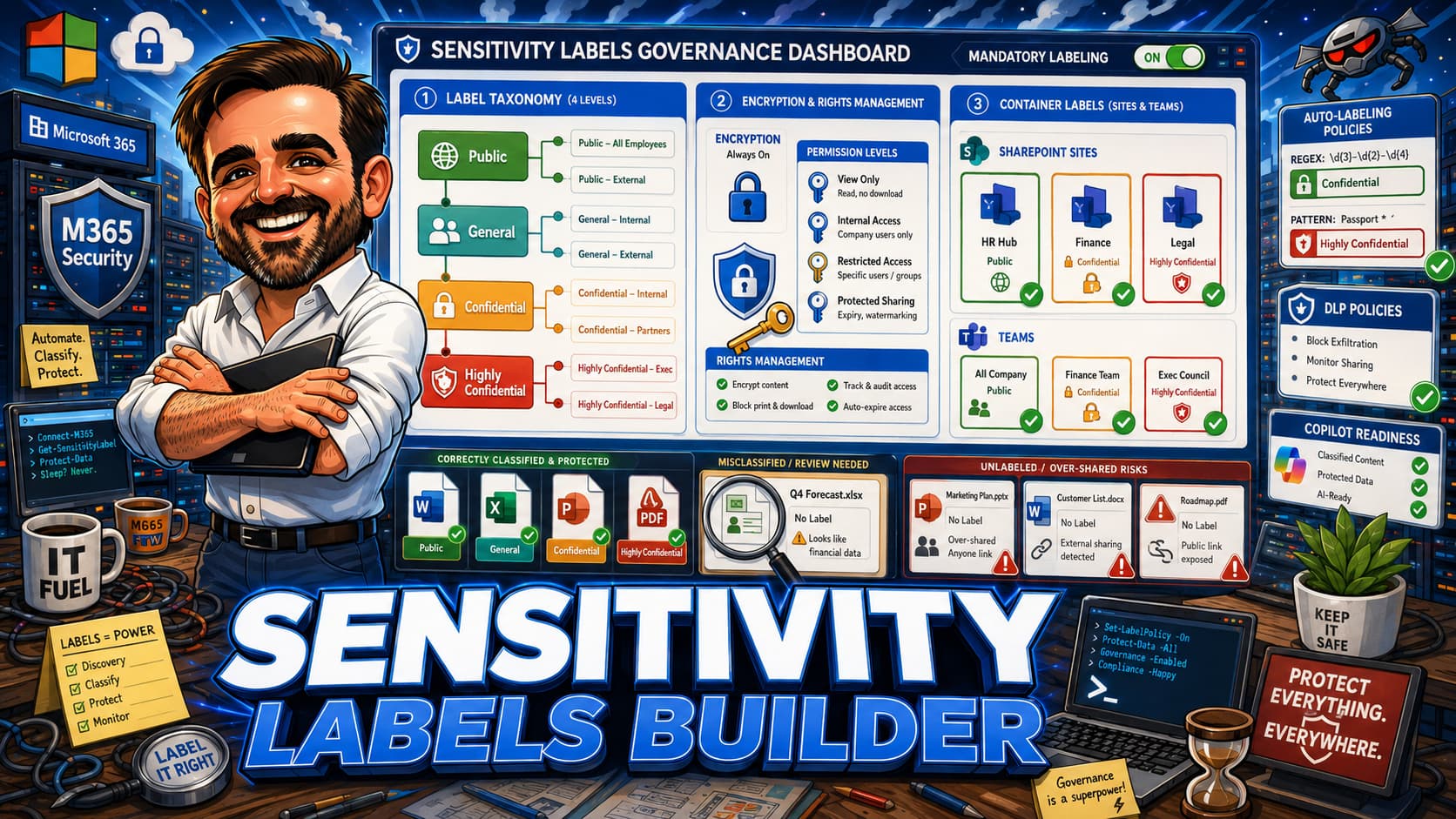
Sensitivity labels are not just visual markings. They are a governance model for classification, protection, containers, access and data handling. A good label taxonomy is simple enough for users to understand and powerful enough to enforce protection automatically. This interactive guide helps Microsoft 365 admins, security teams and compliance officers design a sensitivity label strategy that covers files, emails, containers, auto-labeling, encryption, DLP integration and Copilot readiness.
- Interactive sensitivity labels decision builder with 10 inputs and scoring across 6 pillars
- Recommended label taxonomy baselines with sub-labels for enterprise deployments
- File and email label configuration including encryption and rights management
- Container labels for SharePoint sites, Teams and Microsoft 365 Groups
- Auto-labeling policies: service-side, client-side, SIT-based and trainable classifiers
- Default and mandatory labeling configuration and adoption considerations
- DLP and sensitivity labels integration for label-based policy enforcement
- Copilot and sensitivity labels: inheritance, gaps and oversharing risk
- Rollout phases, common mistakes and field-tested recommendations
- Keep the taxonomy simple: 4 to 6 parent labels that users can remember without a reference card.
- Confidential and above should have enforceable controls, but not every confidential scenario needs encryption. Depending on the business need, enforcement can come from encryption, DLP, restricted sharing, access controls, or a combination of these.
- Container labels and file labels serve different purposes. A container label does not encrypt files inside it.
- Before enabling Copilot broadly, review permissions, reduce oversharing, deploy sensitivity labels for sensitive content, and validate label inheritance. Copilot respects existing access, but it can make overshared and unlabelled content much easier to discover and reuse.
- Start with defaults and recommendations, then move to mandatory labeling only after users are trained.
Table of contents
- Introduction
- Important sensitivity labels disclaimer
- What this guide helps you decide
- Before you start
- Licensing and prerequisites
- Sensitivity labels decision framework
- Interactive sensitivity labels decision builder
- Recommended label taxonomy baselines
- File and email sensitivity labels
- Container labels for sites, teams and groups
- Auto-labeling policies
- Default and mandatory labeling
- Encryption and rights management
- DLP and sensitivity labels integration
- Copilot and sensitivity labels
- User adoption and training
- Rollout order
- Common mistakes
- Field notes
- What to fix first
- Recommended first 3 actions
- What good looks like
- Save as PDF
- Microsoft references
- Related content
Introduction
Most organisations approach sensitivity labels as a compliance checkbox. They create a handful of labels, publish them to users, and hope that people will manually classify documents correctly. The result is predictable: users either ignore labels entirely, select the wrong ones, or default to the lowest classification because it requires the least effort. Over time the labels become meaningless metadata that adds friction without delivering protection.
The opposite extreme is equally problematic. Some organisations design a taxonomy with dozens of labels, multiple levels of sub-labels, complex encryption rules and rigid mandatory labeling policies. Users become confused, productivity drops, and the help desk is overwhelmed with requests to decrypt files that were labelled incorrectly.
The goal is a label taxonomy that users understand intuitively and that enforces the right protection automatically, without requiring every user to be a security expert.
Sensitivity labels in Microsoft Purview are not just visual headers or footers on documents. They are a classification framework that can enforce encryption, restrict access, control container settings, trigger DLP policies, guide auto-labeling and interact with Copilot for Microsoft 365. Each of these capabilities requires deliberate design decisions. A label that encrypts content for internal users will block external collaboration unless you plan for it. A container label can enforce or limit container-level settings such as privacy, guest access and external sharing, depending on the supported workload and configured label options. An auto-labeling policy that applies labels without user training will generate confusion and resistance.
This guide provides a structured approach to designing your sensitivity label strategy. It covers the full scope: label taxonomy, file labels, container labels, encryption, auto-labeling, DLP integration, Copilot readiness and user adoption. The interactive builder helps you evaluate your specific requirements and produces tailored recommendations.
Important sensitivity labels disclaimer
Key points to keep in mind:
- Sensitivity label capabilities depend on licensing. Microsoft Purview Information Protection requires Microsoft 365 E3/E5, and advanced features like auto-labeling and trainable classifiers require E5 or E5 Compliance add-ons. Validate your licence assignments before building policies.
- Microsoft updates sensitivity label capabilities regularly. The Purview compliance portal evolves and features move between preview and general availability. Verify current capabilities before deploying changes.
- Labels interact across multiple layers: file protection, container settings, DLP policies, Conditional Access and Copilot. Changing one layer without understanding the others can create gaps or break legitimate workflows.
- Sensitivity labels are one component of a broader information protection strategy that includes DLP, information barriers, data lifecycle management and insider risk management.
- Always test label changes with a pilot group of users before tenant-wide deployment. A misconfigured encryption policy can lock users out of their own files immediately.
What this guide helps you decide
This guide helps you answer specific questions that arise when designing a sensitivity label strategy:
- How many labels should I create and what taxonomy structure should I use?
- When should a label apply encryption and when should it only apply visual markings?
- Which labels need container-level controls for SharePoint sites, Teams and Groups?
- Should I enable auto-labeling, and if so, should it recommend or auto-apply?
- When should I enable default labels and mandatory labeling, and for which apps?
- How should encryption and rights management be configured for each classification level?
- How do DLP policies reference sensitivity labels for enforcement?
- What is the relationship between Copilot for Microsoft 365 and sensitivity labels?
- What rollout order avoids user confusion and help desk overload?
- What training approach drives adoption without creating resistance?
Before you start
Before designing your sensitivity label strategy, confirm that you have visibility into your current classification state and protection requirements. Many tenants discover that they already have labels deployed inconsistently or have legacy Azure Information Protection (AIP) labels that need migration.
Pre-flight checklist
- Audit existing sensitivity labels in the Microsoft Purview compliance portal and confirm which are published
- Check for legacy Azure Information Protection labels and plan migration to unified labeling
- Review current label usage reports in Purview to identify which labels users actually apply
- Document data classification requirements from legal, compliance and security stakeholders
- Inventory content types that need protection: documents, emails, sites, Teams, meetings, schematized data
- Confirm licensing: Microsoft 365 E3/E5, E5 Compliance, AIP P1/P2 availability per user
- Identify sensitive information types (SITs) and trainable classifiers already configured
- Review existing DLP policies and how they reference or could reference sensitivity labels
- Check whether Copilot for Microsoft 365 is deployed or planned and assess label readiness
- Document regulatory requirements that mandate specific classification levels (GDPR, HIPAA, financial regulations)
- Confirm that the Microsoft Purview Information Protection scanner is available for on-premises content
- Identify key user groups for pilot deployment and training
Licensing and prerequisites
Sensitivity label capabilities vary significantly by licence tier. Understanding what is available at each level prevents designing a strategy that requires features your organisation has not licensed.
| Capability | Typical licensing position | Notes |
|---|---|---|
| Manual sensitivity labels (files and emails) | Included in most Microsoft 365 plans (E3, E5, Business Premium) | Also available with standalone AIP P1. Core labeling is broadly available. |
| Visual markings (headers, footers, watermarks) | Included with manual labeling | Available wherever manual labels are supported. |
| Encryption (Rights Management) | Included in E3 and above | Also available via AIP P1. Some advanced encryption scenarios (BYOK, DKE) may have additional requirements. |
| Container labels (sites, Teams, Groups) | Included in E3 and above | Requires Entra ID P1 (included in E3). Not available with standalone AIP licences. |
| Default and mandatory labeling | Included in most plans that support manual labels | Policy configuration in Purview compliance portal. Broadly available. |
| Client-side auto-labeling (recommend) | Typically requires E5, E5 Compliance or AIP P2 | This is the most common licensing gap. Many organisations design auto-labeling policies they cannot deploy on E3 alone. |
| Service-side auto-labeling (auto-apply) | Typically requires E5, E5 Compliance or AIP P2 | Runs as a background process in SharePoint, OneDrive and Exchange. Essential for retroactive classification. |
| Trainable classifiers | Typically requires E5 or E5 Compliance | Machine learning models for unstructured content classification. Requires training data and tuning. |
| Exact data match (EDM) | Typically requires E5 or E5 Compliance | Pattern-based detection using your own sensitive data tables. Not available with standalone AIP. |
| Information Protection scanner | Requires AIP P1 (included in E3) for discovery; AIP P2 (included in E5) for auto-labeling | On-premises and file share scanning. Licensing depends on the scanner mode (discovery vs enforcement). |
| DLP with label conditions | Basic DLP in E3; full DLP capabilities in E5 | E3 DLP covers core Exchange, SharePoint and OneDrive scenarios. E5 adds broader advanced DLP capabilities such as endpoint DLP, Teams DLP and advanced conditions. |
| Copilot sensitivity label inheritance | Requires Copilot for Microsoft 365 licence (add-on) | Label inheritance works when supported. Validate supported apps and encryption configurations. |
Sensitivity labels decision framework
This framework outlines the core label capabilities, their protection scope, and when to use each one. Understanding these distinctions prevents the common mistake of conflating visual marking with actual data protection.
| Label type | What it does | Protection scope | When to use | Common mistake |
|---|---|---|---|---|
| Visual marking only | Applies headers, footers and watermarks to documents and emails | Visual awareness only, no technical enforcement | General or Internal classification where awareness is sufficient | Assuming visual markings prevent data leakage. They do not enforce anything. |
| Encryption (RMS) | Encrypts content and restricts access to authorised users or groups | File and email content protection, persistent across locations | Confidential and Highly Confidential content that must remain protected even if the file leaves the organisation | Encrypting everything. Over-encryption breaks collaboration, search and some third-party integrations. |
| Container label | Controls privacy, guest access and sharing settings for SharePoint sites, Teams and Microsoft 365 Groups | Container-level governance, not individual file protection | When you need to control who can access a site or team and what sharing is allowed at the container level | Assuming a container label encrypts files inside the container. It does not. Files need their own labels for content protection. |
| Auto-labeling (client-side) | Recommends a label to the user in Office apps when sensitive content is detected | Files and emails in Office desktop and web apps | When you want to guide users without forcing classification, especially during initial rollout | Setting recommendations without training users to understand what they mean. Users dismiss recommendations they do not understand. |
| Auto-labeling (service-side) | Automatically applies labels to content at rest in SharePoint, OneDrive and Exchange without user interaction | Content already stored in cloud services | When you need to classify existing content in bulk or enforce labeling on content that users missed | Running service-side auto-labeling without simulation mode first. False positives can encrypt or restrict content at scale. |
| Default label | Automatically applies a specified label to new documents, emails or meetings when no label is selected | New content in Office apps | When you want to ensure that all new content starts with a baseline classification | Setting the default label too high. Users will downgrade constantly, which creates audit noise and fatigue. |
| Mandatory labeling | Requires users to apply a label before saving or sending | Office apps for Windows, Mac, web and mobile | When every piece of content must be classified and you have trained users on the taxonomy | Enabling mandatory labeling before users understand the labels. This creates frustration and incorrect labeling. |
| DLP trigger label | DLP policies use the sensitivity label as a condition to block sharing, printing or copying | Data loss prevention enforcement across services | When labels should drive policy enforcement beyond what encryption alone provides | Creating DLP rules that reference labels without testing. False matches on mislabelled content can block legitimate work. |
| Copilot interaction | When supported, Copilot-generated content can inherit the highest-priority sensitivity label from the labelled source content it references | Copilot-generated content across Microsoft 365 | When Copilot is deployed and you need to ensure generated content respects the classification of source material | Deploying Copilot without labels. Copilot can surface and combine content from multiple sensitivity levels into unclassified output. |
Interactive Sensitivity Labels Decision Builder
Use this builder to assess the governance maturity of your sensitivity label configuration. Select your parameters across all 10 inputs and the builder will calculate a governance score across 6 pillars, then provide specific recommendations for label design, protection, automation and adoption.
Sensitivity Labels Governance Assessment
This builder is a design aid. It does not replace validation in the Microsoft Purview compliance portal or Microsoft documentation.
Recommended label taxonomy baselines
A good label taxonomy balances comprehensiveness with simplicity. Too few labels and you cannot differentiate protection levels. Too many labels and users cannot choose correctly. The following baseline covers most enterprise scenarios with 5 parent labels and targeted sub-labels.
| Label name | Scope | Protection | Encryption | Container controls | Notes |
|---|---|---|---|---|---|
| General | Files, emails | Visual marking only | None | N/A | Default label for new documents. No restrictions. Suitable for public-facing or non-sensitive content. |
| Internal | Files, emails, containers | Visual marking, header/footer | None | Private group, no guest access | Standard business content. Not for external sharing. Good default label candidate for most organisations. |
| Internal / Anyone (no protection) | Files, emails | Visual marking only | None | N/A | Sub-label for internal content that requires no additional controls beyond classification awareness. |
| Confidential | Files, emails, containers | Visual marking, encryption | Encrypt for all employees | Private group, guest access restricted | Business-sensitive content. Restricted to organisation members. External sharing requires justification. |
| Confidential / All Employees | Files, emails | Encryption | Encrypt for all employees | N/A | Sub-label for confidential content accessible to all internal users. |
| Confidential / Specific People | Files, emails | Encryption with custom permissions | User-defined recipients | N/A | Sub-label for confidential content restricted to named individuals. User chooses recipients. |
| Highly Confidential | Files, emails, containers | Visual marking, encryption, rights restrictions | Full RMS, no forwarding | Private, no guests, restricted sharing | Board materials, M&A documents, executive communications. Maximum protection. |
| Highly Confidential / All Employees | Files, emails | Encryption, no copy/print | Full RMS for all employees | N/A | Sub-label for highly confidential content accessible to all internal users with restricted rights. |
| Highly Confidential / Specific People | Files, emails | Encryption with custom permissions, no copy/print/forward | User-defined recipients, maximum restrictions | N/A | Sub-label for highly confidential content restricted to named individuals with full rights management. |
| Regulated | Files, emails, containers | Visual marking, encryption, full RMS, DLP enforced | Full RMS, regulatory compliance encryption | Private, no guests, no external sharing | GDPR personal data, HIPAA health data, financial records. Driven by regulatory compliance requirements. |
File and email sensitivity labels
File and email labels are the most visible part of a sensitivity label strategy. They apply directly to documents, spreadsheets, presentations and email messages. When configured correctly, they provide both user awareness (through visual markings) and data protection (through encryption and rights management).
Visual markings
Visual markings include headers, footers and watermarks that appear in the document or email body. They serve as a visual reminder of the content classification but provide no technical enforcement. A user can screenshot a watermarked document or copy text from a file with a header. Visual markings are awareness tools, not protection tools.
- Configure headers and footers for all labels from Internal and above
- Use watermarks selectively for Highly Confidential and Regulated content only
- Keep marking text short and clear: the label name and optionally the company name
- Avoid cluttering documents with excessive marking text that reduces readability
Encryption and rights management
Encryption is the primary enforcement mechanism for file and email labels. When a label applies encryption, the content is protected using Azure Rights Management (RMS). Only authorised users can open the file, and you can control what they can do with it: view, edit, copy, print, forward or export.
- Encrypt for all employees: All users in the organisation can open and use the content. External recipients cannot. This is the most common configuration for Confidential labels.
- Encrypt for specific recipients: The user selects specific people or groups who can access the content. Useful for Confidential / Specific People sub-labels.
- Do Not Forward: For emails, prevents recipients from forwarding, printing or copying. The email and Office attachments are encrypted. Non-Office attachments (PDFs, images, ZIP files) do not inherit Do Not Forward restrictions by default and may need separate protection.
- Full RMS with restrictions: Applies encryption with granular rights (view only, no copy, no print, no screenshot). Used for Highly Confidential and Regulated content.
Container labels for sites, teams and groups
Container labels control the governance settings of SharePoint sites, Microsoft Teams and Microsoft 365 Groups. They do not protect individual files. A container label sets the boundary conditions for the container: who can be a member, whether guests are allowed, what sharing options are available and what privacy setting applies.
What container labels control
- Privacy setting: Public (anyone in the organisation can join) or Private (membership by invitation only)
- Guest access: Whether external guests can be added as members of the group or team
- External sharing: The maximum sharing level allowed for the associated SharePoint site
- Unmanaged device access: Whether content can be accessed from devices not managed by Intune or Conditional Access
- Authentication context: Links to Conditional Access policies that enforce specific access requirements
Container vs file labels
A common source of confusion is the relationship between container labels and file labels. They serve different purposes and operate at different levels:
- A container label on a SharePoint site does not encrypt files inside the site
- Files inside a labelled container still need their own file labels for content protection
- The container label controls who can access the container; the file label controls what they can do with individual files
- Default labels can be configured to automatically apply a file label to content created inside a labelled container
Auto-labeling policies
Auto-labeling reduces the reliance on users to manually classify content correctly. There are two types of auto-labeling, and they work differently.
Client-side auto-labeling (recommend)
Client-side auto-labeling runs in Office desktop and web apps. When a user creates or edits a document or email and the content matches a sensitive information type (SIT) or trainable classifier pattern, Office recommends a label to the user. The user can accept or dismiss the recommendation.
- Requires Microsoft 365 E5 or E5 Compliance
- Provides a learning opportunity for users to understand why content is sensitive
- User retains control over the final label decision
- Recommendation appears as an information bar in the Office app
- Best used during initial rollout to build user awareness before moving to auto-apply
Service-side auto-labeling (auto-apply)
Service-side auto-labeling runs as a background process in SharePoint, OneDrive and Exchange. It scans content at rest and applies labels automatically without user interaction. This is essential for classifying existing content that was created before labels were deployed.
- Requires Microsoft 365 E5 or E5 Compliance
- Runs in simulation mode first to preview what would be labelled before committing
- Can apply labels to content at rest across all locations
- Does not require the user to have the file open
- Auto-labeling behaviour depends on policy configuration, label priority and existing labels. Do not assume auto-labeling will replace manually applied labels. Validate behaviour in simulation mode before enforcement.
- Critical for retroactive classification of existing content libraries
SIT-based vs trainable classifiers
- Sensitive information types (SITs): Pattern-based detection (regex, keywords, checksums). Good for structured data like credit card numbers, national IDs, bank account numbers. High precision, limited to known patterns.
- Trainable classifiers: Machine learning models trained on sample content. Good for unstructured data like legal documents, financial statements, resumes. Requires training data and tuning. Higher false positive rate than SITs.
Default and mandatory labeling
Default labeling and mandatory labeling are two related but distinct capabilities that ensure content is classified.
Default labeling
Default labeling automatically applies a specified label to new documents, emails or meetings when the user does not select a label manually. The label is applied when the file is created, not when it is saved or sent.
- Set the default label to the lowest appropriate classification (typically "General" or "Internal")
- Users can change the default label to a higher or lower classification
- If the default label applies encryption, all new documents will be encrypted by default, which may be disruptive
- Configure separate default labels for documents, emails and meetings if appropriate
- Default labels interact with auto-labeling: if auto-labeling recommends a higher label, the recommendation overrides the default
Mandatory labeling
Mandatory labeling requires users to apply a label before saving a document or sending an email. Users cannot save or send without selecting a label. Behaviour can vary by app, platform and label policy configuration, so validate the user experience across Office desktop, web and mobile before broad rollout.
- Only enable mandatory labeling after users have been trained on the label taxonomy
- Combine with default labeling to reduce friction: the default label satisfies the requirement, and users only need to change it if the content requires a different classification
- Mandatory labeling without training creates frustration and drives users to always select the default or lowest label
- Consider phasing: start with default labels, then add recommendations, then enable mandatory labeling
Encryption and rights management
Encryption is the most powerful and most disruptive capability in sensitivity labels. When configured correctly, it ensures that protected content remains protected regardless of where the file travels. When misconfigured, it locks users out of their own files and breaks collaboration workflows.
Encryption models
- Admin-defined encryption: The label configuration specifies who can access the content and what rights they have. Users cannot change permissions. Used for Confidential and Highly Confidential labels where consistent enforcement is required.
- User-defined encryption: The label prompts the user to specify recipients and permissions when the label is applied. Used for "Specific People" sub-labels where the author knows who should have access.
- Do Not Forward: Applied to emails. Prevents recipients from forwarding the email or copying its content. Office attachments inherit the restriction. Used for sensitive communications.
- Encrypt-Only: Encrypts content without additional rights restrictions. Recipients can open, edit and save but the content remains encrypted. Useful when encryption is required but full rights management is too restrictive.
Rights management permissions
| Permission | What it allows | Typical use |
|---|---|---|
| View | Open and read the file | Read-only access for reviewers |
| Edit | Modify content, save changes | Collaborative editing for authorised users |
| Copy | Copy content to clipboard | Typically disabled for Highly Confidential |
| Print the file | Typically disabled for Highly Confidential | |
| Export | Save as, export to other formats | Disabled for maximum protection labels |
| Forward | Forward emails to other recipients | Disabled with Do Not Forward |
| Full Control | All rights including ability to change permissions | Content owners and administrators only |
DLP and sensitivity labels integration
Data Loss Prevention (DLP) and sensitivity labels are complementary. Labels classify content; DLP policies enforce rules based on that classification. Together they create a layered protection model where the label identifies what the content is and DLP controls what can be done with it.
Label-based DLP rules
- Block external sharing: A DLP rule can block sharing of files labelled "Highly Confidential" with anyone outside the organisation, regardless of site-level sharing settings.
- Block upload to unmanaged apps: DLP can prevent users from uploading labelled content to consumer cloud storage or unmanaged SaaS applications.
- Require justification: DLP can require users to provide a business justification before sharing content with a specific label externally.
- Policy tips: DLP can show inline policy tips in Office apps when users attempt to share or distribute labelled content in ways that violate policy.
- Block printing and copying: Endpoint DLP can prevent users from printing or copying content from files with specific labels on managed devices.
DLP and label alignment design
When designing DLP rules that reference sensitivity labels, follow these principles:
- Start with labels that drive the most critical DLP actions (Highly Confidential, Regulated)
- Use policy tips before enforcement. Let users learn what is blocked and why before turning on hard blocks.
- Test DLP rules with audit mode first. Monitor matches and false positives before switching to block mode.
- Ensure that label-based DLP rules complement (not duplicate) SIT-based DLP rules
- Document the relationship between each label and its associated DLP policies for operations teams
Copilot and sensitivity labels
Copilot for Microsoft 365 introduces a new dimension to sensitivity label strategy. Copilot can access and reason over content from across a user's mailbox, OneDrive, SharePoint sites and Teams. When Copilot generates a response, it can combine content from multiple sources with different sensitivity levels.
How Copilot respects labels
- When supported, Copilot-generated content can inherit the highest-priority sensitivity label from the labelled source content it references
- When supported, if Copilot references a "Confidential" document and a "General" document, the generated output can inherit the higher-priority "Confidential" label
- Label inheritance depends on labelled source content and supported Copilot scenarios. If source content is unlabelled, Copilot has no source sensitivity label to inherit, so generated output may remain unlabelled unless another policy or user action applies a label
- Copilot respects RMS encryption: it cannot access files that the user does not have rights to open
- Container-level labels do not restrict Copilot access if the user has permission to the underlying content
Gaps and risks
- Unlabelled content: If most content is unlabelled, Copilot generates unlabelled output from potentially sensitive sources. This is the primary oversharing risk.
- Label sprawl: Copilot surfaces content from many locations. Inconsistent labeling across different sites and libraries means inconsistent protection on Copilot output.
- Oversharing amplification: Copilot can access any content the user has permissions to view. If permissions are too broad (everyone can access everything), Copilot amplifies the oversharing by combining and presenting content that users would never have found manually.
- Meeting and chat content: Copilot in Teams can reference meeting transcripts and chat messages. Labels on meetings and chats are newer and less mature than file labels.
User adoption and training
The most technically sound label taxonomy fails if users do not understand it or resist using it. Adoption planning is as important as technical design.
Change management principles
- Explain the "why" before the "how": Users need to understand why classification matters before learning how to apply labels. Lead with business context, not technical features.
- Keep the taxonomy simple: If users cannot remember the labels without a reference card, the taxonomy is too complex. Aim for 4 to 6 parent labels maximum.
- Provide clear examples: For each label, provide 3 to 5 concrete examples of content that belongs at that classification level. Use examples relevant to each department.
- Start with recommended, not mandatory: Use default labels and auto-labeling recommendations before requiring mandatory labeling. This gives users time to learn.
- Identify champions: Recruit label champions in each department who can answer questions and model correct usage. Train champions first and deeply.
- Measure and report: Use Purview label activity reports to track adoption. Share progress with leadership and teams. Celebrate milestones.
Training topics
- What sensitivity labels are and why they matter for the organisation
- How to identify the correct label for different types of content
- What happens when you apply each label (visual markings, encryption, restrictions)
- How to change or upgrade a label and when justification is required
- What to do when you receive a labelled file from an external party
- How auto-labeling recommendations work and how to respond to them
- How to request access to content protected by a label you do not have rights to
Rollout order
A phased rollout reduces risk and allows you to learn from each phase before expanding. The following sequence is field-tested across enterprise deployments.
- Phase 1: Audit and discovery Audit existing labels, AIP migration status, content types and regulatory requirements. Produce a classification requirements document.
- Phase 2: Taxonomy design Design the label taxonomy with stakeholder input. Define parent labels, sub-labels, protection settings and container settings. Get sign-off from security, legal and compliance.
- Phase 3: Pilot deployment (labels only) Publish labels to a pilot group of 50 to 200 users. Enable default labeling set to "General" or "Internal". No mandatory labeling. No auto-labeling. Gather feedback.
- Phase 4: Container labels Deploy container labels to pilot SharePoint sites and Teams. Configure privacy, guest access and sharing controls. Validate that container settings work as expected.
- Phase 5: Encryption labels Enable encryption on Confidential and Highly Confidential labels for the pilot group. Test co-authoring, external sharing, search and third-party application compatibility.
- Phase 6: Auto-labeling recommendations Enable client-side auto-labeling in recommend mode for the pilot group. Configure SIT-based and trainable classifier policies. Monitor recommendation acceptance rates.
- Phase 7: Tenant-wide label deployment Publish labels to all users. Enable default labeling tenant-wide. Begin user training across all departments. Deploy training materials and champion network.
- Phase 8: Mandatory labeling Enable mandatory labeling for documents and emails tenant-wide. Monitor help desk tickets and label usage reports. Adjust training based on common errors.
- Phase 9: Service-side auto-labeling Run service-side auto-labeling in simulation mode for existing content. Review matches, tune policies, then enable auto-apply for content at rest.
- Phase 10: DLP integration and Copilot readiness Deploy DLP rules that reference sensitivity labels. Validate Copilot label inheritance. Enable Copilot for Microsoft 365 with confidence that label coverage is sufficient.
Common mistakes
- Too many labels. Creating 15 or more labels and sub-labels. Users cannot distinguish between them and select randomly. Keep parent labels to 4 to 6.
- Visual marking without protection. Deploying labels that only add headers and footers without encryption or DLP enforcement. Users see the marking as bureaucratic overhead with no security benefit.
- Encrypting everything. Applying encryption to all labels including General. This breaks search, collaboration, third-party integrations and user productivity. Encrypt only what needs encryption.
- Mandatory labeling before training. Forcing users to label content before they understand the taxonomy. Users select the lowest label for everything, making the classification meaningless.
- No default label. Expecting users to actively select a label for every new document. Without defaults, most content remains unlabelled.
- Ignoring container labels. Deploying file labels without container labels. Container governance controls who can access the site or team. File labels alone do not control container-level access.
- Confusing container and file protection. Assuming that a container label encrypts files inside the container. It does not. Files need their own labels.
- Auto-labeling without simulation. Running service-side auto-labeling without simulation mode. Incorrect SIT patterns can label or encrypt thousands of files, locking users out.
- No justification for downgrade. Allowing users to lower a label without providing justification. This makes it trivial to remove protection from sensitive content.
- Deploying Copilot without labels. Do not assume label inheritance covers every Copilot scenario. Validate supported apps, label publication, encryption configuration and user permissions.
- No DLP alignment. Publishing labels without corresponding DLP policies. Labels classify content but do not prevent data loss without DLP enforcement.
- Skipping the pilot. Publishing labels to all users at once without pilot validation. Issues that affect 200 pilot users become crises that affect 20,000 users.
- Inconsistent label names. Using different names for file labels and container labels at the same classification level. "Confidential" for files and "Restricted" for sites confuses users.
- No monitoring. Publishing labels without reviewing usage reports. You cannot improve what you do not measure. Label activity reports in Purview are essential for ongoing governance.
- Ignoring mobile and web apps. Testing labels only in Office desktop apps. Labels must work consistently in Office for the web, mobile apps and third-party clients.
- No exception process. Deploying encryption without a documented process for requesting access when users are blocked. Users will find workarounds, and those workarounds will bypass your protection.
Field notes
The 4-label starting point
In a 12,000-user financial services tenant, we started with four parent labels: General, Internal, Confidential, Highly Confidential. After six months of usage data, we added two sub-labels under Confidential. The initial simplicity drove adoption above 85% within the first quarter.
Auto-labeling false positives
A healthcare organisation enabled service-side auto-labeling for patient IDs without simulation. The SIT pattern matched employee badge numbers in HR documents. Over 4,000 HR files were encrypted as "Regulated" before the issue was detected. Recovery took two weeks.
Copilot and unlabelled content
A technology company deployed Copilot before labels. Within the first week, a Copilot response in a Team channel combined content from a confidential M&A document with a general project update. The M&A information was visible to 400 team members. Labels were deployed within 48 hours.
Container labels saved the day
An engineering team created a SharePoint site for a joint venture with an external partner. Without a container label, the site inherited the tenant default sharing settings, allowing anyone links. A container label restricting the site to specific people sharing and no guest access prevented document exposure to unintended recipients.
Mandatory labeling backlash
A government agency enabled mandatory labeling on day one without training. Help desk tickets increased by 300% in the first week. Users labelled everything as "Unclassified" to bypass the requirement. The policy was rolled back, training was delivered, and mandatory labeling was re-enabled three months later with 90% correct classification.
DLP and labels together
A retail organisation deployed DLP rules referencing the "Confidential" label to block external sharing of customer data. Before labels, DLP relied on SIT patterns alone and generated excessive false positives. Adding the label condition reduced false positives by 60% while maintaining the same protection level.
Encryption key management lesson
An organisation lost access to Azure RMS encryption keys during a tenant migration. All files labelled with encryption were inaccessible for 72 hours until super user access was configured and key recovery completed. Document your key management and super user configuration before deploying encryption labels.
The champion network effect
A manufacturing company trained 30 label champions across 10 departments before tenant-wide deployment. Champions handled 70% of user questions without help desk tickets. Departments with active champions showed 40% higher correct labeling rates than departments without champions.
What to fix first
If you already have sensitivity labels deployed, prioritise these fixes based on impact and risk.
| Priority | Issue | Impact if not fixed | Fix |
|---|---|---|---|
| 1 | Highly confidential content has no encryption | Content classified as highly confidential is not actually protected. Labels provide false confidence. | Add encryption to Highly Confidential labels. Test with pilot group first. Communicate the change to affected users. |
| 2 | No default label configured | New content is created without any classification. Large volumes of unlabelled content accumulate over time. | Configure a default label (General or Internal) for documents and emails. This is low risk and high impact. |
| 3 | Container labels not deployed | SharePoint sites and Teams have no governance controls at the container level. Guest access and sharing are uncontrolled. | Deploy container labels aligned with your file label taxonomy. Start with Confidential and Highly Confidential containers. |
| 4 | Copilot deployed without labels | Copilot generates unlabelled output from sensitive sources. Oversharing risk is amplified across the organisation. | Accelerate label deployment. At minimum, label the most sensitive content before Copilot access is expanded. |
| 5 | No DLP rules reference labels | Labels classify content but nothing prevents labelled content from being shared, copied or exfiltrated. | Create DLP policies that use label conditions for Confidential and above. Start with audit mode. |
| 6 | No label usage monitoring | You cannot identify whether labels are being used correctly, whether training is needed or whether policies are effective. | Enable and review Purview label activity reports. Set up a monthly review cadence with security and compliance teams. |
Recommended first 3 actions
If you are starting from scratch or need to reset your label strategy, begin with these three actions.
| Action | What to do | Expected outcome |
|---|---|---|
| 1. Design and publish a simple taxonomy | Create 4 to 5 parent labels (General, Internal, Confidential, Highly Confidential, optionally Regulated). Publish to a pilot group. Enable a default label of "General" or "Internal". No encryption, no mandatory labeling yet. | Users begin classifying content. You gather usage data and feedback without disruption. |
| 2. Deploy container labels for sensitive sites | Create container labels for Confidential and Highly Confidential sites and Teams. Configure privacy, guest access and sharing restrictions. Apply to existing sensitive sites. | Sensitive SharePoint sites and Teams have governance controls at the container level. Guest access and sharing are controlled. |
| 3. Enable auto-labeling recommendations | Configure client-side auto-labeling policies for 2 to 3 high-priority SITs (e.g., credit card numbers, national IDs). Set to recommend mode only. Monitor acceptance rates for two weeks. | Users receive guidance for sensitive content. You validate SIT accuracy and build user awareness before moving to auto-apply. |
What good looks like
Use this checklist to assess whether your sensitivity label deployment meets enterprise standards.
- Label taxonomy has 4 to 6 parent labels with clear, non-overlapping definitions
- A default label is configured and applied to all new documents and emails
- Mandatory labeling is enabled and users can select the correct label without confusion
- Confidential and Highly Confidential labels apply encryption with appropriate rights restrictions
- Container labels are deployed for SharePoint sites, Teams and Groups that contain sensitive content
- Auto-labeling policies are configured for high-priority sensitive information types and running in production
- DLP policies reference sensitivity labels for enforcement on Confidential content and above
- Copilot label inheritance has been validated in supported apps and unlabelled content has been remediated
- Label usage reports are reviewed monthly and adoption rates exceed 80% across the organisation
- A champion network exists in each department to support users with label-related questions
- Downgrade justification is enabled and downgrade events are reviewed by security
- An exception process is documented for users who need access to encrypted content they cannot currently open
Save as PDF
Use your browser's print function (Ctrl+P or Cmd+P) to save this guide as a PDF. The print stylesheet removes navigation elements, interactive controls and sidebars to produce a clean document suitable for offline reference or stakeholder distribution.
Microsoft references
Official documentation
- Learn about sensitivity labels - Microsoft Purview
- Manage sensitivity labels in Office apps - Microsoft Purview
- Use sensitivity labels with Microsoft Teams, Microsoft 365 Groups and SharePoint sites
- Automatically apply a sensitivity label - Microsoft Purview
- Restrict access to content by using sensitivity labels to apply encryption
- Use sensitivity labels as conditions in DLP policies
- Data, privacy and security for Microsoft 365 Copilot
- Default labels and mandatory labeling - Microsoft Purview
- Microsoft Purview Information Protection overview
- What is Azure Information Protection?
Related content
Microsoft 365 DLP Policy Builder 2026
Design and validate DLP policies across Exchange, SharePoint, OneDrive, Teams and endpoints with an interactive builder.
SharePoint External Sharing Policy Builder 2026
Build a coherent external sharing policy that balances collaboration with data protection across tenant and site levels.
Copilot Readiness Scorecard 2026
Assess your organisation's readiness for Copilot for Microsoft 365 across identity, permissions, labels and governance.
Microsoft 365 Tenant Health Scorecard 2026
Evaluate your tenant's security, compliance and governance posture with a comprehensive scoring framework.
Microsoft 365 Licensing Decision Builder 2026
Navigate the Microsoft 365 licensing landscape and identify the right licence mix for your organisation's requirements.
Zero Trust Security Blueprint for Microsoft 365 2026
Implement Zero Trust principles across identity, devices, applications and data in your Microsoft 365 environment.
SharePoint Oversharing Remediation for Copilot 2026
Identify and remediate oversharing in SharePoint before Copilot amplifies access to sensitive content.
This guide is part of the Security and Compliance series at tiagoscarvalho.com