Microsoft 365 Tenant Health Scorecard: 40 Practical Checks for Security and Governance
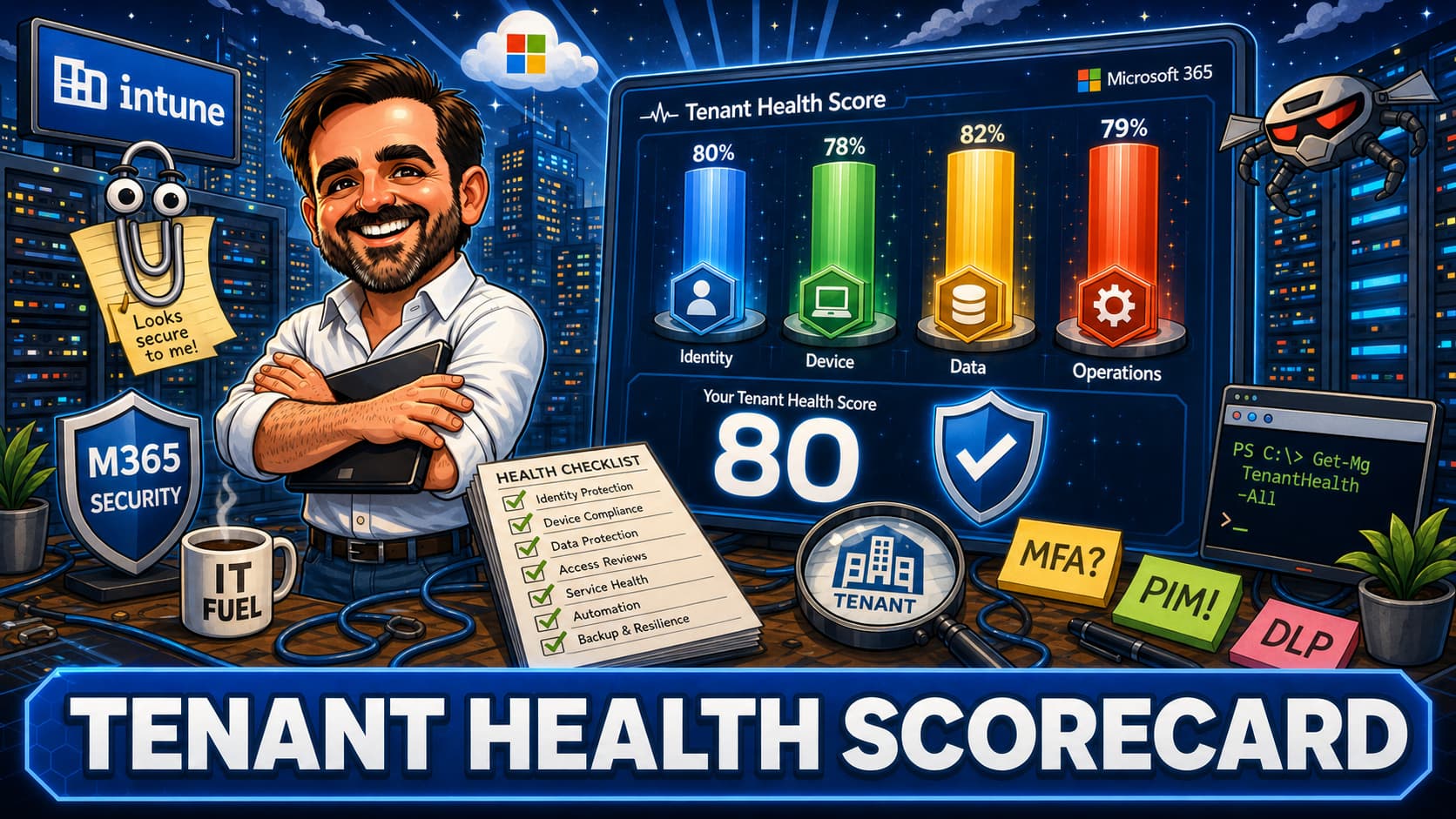
Score your Microsoft 365 tenant across 40 checkpoints in four pillars: identity, device, data protection, and operations. Interactive assessment based on real tenant reviews — not Secure Score.
📅 4 May 2026⏱ 21 min read·10 min interactive·Security & Compliance·Assessment
This scorecard is based on the type of checks I use when reviewing Microsoft 365 tenants in real environments. It is not a replacement for Microsoft Secure Score. Secure Score measures what can be detected automatically. This assessment looks at operational practices, design decisions, and governance gaps that often require human review. Score your tenant across four pillars and use the result to decide what to improve first.
Key Takeaways
🎯
"This is not Secure Score." Microsoft Secure Score tracks what it can detect automatically. This scorecard covers the operational, design, and governance checks that only a human assessment catches.
📊
"40 checkpoints across four pillars." Identity & Access, Device & Endpoint, Data Protection, and Operations & Monitoring. Each scored 0–2. Maximum score: 80.
⚠️
"In my experience, many well-managed SMBs land somewhere between 50 and 64." That is a practical benchmark, not an official standard. A score of 80 usually means enterprise with dedicated security staff. Do not panic if you are in the 35–49 range — that is where focused improvement starts.
📋
"Every low score is an action item, not a failure." The goal is visibility, not perfection. Know where you stand, prioritise the lowest pillar, and improve over time.
Identity & Access
0 / 20
Device & Endpoint
0 / 20
Data Protection
0 / 20
Operations & Monitoring
0 / 20
0
of 80
Not started
How this works
This scorecard has 40 checkpoints across four pillars. Each checkpoint has three options:
Not done (0 points) — The control is not implemented or not configured.
Partial (1 point) — Partially implemented, in progress, or covering some but not all scenarios.
Fully implemented (2 points) — The control is fully configured, tested, and operational.
Your score updates in real-time as you go through each pillar. At the end, you get a total score with a rating and per-pillar breakdown.
🔒
No data is sent anywhere. Everything runs in your browser. No analytics, no tracking, no server calls. Close the tab and it is gone.
Quick score reference
Before you start, here is what each score range means. Use this as context while you work through the checkpoints.
Score
Meaning
0–34
High-risk posture. Fix identity and device basics first.
35–49
At risk, but recoverable with focused remediation.
50–64
Good SMB baseline. Improve the weakest pillar next.
65–74
Strong posture. Focus on monitoring, automation and data protection.
75–80
Mature enterprise posture. Maintain, review and avoid drift.
Pillar 1: Identity & Access
This is where most tenants are strongest — and where the most dangerous assumptions live.
Identity is the first thing most organisations tackle, and rightfully so. MFA adoption has improved dramatically over the past two years. But having MFA enabled is not the same as having a mature identity posture. The checkpoints below go beyond "is MFA on" and into the operational reality: are admin accounts separated, are break-glass accounts monitored, are service accounts actually documented, and does anyone review the Conditional Access policy set on a schedule?
In most tenant assessments I run, identity scores the highest of the four pillars. The danger is that this creates a false sense of security. A tenant can have MFA for everyone and still have three permanent Global Admins, no PIM, and a dozen undocumented service accounts excluded from every Conditional Access policy.
⚠️
From the field: The single most common finding in identity assessments is not missing MFA — it is permanent admin role assignments with no activation workflow, no monitoring, and no documented justification. PIM changes this, but only if it is actually enforced.
Checkpoint 1 of 10
MFA enforced for all users
MFA enforced for all users through Security Defaults or Conditional Access. Full score for a documented Conditional Access policy covering all users and all cloud apps. Partial score for Security Defaults-only tenants.
Checkpoint 2 of 10
Phishing-resistant MFA for admins
Authentication strength policy requiring FIDO2, passkeys, or Windows Hello for all admin roles.
Checkpoint 3 of 10
No standing Global Admin
PIM enabled where Entra ID P2 is available. Global Admin is eligible, not permanent. Maximum activation window. MFA on activation. Where P2 is not licensed, permanent Global Admin assignments are minimised, documented, protected with phishing-resistant MFA, and reviewed quarterly.
Checkpoint 4 of 10
Legacy authentication blocked
Conditional Access policy explicitly blocking legacy auth protocols. Verified in sign-in logs: no successful legacy authentication sign-ins in the last 30 days.
Checkpoint 5 of 10
Break-glass accounts configured
Two cloud-only break-glass accounts, excluded from CA, strong passwords stored securely (not in a shared doc), sign-in monitoring active with alerts.
Checkpoint 6 of 10
Risk-based Conditional Access
Requires Entra ID P2. Sign-in risk and/or user risk policies active with automated remediation. If P2 is not licensed, score partial only if compensating controls exist: strong MFA for all users, admin protection, and documented sign-in log review on a regular cadence.
Checkpoint 7 of 10
Guest access governed
Cross-tenant access settings configured per partner. Quarterly access reviews for guest accounts. Stale guests disabled or removed.
Checkpoint 8 of 10
Service accounts inventoried
All service accounts documented: purpose, owner, CA exclusion justification, IP restrictions, and credential rotation schedule. No undocumented exclusions.
Checkpoint 9 of 10
Admin accounts separated
Dedicated admin accounts for privileged work, separate from daily-use accounts. No shared admin credentials.
Checkpoint 10 of 10
CA policies documented and reviewed
Policy set documented with purpose, scope, and pillar assignment. Reviewed quarterly. What If testing done after every change.
Identity & Access
0 / 20
Pillar 2: Device & Endpoint
Identity tells you who is at the door. This pillar tells you what they brought with them.
Device compliance is where the gap between "deployed" and "operational" shows up most clearly. Many tenants have Intune enrolled, compliance policies assigned, and a Conditional Access rule that requires a compliant device. On paper, that looks complete. In practice, the tenant default is still set to "compliant", half the fleet is running an OS two versions behind, and nobody has tested whether the Defender-to-Intune signal chain actually works end to end.
The checkpoints here are designed to catch exactly those gaps. Enrollment alone is not the goal — it is the foundation. What matters is whether compliance signals are flowing into Conditional Access, whether BYOD is covered by app protection, whether disk encryption is verified and not just assumed, and whether anyone is tracking OS currency.
🔍
From the field: The most common device pillar failure is not missing enrollment — it is the tenant default compliance setting. If devices without a compliance policy are treated as compliant (the default), then every unmanaged device in the tenant silently passes Conditional Access. One setting. Massive gap.
Checkpoint 1 of 10
All corporate devices enrolled in Intune
Windows, macOS, iOS, Android corporate devices have active MDM enrollment. Enrollment coverage above 95%.
Checkpoint 2 of 10
Compliance policies deployed per platform
Each platform has a compliance policy: encryption, OS version, Defender/antivirus, jailbreak/root, PIN.
Checkpoint 3 of 10
Tenant default compliance set to "Not compliant"
Devices without a compliance policy are treated as non-compliant. No gap where unassessed devices silently pass Conditional Access.
Checkpoint 4 of 10
CA requires compliant device or app protection
Conditional Access policy requiring one of the selected grant controls: compliant device or app protection policy, scoped appropriately by platform and client app. App protection is mainly designed for supported mobile app scenarios, not as a universal grant across every platform.
Checkpoint 5 of 10
App protection policies for BYOD mobile
MAM-WE policies for Outlook, Teams, OneDrive, Edge on iOS and Android.
Checkpoint 6 of 10
Defender for Endpoint integrated with Intune
Connector enabled. Machine risk score feeding compliance policies. Signal chain tested end-to-end: high-risk device triggers non-compliance, which triggers CA block.
Checkpoint 7 of 10
BitLocker / FileVault enforced
Disk encryption required and verified through compliance. Recovery keys escrowed to Entra ID / Intune.
Checkpoint 8 of 10
ASR rules deployed
Attack surface reduction rules in audit or block mode. At least credential theft and Office macro rules.
Checkpoint 9 of 10
OS currency within policy
Devices running current or current-minus-one OS version. Compliance policy enforces minimum OS. Remediation timeline defined for non-compliant devices.
Checkpoint 10 of 10
Windows Hello or passkeys for passwordless
Windows Hello for Business configured for corporate Windows devices, or passkeys enabled for supported scenarios. Actively reducing password dependency.
Device & Endpoint
0 / 20
Pillar 3: Data Protection
The pillar most tenants skip — and the one auditors ask about first.
Data protection is consistently the weakest pillar in tenant assessments. Not because organisations do not care about their data, but because the tooling — sensitivity labels, DLP, retention, information barriers — feels complex and is easy to postpone. Identity and device controls have clear, immediate impact. Data protection often requires classification decisions, stakeholder alignment, and policy testing that takes weeks rather than hours.
The result is predictable: tenants with strong identity and device postures that have no sensitivity labels, no DLP policies, no retention strategy, and external sharing defaults that have never been reviewed since the tenant was created. These checkpoints start with the basics — publishing a label taxonomy and setting a default label — and work up to container labels, eDiscovery readiness, and audit log retention. Most organisations can move from zero to partial coverage in a focused sprint.
🔑
Licensing note: Most of these checkpoints are achievable with Business Premium or E3. A few — information barriers, advanced DLP, container labels — may require higher-tier licensing. Where a checkpoint depends on licensing you do not have, score partial if you have assessed the gap and documented it. A conscious decision not to license a feature is not the same as not knowing it exists.
📋
From the field: In three years of tenant reviews, I have never seen a sub-200-seat tenant with a complete data protection posture on the first assessment. The typical pattern is zero sensitivity labels, default SharePoint sharing settings still on "Anyone with the link", and no DLP policies at all. The good news: a basic label taxonomy plus one DLP policy for financial data can be deployed in a day and immediately changes the score.
Checkpoint 1 of 10
Sensitivity labels published
At least a basic label taxonomy published: Confidential, Internal, Public. Users can apply labels manually in Office apps.
Checkpoint 2 of 10
Default label applied to new documents
A default sensitivity label applied to all new Office documents. Users can change it but cannot remove protection from higher labels.
Checkpoint 3 of 10
DLP policies for sensitive data in email
At least one DLP policy detecting financial data, national IDs, or other regulated data types in Exchange Online.
Checkpoint 4 of 10
External sharing controlled in SharePoint/OneDrive
Sharing defaults reviewed. External sharing limited to specific domains or disabled where not needed. Anonymous links restricted or blocked.
Checkpoint 5 of 10
Retention policies for critical data
Retention policies applied to Exchange, SharePoint, OneDrive, Teams. Retention period aligned with legal and compliance requirements.
Checkpoint 6 of 10
Teams external access and guest policies reviewed
Federation settings, guest access, anonymous join, external chat — all reviewed and set to least privilege for the organisation.
Checkpoint 7 of 10
Information barriers assessed
For regulated industries: configured. For others: assessed and documented as not required.
Checkpoint 8 of 10
Purview audit logging enabled
Unified audit log enabled and retained for at least 90 days (180+ preferred). Admins know where to find it and how to search it.
Checkpoint 9 of 10
eDiscovery readiness
At least one compliance admin can run a basic eDiscovery search. Process documented for legal hold and evidence collection.
Checkpoint 10 of 10
Sensitivity labels on containers
Labels applied to Teams, SharePoint sites, and Microsoft 365 groups to control guest access, sharing, and privacy settings per container. Requires sensitivity labels to be enabled for groups and sites. If not licensed or not applicable, score partial for having documented the gap.
Data Protection
0 / 20
Pillar 4: Operations & Monitoring
Controls without monitoring are assumptions. This pillar measures whether anyone is actually watching.
This is the pillar that separates a configured tenant from an operated one. You can have every identity, device, and data protection control deployed perfectly, and it still means very little if nobody is watching the alerts, reviewing access, rotating credentials, or testing the incident response process. Operations is where security becomes sustainable — or where it quietly decays.
Most of these checkpoints are not technical configurations. They are operational practices: is there a backup strategy that has been tested? Does someone actually read the alert emails? Is there a documented process for what happens when an account is compromised? Are CA policy changes going through a review process, or is someone making ad hoc changes in production? The answers to these questions determine whether the controls in the first three pillars will still be working in six months.
🚨
From the field: The question that reveals the most about a tenant's operational maturity: "When was the last time you tested a restore from your M365 backup?" In most cases, the answer is never — either because there is no backup, or because nobody has verified that the backup actually works. A backup you have never tested is not a backup. It is a hope.
Checkpoint 1 of 10
Alert policies configured and monitored
Key alert policies active: suspicious sign-ins, mailbox forwarding rules, mass file deletion, admin role changes. Someone receives and actually reads these alerts.
Checkpoint 2 of 10
Sign-in log retention beyond 30 days
Entra ID sign-in logs exported to Log Analytics, storage account, or SIEM. At least 90 days retention for investigation capability.
Checkpoint 3 of 10
Admin account activity monitored
Alerts on admin sign-ins from unexpected locations, new admin role assignments, PIM activations. Not just logged — actively monitored.
Checkpoint 4 of 10
Quarterly access reviews conducted
Guest accounts, admin role assignments, and CA exclusion groups reviewed quarterly. Stale access removed. Results documented.
Checkpoint 5 of 10
Backup strategy for M365 data
Third-party backup for Exchange, SharePoint, OneDrive, Teams. Or documented risk acceptance if relying on native retention. Tested restore at least once.
Checkpoint 6 of 10
Incident response process documented
At least a one-page playbook: who to call, how to disable accounts, how to revoke sessions, how to check sign-in logs. Tested with a tabletop exercise.
Checkpoint 7 of 10
Service account credential rotation scheduled
All service account passwords or certificates rotated on schedule (90 days for passwords, 12 months for certificates). Tracked and documented.
Checkpoint 8 of 10
Change management for CA policies
Report-only first, What If testing, documented approval. No ad hoc changes.
Checkpoint 9 of 10
Licensing inventory current
Licence assignments reviewed quarterly. No wasted licences. No users on the wrong SKU. Licensing matches the security controls deployed.
Checkpoint 10 of 10
Tenant health review cadence established
Scheduled review (monthly or quarterly) covering all four pillars. Documented findings, actions, and owners. Not a one-time assessment.
Operations & Monitoring
0 / 20
Your score
Identity & Access
0 / 20
Device & Endpoint
0 / 20
Data Protection
0 / 20
Operations & Monitoring
0 / 20
0
out of 80
Not started
Complete the checkpoints above to see your score and interpretation.
Score
Rating
What it means
65–80
Strong
Well-managed tenant with mature practices. Focus on continuous improvement.
50–64
Good
Solid foundation with gaps. Prioritise the lowest-scoring pillar. In my experience, many well-managed SMBs land in this range.
35–49
Needs Work
Significant gaps in at least two pillars. High-priority remediation needed.
20–34
At Risk
Major gaps across multiple pillars. Immediate action required.
0–19
Critical
Minimal controls in place. Start with identity and work through the Zero Trust series.
💬
From the field: I have run this assessment — or a version of it — on every tenant I have reviewed in the last three years. The most common pattern: strong identity, weak data protection, and almost no operational monitoring. The score itself is less important than knowing which pillar needs attention first.
What to do next
Depending on your lowest-scoring pillar, here is where to start:
Identity lowest?
Start with the Zero Trust series Part 1. It covers what Zero Trust actually means and maps the identity pillar to your Microsoft 365 stack.
Start with Zero Trust Part 2. It walks through implementing the device pillar with Intune: enrollment, compliance, and the signal chain to Conditional Access.
Start with sensitivity labels and a single DLP policy. These two controls address the most common data protection gaps. Purview series coming soon.
Operations lowest?
Start with alert policies and sign-in log retention. These are the operational foundation. Without them, you are flying blind on everything else.
The bottom line
Use the result as a starting point, not a label. Pick the weakest pillar, choose three actions, assign an owner, and review progress after 30 days. A tenant does not become healthy because it scored well once. It becomes healthy when the right controls are reviewed, understood, and improved over time.
Want a deeper assessment?
This scorecard covers the fundamentals. A full tenant review goes deeper: policy-by-policy CA analysis, Intune configuration audit, data protection gap assessment, and a prioritised remediation plan. If you want that level of detail, that is where I can help.
This scorecard is designed to work alongside the five-part Zero Trust series. Each article maps directly to the identity, device, and operational checkpoints above.
Part 1: What Zero Trust Actually Means
The model, the principles, and what it looks like in a real Microsoft 365 tenant — not the marketing version.