Zero Trust is everywhere. Every vendor claims it. Every product "supports" it. And yet, most Microsoft 365 environments are nowhere close to it. In real environments, what I see is simple: MFA enabled, maybe one or two Conditional Access policies, and a checkbox ticked somewhere that says "Zero Trust implemented". That is not Zero Trust. This article strips it back to what actually matters in a Microsoft 365 environment, what you can implement today, and where most designs go wrong.
Marketing vs reality
The concept originated from a 2010 Forrester Research paper by John Kindervag. The core idea was straightforward: stop trusting traffic just because it originates from inside the corporate network. Authenticate and authorize every request regardless of where it comes from.
That was it. No product pitch. No vendor lock-in. Just a shift in how you think about trust boundaries.
Fifteen years later, the term has been co-opted by marketing teams across the industry. Microsoft alone references Zero Trust in documentation for Entra ID, Intune, Defender, Purview, Azure networking, and Sentinel. Each product page suggests it is the critical piece. The reality is simpler and less glamorous: Zero Trust is a design philosophy that you implement gradually using whatever tools you have. For M365 tenants, those tools happen to be quite good. But owning the licence does not mean you have adopted the model.
The three principles
Everything in a Zero Trust architecture traces back to three principles. If you remember nothing else from this article, remember these.
These are not aspirational platitudes. Each one maps directly to configuration decisions. "Verify explicitly" means Conditional Access policies that evaluate identity, device compliance, location, and risk before granting access. "Least privilege" means PIM for admin roles, scoped app permissions, and data classification with Purview. "Assume breach" means Defender for Endpoint running on every managed device, Sentinel correlating signals, and segmentation that prevents lateral movement.
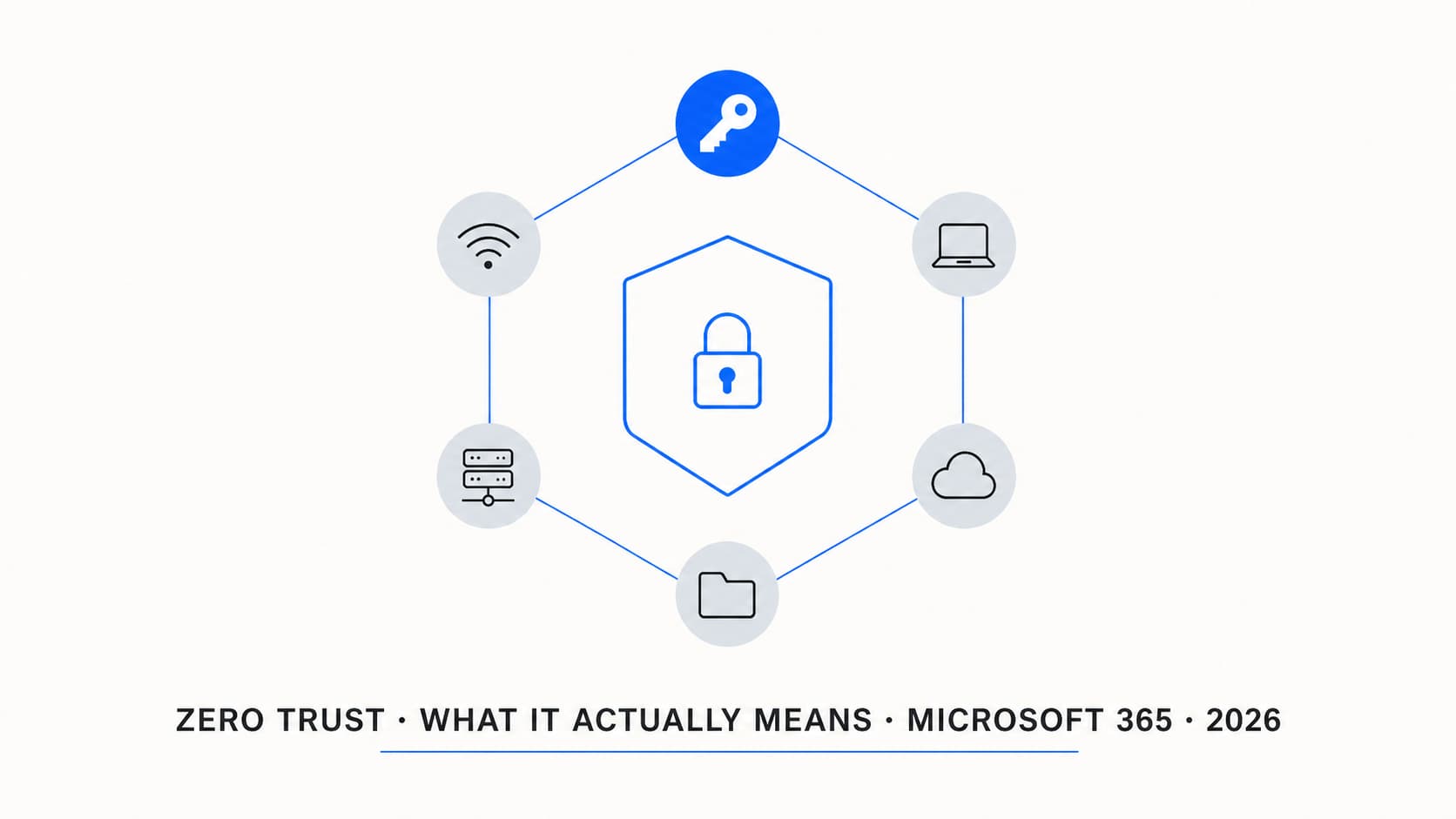
Six technology pillars mapped to Microsoft 365
Microsoft organizes Zero Trust into six pillars. Here is how each one maps to the products in a typical M365 environment.
| Pillar | M365 product | What it does in practice |
|---|---|---|
| Identity | Entra ID (formerly Azure AD) | MFA, Conditional Access, Identity Protection risk signals, PIM for just-in-time admin, authentication strengths for phishing-resistant methods |
| Endpoints | Intune + Defender for Endpoint | Device compliance policies, endpoint security baselines, risk score as a CA signal, app protection for BYOD, Autopilot for provisioning clean |
| Applications | Defender for Cloud Apps | Shadow IT discovery, session controls for SaaS, OAuth app governance, real-time monitoring of app activity and anomalous behaviour |
| Data | Microsoft Purview | Sensitivity labels, DLP policies, information barriers, data classification, retention policies, and encryption that travels with the document |
| Infrastructure | Azure (if applicable) | Azure Policy, Defender for Cloud, just-in-time VM access, network security groups, managed identities instead of service account credentials |
| Network | Micro-segmentation / Entra Private Access | Network segmentation, Global Secure Access for private app access, removing implicit trust from VPN-connected devices, DNS filtering |
In practice, almost every M365 tenant should start with identity and endpoints. They deliver the highest security impact with the lowest implementation complexity. The other pillars matter, but identity and endpoints are where you get the most return for your time, and where most organisations already hold the licences.
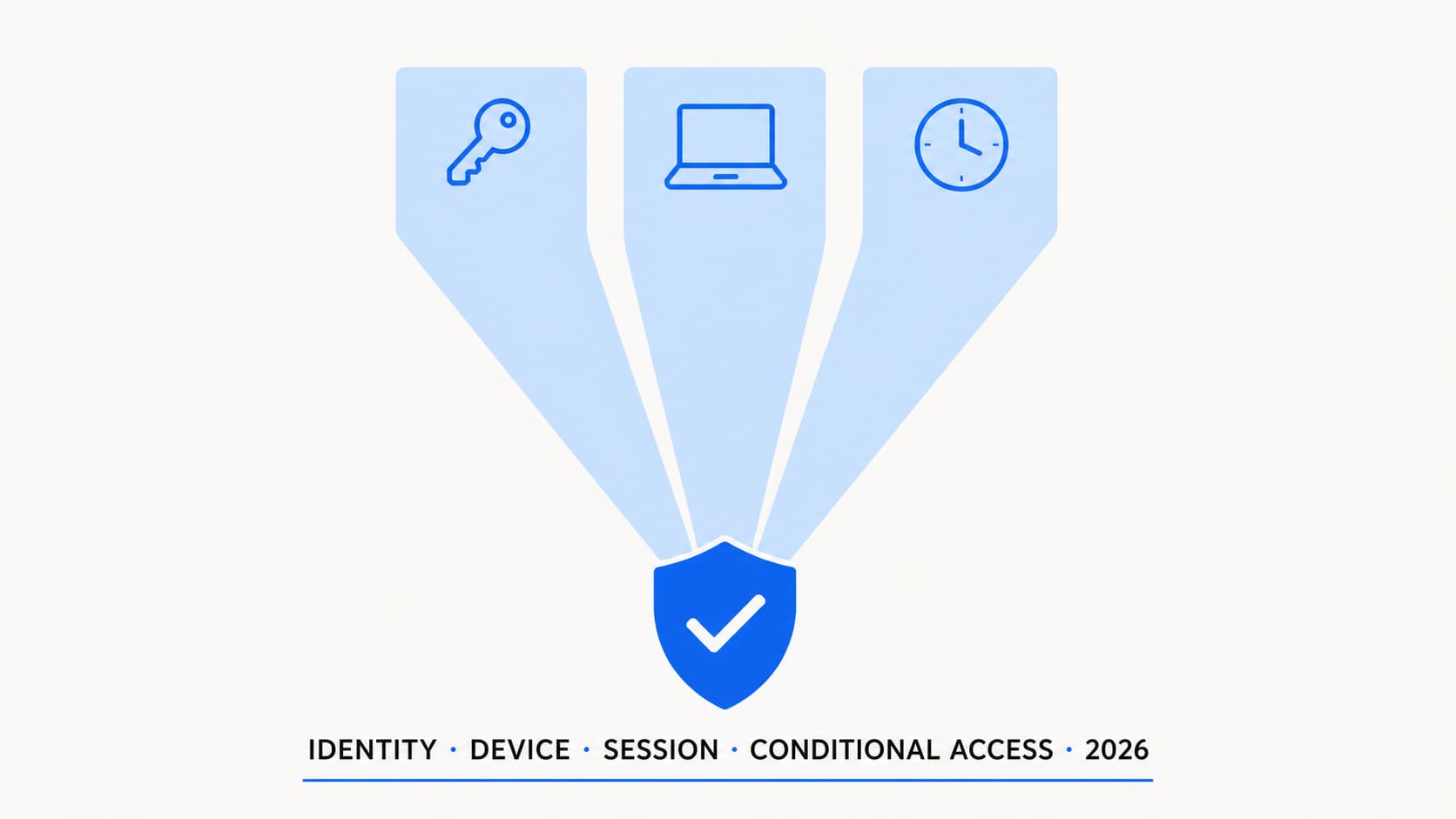
Identity
Who you are
Device
What you use
Session
How you access
Every access decision in a Zero Trust model evaluates these three dimensions. Conditional Access is the engine that combines them into a single grant-or-deny decision. Get these three right and you have a foundation. Skip any one and you have a gap.
What Zero Trust is NOT
This section matters more than the definitions above, because I see these misconceptions in the field constantly.
Continuous Access Evaluation
Traditional token-based authentication has an inherent problem. Once a user authenticates and receives a token, that token is valid for its lifetime (typically one hour for access tokens). If the user's status changes during that window, if they are disabled, if their risk level spikes, if their device falls out of compliance, the active session keeps working until the token expires.
Continuous Access Evaluation (CAE) fixes this. It creates a back-channel between the resource provider (Exchange Online, SharePoint, Teams) and Entra ID. When a critical event occurs, the resource provider is notified in near-real-time and can revoke the session immediately.
Events that trigger near-instant revocation with CAE
-
User account disabled or deleted Active sessions terminated within minutes, not after token expiry.
-
Password changed or reset All existing tokens for that user are invalidated across supported workloads.
-
MFA enabled on the account Sessions that were established without MFA are forced to re-authenticate.
-
Admin explicitly revokes refresh tokens Via Entra ID portal or Graph API, takes effect within minutes.
-
Network location change (IP-based CA policy) If a user's IP moves outside a trusted location, the session is challenged.
CAE is enabled by default for supported workloads in Entra ID. You do not need to configure it separately. But you do need to understand it, because it changes how you think about session lifetime. With CAE, the effective token lifetime for critical events drops from "up to one hour" to "minutes". That is a meaningful security improvement that most admins do not realize they already have.
2026 enforcement changes
Microsoft renamed "All cloud apps" to "All resources" in Conditional Access targeting. This is not just cosmetic. The scope now covers more than cloud apps — it includes authentication contexts and admin portals. Separately, Microsoft has been rolling out mandatory MFA for admin portals (Azure, Entra, Intune) in phases since late 2024.
Starting May 2026, Microsoft is tightening enforcement further: CA policies that target "All resources" with resource exclusions will now be enforced consistently, even for sign-ins that previously bypassed evaluation due to limited OIDC scopes. In practice, this means policies you thought were being applied may not have been — and policies you assumed were scoped correctly may suddenly catch traffic they were missing.
Why this matters: if you have a CA policy that requires MFA for "All resources" and blocks access from non-compliant devices, that policy may now apply to sign-in flows that were previously skipping evaluation. If your admin accounts are not properly configured, they could be blocked from the portals they need to fix the problem.
What to check
Achievable vs aspirational
I want to be honest about this, because the Microsoft documentation sometimes blurs the line between "you can do this today" and "this is the vision for the future".
| Area | Achievable today | Still aspirational |
|---|---|---|
| Identity | MFA for all users, phishing-resistant for admins, risk-based CA with P2, PIM for admin roles | Passwordless for every user (adoption is slow), passkey coverage across all apps |
| Endpoints | Compliance policies, Defender risk score as CA signal, app protection for managed apps | Full coverage of BYOD (users refuse enrollment), IoT/printer devices, Linux endpoints |
| Apps | Defender for Cloud Apps for top SaaS, OAuth app governance, session proxy | Coverage of every SaaS app (most orgs use 200+, Defender covers a fraction) |
| Data | Sensitivity labels on documents, basic DLP for email/Teams/SharePoint | Automatic classification that actually works well (still high false-positive rates) |
| Infrastructure | Azure Policy, Defender for Cloud, managed identities | True micro-segmentation across hybrid (on-prem servers remain hard) |
| Network | Entra Private Access (GA), conditional VPN replacement | Full SASE replacement, universal DNS filtering, per-app network segmentation |
The honest assessment: a well-configured M365 E5 or Business Premium tenant can achieve a strong Zero Trust posture for identity and endpoints today. Data and app coverage is solid but requires ongoing tuning. Network and infrastructure Zero Trust for hybrid environments is improving rapidly but still has gaps, particularly around legacy on-premises workloads.
Do not let "we cannot do everything" become an excuse to do nothing. Start with identity. Get MFA right, get Conditional Access right, get device compliance feeding into access decisions. That alone puts you ahead of most organizations.
A realistic Zero Trust maturity path
Most tenants do not jump from MFA-only to full Zero Trust. A realistic path usually looks like this:
The mistake is trying to do everything at once. The bigger mistake is doing MFA and stopping there.
Getting started checklist
-
Confirm your licensing covers the basics Business Premium or E3+P1 minimum. E5 or add-on P2 for risk-based CA and Identity Protection.
-
Enable MFA for all users via Conditional Access (not Security Defaults) Security Defaults is a starting point but does not scale. Move to CA-based MFA enforcement.
-
Deploy device compliance policies in Intune Define what "healthy" looks like: encryption, OS version, Defender running, screen lock. Feed compliance into CA.
-
Create Conditional Access policies that combine identity and device signals Require MFA + compliant device for admin portals. Require MFA for all users on all apps. Block legacy auth.
-
Review the 2026 "All resources" enforcement change Check affected policies, test with What If, verify break-glass exclusions before June 2026.
-
Set up app protection policies for mobile BYOD MAM-WE policies for Outlook, Teams, OneDrive on unmanaged iOS and Android devices.
-
Enable Defender for Endpoint and integrate with Intune Risk score feeds compliance, compliance feeds CA. The full signal chain from endpoint health to access decision.
-
Start sensitivity labels on your most critical document libraries Do not try to classify everything at once. Start with finance and HR. Expand from there.
-
Schedule a quarterly review of your Zero Trust posture New controls ship regularly. New threats emerge. A baseline that is never reviewed is a baseline that decays.
The real question
Zero Trust is not a destination. There is no finish line, no certification, no dashboard that turns green and stays there. It is a direction. Every policy you create that evaluates a signal before granting access, every role you move to just-in-time, every device you bring under compliance — each one moves you closer.
The organisations that get this right are not the ones with the biggest budgets. They are the ones that start with identity and endpoints, build in layers, and review what they built. The ones that get it wrong are usually the ones who bought a product, ticked a box, and stopped thinking about it.
Do not be the second type.
Turning this into something real?
If you are trying to turn this into a practical plan for your environment, that is usually where things get stuck. I can help.
Get in touch- Microsoft Learn — Zero Trust overview
- Microsoft Learn — Conditional Access overview
- Microsoft Learn — Continuous Access Evaluation
- Microsoft Learn — Zero Trust identity deployment
- Microsoft Learn — Zero Trust endpoint deployment
- NIST SP 800-207 — Zero Trust Architecture
- CISA — Zero Trust Maturity Model