Identity alone only answers "who is this person?" It says nothing about whether the device they are signing in from is encrypted, running a current OS, or has active malware. Intune closes that gap. It turns device health into an access signal, and that signal feeds directly into Conditional Access. This article covers how to wire that up properly, the order that avoids breaking things, and the retirement of the "Require approved client app" grant control that changes how you handle mobile devices going forward.
Device compliance as a Zero Trust signal
In a Zero Trust model, the device is one of the signals evaluated before access is granted. Not the only signal, and not always the most important one, but a signal that matters because it answers questions identity cannot: Is this machine encrypted? Is the OS patched? Is endpoint protection running? Has the device been jailbroken?
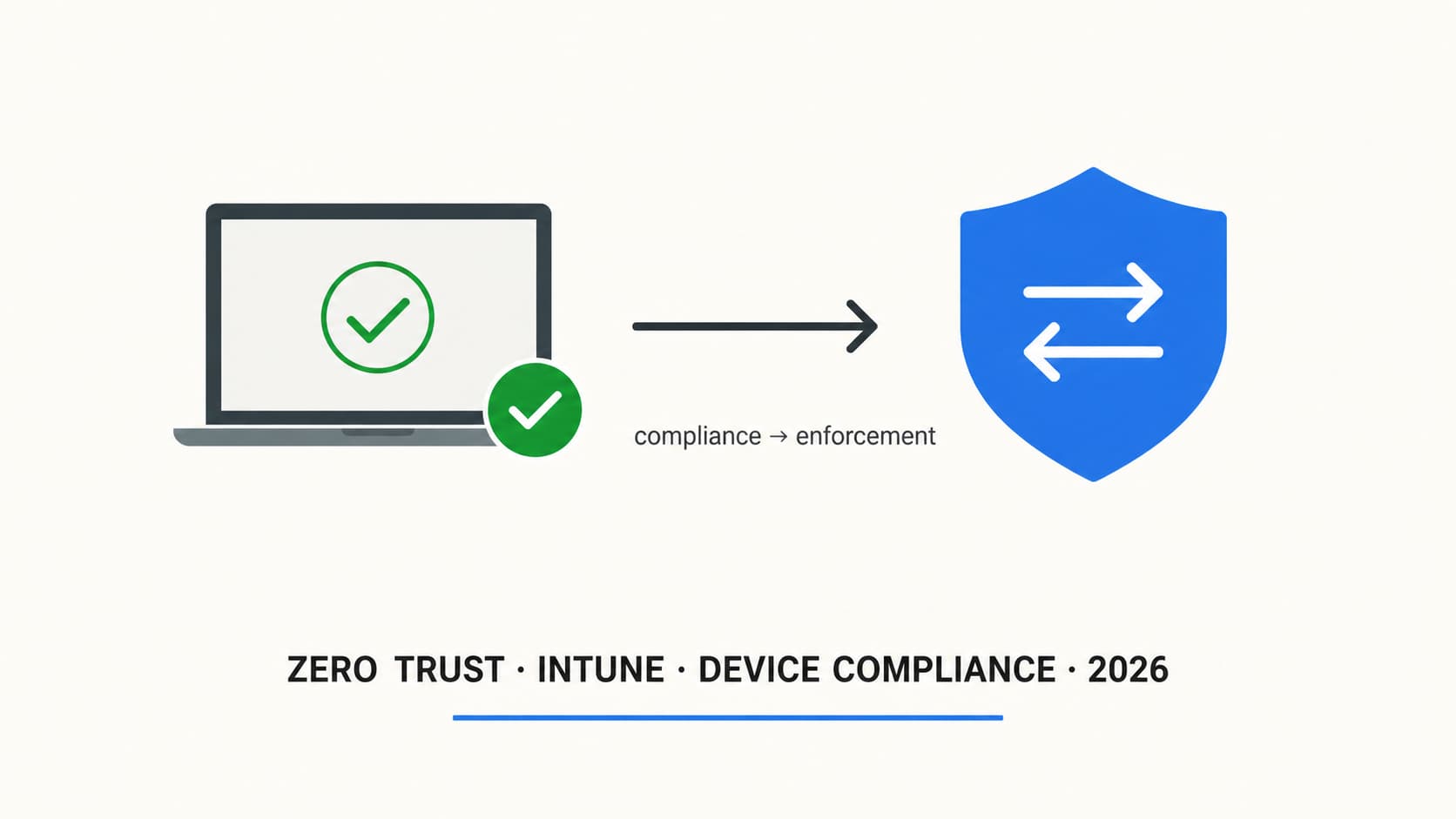
Intune handles this through compliance policies. A compliance policy is a set of rules that define what a "healthy" device looks like. The device either meets every rule or it does not. There is no partial credit. That binary result becomes a property on the device object in Entra ID, and Conditional Access can read it as a grant condition.
The signal chain looks like this:
isCompliant = true or isCompliant = false. This usually updates within minutes, but timing can vary.Building compliance policies that work
Most environments make the same mistake: they check every box in the compliance policy and break everything on day one. An overly aggressive compliance policy creates a flood of non-compliant devices, support tickets pile up, and someone with authority tells you to turn it off. Start with the settings that matter most and expand from there.
Recommended compliance settings by platform
| Setting | Windows | iOS | Android | macOS |
|---|---|---|---|---|
| Encryption required | BitLocker | Built-in (always on) | Required | FileVault |
| Minimum OS version | Latest -1 build | Latest -1 major | Latest -1 major | Latest -1 major |
| Defender/antivirus | Real-time on | N/A (use Defender app) | N/A (use Defender app) | Required if available |
| Jailbreak/root detection | N/A | Block jailbroken | Block rooted | N/A |
| Password/PIN | Required (6+ chars) | Required (6+ digits) | Required (6+ chars) | Required (6+ chars) |
| Firewall | Required | N/A | N/A | Required |
One setting that deserves special attention: the system-wide compliance policy default. In Intune, there is a tenant-wide setting that determines what happens to devices with no compliance policy assigned. The default is "Compliant". That means any device that Intune manages but has not been targeted with a compliance policy is treated as compliant. Change this to "Not compliant" once you have compliance policies covering all your platforms. Otherwise, you have a gap where unassessed devices pass the CA check.
Conditional Access policies requiring compliant devices
Once compliance policies are deployed and devices are being evaluated, the next step is a CA policy that uses compliance as a grant control.
Supported grant controls for device state
| Grant control | What it checks | When to use |
|---|---|---|
| Require device to be marked as compliant | isCompliant = true in Entra ID, set by Intune |
Corporate-owned devices managed by Intune. The primary Zero Trust device control. |
| Require Microsoft Entra hybrid joined device | Device is domain-joined and registered in Entra ID | On-premises AD environments with Entra Connect. Useful for existing hybrid environments, but cloud-native Entra joined devices should be the target state for new deployments. |
| Require app protection policy | User is accessing from an app with an active Intune MAM policy | BYOD mobile devices where enrollment is not required. Protects data at the app level. |
For most deployments, start with a policy that requires compliant devices for admin portals (admins only, highest sensitivity) and then expand to all users for all cloud apps. The expansion is where it gets tricky, because you will inevitably have users on devices that cannot enroll in Intune: personal phones, contractor laptops, kiosk machines. Those users need an alternative path, which is where app protection policies come in.
App protection policies for unmanaged devices
Not every device can or should be enrolled in Intune. Personal phones, contractor machines, temporary staff using their own laptops. For these devices, app protection policies (also called MAM without enrollment, or MAM-WE) provide a different kind of control: instead of managing the device, you manage the apps.
An app protection policy wraps managed apps (Outlook, Teams, OneDrive, SharePoint, Edge) in a container. Inside that container, you control what happens to corporate data:
Endpoint security policies
Beyond compliance and app protection, Intune has a dedicated endpoint security node that centralises security configurations. These are not compliance checks; they are configurations that harden the device itself.
| Policy type | What it configures | Zero Trust relevance |
|---|---|---|
| Antivirus | Defender real-time protection, cloud protection, scan schedules | Ensures the "assume breach" pillar has detection running on every endpoint |
| Disk encryption | BitLocker (Windows), FileVault (macOS) enforcement and key escrow | Data protection at rest. Lost laptop does not mean lost data. |
| Firewall | Windows Defender Firewall rules, profiles for domain/private/public | Network micro-segmentation at the endpoint. Limits lateral movement. |
| Attack surface reduction | ASR rules: block Office macros creating child processes, block credential stealing from LSASS, block untrusted USB processes | Directly reduces the attack surface. The most impactful endpoint hardening you can do. |
| Account protection | Windows Hello for Business, LAPS for local admin passwords | Identity hardening at the device level. LAPS eliminates shared local admin passwords. |
ASR rules deserve special mention. In my experience, they deliver more security value per line of configuration than almost anything else in Intune. Start with audit mode to see what would be blocked, then move to block mode for the rules that have low false-positive rates in your environment. The rule "Block credential stealing from Windows local security authority subsystem" alone prevents a significant class of post-compromise lateral movement.
Defender for Endpoint integration
This is where the signal chain becomes genuinely powerful. Defender for Endpoint runs on the device and continuously evaluates threat signals: suspicious processes, known malware signatures, anomalous network behaviour, exploitation attempts. It assigns a machine risk level: Clear, Low, Medium, or High.
When Defender for Endpoint is integrated with Intune, that risk level becomes a compliance signal. You configure a compliance policy that says "device must have a machine risk score of Medium or lower." If Defender detects active malware and raises the risk to High, the device can be marked as non-compliant based on the configured machine risk threshold. That non-compliant status syncs to Entra ID. The next time the user tries to access a resource protected by a CA policy requiring compliance, they are blocked.
Setting up the integration
Medium (or Low for higher security environments).The "Require approved client app" retirement
Microsoft has extended the retirement of the "Require approved client app" grant control to June 30, 2026. New Conditional Access policies should use "Require app protection policy", and existing policies should be migrated before that date. If you still have policies that rely only on "Require approved client app" after the deadline, that grant will no longer be enforced.
The replacement is "Require app protection policy." The difference matters:
| Old control | New control | Key difference |
|---|---|---|
| "Require approved client app" | "Require app protection policy" | Old control just checked if the app was on Microsoft's approved list. New control checks if an active app protection policy is applied to the app, which means you need MAM policies deployed. |
The implementation order that works
Order matters. Deploy these out of sequence and you either block users who should have access or leave gaps that defeat the purpose.
Deployment checklist
-
Create compliance policies for all managed platforms (Windows, iOS, Android, macOS) Encryption, OS version, Defender status, jailbreak/root detection, PIN. Start with reasonable thresholds.
-
Change the tenant default compliance to "Not compliant"
Intune > Devices > Compliance > Compliance policy settings. Change "Mark devices with no compliance policy assigned as" to Not compliant. -
Set grace periods for non-compliance actions 3-7 days for initial rollout. Send notification email on day 1. Mark non-compliant on day 3-7. Do not go straight to wipe.
-
Deploy app protection policies for iOS and Android Target Outlook, Teams, OneDrive, SharePoint, Edge. Set data protection controls. Deploy before any CA policy requires app protection.
-
Connect Defender for Endpoint to Intune Enable the connector in both portals. Add machine risk score to compliance policies. Monitor for one week before relying on it for access decisions.
-
Migrate away from "Require approved client app" in all CA policies Retirement deadline is June 30, 2026. Use OR with "Require app protection policy" as transition, then remove the old control.
-
Create CA policies in report-only: admins first, then all users Admins with compliant device for admin portals. All users with compliant device OR app protection for all apps. Seven days minimum in report-only each.
-
Deploy endpoint security policies: ASR rules, disk encryption, firewall Start ASR rules in audit mode. Move to block after two weeks of clean logs. Enforce BitLocker/FileVault. Configure firewall profiles.
-
Document the signal chain and test end-to-end Verify: device non-compliance > Entra ID status update > CA blocks access. Verify: Defender risk elevation > compliance failure > access blocked. Test both paths.
The bottom line
Intune without Conditional Access is monitoring. Conditional Access without compliance is guessing. Defender without the Intune integration is detection without response. The value is in the chain — device health feeding compliance, compliance feeding access decisions, threat signals feeding compliance in real time. Wire it up in the right order, test before you enforce, and you have a device posture that most organisations only talk about.
Trying to implement this without breaking access?
If you are trying to turn this into something real in your environment — compliance policies, Defender integration, CA with the right grant controls, BYOD app protection — that is usually where things get difficult. I can help with that.
Get in touch- Microsoft Learn — Device compliance overview
- Microsoft Learn — App protection policies overview
- Microsoft Learn — Defender for Endpoint integration with Intune
- Microsoft Learn — Require compliant device
- Microsoft Learn — Endpoint security policies
- Microsoft Learn — ASR rules reference
- Microsoft Learn — CA grant controls