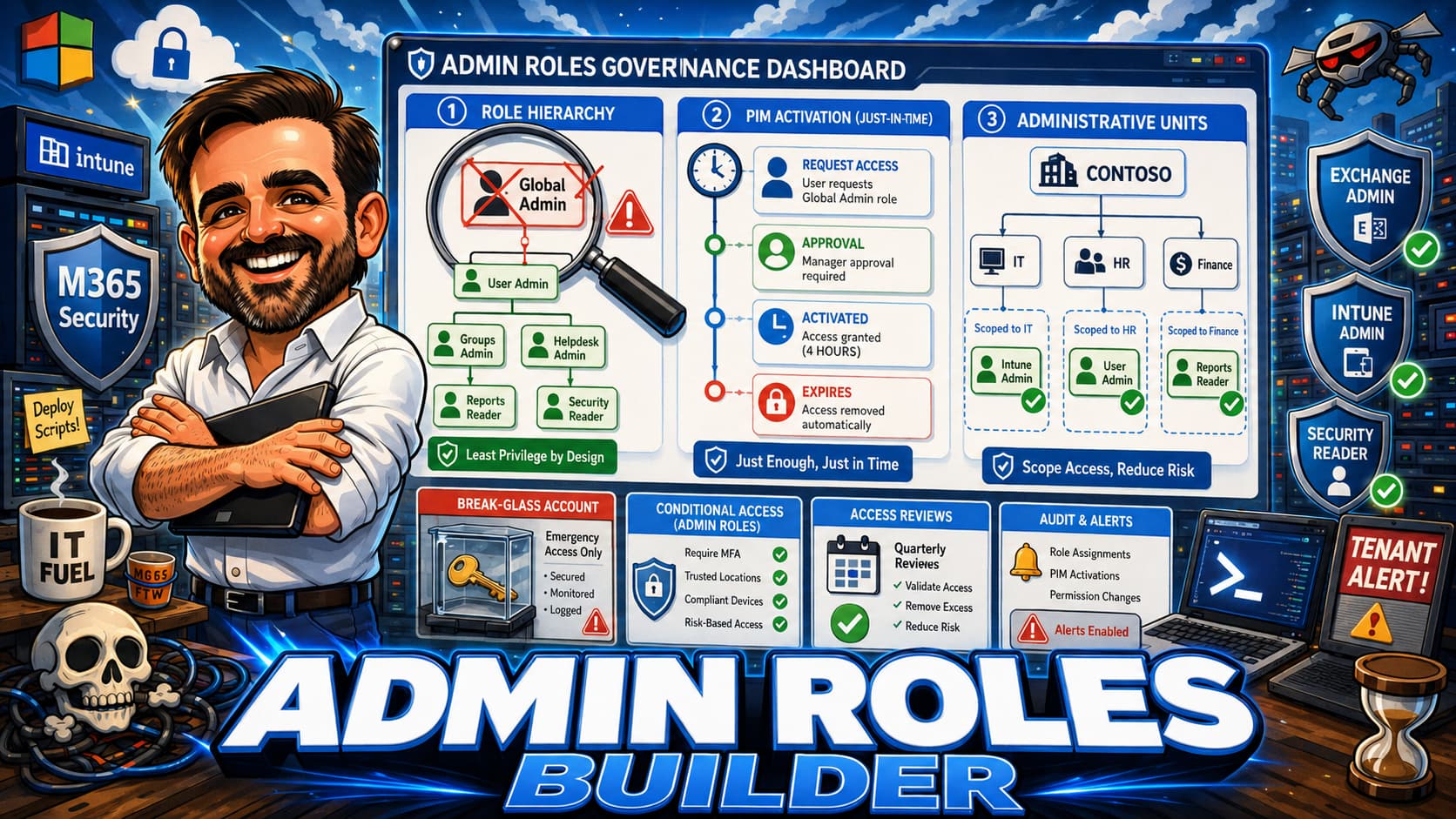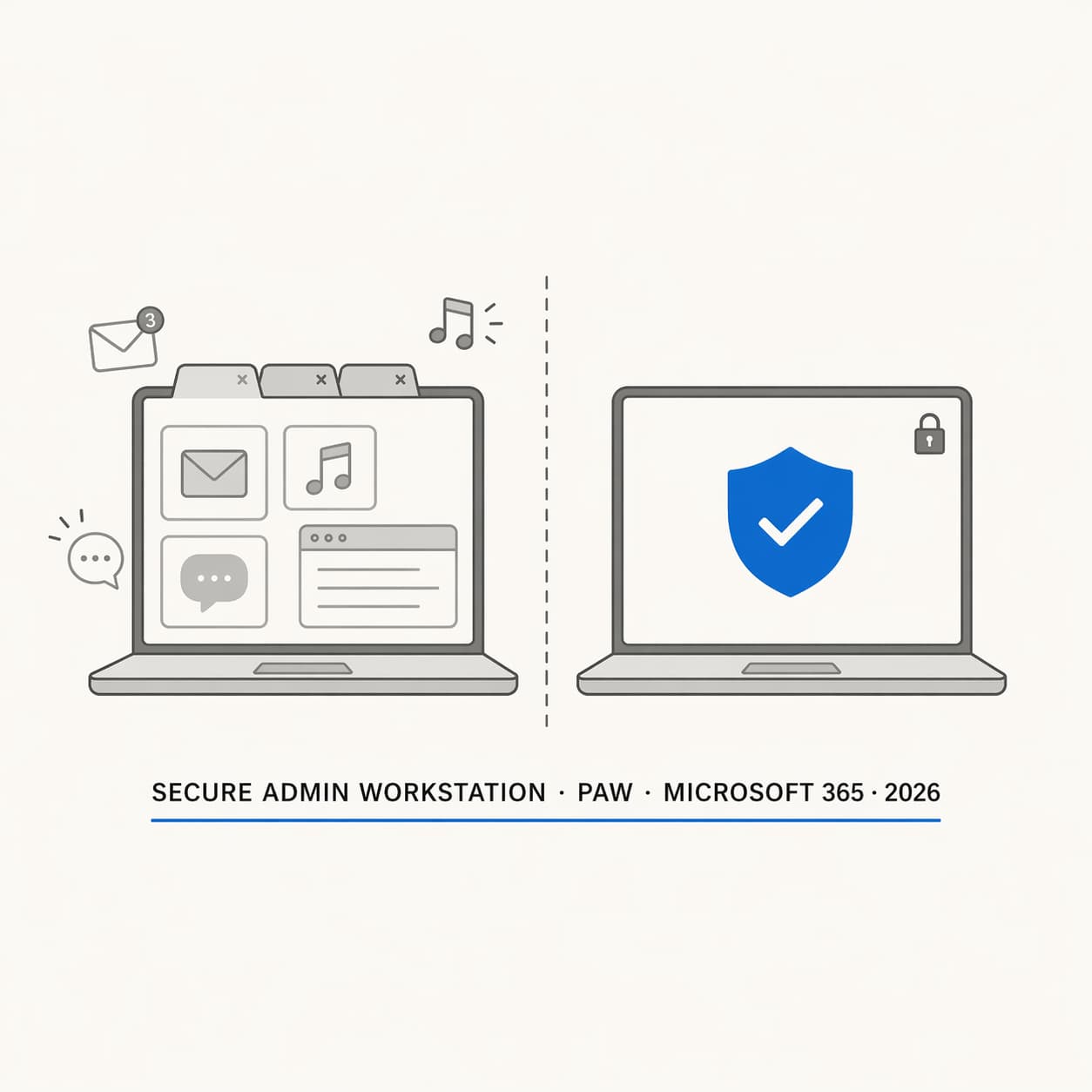
Your admins manage everything from a laptop that also has Spotify, personal email, and a browser full of tabs. That laptop is the weakest link in your security posture, and nobody is talking about it.
Published April 2026 · 24 min read
Contents
- The problem: admin credentials on everyday machines
- What a PAW actually is (and what it is not)
- The enterprise access model: where PAWs fit
- Decision table: physical PAW vs Windows 365 Cloud PC vs dedicated VM
- Building a PAW with Intune: the configuration stack
- Conditional Access: locking admin portals to PAW devices
- PIM integration: just-in-time activation from the PAW
- Windows LAPS: local admin password management
- Application control with WDAC
- Common mistakes
- What I would do first in an SMB tenant this week
- Secure admin workstation audit checklist
Most Microsoft 365 tenants have zero separation between the device an admin uses for daily work and the device they use to manage Global Admin, Exchange Admin, or Intune Admin roles. If that device gets compromised, the attacker inherits whatever access the admin has.
A Privileged Access Workstation (PAW) is a hardened device dedicated to administrative tasks. It runs a locked-down OS, restricted applications, and connects only to admin portals. You can implement one with a physical machine, a Windows 365 Cloud PC, or a dedicated VM, each with different trade-offs.
Conditional Access device filters let you restrict admin portal access to specific enrolled, compliant devices. Combined with PIM for just-in-time role activation, this creates a real boundary between everyday browsing and tenant administration.
You do not need an enterprise budget to start. A single dedicated laptop with Intune security baselines, WDAC, and a Conditional Access policy blocking admin roles from non-PAW devices gets you 80% of the benefit.
The Problem: Admin Credentials on Everyday Machines
Here is the scenario I find in nearly every SMB tenant review. The IT admin logs into their regular laptop in the morning. They check email, open Teams, browse a few websites, maybe install a tool they found on GitHub. Then they open a browser tab, go to entra.microsoft.com, and sign in with an account that holds Global Administrator.
Same device. Same browser. Same session where they just clicked a link in a phishing simulation (or a real phishing email, who knows). If that device has a keylogger, an info-stealer, or a compromised browser extension, the attacker now has a token or credential for the most powerful account in the tenant.
MFA helps, and it stops a lot of attacks. But MFA does not protect against token theft on the local device. If the session token is stolen after authentication, the attacker doesn't need the password or the MFA factor. They replay the token and they're in. This is not theoretical. Token theft is a well-documented post-compromise technique in Microsoft incident guidance.
The fix is straightforward in concept: don't do administrative work from the same machine where you browse the internet, read email, and install random software. That is what a PAW is for.
This article is for you if...
You manage a Microsoft 365 tenant and your admins use their regular workstations for tenant administration. You want to understand what a PAW is, whether you actually need one, and how to build one using Intune and Conditional Access without a six-figure project budget.
This article is not...
A guide for building enterprise PAW infrastructure for 500+ admins across multiple forests. It does not cover on-premises Active Directory ESAE (Red Forest) architecture. The focus is cloud-native M365 administration using Intune, Entra ID, and Conditional Access.
What a PAW Actually Is (and What It Is Not)
A PAW is a device that is used exclusively for privileged administrative tasks. Nothing else runs on it. No personal email. No web browsing beyond admin portals. No Spotify. No random browser extensions. No Teams chats about lunch plans.
The idea is isolation. You separate the high-value administrative session from everything that introduces risk: phishing links, drive-by downloads, compromised browser extensions, malware from USB drives, info-stealers bundled with cracked software. If the admin never uses the PAW for anything except admin portals, the attack surface drops dramatically.
What a PAW is
- A hardened device (physical or virtual) enrolled in Intune with strict compliance policies
- Restricted to admin portals and management tools only
- Running a locked-down Windows configuration: security baselines, Credential Guard, BitLocker, WDAC or AppLocker
- Subject to Conditional Access policies that allow admin portal access only from this device
- Managed with Windows LAPS for the local admin account
What a PAW is not
- A regular laptop with a different user profile. Switching profiles on the same device does not give you isolation.
- A laptop that "only admins use." If it also runs productivity apps and connects to the internet for general browsing, it is not a PAW.
- A jump box in an Azure VM with RDP open to the internet. That is a different problem entirely.
- A VDI session from a compromised host. If the device connecting to the virtual desktop is infected, clipboard sharing and keyloggers can still capture credentials.
The Enterprise Access Model: Where PAWs Fit
Microsoft retired the old Active Directory tier model (ESAE / Red Forest) a few years ago and replaced it with the Enterprise Access Model. The old model was built for on-premises environments with forests and domains. The new model accounts for cloud-native and hybrid environments where the control plane, management plane, and data plane are all in the cloud.
In this model, there are three levels of access:
| Plane | What it covers | Examples |
|---|---|---|
| Control plane | Identity infrastructure, security configuration, tenant-wide settings | Global Admin, Security Admin, Entra ID configuration, Conditional Access policies |
| Management plane | Workload administration, service configuration | Exchange Admin, Intune Admin, SharePoint Admin, Teams Admin |
| Data / workload plane | Day-to-day user activity and productivity | Email, Teams, SharePoint collaboration, line-of-business apps |
The core principle is simple: a compromise at the data plane should never give an attacker a path to the control plane. If an admin's regular laptop gets owned and that same laptop has active sessions to the Entra admin center, that boundary is already broken.
PAWs exist to enforce the boundary between the control/management plane and the data plane. The admin's productivity device stays at the data plane. The PAW operates at the control or management plane. They don't touch each other.
Decision Table: Physical PAW vs Windows 365 vs Dedicated VM
There are three common approaches to building a PAW. Each one has trade-offs, and the right choice depends on your budget, your admin count, and how much operational complexity you can absorb.
| Approach | Pros | Cons | Best for |
|---|---|---|---|
| Physical dedicated laptop | Strongest isolation. No shared hardware. Credential Guard and TPM on real silicon. No dependency on a network connection to the VDI host. | Costs a physical device per admin. Needs to be carried or kept at a desk. Hardware lifecycle management. | Small teams (1-5 admins) who want maximum isolation without cloud complexity |
| Windows 365 Cloud PC | No hardware to buy. Accessible from any location. Intune-managed like any other device. Easy to provision and deprovision. Microsoft is investing heavily here (new Cloud PC devices announced for Q3 2026). | The connecting device is still a risk factor. Windows 365 can be used as part of a PAW strategy, but it introduces different trade-offs from a dedicated physical admin device. Latency in some regions. Monthly per-user cost adds up. | Distributed teams, admins who travel, organisations that want to avoid hardware procurement |
| Dedicated VM (Hyper-V / Azure VM) | No extra hardware. Can be spun up on demand. Snapshots and quick rebuild. | Weakest isolation. A compromised host can keylog or clipboard-sniff the VM session. A dedicated VM gives weaker isolation than a dedicated physical device and should be treated as a compromise option, not the ideal baseline. | Temporary or supplementary use. Not ideal as the primary approach, but better than nothing. |
Building a PAW with Intune: The Configuration Stack
Whether you're using a physical device or a Cloud PC, the configuration is Intune-driven. Here is the stack I recommend, from the basics up.
1. Enrolment and group targeting
Create a dedicated Entra ID security group for PAW devices. All your Intune profiles, compliance policies, and Conditional Access assignments will target this group. Keep it clean. Only PAW devices go in this group, nothing else.
If you're using Autopilot, create a separate deployment profile for PAWs with a group tag like PAW-Admin. This lets you assign the right configuration from the moment the device enrols, before anyone touches it.
2. Security baselines
Apply the Intune security baseline for Windows and the Microsoft Edge security baseline. These set a solid floor: they configure hundreds of settings covering firewall, SmartScreen, script execution, credential protection, and browser hardening. On a PAW, you want the baseline as the starting point and then you layer on stricter policies.
3. Device compliance policy
Create a compliance policy for the PAW group that is stricter than your standard fleet:
- BitLocker required: The drive must be encrypted.
- Secure Boot required: Ensures the boot chain hasn't been tampered with.
- TPM required: Version 2.0.
- Minimum OS version: Pin this to the latest supported Windows 11 version. PAWs should not fall behind on updates.
- Microsoft Defender Antimalware required: Active and up to date.
- Defender for Endpoint risk score: If you have Defender for Endpoint, set the maximum allowed risk level to "Low" or "Clear." A PAW with a medium or high risk score should lose compliance immediately.
4. Configuration profiles
Layer these on top of the security baseline:
- Credential Guard: Isolates NTLM hashes and Kerberos tickets in a virtualization-based security container. This is one of the most important protections against credential theft on the local device.
- Attack Surface Reduction (ASR) rules: Start with the core ASR rules in block mode (block Office macros from creating child processes, block credential stealing from LSASS, block untrusted process injection) and validate the remaining ones carefully on the PAW baseline. Even on a PAW there can be operational nuance depending on which management tools you run.
- Windows Defender Firewall: Block all inbound connections except what's explicitly needed. On a PAW, that list should be very short.
- USB storage block: Prevent external storage devices. If someone needs to move files to the PAW, they can use a managed cloud path.
- Microsoft Edge hardening: Disable extensions (or allow only a specific list), disable password saving, enable SmartScreen, configure isolated browsing for untrusted sites if available.
5. Endpoint Detection and Response
If you have Microsoft Defender for Endpoint, onboard the PAW. Enable EDR in block mode so that even if something bypasses the primary antimalware engine, the EDR layer catches it. On a PAW, you want maximum telemetry and maximum blocking.
Conditional Access: Locking Admin Portals to PAW Devices
The Intune configuration hardens the device. Conditional Access is what actually restricts admin access to that device and nothing else. Without this piece, you have a hardened laptop, but your admins can still sign in to the Entra admin center from their phone, their home PC, or a hotel business centre. That defeats the purpose.
The filter for devices approach
Conditional Access supports a "Filter for devices" condition. You can create rules based on device properties like device.displayName, device.extensionAttribute1, device.isCompliant, or other supported attributes. The general approach:
- Tag PAW devices using a supported device attribute in Entra ID that the device filter can evaluate. Common options include extension attributes, device naming conventions, or Entra ID dynamic device groups based on enrolment profile. The right approach depends on what your tenant supports and what you can validate in your environment.
- Create a Conditional Access policy targeting users with privileged admin roles.
- Under Conditions > Filter for devices, set the rule to exclude devices that match your PAW identifier.
- Under Grant, select Block access.
The logic reads: "If a privileged admin tries to access admin resources from a device that doesn't match the PAW criteria, block access." The only way in is from a device that passes your filter and meets compliance requirements.
Recommended policy set
| Policy | Target users | Target resources | Conditions / Grant |
|---|---|---|---|
| Block admin portals from non-PAW devices | Privileged admin role group | Microsoft Admin Portals (or specific apps: Azure portal, M365 admin center, Exchange admin, etc.) | Filter for devices: exclude devices matching your PAW identifier. Grant: Block. |
| Require compliant device for PAW sign-in | Privileged admin role group | Microsoft Admin Portals | Filter for devices: include devices matching your PAW identifier. Grant: Require device compliance + MFA. |
| Block admin roles from mobile and unmanaged devices | Privileged admin role group | All cloud apps | Conditions: Device platforms = iOS, Android. Grant: Block. |
How to identify PAW devices for the filter
There are several ways to tag or identify PAW devices so the Conditional Access filter can distinguish them. Common approaches include:
- Device naming convention: Name all PAW devices with a prefix like
PAW-Admin-01and use adevice.displayName startsWith PAWfilter. Simple, but depends on naming discipline. - Extension attributes: Set a device extension attribute (e.g.,
extensionAttribute1) to a PAW identifier. The availability and writability of extension attributes on device objects can vary depending on how the device is joined and managed, so validate this in your specific tenant before relying on it. - Entra ID dynamic device group + compliance: Create a dynamic device group based on the Autopilot group tag or enrolment profile, and combine the device filter with a compliance requirement.
PIM Integration: Just-in-Time Activation from the PAW
A PAW by itself limits where admin work happens. PIM limits when it happens. The two together are stronger than either one alone.
With Privileged Identity Management in Entra ID, your admins don't hold permanent role assignments. Instead, they're eligible for a role and they activate it when they need it. The activation can require MFA, a justification, and approval from another admin. When the activation window expires (you set the duration), the role is automatically revoked.
How the workflow looks in practice
- Admin sits down at the PAW device.
- Signs in with MFA (phishing-resistant if you're using FIDO2 or Windows Hello for Business).
- Opens the PIM portal and activates the role they need, for example Exchange Administrator, for 2 hours.
- Provides a justification ("Investigating mail flow issue for support ticket #4821").
- If approval is configured, the request goes to a peer or manager. Once approved, the role activates.
- Admin does the work. After 2 hours, the role deactivates automatically.
The point is that even if someone steals the admin's credential while the role is not activated, the credential doesn't grant admin access. The attacker would need to activate the role through PIM, which requires a separate MFA challenge, and possibly approval from another person.
Recommended PIM settings for PAW environments
- Maximum activation duration: 4 hours for Global Admin, 8 hours for workload-specific roles (Exchange, Intune, SharePoint). Shorter is better, but too short creates friction that pushes people to stay activated longer than they need.
- Require MFA on activation: Always. Use phishing-resistant methods where possible.
- Require justification: Always. This creates an audit trail.
- Require approval for Global Admin: Yes. For workload-specific roles, it depends on your team size. A two-person IT team requiring approval for Exchange Admin from the only other admin is impractical.
- Send notification on activation: To a security mailbox or Teams channel. You want visibility into who activated what and when.
Windows LAPS: Local Admin Password Management
Every Windows device has a local administrator account. On a PAW, this account is a target. If the password is the same across all your PAW devices (or worse, the same as your standard fleet), an attacker who gets one password has local admin on every PAW.
Windows LAPS solves this. It automatically rotates the local admin password on a schedule and backs it up to either Entra ID or on-premises Active Directory. Each device gets a unique, randomly generated password that changes regularly.
Configuring LAPS through Intune
Intune admin center: Endpoint security > Account protection > create a new policy > Windows LAPS
Key settings:
- Backup directory: Azure AD (for cloud-native PAWs) or Active Directory (for hybrid-joined devices).
- Password age: 30 days is a reasonable default. For PAWs you could go shorter, like 7 or 14 days.
- Administrator account name: If you've renamed the built-in administrator, specify the custom name. On Windows 11 24H2 and later, LAPS supports automatic account management, which can create and manage a custom account for you.
- Password complexity: Large letters + small letters + numbers + special characters. 14+ characters.
- Post-authentication actions: Reset the password after the local admin credential is used. This limits the window for credential reuse.
microsoft.directory/devices/localCredentials/standard/read permission. On a PAW, you should rarely need this password, but when you do, it should be available and auditable.
Application Control with WDAC
This is the layer that most PAW implementations skip, and it's the one that makes the biggest difference against unknown threats. Security baselines harden the OS configuration. Credential Guard protects tokens. But none of those stop a new executable from running if someone manages to get it onto the device.
Windows Defender Application Control (WDAC) flips the model. Instead of trying to detect and block bad software, it only allows known good software to run. Everything else is blocked by default.
Why WDAC matters on a PAW
A PAW runs a small, predictable set of applications: Edge, PowerShell, maybe the Remote Server Administration Tools, the Graph PowerShell SDK, and a few management consoles. That's it. The list is short enough that you can define a WDAC policy that covers everything the admin needs and blocks everything else. On a regular productivity device this would be painful to maintain. On a PAW, it's practical.
Deploying WDAC through Intune
Intune admin center: Endpoint security > App Control for Business
The simplest starting point:
- Use one of the built-in Intune base policies (the "Default Windows mode" or "Allow Microsoft mode" templates).
- Configure Intune as a managed installer. This tells WDAC to trust anything that Intune deploys, so you don't need individual rules for every application Intune pushes to the device.
- Deploy the policy in audit mode first. Check the event logs (Applications and Services Logs > Microsoft > Windows > CodeIntegrity) for blocks. Whitelist anything legitimate that got caught.
- Once the audit log is clean, switch to enforce mode.
Common Mistakes
I see these in real environments. They're fixable, but they keep happening because nobody audits the PAW setup after the initial deployment.
What I Would Do First in an SMB Tenant This Week
If you're running a small tenant with two or three admins and the budget for maybe one extra laptop, here's where I'd start:
- Pick one device and dedicate it. It doesn't need to be brand new. A spare laptop that meets Windows 11 requirements works. Wipe it, enrol it in Intune, and apply your strictest security baseline. No Office apps. No personal accounts. Just Edge and PowerShell.
- Create a PAW security group in Entra ID. Add only this device. All PAW-specific policies target this group.
- Apply a strict compliance policy. BitLocker, Secure Boot, TPM 2.0, latest OS version, Defender active. Mark the device non-compliant immediately if any of these fail.
- Deploy Windows LAPS through Intune. Back up to Entra ID, rotate every 14 days, reset after use.
- Create two Conditional Access policies. One blocks privileged admin roles from non-PAW devices (using the device filter). The other requires compliance + MFA from PAW devices. Start in Report-only, validate with What If, then enforce.
- Set up PIM if you have E5 or P2 licensing. Remove permanent role assignments. Make admins eligible and require activation with MFA and justification. If you don't have PIM licensing, the PAW + CA combination alone is still a significant improvement.
- Document the setup. Write down which device is the PAW, what policies apply to it, and what the break-glass procedure is if the PAW fails. Future-you will thank present-you.
That entire list can be done in a single afternoon. It won't be a perfect PAW by enterprise standards, but it will put your admin access in a fundamentally better position than where it probably is right now.
Secure Admin Workstation Audit Checklist
Use this when reviewing a tenant's privileged access device posture:
Summary
The question is not whether your admins need a separate device for administrative work. The question is how long you can afford to wait before implementing one. Every day an admin signs in to the Entra admin center from the same laptop where they open email attachments and browse the web, that laptop is a path from the data plane straight to the control plane of your tenant.
A PAW does not have to be expensive or complicated. A spare laptop, Intune security baselines, a compliance policy, Windows LAPS, and two Conditional Access policies. That's a single afternoon of work for a meaningful improvement in your privileged access posture. Add WDAC and PIM when you're ready, and you're operating at a level that most SMB tenants never reach.
The admin workstation is where tenant compromise starts. It's also where prevention is most practical. Don't wait for an incident to prove the point.
Found this useful?
I write about Microsoft 365 security, Intune, and Entra ID from a real-world admin perspective. Follow the blog for more articles like this.
More articlesReference Material
- Why are privileged access devices important (Microsoft Learn)
- Deploying a privileged access solution (Microsoft Learn)
- Enterprise access model (Microsoft Learn)
- Filter for devices in Conditional Access (Microsoft Learn)
- What is Privileged Identity Management (Microsoft Learn)
- Windows LAPS with Microsoft Intune (Microsoft Learn)
- App Control for Business policy in Intune (Microsoft Learn)
- Developing a privileged access strategy (Microsoft Learn)