Microsoft Defender for Identity · Entra ID · Active Directory · 2026
Password-related risks are one of the most persistent attack surfaces in any Microsoft 365 environment. Leaked credentials, accounts using reversible encryption, passwords stored in clear text inside Active Directory attributes, weak password policies that allow brute force — these issues exist in most tenants and are rarely visible in a single place. Until now, finding them meant jumping between Entra ID Protection, AD reports, and third-party tooling.
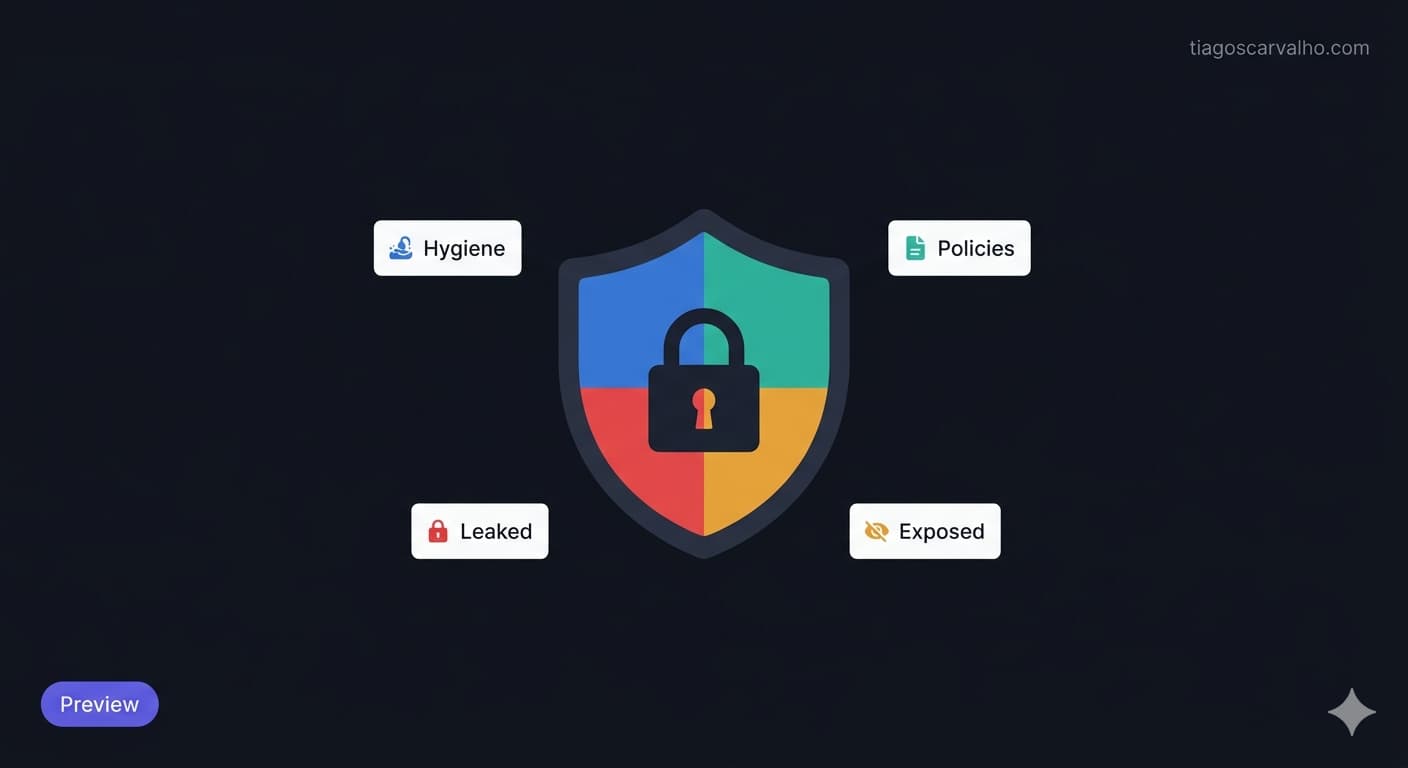
Microsoft is changing that with the new Password Protection page in Microsoft Defender XDR, currently in Preview. Available under Identities, it brings password-related risk from Active Directory, Microsoft Entra ID, and Okta into a single experience. Active Directory spans all four tabs; Microsoft Entra ID currently appears on the Leaked Credentials tab; and Okta is currently supported on Password Hygiene and Password Policies. The goal is to give security teams a single view of what is exposed and the ability to act on it directly from the portal.
The four tabs at a glance
The Password Protection page is organised around four tabs, each targeting a different risk category. Together they cover the full lifecycle of password risk — from weak configurations that make accounts vulnerable, to credentials that have already been compromised.
Password Hygiene
The Password Hygiene tab surfaces account-level weaknesses that are often overlooked because they do not trigger immediate alerts. These are accounts that are technically functional but represent elevated risk — service accounts whose passwords have not changed in years, administrative accounts with no password expiration policy, accounts where the "Password never expires" flag is set without justification.
Each finding is presented as a recommendation rather than an alert. The intent is not to generate noise but to give the security team a prioritised list of hygiene improvements. The tab supports Active Directory and Okta — Microsoft Entra ID is not currently listed for this tab in the preview documentation.
Password Policies
Weak password policies are one of the primary enablers of credential-based attacks. A policy that allows short passwords, does not enforce complexity, or sets excessively long expiration periods increases the success rate of brute force and password spraying attacks significantly. The problem is that policies are often set once during initial deployment and never reviewed.
The Password Policies tab shows the current policy configuration for each connected identity source side by side, with indicators of where the settings fall short of modern security standards. For organisations with both on-premises Active Directory and Entra ID, the side-by-side view is particularly useful for spotting inconsistencies between the two environments — a common source of risk in hybrid setups.
| Risk area | What it enables | Mitigation |
|---|---|---|
| Short minimum password length | Brute force attacks complete faster | Minimum 12–16 characters per NIST SP 800-63B |
| No complexity requirement | Simple dictionary-based passwords allowed | Enable complexity or use a banned password list |
| Short lockout threshold | Password spraying with low-volume attempts goes undetected | Fine-grained lockout policies per account tier |
| Long maximum password age | Compromised credentials remain valid longer | Reduce max age or use passwordless where possible |
| Short lockout duration | Automated attacks retry quickly after lockout | Increase lockout duration or use progressive delay |
Leaked Credentials
The Leaked Credentials tab shows accounts whose credentials have been found outside the organisation. This includes credentials that appeared in public breach dumps, paste sites, or dark web sources. When a credential match is found, the tab shows the affected account and, where available, the source or context of the leak.
This is the most immediately actionable tab in the page. Unlike hygiene findings that represent future risk, leaked credentials represent accounts that may already be actively targeted. The tab supports both individual and bulk actions — you can reset passwords or disable accounts without leaving the portal, which removes a significant friction point in incident response workflows.
For organisations without Entra ID Protection, this tab provides leak detection that would otherwise require a separate licence or third-party tooling. For tenants that already have Entra ID Protection, the findings here are complementary — Entra ID Protection triggers risk-based Conditional Access policies, while this tab gives the security team a direct remediation surface.
Exposed Passwords
The Exposed Passwords tab surfaces configurations and accounts that store or transmit passwords in insecure ways. Two findings stand out as particularly significant in most environments.
Clear-text credentials in Active Directory attributes
Active Directory allows arbitrary data to be stored in user and computer object attributes. In practice, administrators sometimes store passwords, scripts containing passwords, or connection strings in attributes like Description, Info, or custom attributes — often because it is convenient and the risk is not immediately visible. Microsoft Defender for Identity uses AI-based detection to scan for these patterns across AD attributes and surfaces affected accounts in this tab.
Reversible encryption in Group Policy Objects
Windows Group Policy includes a setting — "Store passwords using reversible encryption" — that was designed for legacy compatibility with protocols that require access to the plaintext password. When enabled, user passwords are stored in a format that can be decrypted rather than as a one-way hash. This is essentially the equivalent of storing passwords in plaintext from a security perspective. The Exposed Passwords tab identifies GPOs where this setting is enabled, along with the accounts affected.
| Finding type | Risk level | Remediation |
|---|---|---|
| Clear-text credentials in AD attributes | High | Remove credentials from attributes; rotate any passwords found; review who has read access to those objects |
| Reversible encryption in GPO | High | Disable the setting in affected GPOs; force password reset for all accounts where it was enabled |
How to access the page
The Password Protection page is available in the Microsoft Defender portal under Identities → Password protection. The direct URL is security.microsoft.com/identities/password-protection.
The left panel of the page lets you select the identity source you want to review — Active Directory, Entra ID, or Okta. The four tabs remain consistent across sources, though not all findings apply to all sources (Okta is currently available on Password Hygiene and Password Policies only).
Licensing requirements
According to Microsoft's current preview documentation, access to the Password Protection page requires Microsoft Defender for Identity (or a licence that includes it, such as Microsoft 365 E5) and Microsoft Entra ID Protection. Both are included in Microsoft 365 E5 and EMS E5. Validate current licensing requirements before rollout, as preview requirements may change before general availability.
Security Reader is the minimum role required to access the page. For remediation actions such as password reset or account disable, additional Defender and Entra ID permissions may be required depending on the specific action — the Defender portal does not bypass Entra RBAC for directory operations.
First-time review checklist
-
Review Password Hygiene findings Start here for a quick picture of account-level weaknesses. Prioritise privileged accounts and service accounts with stale passwords.
-
Compare Password Policies against current standards Check minimum length, complexity, lockout thresholds and maximum age. Cross-reference AD and Entra ID policies for inconsistencies in hybrid environments.
-
Act on any Leaked Credentials findings immediately Reset passwords and disable accounts where needed. Review sign-in activity for affected accounts to check for suspicious access.
-
Remediate Exposed Passwords findings Clear any credentials stored in AD attributes and disable reversible encryption in GPOs. Rotate passwords for all affected accounts after remediation.
-
Add Password Protection to your security review cadence Password hygiene findings are persistent — schedule a monthly or quarterly review to catch new issues as users and policies change.