Microsoft 365 · Secure Score · Security Posture · 2026
Every Microsoft 365 tenant has a Secure Score. Most administrators have looked at it at least once, felt a vague sense of guilt about the number, and either chased points to make it go up or quietly stopped checking. Neither response is the right one.
Secure Score is a useful operational tool when read correctly — and a misleading one when treated as a security report card. A high score does not mean your tenant is safe. A low score does not mean you are compromised. What the score actually reflects is how many of Microsoft's generic recommended configurations your tenant has implemented. That is worth knowing, but it needs to be interpreted with context. This guide explains how to read the score, which recommendations genuinely reduce risk, which ones to deprioritise or ignore, and how to use Secure Score as a sustained operational practice rather than a one-time optimisation exercise.
What Secure Score measures
Microsoft 365 Secure Score lives at security.microsoft.com → Microsoft Secure Score. It calculates a percentage based on how many points your tenant has earned out of the total points available — where each recommended action carries a point value, and you earn those points when the corresponding configuration is in place.
The score is a proxy for configuration coverage. It answers the question: of the security controls Microsoft recommends, how many does your tenant have enabled? That is a useful question. But it is a different question from: how well protected is your organisation? The two can diverge significantly in both directions. A heavily customised Conditional Access deployment with phishing-resistant authentication can score lower than a tenant that enabled every quick-win recommendation but has no coherent identity strategy. The score is a starting point for a conversation, not a conclusion.
Anatomy of the dashboard
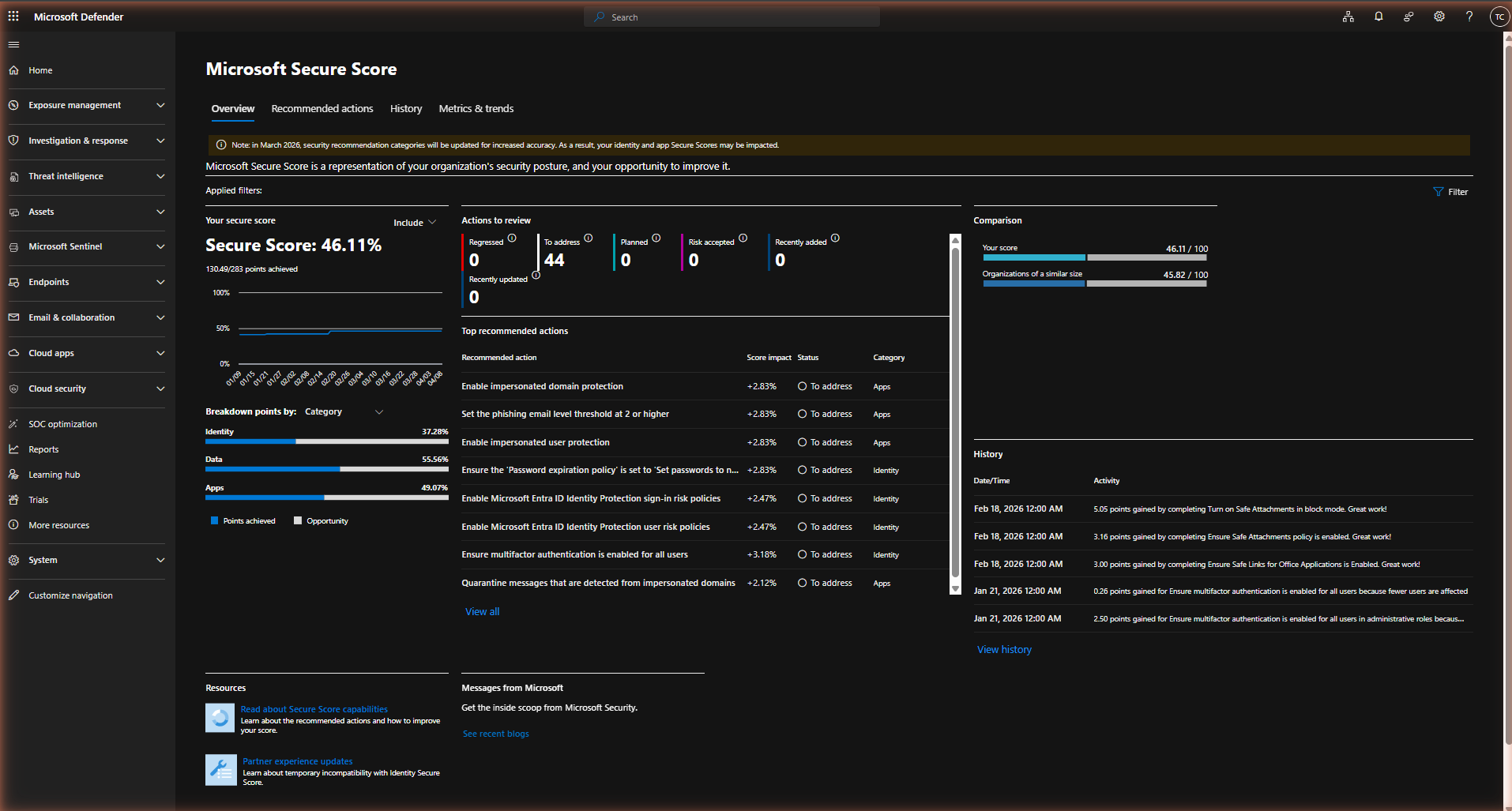
The Secure Score dashboard has four tabs, each serving a different purpose. Understanding what each one is for prevents the most common misreading mistakes.
Overview is the landing tab. It shows your current score, the point breakdown by category, the top recommended actions by score impact, and a quick comparison against organisations of similar size. The "Actions to review" panel shows counts by status — how many are still to address, how many have been planned, and whether any have recently regressed. This tab gives you the situation at a glance but is not where you do the work.
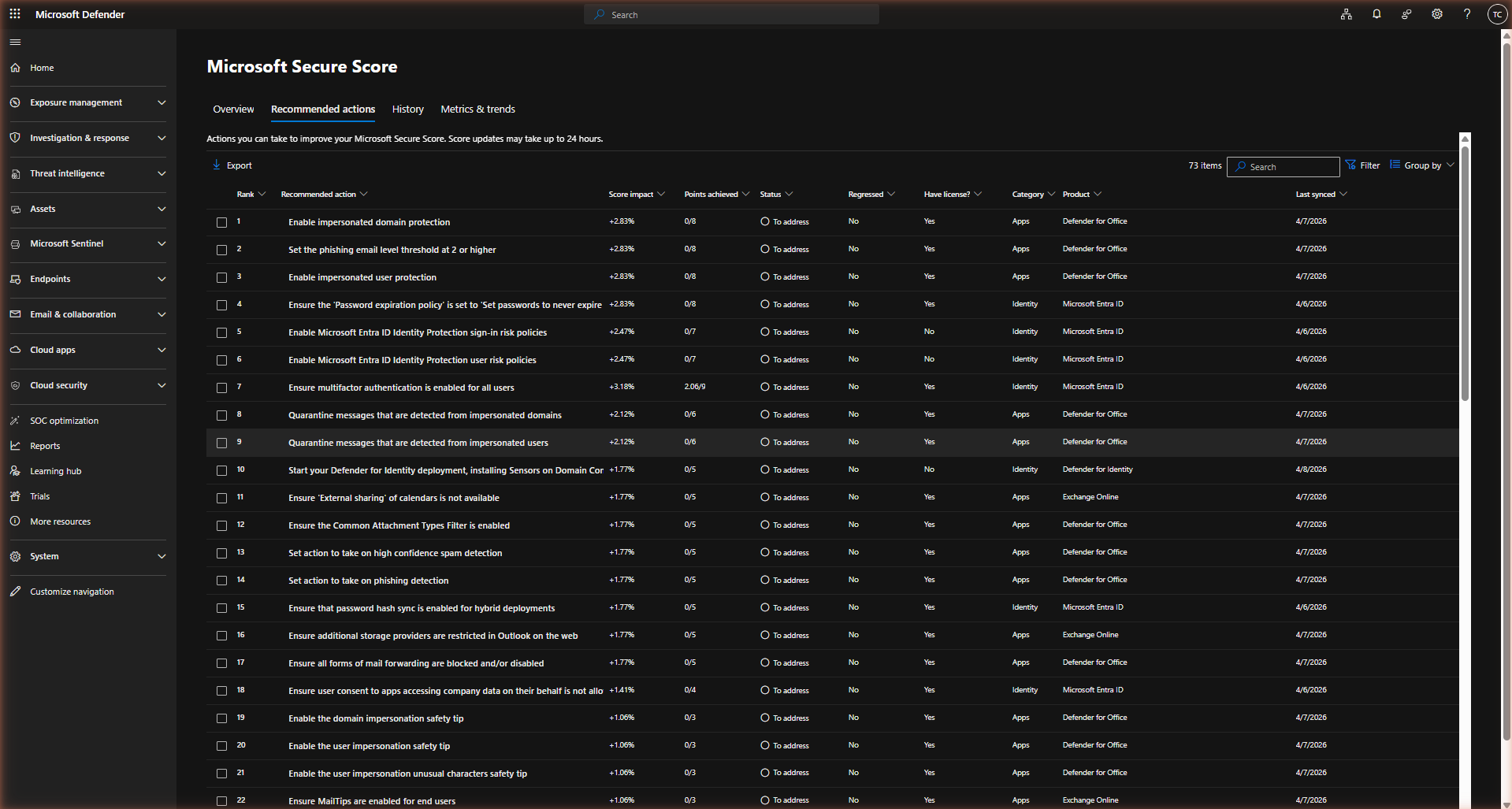
Recommended actions is the operational tab. It lists every action contributing to your score, with columns for rank (Microsoft's suggested priority), score impact as a percentage, points achieved out of the maximum, status, whether you hold the required licence, category, product, and last sync date. This is where triage happens. The list can be sorted, filtered, and exported — export to CSV is useful when you want to work through the list with a team or document your decision-making on items you are marking as Risk accepted.
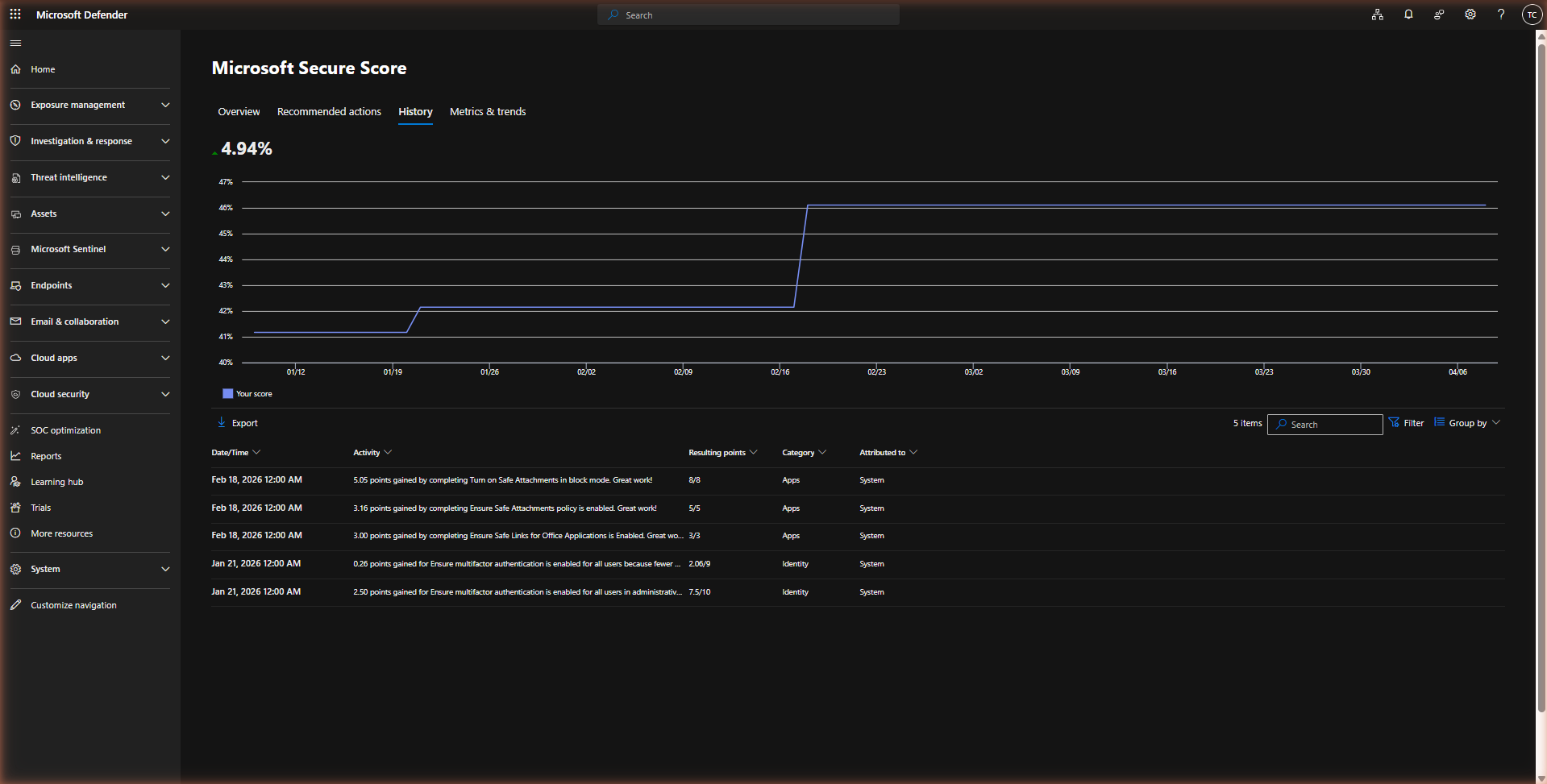
History shows your score trend as a line chart over time, with an activity log below it. The log records every point change — gains from completing actions, losses from regressions, and point adjustments when Microsoft adds or modifies recommendations. When your score unexpectedly changes, the History tab is where you diagnose why. A score drop attributed to "System" in the Attributed to column typically means Microsoft changed the scoring criteria, not that your configuration changed.
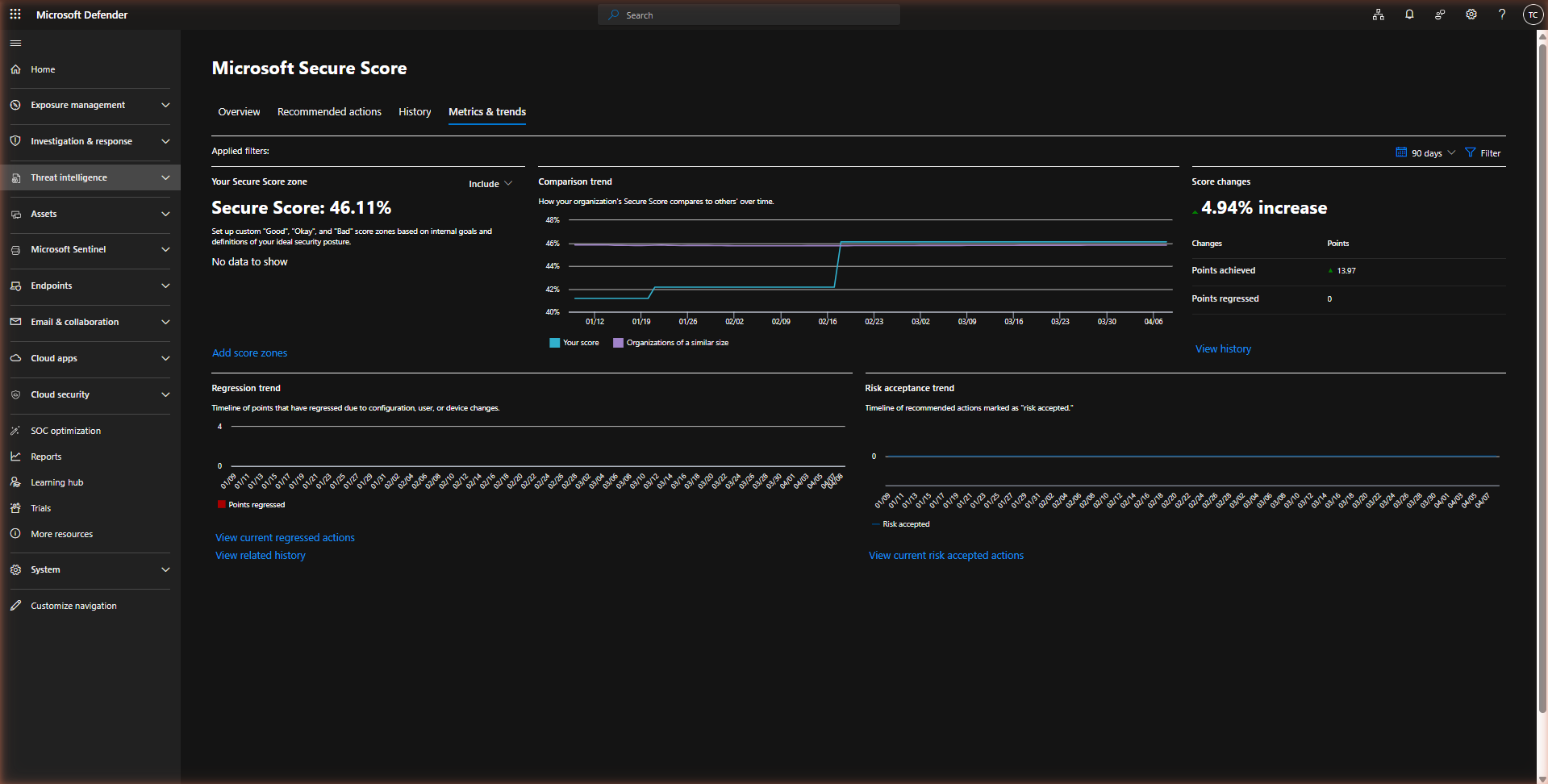
Metrics & trends provides a richer view of the same data — a comparison trend chart overlaying your score against similar organisations, a regression trend showing whether any previously completed actions have degraded, and a risk acceptance trend showing how many actions have been marked as accepted risk over time. The "Score zones" feature on this tab lets you set internal thresholds for Good / Okay / Bad — useful if you want to surface this data in executive reporting with meaningful context rather than a raw percentage.
Score categories
Secure Score organises recommended actions into categories that roughly map to security domains. Understanding what each category covers helps you focus improvement efforts on the areas most relevant to your risk profile.
| Category | What it covers | Typical actions |
|---|---|---|
| Identity | User accounts, admin accounts, authentication methods, Conditional Access, Entra ID Protection | MFA coverage, legacy auth blocking, admin MFA, Identity Protection risk policies, password policies |
| Apps | Microsoft 365 application security — Defender for Office 365, Exchange Online Protection, Teams, SharePoint external sharing | Safe Attachments, Safe Links, anti-phishing policies, impersonation protection, attachment type filters |
| Data | Data classification, sensitivity labels, DLP policies, SharePoint and OneDrive sharing controls | Sensitivity labels published, DLP policies in enforce mode, SharePoint sharing restrictions |
| Device | Endpoint compliance, Defender for Endpoint, Intune-managed device configuration | Device compliance policies, Defender for Endpoint onboarding, attack surface reduction rules |
| Infrastructure | Azure resources, server workloads, cloud security posture (less relevant for most M365-only tenants) | Azure Security Center recommendations, resource configuration policies |
The category breakdown in the Overview tab shows your percentage score within each category — not just your overall score. This is more useful than the headline number because it shows where the largest gaps are. A tenant that scores 80% on Apps but 35% on Identity has a clear priority: address the Identity gap before polishing App configurations further. Identity controls protect the accounts that access everything else.
Reading a recommended action
Clicking any item in the Recommended actions list opens a detail flyout. This is the most important part of the Secure Score interface for making good decisions — the list view alone does not give you enough context to triage correctly.
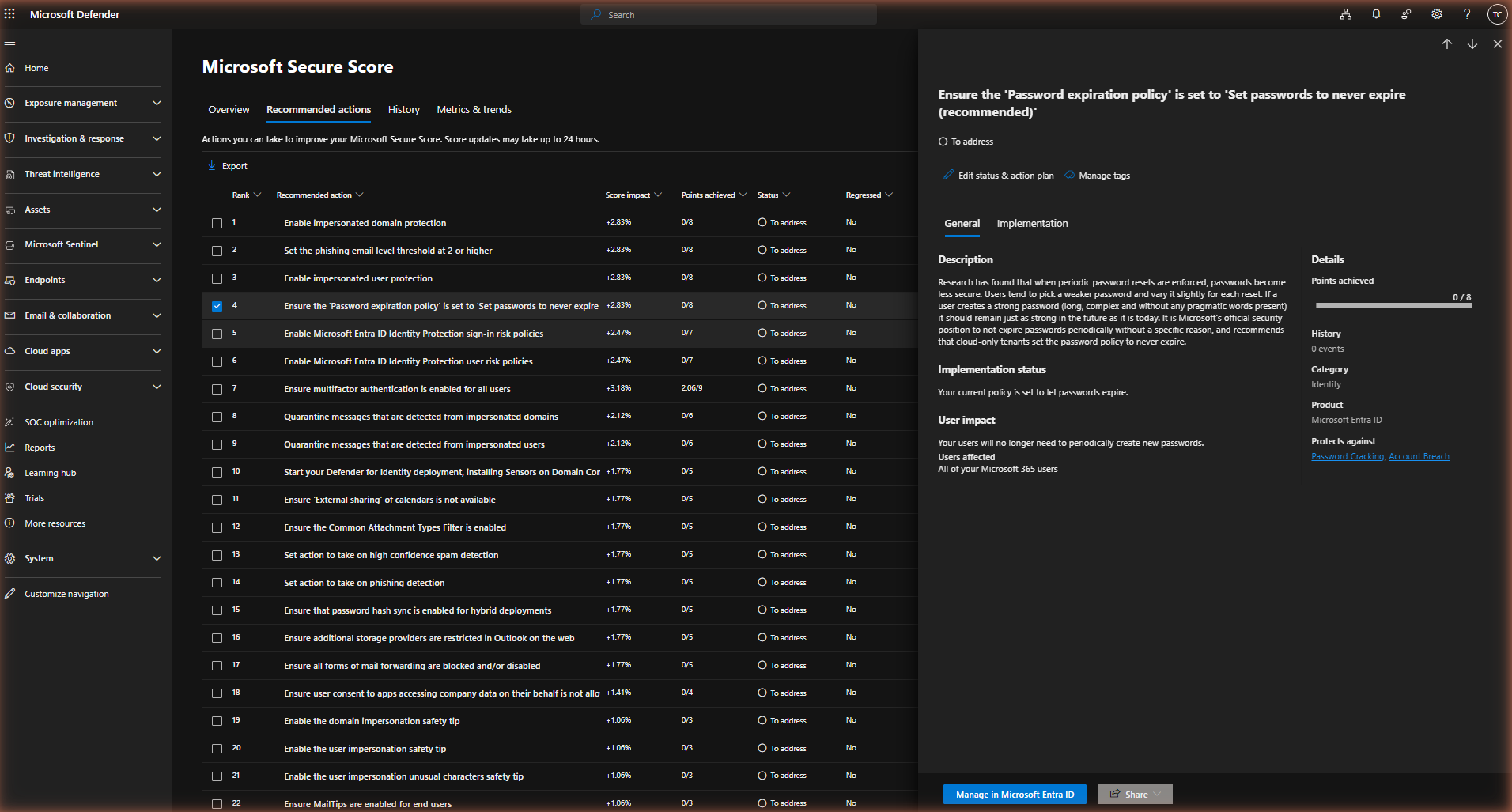
The detail flyout has three tabs of its own. General shows the description, implementation status with the specific gap in your tenant, user impact, and a Details panel with points, category, product, and what threats the action protects against. Implementation provides step-by-step guidance and a direct link to the relevant admin centre page — this is useful for delegating remediation work. History shows a log of changes to this specific action's status over time.
The key fields to evaluate before acting on any recommendation are these: the implementation status (does it show a specific gap, or is it generic?), Have license? (is the required licence already assigned?), User impact (will this cause friction for end users?), and Points achieved (is there already partial credit, meaning part of the work is done?).
What genuinely matters
The actions below have the highest ratio of actual risk reduction to implementation effort. They represent the controls that consistently appear in incident post-mortems when Microsoft 365 tenants are compromised — meaning that not having them in place is a known, exploited gap, not a theoretical concern.
Identity — the highest priority category
Apps — email and collaboration security
Data — classification and sharing controls
Data category actions vary significantly in implementation complexity and time-to-value. Sensitivity labels, once published, improve Copilot security posture, DLP policy accuracy, and compliance audit trails simultaneously — making them disproportionately valuable relative to their Secure Score point value. Restricting external SharePoint sharing and disabling anonymous calendar sharing are lower-effort actions that address specific oversharing vectors common in SMB tenants.
What to deprioritise or ignore
Not every Secure Score recommendation deserves immediate action. Several categories of actions are routinely lower priority than their ranking suggests, and some should be consciously deferred or marked as Risk accepted with documented justification.
Actions requiring licences you do not hold
The Recommended actions list has a Have license? column. Any action marked No in that column cannot be implemented without acquiring additional licensing. These actions contribute to the total maximum points but are not actionable in your current configuration. Filter them out during triage — they represent potential future improvements, not current gaps. Do not let them distort your view of what is achievable today.
Defender for Identity — without on-premises Active Directory
"Start your Defender for Identity deployment, installing sensors on Domain Controllers" appears in many tenant action lists and carries meaningful points. For cloud-only tenants or tenants that have completed Entra-only migration, this action is not applicable. Defender for Identity requires on-premises AD domain controllers to deploy sensors against. If your environment has no DCs, mark this as Risk accepted with a note that the environment is cloud-only.
The password expiration action
The action "Ensure the Password expiration policy is set to 'Set passwords to never expire'" appears near the top of many tenant lists and carries relatively high points. This recommendation aligns with current Microsoft and NIST guidance — frequent password rotations without MFA lead to weaker passwords through predictable patterns. However, if your organisation has compliance obligations that mandate periodic password changes, this is a case where you should mark as Risk accepted — documenting the specific regulatory or contractual requirement, and aligning the decision with your corporate security policy. The justification should reference documented external requirements, not just a general sector assumption.
Actions that duplicate existing controls
Secure Score evaluates configurations in isolation. If you have a Conditional Access policy that enforces MFA for all users in a more sophisticated way than the generic per-user MFA setting — for example, requiring phishing-resistant methods for privileged actions, or enforcing device compliance for external access — the Secure Score may still show the generic MFA action as partially incomplete. The score is measuring the specific configuration check it knows about, not the overall quality of your authentication architecture. Do not degrade a well-designed Conditional Access environment to satisfy a Secure Score check.
Score gaming — the "Risk accepted" trap
Marking an action as Risk accepted removes it from the "To address" count and can improve your visible score percentage. This is appropriate when you have a documented reason not to implement a recommendation — a licensing constraint, a business process dependency, a compensating control that addresses the same risk differently. It is not appropriate as a strategy to improve your score number while leaving genuine gaps unaddressed. If an action is marked as Risk accepted, the justification should be documented and reviewed at a defined cadence — typically annually or when the environment changes.
Using the comparison view
The Overview tab includes a Comparison panel that shows your score against two benchmarks: organisations of a similar size and optionally your industry sector. The Metrics & trends tab shows this as a trend chart over time. Both are useful for contextualising your score — but neither should be used as a target.
The peer comparison tells you whether your tenant is in the same configuration range as comparable organisations. If you are significantly below the peer average, it is a reasonable indicator that there are common baseline controls not yet in place. If you are at or above the peer average, it means you are broadly in line with comparable environments — not that your configuration is optimal. The average across tenants includes many that have made the same prioritisation mistakes and left the same common gaps unaddressed.
A more useful way to read the comparison: if you are below the peer average, focus on the Identity category first, since MFA and Conditional Access coverage is typically the largest driver of below-average scores. If you are above the peer average but still have unaddressed Identity actions, the comparison result should not reduce your sense of urgency — it just means your peers have the same gap.
Operational rhythm
Secure Score is most valuable when reviewed on a regular cadence rather than treated as a one-time project. The recommended approach is a two-speed review cycle.
Monthly: Check the History tab for unexpected score changes. Any regression (a previously completed action that has dropped back) warrants investigation — it typically indicates a configuration change, a licence assignment change, or a Microsoft scoring update. Check the "Recently added" count on the Overview tab; new recommended actions are added as Microsoft releases new security features, and some of them represent genuinely important new controls.
Quarterly: Review the Recommended actions list with the team responsible for security configuration. Work through any new actions from the previous quarter, revisit Risk accepted items to confirm the justification is still valid, and check whether any previously unlicensed actions have become available due to licence changes. Export the list to CSV and attach it to your security review documentation.
One practical tip: the Export function in the Recommended actions tab produces a CSV with all columns including points, status, category, and product. This is useful for building a prioritised backlog in your project management tool, where each action can be assigned an owner, a target completion date, and a tracking status independently of what the Secure Score interface shows.
Secure Score triage checklist
- Filter the Recommended actions list by "Have license? = Yes" Start your triage with only actionable items. Actions requiring licences you do not hold cannot be addressed today — removing them from view prevents them from distorting your priorities.
- Address all Identity actions with "Have license? = Yes" first MFA coverage, admin account protection, legacy authentication blocking, and Identity Protection risk policies deliver the highest risk reduction per point. Complete these before moving to other categories.
- Enable Safe Attachments (Block mode), Safe Links, and anti-phishing protections If Defender for Office 365 Plan 1 is licensed, these three actions together address the most common email-borne attack vectors. Safe Attachments and Safe Links in particular have a direct, measurable impact on malware delivery and phishing click-through rates.
- Document every "Risk accepted" decision For each action marked as Risk accepted, record the reason, the date, and the owner. Schedule a review at least annually. Actions accepted due to licensing constraints should be revisited at each licence renewal cycle.
- Check the History tab after any score change Score changes attributed to "System" are Microsoft-initiated scoring updates, not configuration regressions. Score changes attributed to your admin account or "User" reflect actual configuration changes. Distinguish between the two before reacting.
- Set custom Score zones for internal reporting Configure Good / Okay / Bad thresholds in Metrics & trends that reflect your organisation's security targets. This makes the score meaningful to stakeholders who are not security specialists and creates accountability for improvement over time.
- Export the action list quarterly and assign owners Export Recommended actions to CSV and track remediation in your project management tool. Each action should have an assigned owner and a target completion date. The Secure Score interface alone does not provide enough workflow capability for sustained operational tracking.
- Do not treat Secure Score as a substitute for a security assessment Secure Score does not evaluate Conditional Access policy quality, RBAC hygiene, incident response capability, or user awareness. Use it as a configuration hygiene baseline, not as evidence of overall security posture.
- Microsoft Entra Conditional Access: A Practical Deployment Guide
- Why Traditional MFA Fails: Enforcing Phishing-Resistant Access
- Microsoft Defender for Office 365 Plan 1 Is Now in E3: What You Get
- Microsoft 365 Business Premium Security Checklist for SMBs
- Microsoft Purview Insider Risk Management: The Admin Setup Guide