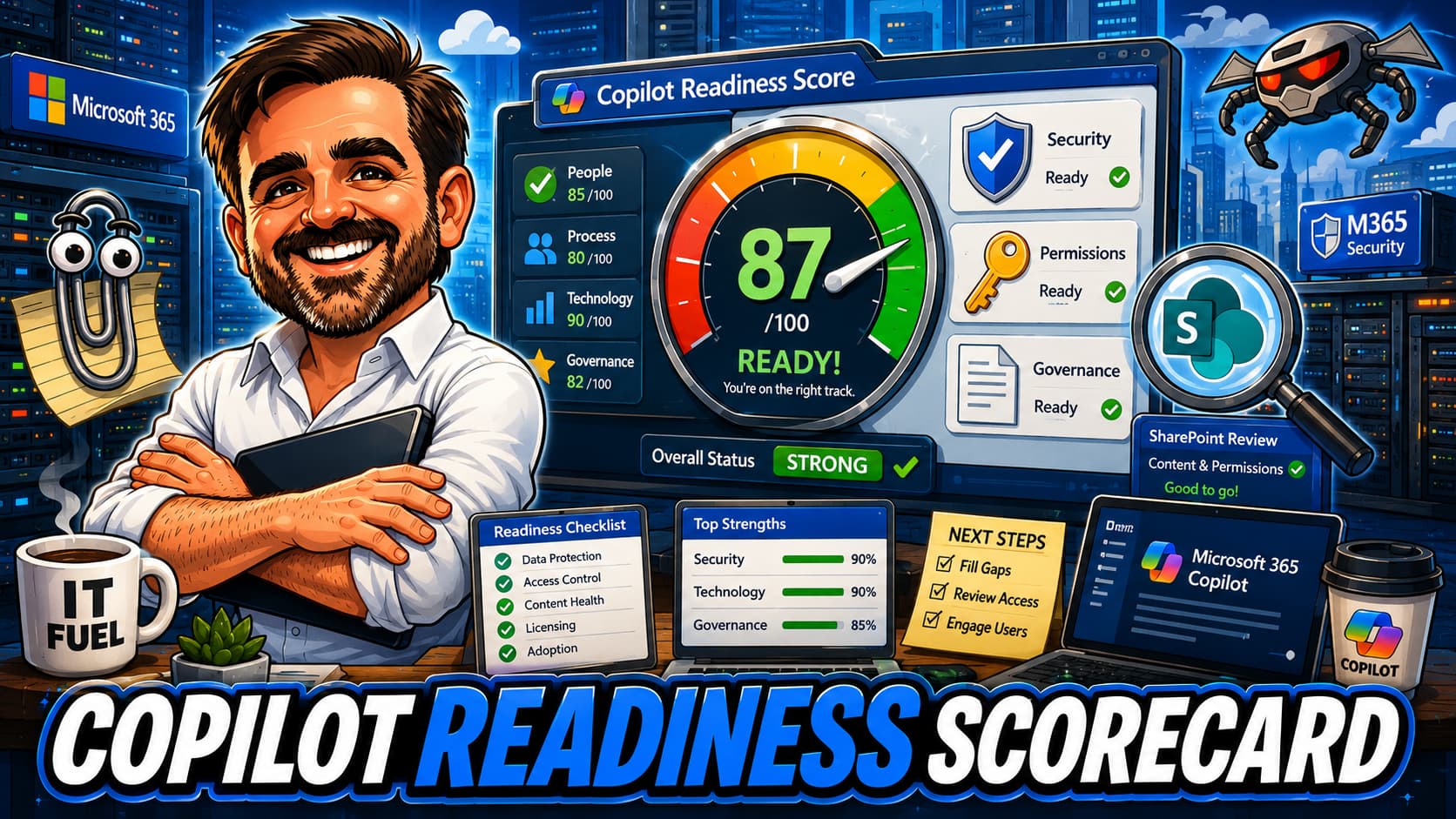
Buying Copilot is not the same as being ready for Copilot. This interactive scorecard helps Microsoft 365 admins, security teams and decision makers assess whether their tenant governance, permissions and security posture are mature enough for a safe Copilot rollout.
- Interactive readiness scorecard with 8 inputs and scoring engine
- Identity, SharePoint, external sharing and Purview readiness checklists
- Sensitivity labels and DLP readiness assessment
- Persona-based Copilot rollout planning
- Pilot vs broad rollout decision framework
- 15 common Copilot readiness mistakes from real tenants
- Field notes, scoring model and PDF-ready summary
Table of contents
- Introduction
- Readiness disclaimer
- What this guide helps you decide
- Before you start
- Licensing and prerequisites
- Interactive readiness scorecard
- Readiness scoring model
- Identity and access readiness
- SharePoint and OneDrive permissions
- External sharing and guest access
- Sensitivity labels and information protection
- DLP and data protection
- Audit, monitoring and reporting
- User readiness and adoption
- Persona-based rollout
- Pilot vs broad rollout
- Common readiness mistakes
- Field notes
- What good looks like
- Save as PDF
- Related content
Introduction
Microsoft 365 Copilot is one of the most talked-about additions to the Microsoft 365 ecosystem. It surfaces content, generates drafts, summarises meetings, and helps users work faster across Word, Excel, PowerPoint, Outlook, Teams and SharePoint.
But here is the part that many rollout plans skip: Copilot does not create oversharing. It exposes it.
Copilot respects existing user permissions. It does not grant users access to content they could not already reach. It does not bypass Conditional Access policies. It does not override sensitivity labels. It works within the same permission boundaries that already exist in your tenant.
That is exactly why tenant governance matters before you assign Copilot licences broadly.
If a user can access too much today, Copilot can help them find too much tomorrow. It does not break access controls. It makes existing gaps in permissions, sharing settings, content ownership and governance easier to discover, faster to surface, and harder to ignore.
If SharePoint sites are overshared, if "Everyone except external users" permissions are everywhere, if anonymous links are active, if sensitivity labels are not deployed, if DLP is not tuned, if site ownership is unknown, if external sharing is uncontrolled: Copilot will not create those problems. But it will operate within them.
This guide is not a generic Copilot overview. It is a practical readiness scorecard designed to help you answer one question: is your tenant ready for Copilot, and if not, what do you fix first?
Important Copilot readiness disclaimer
Key points to keep in mind:
- Copilot respects existing permissions. It does not grant users access to content they could not already reach through SharePoint, OneDrive, Teams, Exchange or other Microsoft 365 services.
- The primary risk is not Copilot itself. The risk is unmanaged content, poor permissions, broad sharing, missing labels, and weak governance that already exists in the tenant.
- Copilot capabilities and licensing may change. Microsoft continues to evolve Copilot features, licensing requirements, and integration points. Validate current capabilities against Microsoft documentation.
- Licensing must be validated. Base licence eligibility, Copilot add-on requirements, Purview capabilities, and security tooling depend on your agreement, region, and tenant configuration. Validate against your licensing provider and the Microsoft 365 admin center.
- This is not legal, compliance, or procurement advice. Organisations operating in regulated industries should involve legal and compliance teams in Copilot readiness planning.
- Final validation should be done against Microsoft documentation, the Microsoft 365 admin center, Microsoft Purview compliance portal, and the customer's licensing provider where relevant.
What this guide helps you decide
This scorecard is designed to help you work through the following decisions:
- Whether the tenant is ready for Copilot or whether governance gaps need to be addressed first
- Whether Copilot should remain in pilot mode or can be expanded to broader rollout
- Which governance gaps to prioritise before assigning additional Copilot licences
- Whether SharePoint and OneDrive permissions are too broad for safe Copilot usage
- Whether external sharing and anonymous links are controlled
- Whether sensitivity labels are mature enough to support Copilot at scale
- Whether DLP policies are needed before rollout
- Whether audit and monitoring are sufficient to track Copilot-related activity
- Whether user training covers Copilot-specific data handling expectations
- Whether Copilot licences should go to everyone or only to selected personas
- How to document Copilot readiness decisions and rollout scope
Before you start
Before assigning or expanding Copilot licences, work through this pre-flight checklist. These are not theoretical steps. They are the practical governance foundations that determine whether your Copilot rollout surfaces productivity or surfaces problems.
Pre-flight checklist
- Identify Copilot pilot users and define why they were selected
- Identify user personas and map them to Copilot business value
- Review SharePoint site permissions, especially broadly shared sites
- Review OneDrive sharing settings and personal site policies
- Review Teams-connected SharePoint sites for stale or orphaned content
- Review external sharing settings at tenant and site collection level
- Audit anonymous links and "Anyone" sharing links
- Review sensitivity label deployment status and adoption
- Assess DLP policy coverage and tuning status
- Review retention policy requirements and coverage
- Confirm audit log is enabled and review cadence is defined
- Identify content and site owners for high-priority sites
- Review guest access policies and guest user inventory
- Review admin roles, privileged access, and Conditional Access policies
- Validate Copilot licensing eligibility against current agreements
- Prepare a user training plan covering data handling and Copilot-specific guidance
- Confirm helpdesk readiness for Copilot-related support questions
- Document rollout scope, success criteria, and governance review schedule
Licensing and prerequisites at a glance
Copilot licensing depends on the base Microsoft 365 licence assigned to each user, plus the Copilot add-on. Governance and security capabilities depend on the licence tier and any additional add-ons. The following table is directional. Validate all licensing details against Microsoft documentation and your licensing provider.
| Requirement | Details | Validation |
|---|---|---|
| Eligible base licence | Microsoft 365 E3, E5, Business Standard, Business Premium, or other eligible plans | Validate against Microsoft 365 Copilot prerequisites documentation |
| Copilot add-on licence | Microsoft 365 Copilot licence required per user | Validate pricing and availability with licensing provider |
| Entra ID and Conditional Access | Conditional Access capabilities depend on Entra ID P1 or P2 licensing | Validate against current Entra ID licensing |
| Sensitivity labels | Available with E3 and above; auto-labelling and advanced features may require E5 or add-ons | Validate feature availability against Purview licensing |
| DLP | Basic DLP included with E3; advanced DLP, endpoint DLP, and broader scope may require E5 or Purview add-ons | Validate DLP scope and capabilities against licensing |
| Audit | Standard audit included with most plans; advanced audit capabilities may require E5 or add-ons | Validate audit retention and capabilities against licensing |
| SharePoint governance | Site-level permissions, sharing controls, and access reviews are tenant features; advanced governance capabilities may vary | Validate SharePoint admin center capabilities |
| SharePoint Advanced Management | Optional add-on for advanced site governance: site access reviews, restricted access control, data access governance reports, and site lifecycle management | Validate availability and licensing; particularly relevant for Copilot readiness governance |
| Teams Premium | Optional; adds meeting intelligence, custom meeting templates, and additional protection features | Validate if relevant for Copilot meeting scenarios |
| Defender tooling | Defender for Office 365, Defender for Endpoint, and related security tools depend on licence tier | Validate against security requirements and licence tier |
Interactive Copilot Readiness Scorecard
Select the option that best describes your tenant for each category. The scorecard will calculate a readiness score, identify your weakest areas, and recommend a rollout approach.
Copilot Readiness Scorecard
Readiness scoring model
The scorecard uses a weighted scoring model across six governance pillars. The total score is out of 100. Each pillar contributes a different weight, reflecting its relative importance to Copilot readiness.
| Pillar | Max points | Why it matters for Copilot |
|---|---|---|
| SharePoint and OneDrive permissions | 25 | Copilot surfaces content based on user permissions. Overshared sites are the single biggest readiness risk. |
| Purview labels and DLP | 20 | Labels classify content. DLP helps reduce inappropriate sharing and leakage risk. Without them, Copilot operates on unclassified, unprotected content. |
| Identity and access | 15 | Copilot works through authenticated user sessions. Identity hygiene, Conditional Access, and least privilege determine who can use Copilot and what they reach. |
| External sharing and guest access | 15 | Broad external sharing and anonymous links mean content is already exposed. Copilot makes that exposure easier to find internally. |
| Audit and monitoring | 15 | Controls without monitoring are assumptions. If you cannot review what Copilot users access, you cannot validate your readiness. |
| User readiness and adoption | 10 | Users need to understand that Copilot surfaces content they can access. Prompting, data handling, and governance awareness reduce operational risk. |
Readiness levels
| Score | Level | What it means |
|---|---|---|
| 0 to 40 | Not ready | Significant governance gaps exist. Deploying Copilot broadly at this stage risks surfacing content that users should not easily find. Address SharePoint permissions, external sharing, and label deployment before expanding Copilot licensing. |
| 41 to 65 | Pilot only | Some governance foundations are in place, but gaps remain. Copilot should be limited to a controlled pilot group with reviewed permissions and defined scope. Focus on closing the weakest areas before broader rollout. |
| 66 to 80 | Controlled rollout | Governance is largely in place. Copilot can be rolled out to additional personas with monitoring. Continue strengthening weaker pillars and review governance quarterly. |
| 81 to 100 | Strong readiness | Governance, permissions, labels, DLP, and monitoring are mature. Copilot can be deployed more broadly with confidence, using monitoring and periodic governance reviews. Maintain governance hygiene and review readiness periodically as Copilot capabilities evolve. |
What to fix first
If your scorecard highlights a weak pillar, use this table to identify the highest-priority remediation action for each area.
| Weakest area | Fix first | Why |
|---|---|---|
| SharePoint permissions | Review broad access, "Everyone except external users" groups, and anonymous links | Biggest Copilot exposure risk. Permissions determine what Copilot can surface. |
| External sharing | Remove stale guests and anonymous links. Restrict tenant-level sharing defaults. | Reduces uncontrolled exposure to external users and unauthenticated access. |
| Sensitivity labels | Deploy a simple label taxonomy and publish to users | Creates a classification baseline. Copilot operates on unclassified content without labels. |
| DLP | Start DLP policies in simulation or test mode for key sensitive information types | Reduces leakage risk without disrupting users. Tune before enforcement. |
| Audit and monitoring | Define alert ownership and establish a review cadence | Turns audit logs into an active control. Without review, audit is decorative. |
| User readiness | Train pilot users on data access awareness and prompting hygiene | Reduces misuse, confusion, and support tickets from unexpected Copilot results. |
Identity and access readiness
Copilot readiness is not only about data governance. It starts with identity. Copilot works through authenticated user sessions and respects the permissions assigned to each identity. If identity hygiene is weak, Copilot rollout inherits those weaknesses.
Identity readiness checklist
- MFA enforced for all users through Security Defaults or Conditional Access, including Copilot-licensed users
- Conditional Access policies in place for Microsoft 365 workloads
- Admin roles separated: Global Admin, SharePoint Admin, Exchange Admin, Security Admin are not shared
- Privileged Identity Management (PIM) used for just-in-time admin access where available (requires Entra ID P2)
- Emergency access accounts configured and excluded from Conditional Access where appropriate
- Guest access inventory reviewed and stale guests removed
- Access reviews configured for sensitive groups and sites where applicable
- Least privilege principle applied to Copilot user selection
- Copilot rollout mapped to user personas, not to "everyone"
SharePoint and OneDrive permissions readiness
This is the most important section of this guide. SharePoint and OneDrive permissions determine what content Copilot can surface for each user. If permissions are too broad, Copilot will operate within that broadness. Not because Copilot breaks anything, but because the permissions were already there.
The core problem
In many tenants, SharePoint permissions have drifted over time. Sites created for projects that ended years ago still have active permissions. "Everyone except external users" was added to document libraries during a migration and never removed. Anonymous links were shared for a quick file transfer and never expired. Teams channels were created, connected to SharePoint sites, and then abandoned without removing access.
None of this is a Copilot problem. It is a governance problem that Copilot makes more visible.
SharePoint permissions review checklist
- Review all sites with "Everyone" or "Everyone except external users" permissions
- Review sites shared with large security groups or distribution lists
- Audit anonymous sharing links across SharePoint and OneDrive
- Review external sharing configuration at tenant and site collection level
- Identify orphaned sites with no active owner
- Identify stale Teams-connected SharePoint sites (inactive for 6+ months)
- Review document libraries containing sensitive or confidential content
- Review guest access to specific sites and libraries
- Confirm site owners are known and active for all high-priority sites
- Review OneDrive sharing defaults and personal site sharing settings
- Evaluate SharePoint Advanced Management (SAM) for data access governance reports, site access reviews, and restricted access control where available (add-on licensing; validate availability)
SharePoint risk levels
| Permission pattern | Risk level | Action before Copilot |
|---|---|---|
| "Everyone except external users" on sensitive sites | High | Remove broad permissions. Replace with targeted security groups. Review before Copilot licensing. |
| Anonymous links active on document libraries | High | Audit and expire anonymous links. Set expiration policies. Review sharing settings. |
| Orphaned sites with no active owner | Medium | Assign owners or archive. Do not leave orphaned content accessible to broad groups. |
| Stale Teams sites with inherited permissions | Medium | Review Teams sites inactive for 6+ months. Archive or restrict access. |
| External guests with access to internal sites | Medium | Review guest access. Remove stale guest accounts. Restrict guest access to specific sites. |
| Targeted permissions with clear ownership | Low | Maintain. Review periodically. Good Copilot readiness baseline. |
External sharing and guest access readiness
External sharing controls determine what content can be accessed outside the organisation. While Copilot primarily surfaces content for internal users based on their permissions, external sharing settings indicate the overall governance maturity of the tenant. Broad external sharing often correlates with broad internal permissions.
External sharing review checklist
- Review tenant-level SharePoint external sharing settings
- Review site-level external sharing overrides
- Audit "Anyone" (anonymous) links across SharePoint and OneDrive
- Review guest user inventory in Entra ID
- Differentiate between Teams external access and guest access
- Review OneDrive sharing defaults for individual users
- Confirm partner collaboration is governed by specific sharing policies
- Define review cadence for guest access (quarterly recommended)
- Review exceptions to external sharing restrictions and document justification
- Assess data loss risk from uncontrolled external sharing
External sharing risk scenarios
| Scenario | Risk | Recommended action |
|---|---|---|
| Anonymous links enabled tenant-wide | High | Restrict anonymous links. Set expiration and password requirements. Review active links. |
| "Anyone" links on sensitive document libraries | High | Remove and replace with authenticated guest sharing. Apply sensitivity labels where relevant. |
| Guest users with no access review cadence | Medium | Implement quarterly guest access review. Remove stale guest accounts. |
| Teams external access open to all domains | Medium | Restrict external access to specific domains or disable if not needed. Review federation settings. |
| OneDrive sharing set to "Anyone" by default | Medium | Change default to "Specific people" or "People in your organisation". Review individual user settings. |
| External sharing restricted to authenticated guests with review | Low | Maintain. Review quarterly. Good governance baseline. |
Sensitivity labels and information protection readiness
Sensitivity labels classify and optionally protect content. Copilot respects supported Microsoft Purview protections and user permissions, but labels do not replace access control. Labels help governance, but they do not fix bad permissions on their own.
If a file is labelled "Confidential" but the SharePoint site it lives on is shared with everyone, the label indicates intent but the permission determines access. Labels and permissions work together. Neither replaces the other.
Label readiness checklist
- Sensitivity labels defined and published to users
- Container labels applied to SharePoint sites and Teams where appropriate
- File-level labels deployed for documents and emails
- Manual labelling enabled and user training completed
- Automatic labelling evaluated where available (may require E5 or add-on licensing)
- Label adoption measured and gaps identified
- Highly confidential content identified and label strategy defined
- Encryption settings reviewed for impact on Copilot and search functionality
- Default label policies configured where appropriate
Label maturity and Copilot readiness
| Label maturity | What it means | Copilot readiness impact |
|---|---|---|
| Not used | No labels deployed. Content is unclassified. | Copilot operates on unclassified content. No signals to indicate confidentiality. Higher governance risk. |
| Pilot | Labels defined but limited deployment. Low adoption. | Partial protection. Some content is classified, most is not. Inconsistent governance baseline. |
| Deployed | Labels published and actively used by most users. | Good governance foundation. Content classification supports Copilot readiness. Continue improving adoption. |
| Mature and adopted | Labels deployed broadly with high adoption, default policies, and container labels. | Strong readiness. Content classification, protection policies, and container governance align with Copilot deployment. |
DLP and data protection readiness
DLP policies help reduce the risk of sensitive information being shared inappropriately. For Copilot readiness, DLP serves as a safety net: it does not replace permission cleanup or label deployment, but it adds a layer of protection that can catch leakage patterns that governance alone might miss.
When DLP matters for Copilot
DLP is not always a prerequisite for Copilot. But in tenants where sensitive information types exist (financial data, health records, personal identifiable information, intellectual property), DLP policies add a control layer that helps contain the impact of broad permissions.
DLP readiness considerations
| Data protection need | Recommended control | Copilot readiness note |
|---|---|---|
| Financial data in SharePoint | DLP policy targeting financial sensitive info types | Helps reduce external sharing risk for financial documents. Complements permission controls. |
| Personal data (PII) across workloads | DLP policy across Exchange, SharePoint, OneDrive, Teams | Catches PII sharing patterns. Important for regulated environments. |
| Health records (PHI) | DLP policy with healthcare-specific sensitive info types | Critical for healthcare tenants before Copilot rollout. |
| Intellectual property | Custom sensitive info types or trainable classifiers with DLP | Protects proprietary content. Requires tuning to avoid false positives. |
| Credit card and payment data | Built-in DLP rules for credit card numbers | Standard protection. Should be in place regardless of Copilot. |
| General content without sensitive data | Permission controls and labels | DLP may not be required. Focus on permissions and label governance. |
DLP deployment tips
- Start in test mode before enforcement. Tune policies based on false positives.
- Target specific sensitive information types rather than broad rules.
- Align DLP with sensitivity labels where possible for consistent protection.
- Review endpoint DLP requirements if devices access sensitive content outside managed apps.
- Validate DLP licensing scope against your Microsoft 365 plan. Advanced DLP capabilities may require E5 or Purview add-ons.
Audit, monitoring and reporting readiness
Controls without monitoring are assumptions. If you deploy Copilot and cannot review what users are accessing, what sharing events are occurring, what DLP alerts are triggering, and what Copilot-related activity looks like, you are operating on trust rather than evidence.
Audit readiness checklist
- Unified audit log enabled in Microsoft 365
- Purview audit capabilities validated against licensing
- Sharing events (internal and external) reviewed regularly
- Sensitivity label events monitored
- DLP alerts reviewed and triaged
- Copilot-related activity reviewed where available (audit events may evolve)
- Copilot usage reports reviewed in the Microsoft 365 admin center where available (report scope and detail may evolve; validate current capabilities)
- Access to sensitive content monitored for anomalies
- Alert ownership defined: who reviews, who responds, who escalates
- Monthly or quarterly governance review schedule established
Monitoring cadence recommendations
| Activity | Recommended cadence | Owner |
|---|---|---|
| DLP alert triage | Weekly | Security or compliance team |
| External sharing review | Monthly | SharePoint admin or governance team |
| Guest access review | Quarterly | Identity or governance team |
| Sensitivity label adoption | Monthly | Information protection team |
| Copilot activity and usage reports | Monthly (where available) | Security or IT admin team |
| Stale site and orphaned content review | Quarterly | SharePoint admin or governance team |
| Overall governance health review | Quarterly | IT leadership and security team |
User readiness and adoption
Technology readiness is only half of Copilot readiness. Users need to understand what Copilot does, what it surfaces, and how to use it responsibly. Without training, users will not know that Copilot responses are based on content they already have access to, and they will not understand the data handling expectations that come with it.
User training essentials
- What Copilot accesses: Explain that Copilot surfaces content the user can already reach through SharePoint, OneDrive, Teams, Exchange, and other Microsoft 365 services.
- Prompting responsibly: Guide users to be thoughtful about prompts that could surface sensitive content in shared contexts (Teams chats, meetings, shared screens).
- Data handling expectations: Remind users not to paste sensitive or confidential content into prompts in contexts where it should not appear.
- Understanding results: Help users understand that Copilot responses are generated from existing content and may include information from broadly shared sites.
- Reporting concerns: Establish a channel for users to report unexpected Copilot results, such as surfacing content they did not expect to find.
Role-based training considerations
| Audience | Training focus |
|---|---|
| Standard office users | Copilot basics, data access awareness, prompting hygiene |
| Executive users | Data sensitivity, meeting summaries, sharing context |
| IT admins | Governance controls, audit review, troubleshooting |
| Security team | DLP, labels, audit, incident response for Copilot-related events |
| Helpdesk | Common Copilot questions, escalation paths, known limitations |
| SharePoint admins | Permission review, sharing controls, site governance |
Persona-based Copilot rollout
Not every user needs Copilot on day one. Mapping rollout by persona helps control risk, align business value, and ensure that governance readiness matches the content each persona accesses.
| Persona | Business value | Risk level | Readiness checks | Rollout approach |
|---|---|---|---|---|
| Executive | High: summaries, drafting, meeting intelligence | Medium-High | Verify access scope. Review shared sites. Ensure sensitivity labels on exec content. | Controlled pilot with reviewed permissions |
| Standard office user | Medium: productivity across Office apps | Medium | Review SharePoint access. Ensure training completed. | Phase 2 after pilot validation |
| Sales / customer-facing | High: proposals, CRM summaries, email drafting | Medium | Review access to internal pricing, contracts, customer data. | Pilot with reviewed data boundaries |
| HR | Medium: policy drafting, employee comms | High | Verify HR content site permissions are restricted to HR personnel. Remove broad access before Copilot assignment. | Controlled rollout after permission review |
| Finance | Medium: reporting, analysis, budgets | High | Verify financial data permissions. Ensure DLP covers financial SITs. | Controlled rollout after DLP and permission review |
| Legal / compliance | Medium: contract review, policy analysis | High | Verify legal content is permission-restricted. Review sensitivity labels. | Late rollout after full governance review |
| IT admin | High: troubleshooting, documentation, automation | Low | IT typically has governance awareness. Useful for pilot feedback. | Early pilot |
| Security team | Medium: incident summaries, report drafting | Low | Security teams understand data sensitivity. Good pilot candidates. | Early pilot |
| Frontline worker | Variable: depends on workload | Low | Limited content access typically. Validate Copilot licensing eligibility for frontline plans. | Evaluate business case separately |
| External collaboration-heavy user | Medium: partner comms, shared projects | Medium-High | Review external sharing scope. Validate guest access governance. | Controlled rollout after external sharing review |
Pilot vs broad rollout decision
The decision between keeping Copilot in pilot mode and expanding to broad rollout depends on your governance maturity, not on Copilot itself. The following table maps common tenant scenarios to recommended rollout approaches.
| Scenario | Recommended rollout | Why |
|---|---|---|
| SharePoint permissions unknown or not reviewed | Hold: fix first | Deploying Copilot on unreviewed permissions risks surfacing content that users should not easily find. |
| External sharing broad or anonymous links active | Hold or pilot only | Broad sharing indicates governance gaps that should be addressed before Copilot expansion. |
| Sensitivity labels not deployed | Pilot only | Copilot operates on unclassified content. Labels provide classification and protection signals that improve governance readiness. |
| DLP not tuned | Pilot only | DLP adds a safety net. If sensitive data types exist, DLP should be active before broad rollout. |
| Audit enabled but not monitored | Pilot with review | Deploy to pilot group and use the pilot to establish monitoring practices before expanding. |
| Pilot users selected with reviewed site permissions | Proceed with pilot | Good starting point. Monitor results and use findings to validate broader readiness. |
| Strong governance already in place | Controlled rollout | Permissions, labels, DLP, and monitoring are mature. Expand by persona with monitoring. |
| Regulated industry with strict data requirements | Controlled rollout with compliance review | Involve legal and compliance teams. Document governance controls. Pilot before broad rollout. |
| Executive-only pilot | Proceed with caution | Executives often access broad content. Review their permissions carefully before Copilot assignment. |
| Department-by-department rollout | Good approach | Allows governance validation per department. Scales readiness checks systematically. |
Common Copilot readiness mistakes I still see in real tenants
- Buying Copilot before reviewing SharePoint permissions. The single most common mistake. Copilot licences arrive. Permissions have not been touched in years. Every overshared site becomes easier to discover.
- Assuming Copilot fixes governance. Copilot is a productivity tool, not a governance tool. It operates within existing controls. If controls are weak, Copilot works within weak controls.
- Assuming Copilot bypasses permissions. It does not. Copilot respects the same permissions that apply to the user across SharePoint, OneDrive, Teams, Exchange, and other Microsoft 365 services.
- Assigning Copilot to everyone at once. Broad rollout without governance validation means every oversharing gap is exposed simultaneously. Pilot first. Validate. Then expand.
- No pilot group defined. Without a pilot, there is no controlled environment to test governance readiness before broader deployment.
- No site owner review. If nobody knows who owns a site, nobody can validate whether its permissions are appropriate for Copilot users to discover its content.
- Ignoring "Everyone except external users" permissions. This is the most common oversharing pattern in enterprise SharePoint tenants. It means every internal user can access the content. Copilot makes that findability faster.
- Ignoring anonymous sharing links. Anonymous links are content already exposed without authentication. Cleaning these up is basic governance hygiene regardless of Copilot.
- Ignoring stale Teams-connected sites. Teams channels create SharePoint sites. When Teams are abandoned, the SharePoint sites remain with inherited permissions. Review and archive.
- No sensitivity label strategy. Labels classify content. Without them, Copilot operates on a flat, unclassified content landscape with no governance signals.
- No DLP tuning before Copilot rollout. DLP policies that have never been tested in simulation mode will either miss real leakage or generate false positives that overwhelm operations.
- No user training. Users need to understand that Copilot surfaces content they can already access. Without this context, unexpected results cause confusion and support tickets.
- No executive-specific guidance. Executives often access broad content. They also use Copilot in meetings and shared contexts. Their rollout needs specific attention.
- No helpdesk preparation. When Copilot surfaces unexpected content, users call the helpdesk. If the helpdesk has no Copilot training, every ticket becomes an escalation.
- Treating Copilot as only a licence purchase. Copilot readiness is a governance project. The licence is the easy part. The governance work is what determines whether the rollout succeeds.
Field notes
Practical observations from working with Microsoft 365 tenants preparing for Copilot:
Start with data exposure, not prompts
The first step is not "teach users how to prompt." The first step is "review what users can already access." Governance comes before adoption.
Review SharePoint before assigning licences
Run a SharePoint permissions report before your first Copilot licence assignment. You will almost always find oversharing you did not expect.
Pilot with real business scenarios
Do not pilot only with IT. Pilot with users who represent real business workflows: sales proposals, HR documents, finance reports. That is where governance gaps surface.
Fix permissions before blaming Copilot
If Copilot surfaces content a user should not see, the problem is the permission, not Copilot. Fix the permission. Copilot was just the messenger.
Labels help, but permissions still matter
Sensitivity labels classify content. They signal confidentiality. But they do not replace permission controls. A file labelled "Confidential" on a site shared with everyone is still accessible to everyone.
DLP needs tuning before enforcement
Deploy DLP in test mode first. Review matches. Tune rules. Then enforce. Untested DLP policies in enforcement mode create noise that teams learn to ignore.
Copilot rollout is a governance project
Treat Copilot rollout like a governance project, not a licence assignment. Define scope, validate controls, measure success, and review quarterly.
Do not turn readiness into a permanent blocker
Readiness is important, but perfectionism blocks progress. Get governance to a defensible level, start controlled, learn from the pilot, and expand. Waiting for perfection means waiting forever.
What good looks like
A mature Copilot-ready tenant is not a tenant with perfect governance. It is a tenant where governance is intentional, documented, and reviewed regularly. Here is what good looks like:
- Copilot users selected by persona with clear business justification
- SharePoint site permissions reviewed and broad permissions remediated
- External sharing controlled at tenant and site level with defined policies
- Site ownership clear and documented for high-priority sites
- Sensitivity labels deployed and adopted across documents and containers
- DLP policies tuned and active where sensitive data types exist
- Audit log enabled, reviewed regularly, and alert ownership defined
- User training completed covering data access awareness and prompting hygiene
- Helpdesk prepared with Copilot-specific guidance and escalation paths
- Pilot success criteria documented and validated
- Rollout staged by department or persona with governance checkpoints
- Governance reviewed quarterly with documented outcomes
- Oversharing remediation process in place for ongoing permission management
Save this as a PDF
This guide is designed to work as a living Copilot readiness field guide. Save it as PDF for your team, print it for governance meetings, or use it as a working checklist during readiness assessments.
The PDF-friendly summary includes:
- Pre-flight checklist for Copilot readiness
- Interactive readiness scorecard results
- SharePoint permissions review checklist
- External sharing review checklist
- Sensitivity labels and DLP readiness checklists
- Persona-based rollout table
- Pilot vs broad rollout decision table
- Common Copilot readiness mistakes
- Quarterly governance review checklist
Use Ctrl + P (or Cmd + P on Mac) to print this page or save as PDF. The layout is print-optimised. Run the scorecard before printing to include your results in the PDF.
Start your Copilot readiness assessment
Use the interactive scorecard above to assess your tenant. Review your SharePoint permissions, validate your external sharing controls, deploy sensitivity labels, and start with a controlled pilot. Share this guide with your IT, security, compliance, and business stakeholders to align on readiness before rollout.
Published on tiagoscarvalho.com · Microsoft 365 architecture, security, and governance content for IT professionals.