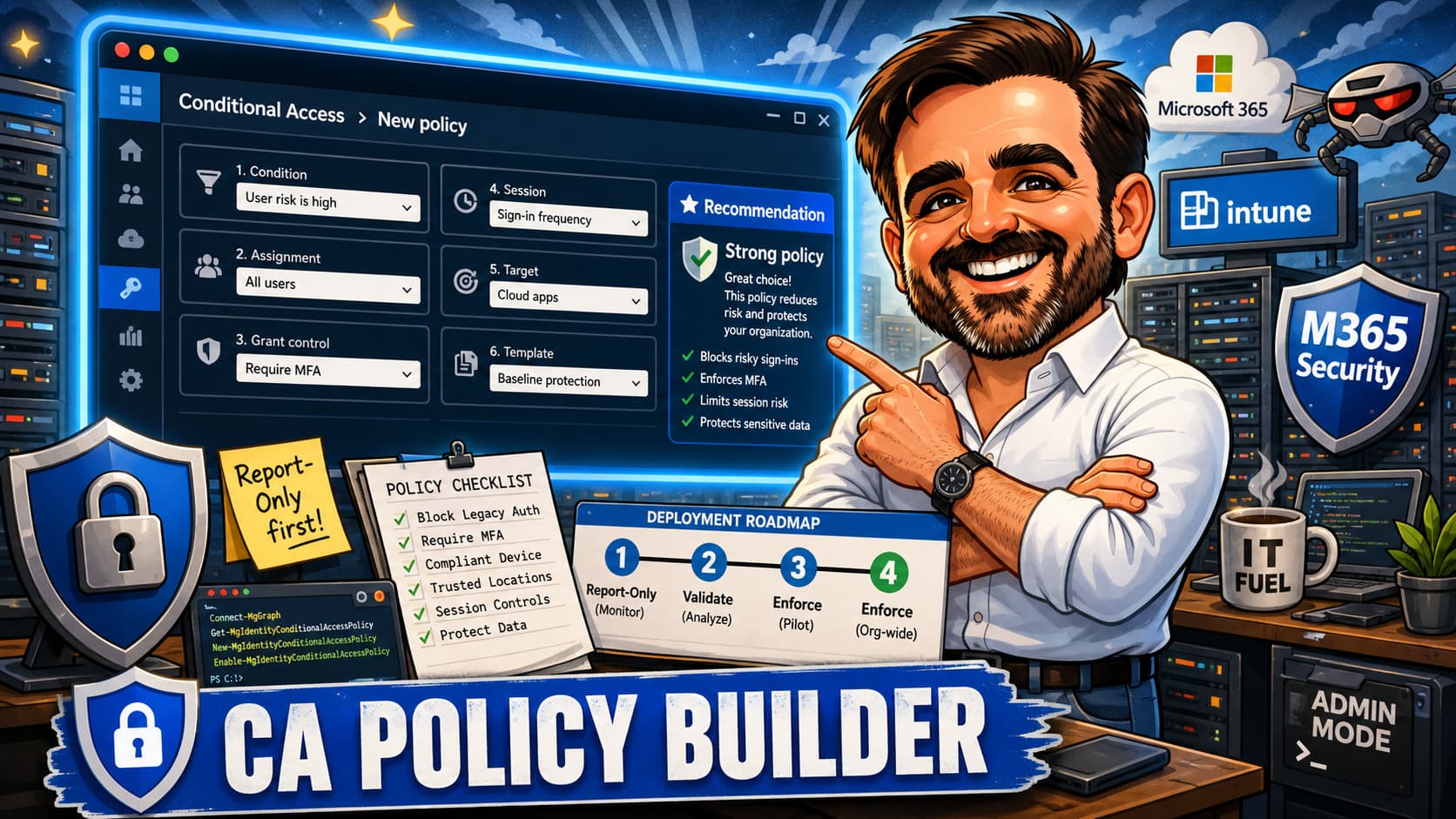
Conditional Access is one of the most important security controls in Microsoft 365, and also one of the easiest to misconfigure. The goal is not creating as many policies as possible. The goal is creating the right policies in the right order, with the right exclusions, tested properly before enforcement. This guide gives you an interactive decision tool, a recommended ten-policy baseline, a naming convention, a phased rollout sequence, and the field-tested advice I use in real deployments.
1. Quick recommendation — jump to the interactive builder, select your scenario, get a policy recommendation.
2. Baseline design — use the ten-policy table if you are building or reviewing a CA model from scratch.
3. Working checklist — save as PDF for project documentation or change requests.
What this guide helps you decide
Conditional Access policy design comes down to a set of decisions that interact with each other. Get one wrong and you either leave a gap or lock someone out. The challenge is that these decisions are not independent. A policy targeting "All cloud apps" behaves differently when combined with device compliance than it does with MFA alone. A policy that works for standard users may break service accounts. Each choice constrains the next one.
This guide helps you think through each of these decisions systematically:
- Which users need which level of protection (admins, standard users, guests, service accounts, frontline workers, executives)
- Which apps to target (all cloud apps vs. specific workloads like Exchange Online, SharePoint, or admin portals)
- Which devices should be allowed (compliant, hybrid joined, Entra joined, unmanaged)
- When to require MFA and when to require phishing-resistant MFA specifically
- When to require compliant devices vs. app protection policies for unmanaged devices
- When to block access entirely (legacy protocols, high-risk locations, impossible travel)
- When to use session controls (limited web access, app-enforced restrictions, sign-in frequency)
- What to exclude and why (emergency access, service accounts, pilot groups)
The interactive builder in this guide evaluates your scenario across six dimensions and returns a specific recommendation. The baseline policy table gives you a starting point that covers the most common configurations. And the rollout sequence tells you which policies to deploy first to avoid the mistakes that cause outages.
Before you start
Before creating or modifying any Conditional Access policy, verify that these prerequisites are in place. Skipping any one of these can result in account lockouts, lost access to admin portals, or policies that look correct but do nothing useful.
I treat this as a pre-flight checklist. Just as a pilot does not skip steps because they have flown the route before, you should not skip steps because "it is just one policy." The one policy you skip the checklist for is the one that locks out the CEO at 9 AM on a Monday.
-
Emergency access accounts configured and excluded. Create at least two cloud-only Global Admin accounts with phishing-resistant authentication (FIDO2 keys or certificate-based). These accounts must be excluded from CA policies that could prevent emergency sign-in. Verify they work before you deploy anything.
-
Report-only mode is your default starting point. Every new policy starts in report-only. No exceptions. Check the sign-in logs after one to two weeks. Look specifically at who would have been blocked.
-
Pilot group created. Create a security group (for example,
CA-Pilot-Users) for phased rollout. Start with IT staff who can provide feedback and tolerate temporary disruptions. -
Licensing verified. Conditional Access requires Entra ID P1 (included in Microsoft 365 Business Premium, E3, E5). Risk-based policies require Entra ID P2 (included in E5 or as an add-on). Confirm your licences before designing policies you cannot enforce.
-
Named locations defined. Define your trusted IP ranges and countries in Entra ID > Protection > Named locations. Policies that reference "trusted locations" will not work until these are configured.
-
Naming convention agreed. Adopt a consistent naming convention before creating policies. A tenant with policies named "Test policy 3", "Block something", and "MFA policy" is a tenant heading for trouble.
-
Documentation plan in place. For each policy, record: the business reason, who it targets, what it excludes and why, when it was last reviewed, and who approved it. A spreadsheet works fine.
Licensing at a glance
| Feature | Minimum Licence |
|---|---|
| Conditional Access policies | Entra ID P1 (Business Premium, E3, E5) |
| Risk-based CA policies | Entra ID P2 (E5, or add-on) |
| Identity Protection risk signals | Entra ID P2 (E5, or add-on) |
| App protection policies (MAM) | Intune (Business Premium, E3, E5) |
| Device compliance as grant control | Entra ID P1 + Intune |
| Defender for Cloud Apps session controls | Depends on scenario and licensing tier |
Emergency access account requirements
Emergency access accounts deserve specific attention because they are the safety net for everything else. Here is what a properly configured emergency access setup looks like:
- Two accounts minimum. One account failing (password expired, authentication device lost) should not leave you without access. Two independent accounts provide redundancy.
- Cloud-only. Do not federate or sync these accounts. If your on-premises directory or federation service fails, these accounts must still work.
- Global Administrator role. Permanently assigned, not through PIM. In an emergency, you cannot wait for role activation.
- Phishing-resistant authentication. Use FIDO2 security keys, passkeys, or certificate-based authentication for emergency access accounts. Store the physical keys in a secure location (safe, lockbox). The older approach of disabling MFA entirely on one account is no longer recommended. Phishing-resistant methods protect the account while remaining independent of push-notification MFA infrastructure that could experience outages.
- Excluded from CA policies that could cause lockout. Use a dedicated security group (for example,
CA-Exclude-EmergencyAccess) and exclude it from policies that could prevent emergency sign-in: MFA requirements, device compliance, location-based blocks, risk-based blocks, and session restrictions. The accounts are still protected through phishing-resistant authentication, monitoring, and physical security controls. - Monitored with high-severity alerts. Set up alerts for any sign-in activity on these accounts. Any sign-in that is not a scheduled test is an incident. Configure Entra ID to notify security staff immediately.
- Tested monthly. Sign in with each emergency access account once per month to verify they still work. Document the test date.
Interactive Decision Builder
Use this tool to get a recommended Conditional Access configuration for a specific scenario. Select the user type, device state, location, target application, risk level, and data sensitivity. The recommendation updates automatically as you change any input.
The builder evaluates your selections against a decision matrix based on practical deployment experience. It accounts for the interactions between inputs. For example, an admin on an unmanaged device triggers a stricter recommendation than a standard user on a compliant device, even if all other inputs are the same. The logic prioritises security without ignoring usability.
This is the recommendation for the default scenario below. Change any input to see how it shifts.
Recommended Baseline Policies
These ten policies form a practical baseline for most Microsoft 365 tenants. They are listed in the order I recommend deploying them. Each builds on the one before it. Do not try to deploy all ten at once.
The exact controls depend on your licensing and environment. A Business Premium tenant will implement policies 1 through 5 and 8 through 10 on day one. Policies 6 and 7, which are risk-based, require Entra ID P2 and should be added when that licensing is in place. If you are on E5, you can implement all ten, but I still recommend doing it in phases over four to eight weeks.
| # | Policy Name | Target Users | Target Apps | Conditions | Grant Controls | Session Controls | Exclusions |
|---|---|---|---|---|---|---|---|
| 1 | CA-AllUsers-AllApps-AnyCondition-RequireMFA-Enforced |
All users | All cloud apps | Any platform, any location | Require MFA | None | Emergency access accounts, service accounts group |
| 2 | CA-Admins-AllApps-AnyCondition-RequirePhishResistMFA-Enforced |
Directory roles (Global Admin, Exchange Admin, SharePoint Admin, Security Admin, etc.) | All cloud apps | Any platform, any location | Require authentication strength: Phishing-resistant MFA | Sign-in frequency: 4 hours | Emergency access accounts |
| 3 | CA-AllUsers-AllApps-LegacyAuth-Block-Enforced |
All users | All cloud apps | Client apps: Legacy clients and non-modern authentication patterns | Block access | N/A | Emergency access accounts |
| 4 | CA-Admins-AdminPortals-AnyCondition-RequireCompliant-Enforced |
Admin roles | Microsoft Admin portals | Any platform | Require compliant device AND phishing-resistant MFA | Sign-in frequency: 4 hours | Emergency access accounts |
| 5 | CA-AllUsers-ExchSPO-AnyCondition-RequireCompliantOrMAM-Enforced |
All users | Exchange Online, SharePoint Online (includes OneDrive) | Any platform | Require compliant device OR app protection policy (for mobile) | None | Emergency access accounts, service accounts group |
| 6 | CA-AllUsers-AllApps-HighRiskSignIn-Block-Enforced |
All users | All cloud apps | Sign-in risk: High | Block access | N/A | Emergency access accounts. Requires Entra ID P2. |
| 7 | CA-AllUsers-AllApps-HighRiskUser-RequirePwdChange-Enforced |
All users | All cloud apps | User risk: High | Require password change + MFA | N/A | Emergency access accounts. Requires Entra ID P2. |
| 8 | CA-AllUsers-ExchSPO-UnmanagedDevice-SessionCtrl-Enforced |
All users | Exchange Online, SharePoint Online | Filter: unmanaged devices (device not compliant AND not hybrid joined) | Require MFA | Use app-enforced restrictions (limited web-only access, no download) | Emergency access accounts |
| 9 | CA-Guests-AllApps-AnyCondition-RequireMFA-Enforced |
Guest and external users | All cloud apps | Any platform, any location | Require MFA | Sign-in frequency: 1 hour, persistent browser session: disabled | None (guests should not have emergency access) |
| 10 | CA-Executives-AllApps-AnyCondition-RequirePhishResistCompliant-Enforced |
Executive users group | All cloud apps | Any platform, any location | Require phishing-resistant MFA + compliant device | Sign-in frequency: 8 hours | Emergency access accounts |
Policy details worth noting
Policy 1 (MFA for all users) replaces the basic MFA enforcement that security defaults provided. When you disable security defaults to use Conditional Access, this policy ensures you do not lose that baseline protection. Exclude emergency access accounts and service accounts that cannot perform interactive MFA.
Policy 2 (phishing-resistant MFA for admins) is the most impactful single policy you can deploy. Admin accounts are the highest-value targets. Phishing-resistant MFA (FIDO2 keys, Windows Hello for Business, certificate-based authentication) eliminates the risk of token theft and real-time phishing proxies like Evilginx2 that defeat traditional MFA. Register all admin accounts for a phishing-resistant method before enforcing.
Policy 3 (block legacy auth) is a defence-in-depth control. Most Basic Authentication scenarios in Exchange Online have already been removed by Microsoft, but legacy client access patterns, SMTP AUTH exceptions, and non-modern authentication dependencies can still appear during reviews. A Conditional Access legacy client block policy ensures these patterns cannot be exploited even if they resurface. Validate report-only logs first to identify remaining dependencies before enforcement.
Policy 5 (compliant device or app protection) is where many deployments stall. The "OR" condition is important: it allows managed devices to satisfy the requirement through device compliance, while unmanaged devices (BYOD) can satisfy it through app protection policies (MAM). This is the right balance for most organisations. Requiring compliant devices only would block all BYOD access, which is impractical for many workforces.
Policy 8 (session controls for unmanaged devices) is the policy I recommend instead of blocking unmanaged devices entirely. App-enforced restrictions in Exchange Online and SharePoint Online provide limited web-only access: users can read email and view documents in the browser, but cannot download, print, or sync files. This is a practical middle ground that maintains security without cutting off access completely.
Policy 9 (guest access controls) is often overlooked but increasingly important as organizations rely on external collaboration through Teams, SharePoint, and Entra B2B. Guests by default inherit the same CA policies as internal users, which may be either too strict (blocking guests who cannot register MFA in your tenant) or not strict enough (not applying session limits). A dedicated guest policy lets you control the experience precisely. Set a short sign-in frequency (one hour) and disable persistent browser sessions so guests must re-authenticate regularly. For high-friction collaboration scenarios, adjust sign-in frequency based on partner requirements and data sensitivity. One hour is a strict baseline for sensitive collaboration, not a universal rule for every tenant.
Policy 10 (executive protection) addresses the reality that executives are the most targeted and the least patient user group. Phishing-resistant MFA and compliant devices are the right controls. The challenge is getting executive buy-in and ensuring their devices are enrolled and compliant before the policy is enforced. In my experience, executive onboarding works best as a white-glove service: schedule a 30-minute session with each executive, register their FIDO2 key or Windows Hello, verify their device compliance, and walk them through what changes.
Policy naming convention
A consistent naming convention makes policies readable at a glance in the Entra admin center. Without one, you end up with policy lists like "Test MFA policy", "Block something v2", and "DO NOT DELETE". I have seen all of these in production tenants. A good naming convention tells you what a policy does without opening it.
The format I recommend follows this structure:
CA-[Scope]-[App]-[Condition]-[Control]-[Mode]
Each segment communicates a specific piece of information without opening the policy to read its details. When you look at a list of 10 to 15 policies in the Entra admin center, you should be able to understand each policy's purpose from the name alone. This saves time during troubleshooting, audits, and handover to new administrators.
| Segment | Purpose | Examples |
|---|---|---|
CA |
Prefix identifying Conditional Access | Always CA |
[Scope] |
Who the policy targets | AllUsers, Admins, Guests, Executives |
[App] |
Which apps are targeted | AllApps, ExchSPO, AdminPortals, Teams |
[Condition] |
When the policy applies | AnyCondition, LegacyAuth, HighRiskSignIn, UnmanagedDevice |
[Control] |
What the policy enforces | RequireMFA, Block, RequireCompliant, SessionCtrl |
[Mode] |
Current deployment state | ReportOnly, Pilot, Enforced |
The mode suffix is particularly important. When you look at the policy list in the Entra admin center, you want to immediately know which policies are actively enforced, which are still in pilot, and which are running in report-only mode for testing. This prevents the common mistake of assuming a report-only policy is protecting you.
Example policy names
| Policy Name | What it means |
|---|---|
CA-AllUsers-AllApps-AnyCondition-RequireMFA-ReportOnly |
Require MFA for all users on all apps, currently in report-only mode |
CA-Admins-AdminPortals-AnyCondition-RequireCompliant-Enforced |
Admins accessing admin portals must use compliant devices, fully enforced |
CA-AllUsers-AllApps-LegacyAuth-Block-Enforced |
Block legacy authentication for all users, fully enforced |
CA-Guests-AllApps-AnyCondition-RequireMFA-Pilot |
Require MFA for guest users, currently deployed to pilot group only |
CA-AllUsers-ExchSPO-UnmanagedDevice-SessionCtrl-Enforced |
Apply session controls on Exchange and SharePoint for unmanaged devices |
CA-Executives-AllApps-AnyCondition-RequirePhishResistCompliant-Enforced |
Executives need phishing-resistant MFA and a compliant device for any app |
Rollout order
The sequence matters. Each phase builds on the previous one. Rushing ahead creates gaps and lockout risks. I have seen projects where all ten policies were deployed to enforcement in a single change window. The result was predictable: locked-out users, broken service accounts, and an emergency rollback at 2 AM.
I recommend at least one to two weeks in report-only mode per phase, longer for larger tenants. The phases below assume a typical mid-size organisation (200 to 2000 users). Adjust the timeline based on your environment's complexity.
Phase 1: Discovery and Report-Only
Deploy all planned policies in report-only mode. Analyse sign-in logs for a minimum of two weeks. Identify service accounts, shared mailboxes, legacy apps, and automation workflows that would be affected. Build your exclusion groups based on real data, not assumptions. This phase catches the surprises before they become outages.
Phase 2: Admin Protection
Enforce phishing-resistant MFA for admin roles (Global Admin, Exchange Admin, SharePoint Admin, Security Admin, and other privileged roles). Require compliant devices for admin portal access. Verify emergency access accounts still work by signing in with them. This is your highest-impact change because compromised admin accounts cause the most damage.
Phase 3: Legacy Auth Block
Block legacy authentication protocols (Exchange ActiveSync with basic auth, POP3, IMAP4, SMTP AUTH). Check report-only logs to identify remaining legacy clients. Work with app owners to migrate to modern authentication. This single policy eliminates the most common entry point for password spray and credential stuffing attacks.
Phase 4: MFA for All Users
Enforce MFA for all users across all cloud apps. Communicate to users at least two weeks in advance. Provide step-by-step registration guidance with screenshots. Set up a temporary helpdesk queue. Monitor ticket volume and sign-in failure rates daily for the first week. For large organisations (1000+ users), consider phased rollout by department or location.
Phase 5: Device-Based Controls
Require compliant devices or app protection policies for Exchange Online and SharePoint Online (which includes OneDrive). This phase depends on Intune enrolment being substantially complete. Deploy app protection policies (MAM) for BYOD scenarios before enforcing device compliance requirements. Test mobile access on iOS and Android thoroughly, including the Outlook and Teams mobile apps.
Phase 6: Guest and External Access
Enforce MFA for all guest and external users. Set sign-in frequency to one hour and disable persistent browser sessions. Test with your five most common external collaboration partners. Verify that B2B invitation redemption still works. Check that guests from federated tenants can satisfy MFA through their home tenant. Review whether guest access scope is appropriate.
Phase 7: Risk-Based Policies
Enable sign-in risk and user risk policies (requires Entra ID P2). Block high-risk sign-ins. Require password change plus MFA for high-risk users. Allow Entra ID Protection at least two to four weeks to build accurate risk profiles before trusting the "High" risk signal. Start with report-only and review false positive rates carefully. Medium risk can trigger MFA rather than block.
Phase 8: Operational Review
Schedule quarterly reviews of all CA policies. Check for policy conflicts and overlaps. Audit exclusion groups for stale members (former service accounts, departed employees). Remove report-only policies that were never promoted to enforcement. Document every change with a date and reason. Conditional Access is not a one-time project. It is an ongoing operational practice.
Communication plan
Technical deployment is half the work. The other half is communication. Users who are surprised by a new MFA prompt or a blocked device will call the helpdesk, and rightfully so. Here is the communication cadence I recommend for each phase:
| Phase | Communication Timing | What to Communicate | Channel |
|---|---|---|---|
| Phase 1 | None (report-only, no user impact) | Internal IT team only: review findings | IT team meeting |
| Phase 2 | 2 weeks before enforcement | Admins: register FIDO2 key or Windows Hello, test admin portal access | Direct email to each admin |
| Phase 3 | 2 weeks before enforcement | Any users of legacy email clients: migrate to Outlook or modern apps | Targeted email to affected users |
| Phase 4 | 3 weeks before enforcement | All users: MFA is coming, here is how to register, here is what changes | Company-wide email, intranet post, Teams announcement |
| Phase 5 | 2 weeks before enforcement | All users: enrol your device in Intune, or install Company Portal on mobile | Step-by-step guide with screenshots, helpdesk availability |
| Phase 6 | 1 week before enforcement | External partners: MFA will be required, session limits will apply | Direct email via sponsoring internal contact |
| Phase 7 | None (risk-based, transparent to users unless risk triggers) | Helpdesk: brief on what "high risk" means and what users will see | Helpdesk knowledge base article |
| Phase 8 | Quarterly (ongoing) | Internal IT governance review: audit exclusions, review policy relevance, remove stale report-only policies | IT team meeting, no user-facing communication needed |
The most important communication is for Phase 4 (MFA for all users). This affects every user in the organisation. Send the communication early, make the registration process as easy as possible, and have the helpdesk ready for the first week. In my experience, the number of support tickets drops sharply after the first 72 hours.
How Conditional Access policies interact
One of the most misunderstood aspects of Conditional Access is how multiple policies combine. I regularly review tenants where the admin assumes that "the first matching policy wins" or that policies can override each other. Neither is correct. The rules are straightforward but the consequences can be surprising:
- All applicable policies are evaluated. CA does not stop at the first match. Every policy whose conditions match the sign-in attempt is evaluated.
- Grant controls from all matching policies are combined with AND logic (by default). If Policy A requires MFA and Policy B requires a compliant device, the user must satisfy both.
- Block wins over everything. If any matching policy has a Block grant control, access is denied regardless of what other policies allow.
- Session controls are cumulative. The most restrictive session control from all matching policies applies.
- Exclusions are per-policy. Excluding a user from Policy A does not exclude them from Policy B.
This means that adding a new policy can change the effective behaviour of existing policies. Before creating a new policy, map it against your current policies to identify overlaps and conflicts. The "What If" tool in the Entra admin center helps, but reviewing the policy list on paper (or in a spreadsheet) is often more revealing.
Common Conditional Access mistakes I still see in real tenants
These are not theoretical risks. Every item on this list comes from tenants I have worked with or audited. Some of them caused outages. Some caused audit findings. All of them were preventable. I have ranked them roughly by how often I encounter them, with the most common at the top.
- No emergency access accounts excluded from lockout-causing policies. If your only Global Admin account gets locked by a CA policy you just enabled, you cannot fix it. Two cloud-only break-glass accounts with phishing-resistant authentication, excluded from policies that could prevent emergency sign-in (MFA, device compliance, location blocks, risk-based blocks), monitored, and tested monthly. Non-negotiable.
- Deploying policies directly to "Enforced" without report-only. The sign-in logs in report-only mode will always reveal something unexpected. A service account using legacy auth. A shared mailbox accessed from an unmanaged device. A vendor using a country-based IP that triggers a block. Find these before enforcement, not after.
- Targeting "All cloud apps" with device compliance before Intune enrolment is complete. If 60% of your users have not enrolled their devices in Intune, a policy requiring compliant devices for all cloud apps will lock out 60% of your users. Sequence matters.
- Forgetting that SharePoint Online policies also affect OneDrive. OneDrive for Business is a SharePoint workload. Any CA policy targeting SharePoint Online automatically applies to OneDrive. This surprises people regularly.
- Creating duplicate or conflicting policies. A policy that requires MFA for all users and a separate policy that blocks access for the same users under a different condition can interact unpredictably. CA policies are additive. The most restrictive combination wins. Map your policies on paper before creating them in the portal.
- Using "All users" without checking for service accounts. User-based service accounts and shared mailboxes are user objects and will be affected by CA policies scoped to "All users." An MFA requirement applied to an account that authenticates non-interactively will break automation. Service principals and workload identities are different: they are not controlled by user-scoped CA policies. Where possible, replace user-based automation accounts with managed identities or workload identities and govern them separately. For remaining user-based service accounts, use a dedicated exclusion group.
- Not defining named locations before referencing them. Policies that use location-based conditions reference named locations configured in Entra ID. If you create a policy that says "block untrusted locations" but have not defined what a trusted location is, the policy does nothing useful or blocks everyone.
- Ignoring session controls when blocking is too aggressive. Blocking unmanaged devices from SharePoint is secure but impractical for many organizations. Session controls (app-enforced restrictions, limited web access, no download) give you security without cutting off access entirely.
- Never reviewing policies after initial deployment. Policies that made sense 18 months ago may not reflect current reality. New apps, new user types, new locations, changing risk profiles. Schedule quarterly reviews. Put it in your calendar.
- Over-relying on location-based trust. Treating a corporate IP range as "safe" and exempting it from MFA is a remnant of perimeter-based thinking. VPN endpoints leak, IP ranges change, and attackers operate from compromised internal networks. Location should reduce friction, not eliminate controls.
Field notes
These observations come from deploying and auditing Conditional Access policies across dozens of Microsoft 365 tenants, from 50-user SMBs to 10,000-user enterprises. They are the kind of advice that does not fit neatly into a table or checklist but makes the difference between a smooth deployment and a painful one.
Migrating from Security Defaults
If your tenant currently uses Security Defaults (the free baseline protection Microsoft provides), transitioning to Conditional Access requires planning. Security Defaults provides three key protections that you must replace with CA policies before disabling them:
Security Defaults provides
MFA registration required for all users. MFA required for admin roles. Legacy authentication blocked. MFA challenges triggered based on Microsoft's internal heuristics.
Replace with these CA policies
Policy 1 (MFA for all users), Policy 2 (phishing-resistant MFA for admins), Policy 3 (block legacy auth). Deploy and verify these three in report-only before disabling Security Defaults.
The migration sequence is: deploy replacement CA policies in report-only, verify for two weeks that they match the expected behaviour, switch them to enforced, then disable Security Defaults. Do not disable Security Defaults first. That creates a gap where you have no protection.
What changed in 2026
Conditional Access continues to evolve. Here are the changes that affect policy design in 2026:
Licensing quick reference
One of the most common questions I get is "which licence do I need for this policy?" Here is the simplified answer.
| Capability | Minimum Licence | Included In |
|---|---|---|
| Conditional Access policies (all standard controls) | Entra ID P1 | Business Premium, E3, E5, F3 (limited) |
| Authentication strengths (phishing-resistant MFA) | Entra ID P1 | Business Premium, E3, E5 |
| Sign-in risk and user risk conditions | Entra ID P2 | E5, or Entra ID P2 add-on |
| Entra ID Protection (risk detection engine) | Entra ID P2 | E5, or Entra ID P2 add-on |
| Device compliance as a grant control | Entra ID P1 + Intune | Business Premium, E3, E5 |
| App protection policies (MAM) | Intune | Business Premium, E3, E5 |
| Session controls (sign-in frequency, persistent browser) | Entra ID P1 | Business Premium, E3, E5 |
| App-enforced restrictions (Exchange/SharePoint) | Entra ID P1 + Exchange/SharePoint plan | Business Premium, E3, E5 |
Quick troubleshooting reference
When a CA policy does not behave as expected, these are the first things I check:
| Symptom | Likely Cause | How to Check |
|---|---|---|
| Policy is enabled but users are not prompted for MFA | Conditions do not match (wrong app, wrong user group, excluded location) | Use the "What If" tool in Entra admin center with the specific user and app |
| Users blocked unexpectedly | Multiple policies combining (AND logic on grant controls), or a Block policy matching | Check sign-in logs > Conditional Access tab. Look for "Failure" with the specific policy name and failure reason |
| Service account cannot authenticate | MFA requirement applied to a non-interactive account | Check if the service account is in an exclusion group. Verify it is not a member of a targeted group |
| Guest users cannot redeem invitations | MFA policy applying before the guest has registered MFA methods | Check sign-in logs for the guest user. Verify the invitation redemption flow works with MFA requirements |
| Device compliance policy blocks enrolled devices | Device compliance evaluation delay (up to 8 hours for new enrolments) | Check Intune device compliance status. Wait for sync. Force a sync from the device. |
| Policy works in report-only but blocks when enforced | Report-only evaluates but does not enforce. The difference means users had not actually completed the required action (e.g., registering MFA) | Review report-only insights. Check how many users would have been blocked vs. how many have completed registration |
| MFA prompt appears repeatedly or user hits an infinite loop | Conflict between sign-in frequency settings and token lifetime policies, or a policy requiring MFA on an app that triggers re-authentication during the MFA flow itself | Check for overlapping sign-in frequency policies. Verify that the MFA registration portal and Microsoft Authenticator app are not inadvertently targeted by a strict CA policy. Review token lifetime configuration in Entra ID |
The sign-in logs in the Entra admin center are your most important troubleshooting tool. For every sign-in, the Conditional Access tab shows which policies were evaluated, which matched, and what the result was. Start there for any CA-related issue.
Monitoring and operational health
Once your CA policies are deployed and enforced, ongoing monitoring is essential. Here are the key things I track:
- Sign-in failure rates by policy. A sudden increase in failures on a specific policy indicates something changed: a new application, a new user group, or a condition that was not anticipated.
- Report-only policy insights. Even after enforcement, keep at least one or two report-only policies for planned future changes. Review them weekly.
- Exclusion group membership. Audit the emergency access and service account exclusion groups monthly. Remove stale entries. Document why each member is there.
- Emergency access account sign-ins. Any sign-in to a break-glass account outside of scheduled testing is an alert. Configure Entra ID to notify you immediately.
- MFA registration completion. Track the percentage of users who have completed MFA registration. Users who have not registered will be blocked when MFA policies are enforced.
- Compliance policy sync failures. If Intune compliance policies are not syncing to devices, CA policies that require compliant devices will block those users. Monitor Intune sync health.
Putting it all together
Where Conditional Access fits in the bigger picture
Conditional Access is the policy engine that connects identity, devices, and applications. It is the "decision point" in a Zero Trust architecture. Without it, each security control operates independently. With it, signals from Entra ID (identity risk), Intune (device compliance), and Defender (threat intelligence) combine into a single, coherent access decision.
But CA is only as good as the signals it receives. A CA policy that requires a "compliant device" is only meaningful if you have defined what "compliant" means in Intune. A policy that blocks "high-risk sign-ins" is only effective if Entra ID Protection has enough data to calculate risk accurately. A policy that applies "session controls" for unmanaged devices is only useful if the target application supports app-enforced restrictions.
In practical terms, this means that a CA deployment project is also an Intune compliance project, an MFA registration project, a named locations project, and an application inventory project. Plan accordingly. The policies themselves are the easy part. The preparation and the operational discipline that follows are what determine success.
What good looks like
A well-configured Conditional Access environment has these characteristics:
- A manageable number of policies, usually around 8 to 15 for many tenants, each with a clear purpose and a descriptive name
- Emergency access accounts with phishing-resistant authentication, excluded from lockout-causing policies, and tested monthly
- No policies left in report-only mode indefinitely (either promote to enforce or delete)
- All admin roles protected with phishing-resistant MFA
- Legacy authentication blocked
- All standard users required to use MFA
- Device compliance required for access to sensitive workloads
- Session controls applied for unmanaged device scenarios
- Guest access controlled with MFA and session limits
- Risk-based policies active (if Entra ID P2 is available)
- Quarterly review process documented and followed
- Exclusion groups audited and documented
If your environment matches most of these criteria, your CA configuration is in good shape. If it does not, use this guide and the builder tool to close the gaps, one phase at a time.
What this guide does not cover
This guide focuses on user-facing Conditional Access policies for standard Microsoft 365 workloads. It does not cover Conditional Access for workload identities (service principals and managed identities), token protection policies (currently in preview), Global Secure Access integration, or Conditional Access gaps in non-browser native apps that do not support modern authentication natively. These are valid topics but each requires its own treatment.
Save as PDF
This article is designed to work as a standalone field guide. The print layout hides the navigation, export buttons, and the CTA section. Tables and cards are formatted to avoid page breaks. The most recent builder recommendation is preserved in the output.
Use your browser's Print function (Ctrl+P on Windows, Cmd+P on macOS) and select "Save as PDF" to create a reference copy. The PDF version is useful for including in project documentation, attaching to change management tickets, sharing with colleagues who prefer offline reading, or keeping as a reference during quarterly CA policy reviews.
If you want to capture a specific builder recommendation, set the inputs to the scenario you want before printing. The print layout preserves the most recent output card. Alternatively, use the CSV download to export a machine-readable version of the recommendation that you can paste into a spreadsheet or ticketing system.
Put this guide to work
Review your tenant's Conditional Access policies against the baseline in this guide. Use the decision builder to validate your current configuration. Save a PDF copy for your next security review. Share it with your team.
Use the Decision Builder- Microsoft Learn: Conditional Access overview
- Microsoft Learn: Plan a Conditional Access deployment
- Microsoft Learn: Common Conditional Access policies
- Microsoft Learn: How multifactor authentication works
- Microsoft Learn: Authentication strengths
- Microsoft Learn: Intune device compliance policies
- Microsoft Learn: Entra ID Protection overview
- Microsoft Learn: Configure session lifetime policies
- Microsoft Learn: Manage emergency access accounts
Related content
Conditional Access does not exist in isolation. It connects to identity management, device compliance, data protection, and threat detection. The Zero Trust series covers the architectural principles. The Tenant Health Scorecard helps you evaluate where your environment stands today. Together, these resources provide a complete framework for securing a Microsoft 365 tenant.
Zero Trust: What It Actually Means
The three principles and six pillars mapped to Microsoft 365, without the marketing spin.
Implementing Zero Trust with Intune
Device compliance policies, app protection, and endpoint management for Zero Trust.
Where Zero Trust Breaks
Real-world failure points, design limitations, and how to work around them.
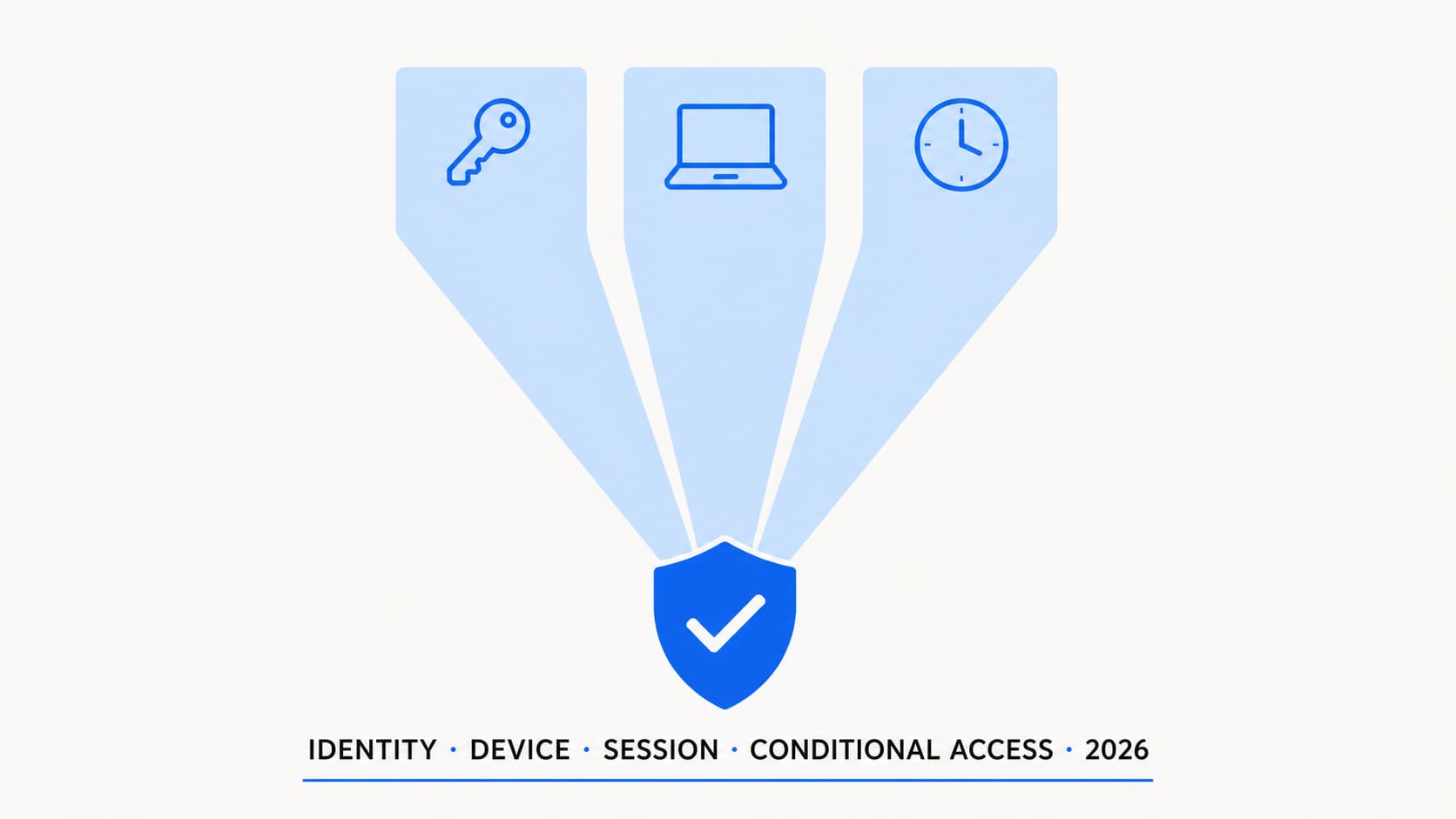
Identity, Device, and Session Controls
Deep dive into the three layers of access control in a Zero Trust architecture.
SMB vs Enterprise Zero Trust
Practical differences in implementing Zero Trust at different organisation sizes.
M365 Tenant Health Scorecard
Interactive scorecard to evaluate your tenant's security, compliance, and operational health.