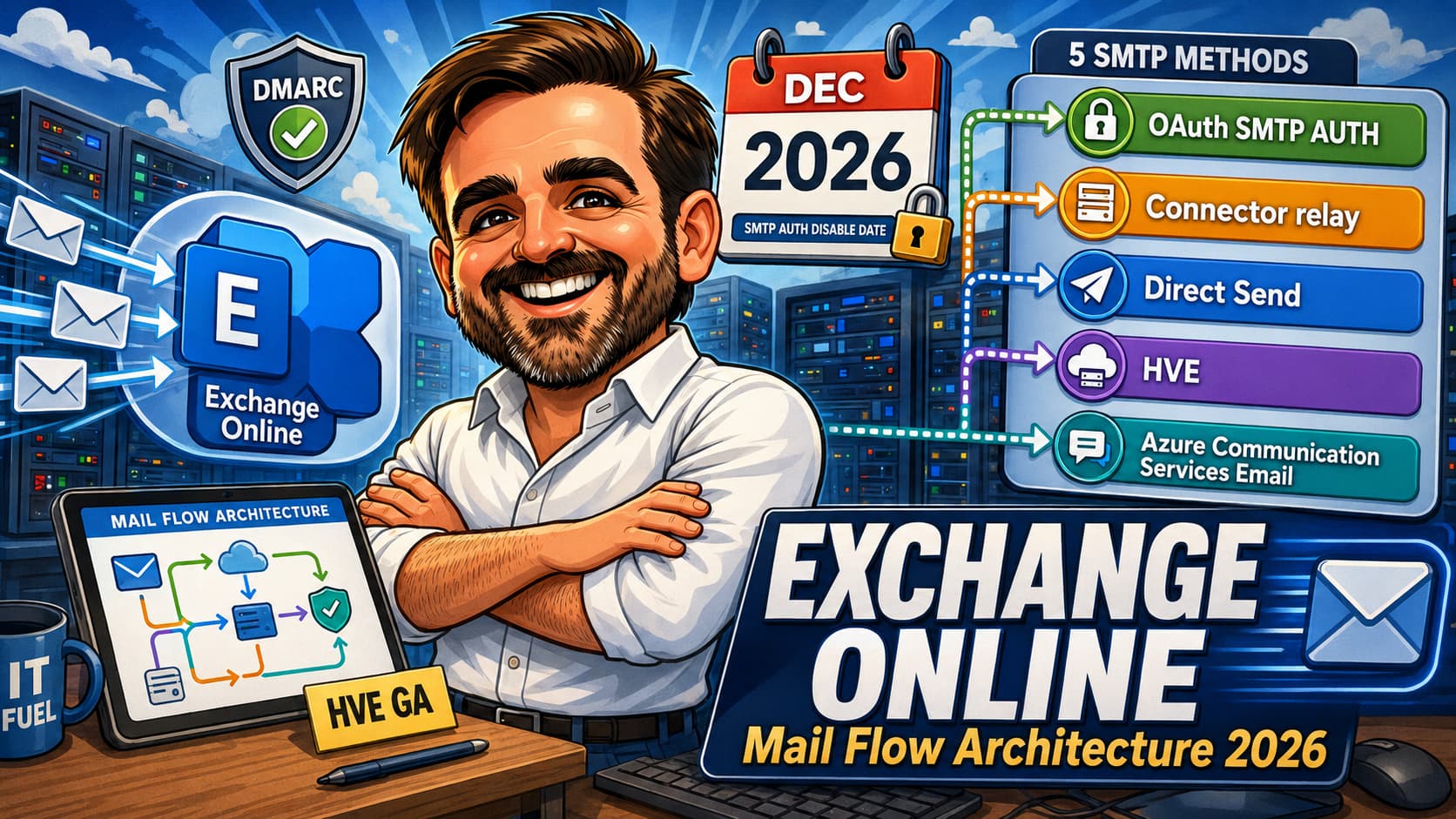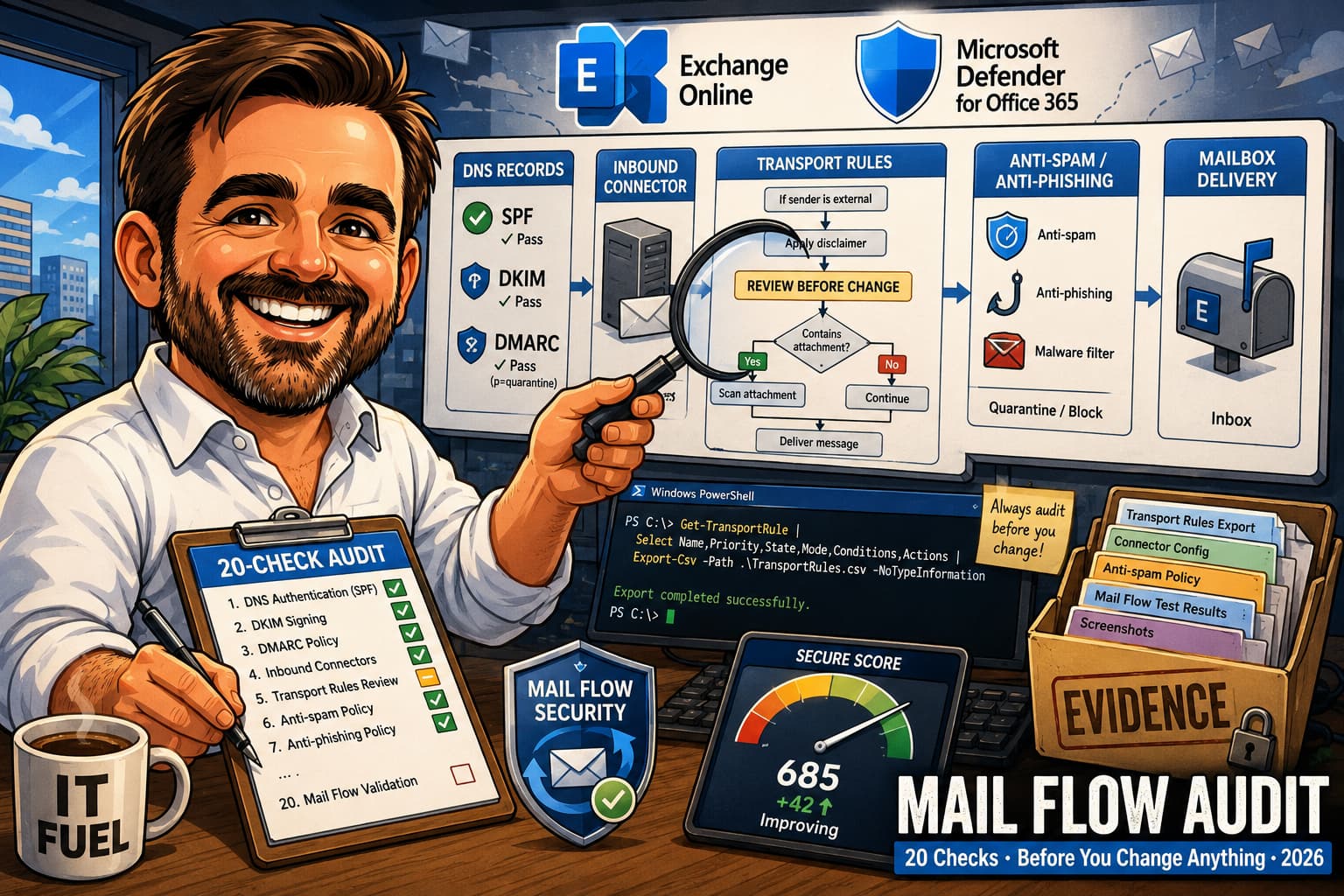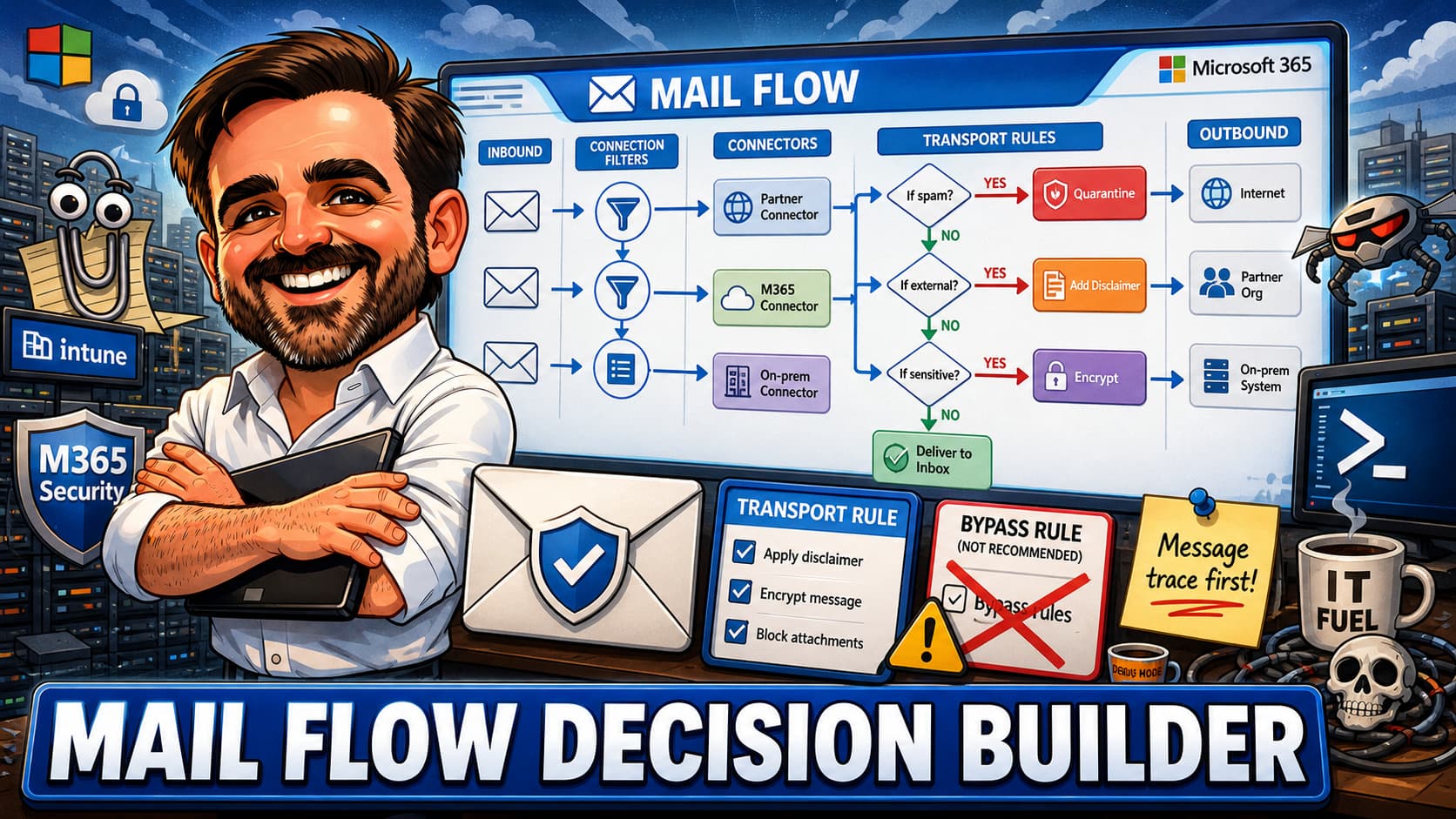
Mail flow in Exchange Online is not one decision. It is dozens of small decisions that compound. This guide gives you an interactive builder to map your scenario to a recommended pattern, plus the context you need to avoid the mistakes that cause outages, security gaps, and compliance failures.
sendMail, and Azure Communication Services Email are all valid sending paths depending on your scenario.SCL -1 exception can undo your entire anti-spam and anti-phishing stack. This guide flags them and offers safer alternatives.-Mode Audit; in the Exchange admin center, use test mode where available. The rollout section gives you a step-by-step order that minimizes blast radius.What this guide helps you decide
Every Exchange Online tenant has mail flow. Most tenants have mail flow that grew organically, one rule at a time, one connector at a time, one exception at a time. After a few years, you end up with 30 transport rules, half of which overlap, a handful of connectors nobody remembers creating, and a set of bypass rules that quietly exempt half your partner domains from spam filtering.
This guide helps you answer the questions that come up every week in Exchange Online administration:
Routing decisions
Should I use a connector, a mail flow rule, or both? When do I need a partner connector vs. an inbound connector?
Sending decisions
Should this application use SMTP AUTH with OAuth, HVE, Graph API, or Azure Communication Services Email? What about the legacy printer?
Security decisions
Do I need a mail flow rule for this, or is there a better control? How do I avoid bypass rules that weaken my protection stack?
Compliance decisions
Where does journaling fit? When should I use DLP instead of a transport rule? How do I handle external forwarding safely?
The interactive builder in Section 5 lets you pick your scenario, sender type, recipient scope, volume, and authentication method, then gives you a specific recommendation with configuration location, PowerShell hint, rollout order, and monitoring guidance.
Who this is for
This guide is written for IT administrators and Exchange Online administrators who manage mail flow in production tenants. It assumes you have working knowledge of the Exchange admin center (EAC), Exchange Online PowerShell, and the Microsoft 365 Defender portal.
You do not need to be a mail flow expert. The builder and the pattern tables are designed to give you a confident starting point, even if this is your first time configuring connectors or transport rules. That said, this is not a beginner tutorial. It does not explain what a transport rule is. It tells you which one to create and when to use something else instead.
- Exchange Online administrators managing transport rules, connectors, and accepted domains
- Security administrators reviewing mail flow rules for bypass risks, forwarding gaps, or spoofing holes
- Messaging architects designing mail flow for hybrid, multi-tenant, or partner relay scenarios
- IT managers who need to justify a mail flow change in a change advisory board (CAB) meeting
- Consultants doing Exchange Online assessments who need a structured framework for mail flow decisions
Before you start
Before you open the builder or create any mail flow rule, make sure you have the following in place. These are not optional, they are prerequisites. Skipping them is the number one reason mail flow changes fail or cause incidents.
Inventory your current state
Run this in Exchange Online PowerShell to get a baseline of what you already have:
Get-TransportRule | Select Name, State, Priority, Mode | Sort Priority | Format-Table -AutoGet-InboundConnector | Select Name, Enabled, SenderDomains, RequireTls | Format-Table -AutoGet-OutboundConnector | Select Name, Enabled, RecipientDomains, TlsSettings | Format-Table -AutoGet-AcceptedDomain | Select DomainName, DomainType, Default | Format-Table -Auto
Export the results to CSV or a shared document. You will need this baseline to validate that your changes did not break existing routing. If you have more than 20 transport rules, consider exporting with Export-Csv so you can sort and filter in Excel.
Confirm your roles and permissions
You need at least one of these role assignments to modify mail flow configuration:
| Task | Required role | Where to assign |
|---|---|---|
| Create or modify transport rules | Organization Management or Records Management | Exchange admin center > Roles |
| Create or modify connectors | Organization Management | Exchange admin center > Roles |
| Modify anti-spam / anti-phish policies | Security Administrator | Microsoft Defender portal > Permissions |
| Create or modify DLP policies | Compliance Administrator or DLP Compliance Management | Microsoft Purview compliance portal |
| Manage accepted domains and mail routing | Organization Management | Exchange admin center > Roles |
Have a rollback plan
Every mail flow change should have a rollback path that does not require figuring things out under pressure. For transport rules, the simplest rollback is to disable the rule rather than delete it. For connectors, note the current settings before you change them. For anything that touches SCL values or bypass logic, have the previous configuration documented line by line.
Licensing at a glance
Mail flow rules and connectors are available in every Exchange Online plan. However, some of the controls referenced in this guide require specific licensing. Here is what you need to know before you start building.
| Feature | Included in | Notes |
|---|---|---|
| Transport rules (mail flow rules) | All Exchange Online plans | No additional licensing. Limit of 300 rules per organization, 8 KB per rule. |
| Inbound and outbound connectors | All Exchange Online plans | No additional licensing. Certificate-based TLS requires a valid certificate on the partner side. |
| Data Loss Prevention (DLP) | Exchange Online Plan 2, Microsoft 365 E3/E5, Microsoft 365 Business Premium | Microsoft Purview DLP capabilities vary by workload and licence. Basic Exchange DLP is available in Plan 2 and E3/E5. Advanced unified DLP features (endpoint DLP, Teams DLP, exact data match) require E5 or add-ons. Use transport rules as a fallback if DLP is not licensed. |
| Microsoft Defender for Office 365 (Safe Attachments, Safe Links) | Microsoft 365 E5, Microsoft Defender for Office 365 Plan 1 or Plan 2 | Plan 1 covers Safe Attachments and Safe Links. Plan 2 adds automated investigation, Threat Explorer, and attack simulation. |
| Sensitivity labels in transport rules | Microsoft 365 E3/E5, Microsoft Information Protection | Requires Microsoft Purview Information Protection / sensitivity label licensing. Validate the exact licence needed for label publishing, auto-labeling, and encryption scenarios. Transport rules can match on sensitivity labels applied to messages. |
| Journaling | Exchange Online Plan 2, Exchange Online Archiving add-on | Standard journaling requires Plan 2 or the archiving add-on. Premium journaling (journal rules with scope) also requires Plan 2. |
| High Volume Email (HVE) | Requires an Exchange Online mailbox and an HVE-enabled account | HVE is an Exchange Online feature for high-volume transactional and operational sending. Validate current Microsoft enablement requirements, limits, and authentication options before production rollout. |
| Azure Communication Services Email | Consumption-based pricing (Azure subscription) | Billed per email sent. No Exchange Online license required for ACS Email itself, but the sending domain must be verified in ACS. |
Interactive Mail Flow Builder
Select your scenario below. The builder will recommend a mail flow pattern, show you where to configure it, give you a PowerShell starting point, and flag any risks. If your combination does not match a known pattern, the builder will tell you that too.
Select your scenario above
Choose at least a scenario type and sender type to get a recommendation. The more fields you fill, the more specific the guidance.
SMTP AUTH is not being removed, but Basic Authentication for SMTP AUTH is being retired. If the application supports OAuth, SMTP AUTH with OAuth remains a valid option. If it only supports username and password, move it to HVE, Graph API, Azure Communication Services Email, or a controlled relay pattern depending on the scenario.
Recommended mail flow patterns
This table covers the 16 most common mail flow scenarios in Exchange Online. For each one, you get the recommended pattern, the pattern to avoid, the reason, and what to monitor after deployment. Use this as a reference when the interactive builder above points you here, or when you want to compare options side by side.
| # | Scenario | Recommended pattern | Avoid this | Why | Monitoring |
|---|---|---|---|---|---|
| 1 | LOB app sends transactional email (receipts, confirmations) | SMTP AUTH with OAuth, or Graph API sendMail with application access policy |
SMTP AUTH with Basic Auth (username + password) | Basic Auth for SMTP AUTH is being retired. OAuth and Graph are long-term supported paths with better security and auditability. | Entra ID sign-in logs, message trace by sender, Graph API usage reports |
| 2 | High-volume transactional email (10K+ per day) | High Volume Email (HVE) or Azure Communication Services Email | Standard mailbox with SMTP AUTH (will hit throttling limits) | Standard Exchange Online mailboxes are subject to recipient and sending limits, commonly including a 10,000-recipient-per-day limit, so they should not be used as bulk-sending infrastructure. HVE and ACS are designed for high-volume scenarios with higher limits and dedicated infrastructure. | HVE dashboard in EAC, ACS delivery metrics in Azure Monitor, bounce rates |
| 3 | Multifunction device (printer/scanner) sends scans via email | Direct Send (port 25, internal only) or SMTP AUTH with OAuth if device supports it | SMTP AUTH with Basic Auth from a shared password | Most MFDs send to internal recipients only. Direct Send requires no authentication, only an accepted domain and IP allowlisting. If the device must send externally, use SMTP AUTH with OAuth if supported. | Message trace by sender IP, NDR monitoring for rejected sends |
| 4 | External disclaimer on outbound email | Transport rule with HTML disclaimer, append mode, with OOF exception | Client-side signature rules (inconsistent enforcement) | Transport rules apply server-side to all outbound mail regardless of client. Consistent enforcement across Outlook, OWA, mobile, and third-party clients. | Transport rule hit count in EAC, spot-check disclaimer rendering in multiple clients |
| 5 | Encrypt sensitive outbound email | Transport rule with Microsoft Purview Message Encryption, or auto-labeling policy (E5) | Manual user-applied encryption only (inconsistent, relies on user behavior) | Automated encryption based on content or recipient ensures consistent protection. Manual encryption depends on users remembering, which they do not. | Encryption report in Purview compliance portal, transport rule hit count |
| 6 | Block specific file types in attachments | Anti-malware common attachment filter (true file type detection) | Transport rule matching on file extension only | The common attachment filter inspects true file type, not just the extension. Renaming malware.exe to malware.docx bypasses extension-based transport rules but not the common attachment filter. | Threat protection status report in Defender portal, quarantine review |
| 7 | Block a group of users from sending externally | Transport rule scoped to a security group with reject action and OOF exception | Removing the user from all external address lists (does not actually block sending) | A transport rule with a reject action gives the user an immediate, clear NDR explaining why their message was blocked. Address book policies control visibility, not sending. | Transport rule hit count, helpdesk ticket volume for "cannot send" reports |
| 8 | DLP: block or warn on sensitive data to external | Microsoft Purview DLP policy with policy tips and user override option | Transport rule with regex matching on sensitive patterns | Purview DLP provides policy tips in Outlook, user overrides with business justification, centralized reporting, and content-aware matching. Transport rule regex is brittle and has no user interaction. | DLP reports in Purview compliance portal, override justification review |
| 9 | Journaling for compliance or regulatory requirements | Exchange Online journal rule to a dedicated journal mailbox (or third-party archive connector) | Transport rule BCC to a mailbox | Journal rules include the journal envelope (full sender and recipient list). Transport rule BCC copies do not include envelope data. Regulators typically require the envelope for compliance. | Journal mailbox delivery status, NDR alerts, storage capacity monitoring |
| 10 | Control or block external auto-forwarding | Outbound spam filter policy with AutoForwardingMode set to Off, allow by exception via scoped policy | Relying solely on a transport rule to block forwarding | The outbound spam policy controls auto-forwarding at the service level and catches forwarding set via Inbox rules, OWA settings, and mailbox forwarding properties. A transport rule can miss some forwarding methods. | Auto-forwarded messages report in Defender portal, alert policy for new forwarding rules |
| 11 | Partner organization needs to relay through your tenant | Inbound connector with TLS and sender domain restriction, Enhanced Filtering if partner uses a third-party filter | SCL -1 bypass rule for the partner domain | An inbound connector with TLS validates the partner identity. SCL -1 bypass rules disable spam filtering for all mail claiming to be from that domain, including spoofed messages. | Connector status in EAC, message trace by connector, TLS certificate expiry |
| 12 | Third-party email hygiene service in front of Exchange Online | Inbound connector with IP restriction + Enhanced Filtering for Connectors | Inbound connector with SCL -1 bypass rule and no Enhanced Filtering | Enhanced Filtering preserves the original sender IP so EOP can evaluate SPF, DKIM, and DMARC correctly. Without it, all mail appears to come from the third-party filter IP, making sender authentication useless. | Authentication results headers on inbound mail, spam detection rates, false positive rates |
| 13 | Hybrid mail flow between on-premises Exchange and Exchange Online | Hybrid connectors created by the Hybrid Configuration Wizard (HCW) | Manually created connectors that duplicate or conflict with HCW connectors | The HCW creates connectors with the correct settings for certificate-based authentication, TLS, and routing. Manual connectors often miss critical settings and cause mail flow failures or loops. | Connector status, on-premises certificate expiry, bidirectional test mail, Remote Connectivity Analyzer |
| 14 | Route outbound mail through a compliance gateway or archiving service | Outbound connector with smart host routing + transport rule to scope which mail routes through it | MX record change to route all outbound through the gateway (breaks internal routing) | An outbound connector with a transport rule gives you granular control over which messages route through the gateway. MX record changes affect inbound routing, not outbound, and are the wrong tool for this scenario. | Message trace for routed messages, connector TLS status, delivery latency monitoring |
| 15 | Conditional routing based on header, sender, or classification | Transport rule with routing action (redirect or route through connector) and explicit exceptions | Multiple overlapping transport rules with conflicting routing actions | A single transport rule with clear conditions and exceptions is easier to troubleshoot than multiple rules that may conflict. Consolidate routing logic into the fewest rules possible. | Transport rule hit count, message trace for routing path, delivery latency |
| 16 | Allow specific sender to bypass spam filtering (false positive remediation) | Tenant Allow/Block List (temporary allow) or admin submission to report false positive to Microsoft | SCL -1 transport rule for the sender domain | The Tenant Allow/Block List provides a time-limited, scoped allow that does not disable your entire protection stack. SCL -1 rules are permanent, broad, and create a persistent security gap. | Tenant Allow/Block List expiry dates, admin submission status, spam detection rates for the sender |
Mail flow rules: when and when not
Transport rules (mail flow rules) in Exchange Online are powerful, flexible, and often overused. They process on every message in your organization, in priority order, and they can modify, redirect, block, or stamp messages based on dozens of conditions. The problem is that they are the default answer to every mail flow question, even when a better control exists.
This table helps you decide whether to use a transport rule or a different control for each common requirement. The "use another control" column tells you exactly what to use instead.
| Requirement | Use mail flow rule? | Better control (if not) | Why |
|---|---|---|---|
| Add external disclaimer to outbound mail | Yes | N/A | Transport rules are the correct tool for server-side disclaimers. No better alternative exists in Exchange Online. |
| Block specific file types in attachments | No | Anti-malware policy (common attachment filter) | The common attachment filter detects true file type, not just extension. More reliable and harder to bypass than a transport rule. |
| Encrypt messages containing sensitive data | Sometimes | Microsoft Purview auto-labeling policy (if E5) | Transport rules work for basic encryption triggers. Auto-labeling provides richer content inspection, sensitivity label integration, and better reporting. |
| Block or warn on sensitive data leaving the org | No | Microsoft Purview DLP policy | DLP provides policy tips, user overrides, content-aware matching, and centralized reporting. Transport rules lack all of these. |
| Block a group of users from sending externally | Yes | N/A | Transport rules with group-scoped conditions and reject actions are the correct tool for this. |
| Block external auto-forwarding | No | Outbound spam filter policy (AutoForwardingMode) | The outbound spam policy catches forwarding from Inbox rules, OWA settings, and mailbox forwarding. Transport rules can miss some forwarding methods. |
| Bypass spam filtering for a trusted sender | No | Tenant Allow/Block List, admin submission, Enhanced Filtering for Connectors | SCL -1 transport rules disable your entire anti-spam stack for matched messages. The Tenant Allow/Block List is scoped and time-limited. |
| Route mail to external compliance gateway | Yes (with outbound connector) | N/A | Transport rule + outbound connector is the correct pattern for conditional external routing. |
| Add or modify message headers for downstream processing | Yes | N/A | Transport rules are the only Exchange Online tool that can stamp custom headers on messages in transit. |
| Journal all mail for regulatory compliance | No | Exchange Online journal rules | Journal rules include the full message envelope (all recipients, original sender). Transport rule BCC copies do not. Regulators typically require envelope data. |
| Block phishing or impersonation attempts | No | Anti-phishing policy in Microsoft Defender for Office 365 | Anti-phishing policies use mailbox intelligence, impersonation detection, and spoof intelligence. Transport rules can only match on static patterns, which attackers easily change. |
| Quarantine messages with specific characteristics | Sometimes | Anti-spam policy quarantine actions | Anti-spam policies can quarantine based on spam confidence level. For non-spam quarantine (e.g., quarantine messages from a specific sender during an investigation), a transport rule is appropriate. |
| Redirect a specific sender's mail to another mailbox during an investigation | Yes | N/A | Transport rules are the right tool for temporary message redirection during investigations. Set an expiry date on the rule. |
| Apply rights management template to messages | Sometimes | Sensitivity label auto-labeling (if E5) | Transport rules can apply RMS templates. Auto-labeling in Purview provides richer conditions, simulation mode, and label-based reporting. Use transport rules if auto-labeling is not licensed. |
| Tag external messages for end users | Sometimes | Native external sender tag (Set-ExternalInOutlook) |
The native tag works in Outlook desktop, web, and mobile without a transport rule. Use a transport rule to prepend "[EXTERNAL]" in the subject only if you need coverage in third-party or legacy clients where the native tag is not supported. |
| Block messages containing specific keywords (e.g., "confidential" in subject) | Sometimes | DLP policy with keyword or regex matching (if licensed) | For simple keyword blocking, a transport rule works. For patterns that need context-aware matching (e.g., "confidential" near a project code), DLP is more accurate and provides policy tips. |
Quick-reference decision matrix
This condensed matrix covers the eight scenarios admins ask about most often. Use it as a rapid triage tool, then refer to the full table above for details.
| Scenario | Use transport rule? | Better tool | Notes |
|---|---|---|---|
| Add outbound disclaimer | Yes | Signature platform if complex | Native disclaimers may stack on reply chains. Add an exception for messages that already contain the disclaimer marker. |
| External sender warning | Maybe | Native Outlook external tag (Set-ExternalInOutlook) |
Use the native tag for Outlook desktop, web, and mobile. Use a transport rule only if you need coverage in legacy or third-party clients. |
| Block executable attachments | Yes, or both | Anti-malware common attachment filter | The common attachment filter detects true file type. Transport rules only match on extension. Use both for defence in depth. |
| Block sensitive data to external | No | Microsoft Purview DLP | DLP provides policy tips, user overrides, simulation mode, and sensitive info type classifiers. Transport rule regex is brittle. |
| Block auto-forwarding | Maybe | Outbound spam filter policy | Use the outbound spam policy as the primary control. A transport rule can be a secondary layer, but document which is primary. |
| Add or remove headers | Yes | Transport rule | This is a strong, correct use case. No other Exchange Online control can stamp custom X-headers in transit. |
| Encrypt by keyword or sensitive data | Yes | Sensitivity labels for classification (E5) | Transport rules work for basic triggers. Avoid designing two encryption mechanisms for the same scenario unless tested end to end. |
| Allow partner sender past spam filter | Use carefully | Tenant Allow/Block List | Never use SCL -1 for broad scope. Use the Tenant Allow/Block List with time-limited entries, or Enhanced Filtering for Connectors. |
When a transport rule is the right tool
Transport rules remain the correct choice for these categories of work:
- Disclaimers and footers: No other Exchange Online control can append HTML content to outbound messages server-side.
- Header manipulation: Stamping custom X-headers for downstream systems, removing headers for security, or adding headers for classification.
- Conditional routing: Routing specific messages through outbound connectors based on sender, recipient, or header criteria.
- Group-based send restrictions: Blocking or allowing external sending based on security group membership with clear NDR messages.
- Temporary investigative redirects: Redirecting a specific user's mail to a different mailbox during a security investigation (always set an expiry).
- Message classification stamping: Applying message classifications or modifying properties for compliance or routing logic used by downstream systems.
When a transport rule is the wrong tool
These are the scenarios where admins reach for a transport rule out of habit, but a dedicated control does the job better:
- Spam bypass: Never use SCL -1 in a transport rule. Use the Tenant Allow/Block List for temporary allows, or Enhanced Filtering for Connectors if mail comes through a third-party filter.
- Attachment blocking: The anti-malware common attachment filter detects true file type and is harder to evade than extension-based transport rules.
- DLP and sensitive data: Microsoft Purview DLP policies provide policy tips, user overrides, simulation mode, and rich reporting. Transport rules match on patterns but offer no user interaction.
- Anti-phishing: Anti-phishing policies in Defender for Office 365 use ML-based impersonation detection and mailbox intelligence. Transport rules can only match on static sender patterns.
- External forwarding control: The outbound spam filter policy controls forwarding at the service level across all forwarding methods. Transport rules may miss some forwarding types.
- Journaling: Journal rules include the message envelope with full recipient lists. Transport rule BCC copies do not, which may fail regulatory audit requirements.
Priority, order, and evaluation behavior
Transport rules evaluate in priority order, starting from priority 0 (the highest). Understanding the evaluation model is critical for avoiding unintended interactions between rules:
- Priority 0 runs first. If you have a rule at priority 0 that modifies a message, all subsequent rules see the modified version.
- Stop processing: If a rule has the "Stop processing more rules" action enabled, no rules with a lower priority (higher number) will evaluate for that message. Use this deliberately, not as a default.
- Conditions and exceptions: All conditions in a rule must be true for the rule to match (AND logic). If any single exception matches, the rule does not apply to that message, regardless of the conditions. Think of exceptions as "if any exception matches, stop this rule for that message."
- Multiple matching rules: If multiple rules match, all of them apply (unless "Stop processing" is set). Actions are cumulative, which can lead to unexpected behavior when rules add conflicting headers or modify the same property.
- Mode matters: In PowerShell,
-Mode Auditmakes a rule match and log without executing actions. In the Exchange admin center, the equivalent is test mode with or without policy tips. In both cases, always start in test/audit mode and review rule hits before switching to enforcement. - Rule limits: Exchange Online supports up to 300 transport rules per organization, with a maximum size of 8 KB per rule (including all conditions, exceptions, and actions in serialized form). Regular expressions across all transport rules share a combined 20 KB total character limit. If you hit the 8 KB per-rule limit, simplify conditions or split the rule. If you hit the regex limit, consolidate patterns or move complex matching to DLP policies.
Auditing your existing transport rules
If you inherited a tenant or have not reviewed transport rules in a while, start with a structured audit. Export every rule, document its purpose, and flag anything that modifies spam confidence levels or bypasses filtering. Here is a practical audit workflow:
Get-TransportRule | Select Name, State, Priority, Mode, SenderDomainIs, SetSCL, SetHeaderName, SetHeaderValue, ApplyHtmlDisclaimerText, RouteMessageOutboundConnector, RejectMessageReasonText | Export-Csv -Path "C:\temp\transport-rules-audit.csv" -NoTypeInformation
Get-TransportRule | Where-Object {$_.SetSCL -eq -1} | Select Name, Priority, SenderDomainIs, FromAddressContainsWords, StateAny rule that sets SCL to -1 is a bypass rule. Document who created it, why, and whether the Tenant Allow/Block List or Enhanced Filtering for Connectors can replace it.
Get-TransportRule | Where-Object {$_.State -eq "Disabled"} | Select Name, WhenChangedDisabled rules that have not been modified in over 6 months are candidates for deletion. Confirm with the team before removing them, but do not leave dead rules cluttering the rule list indefinitely.
Get-TransportRule | Where-Object {$_.State -eq "Enabled"} | Select Name, Priority, Mode | Sort Priority | Format-Table -AutoReview the priority order. If two rules at adjacent priorities have conflicting actions on the same message scope (for example, one adds a header and the next removes it), resolve the conflict or document the intended interaction.
Repeat this audit quarterly. In tenants with more than 50 active transport rules, consider a monthly review. The time you spend auditing prevents the incidents you would otherwise spend hours troubleshooting.
Common transport rule conditions and their gotchas
Some transport rule conditions behave differently than admins expect. These are the ones that cause the most support tickets and misconfigurations:
| Condition | Common assumption | Actual behavior |
|---|---|---|
SentToScope NotInOrganization |
Matches all external recipients | Matches messages where at least one recipient is external. If a message goes to both internal and external recipients, the rule fires. The internal recipient still gets the message without the rule action applied to their copy (for some actions). |
FromMemberOf |
Matches nested group members | Only matches direct members of the specified group in Exchange Online. Nested group membership is not expanded. If your security group contains sub-groups, the transport rule will not match members of the sub-groups. |
SubjectOrBodyContainsWords |
Case-sensitive keyword match | The match is case-insensitive. It also matches partial words unless you use SubjectOrBodyMatchesPatterns with word boundary regex. "Confidential" will match "non-confidential" and "confidentially." |
SenderDomainIs |
Matches the envelope sender domain | Matches the domain in the From header (RFC 5322), not necessarily the envelope sender (MAIL FROM). For spoofed messages, these can differ. Use HeaderMatchesPatterns to inspect specific headers if you need envelope-level matching. |
AttachmentExtensionMatchesWords |
Detects true file type | Matches the file name extension only, not the true file type. If someone renames malware.exe to document.pdf, this condition matches "pdf," not "exe." Use the anti-malware common attachment filter for true file type detection. |
From with shared mailboxes |
Matches consistently for Send As and Send on Behalf | Depending on the predicate used, the rule may evaluate the visible From (5322.From), the envelope sender (5321.MailFrom), or the Sender header. Send As and Send on Behalf populate these headers differently. Test each sending method separately against your rule conditions to confirm expected behavior. |
MessageTypeMatches OOF |
Catches all auto-replies | Matches Out of Office (OOF) messages specifically. It does not match all automatic replies, such as Automatic Replies set via Inbox rules or client-side auto-responses. Use this in exceptions to prevent disclaimers from being added to OOF messages. |
When a transport rule does not behave as expected, the condition gotchas above are the first place to check. The second place is the rule priority order and whether another rule with "Stop processing" is preventing your rule from evaluating.
Transport rule testing checklist
Before enabling any new transport rule in enforce mode, walk through this checklist:
- Rule is created in Audit (test) mode, not Enforce
- Conditions are scoped as narrowly as possible (specific group, domain, or header, not "all messages")
- Exceptions are defined explicitly (OOF, NDR, system messages excluded if appropriate)
- Priority is set intentionally, not left at the default (which appends to the end of the list)
- "Stop processing more rules" is only enabled if you explicitly need to prevent lower-priority rules from firing
- Rule has been tested with at least 3 test messages: one that should match, one that should not, and one edge case
- Message trace confirms the rule matched the correct messages during the audit period
- Incident report (if configured) has been reviewed for false positives during audit period
- Rollback plan is documented: disable the rule, not delete it, to preserve the configuration for troubleshooting
- Change is logged in your change management system with the rule name, purpose, and approver
TRR-DISC: for disclaimers, TRR-BLK: for block rules, TRR-ENC: for encryption rules, and TRR-ROUTE: for routing rules. This makes the rule list scannable at a glance, even in a tenant with 100+ rules. The naming convention section later in this guide provides the full scheme.
SMTP AUTH, OAuth, HVE, Graph or ACS?
This section exists because there is more confusion about SMTP AUTH than about almost any other Exchange Online topic. Blogs, forums, and even some vendor documentation still claim that SMTP AUTH is deprecated. It is not. Here is the precise situation.
SMTP AUTH is not being removed, but Basic Authentication for SMTP AUTH is being retired. If the application supports OAuth, SMTP AUTH with OAuth remains a valid option. If it only supports username and password, move it to HVE, Graph API, Azure Communication Services Email, or a controlled relay pattern depending on the scenario.
The confusion comes from Microsoft retiring Basic Authentication across Exchange Online protocols. That retirement included POP, IMAP, ActiveSync, EWS, Remote PowerShell, and others. SMTP AUTH was initially included but was kept available longer due to the number of devices and applications that rely on it. The path forward is clear: Basic Auth goes away, but SMTP AUTH as a protocol stays, provided the client authenticates with OAuth 2.0.
Choosing the right sending option
The table below maps common scenarios to the recommended sending option. Use it as a starting point, then validate against your specific requirements for volume, authentication capability, and network position.
| Scenario | Recommended option | Why | Warning |
|---|---|---|---|
| Multifunction scanner/printer, internal network, cannot do OAuth | Direct Send (MX) or SMTP relay via on-premises connector | These devices typically cannot store OAuth tokens. Direct Send uses your MX endpoint without authentication, limited to internal recipients. SMTP relay through a connector allows internal and external sending. | Direct Send only works for recipients in your tenant. If the device needs to send externally, use a relay connector with IP restriction. |
| Multifunction scanner/printer, external network | SMTP relay via partner connector with certificate or IP restriction | External devices cannot use Direct Send. A connector with certificate-based trust or static IP restriction provides authenticated relay. | Never expose an open relay connector. Always restrict by source IP or certificate. |
| Line-of-business application, supports OAuth | SMTP AUTH with OAuth 2.0 | The application authenticates using an OAuth token. This is the most direct migration from Basic Auth SMTP. The protocol stays the same, only the authentication method changes. | The application must handle token refresh. Test token expiry handling before deploying to production. |
| Line-of-business application, only supports username/password | High Volume Email (HVE) or controlled SMTP relay | If the app cannot be updated to support OAuth, HVE provides a dedicated sending path. Alternatively, relay through an on-premises or cloud SMTP relay that handles the OAuth handshake on behalf of the app. | HVE has specific volume limits and is designed for internal-to-external bulk sending. Check that your scenario fits. |
| Modern application, can use REST APIs | Microsoft Graph API sendMail |
Graph provides the richest feature set: attachments, tracking, categories, delegate send. Authentication uses app-only or delegated tokens via Microsoft Entra ID app registration. | Graph sendMail has throttling limits. For high-volume transactional email, consider ACS Email instead. |
| High-volume internal notifications (tickets, alerts, reports) | High Volume Email (HVE) | HVE is purpose-built for applications that send large numbers of messages (up to 10,000 recipients per message, up to 2,000 messages per minute depending on plan). It does not require a licensed mailbox. | HVE messages are sent as a specific HVE account. You cannot impersonate arbitrary senders without additional configuration. |
| External transactional email (order confirmations, password resets) | Azure Communication Services (ACS) Email | ACS Email is designed for high-volume transactional email to external recipients. It handles deliverability, reputation, and bounce management. It integrates with Azure SDKs and REST APIs. | ACS Email is a separate Azure service with its own pricing. SPF/DKIM/DMARC alignment requires domain verification in ACS. |
| Partner organization requiring enforced TLS | Partner connector with TLS enforcement | A partner connector enforces TLS and optionally validates the partner certificate. This ensures messages to/from the partner are always encrypted in transit. | If the partner certificate expires, mail flow stops. Monitor certificate expiry and set up alerting. |
| Legacy ERP/CRM system, cannot be modified | On-premises SMTP relay bridging to Exchange Online | Place an on-premises SMTP relay (IIS SMTP, hMailServer, Postfix) between the legacy system and Exchange Online. The relay handles the OAuth or connector authentication. The legacy system sends to the relay using its existing configuration. | The relay becomes a single point of failure. Deploy it with redundancy and monitoring. Document it clearly so the next admin knows it exists. |
| Monitoring system sending alerts to internal teams only | Direct Send (MX endpoint) | If the monitoring system only needs to reach internal mailboxes, Direct Send is the simplest option. No authentication required, no mailbox needed. The system sends directly to your MX record. | Rate limits apply. If the monitoring system sends bursts during incidents, test that the volume does not trigger throttling. |
Decision flow for application sending
When you need to decide how an application should send email through Exchange Online, work through these questions in order:
- Does the application need to send to external recipients? If no, Direct Send (MX) may be sufficient. If yes, continue.
- Can the application use REST APIs? If yes, evaluate Graph API
sendMailfor moderate volume or ACS Email for high-volume transactional. If no, continue. - Can the application authenticate with OAuth 2.0? If yes, SMTP AUTH with OAuth is the path of least resistance. If no, continue.
- Is the application on a network you control with a static IP? If yes, a connector-based SMTP relay with IP restriction works. If no, continue.
- Can you place an SMTP relay between the application and Exchange Online? If yes, the relay handles authentication and the legacy app sends to the relay. If no, evaluate HVE as a potential fit.
- Is the volume suitable for HVE? Check the current HVE limits against your sending patterns. If HVE fits, use it. If not, ACS Email or a third-party transactional email service may be the best option.
Dangerous bypass rules I still see in real tenants
Bypass rules are the most dangerous pattern in Exchange Online mail flow. A single rule that sets SCL -1 or skips spam filtering for a broad condition can undo your entire protection stack. Microsoft explicitly cautions against broad spam filter bypasses because they can allow harmful messages through, and the service honours the override without further checks. Treat SCL bypass as temporary or exceptional. These rules are often created during troubleshooting ("let me just bypass filtering for this partner while we figure out the real issue") and then never removed. Below are the patterns I see most often, why they are dangerous, and what to do instead.
-
Bypass spam filtering for an entire partner domain
A transport rule sets SCL to -1 for all messages from
@partnerdomain.com. This means any attacker who spoofs that domain, or any compromised account at the partner, sends messages straight to inboxes without any spam or phishing checks.
Safer alternative: Use a partner connector with TLS enforcement and certificate validation. If you need allowlisting, use the Tenant Allow/Block List with a time-limited entry and monitor it.
How to monitor: RunGet-TransportRule | Where-Object {$_.SetSCL -eq '-1'}monthly. Review every rule that appears. -
Bypass spam filtering for all internal-to-internal mail
A rule skips spam filtering when sender and recipient are both internal. This sounds safe until you realize that compromised internal accounts send phishing to other internal users, and this rule lets those messages through.
Safer alternative: Do not bypass spam filtering for internal mail. Exchange Online already applies reduced filtering for authenticated internal senders. If a specific internal workflow triggers false positives, create a narrow exception for that specific sender and recipient pair, not for all internal mail.
How to monitor: Check message trace for internal phishing that was delivered to inbox instead of quarantine. -
Bypass based on sender address only, without authentication checks
A rule allows or bypasses filtering based on the sender email address in the From header. This header is trivially spoofed. Without checking SPF, DKIM, or DMARC results, anyone can send as that address and bypass your filtering.
Safer alternative: Combine sender address conditions with authentication result checks. Use theAuthentication-Resultsheader condition or require that the message passed SPF/DKIM. Better yet, use a connector with certificate validation for trusted partners.
How to monitor: Review the Authentication-Results header in message trace for messages that matched the rule. Look forspf=failordkim=failon allowed messages. -
Allow all email from a SaaS platform without verifying sending infrastructure
A rule bypasses filtering for all messages from a SaaS vendor IP range. SaaS platforms share sending infrastructure across customers. Allowing the entire IP range means you are also allowing messages from every other customer on that platform, including attackers who signed up for a free trial.
Safer alternative: Require the SaaS vendor to send with DKIM signing using your domain, or use a dedicated IP. Validate with SPF alignment. If the vendor cannot do this, use a connector with certificate pinning.
How to monitor: Check whether the SaaS vendor IP range has changed. Review the Tenant Allow/Block List for stale entries. -
Exclude specific users or groups from anti-phishing policies
An anti-phishing policy exclusion for executives or VIPs. This is backwards. Executives are the primary targets of phishing. Excluding them removes impersonation protection for the people who need it most.
Safer alternative: Create a stricter anti-phishing policy for executives with higher impersonation detection sensitivity, priority mailbox tagging, and additional Safe Links coverage.
How to monitor: Review anti-phishing policy exclusions quarterly. RunGet-AntiPhishPolicy | Select-Object -ExpandProperty ExcludedSenders. -
Trust IP address ranges without periodic review
Connection filter IP allow lists or connector trusted IPs that were added years ago and never reviewed. IP ranges get reassigned. The mail server that lived at that IP three years ago may now be a bulletproof hosting provider.
Safer alternative: Review IP allow lists quarterly. Cross-reference each entry with current DNS records for the expected sender. Document the owner and purpose of each entry. Set a review date.
How to monitor:Get-HostedConnectionFilterPolicy | Select-Object -ExpandProperty IPAllowListand validate each entry. -
Transport rules with no expiry date
A rule created for a temporary project or migration that has no expiry date and is still active two years later. These accumulate until nobody knows which rules are still needed.
Safer alternative: Set an expiry date on every transport rule that is created for a temporary purpose. Use theExpiryDateparameter in PowerShell or the expiry field in the EAC. For permanent rules, add a review date in the rule description.
How to monitor:Get-TransportRule | Where-Object {$_.ExpiryDate -eq $null -and $_.State -eq 'Enabled'} | Select-Object Name, Priority, WhenChanged. -
Vague or generic rule names
Rules named "Test Rule", "New Rule", "Rule 1", or "Temp Fix". When an incident happens at 2 AM and you need to quickly identify which rule is causing the issue, these names are useless.
Safer alternative: Use the naming convention defined in Section 13 of this guide. Every rule name should include direction, scenario, action, and mode.
How to monitor: Audit rule names quarterly. Any rule without a clear, descriptive name should be renamed or investigated. -
Overlapping rules with conflicting actions
Two rules that match the same messages but apply different actions (one blocks, one allows). The outcome depends on rule priority, which is fragile and error-prone. A priority change by one admin can silently flip the behavior.
Safer alternative: Map all rules by condition overlap. If two rules can match the same message, ensure their actions are compatible or consolidate them into a single rule with the correct logic.
How to monitor: Export all rules withGet-TransportRule | Select-Object Name, Priority, Conditions, Actionsand review for overlaps. Pay special attention to rules that use broad conditions like "applies to all messages". -
Disable SCL scoring for a broad scope
A rule that sets
SCL -1for all messages matching a broad condition (entire domain, IP range, or "any external sender"). This effectively disables spam filtering for those messages.
Safer alternative: Never set SCL -1 for a broad scope. If a specific message flow triggers false positives, use the Tenant Allow/Block List with time-limited entries, or submit the messages to Microsoft for analysis. Address the root cause rather than bypassing the filter.
How to monitor:Get-TransportRule | Where-Object {$_.SetSCL -eq '-1'} | Select-Object Name, Conditions. Review every match. -
Bypass Safe Attachments or Safe Links for all messages from a specific sender
A rule that skips Defender scanning for attachments or URLs from a "trusted" sender. If that sender is compromised, malicious attachments and links go straight through.
Safer alternative: If a specific workflow generates false positives in Safe Attachments, work with Microsoft support to tune the detection. Use the allow list in the Safe Attachments policy, not a transport rule bypass, and set a review date.
How to monitor: Review Safe Attachments and Safe Links policy exclusions monthly. Check threat explorer for any threats that bypassed scanning.
External forwarding and exfiltration
External email forwarding is one of the first things an attacker configures after compromising a mailbox. A forwarding rule to an external address lets them silently receive copies of every message the user gets, including password resets, MFA enrollment links, and sensitive business communications. This section covers every forwarding vector in Exchange Online and how to control each one.
Forwarding vectors
There are multiple ways email can be forwarded out of your tenant. You need to control all of them, not just the obvious ones.
| Vector | How it works | Where to control | Default state |
|---|---|---|---|
| User-configured forwarding (OWA settings) | User sets a forwarding address in Outlook on the web under Mail > Forwarding | Remote domains (default: AllowedOOFType), Outbound spam filter policy | Allowed by default unless outbound spam policy blocks it |
| Inbox rules with redirect/forward action | User creates an inbox rule that redirects or forwards messages matching a condition to an external address | Outbound spam filter policy, mail flow rules to block the pattern | Allowed by default unless outbound spam policy blocks it |
| Mail flow (transport) rules with redirect action | An admin-created transport rule redirects messages to an external address | Exchange admin center, PowerShell | Only admins can create these, but they bypass user-level forwarding blocks |
| Remote domains forwarding setting | The remote domain configuration allows or blocks automatic forwarding to that domain | Exchange admin center > Mail flow > Remote domains | The default remote domain ("*") allows automatic forwarding |
| Outbound spam filter policy | Controls whether automatic forwarding is allowed, blocked, or set to "system-controlled" (which currently blocks) | Microsoft 365 Defender portal > Policies > Anti-spam > Outbound | System-controlled (effectively blocks external forwarding for most tenants) |
| Mailbox-level forwarding (ForwardingAddress / ForwardingSMTPAddress) | An admin sets a forwarding address on the mailbox using PowerShell or the admin center | Set-Mailbox -ForwardingAddress or -ForwardingSMTPAddress |
Not configured by default, but subject to the outbound spam policy when set |
Decision table
| Action | When to use | Configuration |
|---|---|---|
| Block all external forwarding | Most organizations. This is the recommended default. Block automatic forwarding in the outbound spam policy and in the default remote domain. You can run both the outbound spam policy and a transport rule as layered controls, but document which one is the primary control and test the user and admin experience so you do not create duplicate troubleshooting paths. | Outbound spam policy: set Automatic forwarding to "Off". Default remote domain: set Automatic forwarding to "Disabled". |
| Allow with controls for specific users | When specific users have a legitimate business need to forward externally (e.g., forwarding to a personal assistant, forwarding to a partner CRM). Allow only for those users via a scoped outbound spam policy. | Create a second outbound spam policy scoped to a security group. Set Automatic forwarding to "On" only in that policy. Monitor the group membership. |
| Investigate existing forwarding | Run this before changing any policy to understand what will break. Identify all mailboxes with forwarding configured and all inbox rules that forward externally. | Get-Mailbox -ResultSize Unlimited | Where-Object {$_.ForwardingSMTPAddress -ne $null -or $_.ForwardingAddress -ne $null} | Select-Object DisplayName, PrimarySmtpAddress, ForwardingSMTPAddress, ForwardingAddress |
Monitoring forwarding with PowerShell
Get-Mailbox -ResultSize Unlimited | Where-Object {$_.ForwardingSMTPAddress -ne $null} | Format-Table DisplayName, PrimarySmtpAddress, ForwardingSMTPAddress
Find inbox rules that forward externally:
$mailboxes = Get-Mailbox -ResultSize Unlimited; foreach ($mbx in $mailboxes) { Get-InboxRule -Mailbox $mbx.PrimarySmtpAddress | Where-Object {$_.ForwardTo -ne $null -or $_.RedirectTo -ne $null} | Select-Object MailboxOwnerId, Name, ForwardTo, RedirectTo }
Check the outbound spam policy forwarding setting:
Get-HostedOutboundSpamFilterPolicy | Select-Object Name, AutoForwardingMode
Get-InboxRule -Mailbox compromised@contoso.com and review every rule, especially any created recently.
Spoofing, DKIM, SPF and DMARC
Email authentication is a layered system. SPF, DKIM, and DMARC each handle a different part of the problem, and none of them alone is sufficient. Understanding what each layer does and where it is configured helps you avoid the common mistake of relying on only one layer or misconfiguring them so they conflict.
The authentication stack
| Protection layer | What it does | Configuration location | Limitation |
|---|---|---|---|
| SPF (Sender Policy Framework) | Publishes a DNS TXT record listing which IP addresses and servers are authorized to send email on behalf of your domain. Receiving servers check the envelope sender (MAIL FROM) against this record. | DNS zone for your domain. Add a TXT record with v=spf1 include:spf.protection.outlook.com -all as the baseline for Exchange Online. |
SPF checks the envelope sender, not the From header that users see. SPF breaks when messages are forwarded because the sending IP changes. SPF has a 10-DNS-lookup limit. |
| DKIM (DomainKeys Identified Mail) | Adds a cryptographic signature to outbound messages. The receiving server verifies the signature against a public key published in your DNS. Proves the message was not altered in transit. | Microsoft 365 Defender portal > Email & collaboration > Policies > DKIM. Enable DKIM signing for each custom domain. Publish the CNAME records Microsoft provides. | DKIM survives forwarding (unlike SPF), but some mailing lists and gateways modify message bodies, which breaks the signature. You need both DKIM and SPF for resilience. |
| DMARC (Domain-based Message Authentication, Reporting and Conformance) | Ties SPF and DKIM to the From header domain that users see. Tells receiving servers what to do when both SPF and DKIM alignment fail: none (monitor), quarantine, or reject. Provides reporting. | DNS zone for your domain. Add a TXT record: v=DMARC1; p=reject; rua=mailto:dmarc-reports@yourdomain.com; ruf=mailto:dmarc-forensics@yourdomain.com. Start with p=none and progress to p=reject. |
DMARC only works if SPF and/or DKIM are properly configured and aligned. A DMARC policy of p=none provides visibility but no enforcement. Getting to p=reject requires thorough enumeration of all legitimate sending sources. |
| Defender anti-phishing policies | Protects against impersonation of specific users and domains. Uses mailbox intelligence and machine learning to detect phishing attempts that pass email authentication. | Microsoft 365 Defender portal > Policies > Anti-phishing. Configure impersonation protection for key users and domains. | Anti-phishing policies complement email authentication but do not replace it. A message can pass SPF/DKIM/DMARC and still be a phishing attempt (e.g., from a compromised legitimate sender or a lookalike domain). |
| Spoof intelligence | Identifies senders who are spoofing your domain or other domains in your organization. Provides an allow/block interface for spoofed senders that you have reviewed. | Microsoft 365 Defender portal > Policies > Anti-spam > Spoof intelligence. Review the spoof intelligence insight regularly. | Spoof intelligence is reactive. It shows you spoofing that has already happened. You still need SPF, DKIM, and DMARC as proactive controls. |
When a mail flow rule still helps
SPF, DKIM, DMARC, and Defender policies handle most spoofing scenarios. However, there are cases where a mail flow rule adds value:
- Header stamping for downstream systems: A transport rule can add a custom X-header based on authentication results, which downstream systems (ticketing, CRM, archiving) can use for routing or filtering.
- Specific handling for unauthenticated mail: If you need to quarantine (not reject) messages that fail DMARC for a specific partner domain during a migration period, a transport rule with a header condition provides that granularity.
- Tagging messages for review: A rule can prepend "[EXTERNAL]" or "[UNVERIFIED]" to the subject of messages that fail specific authentication checks, as a visual signal to end users. Note that Exchange Online also has a native external sender tag (
Set-ExternalInOutlook) that appears in Outlook desktop, web, and mobile without a transport rule. It covers most use cases, but validate support against the Outlook clients actually used in your tenant, especially legacy Outlook builds and third-party clients. The native tag allow list uses the 5322.From address, so validate the visible From domain before adding exceptions. - Blocking specific spoofing patterns: If a specific spoofing pattern targets your organization repeatedly and DMARC alone does not catch it (e.g., cousin domain spoofing), a transport rule that blocks based on From header patterns can provide an additional layer.
p=none and then never look at the reports. A DMARC policy of p=none does nothing to stop spoofing. It only gives you visibility. If you are not reading the aggregate reports and working toward p=quarantine and eventually p=reject, the DMARC record is just decoration. Set a 90-day timeline to move from p=none to p=quarantine, and another 90 days to reach p=reject. Use a DMARC reporting service to make the aggregate reports readable.
Connectors and partner mail flow
Connectors control how mail enters and leaves your Exchange Online tenant. They are powerful, but they are also one of the most commonly misconfigured components. A connector that trusts the wrong IP range or does not validate certificates can become an open relay or a spoofing vector.
When connectors make sense
Partner TLS enforcement
When a partner organization requires enforced TLS with certificate validation for all email exchange. A partner connector ensures every message is encrypted and authenticated.
Hybrid mail flow
When you have an on-premises Exchange server or third-party mail gateway. The hybrid connector routes mail between Exchange Online and on-premises, maintaining the hybrid relationship.
IP or certificate restriction for relay
When applications or devices need to relay through Exchange Online. A connector with IP or certificate restriction ensures only authorized sources can send.
Third-party email security gateway
When a third-party service (Mimecast, Proofpoint, Barracuda) sits in front of Exchange Online. The connector ensures mail from the gateway bypasses duplicate scanning and preserves original headers.
Why broad connector trust is dangerous
A connector that trusts a wide IP range or does not validate certificates is functionally an open relay. Any device within that IP range can send email as your domain through Exchange Online. This is especially dangerous for inbound connectors from partner organizations: if you trust the partner IP range without certificate validation, anyone who compromises a system in that IP range can send authenticated-looking email to your users.
Treat connectors like firewall rules. Every connector should have the narrowest possible scope, a documented owner, and a review date.
Connector review checklist
- Each connector has a clear, descriptive name following the naming convention in Section 13
- Each connector has a documented owner and business justification
- Inbound connectors validate by certificate (preferred) or by source IP, never by neither
- IP restrictions use the narrowest possible range, not /16 or /8 blocks
- Certificate validation specifies the exact certificate subject name, not a wildcard
- Partner connectors enforce TLS with a minimum TLS version of 1.2
- Each connector has been tested with message trace to confirm it matches the expected messages
- Connectors created for migrations or temporary projects have been removed or have a documented removal date
- No connector has "any IP" or "any certificate" trust configured
- Review schedule is documented: quarterly for partner connectors, monthly for relay connectors
Connector types and review frequency
| Connector type | Use case | Risk | Review frequency |
|---|---|---|---|
| Inbound from partner | Receive mail from a specific partner with TLS/certificate validation | Medium. If the partner certificate expires or the IP changes, mail flow stops. If the trust is too broad, spoofing risk increases. | Quarterly |
| Outbound to partner | Send mail to a specific partner with enforced TLS | Low to medium. Misconfiguration can cause mail to queue or fall back to opportunistic TLS. | Quarterly |
| Inbound from on-premises (hybrid) | Receive mail from on-premises Exchange or a mail gateway | High. This connector authenticates mail from your on-premises infrastructure. If compromised, attackers can send as any internal user. | Monthly |
| Outbound to on-premises (hybrid) | Route mail to on-premises for processing or delivery to on-premises mailboxes | Medium. Misconfiguration can cause mail loops or NDRs. | Quarterly |
| Inbound from third-party gateway | Receive mail from Mimecast, Proofpoint, or similar gateway | High. This connector must be configured with Enhanced Filtering for Connectors to preserve original source IP for EOP evaluation. Without it, all mail appears to come from the gateway IP. | Monthly |
| Relay connector (application sending) | Allow applications or devices to relay through Exchange Online | High. If the IP restriction is too broad, this becomes an open relay. If the connector is misconfigured, unauthorized sources can send as your domain. | Monthly |
Naming convention
A consistent naming convention is not a nice-to-have. It is the difference between resolving an incident in five minutes and spending an hour reading rule descriptions to figure out what each one does. The convention below is what I use in production tenants, and it scales from 10 rules to 200+ rules.
Mail flow rules
Pattern: MFR-[Direction]-[Scenario]-[Action]-[Mode]
- MFR = Mail Flow Rule (distinguishes from inbox rules, DLP rules, etc.)
- Direction = IN (inbound), OUT (outbound), INT (internal), ALL (all directions)
- Scenario = Short description of what the rule addresses (e.g., PARTNER-CONTOSO, DISCLAIMER, ENCRYPTION)
- Action = What the rule does (BLK = block, ALW = allow, TAG = tag/stamp, RTE = route, ENC = encrypt, DISC = disclaimer)
- Mode = ENFORCE, AUDIT, DISABLED
Connectors
Pattern: CONN-[Direction]-[Partner/System]-[Purpose]-[Mode]
- CONN = Connector
- Direction = IN (inbound), OUT (outbound)
- Partner/System = Name of the partner organization or system (e.g., CONTOSO, MIMECAST, ONPREM)
- Purpose = TLS, RELAY, HYBRID, GATEWAY
- Mode = ACTIVE, DISABLED
Application sending patterns
Pattern: APPMAIL-[System]-[Pattern]-[Scope]
- APPMAIL = Application mail (distinguishes from user mail)
- System = Name of the application or system (e.g., SAP, JIRA, SCANNER01)
- Pattern = SMTPAUTH, DIRECTSEND, GRAPHAPI, HVE, ACSMAIL, RELAY
- Scope = INT (internal only), EXT (external), BOTH
Examples
| Name | Type | What it means |
|---|---|---|
MFR-IN-PARTNER-CONTOSO-ALW-ENFORCE |
Mail flow rule | Inbound rule for mail from partner Contoso, action is allow (SCL override), enforced |
MFR-OUT-DISCLAIMER-LEGAL-DISC-ENFORCE |
Mail flow rule | Outbound rule that appends legal disclaimer, enforced |
MFR-IN-PHISHING-EXTSUBJECT-TAG-ENFORCE |
Mail flow rule | Inbound rule that tags external messages with [EXTERNAL] in the subject, enforced |
MFR-ALL-ENCRYPTION-SENSITIVE-ENC-AUDIT |
Mail flow rule | Rule that encrypts messages containing sensitive data, currently in audit mode |
MFR-IN-BLOCK-EXETYPE-BLK-ENFORCE |
Mail flow rule | Inbound rule that blocks messages with .exe attachments, enforced |
CONN-IN-CONTOSO-TLS-ACTIVE |
Connector | Inbound connector from Contoso with TLS enforcement, active |
CONN-OUT-FABRIKAM-TLS-ACTIVE |
Connector | Outbound connector to Fabrikam with TLS enforcement, active |
CONN-IN-MIMECAST-GATEWAY-ACTIVE |
Connector | Inbound connector from Mimecast email security gateway, active |
CONN-IN-ONPREM-HYBRID-ACTIVE |
Connector | Inbound connector from on-premises Exchange for hybrid mail flow, active |
APPMAIL-SAP-SMTPAUTH-BOTH |
Application pattern | SAP system using SMTP AUTH with OAuth, sends both internal and external |
APPMAIL-SCANNER01-DIRECTSEND-INT |
Application pattern | Scanner device using Direct Send, internal recipients only |
APPMAIL-PORTAL-ACSMAIL-EXT |
Application pattern | Customer portal using ACS Email for transactional email, external recipients |
Rollout order
Mail flow changes should never go from design to full enforcement in one step. The rollout order below is what I use in production tenants. Each phase has a clear purpose, a monitoring checkpoint, and criteria for advancing to the next phase.
Phase 1: Inventory and baseline
Export all existing transport rules, connectors, and accepted domains. Document the current state. Run message trace for 7 days to establish volume baselines for key mail flows.
Phase 2: Naming and documentation
Rename existing rules and connectors to follow the naming convention. Add descriptions with owner, purpose, and review date. This step changes nothing functionally but makes everything else possible.
Phase 3: Audit mode deployment
Deploy new rules in audit or test mode. They match messages and generate incident reports but do not take action. Run for 7 to 14 days. Review incident reports for false positives and false negatives.
Phase 4: Pilot enforcement
Enable enforcement for a pilot group (IT team or a small department). Monitor message trace and incident reports daily. Collect feedback from pilot users. Adjust rule conditions based on findings.
Phase 5: Broader enforcement
Expand to additional departments or user groups. Continue monitoring. Each expansion should be a deliberate decision based on pilot results, not an automatic progression.
Phase 6: Full enforcement
Apply to all users. At this point, the rule has been in audit for 7+ days and in pilot enforcement for 7+ days. You have data to support the decision. Communicate the change to affected teams.
Phase 7: Bypass review
After enforcement is stable, review all existing bypass rules. For each bypass, determine if it is still needed. Remove or narrow any bypass that cannot be justified. This is the hardest phase because it requires saying no to convenience.
Phase 8: Connector hardening
Review all connectors. Tighten IP restrictions, enable certificate validation where possible, remove connectors created for completed migrations. Enable Enhanced Filtering for Connectors if using a third-party gateway.
Phase 9: Ongoing review cycle
Establish a quarterly review cadence. Every quarter, review rule hit counts, connector usage, bypass justifications, forwarding configurations, and DMARC reports. Update documentation. Remove anything that is no longer needed.
Communication and monitoring by phase
| Phase | What to monitor | What can go wrong | When to advance |
|---|---|---|---|
| 1. Inventory | Completeness of the export. Verify all rules and connectors are captured. | Missed rules in secondary domains or partner tenants. Connectors created by other admins not documented. | When you have a complete, documented inventory of all mail flow components. |
| 2. Naming | Confirm renamed rules still match the same messages (check rule priority did not change during rename). | Renaming a rule in the EAC can sometimes reset its priority. Verify priority order after renaming. | When all rules and connectors follow the naming convention and have descriptions. |
| 3. Audit mode | Incident reports. Message trace. Rule hit counts. False positive rate. | Rule conditions are too broad (matches too many messages) or too narrow (misses the target). Incident reports overwhelm the mailbox. | When the rule matches the expected messages with an acceptable false positive rate (under 1% as a guideline). |
| 4. Pilot | Pilot user feedback. Message trace for pilot users. Help desk ticket volume. | Legitimate messages blocked. Users route around the control by sending from personal accounts. Rule performance impacts mail delivery time. | When pilot has run for 7+ days with no blocking incidents and positive user feedback. |
| 5. Broader | Same as pilot, plus cross-department mail flow (messages between pilot and non-pilot users). | Edge cases that did not appear in the pilot group. Volume-related performance issues. | When each department has run for 7+ days without incidents. |
| 6. Full enforcement | Organization-wide message trace. Rule hit counts. Help desk tickets. User feedback. | Broad-scope issues that only appear at full scale. Rules that conflict with other newly enforced rules. | When the rule has been stable for 14+ days at full enforcement. |
| 7. Bypass review | List of all bypass rules. Justification for each. Message trace showing bypass usage. | Removing a bypass rule that is still needed by a legitimate workflow. Pushback from teams that rely on the bypass. | When every bypass rule has a documented owner, justification, and review date, or has been removed. |
| 8. Connector hardening | Connector validation status. Certificate expiry dates. IP range accuracy. | Tightening a connector IP range too aggressively, causing mail flow interruption for the partner or application. | When all connectors meet the review checklist in Section 12. |
| 9. Ongoing review | Quarterly review completion. Rule hit count trends. New rules/connectors since last review. | Review cadence slips. New rules added without following the process. Documentation falls out of date. | Ongoing. The review cycle does not end. |
Common Exchange Online mail flow mistakes I still see in real tenants
These are not theoretical risks. Every item on this list is something I have encountered in production tenants, sometimes more than once. They range from minor oversights to configurations that created genuine security incidents.
- Broad bypass rules left from troubleshooting A rule that sets SCL -1 for an entire domain or IP range, created during a troubleshooting session, still active months or years later. The admin who created it has moved on. Nobody knows why it exists. Meanwhile, it exempts a wide swath of mail from spam filtering.
- Using a shared mailbox as an application sending account Shared mailboxes have sending limits (10,000 messages per day, but practically much lower before throttling). They are designed for human use, not application sending. When the app hits the limit, mail silently queues or bounces. Use HVE, Graph, ACS, or a dedicated sending pattern instead.
- Ignoring Basic Auth dependencies before retirement Applications and devices that still use Basic Auth for SMTP will stop working when Microsoft completes the retirement. Many organizations discover these dependencies only when the authentication starts failing. Audit all SMTP connections now using the Entra ID sign-in logs (filter by client app = "Authenticated SMTP").
- Not checking message trace before and after changes Deploying a mail flow rule without running message trace before and after is like deploying a firewall rule without checking logs. Message trace is your primary validation tool. Run it before the change to establish a baseline, and after the change to confirm the expected behavior.
- No documentation for mail flow rules Rules without descriptions, without documented owners, and without review dates. When an incident occurs, nobody knows why the rule exists, who approved it, or whether it is safe to disable. Every rule should have a description that includes its purpose, owner, creation date, and next review date.
-
No expiry dates on temporary rules
Rules created for migrations, projects, or temporary workarounds that have no expiry date. They accumulate over time until the rule list is unmaintainable. Use the
ExpiryDateparameter for any rule that should not be permanent. - Using transport rules for everything Transport rules are flexible, but they are not the right tool for every job. DLP policies are better for sensitive data detection. Anti-spam policies are better for filtering. Conditional Access is better for authentication decisions. Defender policies are better for phishing protection. Use the right tool for the job.
- Confusing mail flow rules with inbox rules Mail flow rules (transport rules) are admin-controlled and process messages in the transport pipeline. Inbox rules are user-controlled and process messages after delivery. They have different scopes, different capabilities, and different management interfaces. Applying a mail flow rule when an inbox rule would suffice (or vice versa) leads to confusion and maintenance overhead.
- Trying to move messages to folders with transport rules Transport rules cannot move messages to specific mailbox folders. They operate in the transport pipeline, before delivery. If you need to route messages to specific folders, use inbox rules or an Outlook rule deployed via policy. This is one of the most common misconceptions about transport rules.
- Allowlisting without authentication verification Adding a sender or domain to an allow list without verifying that messages from that sender pass SPF, DKIM, or DMARC. This means anyone who spoofs the allowed sender also gets through. Always combine allow lists with authentication checks.
- Overusing connectors Creating a new connector for every partner or integration when a single, well-configured connector would suffice. Each connector is an attack surface. Consolidate where possible and use the narrowest trust model that meets the requirement.
- Trusting IP addresses forever IP addresses are not permanent identifiers. Cloud providers recycle IPs. Partners change hosting providers. An IP that belonged to a trusted partner last year may belong to a threat actor today. Review IP allow lists and connector IP restrictions quarterly.
- No external forwarding review Never checking whether users have configured external forwarding on their mailboxes. External forwarding is the first thing an attacker sets up after compromising a mailbox. Run the PowerShell commands in Section 10 monthly.
- No DKIM/DMARC plan Having SPF configured but no DKIM signing and no DMARC policy. SPF alone is insufficient. DKIM provides message integrity. DMARC ties them together and provides enforcement. All three are needed for a complete email authentication posture.
- Ignoring the outbound spam filter policy The outbound spam filter policy controls external forwarding, outbound spam detection thresholds, and notification settings. Many admins never review it. It is one of the most important policies for preventing your tenant from being used as a spam source.
-
Not monitoring rule hit counts
Rules that never match any messages are either misconfigured or no longer needed. Rules that match far more messages than expected may be too broad. Periodically check rule hit counts to identify both cases. Use
Get-TransportRule | Select-Object Name, State, Priority, @{N='RuleHits';E={$_.RuleHits}}as a starting point. - Not testing with multiple message types Testing a rule with one message is not testing. Test with at least three messages: one that should match, one that should not, and one edge case (e.g., a message that partially matches the conditions). Use message trace to verify each test.
- Applying rules to all users when only a specific group needs them A disclaimer rule that should only apply to external-facing departments but is applied to the entire organization. An encryption rule that should only apply to the finance team but encrypts every outbound message. Scope rules to the narrowest group that needs them. Use distribution groups or dynamic groups in the rule conditions.
Field notes
These are practical observations from production tenant work. They are not official recommendations, just patterns that have proven reliable in the field.
sendMail is the most capable option. It authenticates with Microsoft Entra ID app registration, supports both delegated and application permissions, and provides a clean REST interface. The tradeoff is development effort and throttling limits.
ForwardingSMTPAddress and inbox rules with forward/redirect actions on a regular schedule.
What good looks like
A mature Exchange Online mail flow configuration has the following characteristics. Use this as an audit checklist for your own tenant.
- Every transport rule has a clear, descriptive name following a consistent naming convention
- Every rule has a description that includes owner, purpose, creation date, and next review date
- Temporary rules have expiry dates set; permanent rules have review dates in the description
- No transport rule sets SCL -1 for a broad scope without a documented, time-limited justification
- All bypass rules have a named owner, a business justification, and a review schedule
- Application mail is separated from user mail: applications use HVE, Graph, ACS, SMTP AUTH with OAuth, or Direct Send depending on requirements
- No application sends email using Basic Authentication for SMTP AUTH
- External forwarding is blocked by default via the outbound spam filter policy and monitored regularly
- SPF, DKIM, and DMARC are configured for all sending domains with a DMARC policy of
p=rejectorp=quarantine - Connectors are scoped to the narrowest trust (specific IP, specific certificate) and reviewed quarterly
- Enhanced Filtering for Connectors is enabled if a third-party email security gateway is in use
- IP allow lists in connection filters are reviewed quarterly and each entry has a documented owner
- New mail flow rules are deployed in audit mode first, then piloted, then enforced
- A quarterly mail flow review is scheduled and completed, covering rules, connectors, bypasses, forwarding, and authentication
- Change management is followed: every rule and connector change is logged with the who, what, when, and why
- Message trace is used as the primary validation tool for every mail flow change
What this guide does not cover
This guide focuses on Exchange Online mail flow decisions: transport rules, connectors, sending patterns, bypasses, forwarding, spoofing, and operational practices. It does not cover:
- Exchange hybrid deployment architecture (detailed topology decisions for on-premises coexistence)
- Data Loss Prevention (DLP) policy authoring (covered in a separate guide)
- Microsoft Purview message encryption configuration details
- Third-party email security gateway deployment (Mimecast, Proofpoint, etc.)
- Exchange Online migration planning (mailbox moves, cutover vs. staged migration)
- Journaling configuration and compliance archiving
- Mobile device access policies (Exchange ActiveSync, Outlook mobile)
Save as PDF
This guide is designed to print cleanly. The interactive builder, sidebar navigation, and call-to-action sections are automatically hidden in print mode. What remains is a structured reference document you can save, share, or submit for review.
The PDF includes:
- All decision tables and comparison tables
- The complete sending option comparison (SMTP AUTH, HVE, Graph, ACS, Direct Send, relay)
- Dangerous bypass patterns with safer alternatives
- Forwarding control vectors and monitoring commands
- SPF, DKIM, DMARC configuration guidance
- Connector review checklist and type reference
- Full naming convention with examples
- 9-phase rollout order with monitoring checkpoints
- 18 common mistakes with explanations
- Field notes from production tenant experience
- The "what good looks like" audit checklist
- All reference links to Microsoft documentation
Put this guide to work
Use this checklist as a starting point. Export your rules, review priority order, check exceptions, and remove anything nobody can justify. Most mail flow problems do not come from missing rules. They come from old rules that nobody remembers. Start with message trace.
If you want a second pair of eyes on a complex rule set, you can reach out.
Open the builderReferences
- Mail flow best practices for Exchange Online
- Mail flow rules (transport rules) in Exchange Online
- Configure mail flow using connectors in Exchange Online
- How to set up a multifunction device or application to send email using Microsoft 365
- High Volume Email for Microsoft 365
- Microsoft Graph API: Send mail
- Azure Communication Services Email overview
- Anti-phishing policies in Microsoft Defender for Office 365
- Configure outbound spam filtering in EOP
- Configure DKIM for your custom domain
- Use DMARC to validate email
- Manage mail flow rules in Exchange Online
- Enhanced Filtering for Connectors in Exchange Online
Related content
These guides follow the same practical, field-tested approach used in this article.
Conditional Access Policy Builder
Interactive builder for Microsoft Entra Conditional Access policies. Map your scenario to a recommended policy configuration with grant controls, session controls, and rollout guidance.
Microsoft 365 Tenant Health Scorecard
A structured scoring framework for evaluating the health and security posture of your Microsoft 365 tenant across identity, device, data, and infrastructure pillars.
Zero Trust for Microsoft 365
Practical Zero Trust implementation guidance for Microsoft 365 environments, covering identity, devices, applications, data, infrastructure, and network pillars.
Email authentication: SPF, DKIM and DMARC
Deep dive into email authentication for Microsoft 365. Covers SPF record syntax, DKIM key rotation, DMARC policy progression, and common configuration mistakes.