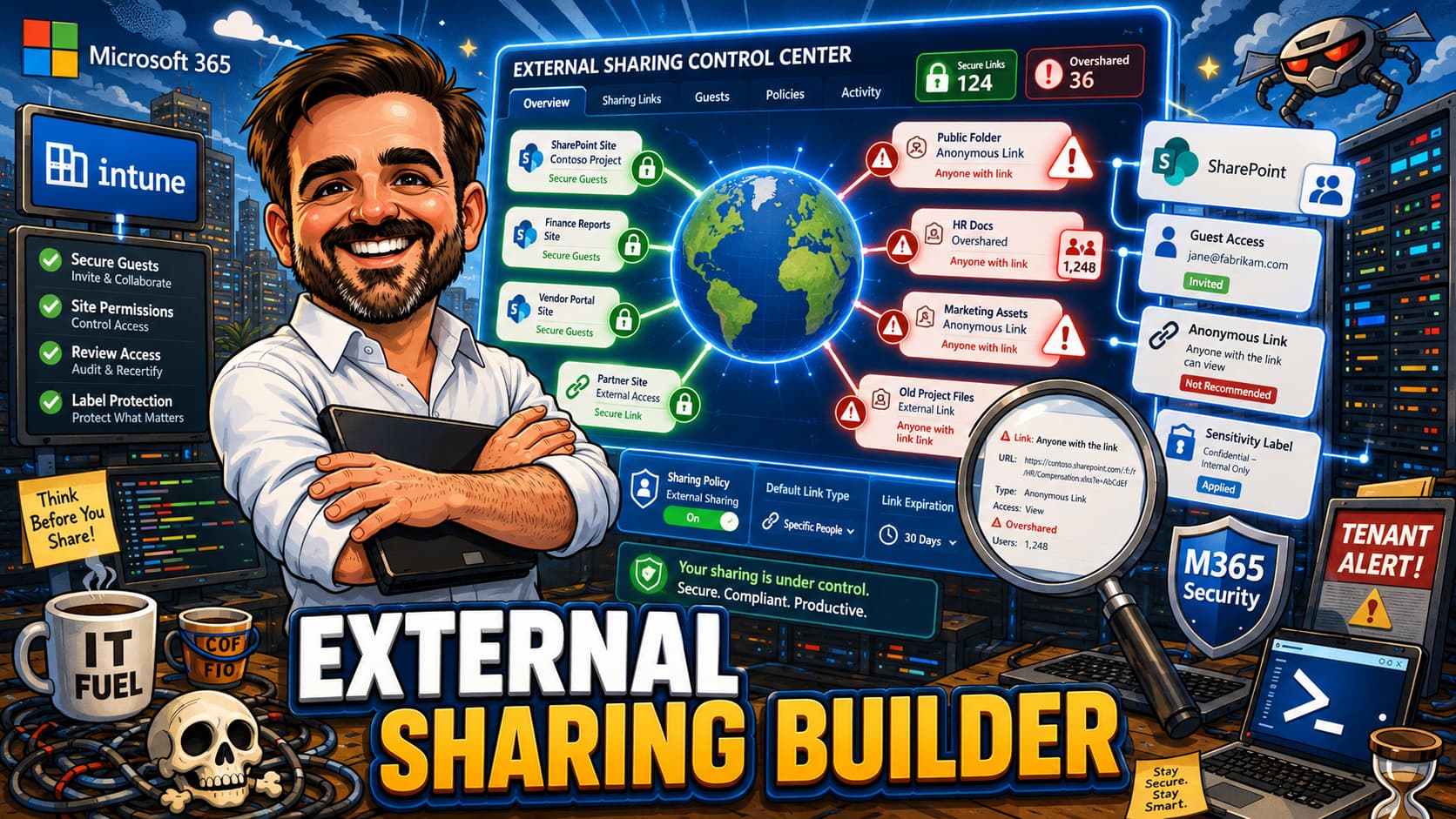
External sharing is not one setting. It is a collaboration risk model across tenant settings, site settings, link types, identity, data sensitivity, ownership and lifecycle. This interactive guide helps Microsoft 365 admins, SharePoint admins and security teams design external sharing policies that enable collaboration without creating uncontrolled data exposure.
- Interactive external sharing policy builder with 10 inputs and governance scoring across 6 pillars
- Tenant-level and site-level sharing configuration recommendations
- Link type decision framework: Specific people, Organisation, Anyone
- Guest access lifecycle with Entra B2B and access reviews
- Anonymous link risk analysis with expiry and password guidance
- Sensitivity labels and DLP integration for sharing controls
- Copilot oversharing risk and remediation before rollout
- Conditional Access for external users and guest accounts
- Safe rollout phases and 15+ common sharing mistakes from real tenants
Table of contents
- Introduction
- Important SharePoint sharing disclaimer
- What this guide helps you decide
- Before you start
- Licensing and prerequisites
- External sharing decision framework
- Interactive sharing policy builder
- Recommended baseline sharing models
- Tenant-level sharing settings
- Site-level sharing controls
- Link types and default link recommendations
- Guest access and Entra B2B
- Anonymous links (Anyone links)
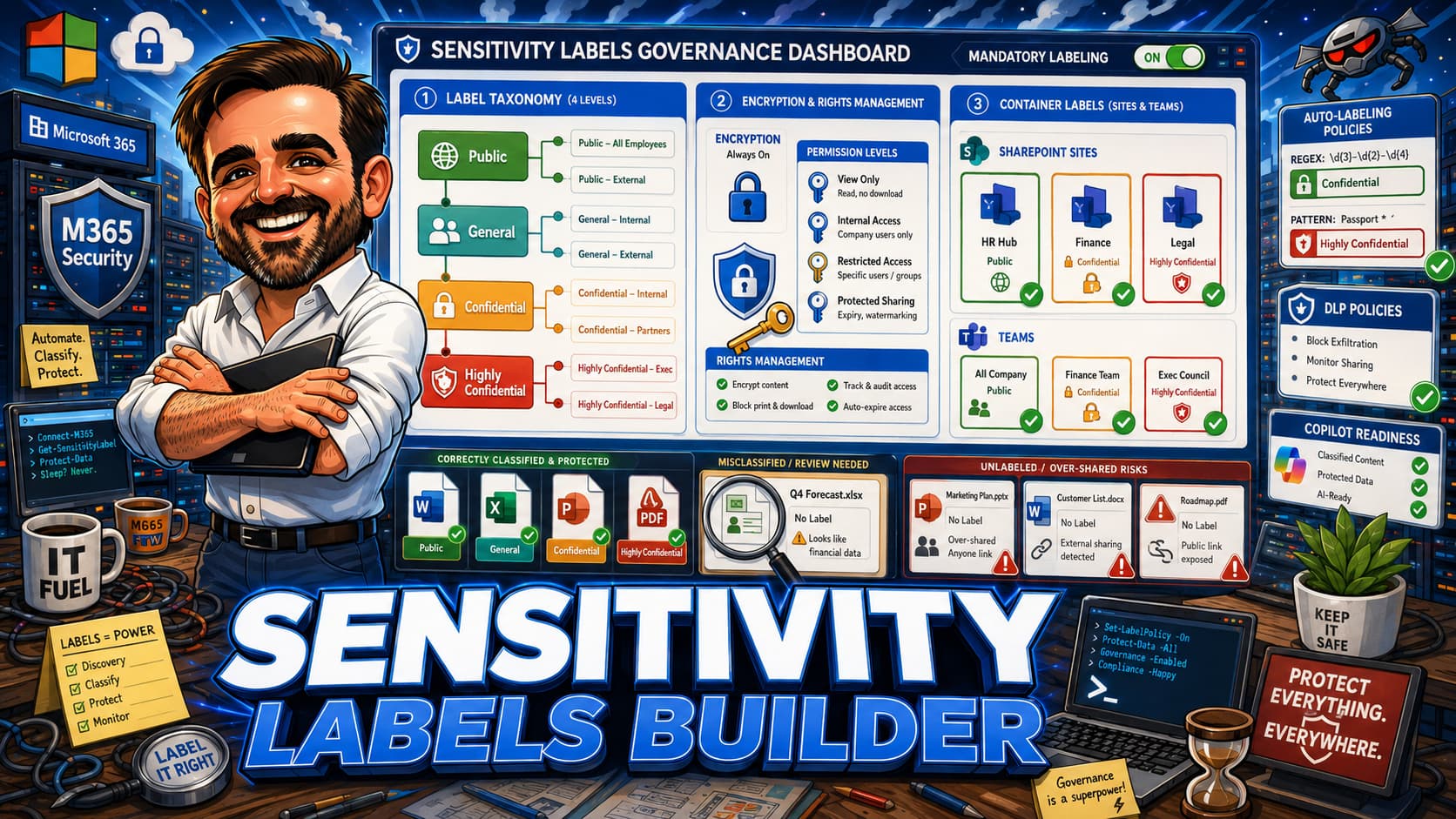
- Sensitivity labels and sharing
- Copilot and oversharing risk
- Conditional Access for external users
- Rollout order
- Common mistakes
- Field notes
- What to fix first
- Recommended first 3 actions
- What good looks like
- Save as PDF
- Microsoft references
- Related content
Introduction
Most SharePoint tenants fall into one of two patterns. The first is the tenant where external sharing was never restricted, so every site, every library and every file can be shared with anyone on the internet using anonymous links. Users create "Anyone" links for convenience, links accumulate over months and years, and nobody reviews who has access to what. The second is the tenant where an admin disabled all external sharing after a security incident, and now every legitimate collaboration request requires a support ticket, an exception process, and days of delay.
Both patterns carry real risk. Unrestricted sharing means data exposure that grows silently over time. Blanket blocking means shadow IT, personal email forwarding, and users uploading files to consumer cloud storage to share with partners.
The goal is not to block all collaboration. The goal is to allow the right external access with the right controls, defaults, reviews and monitoring.
SharePoint external sharing is not a single toggle. It is a layered system that spans tenant-level settings, site-level overrides, link type defaults, guest identity management, sensitivity labels, DLP policies and Conditional Access. Each layer interacts with the others. A site cannot be more permissive than the tenant. A sensitivity label can restrict sharing below what the site allows. A DLP policy can restrict or block sharing when sensitive content matches policy conditions, even if the site and label would otherwise allow sharing.
This guide helps you design a coherent external sharing policy that accounts for all of these layers. It is not a general SharePoint overview. It is a practical tool for deciding how much sharing is too much, and where your controls should sit.
Important SharePoint sharing disclaimer
Key points to keep in mind:
- SharePoint sharing capabilities depend on licensing (Microsoft 365 E3/E5, SharePoint Advanced Management, Microsoft Entra ID P1/P2). Validate your licence assignments before building policies.
- Microsoft updates SharePoint sharing controls regularly. Verify current capabilities in the SharePoint admin centre before deploying changes.
- Sharing settings interact across multiple layers: tenant, site, sensitivity label, DLP, Conditional Access. Changing one layer without understanding the others can create gaps or break legitimate collaboration.
- External sharing is one component of data governance. It works alongside sensitivity labels, DLP, information barriers and Purview data lifecycle management.
- Always test sharing policy changes with a pilot group of sites before tenant-wide deployment. A misconfigured sharing restriction can block active partner collaboration immediately.
What this guide helps you decide
This guide helps you answer specific questions that arise when designing SharePoint external sharing policies:
- What sharing level should I set at the tenant level: Anyone, New and existing guests, Existing guests, or Only people in your organisation?
- Which sites should allow external sharing and which should restrict it below the tenant default?
- What should the default link type be: Specific people, People in your organisation, or Anyone?
- When are anonymous links acceptable and what controls should accompany them?
- How should I manage guest lifecycle: invitation, access reviews, expiry and removal?
- How do sensitivity labels interact with sharing permissions and what should each label allow?
- What DLP rules should trigger on external sharing of sensitive content?
- What Conditional Access policies should apply to guest and external user sessions?
- How does Copilot for Microsoft 365 change the oversharing risk model?
- What monitoring and review cadence keeps external sharing under control over time?
Before you start
Before designing your external sharing policy, confirm that you have visibility into your current sharing state. Many tenants discover surprises during this audit.
Pre-flight checklist
- Audit current tenant-level sharing setting in the SharePoint admin centre
- Review the list of sites with external sharing enabled and their current sharing level
- Export the guest user list from Microsoft Entra ID and check last sign-in dates
- Identify any existing anonymous (Anyone) links using SharePoint Advanced Management or PowerShell reports
- Document which teams and departments actively collaborate with external partners
- Confirm whether sensitivity labels are deployed and which ones restrict sharing
- Check for existing DLP policies that reference external sharing conditions
- Review Conditional Access policies for guest/external user scoping
- Identify site owners and confirm they understand their responsibility for external access
- Document any regulatory or contractual requirements for data sharing restrictions (GDPR, HIPAA, NDA terms)
- Check whether Copilot for Microsoft 365 is deployed or planned and assess oversharing exposure
- Confirm SharePoint Advanced Management licence availability for restricted access control and site lifecycle
Licensing and prerequisites at a glance
External sharing controls span multiple Microsoft 365 services. Not every control requires the same licence tier.
| Capability | Licence required | Notes |
|---|---|---|
| Tenant and site sharing level settings | Included with SharePoint Online | Available in standard SharePoint Online administration. Validate plan and admin role requirements. |
| Default link type configuration | Included with SharePoint Online | Set at tenant or site level in SharePoint admin centre. Validate plan availability. |
| Guest invitations (Entra B2B) | Microsoft Entra ID Free (included) | Basic guest collaboration does not usually require assigning a full internal user licence, but advanced governance, access reviews, lifecycle automation and some Conditional Access scenarios may require Entra licensing. Validate current Microsoft Entra External ID and licensing terms. |
| Entra ID access reviews for guests | Microsoft Entra ID P2 / Entra ID Governance | Required for automated guest access review campaigns. Lifecycle automation and inactive guest cleanup may require Microsoft Entra ID Governance depending on review and automation requirements. |
| Sensitivity labels for sites and documents | Microsoft 365 E3 (manual and container labels) / E5 (auto-labelling) | E3 includes manual file labels and container labels for sites, Teams and groups. Auto-labelling and advanced classifiers require E5 or E5 Compliance. Container labels that enforce Conditional Access settings require Entra ID P1. |
| DLP policies for external sharing | Varies by workload and licence | Many enterprise plans include baseline DLP for SharePoint and OneDrive. Advanced conditions, Endpoint DLP, Teams DLP, Exact Data Match and advanced classifiers may require E5 or Purview add-ons. Validate current licensing. |
| Conditional Access for guests | Microsoft Entra ID P1 | Required to scope CA policies to guest and external user types |
| Cross-tenant access settings | Microsoft Entra licensing varies by feature | Cross-tenant access settings exist in Entra External ID/B2B. MFA trust, device compliance trust and advanced cross-tenant policies may require additional licensing and configuration in both tenants. Validate requirements for your specific trust configuration. |
| SharePoint Advanced Management | SharePoint Advanced Management add-on | Required for restricted access control, site lifecycle policies and data access governance reports |
| Copilot for Microsoft 365 | Copilot licence (per user) | Copilot surfaces content based on existing permissions including external shared content |
| Microsoft Purview Data Access Governance | SharePoint Advanced Management | Reports on overshared sites and content with external access |
External sharing decision framework
External sharing decisions are not binary. Each decision area requires balancing collaboration needs against data exposure risk. Use this framework to evaluate your current state and identify gaps.
| Decision area | Why it matters | Good default | When to be stricter | What can go wrong |
|---|---|---|---|---|
| Tenant-level sharing | Sets the maximum sharing level for all sites. No site can exceed this. | New and existing guests (authenticated sharing only) | Regulated industries, tenants with sensitive IP, pre-Copilot remediation | Setting to "Anyone" at tenant level means every site can create anonymous links unless individually restricted |
| Site-level sharing | Controls sharing per site. Allows differentiated policies for different content types. | Match tenant default unless business justification for more or less | HR sites, finance sites, legal sites, regulated data repositories | Forgetting to restrict sensitive sites leaves them at the tenant default, which may be too permissive |
| Default link type | Determines what link type users see first when they click Share. Users rarely change the default. | Specific people (forces explicit recipient selection) | Always use "Specific people" for regulated content; never default to "Anyone" | Defaulting to "People in your organisation" still creates broad internal links; defaulting to "Anyone" creates anonymous exposure |
| Anonymous links | Anyone links allow access without authentication. Useful for public content but dangerous for anything else. | Disabled at tenant level unless specific business need exists | Any tenant with confidential data, regulated data, or Copilot deployment | Anonymous links cannot be audited to a specific user. Once shared, they can be forwarded without trace. |
| Guest access (Entra B2B) | Authenticated external access creates a guest object in your directory. Enables auditing and policy enforcement. | Allow guest invitations with access reviews every 90 days | Restrict invitations to specific domains; require MFA for all guests via Conditional Access | Unmanaged guests accumulate over time. Without access reviews, stale guests retain access to shared content indefinitely. |
| Sensitivity labels | Labels can restrict sharing at the container (site) and content (file) level regardless of site sharing settings. | Apply labels to all sites; restrict external sharing on Confidential and above | Highly Confidential and Regulated labels should block all external sharing | Labels without sharing restrictions are informational only and do not prevent data exposure |
| DLP integration | DLP policies detect sensitive content being shared externally and can block, warn or notify. | Block external sharing of content containing credit card numbers, national IDs, health records | Add custom sensitive info types for proprietary data; require business justification overrides | DLP without external sharing conditions misses the highest-risk scenario: sensitive data leaving the tenant boundary |
| Copilot readiness | Copilot surfaces content based on user permissions. Overshared content becomes AI-discoverable and quotable. | Audit and remediate oversharing before Copilot rollout; restrict sites with broad permissions | Any tenant deploying Copilot should treat oversharing remediation as a governance prerequisite for safe rollout | Copilot can surface externally shared content in responses, amplifying the blast radius of oversharing |
| Owner accountability | Site owners are responsible for who has access. Without ownership, nobody reviews external access. | Require documented owners for every site; enforce quarterly access reviews | Sites with external sharing should have mandatory review cadence enforced via SharePoint Advanced Management | Orphaned sites with external sharing enabled and no active owner become permanent data exposure points |
| Monitoring and review | External sharing creates ongoing risk that grows unless actively monitored and reviewed. | Monthly review of sharing reports, guest account status and anonymous link inventory | Weekly reviews for regulated content; real-time alerts for sharing of labelled content | Without monitoring, sharing policies degrade over time as exceptions accumulate and ownership changes |
Interactive SharePoint External Sharing Policy Builder
Select your scenario parameters below to generate a tailored external sharing policy recommendation with governance scoring across six pillars. Higher scores indicate better-governed sharing posture.
Sharing policy builder
Recommended baseline sharing models
Use these baselines as starting points. Adjust based on your organisation's risk tolerance, regulatory requirements and collaboration needs.
| Scenario | Sharing model | Default link | Guest access | Anonymous links | Review cadence | Notes |
|---|---|---|---|---|---|---|
| General collaboration site | New and existing guests | Specific people | Allowed with MFA | Disabled | Quarterly | Standard baseline for most team sites |
| Partner project site | Existing guests only | Specific people | Domain-restricted | Disabled | Monthly | Pre-approve partner domains in Entra B2B settings |
| Customer-facing portal | New and existing guests | Specific people | Allowed with MFA | Disabled | Monthly | Consider SharePoint pages for public content instead of sharing |
| Public marketing content | Anyone | Anyone (view only) | Not required | Enabled with 7-day expiry | Weekly | Only for genuinely public content like press releases and brochures |
| HR and people data | Only people in your organisation | Specific people | Blocked | Blocked | Quarterly | No external sharing under any circumstances |
| Finance and legal | Existing guests only | Specific people | Domain-restricted, sponsor required | Blocked | Monthly | Sensitivity label should enforce sharing restriction |
| Regulated data (GDPR, HIPAA) | Only people in your organisation | Specific people | Blocked unless exception approved | Blocked | Monthly | DLP policy must block external sharing of regulated content types |
| Executive leadership site | Existing guests only | Specific people | Restricted to named individuals | Blocked | Monthly | Apply Highly Confidential label with sharing restrictions |
| Development and engineering | New and existing guests | Specific people | Allowed with MFA | Disabled | Quarterly | Monitor for source code and IP sharing via DLP |
| Pre-Copilot remediation site | Only people in your organisation | People with existing access | Blocked | Blocked | Weekly during remediation | Temporary restriction while permissions are audited before Copilot deployment |
Tenant-level sharing settings
The tenant-level sharing setting in the SharePoint admin centre establishes the ceiling for all sites. No individual site can exceed the tenant-level setting. This is the most important single decision in your external sharing policy.
The four tenant sharing levels
Anyone: Users can share files and folders using links that do not require sign-in. Guest invitations are also allowed. This is the most permissive setting. Anyone links can be forwarded, copied and used by anyone who obtains the URL. There is no identity verification.
New and existing guests: External users must sign in or provide a verification code. Guest objects are created in your Entra ID directory. Sharing is authenticated and auditable. This is the recommended default for most organisations.
Existing guests only: Sharing is limited to guest accounts that already exist in your directory. Users cannot invite new external users directly. New guests must be added through Entra ID, another admin process, or another site that allows new guest invitations.
Only people in your organisation: All external sharing is disabled. No guest invitations, no anonymous links. This is the most restrictive setting and eliminates all external collaboration through SharePoint.
Practical recommendations
- Most organisations: Set tenant to "New and existing guests". This allows authenticated external collaboration while preventing anonymous access at the tenant level.
- Regulated or high-security organisations: Set tenant to "Existing guests only" or "Only people in your organisation". Manage exceptions at the site level (sites can be less permissive, not more permissive).
- Organisations needing anonymous links: If "Anyone" is required at the tenant level, immediately restrict individual sites that contain sensitive content to a lower sharing level. Set short expiry periods (7 to 14 days) and require passwords on Anyone links.
OneDrive sharing settings
OneDrive has its own sharing setting that is separate from the SharePoint tenant-level setting. By default, OneDrive inherits the SharePoint tenant sharing level, but you can restrict OneDrive sharing independently. This matters because users frequently share files from their personal OneDrive, and those shares follow the OneDrive sharing level, not the SharePoint site settings. If your tenant is set to "New and existing guests" but you want to restrict personal file sharing, set the OneDrive sharing level to "Existing guests only" or "Only people in your organisation" in the SharePoint admin centre under Policies > Sharing > OneDrive.
Site-level sharing controls
Site-level sharing settings allow you to differentiate sharing policies across your tenant. The critical rule is that a site cannot be more permissive than the tenant setting. If the tenant is set to "New and existing guests", no site can enable "Anyone" links. But any site can be set to a more restrictive level than the tenant.
How site-level settings work
Each SharePoint site has its own sharing setting that you configure in the SharePoint admin centre or via PowerShell. The available options are the same four levels as the tenant setting, but the site level is capped at the tenant level. When you restrict a site below the tenant default, that restriction applies immediately.
Which sites to restrict
- HR, payroll and people data sites: Set to "Only people in your organisation". No external access under any circumstances.
- Finance, legal and audit sites: Set to "Existing guests only" at most. Consider "Only people in your organisation" unless there is an active external audit or legal collaboration.
- Executive and board sites: Set to "Existing guests only" with domain restrictions. Apply Highly Confidential sensitivity label.
- Regulated data sites: Set to "Only people in your organisation". Use DLP to block any attempt to share regulated content externally from other sites.
- General team sites: Inherit the tenant default unless there is a reason to deviate.
Managing site-level settings at scale
For tenants with hundreds or thousands of sites, managing site-level sharing manually is not sustainable. Use sensitivity labels with site-level settings to automate sharing restrictions. When a site is labelled "Confidential", the label can automatically set the site sharing level to "Existing guests only". When a site is labelled "Highly Confidential", the label can set sharing to "Only people in your organisation". This approach scales and ensures that new sites inherit appropriate sharing restrictions based on their classification.
Link types and default link recommendations
The default link type determines what users see when they click Share. Because most users accept the default without changing it, this setting has outsized influence on your actual sharing behaviour.
| Link type | Who can access | Risk level | When to use | When to avoid |
|---|---|---|---|---|
| Specific people | Only the named recipients (internal or external) | Low | Default for most organisations. Forces explicit recipient selection. Creates auditable sharing records. | Rarely a reason to avoid. May feel slower for users accustomed to broad sharing. |
| People in your organisation | Anyone with an account in your tenant (all internal users) | Medium | Company-wide announcements, internal knowledge bases, all-hands content. Content that any employee should be able to access. | Sensitive content, HR data, finance data, anything that should be need-to-know. Creates broad internal exposure that Copilot can surface. |
| People with existing access | Only people who already have permission to the file or folder | Low | Sharing a direct link to content without granting any new permissions. Useful for sending links in emails or chats. | Not useful when you need to share with someone who does not already have access. |
| Anyone | Anyone with the link, no authentication required | High | Genuinely public content: press releases, marketing brochures, public event registration documents. | Any content that is not intended for unrestricted public access. Any content containing personal data, financial data, IP or confidential information. |
Guest access and Entra B2B
When you share with an external user using "Specific people" or "New and existing guests" settings, a guest object is created in your Microsoft Entra ID directory. This is Entra B2B (business-to-business) collaboration. Guest users authenticate with their home organisation or a Microsoft account and access your resources as a directory object you can manage, audit and govern.
Guest lifecycle management
Guest accounts require active lifecycle management. Without it, guest accounts accumulate and retain access long after the collaboration has ended.
- Invitation: Control who can invite guests. Options include "Only admins", "Admins and users in the guest inviter role", "All members", or "Everyone including guests". Recommended: "Admins and users in the guest inviter role" or "All members" depending on your collaboration needs.
- Domain restrictions: Use allowlists or blocklists to control which external domains can be invited. Allowlists are more secure but require maintenance. Blocklists are easier but provide less control.
- Access reviews: Configure Entra ID access reviews to periodically review guest access. Recommended cadence is every 90 days. Reviews can be assigned to group owners, resource owners or specific reviewers. Guests who are not re-approved lose access automatically.
- Expiry: Set guest user expiry in Entra B2B collaboration settings. Guest invitation redemption can be configured to expire after a specified number of days. Automatic removal of inactive guest accounts (based on last sign-in activity) requires an Entra ID Governance licence, which is separate from Entra ID P2. Without Entra ID Governance, inactive guest cleanup must be performed manually or via scripted processes.
- Removal: Establish a process for removing guest accounts when collaboration ends. Use access reviews to automate removal of guests who have not signed in within a specified period.
Conditional Access for guests
Guest users should be subject to Conditional Access policies. At minimum, require MFA for all guest sign-ins. Consider additional controls such as session time limits, app-enforced restrictions, and blocking access from non-compliant devices.
Anonymous links (Anyone links)
Anyone links (also called anonymous links) allow access to files and folders without any authentication. The recipient does not need a Microsoft account, a guest account or any form of identity verification. Anyone who obtains the URL can access the content.
When anonymous links are acceptable
- Genuinely public content such as press releases, public event materials, marketing brochures
- Content that is already publicly available through other channels (website, social media)
- Short-lived sharing scenarios where the content has no sensitivity and the link expires quickly
When anonymous links are dangerous
- Any content containing personal data, financial data, health records or other regulated information
- Internal business documents, strategies, roadmaps or competitive intelligence
- Content in sites labelled Confidential, Highly Confidential or Regulated
- Any scenario where you need to know who accessed the content for audit or compliance purposes
- Pre-Copilot environments where oversharing remediation has not been completed
Controls for anonymous links
If you must allow Anyone links at the tenant level, apply these controls:
- Expiry: Set a maximum expiry period. Recommended: 7 days for files, 14 days for folders. Shorter is better.
- Permissions: Default Anyone links to "View only". Do not allow edit permissions on anonymous links.
- Passwords: Require passwords on Anyone links where available. Passwords reduce accidental access, but they do not provide identity or accountability. A password-protected Anyone link remains anonymous.
- Site-level blocking: Even if the tenant allows Anyone links, disable them on all sites containing sensitive, confidential or regulated content.
- Monitoring: Regularly audit Anyone link creation using SharePoint admin centre reports or Microsoft Purview audit logs.
Sensitivity labels and sharing
Sensitivity labels provide a layer of sharing control that operates independently of site-level and tenant-level settings. A label can restrict sharing below what the site allows, ensuring that the classification of the content determines the sharing boundary.
How labels restrict sharing
Sensitivity labels can enforce sharing restrictions at two levels:
- Container level (site label): When a label is applied to a SharePoint site, it can control the site sharing level, guest access permissions and Conditional Access enforcement. For example, a "Confidential" site label can set sharing to "Existing guests only" regardless of what the tenant allows.
- Content level (file label): When a label is applied to a document, it can restrict sharing through encryption and rights management. A "Highly Confidential" file label can prevent forwarding, printing and sharing with external users regardless of the site or tenant settings.
Label and sharing alignment
Design your sensitivity labels with sharing restrictions built in:
- General / Public: No sharing restrictions. Default link type applies. All link types available.
- Internal: External sharing blocked. Only "People in your organisation" and "Specific people (internal)" links available.
- Confidential: External sharing limited to authenticated guests only. No Anyone links. Default link type forced to "Specific people".
- Highly Confidential: External sharing blocked. Encryption applied. Rights management prevents forwarding and copying.
- Regulated: External sharing blocked. Encryption required. Audit logging enforced. DLP policy monitors for any sharing attempts.
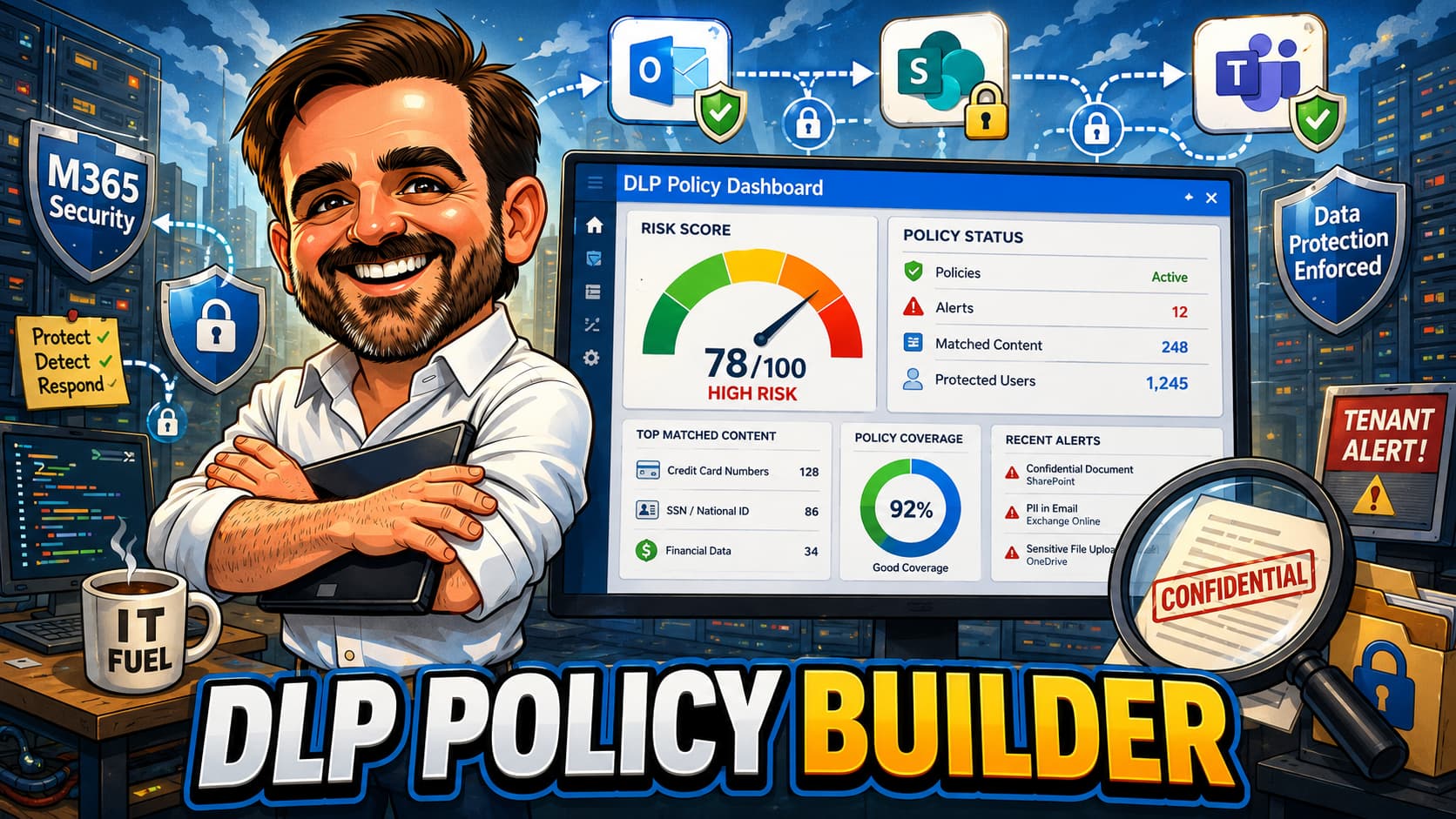
DLP integration
DLP policies complement sensitivity labels by detecting sensitive content that may not be labelled or is mislabelled. Configure DLP rules to:
- Block external sharing of documents containing sensitive information types (credit card numbers, national IDs, health records)
- Warn users when sharing content that matches sensitive information patterns
- Require business justification overrides for sharing that triggers DLP rules
- Notify compliance officers when sensitive content is shared externally
- Use auto-labeling policies, where licensed, to apply sensitivity labels to content that matches sensitive information types or classifiers
Copilot and oversharing risk
Microsoft Copilot for Microsoft 365 surfaces content based on the permissions of the user asking the question. If a user has access to a file, Copilot can read that file, quote it, summarise it and include it in generated responses. This means that every oversharing problem in your tenant becomes an AI-discoverable oversharing problem.
Why Copilot changes the sharing risk model
Before Copilot, overshared content was a latent risk. A file shared with "Everyone except external users" was technically accessible to all internal users, but in practice, most users never navigated to it. The content was hidden by obscurity. Copilot removes that obscurity. If a user asks Copilot a question and the answer exists in an overshared file, Copilot will surface it.
Oversharing patterns that Copilot amplifies
- Sites with "Everyone" or "Everyone except external users" as members or visitors
- Organisation-wide sharing links ("People in your organisation") on sensitive documents
- Teams channels with broad membership that contain confidential files
- SharePoint sites where external sharing was enabled but content was never reviewed
- Legacy migration content where permissions were not cleaned up after migration
- Orphaned sites with no active owner and broad permissions
Remediation before Copilot rollout
- Run SharePoint Advanced Management data access governance reports to identify overshared sites
- Review and remove "Everyone" and "Everyone except external users" group memberships from sensitive sites
- Convert organisation-wide sharing links to "Specific people" links on confidential content
- Apply sensitivity labels to all sites to enforce appropriate sharing boundaries
- Restrict Copilot access to specific groups during rollout; expand only after remediation is verified
- Use Restricted Content Discovery or restricted SharePoint search as a temporary containment control during remediation. This reduces discovery in Copilot and tenant-wide search but does not fix underlying permissions.
Conditional Access for external users
Conditional Access policies can target guest and external user types specifically, allowing you to enforce different authentication and session controls for external collaboration.
Recommended CA policies for guests
- Require MFA for all guest sign-ins: Create a CA policy targeting "Guest or external users" that requires multifactor authentication for all cloud apps. This ensures that even if a guest account is compromised, the attacker cannot access your resources without a second factor.
- Block legacy authentication for guests: Legacy authentication protocols do not support MFA. Block them for all guest users to prevent bypass.
- Session controls: Apply sign-in frequency controls to guest sessions. Recommended: require re-authentication every 4 to 8 hours for guest users accessing SharePoint and OneDrive.
- App-enforced restrictions: Use app-enforced restrictions to prevent guests from downloading content in the browser. Guests can view content but cannot save local copies. This requires SharePoint to be configured to honour the CA session control.
- Location-based controls: If your external partners are in known locations, consider named locations in CA to restrict guest access to approved geographies.
- Device compliance: If your guest users are from partner organisations that use Intune, consider cross-tenant access policies in Entra ID to trust the partner's compliance claims.
Cross-tenant access policies
Entra ID cross-tenant access settings allow you to configure trust relationships with specific partner organisations. You can choose to trust MFA claims, device compliance claims and Entra hybrid join status from the partner tenant. This reduces friction for trusted partners while maintaining security for untrusted external users.
Rollout order
Do not change all sharing settings at once. A phased rollout reduces the risk of disrupting active external collaboration. Follow this order:
- Phase 1: Audit current state Export the current sharing configuration for tenant, all sites, guest accounts and anonymous links. Document all active external collaborations. Identify orphaned sites and stale guests. This phase is information gathering only. No changes.
- Phase 2: Clean up stale access Remove guest accounts that have not signed in for more than 180 days. Revoke expired anonymous links. Identify and remediate orphaned sites with no active owner. This phase reduces the attack surface before changing settings.
- Phase 3: Set default link type Change the tenant default link type to "Specific people". This is a low-risk change that does not break any existing sharing but improves future sharing behaviour. Communicate to users that they can still choose other link types manually.
- Phase 4: Restrict sensitive sites Set site-level sharing to more restrictive levels for HR, finance, legal, regulated and executive sites. Apply sensitivity labels to these sites if not already labelled. This targets the highest-risk content first.
- Phase 5: Configure anonymous link controls If Anyone links are enabled at the tenant level, set expiry (7 to 14 days), default to view-only and consider requiring passwords. If Anyone links are not needed, disable them at the tenant level.
- Phase 6: Deploy guest lifecycle Configure Entra ID access reviews for guest accounts. Set review cadence to 90 days. Assign reviews to site owners or collaboration managers. Enable guest account expiry for new invitations.
- Phase 7: Enable Conditional Access for guests Deploy CA policies requiring MFA for all guest sign-ins. Start in report-only mode for two weeks to identify impact, then switch to enforcement. Add session controls and app-enforced restrictions as needed.
- Phase 8: Integrate DLP and sensitivity labels Deploy DLP policies that detect sensitive content being shared externally. Configure sensitivity labels with sharing restrictions. Start with policy tips (warn mode) before blocking. Monitor false positives and tune rules.
- Phase 9: Tenant-level restriction (if needed) If your target state requires a more restrictive tenant sharing level, change it after all site-level controls are in place. Communicate broadly before making this change. Monitor support tickets for the first two weeks.
- Phase 10: Ongoing monitoring Establish regular review cadence. Monthly sharing reports, quarterly guest reviews, annual policy review. Use SharePoint Advanced Management and Microsoft Purview to monitor for drift.
Common mistakes
- Leaving the tenant at "Anyone" by default. Most organisations do not need anonymous sharing at the tenant level. Every site inherits this permissive setting unless individually restricted.
- Not changing the default link type from "People in your organisation". This creates broad internal links by default. Users who click Share and hit Enter create links accessible to every employee.
- Never reviewing guest accounts. Guest accounts accumulate silently. Without access reviews, external users retain access to shared content for months or years after the collaboration has ended.
- Restricting sharing without communicating to affected users. Users who rely on external sharing for active projects will file urgent support tickets. Always communicate changes before making them.
- Blocking all external sharing instead of controlling it. Blanket blocking pushes users to consumer file sharing services, personal email and other shadow IT channels that are completely outside your visibility.
- Not using sensitivity labels to automate site sharing restrictions. Manually managing sharing settings across hundreds of sites does not scale. Labels automate this and ensure consistency.
- Forgetting that site settings cannot exceed tenant settings. Admins sometimes try to enable "Anyone" on a specific site when the tenant is set to "New and existing guests". This will not work. The tenant is the ceiling.
- Deploying DLP for external sharing without testing rules first. Aggressive DLP rules that block sharing of content matching broad patterns will generate false positives and user complaints. Start in warn mode.
- Not requiring MFA for guest accounts. Guest accounts without MFA are vulnerable to credential compromise. A compromised guest account has access to everything that was shared with them.
- Setting anonymous link expiry too long. A 90-day expiry on an Anyone link means that for 90 days, anyone who obtains the URL can access your content without authentication. Use the shortest expiry that meets the business need.
- Deploying Copilot without auditing oversharing first. Copilot surfaces content based on permissions. Every overshared file becomes AI-discoverable. Remediate before rollout.
- Ignoring the OneDrive sharing settings. OneDrive inherits from the tenant sharing level but can be restricted separately. Users sharing files from their OneDrive are subject to OneDrive sharing settings, not the SharePoint site settings.
- Assuming site owners understand their sharing responsibility. Many site owners do not know what external access exists on their site. Provide tools, reports and training.
- Not configuring cross-tenant access for key partners. Without cross-tenant access settings, partner users are treated as generic guests. Configuring trust relationships for top partners improves security and user experience.
- Treating sharing policy as a one-time project. External sharing is an ongoing governance process. Without regular reviews, policies degrade as exceptions accumulate and organisational needs change.
- Allowing guests to invite other guests. By default, Entra B2B can allow guest users to invite additional guests. This creates transitive trust chains that are difficult to audit. Restrict guest invitation permissions.
Field notes
The 10,000 guest tenant
A mid-sized enterprise discovered over 10,000 guest accounts in their Entra directory. Fewer than 400 had signed in within the last 90 days. The remaining 9,600 retained access to content shared during past collaborations. A single access review campaign reduced the guest count by 85% with zero business impact.
The Anyone link audit shock
An organisation running SharePoint Advanced Management for the first time discovered over 2,000 active Anyone links across their tenant. Several linked to files containing customer contracts, pricing proposals and internal financial reports. None had expiry dates. The remediation took three weeks but eliminated the highest-risk exposure in their environment.
The Monday morning sharing lockout
An admin changed the tenant sharing level from "Anyone" to "Only people in your organisation" on a Friday afternoon. On Monday, three active partner projects lost access to shared project folders. The change was reverted within two hours, but the trust damage with the partner organisations took weeks to repair. Lesson: communicate before restricting.
The Copilot oversharing discovery
During a Copilot pilot, an executive asked Copilot about compensation strategy. Copilot returned content from an HR SharePoint site that had "Everyone except external users" in its visitor group. The compensation data was technically accessible to all employees but had never been browsed directly. After this incident, the organisation paused the Copilot rollout and remediated permissions across 200 sites before resuming.
The sensitivity label that saved the deal
A legal team applied "Highly Confidential" labels to all M&A documents. When a junior employee accidentally tried to share a due diligence folder with an external contact, the label blocked the sharing attempt and notified the document owner. Without the label, the documents would have been accessible to the external user within seconds.
The DLP false positive storm
An organisation deployed a DLP policy blocking external sharing of any document containing numbers matching credit card patterns. The policy triggered on documents containing part numbers, invoice numbers and tracking codes that happened to match the pattern. Within a day, the helpdesk received 80 tickets. The policy was switched to warn mode, patterns were refined, and enforcement was re-enabled two weeks later with near-zero false positives.
The orphaned site with open sharing
A project team site was created for a product launch three years earlier. The project ended, the team disbanded, the site owner left the company, but the site remained with "New and existing guests" sharing enabled. A SharePoint Advanced Management site lifecycle policy identified the site as inactive and triggered a review. The review revealed active external access to outdated product roadmaps that had been shared with a vendor who was now a competitor.
The cross-tenant trust win
A consulting firm configured cross-tenant access with their three largest clients. Client users no longer received MFA prompts when accessing shared content because the firm trusted the client tenants' MFA claims. Collaboration friction dropped significantly, and the firm maintained its security posture because untrusted external users still received full MFA enforcement.
What to fix first
If you are starting from scratch or inheriting an unmanaged tenant, prioritise these items:
| Priority | Action | Why | Effort | Risk if skipped | Dependency |
|---|---|---|---|---|---|
| 1 | Change default link type to "Specific people" | Immediately improves sharing behaviour for all new shares | Low (single setting change) | Users continue creating broad links by default | None |
| 2 | Audit and remove stale guest accounts | Reduces attack surface and simplifies access governance | Medium (export, review, bulk remove) | Thousands of stale accounts retain access to shared content | None |
| 3 | Restrict sharing on sensitive sites (HR, Finance, Legal) | Protects highest-risk content immediately | Low (per-site setting changes) | Sensitive content remains at the tenant default sharing level | Identify sensitive sites |
| 4 | Configure anonymous link expiry and view-only default | Limits exposure duration and prevents edits via anonymous links | Low (tenant-level settings) | Anyone links persist indefinitely with edit permissions | Tenant allows Anyone links |
| 5 | Deploy Conditional Access for guest MFA | Prevents guest account compromise from providing uncontrolled access | Medium (CA policy creation, testing) | Compromised guest accounts can access all shared content | Entra ID P1 licence |
| 6 | Set up Entra ID access reviews for guest accounts | Automates ongoing guest lifecycle and prevents accumulation | Medium (access review configuration) | Guest accounts accumulate indefinitely with no review | Entra ID P2 licence |
Recommended first 3 actions
If you can only do three things this week, do these:
| Action | Where to configure | Expected outcome |
|---|---|---|
| Change the default link type to "Specific people" at the tenant level | SharePoint admin centre > Policies > Sharing > Default link type | All new shares default to named recipients. No existing sharing is affected. Users can still select other link types manually. |
| Set sharing on HR and Finance sites to "Only people in your organisation" | SharePoint admin centre > Sites > Active sites > select site > Policies > External sharing | External sharing is immediately blocked on your most sensitive sites. Existing external access to these sites is revoked. |
| Export guest user list and identify accounts with no sign-in in 180+ days | Microsoft Entra admin centre > Users > Guest users > export to CSV, filter by last sign-in | Clear view of stale guest exposure. Basis for cleanup and access review configuration. |
What good looks like
A well-governed SharePoint sharing environment has these characteristics:
- Tenant sharing level is set to "New and existing guests" or more restrictive, not "Anyone"
- Default link type is "Specific people" at the tenant level
- Sensitive sites (HR, Finance, Legal, Regulated) have sharing restricted below the tenant default
- Sensitivity labels are deployed and enforce sharing restrictions at the container and content level
- DLP policies detect and block external sharing of regulated content types
- Guest accounts are subject to access reviews every 90 days
- Stale guest accounts (no sign-in for 180+ days) are removed or disabled
- Conditional Access requires MFA for all guest sign-ins
- Anonymous links are disabled or have short expiry (7 to 14 days) with view-only permissions
- Every SharePoint site has a documented owner who reviews external access quarterly
- Oversharing has been audited and remediated before Copilot deployment
- Sharing policy is reviewed and updated at least annually with input from security, compliance and business stakeholders
Save as PDF
Save this guide
Use your browser's print function (Ctrl+P / Cmd+P) and select "Save as PDF". The layout is optimised for print with navigation elements hidden and tables preserved.
Microsoft references
Official documentation
- Manage sharing settings for SharePoint and OneDrive
- External sharing overview in SharePoint
- Microsoft Entra ID access reviews
- Microsoft Entra B2B collaboration
- Cross-tenant access settings
- Sensitivity labels for SharePoint and OneDrive
- SharePoint Advanced Management overview
- Learn about data loss prevention
- Data, privacy and security for Microsoft 365 Copilot
- Conditional Access: Guest or external users
Related content
Conditional Access Policy Builder 2026
Design Conditional Access policies for identity protection, device compliance, session controls and guest access.
Microsoft 365 Tenant Health Scorecard 2026
Evaluate your tenant posture across identity, devices, data protection, email security and governance.
Microsoft 365 Licensing Decision Builder 2026
Navigate Microsoft 365 licensing decisions for E3, E5, add-ons and security features.
Microsoft 365 DLP Policy Builder 2026
Design DLP policies for Exchange, SharePoint, OneDrive, Teams and endpoints with practical rollout guidance.
Copilot Readiness Scorecard 2026
Assess your organisation's readiness for Copilot for Microsoft 365 across licensing, data governance and oversharing.
Sensitivity Labels Decision Builder 2026
Design your sensitivity label taxonomy with encryption, sharing restrictions and auto-labelling policies.
Zero Trust Security Blueprint for Microsoft 365 2026
Implement Zero Trust principles across identity, devices, data, apps and infrastructure in Microsoft 365.
This guide is part of the Security and Compliance series at tiagoscarvalho.com