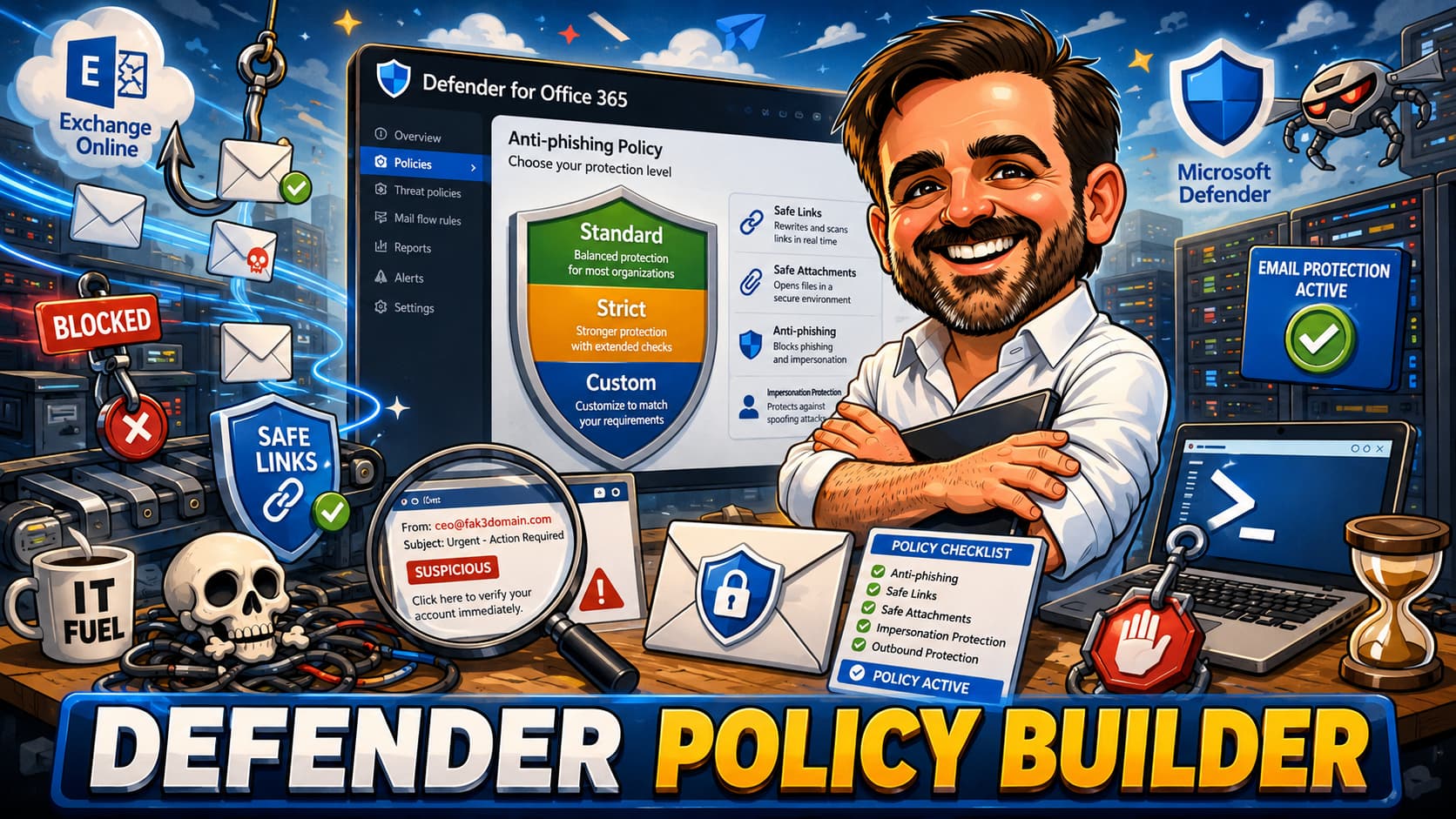
Email security is not only about blocking threats. It is about choosing the right protection level, for the right users, without creating bypasses that weaken the tenant. This interactive guide helps Microsoft 365 admins, Exchange Online admins and security teams design practical Defender for Office 365 and EOP policies that protect users without generating unmanageable noise.
- Interactive Defender policy builder with 7 inputs and protection scoring
- Standard vs Strict vs Custom preset policy decision framework
- Persona-based policy baselines for executives, finance, HR and more
- Anti-phishing, impersonation, Safe Links and Safe Attachments recommendations
- Quarantine workflow and user submissions process
- Tenant Allow/Block List and exception handling
- Defender policies and mail flow rule alignment
- Safe rollout phases and 18 common mistakes from real tenants
Table of contents
- Introduction
- Important Defender disclaimer
- What this helps you decide
- Before you start
- Licensing and capabilities
- Interactive Defender policy builder
- Standard vs Strict presets
- Recommended policy baselines
- Anti-phishing and impersonation
- Safe Links recommendations
- Safe Attachments recommendations
- Quarantine and user submissions
- Tenant Allow/Block List
- Defender and mail flow rules
- Rollout order
- Common mistakes
- Field notes
- What to fix first
- What good looks like
- Save as PDF
- Microsoft references
- Related content
Introduction
Most Microsoft 365 tenants fall into one of two email security patterns. The first is the tenant where nobody has touched the Defender for Office 365 or EOP settings since the subscription started. The default protection is active, but nobody has reviewed anti-phishing thresholds, impersonation targets, quarantine workflows or Safe Links behaviour. The second is the tenant where an admin configured strict or custom policies months ago, but nobody monitors quarantine, nobody reviews false positives, and users have found workarounds that bypass the controls entirely.
Both patterns carry risk. Defaults leave gaps. Poorly monitored strict policies create noise and workarounds.
A strict policy that nobody monitors becomes noise. A custom policy that nobody understands becomes risk.
Microsoft provides preset security policies (Standard and Strict) that apply a curated set of protection settings across anti-phishing, anti-spam, anti-malware, Safe Links and Safe Attachments. These presets are a strong starting point. But some tenants need custom policies for specific users, executive protection, business process exceptions, operational constraints or licensing differences.
This guide is not a generic Defender overview. It is a practical policy builder designed to help you make specific decisions: which protection model to use, which users need stronger settings, how to handle impersonation, when to use Safe Links and Safe Attachments, how to manage quarantine and user submissions, and how to avoid the bypass rules that weaken everything else.
Microsoft Defender for Office 365 and Exchange Online Protection work together. EOP provides the baseline: anti-spam, anti-malware, anti-phishing (including spoof protection). Defender for Office 365 adds Safe Links, Safe Attachments, advanced anti-phishing with impersonation detection, threat investigation and response capabilities. The right configuration depends on licensing, user risk, operational maturity and business requirements.
Important Defender for Office 365 disclaimer
Key points to keep in mind:
- Protection requirements vary by organisation. User roles, threat exposure, business processes and risk appetite differ across tenants. There is no universal Defender policy set.
- Capabilities depend on licensing. Exchange Online Protection, Defender for Office 365 Plan 1, Plan 2, and Microsoft 365 E5 each provide different feature sets. Validate against Microsoft documentation and your licensing provider.
- Microsoft recommendations and settings can change. Preset security policies are maintained by Microsoft and may be updated. Feature behaviour and defaults can evolve. Always check the current Microsoft documentation.
- Policies should be tested before broad rollout. Enabling strict or custom policies without a pilot phase risks blocking legitimate email and disrupting business workflows.
- This is not legal, compliance or procurement advice. Organisations with regulatory requirements should involve legal and compliance teams in email security policy design.
- Final validation should be done against the Microsoft Defender portal, Microsoft Learn, Microsoft Product Terms, and your licensing provider.
What this guide helps you decide
This builder is designed to help you work through the following decisions:
- Whether to start with the Standard preset security policy
- Whether to use the Strict preset security policy for specific groups
- When to build custom threat policies instead of using presets
- Which users need stronger protection: executives, finance, HR, customer-facing
- When to configure user impersonation and domain impersonation protection
- When to enable Safe Links and Safe Attachments and what to monitor
- How to manage quarantine policies and user release workflows
- How to handle user submissions and false positive feedback
- When to use the Tenant Allow/Block List and how to avoid dangerous broad allows
- How to avoid mail flow rule bypasses that weaken Defender protection
- How to review spoof intelligence decisions
- How to align Defender policies with Exchange Online mail flow rules
- How to roll out stronger email protection safely
- How to monitor and review Defender policies operationally
Before you start
Before changing Defender for Office 365 or EOP policies, work through this pre-flight checklist. Skipping this step is how policy changes end up blocking legitimate email and creating support ticket storms.
Pre-flight checklist
- Identify current licensing: EOP only, Defender for Office 365 Plan 1, Plan 2, or Microsoft 365 E5
- Identify current preset security policy status: are Standard or Strict profiles active?
- Identify existing custom threat policies and their priority order
- Identify VIPs, executives and high-risk users who need explicit protection
- Identify customer-facing, finance, HR and mailbox-heavy users
- Review existing mail flow rules, especially any that bypass spam filtering or SCL modification
- Review the Tenant Allow/Block List for stale, broad or unjustified entries
- Review current quarantine policies and who has release permissions
- Review user submissions process: can users report suspicious messages?
- Review spoof intelligence: are there overrides that need validation?
- Review email authentication: SPF, DKIM and DMARC configuration and enforcement for your domains
- Review external senders and partner exceptions
- Review message trace and Threat Explorer (where available) for recent false positives
- Review false positive and false negative history from helpdesk or security team
- Prepare the helpdesk: users will notice when quarantine or policy tip behaviour changes
- Define pilot groups for testing policy changes before broad rollout
- Create a rollback plan: know how to revert changes quickly
- Document policy owners: who reviews alerts, who tunes policies, who approves exceptions
- Define the review cadence: quarterly at minimum
Licensing and capabilities at a glance
Defender for Office 365 capabilities depend on the licensing tier. The following table is directional. Validate all licensing details against Microsoft documentation and your licensing provider.
| Capability | EOP (baseline) | Defender P1 | Defender P2 | Validation |
|---|---|---|---|---|
| Anti-spam filtering | Yes | Yes | Yes | Included with all Exchange Online plans |
| Anti-malware filtering | Yes | Yes | Yes | Included with all Exchange Online plans |
| Zero-hour Auto Purge (ZAP) | Yes | Yes | Yes | Retroactively removes spam, phishing and malware from delivered messages |
| Anti-phishing (spoof protection) | Yes | Yes | Yes | EOP provides spoof intelligence and basic anti-phishing |
| Anti-phishing (impersonation) | No | Yes | Yes | User and domain impersonation requires P1 or higher |
| Safe Links | No | Yes | Yes | Requires Defender for Office 365 P1 or higher |
| Safe Attachments | No | Yes | Yes | Requires Defender for Office 365 P1 or higher |
| Real-time detections | No | Yes | Yes (Threat Explorer) | P1 provides real-time detections; P2 provides full Threat Explorer |
| Automated investigation and response | No | No | Yes | Requires Defender for Office 365 P2 or E5 |
| Attack simulation training | No | No | Yes | Requires Defender for Office 365 P2 or E5 |
| Campaign views | No | No | Yes | Requires Defender for Office 365 P2 or E5 |
| Advanced hunting (email events) | No | No | Yes | Requires Defender for Office 365 P2 or Microsoft 365 E5 with Defender XDR |
| Preset security policies | Yes (EOP settings) | Yes (full) | Yes (full) | EOP presets cover anti-spam, anti-malware, anti-phishing. P1+ adds Safe Links and Safe Attachments. |
| Quarantine policies | Yes | Yes | Yes | Quarantine management available with EOP and above |
| Tenant Allow/Block List | Yes | Yes | Yes | Available with EOP and above |
EOP vs Plan 1 vs Plan 2 at a glance
| Differentiator | EOP (baseline) | Defender P1 | Defender P2 |
|---|---|---|---|
| Core protection | Anti-spam, anti-malware, spoof protection, ZAP | Everything in EOP | Everything in P1 |
| URL protection | None | Safe Links (time-of-click) | Safe Links (time-of-click) |
| Attachment protection | Anti-malware scanning | Safe Attachments (sandbox detonation) | Safe Attachments (sandbox detonation) |
| Anti-phishing | Spoof protection only | Spoof + user/domain impersonation + mailbox intelligence | Spoof + user/domain impersonation + mailbox intelligence |
| Investigation | Message trace | Real-time detections | Threat Explorer + advanced hunting |
| Response and training | Manual | Manual | Automated investigation and response (AIR) + attack simulation training |
Interactive Defender Policy Builder
Select the option that best describes your scenario for each category. The builder will generate a recommended Defender policy direction, protection model and per-area recommendations.
Defender Policy Builder
Preset security policies: Standard vs Strict
Microsoft provides two preset security policy profiles: Standard protection and Strict protection. These apply a curated set of settings across anti-spam, anti-malware, anti-phishing, Safe Links and Safe Attachments (where licensed). The settings within preset policies are fixed by Microsoft and cannot be customised. Microsoft maintains these settings and may update them.
Why presets matter
Preset security policies are a strong starting point for most tenants. They eliminate the guesswork of configuring individual thresholds and ensure settings align with Microsoft's current recommendations. Standard protection is suitable for most users. Strict protection applies more aggressive thresholds and is better suited for high-risk users or targeted groups.
However, presets are not the answer to every scenario. You cannot customise the settings within a preset. If you need specific impersonation targets, different quarantine actions, or fine-tuned thresholds for a particular group, you need custom policies.
Policy priority order
When a user is covered by multiple policies, the following priority order applies:
- Strict preset security policy (highest priority)
- Standard preset security policy
- Custom threat policies (ordered by priority number; lower number = higher priority)
- Built-in protection / default policy (lowest priority)
Built-in protection applies to all users automatically. However, Safe Links and Safe Attachments coverage within built-in protection only applies where Defender for Office 365 licensing is present. For EOP-only users, baseline EOP protections (anti-spam, anti-malware, spoof protection) still apply. Built-in protection cannot be disabled, but its settings are less protective than Standard or Strict.
This means if a user is assigned to both the Standard preset and a custom policy, the Standard preset settings will apply for all protection types covered by that preset, because it has higher priority. Plan your policy assignments carefully to avoid custom policies being unintentionally overridden by presets.
When to use which
| Scenario | Better starting point | Why | Caveat |
|---|---|---|---|
| Small tenant with no custom policies | Standard preset | Quick, safe baseline with Microsoft-maintained settings | Review quarantine workflow before enabling |
| Executives and VIPs | Strict preset + configured impersonation targets | Higher-risk users need more aggressive thresholds | Configure protected users and domains in anti-phishing policy |
| Finance users | Strict preset | Finance users are frequent phishing and BEC targets | Monitor false positives for invoice and payment-related email |
| HR users | Strict preset or Standard + custom | HR receives sensitive CVs and external contact; balance protection with usability | Test Safe Attachments impact on CV and document-heavy workflows |
| Customer-facing users | Standard preset | High external email volume makes strict settings risky for false positives | Monitor quarantine carefully. Consider Strict only after tuning. |
| IT admins | Standard preset | IT admins receive legitimate technical email that strict filters may flag | Review Safe Links behaviour with technical URLs |
| Security team | Standard preset | Security teams need to receive and analyse suspicious samples | May need specific exceptions for security tooling and analysis workflows |
| Shared / team mailboxes | Standard preset | Often receive high-volume external mail. Strict increases quarantine load. | Ensure someone reviews quarantine for shared mailboxes |
| Tenant with many false positives | Standard preset first | Fix false positive sources before increasing strictness | Review Tenant Allow/Block List and sender authentication first |
| Tenant with existing complex custom policies | Audit custom policies first | Adding presets on top of custom policies can create priority conflicts | Map current policy coverage before changing anything |
Recommended policy baselines
The following table provides practical starting points for different user personas. These are not mandatory. They represent common patterns that balance protection with operational impact across Microsoft 365 tenants. Adapt to your risk profile, licensing and business requirements.
| Persona | Model | Safe Links | Safe Attachments | Anti-phishing | Quarantine | Notes |
|---|---|---|---|---|---|---|
| Standard users | Standard preset | Preset default | Preset default | Preset default | User request release for spam; admin for phish | Good baseline for most users. Monitor and tune. |
| Executives / VIPs | Strict preset + configured impersonation targets | Strict; no click-through | Block or dynamic delivery | User + domain impersonation enabled | Admin review for all quarantine | Highest protection. Configure protected users and domains explicitly. |
| Finance and HR | Strict preset | Strict settings | Strict settings | User impersonation for key individuals | Admin review for phish; user release for spam | High-risk for BEC and social engineering. Monitor invoice workflows. |
| IT admins | Standard preset | Standard; review URL rewrites | Standard or dynamic delivery | Standard preset | User request release for spam | Technical URLs may trigger Safe Links. Review false positives. |
| Customer-facing users | Standard preset | Standard settings | Dynamic delivery preferred | Standard preset | User request release for spam | High external volume. Strict may cause excessive quarantine. |
| Shared / team mailboxes | Standard preset | Standard settings | Standard settings | Standard preset | Admin review (no user to manage quarantine) | Ensure an owner reviews quarantine regularly. |
| Partner-heavy users | Standard preset | Standard settings | Standard settings | Domain impersonation for key partners | Balanced release workflow | Review sender authentication for partner domains. |
| High-volume mailboxes | Standard preset | Standard settings | Dynamic delivery | Standard preset | User-managed where possible | Dynamic delivery reduces delays. Monitor quarantine volume. |
| Security team | Standard preset | Standard; review exceptions | Standard; exceptions for analysis | Standard preset | Self-managed | May need exceptions for security analysis tools and sample handling. |
| Default tenant baseline | Standard preset for all | Enabled where licensed | Enabled where licensed | Preset defaults | User release for spam; admin for phish | Start here. Layer Strict or custom on top for specific groups. |
Anti-phishing and impersonation protection
Anti-phishing in Microsoft Defender for Office 365 covers two areas: spoof protection (available in EOP) and impersonation protection (available with Defender for Office 365 Plan 1 and above). Spoof protection analyses sender authentication (SPF, DKIM, DMARC) and uses spoof intelligence to make allow or block decisions. Impersonation protection detects attempts to mimic specific users or domains.
Key considerations
- Spoof protection is EOP-level. It works for all Exchange Online users regardless of Defender licensing. Spoof intelligence analyses sender authentication signals and makes allow or block decisions for spoofed senders. Review spoof intelligence overrides regularly to remove stale entries.
- User impersonation requires Defender P1 or higher. You configure specific users to protect (executives, finance leaders, HR managers). Messages that appear to come from lookalike addresses trigger detection.
- Domain impersonation requires Defender P1 or higher. You configure specific domains to protect (your own domain, key partner domains). Messages from lookalike domains trigger detection.
- Mailbox intelligence uses machine learning to understand each user's email patterns and can detect unusual sender behaviour. Available with Defender P1+.
- False positives are common when impersonation protection is first enabled. Legitimate senders with similar names or domains may be flagged. Plan for tuning.
- Trusted senders and domains should be added carefully. Broad trusted sender lists weaken impersonation protection. Scope exceptions tightly.
- First contact safety tip: Enable the first contact safety tip in anti-phishing policies. It shows a warning when users receive email from a sender for the first time or from a sender they rarely receive email from. This helps users spot social engineering attempts from new or unusual senders.
Risk scenarios and recommended controls
| Risk scenario | Recommended control | Notes |
|---|---|---|
| CEO or CFO impersonation (BEC) | User impersonation protection for all executives | Add each executive by name and email. Quarantine or redirect flagged messages. |
| Domain spoofing of your own domain | Spoof intelligence + DMARC enforcement | Configure SPF, DKIM, DMARC first. Review spoof intelligence decisions. |
| Partner domain lookalikes | Domain impersonation for key partner domains | Add the 5 to 10 most critical partner domains. Review false positives. |
| Finance team receiving fake invoices | User impersonation for finance leaders + Strict anti-phishing | BEC attacks target finance staff directly. Impersonation protection is essential. |
| HR receiving fake employee requests | User impersonation for HR managers | Attackers impersonate employees requesting payroll changes or personal data. |
| External senders with similar display names | Mailbox intelligence + impersonation tips | Mailbox intelligence learns normal patterns and flags anomalies. |
| Spoofed external senders | Spoof intelligence review | Review overrides in spoof intelligence. Remove stale allows. |
| Broad "trusted senders" list weakening protection | Audit and reduce trusted senders | Trusted sender entries can reduce impersonation protection for that sender scope. Keep the list minimal. |
| Legitimate external senders flagged as impersonation | Add specific sender to trusted list with justification | Document the business reason, owner and review date for each exception. |
| New employees not yet in impersonation targets | Regular review of protected user list | Review impersonation targets when senior staff join or change roles. |
Safe Links recommendations
Safe Links provides time-of-click URL protection. When a user clicks a link in an email or supported Office document, Safe Links checks the URL against a threat intelligence database and can block access to malicious sites. It requires Defender for Office 365 Plan 1 or higher.
Key considerations
- Time-of-click is the core value. Unlike static URL scanning at delivery, Safe Links checks the URL when the user actually clicks it. This catches URLs that become malicious after delivery.
- URL rewriting changes the link appearance. Users see rewritten URLs that pass through the Safe Links service. Some users find this confusing. Communicate the change.
- Do not use "do not rewrite" lists broadly to solve user complaints. Broad rewrite exceptions reduce the protection value of time-of-click checking and should be tightly scoped with documented justification.
- Strict settings prevent click-through to flagged URLs. Standard settings may allow users to click through warnings. For high-risk users, prevent click-through.
- Review "do not rewrite" URL exceptions carefully. Every exception weakens protection. Only add exceptions with documented justification and an expiry review.
- Safe Links works in email, Teams and Office documents (where licensed and supported). Coverage varies by application. Validate current support.
- Do not disable click tracking. The "Do not track when users click protected links" setting exists in Safe Links policies. Disabling click tracking removes visibility into what users are clicking and reduces threat intelligence value. Keep click tracking enabled unless there is a documented privacy requirement.
Safe Links by persona
| Persona | Safe Links posture | Notes |
|---|---|---|
| Standard users | Standard preset settings | Good baseline. Time-of-click enabled. User can click through warnings. |
| Executives / VIPs | Strict. No click-through to flagged URLs. | Prevent executives from clicking through to potential phishing pages. |
| Finance | Strict. No click-through. | Finance users are frequent BEC targets. Strict Safe Links is justified. |
| HR | Standard or Strict depending on maturity | HR receives many external links (job applications, portals). Monitor false positives. |
| IT admins | Standard. Review URL rewriting impact. | Technical URLs and admin portals may trigger false positives. Review and document exceptions. |
| Customer-facing | Standard settings | High URL volume. Strict may cause friction. Monitor before escalating. |
| Shared mailboxes | Standard settings | Standard protection. Ensure someone monitors blocked URL reports. |
| Security team | Standard with exceptions for analysis tools | Security analysts may need to access flagged URLs for investigation. Document exceptions. |
Safe Attachments recommendations
Safe Attachments detonates email attachments in a sandbox environment before delivering them to users. It detects malicious files that signature-based scanning might miss. It requires Defender for Office 365 Plan 1 or higher.
Key considerations
- Detonation adds a delivery delay. Attachments are scanned in a sandbox, which can add seconds to minutes of delay. For most users this is acceptable. For time-sensitive workflows, consider dynamic delivery.
- Dynamic delivery delivers the email body immediately and replaces the attachment with a placeholder while scanning. The attachment is reattached after scanning completes. This reduces perceived delay.
- Block mode prevents delivery of messages with malicious attachments. This is the strictest option and the safest for high-risk users.
- Monitor mode detects malicious attachments but still delivers them. Useful for initial testing only. Do not use in production long-term.
- Quarantine review is essential. Blocked attachments go to quarantine. Ensure someone reviews quarantine for legitimate files that were flagged.
- Safe Attachments for SharePoint, OneDrive and Teams extends file scanning beyond email. Validate licensing and enable where available.
Safe Attachments by scenario
| Scenario | Safe Attachments approach | Notes |
|---|---|---|
| Standard users | Standard preset (block malicious) | Preset default is appropriate for most users. |
| Executives / VIPs | Block mode via Strict preset | Strictest protection. Quarantine review by admin or security team. |
| Finance | Strict preset | Invoice and payment attachments are common attack vectors. |
| HR (CV-heavy workflows) | Standard or dynamic delivery | HR receives many document attachments from unknown senders. Dynamic delivery balances speed with safety. |
| High-volume mailboxes | Dynamic delivery | Reduces delivery delay for mailboxes with heavy attachment traffic. |
| Shared mailboxes | Standard preset | Ensure quarantine is reviewed by a designated owner. |
| Initial pilot / testing | Standard preset for pilot group | Start with a small group. Review quarantine and false positive impact before expanding. |
| Security team | Standard with documented exceptions | Security analysts may need to handle suspicious files. Document any exceptions. |
Quarantine policies and user submissions
Quarantine is where Defender and EOP send messages that are flagged as spam, phishing, malware or bulk. The quarantine experience matters. If users cannot access or request release of quarantined messages, every false positive becomes a helpdesk ticket. If users can release phishing messages without review, the protection loses value.
Key considerations
- Quarantine policies control what users can do with quarantined messages: view, request release, release directly, or nothing.
- Phishing and malware quarantine should require admin review. Users should not be able to release high-confidence phishing or malware without security review.
- Spam quarantine can allow user release or request release depending on operational maturity. If the helpdesk is overwhelmed with "please release this email" requests, consider allowing user request release for spam.
- User submissions (the "Report message" add-in or built-in reporting) allow users to flag suspicious messages. This is part of the security feedback loop.
- Admin submissions allow admins to submit messages to Microsoft for analysis. Use this for persistent false positives or false negatives.
- Quarantine notifications let users know when messages are quarantined. Configure notification frequency and scope appropriately.
Recommended quarantine workflow
Quarantine release by message type
| Message type | Recommended release model | Notes |
|---|---|---|
| Spam | User request release, or direct release only in low-risk environments | Direct release reduces helpdesk load but may let users release borderline messages. Start with request release. |
| Bulk mail | User request release | Often legitimate newsletters. Let users decide. |
| Phishing (low confidence) | User request release with admin review | Review before releasing. May be false positive. |
| Phishing (high confidence) | Admin review only | Do not allow user release. Review in quarantine or Threat Explorer. |
| Malware | Admin review only | Never allow user release of malware. Admin or security team only. |
| Impersonation detection | Admin review | Review whether the sender is legitimate. Add to trusted senders if confirmed. |
Tenant Allow/Block List and exceptions
The Tenant Allow/Block List is the central mechanism for managing sender, domain, URL and file hash exceptions in Defender for Office 365 and EOP. It is powerful and it is dangerous. Broad allow entries weaken the entire protection stack. Every exception should have a documented owner, business justification and review date.
Key principles
- Allowing a sender address alone is risky. Sender addresses can be spoofed. An allow entry for a sender address bypasses filtering for that address regardless of authentication. Prefer allowing authenticated senders.
- Domain allows can be risky if broad or unauthenticated. Validate SPF, DKIM and DMARC alignment before allowing a domain. Prefer scoped, time-limited entries over permanent domain allows.
- Temporary allows should have expiry dates. Use the built-in expiry feature. Review all entries that do not expire.
- Every allow needs an owner. If nobody owns the exception, nobody reviews it. Unreviewed allows accumulate and weaken the tenant.
- Block entries are generally safer than allow entries. Blocking a known malicious sender or domain is low risk. Be careful about blocking legitimate domains by mistake.
- Use admin submissions to Microsoft for persistent false positives. Microsoft can update their filtering based on these submissions, which is a better long-term fix than maintaining allow entries.
Common requests and safer responses
| Request | Bad response | Safer response |
|---|---|---|
| "Allow all email from partner.com" | Add domain allow for partner.com | Verify partner.com has SPF/DKIM/DMARC. Add specific sender addresses if needed. Set expiry and review date. |
| "Our CEO's email keeps getting blocked" | Allow the CEO's address in TABL | Check why the message is flagged. Review sender authentication. Fix the root cause. Use admin submission if needed. |
| "Allow this IP address for our vendor" | Add IP to connection filter allow list | Confirm the IP is genuinely the vendor's sending IP. Validate that the vendor authenticates properly. Prefer Tenant Allow/Block List with sender scope. |
| "Disable filtering for internal email" | Create SCL -1 transport rule for internal | For cloud-only Exchange Online tenants, intra-org mail between internal mailboxes is not filtered by EOP by default. Investigate why filtering is triggering. May indicate a hybrid mail flow misconfiguration or a connector issue. |
| "Allow this URL that Safe Links is blocking" | Add URL to "do not rewrite" list | Review why the URL is flagged. Submit to Microsoft if false positive. Add specific URL exception with owner and review date only if justified. |
| "We need to allow all email from this marketing platform" | Allow the marketing domain | Add the specific sending addresses or authenticated domain. Set expiry. Review after campaign ends. |
| "Stop blocking attachments from this sender" | Allow sender in Safe Attachments | Review why attachments are flagged. Use admin submission. If legitimate, add a scoped exception with documentation. |
| "Just turn off the spam filter for our team" | Bypass filtering via mail flow rule | Investigate why legitimate mail is being filtered. Tune policies. Fix sender authentication. Do not bypass the filtering stack. |
Defender policies and mail flow rules
Defender for Office 365 and EOP policies protect against threats. Exchange Online mail flow rules (transport rules) modify, route or apply conditions to messages. They serve different purposes, but they can interact in ways that weaken protection if not managed carefully.
Key principles
- Mail flow rules should not bypass spam filtering as a lazy fix. If a mail flow rule sets SCL to -1 for a sender or domain, it bypasses the entire spam filtering stack for that scope. This is dangerous and almost always the wrong approach.
- Defender policies handle threat detection. Mail flow rules handle message routing and modification. Use the right tool for the right job.
- If a mail flow rule bypasses filtering, it must be narrow, justified, monitored and reviewed. Document the business reason. Set a review date. Assign an owner.
- Review existing mail flow rules for bypass conditions. Many tenants have legacy rules that predate Defender deployment and silently weaken protection.
- Message trace and Defender reports should be reviewed before changing rules. Understand the impact before making changes.
For a detailed guide on Exchange Online mail flow rules, see the Exchange Online Mail Flow Decision Builder.
When to use what
| Problem | Use Defender policy | Use mail flow rule | Use both | Notes |
|---|---|---|---|---|
| Block phishing email | Yes | No | No | Defender anti-phishing is designed for this. Do not replicate with transport rules. |
| Block a specific malicious sender | Yes (Tenant Allow/Block List) | No | No | Use the block list, not a transport rule. |
| Add disclaimer to outbound email | No | Yes | No | Mail flow rule is the right tool for disclaimers. |
| Route email to a third-party archive | No | Yes | No | Journaling or mail flow rule for routing. |
| Allow email from a trusted partner that is being filtered | Fix sender authentication first | No bypass rule | No | Fix SPF/DKIM/DMARC. Use Tenant Allow/Block List if needed. Do not bypass filtering. |
| Encrypt outbound email with sensitive content | Possible (DLP + encryption) | Yes (transport rule + encryption) | Possible | Transport rules can apply encryption. DLP can trigger encryption in Purview. |
| Redirect quarantined messages to a review mailbox | Use quarantine policies | No | No | Quarantine policies handle this. Do not redirect via transport rules. |
| Block external auto-forwarding | Outbound spam policy | Optional additional control | Optional | Outbound spam policy is the primary control. Transport rule can add a second layer. |
Safe Defender rollout order
Changing email security policies affects every user in scope. A phased rollout reduces the risk of blocking legitimate email and gives you time to tune before expanding.
- Phase 1: Discovery and current state review
Review current licensing, preset status, custom policies, mail flow rules, Tenant Allow/Block List, quarantine configuration and false positive history. Map who is covered by which policy.
Monitor: Threat reports, message trace, quarantine volumes.
Risk if skipped: You make changes without understanding the current state. - Phase 2: Enable Standard preset for a pilot group
Apply the Standard preset security policy to a small pilot group. Monitor quarantine, user submissions and false positive feedback for at least two weeks.
Monitor: Quarantine activity, user feedback, helpdesk tickets.
Risk if skipped: Policy changes reach all users without validation. - Phase 3: Identify VIP and high-risk personas
Identify executives, finance, HR and customer-facing users. Map which users need Strict protection, custom impersonation targets, or specific Safe Links and Safe Attachments settings.
Monitor: Impersonation detection results, false positive rates for these groups.
Risk if skipped: High-risk users stay on default protection. - Phase 4: Apply Strict or custom policies to high-risk groups
Enable Strict preset for VIPs and high-risk groups. Add custom anti-phishing policies with user and domain impersonation targets where needed. Pilot first.
Monitor: Impersonation alerts, quarantine for these groups, false positive feedback.
Risk if skipped: Targeted users remain under-protected. - Phase 5: Tune Safe Links and Safe Attachments
Review Safe Links blocked URL reports. Review Safe Attachments quarantine. Add justified exceptions with documentation. Confirm dynamic delivery works for high-volume mailboxes.
Monitor: Blocked URLs, attachment quarantine, user complaints.
Risk if skipped: Legitimate URLs or files are blocked without review. - Phase 6: Review quarantine and user submissions workflow
Confirm quarantine policies are set correctly for each message type. Enable user submissions. Train helpdesk on quarantine triage. Confirm notification frequency.
Monitor: Quarantine release patterns, user submission volume, helpdesk load.
Risk if skipped: Every quarantine event becomes a support ticket. - Phase 7: Review Tenant Allow/Block List and mail flow bypasses
Audit all allow entries for owner, justification and expiry. Remove stale or overly broad entries. Audit mail flow rules that bypass filtering. Document remaining exceptions.
Monitor: Allow/block list usage, bypass rule scope.
Risk if skipped: Legacy bypasses silently weaken protection. - Phase 8: Expand and establish operational review
Expand Standard preset to all users. Expand Strict to all identified high-risk groups. Establish quarterly Defender policy review cadence. Track false positive trends.
Monitor: Overall threat detection, false positive rates, quarantine efficiency.
Risk if skipped: Policies become stale and either too strict or too permissive.
Common Defender for Office 365 mistakes I still see in real tenants
- Leaving the tenant on default protection forever. The built-in protection policy provides a baseline, but it is not tuned for your organisation. At minimum, enable the Standard preset.
- Enabling Strict for everyone without monitoring. Strict thresholds are more aggressive. Without quarantine monitoring, legitimate email gets blocked and nobody notices until users complain.
- Creating too many custom policies. Every custom policy adds complexity. If you cannot explain why a custom policy exists, it probably should not exist. Prefer presets and layer custom only where needed.
- Not understanding policy priority. Strict overrides Standard overrides Custom overrides Default. If a user is in both Strict preset and a custom policy, Strict wins. Plan assignments carefully.
- Not protecting VIPs with impersonation detection. Executives, finance and HR leaders are the primary BEC targets. If they are not in the impersonation protection list, they are under-protected.
- No domain impersonation review. Attackers register lookalike domains. If you have not added your key partner domains to the impersonation protection list, you are missing these attacks.
- Broad allowlisting in Tenant Allow/Block List. Allowing entire domains or unauthenticated senders creates bypass paths. Every allow entry should be scoped, justified and reviewed.
- Trusting sender address alone for exceptions. Sender addresses can be spoofed. An allow for a sender address without requiring authentication lets attackers through.
- Bypassing filtering with mail flow rules. SCL -1 transport rules, "bypass spam filtering" conditions, and header overrides silently weaken the entire protection stack.
- No quarantine workflow. If nobody reviews quarantine, blocked messages accumulate, false positives go unnoticed, and users learn to ignore security controls.
- Users cannot report suspicious messages. If the Report message add-in is not deployed or built-in reporting is not enabled, users have no way to flag threats. This breaks the security feedback loop.
- Helpdesk releases quarantined phishing without security review. Helpdesk should triage, not release high-confidence phishing. Define escalation paths for different quarantine categories.
- No review of spoof intelligence overrides. Spoof intelligence decisions should be reviewed periodically. Stale overrides can either allow spoofed senders or block legitimate ones.
- No Safe Links review. Blocked URL reports reveal what users are clicking on. If nobody reviews these, you miss both threat patterns and false positive opportunities.
- No Safe Attachments pilot. Enabling Safe Attachments without testing delivery impact can slow down email for high-volume mailboxes. Pilot first.
- Not reviewing false positives. If users report false positives and nothing changes, they learn to ignore policy tips and stop reporting. Tune policies based on feedback.
- No owner for exceptions. Every Tenant Allow/Block List entry, every mail flow bypass, every trusted sender needs an owner and a review date. Unowned exceptions accumulate.
- No quarterly review. Threat landscape changes. Staff changes. Business processes change. Defender policies that are never reviewed become misaligned with reality.
Field notes
Practical observations from working with Microsoft 365 tenants configuring Defender for Office 365 and EOP:
Start with Standard if the tenant has no mature policy model
Standard preset is a strong, safe baseline. It is better than defaults and easier to manage than a custom-first approach. Enable it, monitor it, then layer stronger settings on top.
Strict is for targeted groups, not always for everyone
Strict thresholds work well for executives, finance and HR. Applying Strict to the entire tenant without monitoring creates quarantine noise and user frustration. Use Strict where the risk justifies it.
Custom policies should have a clear reason to exist
If you cannot explain in one sentence why a custom policy exists instead of a preset, it probably adds complexity without value. Presets cover most needs. Custom is for specific exceptions.
VIPs need explicit impersonation protection
Adding executives to the impersonation protection list is not optional for any tenant using Defender P1 or higher. BEC attacks target specific people. The protection must name those people.
Every allow needs an owner and review date
Treat Tenant Allow/Block List entries like firewall rules. Every exception should have a business justification, an owner, and a date when it will be reviewed. Unreviewed allows accumulate risk.
False positives are feedback, not failure
When a legitimate email is blocked, that is a tuning opportunity. Review the cause. Adjust confidence levels or trusted senders if justified. Submit to Microsoft. Do not disable the protection.
Quarantine needs a process, not just a policy
Configuring quarantine policies is step one. The operational process (who reviews, how fast, what gets released) is what determines whether quarantine works or just creates friction.
Bypass rules should be treated like firewall exceptions
Any mail flow rule or allow entry that bypasses Defender filtering should be narrow, documented, owned and reviewed on a schedule. Legacy bypasses are one of the most common security gaps in tenants I review.
What to fix first
If you are reviewing a tenant with gaps, start with the area that creates the most risk. The following table maps common weak areas to the first remediation action and why it matters.
| Weakest area | Fix first | Why |
|---|---|---|
| Too many false positives | Review Tenant Allow/Block List, admin submissions and sender authentication | Avoids broad allows that weaken protection. Fixes root cause instead of adding bypasses. |
| VIP phishing risk | Configure protected users and domains in impersonation policy | Reduces impersonation and BEC risk for the highest-value targets. |
| Quarantine overload | Adjust quarantine policies and notification cadence | Reduces helpdesk noise and ensures users can self-serve for spam. |
| Unknown policy state | Export current policies and map priority order | Avoids conflicts between presets and custom policies. Reveals gaps. |
| Mail flow bypass rules | Remove SCL -1 rules and replace with Tenant Allow/Block List or Enhanced Filtering | Restores Defender protection that bypass rules silently disabled. |
| Users not reporting phish | Enable Report Message add-in or built-in reporting | Improves security feedback loop. Gives users a way to flag threats. |
Recommended first 3 actions
For tenants starting from defaults or an unknown state, these three actions deliver the most immediate protection value:
| Action | Why this first |
|---|---|
| Enable Standard preset for a pilot group | Safe, Microsoft-maintained baseline. Low risk of disruption. Immediate protection improvement over defaults. |
| Configure protected users and domains for executives and finance | Biggest BEC and impersonation risk. These users are the primary targets for business email compromise. |
| Audit Tenant Allow/Block List and SCL -1 mail flow rules | Removes dangerous bypasses that silently weaken protection. Closes the most common security gaps. |
What good looks like
A mature Defender for Office 365 environment is not one with the most policies or the strictest settings. It is one where protection is aligned with risk, exceptions are controlled, and operations can sustain the monitoring required.
- Standard preset enabled as the baseline for all users (start with a pilot group, then expand once quarantine and false positives are understood)
- Strict preset or custom policies applied to VIPs, executives and high-risk groups
- Clear policy priority with no unintended overrides between presets and custom
- Few custom policies, each with a documented reason
- User and domain impersonation configured for key individuals and partners
- Safe Links enabled where licensed, with time-of-click protection active
- Safe Attachments enabled where licensed, with appropriate delivery mode per persona
- Quarantine policies aligned with operational maturity (user release for spam, admin for phishing)
- User submissions enabled and reviewed regularly
- Tenant Allow/Block List entries scoped, justified, owned and reviewed
- Mail flow bypass rules audited, minimised and documented
- Spoof intelligence overrides reviewed periodically
- False positives tracked and used to tune policies
- Helpdesk trained to triage quarantine requests without releasing phishing
- Outbound spam policy configured to block automatic external forwarding
- Quarterly Defender policy review with documented outcomes
Save this as a PDF
This guide is designed to work as a living Defender for Office 365 field guide. Save it as PDF for your team, print it for security review meetings, or use it as a working reference during policy design and rollout.
The PDF-friendly summary includes:
- Pre-flight checklist for Defender policy changes
- Interactive Defender policy builder results
- Standard vs Strict vs Custom decision table
- Persona-based policy baseline table
- Anti-phishing and impersonation recommendations
- Safe Links and Safe Attachments checklists
- Quarantine workflow
- Tenant Allow/Block List review checklist
- Common mistakes
- Rollout phases
Use Ctrl + P (or Cmd + P on Mac) to print this page or save as PDF. The layout is print-optimised. Run the Defender policy builder before printing to include your results in the PDF.
Microsoft documentation references
- Microsoft Learn: Preset security policies in EOP and Microsoft Defender for Office 365
- Microsoft Learn: Recommended settings for EOP and Microsoft Defender for Office 365 security
- Microsoft Learn: Anti-phishing policies in Microsoft Defender for Office 365
- Microsoft Learn: Safe Links in Microsoft Defender for Office 365
- Microsoft Learn: Safe Attachments in Microsoft Defender for Office 365
- Microsoft Learn: Quarantine policies
- Microsoft Learn: Tenant Allow/Block List
- Microsoft Learn: Admin submissions
- Microsoft Learn: Spoof intelligence insight
- Microsoft Learn: Anti-spam protection in EOP
- Microsoft Learn: Threat Explorer and Real-time detections
- Microsoft Learn: Order and precedence of email protection
Review your Defender policies
Use the interactive builder above to assess your current Defender posture. Review your preset policy status, quarantine workflow, Tenant Allow/Block List entries and mail flow bypasses. Share this guide with your Exchange, security and helpdesk teams to align on email protection before making changes.
Published on tiagoscarvalho.com · Microsoft 365 architecture, security, and governance content for IT professionals.