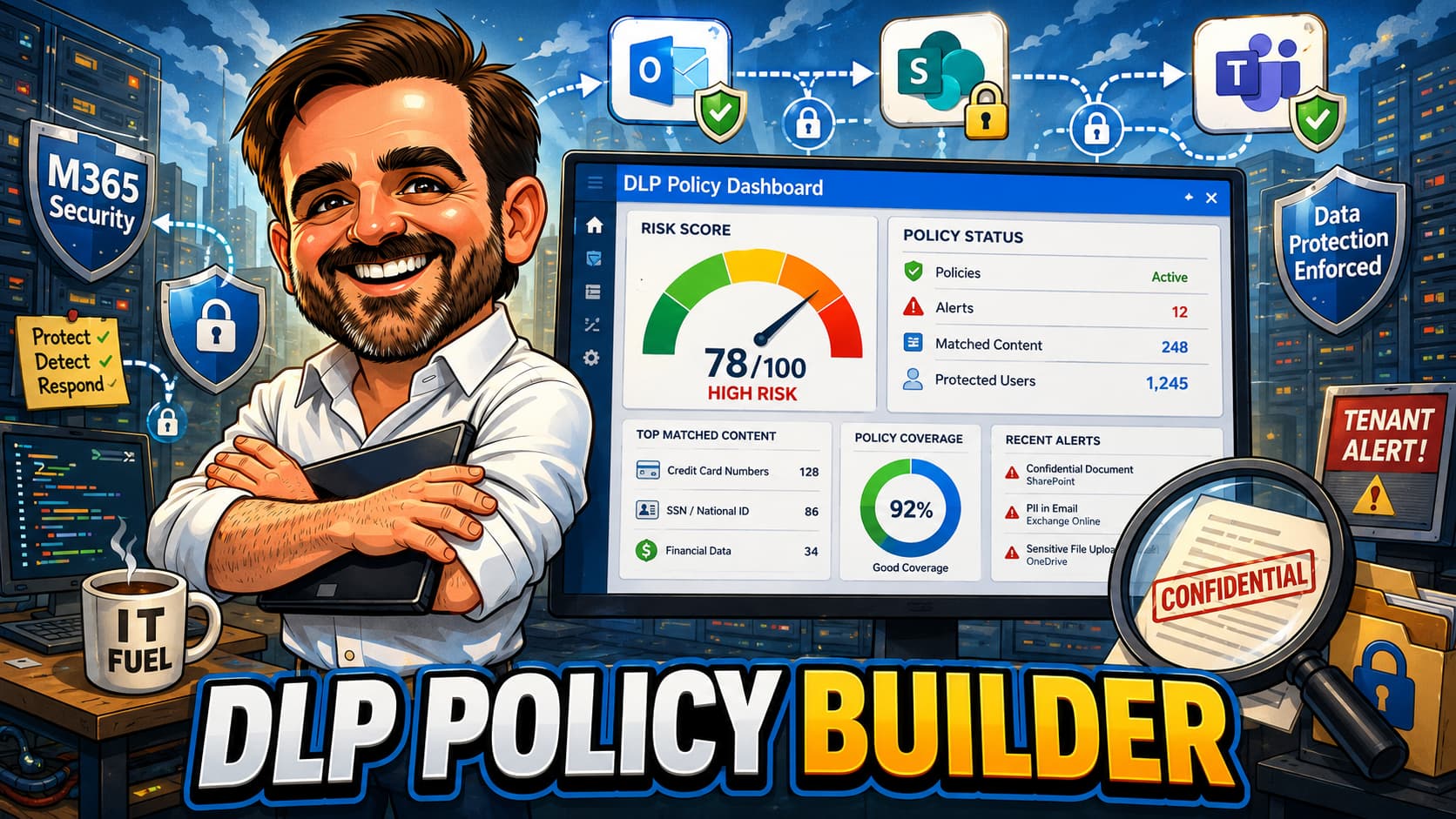
DLP is not about blocking everything. It is about deciding which data movement is acceptable, risky or unacceptable. This interactive guide helps Microsoft 365 admins, security teams and compliance teams design practical DLP policies that protect sensitive data without breaking normal business work.
- Interactive DLP policy builder with 7 inputs and risk scoring engine
- Baseline DLP policies for Exchange, SharePoint, OneDrive, Teams and Endpoint
- Location-specific DLP recommendations and tuning guidance
- DLP and sensitivity labels working together
- DLP and Copilot readiness alignment
- Safe rollout phases from discovery to enforcement
- 18 common DLP mistakes from real tenants
- Policy naming convention and field notes
Table of contents
- Introduction
- Important DLP disclaimer
- What this helps you decide
- Before you start
- Licensing and prerequisites
- Interactive DLP policy builder
- DLP risk scoring model
- Baseline DLP policies
- Exchange Online DLP
- SharePoint and OneDrive DLP
- Teams DLP
- Endpoint DLP
- DLP and sensitivity labels
- DLP and Copilot readiness
- Policy naming convention
- Rollout order
- Common DLP mistakes
- Field notes
- What good looks like
- Save as PDF
- Microsoft references
- Related content
Introduction
Data Loss Prevention in Microsoft 365 is one of those things that most organisations know they need, but few get right on the first attempt. The common pattern looks like this: somebody buys the licence, somebody creates a few policies, the policies start blocking emails or files that should not have been blocked, users complain, and the policies get disabled or ignored.
The opposite pattern is just as common: nobody configures DLP at all, and sensitive data moves freely across Exchange, SharePoint, OneDrive and Teams with no visibility, no alerts and no controls.
Both approaches carry risk. Blocking everything breaks work. Doing nothing leaves sensitive data unprotected.
A bad DLP policy blocks work. A good DLP policy changes behaviour before data leaves the organisation.
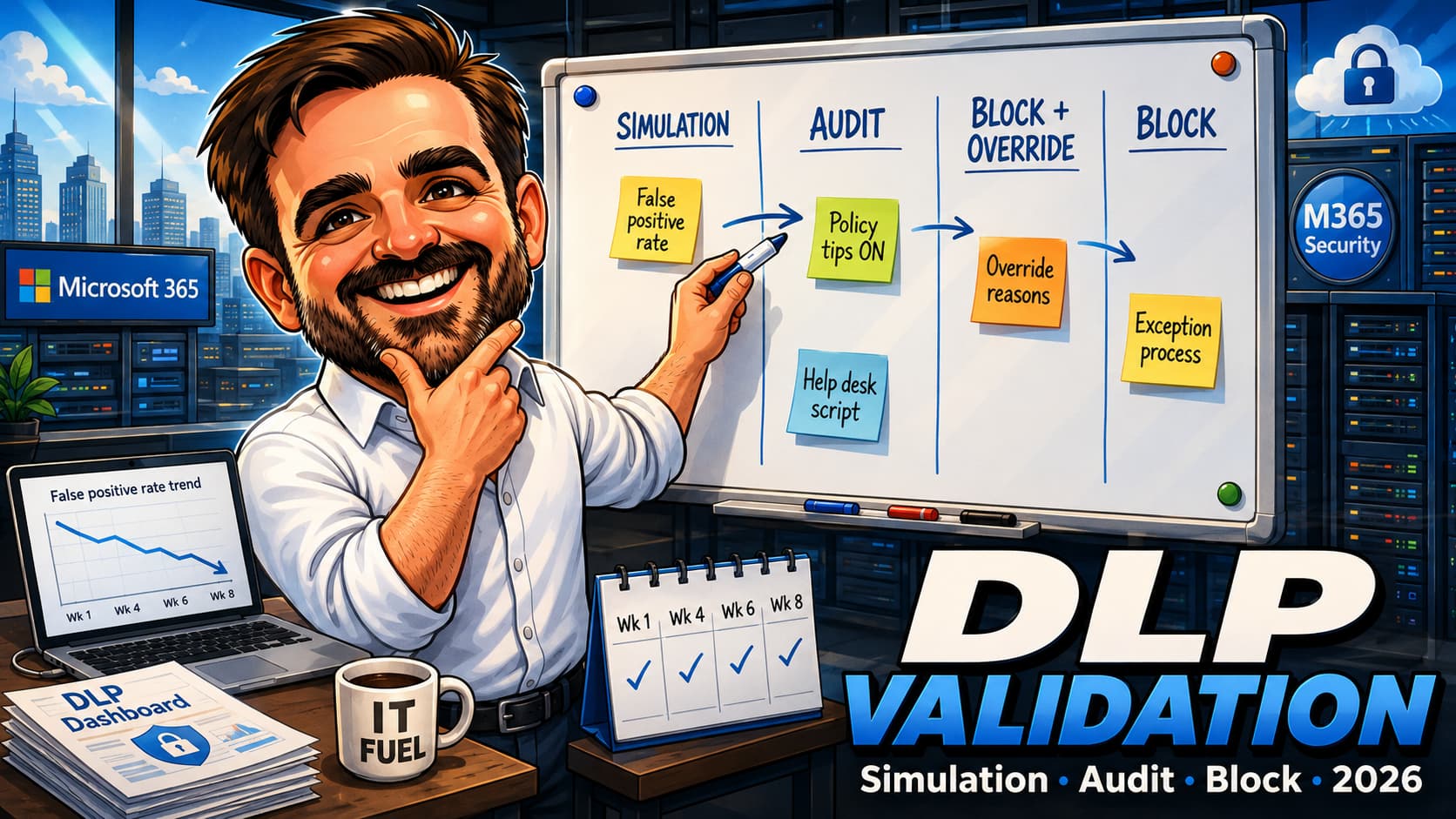
The practical path starts with visibility: understand what sensitive data exists and where it moves. Then comes user education: notify users when they are about to do something risky and give them a chance to correct it. Only then should enforcement follow, and even then, it should be targeted, tuned and monitored.
This guide is not a generic DLP overview. It is a practical policy builder designed to help you make specific decisions: what to monitor, what to warn on, what to restrict, what to block, and how to roll it out without creating a support ticket storm.
Microsoft Purview DLP can detect, monitor and control sensitive data across Exchange Online, SharePoint, OneDrive, Teams and endpoints, depending on licensing and configuration. It is a powerful toolset. But power without tuning creates noise, false positives and user frustration.
Important DLP disclaimer
Key points to keep in mind:
- DLP requirements vary by organisation. Data types, regulations, business processes and risk appetite differ across industries and geographies. There is no universal DLP policy set.
- DLP capabilities depend on licensing. Microsoft Purview DLP features, locations, and enforcement options depend on your Microsoft 365 licence tier, add-ons and configuration. Validate against Microsoft documentation and your licensing provider.
- DLP should be tested before enforcement. Deploying DLP policies directly into enforcement mode without a test phase risks blocking legitimate business activity.
- This is not legal or compliance advice. Organisations operating in regulated industries should involve legal and compliance teams in DLP policy design.
- Final validation should be done against Microsoft documentation, the Microsoft Purview portal, Microsoft Product Terms, and your licensing provider.
What this guide helps you decide
This builder is designed to help you work through the following decisions:
- Which sensitive data types to protect first
- Which DLP locations to target: Exchange, SharePoint, OneDrive, Teams, Endpoint
- Whether to start in audit mode, notify mode, warn mode, restrict mode or block mode
- When to use user notifications and policy tips
- When to allow user override with business justification
- When to block without override
- How to handle false positives without disabling policies
- How to tune sensitive information types and confidence levels
- How DLP policies differ across Exchange, SharePoint, OneDrive, Teams and Endpoint
- How DLP relates to sensitivity labels
- How DLP supports Copilot readiness
- How to roll out DLP safely from discovery through enforcement
- How to name, document and review DLP policies
Before you start
Before creating DLP policies, work through this pre-flight checklist. Skipping this step is the most common reason DLP deployments create problems instead of solving them.
Pre-flight checklist
- Identify the business objective: what risk are you trying to reduce?
- Identify the data types that matter most: financial, HR, legal, health, PII, credentials, IP
- Identify the sensitive information types (SITs) you will use: built-in, custom, or trainable classifiers
- Identify the locations: Exchange, SharePoint, OneDrive, Teams, Endpoint, or multiple
- Identify user groups and personas: standard users, executives, HR, finance, legal, external collaborators
- Identify external sharing scenarios: which users share externally, with whom, and why
- Identify business exceptions: legitimate workflows that might trigger DLP rules
- Define your false positive tolerance: low, medium or high
- Decide whether user override with business justification is acceptable
- Identify legal and compliance requirements that affect DLP design
- Define policy owners: who reviews alerts, who tunes policies, who approves changes
- Define the monitoring process: who sees alerts, how often, what triggers escalation
- Prepare the helpdesk: users will ask questions when they see policy tips for the first time
- Plan rollout phases: discovery, audit, notify, pilot, enforce, review
- Validate licensing: confirm that your licence tier supports the DLP locations and features you need
- Start with test mode before enforcement: always
Licensing and prerequisites at a glance
DLP capabilities depend on the Microsoft 365 licence tier and any additional add-ons. The following table is directional. Validate all licensing details against Microsoft documentation and your licensing provider.
| Capability | Details | Validation |
|---|---|---|
| Microsoft Purview DLP (core) | DLP policy creation, sensitive information types, policy tips, user notifications | Validate against Purview licensing; basic DLP included with E3 and above |
| DLP for Exchange Online | Email DLP with policy tips in Outlook, content-aware email controls | Included in many enterprise plans such as Microsoft 365 / Office 365 E3 for Exchange, SharePoint and OneDrive scenarios. Advanced features and additional locations may require E5 or Purview add-ons. Validate current licensing. |
| DLP for SharePoint and OneDrive | File-level DLP across sites, libraries and personal storage | Included in many enterprise plans for SharePoint and OneDrive scenarios. Scope, enforcement options and advanced capabilities may vary by licence. Validate current licensing. |
| DLP for Teams | Chat and channel message DLP, user notifications | DLP for Teams chat and channel messages generally requires E5 or an appropriate Purview add-on. Files shared in Teams are covered through SharePoint / OneDrive DLP when those locations are included. Validate current licensing. |
| Endpoint DLP | Device-level controls: USB, print, clipboard, browser upload, network share | Typically requires E5 or an appropriate Purview add-on. Endpoint DLP requires supported devices to be onboarded for Microsoft Purview Endpoint DLP. Validate the current onboarding path, supported platforms and Defender integration requirements before rollout. |
| Sensitivity labels | Classification and optional protection; works alongside DLP for combined controls | Available with E3 and above; auto-labelling may require E5 or add-ons |
| Trainable classifiers | Machine learning-based content classification for complex data types | Validate availability and licensing; may require E5 or Purview add-on |
| Audit and advanced audit | Event logging for DLP matches, alerts and user actions | Standard audit with most plans; advanced audit may require E5 |
| Insider risk management | Correlates DLP signals with user behaviour patterns | Requires E5 or Purview Insider Risk Management add-on |
| Alerting and reporting | DLP alert dashboard, incident reports, activity explorer | Validate reporting capabilities against licence tier |
| Other DLP locations | Microsoft Purview DLP also supports Power BI, on-premises file shares (via scanner), and third-party cloud apps (via Defender for Cloud Apps integration) | Coverage and licensing vary. This guide focuses on Exchange, SharePoint, OneDrive, Teams and Endpoint as the most common locations. |
Interactive DLP Policy Builder
Select the option that best describes your scenario for each category. The builder will generate a recommended DLP policy direction, suggested mode, naming, and rollout notes.
DLP Policy Builder
DLP risk scoring model
The builder uses a weighted risk scoring model across six dimensions. The total score is out of 100. Higher scores indicate higher risk and stricter policy recommendations. This is a decision framework, not a legal classification model.
| Dimension | Max points | Why it matters |
|---|---|---|
| Data sensitivity | 25 | Regulated or highly confidential data needs stricter controls than general business content. |
| Location exposure | 20 | Endpoint and external-facing locations carry more leakage risk than internal SharePoint sites. |
| User persona risk | 15 | HR, finance and legal users handle more sensitive data. External collaborators increase sharing risk. |
| Action severity | 15 | Stricter enforcement actions (block vs audit) carry higher operational risk and require more mature tuning. |
| False positive risk | 10 | Low false positive tolerance means policies must be precisely tuned before enforcement. |
| Rollout maturity | 15 | Early-stage rollouts should use lighter controls. Mature environments can enforce stricter rules. |
Risk levels and recommended approach
| Score | Level | Recommended approach |
|---|---|---|
| 0 to 30 | Monitor | Audit mode with reporting. Build visibility before adding controls. Good starting point for discovery. |
| 31 to 60 | Warn and educate | User notifications and policy tips. Allow override with business justification. Focus on changing behaviour. |
| 61 to 80 | Restrict with override | Restrict external sharing. Block risky actions but allow documented override for business exceptions. |
| 81 to 100 | Block or strict control | Block without override for high-risk data. Require strict controls for regulated content. Monitor closely. |
What to fix first
If you already have DLP policies running and the results are not what you expected, start with the weakest area.
| Weakest area | Fix first | Why |
|---|---|---|
| Too many false positives | Increase confidence level, narrow SITs, reduce broad keywords | Prevents user frustration and policy tip fatigue |
| Too many alerts | Reduce policy scope, prioritise high-risk locations | Keeps operations manageable and alert triage focused |
| Users bypassing DLP | Add education, policy tips, override with justification | Changes behaviour instead of creating workarounds |
| Endpoint disruption | Move back to audit mode, pilot with a smaller group | Avoids blocking legitimate work and losing user trust |
| External sharing risk | Start with SharePoint / OneDrive external sharing DLP | Highest-value control for most organisations |
| No ownership | Assign a DLP policy owner and define alert triage process | DLP must be operated, not just deployed |
Recommended baseline DLP policies
Recommended first 3 policies
If you are starting from zero, do not deploy all 12 baseline policies at once. Start with these three.
| First policy | Why |
|---|---|
DLP-EXO-PII-Notify-Audit | High visibility, low disruption. Users see policy tips in Outlook. No blocking. Builds awareness. |
DLP-SPO-PII-Notify-Pilot | Detects personal data in SharePoint and OneDrive and notifies users. Start in test mode first, then move to restrict external sharing after validating matches and business exceptions. |
DLP-M365-Credentials-Block-Test | High-risk data type with clearer business justification for blocking. Start in test mode. Move to enforced quickly once false positives and exception handling are validated. |
Get these three working well. Then expand based on your risk profile, data types and business requirements.
Full baseline policy table
The following table provides a practical starting set of DLP policies. These are not mandatory. They represent common patterns that cover the most frequent data protection needs across Microsoft 365 tenants. Adapt to your data types, regulations and risk profile.
| Policy name | Location | Data type | Initial mode | Action | Override | Notes |
|---|---|---|---|---|---|---|
| DLP-EXO-PII-Notify-Audit | Exchange | Personal data (PII) | Test with notifications | Notify user | Yes | Start with visibility. Let users learn before enforcement. |
| DLP-EXO-Financial-Warn-Pilot | Exchange | Financial data | Test with notifications | Warn + policy tip | Yes with justification | Financial SITs often generate false positives. Tune first. |
| DLP-SPO-PII-Restrict-Pilot | SharePoint, OneDrive | Personal data (PII) | Test then enforce | Restrict external sharing | Yes with justification | Targets external sharing of PII. Internal access unaffected. |
| DLP-SPO-Confidential-Block-Pilot | SharePoint | Highly confidential | Test then enforce | Block external sharing | No | For sites with known sensitive content. Review permissions first. |
| DLP-SPO-HR-Restrict-Audit | SharePoint, OneDrive | HR / employee data | Test with notifications | Restrict sharing | Yes with justification | HR data requires careful scoping. Avoid blocking internal HR workflows. |
| DLP-SPO-Legal-Restrict-Pilot | SharePoint | Legal / contract data | Test then enforce | Restrict external sharing | Yes with justification | Legal content often shared with external counsel. Plan exceptions. |
| DLP-M365-Credentials-Block-Enforced | Exchange, SharePoint, OneDrive, Teams | Credentials / secrets | Enforce after short test | Block | No | Passwords, API keys and secrets should not be shared. Lower false positive risk when using well-tuned sensitive information types or classifiers. |
| DLP-Teams-PII-Warn-Pilot | Teams | Personal data (PII) | Test with notifications | Warn user | Yes | Teams chat DLP has different dynamics. Pilot carefully before expanding. |
| DLP-Teams-Sensitive-Notify-Audit | Teams | Sensitive business data | Test | Notify user | Yes | Start with audit. Teams message blocking can disrupt communication flow. |
| DLP-Endpoint-Regulated-BlockOverride | Endpoint | Regulated data | Pilot | Block with override | Yes with justification | Endpoint DLP can be disruptive. Start with pilot group. Monitor impact. |
| DLP-EXO-Executive-Warn-Audit | Exchange | Executive sensitive data | Test | Warn + policy tip | Yes | Executive communications require careful handling. Avoid over-blocking. |
| DLP-SPO-Sensitive-Restrict-Audit | SharePoint, OneDrive | Mixed sensitive data | Test then enforce | Restrict anonymous links | No | Baseline control for external collaboration. Complements sharing policies. |
Exchange Online DLP recommendations
Exchange Online is usually the first location where DLP matters, because email is the most common way sensitive data leaves an organisation. Outbound email to external recipients is the highest-risk scenario.
Key considerations
- Target outbound email first. Inbound DLP has limited value in most cases. Focus on sensitive data leaving the organisation.
- Use policy tips in Outlook. Users see a notification before they send. This changes behaviour without blocking.
- Allow override with business justification for most policies during rollout. Users who need to send legitimate sensitive data can document why.
- Reserve blocking for high-risk data types such as credentials, health records, or payment card data where the risk of accidental sharing is clear.
- Tune confidence levels. Many built-in sensitive information types have high, medium and low confidence variants. Start with high confidence to reduce false positives.
Purview DLP vs Exchange transport rules
| Capability | Purview DLP | Exchange transport rules |
|---|---|---|
| Sensitive information type detection | Yes, built-in and custom SITs with confidence levels | Keyword matching, regex, header conditions; no SIT confidence levels |
| Policy tips in Outlook | Yes | No |
| User override with justification | Yes | No |
| Cross-workload consistency | Same policy across Exchange, SharePoint, Teams, Endpoint | Exchange only |
| Incident reports and alerts | Purview alert dashboard, activity explorer | Basic transport rule logging |
| Trainable classifiers | Yes (where licensing supports it) | No |
| Best for | Sensitive data protection with user education | Header manipulation, routing, disclaimers, simple keyword rules |
SharePoint and OneDrive DLP recommendations
SharePoint and OneDrive are where most files live in Microsoft 365. DLP here focuses on controlling who can share sensitive files externally, detecting sensitive content in broadly shared sites, and alerting when data moves outside acceptable boundaries.
Key considerations
- Focus on external sharing first. DLP policies that restrict external sharing of sensitive content are usually the highest-value starting point.
- Align with sharing controls. DLP does not replace SharePoint sharing settings. It adds a content-aware layer on top. Ensure sharing controls are configured at the tenant and site level first.
- Target specific sites where possible. Applying DLP to all SharePoint sites can generate noise. Start with high-risk sites: HR, finance, legal, executive content.
- Combine with sensitivity labels. Labels classify content. DLP controls what happens when labelled (or unlabelled) content is shared. Together they are stronger than either alone.
- Anonymous links are high risk. DLP can help detect and restrict anonymous sharing of sensitive files. But the more effective fix is often restricting anonymous links at the sharing policy level.
- Permissions still matter. DLP does not fix overshared SharePoint sites. If a site is shared with "Everyone except external users", DLP will not change that access. Fix permissions alongside DLP.
Teams DLP recommendations
Teams DLP applies to chat messages and channel messages. It is different from file-level DLP in SharePoint and OneDrive. Files shared in Teams channels are stored in SharePoint and covered by SharePoint DLP policies. Teams message DLP focuses on the content of the messages themselves.
Key considerations
- Teams message DLP is sensitive to false positives. Users send messages frequently and quickly. Blocking or warning on every message that matches a pattern creates friction fast.
- Start with audit mode. Review what matches before enabling user notifications. Teams chat generates a high volume of events.
- Differentiate internal vs external chats. External Teams conversations carry higher risk. Consider stricter policies for messages to external recipients.
- Use high-confidence SITs. Low-confidence matches in chat messages generate excessive false positives. Start with high confidence only.
- Pilot before expanding. Test with a small user group before rolling out to the full tenant. Monitor the alert volume and user feedback.
- Blocking messages is disruptive. In most cases, notifying the user is more effective than blocking. Reserve blocking for credentials, payment data, or regulated content.
Endpoint DLP recommendations
Endpoint DLP extends data protection to the device level. It can monitor or restrict actions such as copying to USB drives, printing, using the clipboard, uploading via browser, and saving to network shares. It is powerful, but it is also the DLP location most likely to cause user disruption if deployed aggressively.
Key considerations
- Devices must be onboarded. Endpoint DLP requires devices to be onboarded to Microsoft Purview. This is separate from Intune or Defender onboarding, though the mechanisms may overlap. Validate requirements.
- Start with audit mode on a pilot group. Endpoint DLP affects daily user workflows. Monitor before enforcing.
- Target specific actions. You do not need to control every endpoint action. Focus on the highest-risk ones: USB copy and browser upload are usually the priorities.
- Plan exceptions carefully. Some users need USB access for legitimate work. Some need to print sensitive documents. Define exceptions before enforcement.
- User communication is critical. Users will notice Endpoint DLP immediately. Prepare communications and helpdesk support before rollout.
- Licensing is a factor. Endpoint DLP typically requires E5 or an appropriate Purview add-on. Validate current licensing and supported platforms before planning deployment.
Endpoint DLP action types
| Action | Risk level | Recommended starting mode | Notes |
|---|---|---|---|
| Copy to USB | High | Audit then block with override | USB copy is a common data exfiltration vector. Start with audit to understand volume. |
| Medium | Audit | Printing sensitive documents is risky but common. Audit first. Block only for regulated data. | |
| Clipboard | Medium | Audit | Clipboard restrictions affect user productivity significantly. Use sparingly. |
| Browser upload | High | Audit then restrict | Uploading sensitive files to personal cloud storage or external services. High risk. |
| Network share | Medium | Audit | Copying to unmanaged network locations. Risk depends on network architecture. |
| Access by unallowed apps | Medium | Audit then restrict | Controls which applications can access sensitive files. Requires careful app mapping. |
DLP and sensitivity labels
Sensitivity labels and DLP serve different but complementary purposes. Labels classify and optionally protect content. DLP detects and controls risky movement or sharing. Neither replaces the other. In a mature environment, both work together.
How they complement each other
| Scenario | Label role | DLP role | Notes |
|---|---|---|---|
| Confidential document shared externally | Classifies the document as "Confidential" | Detects external sharing of confidential-labelled content and restricts or blocks | Label provides the classification signal. DLP enforces the sharing control. |
| PII detected in email | Optional: label the email as "Personal Data" | Detects PII sensitive information types and warns or blocks external sending | DLP can work without labels using SITs. Labels add classification context. |
| HR document in SharePoint | Container label restricts site sharing settings | File-level DLP detects HR data shared outside the HR group | Container label controls site-level access. DLP adds file-level content detection. |
| Credentials in Teams message | Not applicable (messages are not labelled) | Detects credentials in chat content and blocks or warns | DLP covers message content where labels do not apply. |
| Sensitive file on endpoint | Label identifies the file as sensitive | Endpoint DLP restricts USB copy or browser upload based on label or content | DLP can use label as a condition for endpoint actions. |
| Unclassified sensitive content | No label applied (gap in classification) | DLP detects sensitive content regardless of label status | DLP catches what labels miss. This is why both are needed. |
DLP and Copilot readiness
DLP is part of a broader Copilot readiness strategy, but it is not the whole answer. Copilot respects existing user permissions and operates within the same access boundaries that already exist in the tenant. DLP helps reduce risky data movement and sharing, but it does not fix permissions, labels, or governance gaps.
What DLP helps with and what it does not fix
| Copilot risk | DLP helps with | DLP does not fix |
|---|---|---|
| Sensitive data shared externally | Restricts or blocks external sharing of sensitive content | Internal oversharing and broad permissions |
| PII in broadly accessible sites | Detects PII and alerts on risky sharing | Site permissions that give too many users access |
| Credentials in emails or chats | Blocks sharing of passwords, API keys, secrets | Users storing credentials in files that Copilot can surface |
| Unclassified content | Detects sensitive content even without labels | Lack of a label strategy or user adoption of labels |
| Executive data exposure | Restricts external sharing of executive content | Broad internal access to executive SharePoint sites |
| Copilot surfacing too much | Not directly (DLP controls movement, not access) | Permissions, access reviews, Restricted SharePoint Search (a temporary containment control that limits which sites Copilot can index, but does not alter underlying permissions) |
Policy naming convention
Consistent policy naming makes DLP manageable at scale. When you have 10 or 20 policies, clear names are the difference between operational clarity and confusion.
Recommended format
DLP-[Location]-[DataType]-[Action]-[Mode]
| Segment | Purpose | Examples |
|---|---|---|
DLP | Policy type prefix | Always "DLP" |
[Location] | Target location | EXO, SPO, ODB, Teams, Endpoint, M365 |
[DataType] | Data category | PII, Financial, HR, Legal, Credentials, Confidential, Health |
[Action] | Policy action | Notify, Warn, Restrict, Block, BlockWithOverride |
[Mode] | Current deployment mode | Audit, Pilot, Enforced, Review |
Examples
DLP-EXO-PII-Notify-Audit- Exchange, personal data, notify user, audit modeDLP-SPO-Confidential-Restrict-Pilot- SharePoint, confidential external sharing, restrict, pilotDLP-Teams-Credentials-Block-Enforced- Teams, credentials, block, enforcedDLP-Endpoint-Regulated-BlockWithOverride-Pilot- Endpoint, regulated data, block with override, pilotDLP-M365-Financial-Warn-Audit- All locations, financial data, warn, audit mode
DLP-SPO-HR-Restrict-Pilot-EMEA for regional policies, as long as the core structure remains consistent across the tenant.
Safe DLP rollout order
DLP rollout should follow a controlled, phased approach. Skipping phases is how policies end up blocking legitimate work and getting disabled.
- Phase 1: Data discovery
Configure content search or activity explorer to understand where sensitive data exists and how it moves. Do not create enforcement policies yet. The goal is visibility.
Risk if skipped: You build policies based on assumptions instead of evidence. - Phase 2: Policy design and stakeholder review
Design policy logic, select SITs, define locations, agree on actions. Review with compliance, legal, business owners and IT operations before creating anything in the portal.
Risk if skipped: Policies that do not match business reality. - Phase 3: Test mode without user notifications
Deploy policies in test mode. Policies detect matches but do not notify users or block anything. Review matches in the DLP alert dashboard and activity explorer.
Risk if skipped: False positives reach users on day one. - Phase 4: Test mode with user notifications
Enable policy tips and user notifications while still in test mode. Users see warnings but are not blocked. Collect feedback.
Risk if skipped: Users are surprised when enforcement starts. No feedback loop. - Phase 5: Pilot with override
Enable enforcement for a pilot group. Allow override with business justification. Monitor override frequency, false positives, and helpdesk tickets.
Risk if skipped: Full enforcement without understanding the operational impact. - Phase 6: Controlled enforcement
Expand enforcement to broader user groups. Continue monitoring. Tune SITs and confidence levels based on pilot findings.
Risk if skipped: Scaling before tuning creates organisation-wide disruption. - Phase 7: Expand locations and users
Add additional locations (Teams, Endpoint) and user groups. Each new location needs its own audit and pilot cycle.
Risk if skipped: Assuming Exchange DLP behaviour applies to Teams or Endpoint. - Phase 8: Operational review
Establish quarterly DLP review cadence. Review alert volumes, false positives, override usage, policy effectiveness, and new data protection requirements.
Risk if skipped: DLP policies become stale and either too strict or too permissive over time.
Common Microsoft Purview DLP mistakes I still see in real tenants
- Starting with block mode. The single most common mistake. Policies go live in enforcement mode without any test phase. Users get blocked on day one. Support tickets flood the helpdesk. Policies get disabled within a week.
- No test phase. Skipping test mode means you discover false positives in production. Test mode exists for a reason. Use it.
- No user notifications. Policies that silently block content confuse users. If a user does not know why their email was blocked, they call the helpdesk. Policy tips prevent that.
- No override process. Some legitimate business workflows trigger DLP rules. If there is no override option, users find workarounds that are worse than the original risk.
- No policy owner. If nobody owns the DLP policies, nobody reviews alerts, tunes rules, or responds when something breaks. DLP is operational, not a one-time setup.
- Too many policies at once. Deploying 15 policies simultaneously makes it impossible to know which policy is causing which problem. Start with 2 or 3. Get them right. Then expand.
- Using keywords instead of sensitive information types. Keywords like "confidential" or "internal only" generate massive false positive rates. Sensitive information types with confidence levels are more precise.
- Ignoring false positives. If users report false positives and nothing changes, they learn to ignore policy tips or stop reporting. Tune policies based on feedback.
- Applying the same policy to every location. Exchange, SharePoint, Teams and Endpoint have different sharing patterns and user behaviours. A policy that works for Exchange email may be too aggressive for Teams chat.
- Treating Teams messages like SharePoint files. Chat is fast, informal and high-volume. File DLP and message DLP need different tuning and different false positive thresholds.
- Ignoring Endpoint DLP impact. Blocking USB, print, or clipboard on day one without a pilot creates immediate user disruption. Endpoint DLP needs the most careful rollout of all locations.
- No helpdesk preparation. Users will ask "why can I not send this email?" or "why is this file blocked?" If the helpdesk has no DLP training, every question becomes an escalation.
- No exception process. Business exceptions are normal. Without a documented exception process, ad hoc exclusions accumulate and weaken the policy framework.
- No policy documentation. If the policy logic is only in the portal, only the person who created it understands it. Document the business rationale, data types, locations, actions, and review schedule.
- No review cycle. DLP policies that are never reviewed become stale. New data types emerge, business processes change, regulations update. Review quarterly.
- Confusing sensitivity labels with DLP. Labels classify content. DLP controls movement. They are different tools. Deploying labels does not mean DLP is covered. Deploying DLP does not mean content is classified.
- Using DLP to fix bad permissions. If SharePoint sites are overshared, DLP will not fix that. DLP controls sharing actions, not access permissions. Fix permissions first.
- Not reviewing alerts. DLP generates alerts. If nobody reviews them, the alerts are noise. Assign alert ownership and define a triage process before enabling enforcement.
Field notes
Practical observations from working with Microsoft 365 tenants deploying DLP:
Start with visibility, not enforcement
The first step is always "what sensitive data do we have and where does it move?" Deploy policies in test mode, review matches, tune SITs. Enforcement comes later.
Do not block on day one
Blocking on day one creates resistance. Users learn to distrust DLP instead of learning from it. Start with notifications. Let users adjust behaviour before adding hard controls.
Use notifications to educate
Policy tips in Outlook and SharePoint are DLP's best feature. They teach users about data sensitivity in the moment they need it, not in a training session they forgot about.
Allow override where business context matters
Override with business justification is not a weakness. It is a design choice. It captures intent, documents exceptions, and avoids the workarounds that happen when blocking is too rigid.
Block only where risk is clear
Credentials shared in email. Payment card numbers in Teams. Health records uploaded to personal storage. These are the scenarios where blocking is justified. For everything else, start with notification.
Tune before expanding
Get one policy working well before adding the next. If you deploy five policies and three generate false positives, you cannot tell which one is the problem.
Involve legal and compliance early
DLP is a governance tool. The business decides what data matters and what controls are needed. Legal and compliance should review policy design before deployment, not after an incident.
DLP is operational, not a one-time setup
DLP policies need ongoing tuning, alert review, exception management and periodic reassessment. Budget operational time, not just deployment time.
What good looks like
A mature DLP environment is not one with the most policies or the strictest blocking. It is one where policies are mapped to real business risks, tuned based on evidence, and operated by people who review alerts and respond to feedback.
- DLP policies mapped to identified business risks and data types
- Clear policy owners who review alerts and tune policies
- Targeted locations rather than blanket coverage across all workloads
- User notifications and policy tips enabled where useful
- Override with business justification documented and used appropriately
- High-risk data types blocked or restricted with clear justification
- False positives reviewed and addressed within a defined cadence
- Alerts assigned to owners with defined triage and escalation process
- Business exceptions documented and reviewed periodically
- Policies reviewed quarterly with documented outcomes and adjustments
- DLP aligned with sensitivity labels, sharing controls, and Copilot readiness
- Helpdesk prepared to support users with DLP-related questions
- Rollout staged from discovery through enforcement with evidence at each stage
- Policy naming convention consistent and understood by operations
- DLP scope accounts for encryption limitations, including third-party or password-protected files that DLP cannot inspect
Save this as a PDF
This guide is designed to work as a living DLP field guide. Save it as PDF for your team, print it for policy review meetings, or use it as a working reference during DLP design and rollout.
The PDF-friendly summary includes:
- Pre-flight checklist for DLP policy design
- Interactive DLP policy builder results
- Baseline DLP policy table
- Location-specific recommendations for Exchange, SharePoint, Teams and Endpoint
- DLP and sensitivity labels integration table
- DLP and Copilot readiness alignment table
- Rollout phases with risk notes
- Common DLP mistakes
- Policy naming convention
Use Ctrl + P (or Cmd + P on Mac) to print this page or save as PDF. The layout is print-optimised. Run the DLP policy builder before printing to include your results in the PDF.
Microsoft documentation references
- Microsoft Learn: Learn about data loss prevention
- Microsoft Learn: Design a DLP policy
- Microsoft Learn: Create and deploy a DLP policy
- Microsoft Learn: DLP policy reference
- Microsoft Learn: Learn about sensitive information types
- Microsoft Learn: DLP and Microsoft Teams
- Microsoft Learn: Learn about Endpoint DLP
- Microsoft Learn: Get started with Endpoint DLP
- Microsoft Learn: DLP alerts dashboard
- Microsoft Learn: Learn about sensitivity labels
- Microsoft Learn: Adaptive Protection in insider risk management
- Microsoft Learn: DLP policy tips reference
Start building your DLP policies
Use the interactive builder above to design your first DLP policy. Start with test mode. Review alerts. Tune before enforcement. Share this guide with your IT, security, compliance and business stakeholders to align on data protection before rollout.
Published on tiagoscarvalho.com · Microsoft 365 architecture, security, and governance content for IT professionals.