TL;DR
- What it does: Queries all managed devices via Microsoft Graph, identifies exactly which policy and setting each device is failing, and generates an HTML report with risk scoring, filters, charts, and CSV exports — a single file, no external reporting platform needed.
- Who it's for: SMB environments — up to a few hundred managed devices on a standard Intune deployment. It processes devices in a single synchronous pass, which works well at this scale.
- What makes it different: Not just compliance state — each device gets a risk score, severity (Critical / High / Medium / Info), a recommended action, and anomaly flags. Failing policies are separated from evaluation notes so the analysis is accurate.
- Delta comparison: Pass a previous run's CSV and the report shows exactly what changed — newly non-compliant, resolved, severity increased or decreased.
- Larger environments: This is the SMB version. If you're running thousands of devices or need unattended scheduled runs, a different variant exists — get in touch.
In this article
What the Script Generates
- IntuneComplianceReport_YYYYMMDD_HHMMSS.html A single HTML file — no external reporting platform required. Includes risk scores, severity badges, charts, filters, executive summary, delta section, and five export buttons. Opens in any browser, shareable as a single file.
- IntuneComplianceReport_YYYYMMDD_HHMMSS_detailed.csv All devices, all fields — compliance state, risk score, severity, failing rules (real failures separated from evaluation notes), recommended action, previous state, anomalies.
- IntuneComplianceReport_YYYYMMDD_HHMMSS_summary.csv Key fields only — suitable for dashboards, Power BI, or quick review without opening the full detailed file.
-
IntuneComplianceReport_YYYYMMDD_HHMMSS.log
Optional execution log enabled with
-EnableLog. Useful for troubleshooting or scheduled runs.
⚠️ SMB scope — read before running at scale
Devices are processed synchronously in a single run. At a few hundred devices, runtime is typically two to five minutes. At larger scale, Graph throttling becomes a factor. If that matches your environment, see the note at the end of the article.
Prerequisites
PowerShell
Version 7.0 or later
PowerShell 7 is required. The script will not run on Windows PowerShell 5.1.
Module
Microsoft.Graph SDK
Installed from PSGallery. The script auto-installs for the current user if not found.
Role
Intune Administrator
Or a custom role with device read access. Global Administrator is not required.
Graph Permissions
Delegated — consented at first run
DeviceManagementManagedDevices.Read.All and DeviceManagementConfiguration.Read.All. Admin consent may be required.Risk Scoring & Severity
Each device receives a score from 0 to 100. Severity is then assigned using a combination of score thresholds and explicit rules that override the score in critical scenarios.
- Non-Compliant state → +35 · In Grace Period → +20 · Error → +25 · Unknown → +15Base score from compliance state. Compliant devices start at 0.
- Not encrypted → +25 · Jailbroken/rooted → +30Device-level security flags with significant weight.
- Stale >30 days → +15 · Stale >configured threshold → +8No sync means the device's state may not reflect current reality.
- Severity override rules — these always win, regardless of scoreJailbroken → Critical. Non-compliant + unencrypted → Critical. Non-compliant + stale 30d+ + score ≥60 → Critical. These combinations are never downgraded by score alone.
💡 On evaluation notes vs real failures
Microsoft Graph returns
RequireDeviceCompliancePolicyAssigned [error] on compliant devices as a policy evaluation note — not an actual failure. The script classifies this as an evaluation note and keeps it out of the failing rules count. The HTML report shows three separate pill types: red for real failures, amber for warnings, grey-italic for evaluation notes.
Parameters
Parameter
Default
Description
-TenantId—
Entra ID tenant ID. Omit to be prompted at login.
-OutputPathCurrent dir
Destination folder for all output files.
-Environment—
Label shown in the report header. Accepts any string — Production, Pilot, Test, or a client name. Color-coded: Production in red, Pilot in amber, Test in blue.
-StaleDays14
Days without sync before flagging a device as stale. Adjust to match your sync policy.
-IncludePersonalDevicesOff
Include BYOD/personal devices. Default: corporate-owned only.
-ExcludeCompliantFromHtmlOff
Hides compliant devices from the HTML table. Charts still use the full dataset.
-NonCompliantOnlyOff
Limits the CSV export to non-compliant, grace-period, error, and unknown devices.
-CompareWithPrevious—
Path to a previous run's detailed CSV. Enables the delta section in the report.
-OpenReportOff
Opens the HTML report in the default browser immediately after generation.
-IncludeHtmltrue
Generate the HTML report. Set to
$false to skip it and produce CSV only.-IncludeDetailedCsvtrue
Generate the detailed CSV. Set to
$false to skip it.-IncludeSummaryCsvtrue
Generate the summary CSV. Set to
$false to skip it.-StaleOnlyOff
Restrict CSV export to stale devices only (no sync in more than
-StaleDays days).-UnencryptedOnlyOff
Restrict CSV export to devices where encryption is not enabled.
-EnableLogOff
Writes a timestamped log file alongside the other outputs.
Usage Examples
PowerShell — Basic run
# Basic run — connects to your tenant, generates all outputs in current directory
.\Get-IntuneComplianceReport.ps1

# With environment label and open in browser when done
.\Get-IntuneComplianceReport.ps1 -Environment "Production" -OpenReport

# Stale threshold of 21 days instead of the default 14
.\Get-IntuneComplianceReport.ps1 -StaleDays 21 -OpenReport

# Only generate the CSV, skip the HTML report
.\Get-IntuneComplianceReport.ps1 -IncludeHtml:$false

# Specific tenant, custom output folder, with log
.\Get-IntuneComplianceReport.ps1 -TenantId "47f8921d-..." -OutputPath "C:\Reports" -EnableLog
PowerShell — Delta comparison
# Compare with last week's run — surfaces newly non-compliant, resolved, severity changes
.\Get-IntuneComplianceReport.ps1 `
    -CompareWithPrevious ".\IntuneComplianceReport_20260315_detailed.csv" `
    -Environment "Production" `
    -OpenReport

# Non-compliant devices only in CSV, with delta, output to dedicated folder
.\Get-IntuneComplianceReport.ps1 `
    -NonCompliantOnly `
    -CompareWithPrevious ".\Reports\previous_detailed.csv" `
    -OutputPath ".\Reports\$(Get-Date -Format 'yyyy-MM')"
✅ What delta comparison adds to the report
When
-CompareWithPrevious is provided, the report shows: number of newly non-compliant devices (with names), number resolved, newly stale, severity increased, severity decreased, and compliance rate delta as a percentage. Each category has a device-level table with state transition and recommended action.
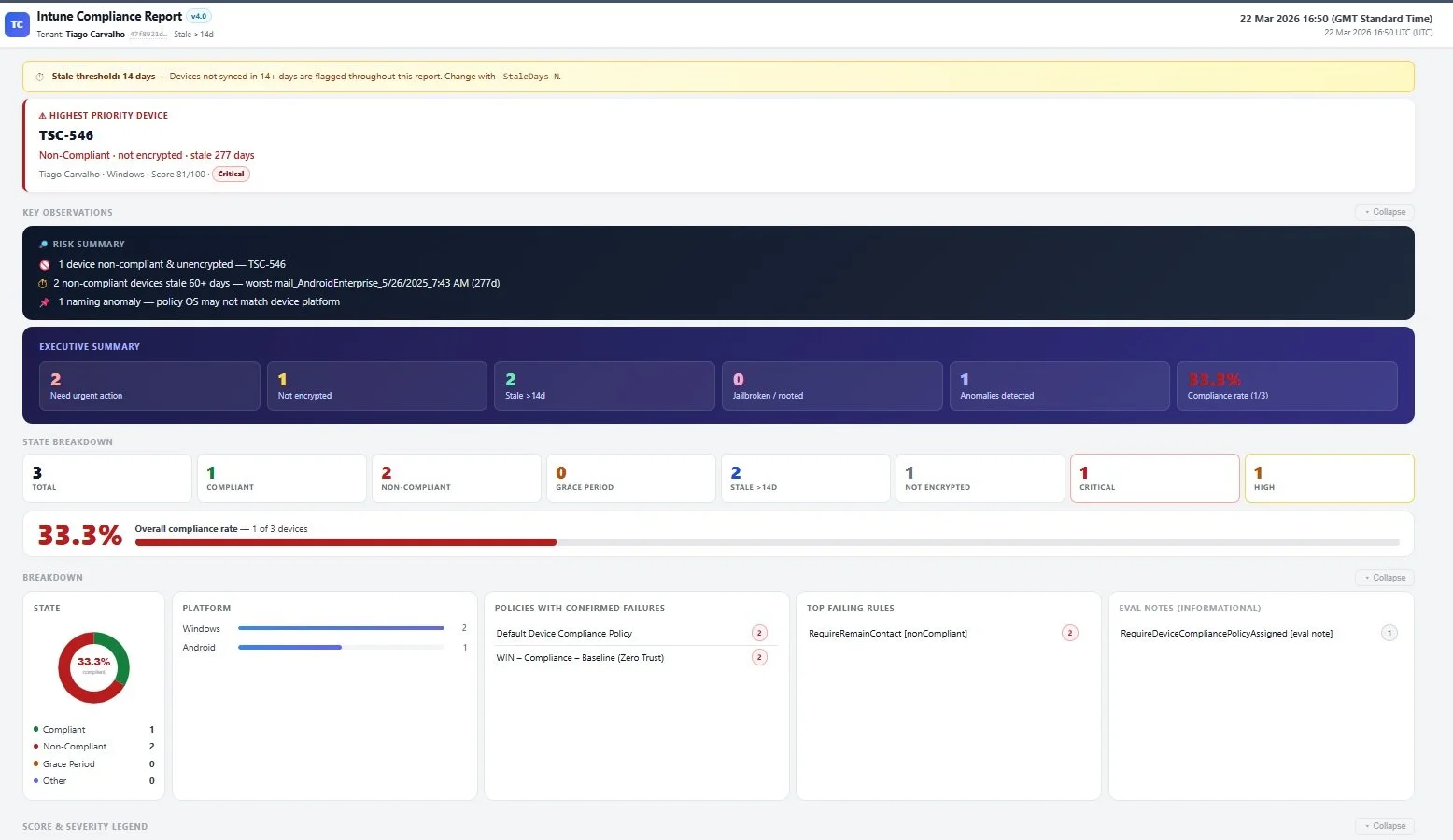
The HTML report — executive summary, device table with risk scoring and severity badges, and filter bar. Single file, opens in any browser.
Before You Run It
- Use the least-privilege roleIntune Administrator is sufficient. Global Administrator is not needed and shouldn't be used for routine reporting.
-
Set a dedicated output pathUse
-OutputPathto keep outputs in a consistent location. This makes delta comparison straightforward — you always know where to find the previous run's CSV. - Adjust the stale threshold to match your sync policyThe default is 14 days. If devices are expected to sync weekly, 14 days may flag too aggressively. If you have laptops that travel, you may want it lower.
- Treat the HTML report as internalThe file contains all device data — names, users, compliance state, encryption status. Don't attach it to external emails or share it in public channels without reviewing the sensitivity of the data.
- Keep the detailed CSV from each runThe delta comparison is only as useful as the history you've built. One week in, you'll have a baseline. One month in, you'll have a trend.
💬 Questions or need a different version?
If you're running a larger environment, need the unattended variant, or just have questions about adapting this to your setup, get in touch.
📚 Related Articles