PowerShell · Microsoft Graph · Conditional Access · Entra ID · 2026
Conditional Access exclusions are one of the most common sources of silent policy bypass in Microsoft 365 tenants. Every exclusion starts with a legitimate reason — a break-glass account, a service account that cannot support MFA, a short-term exception for a specific user. Over time, those exceptions accumulate. Users leave the organisation but remain in exclusion lists. Groups grow beyond their original scope. High-privilege roles end up excluded from policies that were designed to protect them. The policy looks correct in the portal. The risk is invisible until something goes wrong.
This script audits every Conditional Access policy in your tenant, resolves all exclusion IDs to display names, flags risky patterns, and generates a self-contained HTML report you can share with your security team or attach to a governance review. It typically runs quickly on small to mid-sized tenants.
Why exclusions matter
Conditional Access policies enforce access controls at the point of authentication. They are the primary mechanism for requiring MFA, enforcing device compliance, blocking legacy authentication, and restricting access by location or user risk level. Their effectiveness depends entirely on the scope of users they apply to — and exclusions directly reduce that scope.
The problem is that exclusions are easy to add and rarely reviewed. Most teams have a process for creating CA policy exclusions when a legitimate need arises. Almost none have a systematic process for removing or auditing them once the original need has passed. The result, in most tenants that have been running Conditional Access for more than a year, is an accumulation of exclusions that made sense at the time they were added but no longer reflect current requirements.
The specific patterns that most commonly create risk are these. Direct user exclusions — where individual user accounts are listed in a policy's exclusion list rather than managed through a group — are the hardest to govern because there is no lifecycle mechanism attached to them. When the user leaves the organisation, the exclusion remains. High-privilege role exclusions are particularly dangerous because they remove the most sensitive accounts from the policies designed to protect the entire tenant. Broad group exclusions where the group membership has grown beyond the original intent are common in environments where group governance is weak. And all-guest exclusions are frequently added to avoid friction with external users but can leave partner accounts completely outside your access control framework.
What the script does
The script connects to Microsoft Graph, retrieves every Conditional Access policy, and for each policy extracts the full exclusion configuration — excluded users, groups, roles, and named locations. It resolves user, group, and named location IDs to display names, maps known built-in role template IDs to their role names, flags any IDs it cannot resolve for manual review, and detects disabled user accounts still present in exclusion lists. It then evaluates each policy against a set of risk flag patterns and generates a sorted HTML report where high-risk policies appear at the top.
The output is a single self-contained HTML file that can be opened in any browser, shared via email, or attached to a governance review document. It includes a summary panel with key counts, a per-policy table with full exclusion details and risk flags, and policy state indicators (Enabled, Disabled, Report-only).
The script intentionally includes disabled policies in the default output. A disabled policy with significant exclusions is useful to know about — if the policy is re-enabled, those exclusions apply immediately. Use the -IncludeDisabled $false parameter if you want to scope the report to active policies only.
Prerequisites
| Requirement | Details |
|---|---|
| PowerShell version | PowerShell 7.x recommended. PowerShell 5.1 is supported but slower for parallel Graph calls. |
| Microsoft.Graph module | Install-Module Microsoft.Graph -Scope CurrentUser. This installs the Microsoft Graph PowerShell SDK meta-module, which covers the cmdlets used by the script. |
| Graph permissions (delegated) | Policy.Read.All, Directory.Read.All, User.Read.All, Group.Read.All |
| Required Entra role | Security Reader is typically sufficient for read-only review of Conditional Access, provided the required delegated Graph scopes are granted during sign-in. No write permissions are required. |
How to run
# Basic run — report saved to current directory with timestamp
.\CA-ExclusionsAudit.ps1

# Specify output path
.\CA-ExclusionsAudit.ps1 -OutputPath "C:\Reports\CA-Audit.html"

# Exclude disabled policies from the report
.\CA-ExclusionsAudit.ps1 -IncludeDisabled $false
When you run the script, a browser window opens for Microsoft Graph authentication. Sign in with an account that has the Security Reader role or equivalent read-only permissions. The script then fetches all CA policies and resolves exclusion IDs — this typically takes 30–90 seconds depending on the number of policies and the size of your user/group directory. Progress is shown in the console. The HTML report opens automatically when complete.
Reading the output
The report opens with a summary panel showing five key metrics: total CA policies audited, policies with at least one exclusion, count of high-risk flags, count of medium-risk flags, and the number of policies with direct user exclusions (as opposed to group-based). These numbers give you an immediate sense of the governance burden before you look at individual policies.
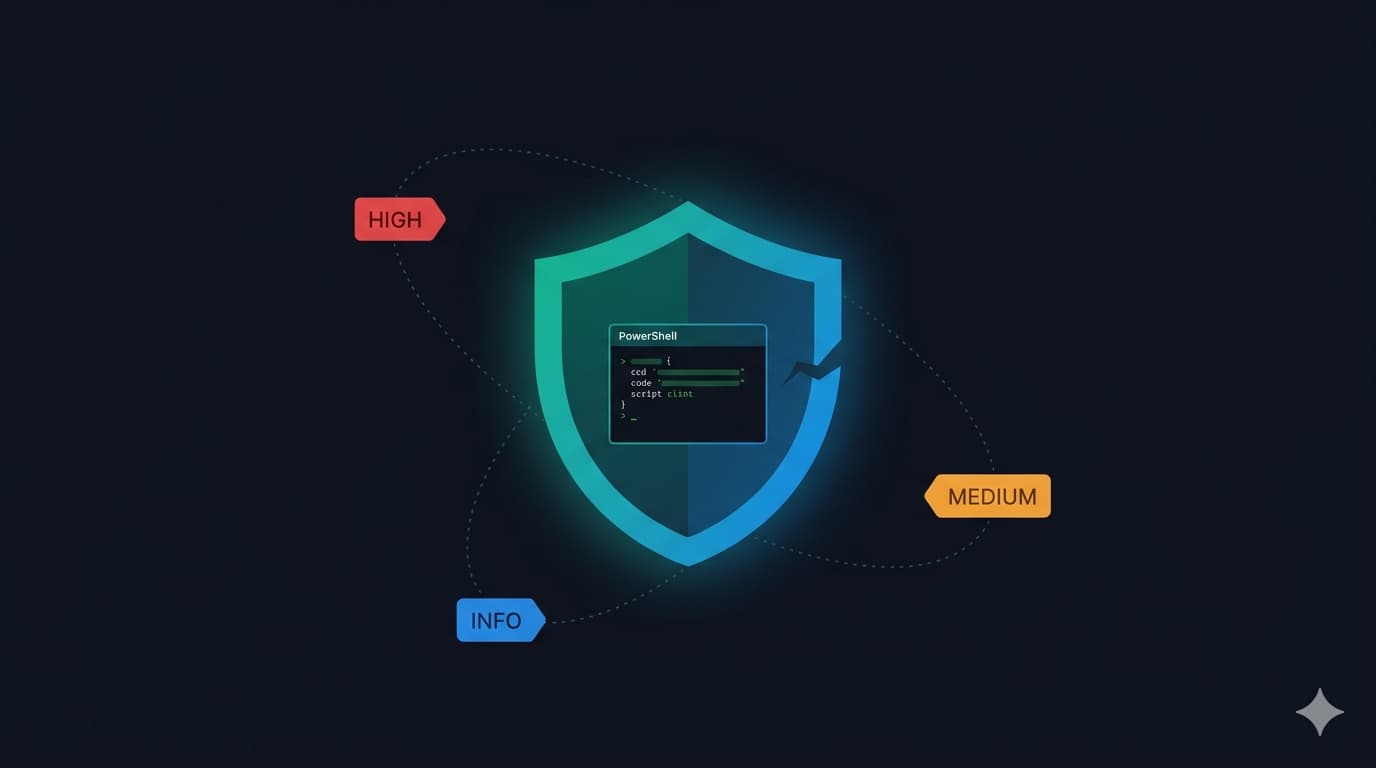
The main table lists every policy sorted by risk level — High at the top, then Medium, then Info, then policies with no flags. Each row shows the policy name and ID, its state (Enabled / Disabled / Report-only), total exclusion count, and separate columns for excluded users, groups, roles, and named locations — all resolved to display names. The final column shows the risk flags with their level.
Row colouring provides a quick visual signal: red-tinted rows have at least one High-risk flag, amber-tinted rows have Medium flags, and uncoloured rows have Info or no flags. Focus your review on the coloured rows first.
Risk flags explained
| Flag | Level | What it means | Recommended action |
|---|---|---|---|
| High-privilege role(s) excluded | High | Global Administrator, Security Administrator, Privileged Role Administrator, or Privileged Authentication Administrator is in the role exclusion list | Review immediately. Privileged roles should rarely if ever be excluded from MFA or compliance policies. If a break-glass account is excluded, ensure it is monitored with alerts. |
| All guests and external users excluded | High | The policy excludes the GuestsOrExternalUsers built-in value, removing all external collaborators from the policy's scope | Assess whether this is intentional. If guests require different CA controls, create a dedicated policy scoped to guests rather than excluding them from the main policy. |
| Direct user exclusion(s) | Medium | Individual user accounts are listed in the exclusion rather than managed through a group | Move direct exclusions to a dedicated exclusion group (e.g. "CA-Exclusions-PolicyName"). Groups have membership lifecycle and can be audited more easily than per-policy user lists. |
| High number of group exclusions | Medium | More than 5 groups are excluded from a single policy | Review each excluded group for relevance. Consolidate where possible. Consider whether the policy scope (included users) should be restructured instead. |
| Excluded user(s) have disabled accounts | Medium | One or more directly excluded users have a disabled Entra ID account | Remove stale exclusions. Disabled accounts cannot sign in but their presence indicates that exclusion lists are not being maintained as part of the offboarding process. |
| Report-only policy with exclusions | Info | The policy is not enforced, but exclusions are configured and would apply if it were enabled | Review exclusions before enabling. Policies often accumulate exclusions during testing that are not appropriate for production enforcement. |
The script
The code block below covers the core logic — Graph connection, ID resolution helpers, and risk flag detection. The HTML report generator is omitted for readability; the complete script is available as CA-ExclusionsAudit.ps1.
#Requires -Modules Microsoft.Graph
#
# CA-ExclusionsAudit.ps1
# Audits Conditional Access exclusions and generates an HTML report.
# Required Graph permissions: Policy.Read.All, Directory.Read.All,
#   User.Read.All, Group.Read.All
#

param(
    [string]$OutputPath = ".\CA-ExclusionsAudit-$(Get-Date -Format 'yyyyMMdd-HHmmss').html",
    [bool]$IncludeDisabled = $true
)

#region ── Helpers ─────────────────────────────────────────────────────────

function Resolve-UserId {
    param([string]$Id)
    if ($Id -eq 'GuestsOrExternalUsers') { return '⚠ All Guests / External Users' }
    try {
        $u = Get-MgUser -UserId $Id -Property DisplayName,UserPrincipalName,AccountEnabled -ErrorAction Stop
        $suffix = if (-not $u.AccountEnabled) { ' [disabled]' } else { '' }
        return "$($u.DisplayName) ($($u.UserPrincipalName))$suffix"
    } catch { return "Unknown user: $Id" }
}

function Resolve-GroupId {
    param([string]$Id)
    try {
        $g = Get-MgGroup -GroupId $Id -Property DisplayName -ErrorAction Stop
        return $g.DisplayName
    } catch { return "Unknown group: $Id" }
}

function Resolve-LocationId {
    param([string]$Id)
    if ([string]::IsNullOrWhiteSpace($Id)) { return $null }
    if ($Id -eq 'AllTrusted') { return 'All Trusted Locations' }
    try {
        $loc = Get-MgIdentityConditionalAccessNamedLocation -NamedLocationId $Id -ErrorAction Stop
        return $loc.DisplayName
    } catch { return "Unknown location: $Id" }
}

# Entra built-in role template IDs → display names
# Unknown IDs fall through to "Role: <guid>" for manual review.
$RoleMap = @{
    '62e90394-69f5-4237-9190-012177145e10' = 'Global Administrator'
    'e8611ab8-c189-46e8-94e1-60213ab1f814' = 'Privileged Role Administrator'
    '7be44c8a-adaf-4e2a-84d6-ab2649e08a13' = 'Privileged Authentication Administrator'
    '194ae4cb-b126-40b2-bd5b-6091b380977d' = 'Security Administrator'
    'b0f54661-2d74-4c50-afa3-1ec803f12efe' = 'Microsoft Defender for Cloud Apps Administrator'
    'b1be1c3e-b65d-4f19-8427-f6fa0d97feb9' = 'Conditional Access Administrator'
    '0526716b-113d-4c15-b2c8-68e3c22b9f80' = 'Authentication Policy Administrator'
    'fe930be7-5e62-47db-91af-98c3a49a38b1' = 'User Administrator'
    '9b895d92-2cd3-44c7-9d02-a6ac2d5ea5c3' = 'Application Administrator'
    '158c047a-c907-4556-b7ef-446551a6b5f7' = 'Cloud Application Administrator'
    'c4e39bd9-1100-46d3-8c65-fb160da0071f' = 'Authentication Administrator'
    'f2ef992c-3afb-46b9-b7cf-a126ee74c451' = 'Global Reader'
    '5d6b6bb7-de71-4623-b4af-96380a352509' = 'Security Reader'
    '29232cdf-9323-42fd-ade2-1d097af3e4de' = 'Exchange Administrator'
    '3a2c62db-5318-420d-8d74-23affee5d9d5' = 'Intune Administrator'
    '17315797-102d-40b4-93e0-432062caca18' = 'Compliance Administrator'
    '729827e3-9c14-49f7-bb1b-9608f156bbb8' = 'Helpdesk Administrator'
    'b0f54661-2d74-4c50-afa3-1ec803f12ebe' = 'Billing Administrator'
    'f28a1f50-f6e7-4571-818b-6a12f2af6b6c' = 'SharePoint Administrator'
    '69091246-20e8-4a56-aa4d-066075b2a7a8' = 'Teams Administrator'
    '2b745bdf-0803-4d80-aa65-822c4493daac' = 'Office Apps Administrator'
    '11648597-926c-4cf3-9c36-bcebb0ba8dcc' = 'Power Platform Administrator'
    'f023fd81-a637-4b56-95fd-791ac0226033' = 'Service Support Administrator'
    '966707d0-3269-4727-9be2-8c3a10f19b9d' = 'Password Administrator'
    'fdd7a751-b60b-444a-984c-02652fe8fa1c' = 'Groups Administrator'
    '4a5d8f65-41da-4de4-8968-e035b65339cf' = 'Reports Reader'
}

function Resolve-RoleId {
    param([string]$Id)
    if ($RoleMap.ContainsKey($Id)) { return $RoleMap[$Id] }
    return "Role: $Id"
}

function Get-RiskFlags {
    param($Policy, $ExcludedUserNames, $ExcludedGroupNames, $ExcludedRoleNames)
    $flags = [System.Collections.Generic.List[hashtable]]::new()
    $users = $Policy.Conditions.Users

    # Direct user exclusions (non-guest)
    $directCount = @($users.ExcludeUsers | Where-Object { $_ -ne 'GuestsOrExternalUsers' }).Count
    if ($directCount -gt 0) {
        $flags.Add(@{ Level = 'Medium'; Text = "$directCount direct user exclusion(s) — prefer group-based exclusions for lifecycle management" })
    }

    # All guests excluded
    if ($users.ExcludeUsers -contains 'GuestsOrExternalUsers') {
        $flags.Add(@{ Level = 'High'; Text = 'All guests and external users are excluded from this policy' })
    }

    # High-privilege roles excluded
    $highPriv = @('Global Administrator','Security Administrator',
                  'Privileged Role Administrator','Privileged Authentication Administrator')
    $hit = $ExcludedRoleNames | Where-Object { $highPriv -contains $_ }
    if ($hit) {
        $flags.Add(@{ Level = 'High'; Text = "High-privilege role(s) excluded: $($hit -join ', ')" })
    }

    # High group exclusion count
    if (@($users.ExcludeGroups).Count -gt 5) {
        $flags.Add(@{ Level = 'Medium'; Text = "$(@($users.ExcludeGroups).Count) group exclusions — review for stale or over-broad entries" })
    }

    # Disabled user accounts still excluded
    $disabled = $ExcludedUserNames | Where-Object { $_ -like '*[disabled]*' }
    if ($disabled) {
        $flags.Add(@{ Level = 'Medium'; Text = 'Excluded user(s) have disabled accounts — consider removing stale exclusions' })
    }

    # Report-only with exclusions
    $totalExcl = $users.ExcludeUsers.Count + $users.ExcludeGroups.Count + $users.ExcludeRoles.Count
    if ($Policy.State -eq 'enabledForReportingButNotEnforced' -and $totalExcl -gt 0) {
        $flags.Add(@{ Level = 'Info'; Text = 'Report-only policy — exclusions would apply if enforced' })
    }

    return $flags
}

#endregion

#region ── Connect & Fetch ──────────────────────────────────────────────────

Connect-MgGraph -Scopes 'Policy.Read.All','Directory.Read.All','User.Read.All','Group.Read.All' -NoWelcome

$tenantInfo = Get-MgOrganization | Select-Object -First 1
$allPolicies = Get-MgIdentityConditionalAccessPolicy -All
if (-not $IncludeDisabled) { $allPolicies = $allPolicies | Where-Object { $_.State -ne 'disabled' } }

#endregion

#region ── Process ──────────────────────────────────────────────────────────

$results = [System.Collections.Generic.List[pscustomobject]]::new()
$i = 0

foreach ($policy in $allPolicies) {
    $i++
    Write-Progress -Activity "Auditing CA policies" -Status "$i/$($allPolicies.Count): $($policy.DisplayName)" `
                   -PercentComplete (($i / $allPolicies.Count) * 100)

    $u          = $policy.Conditions.Users
    $userNames  = @($u.ExcludeUsers)     | ForEach-Object { Resolve-UserId     $_ }
    $groupNames = @($u.ExcludeGroups)    | ForEach-Object { Resolve-GroupId    $_ }
    $roleNames  = @($u.ExcludeRoles)     | ForEach-Object { Resolve-RoleId     $_ }
    $locNames   = @($policy.Conditions.Locations.ExcludeLocations) | ForEach-Object { Resolve-LocationId $_ }

    $flags    = Get-RiskFlags -Policy $policy -ExcludedUserNames $userNames `
                               -ExcludedGroupNames $groupNames -ExcludedRoleNames $roleNames
    $maxLevel = if     ($flags | Where-Object { $_.Level -eq 'High'   }) { 'High'   }
                elseif ($flags | Where-Object { $_.Level -eq 'Medium' }) { 'Medium' }
                elseif ($flags | Where-Object { $_.Level -eq 'Info'   }) { 'Info'   }
                else                                                           { 'None'   }

    $results.Add([pscustomobject]@{
        PolicyName        = $policy.DisplayName
        State             = $policy.State
        ExcludedUsers     = $userNames
        ExcludedGroups    = $groupNames
        ExcludedRoles     = $roleNames
        ExcludedLocations = $locNames
        TotalExclusions   = $userNames.Count + $groupNames.Count + $roleNames.Count + $locNames.Count
        RiskFlags         = $flags
        MaxRiskLevel      = $maxLevel
    })
}

# ... HTML report generation (see full script download)
CA-ExclusionsAudit.ps1 file — download and run it directly.
Governance recommendations
Running the script once is useful. Running it quarterly and comparing results is where it becomes a governance tool. The most effective way to use it is as part of a regular Conditional Access review cycle — alongside reviewing policy assignments, Secure Score Identity actions, and Entra ID Access Reviews for privileged groups.
The single highest-impact practice change most teams can make is to eliminate direct user exclusions in favour of group-based exclusions. Create a dedicated exclusion group per policy (named consistently, e.g., CA-Exclude-MFA-Enforcement), add the exclusion via the group rather than the individual account, and apply an Entra ID Access Review to that group on a quarterly cadence. This gives you automatic lifecycle management — reviewers confirm whether each member still needs the exclusion — without requiring manual audits.
For break-glass accounts specifically, exclusion from CA policies is expected and correct — but it must be paired with monitoring. Break-glass accounts should have alerting configured on every sign-in, and their usage should be reviewed in the audit log immediately after any sign-in event. Excluding them from CA policies is a deliberate design choice; excluding them and forgetting they exist is a risk.
Checklist
- Run the script and review all High-risk flags first High-privilege role exclusions and all-guest exclusions represent the most significant policy bypass risks and should be addressed before any other exclusion findings.
- Convert all direct user exclusions to group-based exclusions Create a named exclusion group per policy, move individual accounts into the group, and apply an Entra ID Access Review to the group on a quarterly cadence.
- Remove exclusions for disabled user accounts Disabled accounts cannot sign in but their presence in exclusion lists confirms that offboarding does not include exclusion cleanup. Add exclusion removal to your offboarding runbook.
- Review Report-only policies before enabling them Exclusions added during testing are frequently forgotten. Review every exclusion on a Report-only policy before switching it to Enabled — the exclusions apply immediately on enforcement.
- Ensure break-glass account exclusions are paired with sign-in alerts Break-glass accounts are legitimately excluded from CA policies, but every sign-in must generate an immediate alert to the security team. Exclusion without monitoring is the risk.
- Schedule a quarterly audit cadence Run the script quarterly and compare the exclusion count per policy against the previous run. An increasing exclusion count without a documented justification is a governance signal worth investigating.
- Audit Your Microsoft 365 Security Posture with PowerShell
- Intune Device Compliance Report with PowerShell & Graph
- Microsoft Entra Conditional Access: A Practical Deployment Guide
- Why Traditional MFA Fails: Enforcing Phishing-Resistant Access
- Microsoft 365 Secure Score: What Matters and What to Ignore