How to Automatically Block High-Risk Sign-ins with Microsoft Entra ID Protection: A Zero Trust Approach
Introduction: Moving Beyond Static Rules to Intelligent Protection
In the world of cybersecurity, static rules are no longer enough. Adversaries are constantly evolving their tactics, using compromised credentials and sophisticated techniques to bypass traditional defenses. To truly embrace a Zero Trust model, we must move from a reactive posture to a proactive, intelligent one. This is where Microsoft Entra ID Protection comes in, a powerful tool that uses machine learning and threat intelligence to detect and respond to identity-based risks in real time.
This article provides a practical, step-by-step guide for IT administrators on how to leverage one of the most powerful features of Entra ID Protection: automatically blocking high-risk sign-ins using a Conditional Access policy. This single policy can be the difference between a near-miss and a catastrophic breach, acting as an automated security analyst that works 24/7 to protect your organization.
Microsoft's identity security team analyzes over 43 trillion signals daily to detect emerging threats. Entra ID Protection uses this massive dataset to power its risk detection engine, giving organizations of all sizes access to enterprise-grade threat intelligence.
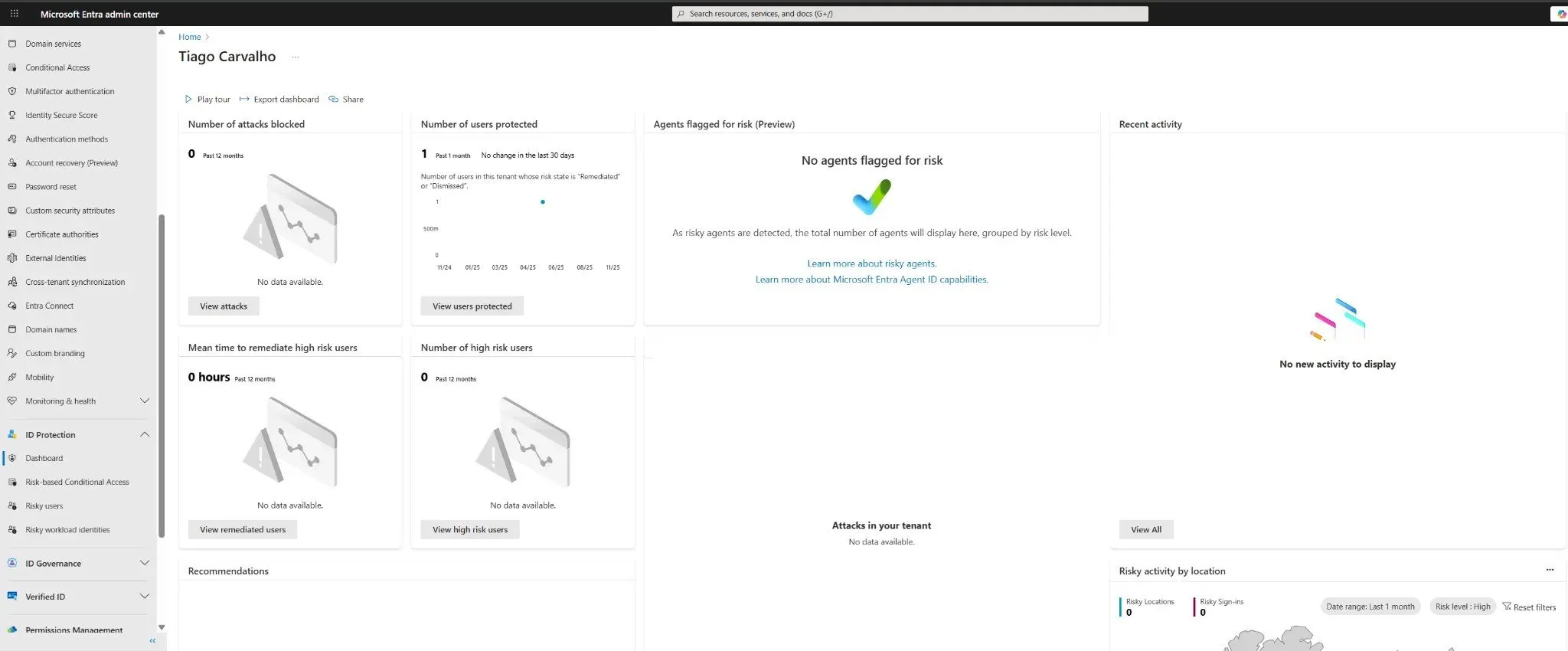
Figure 1: Microsoft Entra ID Protection risk detections dashboard showing real-time threat intelligence.
Understanding Sign-in Risk: The Brains Behind the Policy
Before creating the policy, it's crucial to understand what a "risky sign-in" is. Microsoft Entra ID Protection calculates a risk score (Low, Medium, or High) for each sign-in based on a wide range of signals. These signals are indicators that a sign-in attempt may not be legitimate.
| Risk Signal Category | Examples |
|---|---|
| Anomalous Travel | Sign-ins from geographically distant locations in a short period (impossible travel). |
| Unfamiliar Sign-in Properties | A user signing in from a device, location, or IP address they have never used before. |
| Malware-linked IP Address | The sign-in originates from an IP address known to be associated with malware or botnets. |
| Anonymous IP Address | The sign-in comes from an anonymous proxy or the Tor network, often used to hide a user's true location. |
| Credential Stuffing / Password Spray | Detection of a high volume of failed sign-ins with leaked credentials or common passwords. |
By creating a policy that targets High risk sign-ins, we are telling Entra ID to automatically block access when its machine learning engine has a high degree of confidence that the sign-in attempt is malicious.
Prerequisites
- Licensing: Microsoft Entra ID P2 is required for risk-based Conditional Access policies. This is included in licenses like Microsoft 365 E5 and is a core component of the advanced security stack.
- Roles: You need the Conditional Access Administrator or Security Administrator role.
- Emergency Access Account: Always have a "break-glass" account excluded from all policies to prevent accidental lockout.
Step-by-Step Guide: Creating the High-Risk Sign-in Policy
This policy is straightforward to create but incredibly powerful. We will configure it to block any sign-in attempt that Entra ID Protection flags as high-risk.
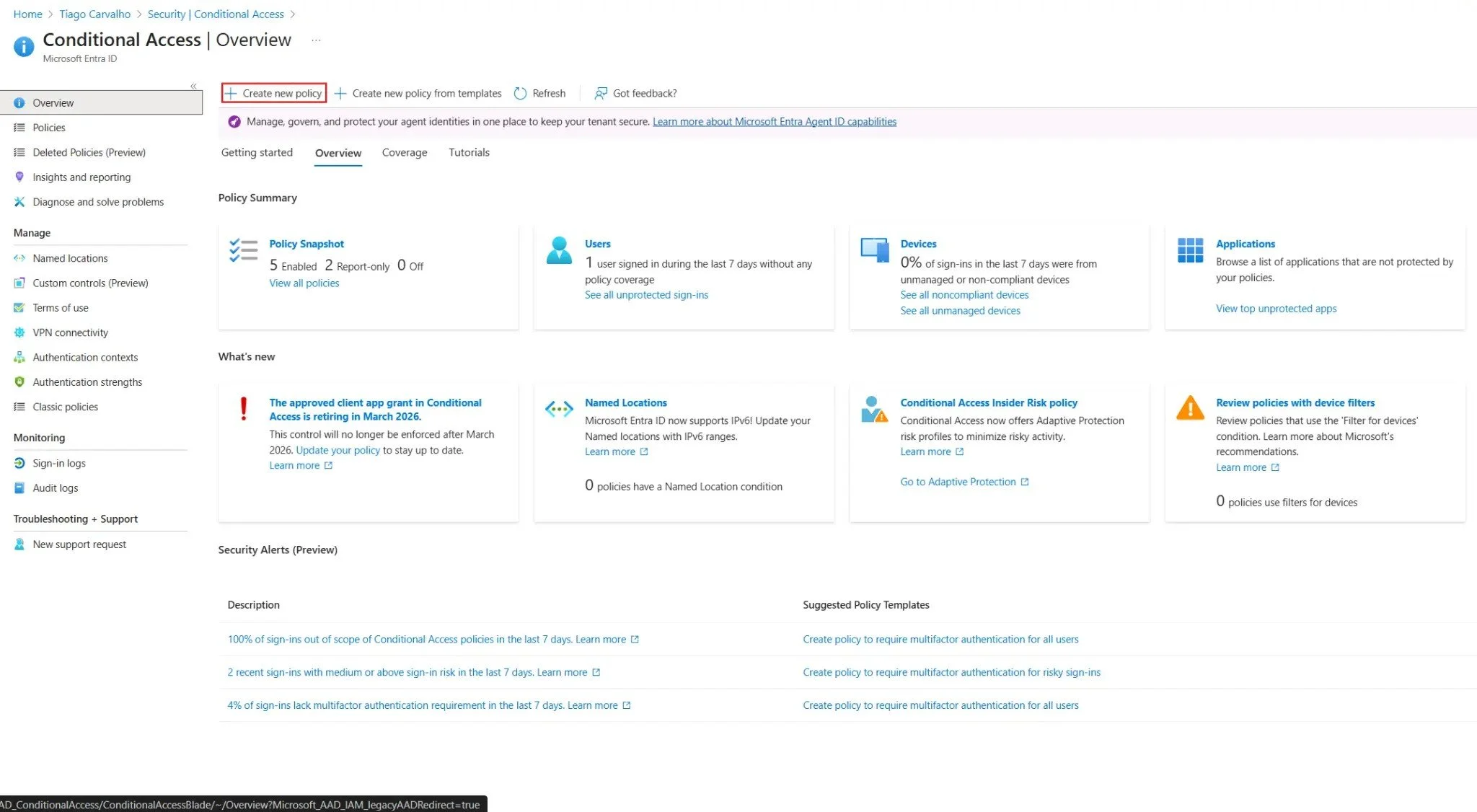
Figure 2: Creating a new Conditional Access policy to block high-risk sign-ins.
Step 1: Create a New Conditional Access Policy
- Navigate to the Microsoft Entra admin center > Protection > Conditional Access.
- Click + Create new policy.
- Give the policy a descriptive name, such as
CA001 - BLOCK: High-Risk Sign-ins.
Step 2: Assign the Policy to Users
This policy should apply to everyone in your organization to ensure comprehensive protection.
- Under Assignments, click on Users.
- Select All users.
- Crucially, under the Exclude tab, select your emergency access accounts. This is your safety net.
Step 3: Define the Target Resources
To provide the broadest protection, we will apply this policy to all cloud applications.
- Under Target resources, select All cloud apps.
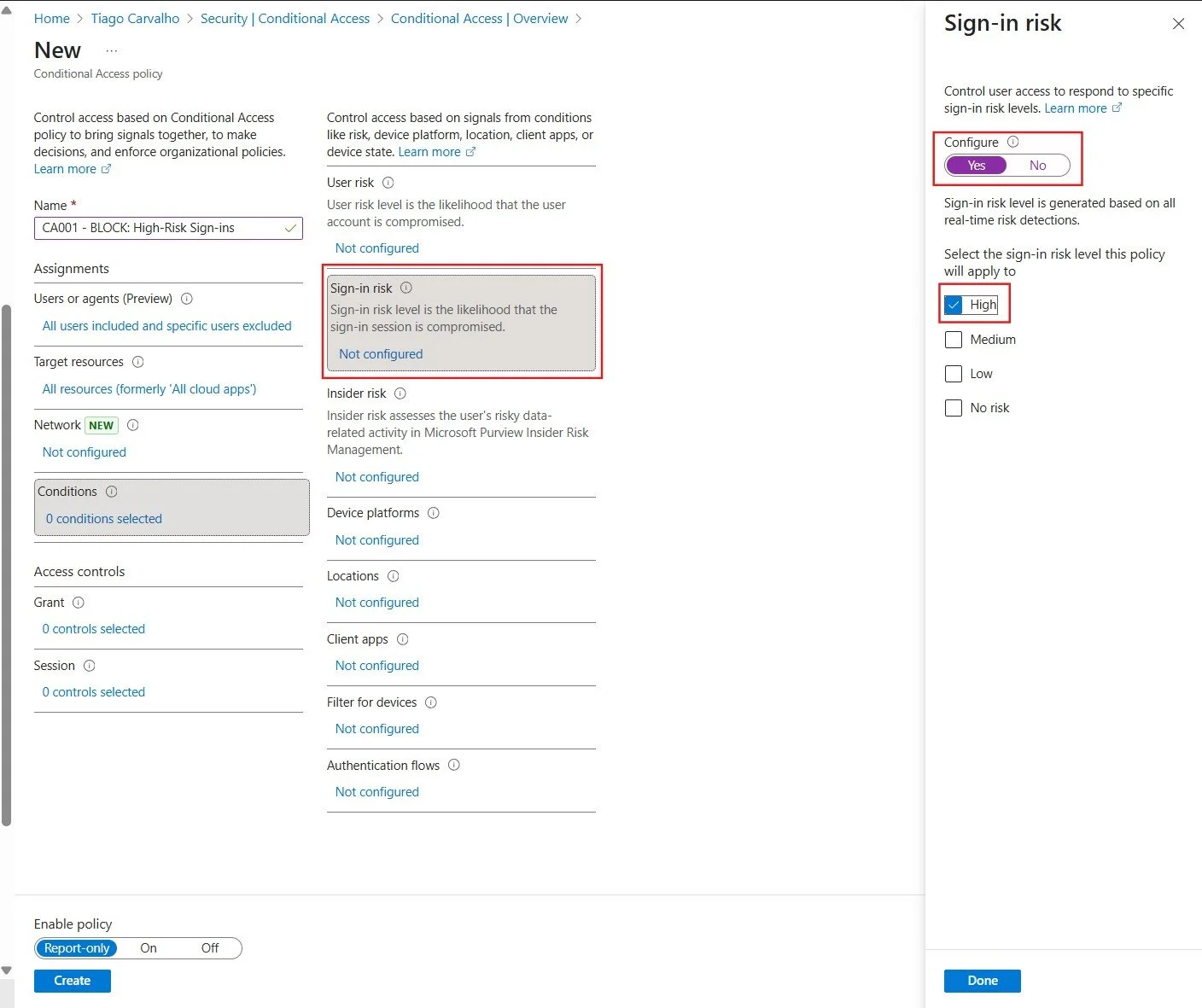
Figure 3: Configuring the sign-in risk condition to target high-risk authentication attempts.
Step 4: Configure the Sign-in Risk Condition
This is the core of our policy. Here, we tell the policy to trigger based on the risk level calculated by Entra ID Protection.
- Under Conditions, click on Sign-in risk.
- Set the Configure toggle to Yes.
- For the risk level, select High.
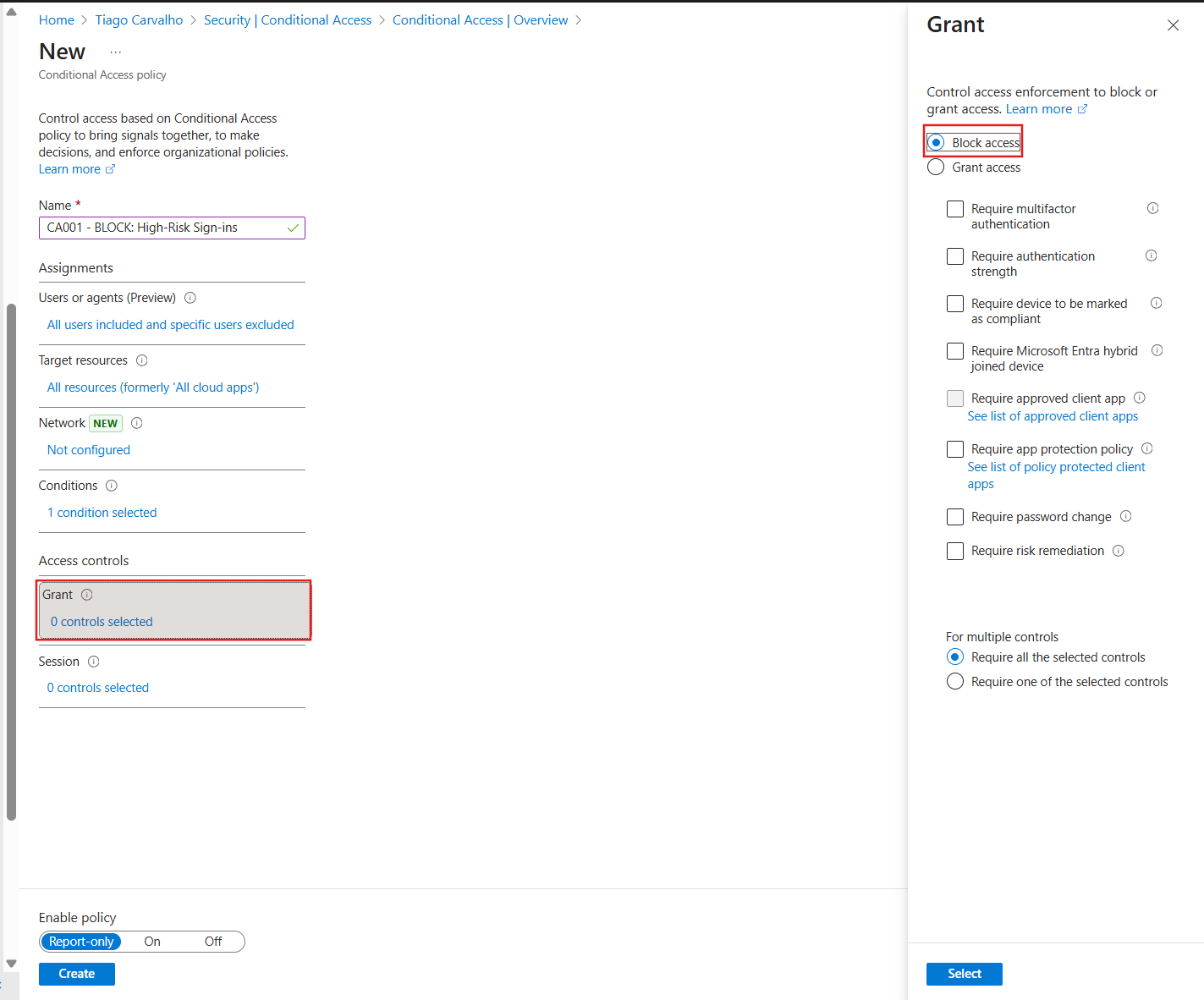
Figure 4: Configuring the access control to block high-risk sign-ins automatically.
Step 5: Define the Access Control (Block)
When a high-risk sign-in is detected, we want to block it outright.
- Under Access controls, click on Grant.
- Select Block access.
Step 6: Enable the Policy
Unlike other policies, this one has a very low chance of impacting legitimate users, as a "High" risk level indicates a strong probability of compromise. However, it is still best practice to start in a monitoring mode.
- Set Enable policy to Report-only for a few days.
- Monitor the Entra ID sign-in logs and the Risk detections report in Entra ID Protection to see what would have been blocked.
- Once you are confident that there are no false positives, switch the policy to On.
Monitoring and Best Practices
- Review Risky Sign-ins Regularly: Even with the policy active, you should regularly review the Risky sign-ins report in the Entra ID Protection dashboard. This can help you identify patterns or targeted attacks against your organization.
- Consider User Risk Policies: In addition to blocking high-risk sign-ins, you can create a separate policy that targets high-risk users. This policy could force a password reset for any user whose account is flagged as high-risk, even if they are not actively signing in.
- Tune for Your Environment: While blocking "High" risk is a safe starting point, some organizations may choose to also require MFA for "Medium" risk sign-ins to add an extra layer of security.
Conclusion: Automated Defense at Scale
By implementing a single Conditional Access policy to block high-risk sign-ins, you have deployed an automated, intelligent defense mechanism that protects your entire organization. You are no longer just relying on static rules; you are leveraging Microsoft's vast threat intelligence network to make dynamic, real-time security decisions.
This is the essence of a modern, Zero Trust security strategy: verifying every access attempt and using rich signals to differentiate between legitimate users and malicious actors. This policy is a critical step in securing your identities and building a resilient security posture for the future.
References
- [1] Microsoft Security. (2025). Protecting organizations with Microsoft Entra ID Protection. Microsoft Security Blog. Retrieved from https://www.microsoft.com/en-us/security/blog/
- [2] Microsoft. (2025). What is risk?. Microsoft Learn. Retrieved from https://learn.microsoft.com/en-us/entra/id-protection/concept-identity-protection-risks
- [3] Microsoft. (2025). Configure and enable risk policies. Microsoft Learn. Retrieved from https://learn.microsoft.com/en-us/entra/id-protection/howto-identity-protection-configure-risk-policies