Entra ID · Conditional Access · Baseline Policies · 2026
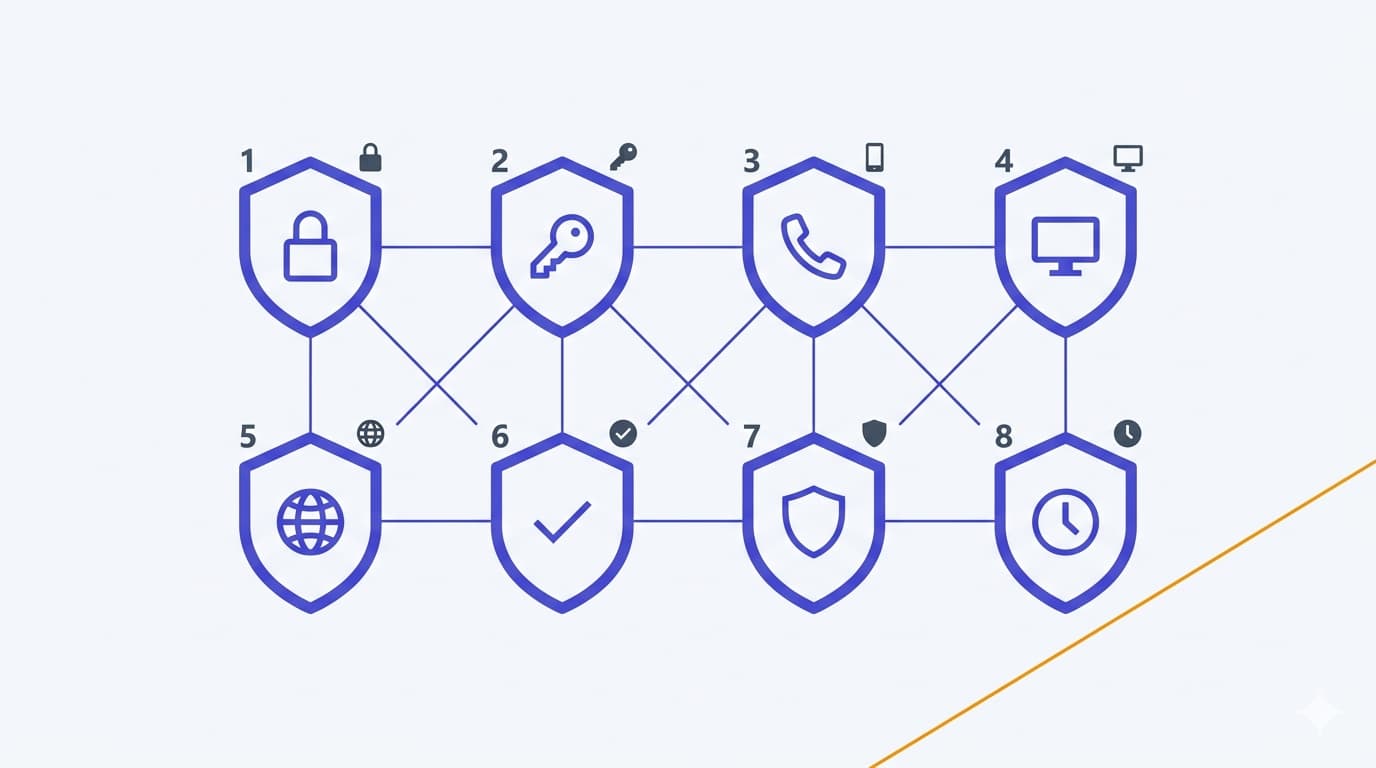
Part 1 set the baseline. Part 2 put the break-glass, exclusions, and logging in place. Part 3 is the one you keep open on a second monitor: every baseline policy walked end to end — the exact UI path, the precise include/exclude scope, the grant or session control with its trade-offs, the common false positives and how to triage them in the sign-in logs, and the rollback pattern for when a policy bites in production. Each of the eight sections follows the same structure, so you can read linearly or jump straight to the one you are deploying today.
CA-Exclusions-BreakGlass is not in place, stop and go back to Part 2 before enabling anything hereHow to read this article
Each of the eight H2 sections below is a self-contained policy implementation guide. The sub-structure is identical everywhere:
CA-Exclusions-BreakGlass, CA-Exclusions-ServiceAccounts, CA-Exclusions-Travel, CA-Exclusions-TempAccess.New-MgIdentityConditionalAccessPolicy snippet with just the parameters that matter for this policy. The full reusable pattern (parameter splatting, session controls, auth context) lives in the appendix.The 2026 guidance assumes you have Part 2's foundations in place: two break-glass accounts with FIDO2 keys, the four CA-Exclusions-* groups populated and documented, and sign-in logs streaming into Log Analytics with at least one alert rule wired up. If any of those are missing, stop here and do Part 2 first — otherwise the policies below turn into your next incident rather than your next hardening win.
Policy 1 · Block legacy authentication
The first policy every tenant needs. Legacy auth (Basic Auth, Exchange ActiveSync, SMTP AUTH, IMAP/POP, older Office clients) cannot honour MFA, cannot present device state, and is the single most reliable way password-spray attacks still succeed in 2026. Block it before anything else — enforcement here is a prerequisite for Policy 2 to be meaningful.
CA001 — Block legacy authentication.CA-Exclusions-BreakGlass and CA-Exclusions-ServiceAccounts. Target resources: Cloud apps → All cloud apps. Conditions → Client apps: Select Exchange ActiveSync clients and Other clients. Leave browser and modern auth clients unticked.CA-Exclusions-ServiceAccounts — with a documented reason and an end date.CA-Exclusions-ServiceAccounts with an expiry.New-MgIdentityConditionalAccessPolicy -BodyParameter @{
displayName = "CA001 — Block legacy authentication"
state = "enabledForReportingButNotEnforced"
conditions = @{
users = @{ includeUsers = @("All"); excludeGroups = @("<BreakGlass-GroupId>","<ServiceAccts-GroupId>") }
applications = @{ includeApplications = @("All") }
clientAppTypes = @("exchangeActiveSync","other")
}
grantControls = @{ operator = "OR"; builtInControls = @("block") }
}Policy 2 · Require MFA for all users
This is the policy that replaces Security Defaults' MFA story with something you can actually tune. Use authentication strengths (MFA strength as the default) rather than the legacy "Require multi-factor authentication" checkbox — strengths are how Microsoft intends the control to evolve, and they let you escalate specific scenarios later without rewriting the policy.
CA002 — MFA for all users.CA-InScope-AllUsers (dynamic group that contains all member users). Exclude CA-Exclusions-BreakGlass, CA-Exclusions-ServiceAccounts, and CA-Exclusions-TempAccess. Target resources: Cloud apps → All cloud apps. Conditions: leave default (all locations, all devices, all client apps) — Policy 1 already handles legacy clients.Get-MgReportAuthenticationMethodUserRegistrationDetail, covered in Part 2's pre-deployment hygiene) — unregistered users must enrol before enforcement.CA-InScope-AllUsers minus a temporary CA-Exclusions-TempAccess containing the specific users you are unblocking, while you resolve the registration gap. Document the temp exclusion with an end date.New-MgIdentityConditionalAccessPolicy -BodyParameter @{
displayName = "CA002 — MFA for all users"
state = "enabledForReportingButNotEnforced"
conditions = @{
users = @{
includeGroups = @("<InScope-AllUsers-GroupId>")
excludeGroups = @("<BreakGlass-GroupId>","<ServiceAccts-GroupId>","<TempAccess-GroupId>")
}
applications = @{ includeApplications = @("All") }
}
grantControls = @{
operator = "OR"
authenticationStrength = @{ id = "<MFA-StrengthId>" }
}
}Policy 3 · Phishing-resistant MFA for admins
The policy that stops adversary-in-the-middle (AiTM) phishing kits from succeeding against your most dangerous accounts. Phishing-resistant methods — FIDO2 security keys, Windows Hello for Business, device-bound passkeys, and certificate-based auth — are the only ones that cryptographically bind the sign-in to the origin, which is what AiTM defeats.
CA003 — Phishing-resistant MFA for admins.CA-Exclusions-BreakGlass. Target resources: All cloud apps.CA-Exclusions-TempAccess with an expiry of 24 hours, complete their enrolment, then remove. Document each temp exclusion in the ticket. The policy itself stays on.New-MgIdentityConditionalAccessPolicy -BodyParameter @{
displayName = "CA003 — Phishing-resistant MFA for admins"
state = "enabledForReportingButNotEnforced"
conditions = @{
users = @{
includeRoles = @("62e90394-69f5-4237-9190-012177145e10","<otherRoleIds>") # Global Admin template ID shown
excludeGroups = @("<BreakGlass-GroupId>")
}
applications = @{ includeApplications = @("All") }
}
grantControls = @{
operator = "OR"
authenticationStrength = @{ id = "<PhishResistant-StrengthId>" }
}
}Policy 4 · Compliant device for admin portals
Policy 3 ensures admins authenticate from a phishing-resistant method. Policy 4 ensures they do it from a known, managed device. The two combine to mean: admin work happens on an Intune-compliant workstation with a FIDO2 key plugged in — not on a personal laptop, not on a browser session at home, not on a shared machine at a client site.
CA004 — Compliant device for admin portals.CA-Exclusions-BreakGlass. Target resources → Cloud apps: apply the Microsoft Admin Portals filter (preview at time of writing — check current GA status before enforcing). This covers Entra admin center, Intune, Microsoft 365 admin center, Defender portal, Purview, and the family of admin URLs. Alternatively, include the individual service apps (Microsoft Graph, Azure Management, etc.) — the admin portals filter is easier to keep in sync as Microsoft adds consoles.CA-Exclusions-TempAccess with a same-day expiry, and make completing Intune enrolment a blocker for removing that exclusion.If you automate this policy with Graph, confirm the current app filter or application identifier in the latest Microsoft documentation before use. The Microsoft Admin Portals filter is a preview-adjacent capability, and the alias below is illustrative — the exact value and shape can change.
New-MgIdentityConditionalAccessPolicy -BodyParameter @{
  displayName  = "CA004 — Compliant device for admin portals"
  state        = "enabledForReportingButNotEnforced"
  conditions   = @{
    users        = @{ includeRoles = @("<AdminRoleIds>"); excludeGroups = @("<BreakGlass-GroupId>") }
    applications = @{
      includeApplications = @("<AdminPortals-AppFilterOrIds>")  # validate in Microsoft docs
    }
  }
  grantControls = @{
    operator        = "OR"
    builtInControls = @("compliantDevice","domainJoinedDevice")
  }
}
Policy 5 · Require MFA for guests
Guest users — external partners, contractors, auditors — sign into your tenant with credentials you do not control. You cannot reason about their home-tenant hygiene, whether they have MFA, or whether their account has been compromised somewhere else. The only sensible position is to assert MFA at your door for every guest sign-in, regardless of what their home tenant does.
CA005 — MFA for guests.CA-Exclusions-BreakGlass. Target resources: All cloud apps.New-MgIdentityConditionalAccessPolicy -BodyParameter @{
displayName = "CA005 — MFA for guests"
state = "enabledForReportingButNotEnforced"
conditions = @{
users = @{
includeGuestsOrExternalUsers = @{
guestOrExternalUserTypes = "b2bCollaborationGuest,b2bCollaborationMember,b2bDirectConnectUser,otherExternalUser"
externalTenants = @{ membershipKind = "all" }
}
excludeGroups = @("<BreakGlass-GroupId>")
}
applications = @{ includeApplications = @("All") }
}
grantControls = @{
operator = "OR"
authenticationStrength = @{ id = "<MFA-StrengthId>" }
}
}Policy 6 · Block sign-ins from unexpected countries
Most SMB tenants sign in from a handful of countries: the home country, one or two where the sales team travels, and occasionally a client location. Everything else is noise — and specifically, everything else is where password-spray and credential-stuffing traffic comes from. A named-location allow-list blocks the noise before MFA even becomes relevant, and gives you a clean signal in the logs when someone travels unexpectedly.
Allowed countries with the countries your users legitimately sign in from. Determine Location by IP address (IPv4/IPv6) is the safer option; GPS-based determination can be noisy on mobile. Then: Policies → New policy. Name: CA006 — Block unexpected countries.CA-InScope-AllUsers. Exclude CA-Exclusions-BreakGlass, CA-Exclusions-ServiceAccounts, and CA-Exclusions-Travel. Target resources: All cloud apps. Conditions → Locations: Include Any location; Exclude Allowed countries (your named location).CA-Exclusions-Travel group exists — documented, time-boxed travel. It is also why this policy is Report-only for longer (often 14 days rather than 7): you want to see a full pay-cycle of legitimate signal before enforcement.CA-Exclusions-Travel with an end date. Attack traffic → confirm the account's password hygiene and force a credential reset.CA-Exclusions-Travel with a documented expiry. Expanding the allow-list permanently is almost always the wrong answer; most SMBs find that 90% of their travellers are <10 people and a time-boxed exclusion is cleaner.New-MgIdentityConditionalAccessPolicy -BodyParameter @{
displayName = "CA006 — Block unexpected countries"
state = "enabledForReportingButNotEnforced"
conditions = @{
users = @{
includeGroups = @("<InScope-AllUsers-GroupId>")
excludeGroups = @("<BreakGlass-GroupId>","<ServiceAccts-GroupId>","<Travel-GroupId>")
}
applications = @{ includeApplications = @("All") }
locations = @{
includeLocations = @("All")
excludeLocations = @("<AllowedCountries-NamedLocId>")
}
}
grantControls = @{ operator = "OR"; builtInControls = @("block") }
}Policy 7 · App protection + approved apps on mobile
Mobile is where corporate data leaks without anyone noticing. A user adding their work account to the iOS native Mail app, the Android default Gmail client, or a third-party calendar tool means corporate mail, attachments, and links are now sitting in an app your tenant cannot wipe, cannot enforce PIN on, and cannot block copy-paste from. Policy 7 closes that door: on mobile, you use approved clients (Outlook, Teams, OneDrive) and those clients respect an Intune app protection policy.
CA007 — App protection on mobile.CA-InScope-AllUsers. Exclude CA-Exclusions-BreakGlass and CA-Exclusions-ServiceAccounts. Target resources → Cloud apps: Office 365 as a bundle, or the individual Microsoft 365 apps (Exchange Online, SharePoint, Teams, OneDrive) if you want tighter scoping. The bundle is simpler to keep in sync as Microsoft evolves the service; individual scoping is more precise but adds maintenance. Either way, validate the exact target resource behaviour for your workloads in the Microsoft documentation before enforcing. Conditions → Device platforms: Include iOS and Android. Leave Windows / macOS / Linux out — they are managed by Policy 4 and (eventually) Windows-specific policies.New-MgIdentityConditionalAccessPolicy -BodyParameter @{
displayName = "CA007 — App protection on mobile"
state = "enabledForReportingButNotEnforced"
conditions = @{
users = @{
includeGroups = @("<InScope-AllUsers-GroupId>")
excludeGroups = @("<BreakGlass-GroupId>","<ServiceAccts-GroupId>")
}
applications = @{
includeApplications = @("<Office365-OrIndividualAppIds>") # bundle or per-app — validate in Microsoft docs
}
platforms = @{
includePlatforms = @("iOS","android")
}
}
grantControls = @{
operator = "AND"
builtInControls = @("approvedApplication","compliantApplication")
}
}Policy 8 · Session controls for unmanaged browsers
The final baseline policy — and the one most likely to trigger "but why?" questions from users. When someone signs into Microsoft 365 from an unmanaged browser (a client's shared PC, a kiosk, a personal laptop), the session cookie that gets issued can be stolen and replayed. Session controls limit the damage window: sign-in frequency forces re-authentication after a set interval, and disabling persistent browser cookies stops "stay signed in" working on untrusted devices.
CA008 — Session controls on unmanaged browsers.CA-InScope-AllUsers. Exclude CA-Exclusions-BreakGlass. Target resources: All cloud apps. Conditions → Client apps: Browser. Conditions → Filter for devices: exclude devices that are compliant or hybrid-joined — i.e. the filter fires only on devices that are not known to Intune. An illustrative expression is device.isCompliant -ne True -and device.trustType -ne "ServerAD", but you must validate the expression in your own tenant and confirm the exact filter syntax and available attributes in the current Microsoft documentation — the portal and Graph representations can change.trustType in the filter expression. Users on a compliant Windows laptop should see the long-lived session they expect.CA-InScope-BrowserSessions group until the filter is proven in the wild.New-MgIdentityConditionalAccessPolicy -BodyParameter @{
displayName = "CA008 — Session controls on unmanaged browsers"
state = "enabledForReportingButNotEnforced"
conditions = @{
users = @{ includeGroups = @("<InScope-AllUsers-GroupId>"); excludeGroups = @("<BreakGlass-GroupId>") }
applications = @{ includeApplications = @("All") }
clientAppTypes = @("browser")
devices = @{
deviceFilter = @{
mode = "exclude"
rule = "<DeviceFilterExpression>" # validate syntax + attributes in Microsoft docs
}
}
}
grantControls = @{
operator = "OR"
authenticationStrength = @{ id = "<MFA-StrengthId>" }
}
sessionControls = @{
signInFrequency = @{ value = 8; type = "hours"; isEnabled = $true }
persistentBrowser = @{ mode = "never"; isEnabled = $true }
}
}Graph PowerShell appendix — baseline as code
The per-policy snippets above are deliberately minimal. When you are ready to version the baseline as code rather than clicking through the portal, the pattern below is the one I reuse: resolve all the group and role IDs once, then pass them as a parameter splat into each New-MgIdentityConditionalAccessPolicy call. That way the eight policy definitions are short, reviewable, and diff-friendly in git.
# Requires the Microsoft.Graph.Identity.SignIns module
Connect-MgGraph -Scopes "Policy.ReadWrite.ConditionalAccess","Policy.Read.All","Group.Read.All","Directory.Read.All"

# Groups created in Part 2
$ids = @{
  BreakGlass    = (Get-MgGroup -Filter "displayName eq 'CA-Exclusions-BreakGlass'").Id
  ServiceAccts  = (Get-MgGroup -Filter "displayName eq 'CA-Exclusions-ServiceAccounts'").Id
  Travel        = (Get-MgGroup -Filter "displayName eq 'CA-Exclusions-Travel'").Id
  TempAccess    = (Get-MgGroup -Filter "displayName eq 'CA-Exclusions-TempAccess'").Id
  InScopeAll    = (Get-MgGroup -Filter "displayName eq 'CA-InScope-AllUsers'").Id
}

# Authentication strengths (built-in)
$mfaStrength         = (Get-MgPolicyAuthenticationStrengthPolicy | ? displayName -eq "Multifactor authentication").Id
$phishResistStrength = (Get-MgPolicyAuthenticationStrengthPolicy | ? displayName -eq "Phishing-resistant MFA").Id

# Named location
$allowedCountriesLocId = (Get-MgIdentityConditionalAccessNamedLocation |
  ? displayName -eq "Allowed countries").Id

# Privileged roles (template IDs — stable across tenants)
$adminRoleIds = @(
  "62e90394-69f5-4237-9190-012177145e10"  # Global Administrator
  "e8611ab8-c189-46e8-94e1-60213ab1f814"  # Privileged Role Administrator
  "194ae4cb-b126-40b2-bd5b-6091b380977d"  # Security Administrator
  "29232cdf-9323-42fd-ade2-1d097af3e4de"  # Exchange Administrator
  "f28a1f50-f6e7-4571-818b-6a12f2af6b6c"  # SharePoint Administrator
  "fe930be7-5e62-47db-91af-98c3a49a38b1"  # User Administrator
  # add the remaining privileged roles your tenant uses
)
With those variables resolved, each per-policy snippet from the sections above becomes a one-call deployment. Store the whole script in a private repo, keep the outputs of Get-MgIdentityConditionalAccessPolicy as a JSON snapshot (see Part 1) before and after each change, and you have a lightweight but defensible "baseline as code" setup without taking on the full operational weight of a GitHub Actions pipeline.
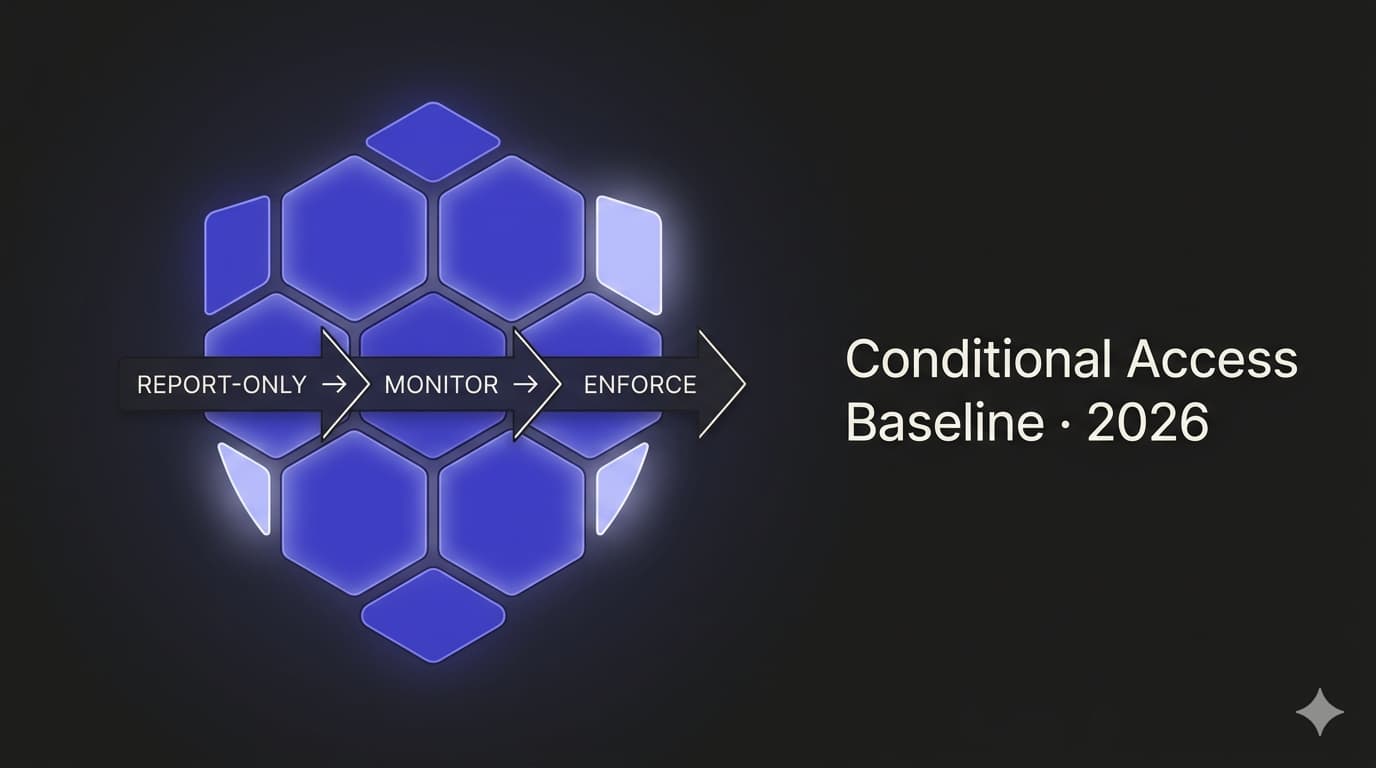
state = "enabledForReportingButNotEnforced" from the script, and only promote to "enabled" after the seven-day Report-only review. Do not write both states in the same script run — the deploy step and the enforce step are separate decisions that deserve separate audit trails.
Sign-in log triage — the two queries that cover 80% of cases
Each policy above has its own triage guidance. Two cross-cutting queries are worth running at least weekly during rollout, regardless of which policy you are enabling. Both assume sign-in logs are streaming into Log Analytics (Part 2's foundation work).
SigninLogs
| where TimeGenerated > ago(7d)
| mv-expand ConditionalAccessPolicies
| extend policyName   = tostring(ConditionalAccessPolicies.displayName)
| extend policyResult = tostring(ConditionalAccessPolicies.result)
| where policyResult in ("reportOnlyFailure", "reportOnlyInterrupted")
| summarize fail_count = count() by policyName, UserPrincipalName, AppDisplayName, ClientAppUsed
| order by fail_count descSigninLogs
| where TimeGenerated > ago(7d)
| mv-expand ConditionalAccessPolicies
| extend policyName = tostring(ConditionalAccessPolicies.displayName)
| extend policyResult = tostring(ConditionalAccessPolicies.result)
| where policyResult == "failure"
| summarize enforced_fail_count = count() by policyName, ResultType, ResultDescription
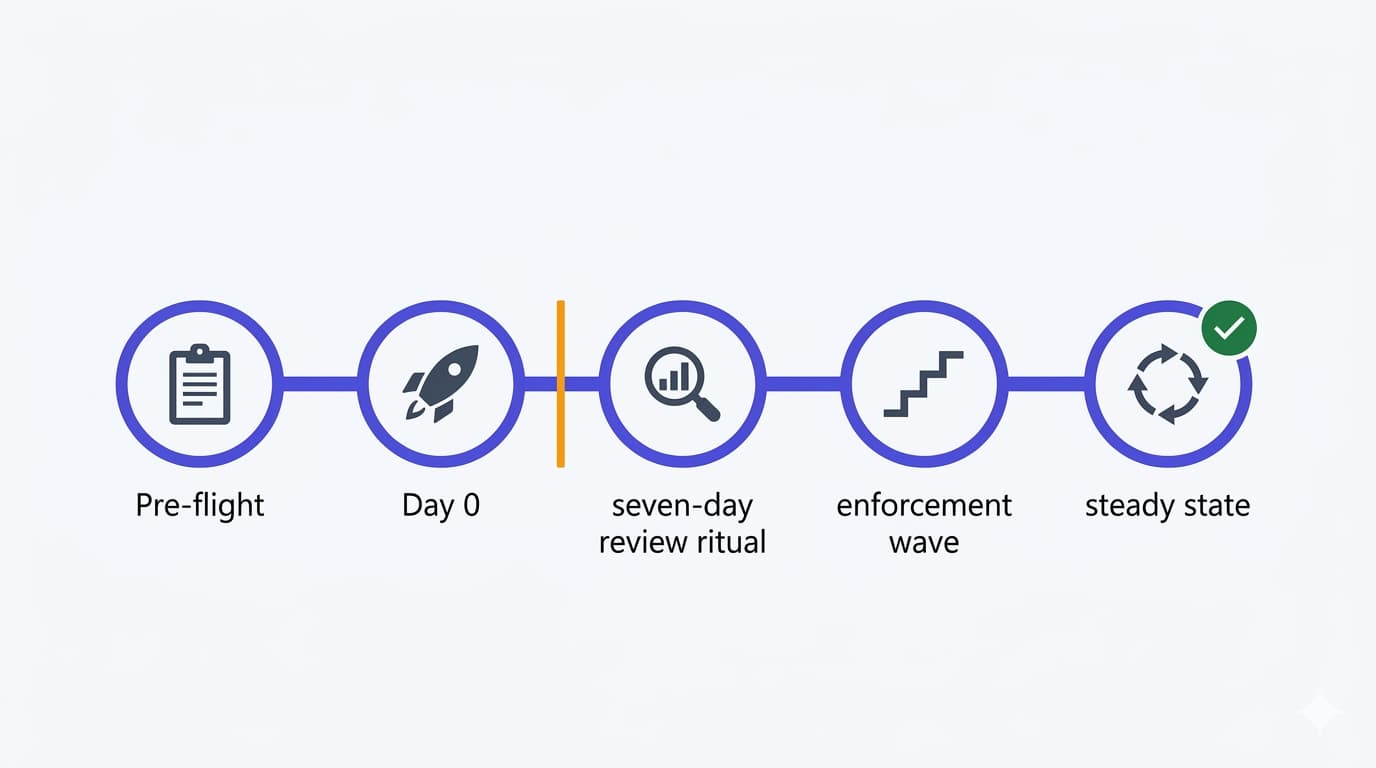
| order by enforced_fail_count descRun the first query after 24 hours in Report-only — that tells you the scale of what the policy would block. Run it again at day seven to confirm the count has stabilised and the top users are explainable. Only then promote to Enabled. The second query is your ongoing operational query — run weekly after enforcement to spot new failure modes (a new device fleet, a new third-party integration, a new office in an unexpected country) before they escalate into tickets.
Per-policy readiness checklist
Before flipping any policy from Report-only to Enabled, work this checklist from top to bottom. It is the same checklist I run against a client tenant before signing off a baseline, and it is short for a reason — eight items is enough.
-
Break-glass tested in the last 30 days Documented sign-in with the FIDO2 key, from a clean browser, confirming the exclusion is honoured.
-
All four
CA-Exclusions-*groups populated and reviewed Members match reality; every exclusion has an owner, a reason, and an end date (where applicable). -
Sign-in logs streaming to Log Analytics with at least one alert wired up Break-glass sign-in alert is live and has been test-fired in the last 90 days.
-
Policy is in Report-only for at least seven days Fourteen for Policy 6 (locations) if the organisation travels, and for Policy 7 (app protection) if mobile device population is heterogeneous.
-
Top-10 Report-only failures triaged and accounted for Every user/app pair in the top ten has a resolution path (migrate, enrol, exclude with expiry, accept).
-
Rollback path documented for this specific policy One-paragraph runbook: how to disable, what to preserve, who to notify, what tickets to open.
-
Change window communicated to the right audience Admins for Policies 3/4, all users for Policies 2/5/6/8, mobile users for Policy 7. One email, one Teams post, one help-desk heads-up.
-
Graph PowerShell snapshot of current CA policies captured The "before" JSON, committed or archived. Future-you will want this.
- Microsoft Learn — Conditional Access overview
- Microsoft Learn — Common Conditional Access policies
- Microsoft Learn — Block legacy authentication
- Microsoft Learn — Authentication strengths
- Microsoft Learn — Phishing-resistant MFA for admins
- Microsoft Learn — Filter for devices
- Microsoft Learn — Named locations
- Microsoft Learn — App protection policies with Conditional Access
- Microsoft Learn — Sign-in frequency and persistent browser
- Microsoft Graph PowerShell — SDK overview
- CISA — Implementing phishing-resistant MFA