Entra ID · Conditional Access · Identity · 2026
Security Defaults get most small tenants to "MFA is on for everyone", and that is a good starting point. But they do not scale. The moment you have a service account that cannot MFA, a travelling exec you need to exclude, or a third-party SSO app you want to protect differently, Security Defaults run out. This article is the opinionated Conditional Access baseline I deploy on every SMB Microsoft 365 tenant in 2026 — 8 policies, the order I roll them out in report-only, how I handle break-glass accounts, and the three mistakes that lock admins out of their own tenant.
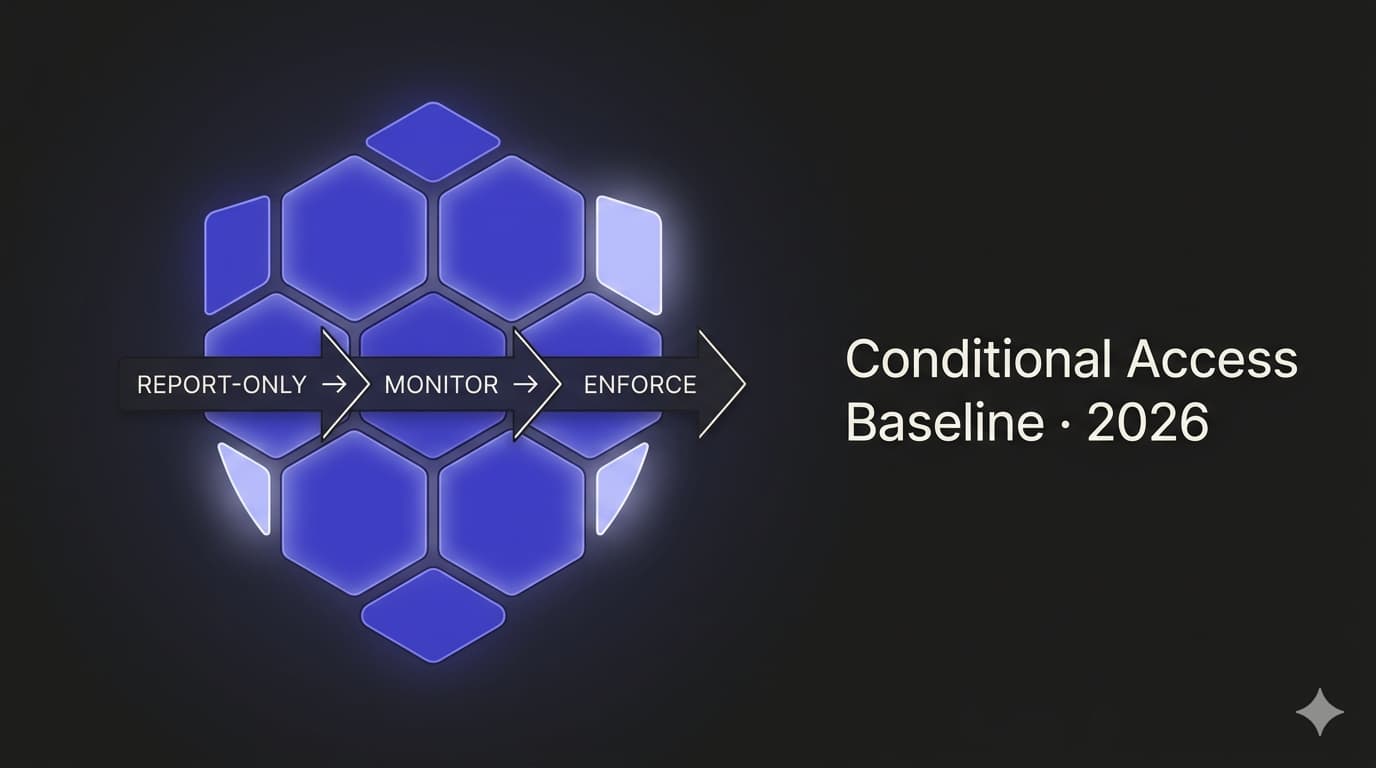
Report-only first. No exceptions, including break-glass verification. Report-only gives you seven days of real sign-in data before anyone is blockedCA-Exclusions-BreakGlass, CA-Exclusions-ServiceAccounts, CA-Exclusions-Travel. Policies stay clean, audits stay defensibleThe Conditional Access design space is large, and most SMB tenants never touch more than five percent of it. That is fine. You do not need every knob. You need a small, well-chosen set of policies that cover the actual threats a 50–500 seat company faces: credential phishing, password spray from unexpected geographies, legacy auth endpoints the attackers probe every day, unmanaged mobile devices leaking corporate mail, and admin accounts that sign in the same way as a sales rep.
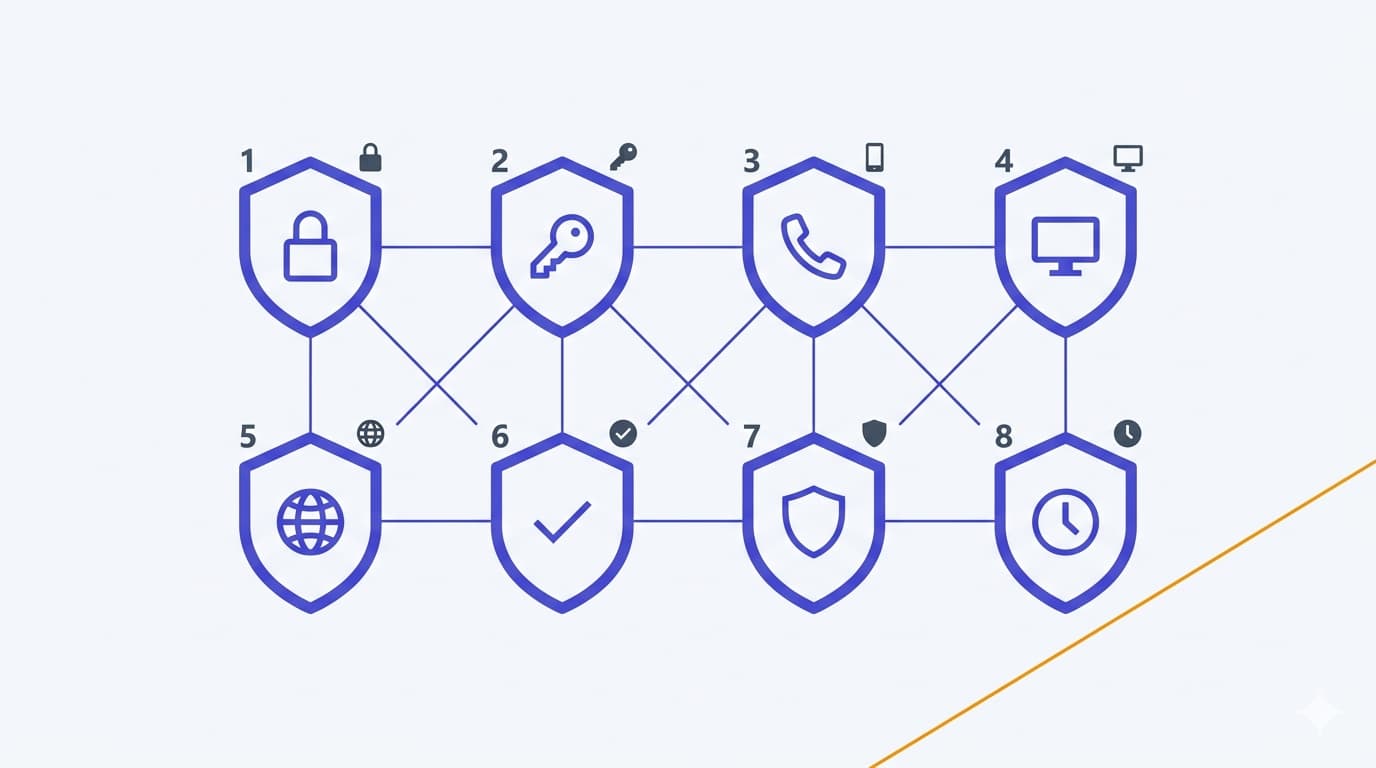
Eight policies cover that floor. Less than eight and you have gaps. More than eight and the next three articles' worth of policies are useful but diminishing returns at SMB scale — better addressed as targeted follow-ups ("block unmanaged Windows devices for HR apps", "require session persistence off for finance") than as baseline.
The policies here are designed to be deployed in order, in report-only, with named exclusion groups already in place. Skip steps and you will lock someone out. I am not exaggerating that: in twelve years of running Conditional Access projects, I have never seen a tenant get locked out from following the order below, and I have seen dozens get locked out from not following it.
Why this matters in 2026
Three things have shifted in the identity landscape over the last eighteen months that change how the SMB baseline should look.
The first is that MFA bypass via phishing-resistant-to-push-fatigue attacks is now routine. Attackers spin up fake Microsoft login pages using adversary-in-the-middle proxies, harvest the session cookie post-MFA, and replay it. SMS and push-approval MFA do not stop this. Only phishing-resistant methods — FIDO2 security keys, passkeys, Windows Hello for Business — actually do. Your baseline has to reflect that, at least for administrators.
The second is that Security Defaults are a floor, not a destination. Microsoft has been clear about this for years, but the 2026 gap is sharper: Security Defaults cover eight scenarios, do not support granular exclusions, and cannot be tuned. Any tenant with legitimate service accounts, mixed-device realities, guest access, or travel patterns outgrows them fast. The move from Security Defaults to Conditional Access is the moment where most SMBs either harden correctly or wire themselves a string of problems.
The third is that Entra ID P1 (included in Business Premium) is enough for a defensible Conditional Access baseline. You do not need P2 to build the identity and access layer — authentication strengths, device filters, named locations, sign-in frequency, and persistent browser session controls all sit inside P1. Controls such as device compliance and app protection depend on the broader management stack, typically Intune (also included in Business Premium). Identity Protection's risk-based policies are a worthwhile upgrade when budget allows, but they are an upgrade, not a prerequisite.
The four principles
Before the policies themselves, four decisions that shape how every policy in this baseline is built. Violate any of these and the policy stops being safe to deploy.
Report-only mode, left there for at least seven days, and reviewed via sign-in logs before being switched to On. Never deploy a policy directly enforced, even one that looks obvious.CA-Exclusions-BreakGlass. Any other exclusion gets its own named group, documented reason, and review date.CA-InScope-AllUsers) because they make phased rollout, exceptions, and rollback easier — you adjust membership instead of editing the policy. It is a design pattern, not a universal rule.The eight policies
Think of the set as two layers. Policies 1–6 are the core baseline — identity and access controls almost every SMB tenant should run. Policies 7–8 are the extended baseline — higher value once the core is stable, but they lean on Intune app protection and device state logic that can generate more troubleshooting in a young tenant. Deploy in the order shown; each depends on the ones before it being stable.
Core baseline · Policies 1–6
CA-InScope-AllUsers, except break-glass. Apps: All cloud apps. Grant: Require authentication strength → MFA. This replaces the Security Defaults MFA story with something you can actually tune. Use authentication strengths, not the legacy "Require MFA" checkbox.CA-InScope-AllUsers, except break-glass and CA-Exclusions-Travel. Apps: All cloud apps. Conditions: Location → include Any location, exclude your named "Allowed countries" location. Grant: Block access. Kills most credential-stuffing traffic before MFA even matters.Extended baseline · Policies 7–8
These two add meaningful mobile and browser hardening, but they depend on Intune (app protection) and device state logic. Roll them out after the core is stable — and be ready for more report-only triage than Policies 1–6 generated.
CA-InScope-AllUsers, except break-glass. Apps: Exchange Online, SharePoint, Teams, OneDrive. Conditions: Device platforms → iOS, Android. Grant: Require approved client app AND require app protection policy. Keeps corporate mail inside managed Outlook, not bleeding into the native iOS Mail app.CA-InScope-AllUsers, except break-glass. Apps: All cloud apps. Conditions: Client apps → Browser; Device state (preview) → device is not compliant. Session: Sign-in frequency 8 hours, persistent browser off. Limits the window a stolen session cookie can be replayed in.A light-touch option for assigning policies 2–8 consistently: create each policy in the portal, then export the tenant's current CA policies with Graph PowerShell for version control and documentation. This is the only snippet you really need on day one:
# Requires the Microsoft.Graph.Identity.SignIns module
Connect-MgGraph -Scopes "Policy.Read.All","Directory.Read.All"

Get-MgIdentityConditionalAccessPolicy -All |
  ConvertTo-Json -Depth 15 |
  Out-File -FilePath ".\ca-policies-$(Get-Date -Format yyyyMMdd).json"
Run that after every policy change. You now have a dated snapshot of your Conditional Access posture that you can diff, commit to a private repo, or hand to an auditor. Same module (Microsoft.Graph.Identity.SignIns) also supports New-MgIdentityConditionalAccessPolicy if you want to version your baseline as code, but for an SMB baseline, portal creation plus exported JSON documentation is plenty.
Break-glass accounts
If you do nothing else from this article, do this section. Break-glass accounts are the only reason a misconfigured Conditional Access policy does not turn into a business-hours incident.
The shape of a defensible break-glass setup: two cloud-only accounts on .onmicrosoft.com, FIDO2 keys stored in two physically separate locations, permanent Global Admin (not PIM), excluded from every policy via a named group CA-Exclusions-BreakGlass, with sign-in alerting on both accounts and a one-page runbook tested twice a year. Not SMS, not authenticator push, not email — only phishing-resistant factors survive the exact emergency these accounts exist for.
Report-only rollout
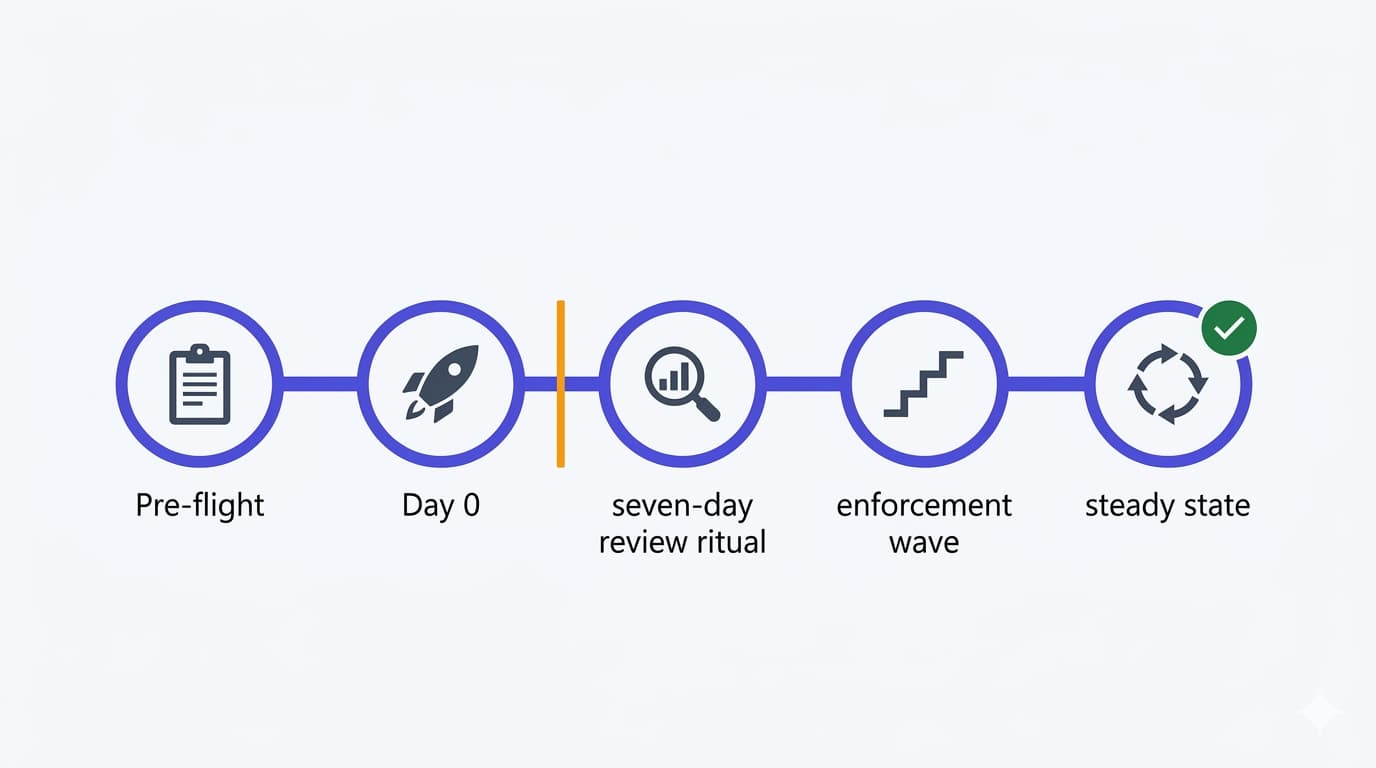
The order the eight policies go live in is not cosmetic — each one depends on the previous being stable. Rush it and you will catch either a legacy service account or a roaming exec, and the first time you notice will be a ticket.
The pattern for each policy, in order: create in Report-only → wait seven days → review sign-in logs filtered by that policy → use What If for the high-value scenarios (travelling exec, unmanaged BYOD, CEO's phone, the service account) → address exclusions with named groups and documented reasons → switch to On → monitor for 14 days before moving to the next. For an eight-policy baseline, the realistic calendar end-to-end is six to eight weeks, depending on how clean the tenant is going in. Rush it and you create incidents; drag it and you leave the tenant with half a baseline for months. Mid-pace is correct.
SMB-specific gotchas
These are the patterns that turn a clean baseline into a two-week incident. Seen them all, more than once.
One more that deserves its own paragraph: do not leave Security Defaults on at the same time as Conditional Access. Microsoft forces you to choose one or the other, but I have seen tenants accidentally re-enable Security Defaults during a managed service handover and end up in a confused state where MFA prompts behave inconsistently. Disable Security Defaults after your Policy 2 (Require MFA for all users) is enforced and stable — never before, never both.
Rollout checklist
-
Create two break-glass accounts on
.onmicrosoft.com, FIDO2 registered, permanent Global Admin Test sign-in with FIDO2 at least twice before deploying any CA policy. -
Create the named groups:
CA-Exclusions-BreakGlass,CA-InScope-AllUsers, any travel/service exclusions Every policy references these groups, not individual users. -
Enable sign-in log and audit log streaming to Log Analytics Minimum 30-day retention, alerts on break-glass sign-in.
-
Deploy all eight policies in Report-only, in order, leaving 7+ days between each Use the What If tool on each for the four or five highest-risk user scenarios.
-
Register at least one FIDO2 key or passkey per admin before switching Policy 3 to On Without this, Policy 3 locks admins out at the exact moment you need them.
-
Publish Intune app protection policies before flipping Policy 7 to On Outlook, Teams, OneDrive, SharePoint MAM policies must exist first or mobile sign-in fails.
-
Switch Security Defaults off after Policy 2 is enforced and stable Avoid running both at once, and avoid a window where neither is active.
-
Export the full CA policy set to JSON with Graph PowerShell Store dated snapshots. Re-export after every change.
-
Document policy set, owners, review cadence, and exclusion review date One-page runbook. Reviewed quarterly.
- Microsoft Learn — Conditional Access overview
- Microsoft Learn — Common Conditional Access policies
- Microsoft Learn — Block legacy authentication
- Microsoft Learn — Phishing-resistant MFA
- Microsoft Learn — Report-only mode
- Microsoft Learn — Emergency access admin accounts
- Microsoft Learn — Filter for devices
- NIST SP 800-63B — Digital Identity Guidelines
- CISA — Implementing phishing-resistant MFA