Entra ID · Conditional Access · Report-only · Troubleshooting · 2026
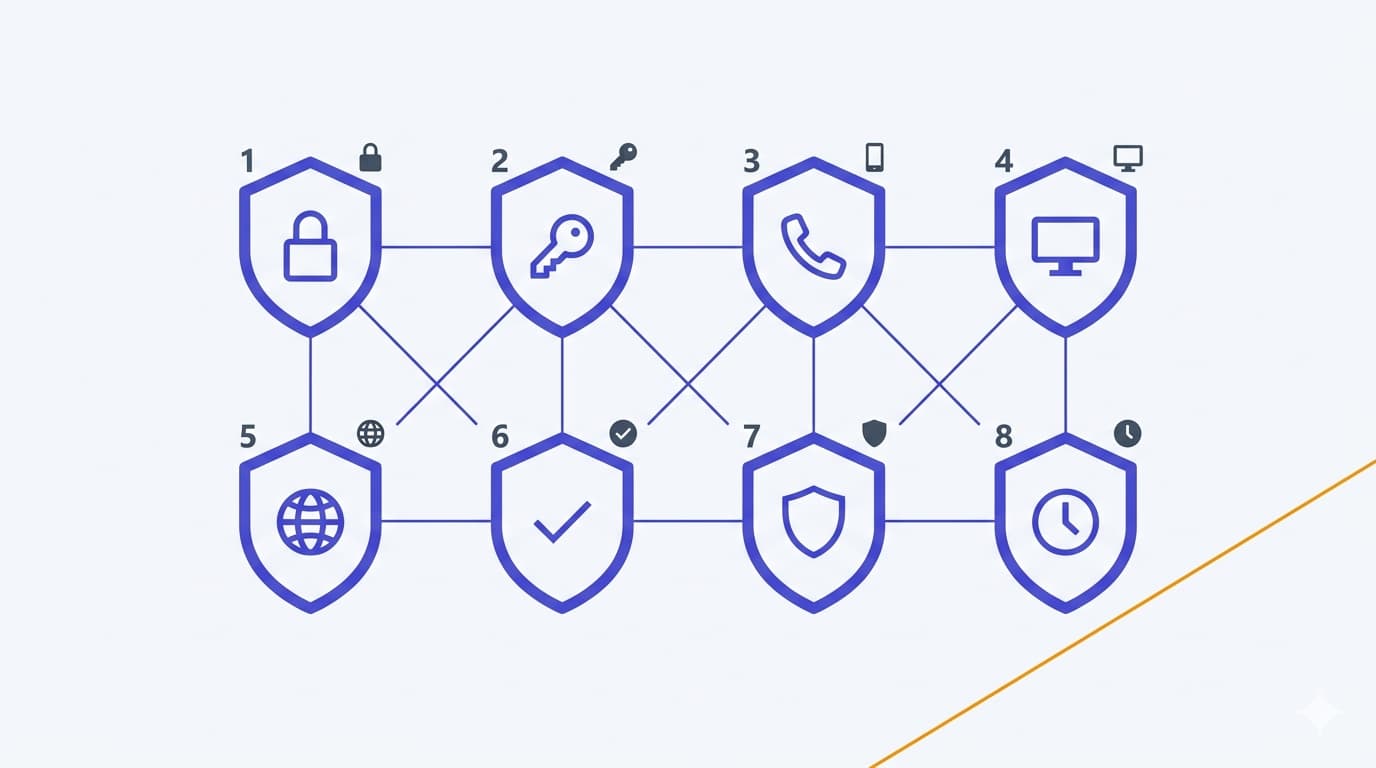
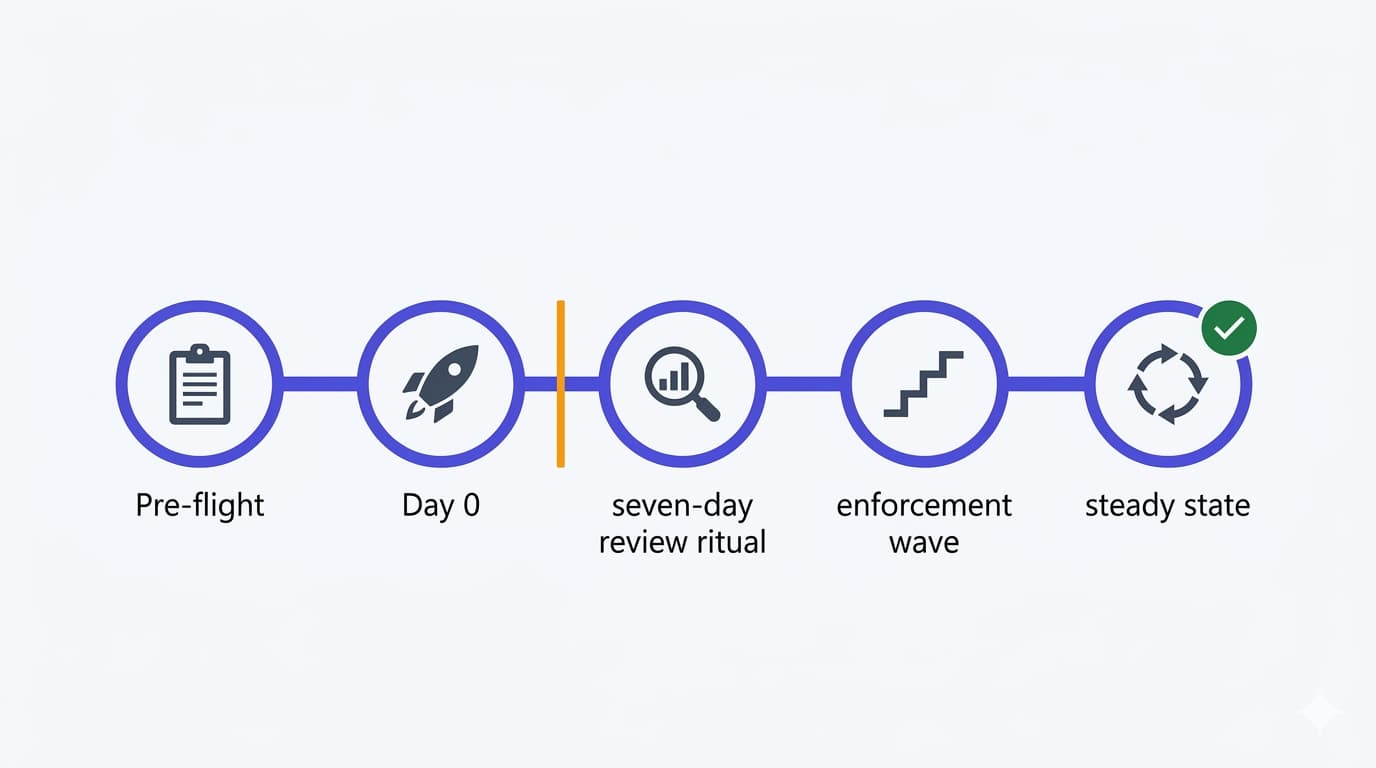
Part 1 set the baseline. Part 2 put the break-glass, exclusions, and logging in place. Part 3 walked every one of the eight policies end to end. Part 4 is the closing chapter — the disciplined, slightly boring rollout cadence that separates a defensible Conditional Access deployment from a Friday-evening incident call. Report-only is not a toggle; it is a workflow. This article is the playbook: pre-flight, Day 0 deployment, the seven-day review ritual, the enforcement wave, and the steady state — plus a compact KQL triage set, a worked What If scenario, the communication templates that keep users on your side, and the failure patterns that only show up once you move from Report-only to Enabled.
Why Report-only is a workflow, not a toggle
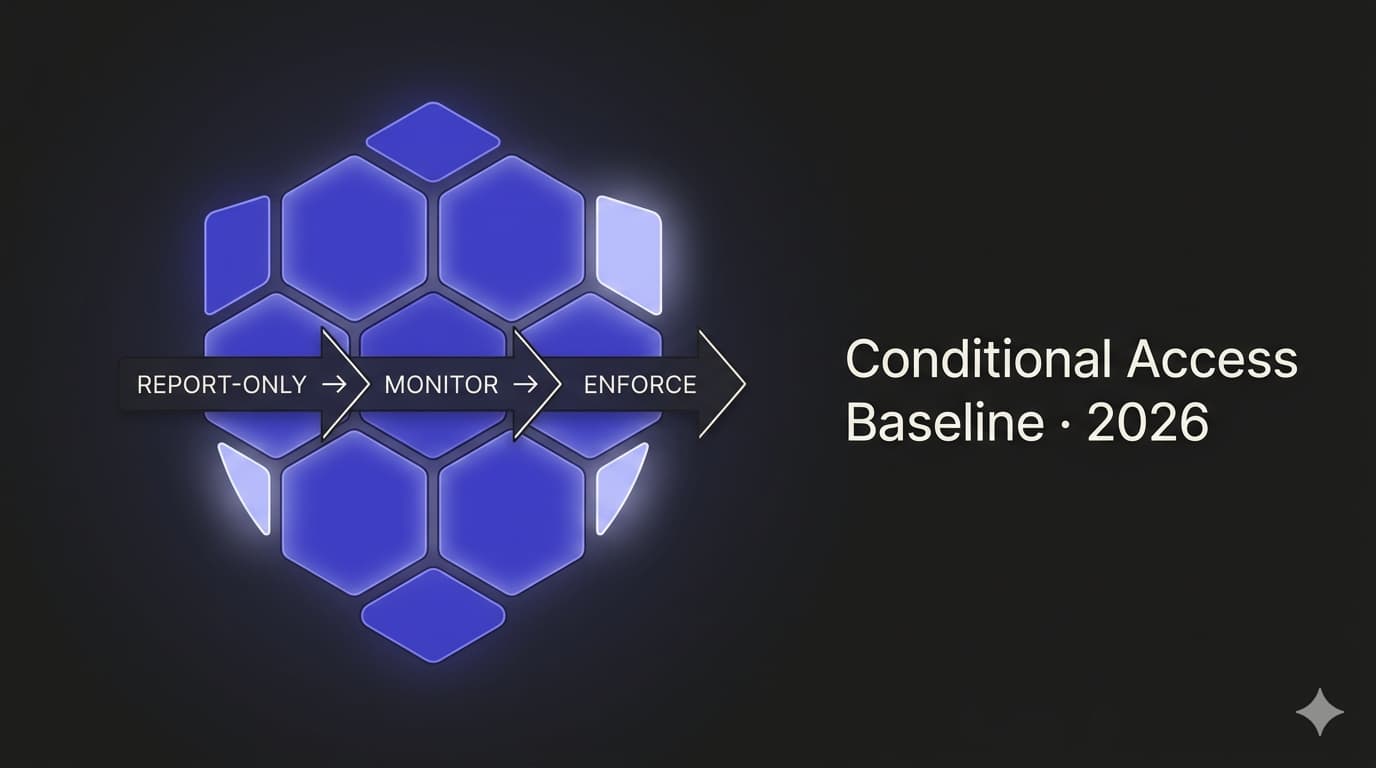
When a Conditional Access policy is set to Report-only, Entra ID evaluates the policy on every relevant sign-in and records whether it would have granted or blocked access — but does not change what actually happens. The sign-in proceeds as if the policy were off. That makes Report-only extraordinarily valuable for validation, because you can stage eight policies at once and watch the real-world impact against real users, real devices, and real apps for a full week before anything bites.
The failure mode is treating Report-only as just a setting. Admins click the toggle, declare the baseline "done", and move on. A week later, enforcement is flipped without ever reading the sign-in log data the Report-only run produced. That is how a policy that looked clean in Report-only turns into a Monday-morning outage — the data was there; nobody looked at it.
The discipline this article describes is simple: Report-only is only useful if you review the output daily for a meaningful window — a full week is a sensible minimum in most SMB tenants — and act on what you find. That turns the eight policies from a clicked-through baseline into a defensible, auditable deployment.
Phase 1 — Pre-flight (Day −7 to Day 0)
Before any policy goes into Report-only, the foundations from Part 2 must be in place. This is not optional. Every rollout that fails hard fails because someone skipped the pre-flight.
CA-Exclusions-BreakGlass. The four CA-Exclusions-* groups (BreakGlass, ServiceAccounts, Travel, TempAccess) populated and reviewed. Sign-in logs streaming into Log Analytics with at least one alert rule wired up for break-glass use. If any of these is missing, stop and go back to Part 2.CA-InScope-AllUsers, CA-InScope-Admins, CA-InScope-MobileUsers). Using named groups instead of All users is an SMB design pattern that keeps rollback surgical and staging deliberate — you can pull a specific cohort out of scope without touching the policy object.Get-MgIdentityConditionalAccessPolicy piped to a JSON file, timestamped and archived). This is your "before" picture and your worst-case rollback artefact.Phase 2 — Day 0 deployment (Report-only for all eight policies)
Day 0 is the smallest, most anticlimactic step in the whole rollout. You create the eight policies from Part 3, set every one of them to Report-only, and walk away. Nothing should change for any user. If anything does change, you shipped a bug — find it before you go further.
CA00x — description), CA-Exclusions-BreakGlass is in the exclusion list, the in-scope group is populated, the grant or session control is what Part 3 specified, and the state reads Report-only — not On, not Off.ConditionalAccessPolicies column should contain your new policies' names on any returned row. If the query fails, your diagnostic pipeline is broken and Report-only is blind.Phase 3 — The seven-day review ritual
This is the phase that determines whether Report-only was worth the effort. Every day for seven days, spend 15 minutes on the same three questions: which policies fired, on whom, and does the match look legitimate or like a misconfiguration? The KQL working set in the next section is what powers this review.
CA-Exclusions-Travel for the exec going to Dubai, migrate the five iPhone users off native Mail. Do not carry unresolved failure signal into the enforcement wave.Phase 4 — Enforcement wave (Day 7 to Day 21)
The enforcement wave is where the baseline actually starts working. The discipline is to flip one policy per day, in a sensible order, with a deliberate pause between each one. Do not batch-flip. Do not flip on a Friday. Do not flip before a holiday. The rollout order below is deliberate — it moves the lowest-friction, highest-value policies first and the highest-friction, most Intune-dependent policies last.
CA-Exclusions-Travel populated. Review travel exclusions one more time before flipping — this is the policy most likely to lock out a legitimate user mid-flight.Phase 5 — Steady state (Day 30+)
Once all eight policies are Enabled and the second-wave triage has settled, the baseline enters steady state. The discipline does not disappear — it just becomes lighter and periodic.
CA-Exclusions-Travel should be nearly empty; CA-Exclusions-TempAccess should have zero entries older than their intended expiry. Service accounts in CA-Exclusions-ServiceAccounts should all still be in use. Clean up stale entries.What If — a worked scenario
The What If tool in Entra (Protection → Conditional Access → What If) simulates a sign-in and shows you exactly which policies would apply, which would grant, and which would block. It is the most under-used tool in the Conditional Access blade. Use it whenever you are about to make a change that affects a specific user or scenario — especially named exclusions and travel approvals.
Scenario: travelling CFO
On Day 12 of the rollout (the day CA006 goes to Enabled), the CFO flies to Dubai for three days to meet an investor. Block unexpected countries does not allow UAE sign-ins. You need to predict whether the sign-in will fail, and decide whether to use CA-Exclusions-Travel.
CA006 — Block unexpected countries in the first list with result Block. That confirms your suspicion — the real sign-in would fail.CA-Exclusions-Travel with a three-day diary reminder to remove them. Re-run What If with the same inputs — CA006 should now appear in policies that would not apply (excluded). Document the decision: user, trip dates, approver, removal date. This is what your future auditor will look for.KQL triage set — the compact working set
Six queries cover 90% of the triage you will do across Phase 3 and steady state. All of them run against the SigninLogs table in Log Analytics (the workspace you wired up in Part 2). Tune time ranges to your cadence — daily during rollout, weekly in steady state.
1 · Report-only failures grouped by policy
The headline query during Phase 3. Shows which policies are firing and at what volume. Spikes indicate a communication gap or a misconfiguration.
SigninLogs
| where TimeGenerated > ago(24h)
| mv-expand ConditionalAccessPolicies
| extend PolicyName   = tostring(ConditionalAccessPolicies.displayName),
         PolicyResult = tostring(ConditionalAccessPolicies.result)
| where PolicyResult == "reportOnlyFailure"
| summarize Attempts = count(), Users = dcount(UserPrincipalName) by PolicyName
| order by Attempts desc
2 · Enforced failures grouped by policy and result
The headline query during Phase 4 enforcement wave and steady state. Real users are now being blocked — you need to know who, why, and how often.
SigninLogs
| where TimeGenerated > ago(24h)
| where ConditionalAccessStatus == "failure"
| mv-expand ConditionalAccessPolicies
| extend PolicyName   = tostring(ConditionalAccessPolicies.displayName),
         PolicyResult = tostring(ConditionalAccessPolicies.result)
| where PolicyResult == "failure"
| summarize Attempts = count(), Users = dcount(UserPrincipalName)
         by PolicyName, ResultType, ResultDescription
| order by Attempts desc
3 · Top users by Report-only failure count
Surface the ten users hitting Report-only failures the most. If the same user tops the list three days running, that is a migration or scope problem you need to act on before enforcement.
SigninLogs
| where TimeGenerated > ago(7d)
| mv-expand ConditionalAccessPolicies
| extend PolicyName   = tostring(ConditionalAccessPolicies.displayName),
         PolicyResult = tostring(ConditionalAccessPolicies.result)
| where PolicyResult == "reportOnlyFailure"
| summarize Failures = count(), Policies = make_set(PolicyName)
         by UserPrincipalName
| top 10 by Failures desc
4 · Legacy auth attempts (Policy 1 signal)
Before flipping CA001 to Enabled, confirm the legacy auth pattern. Any attempts here will be blocked the moment you enforce — know what you are about to block.
SigninLogs
| where TimeGenerated > ago(7d)
| where ClientAppUsed in ("Exchange ActiveSync", "Other clients",
                       "IMAP", "POP", "SMTP",
                       "Authenticated SMTP")
| summarize Attempts = count(), Users = dcount(UserPrincipalName)
         by ClientAppUsed, AppDisplayName
| order by Attempts desc
5 · Mobile client-app breakdown (Policy 7 signal)
Before flipping CA007, you want to know how many iPhone and Android users are still on native Mail or non-approved clients. The output drives the migration communication.
SigninLogs
| where TimeGenerated > ago(7d)
| where DeviceDetail.operatingSystem in ("iOS", "Android")
| summarize Signins = count(), Users = dcount(UserPrincipalName)
         by tostring(DeviceDetail.operatingSystem), ClientAppUsed, AppDisplayName
| order by Signins desc
6 · Conditional Access policy change audit
Who changed what, when. The post-incident and steady-state accountability query. Runs against AuditLogs, not SigninLogs.
AuditLogs
| where TimeGenerated > ago(30d)
| where Category == "Policy"
| where OperationName has "conditional access policy"
| project TimeGenerated, OperationName,
           Actor    = tostring(InitiatedBy.user.userPrincipalName),
           Target   = tostring(TargetResources[0].displayName),
           Result   = tostring(Result)
| order by TimeGenerated desc
Troubleshooting catalogue — enforcement-only failures
These are the failure patterns that Report-only typically under-represents. They surface in the 24–72 hours after a policy flips to Enabled. None of them are show-stoppers; all of them benefit from being recognised quickly rather than diagnosed from scratch.
Cause: a policy you enforced late yesterday has bitten only now because the user's refresh token was still valid. Tokens cache for up to an hour (access) or much longer (refresh) depending on configuration, so enforcement can take time to propagate. Fix: ask the user to sign out fully (clear browser session, sign out of mobile apps) and sign back in. If the pattern is widespread, consider revoking refresh tokens for the affected cohort via Revoke-MgUserSignInSession.
Cause: Entra ID has not yet picked up the Intune compliance state for that device. There is a short propagation window between Intune marking a device compliant and Entra seeing it. Fix: confirm compliance in Intune → Devices → All devices → <device> → Device compliance, then wait 15–60 minutes and retry. Persistent failures usually mean the device is joined but not hybrid-joined correctly, or the Intune compliance policy has an unmet requirement the admin cannot see.
Cause: cross-tenant access settings determine whether your tenant accepts the guest's home-tenant MFA or forces a re-prompt. The default is re-prompt, which is secure but user-friction-heavy. Fix: review External Identities → Cross-tenant access settings. If you want to trust a specific partner tenant's MFA, configure inbound trust deliberately per partner — do not flip it on globally. Keep a record of which partners you trust and why.
Cause: changes to named locations do not always take effect on existing sessions immediately. Active sessions continue to evaluate against the old definition until they refresh. Fix: for a pressing change (e.g. adding a new office IP), expect up to an hour of propagation. For permanent network changes, update the named location ahead of the migration window — do not do it the morning of.
Cause: a workload identity (service principal) was signing in with user credentials and got caught in All users scope. Under Report-only it logged as a failure but continued; under enforcement it is now blocked. Fix: move the workflow off user credentials onto a proper service principal or managed identity. As an interim measure, add the specific account to CA-Exclusions-ServiceAccounts — but document the migration plan, do not let the exclusion become permanent.
Cause: the authentication strength assigned to CA003 requires a specific phishing-resistant method, but the admin is attempting to authenticate with a method not in the allow-list (e.g. Authenticator push when the strength requires FIDO2). Fix: verify the authentication strength definition in Protection → Authentication methods → Authentication strengths. Confirm the admin's registered methods include at least one that matches. This is usually a gap in admin onboarding rather than a policy misconfiguration.
Cause: CA008's device filter is matching devices it shouldn't — usually because the trustType or isCompliant attribute is written in a way that does not recognise your real managed devices. Fix: run the mobile/browser signal query (KQL #5, adapted) grouped by DeviceDetail.isCompliant and DeviceDetail.trustType. Compare the values you see against the filter expression. Adjust the expression; validate with What If; re-test. Never relax sign-in frequency just because users complain — that is the wrong lever.
Communication templates
Three short templates cover the rollout comms needs. Each is deliberately practical — not marketing, not corporate — and assumes your users are adults who can handle a direct explanation of what is changing and why.
Subject: Stronger sign-in security starting <date>
Hi team — starting <date>, you will see stronger sign-in prompts when accessing Microsoft 365. Most of the time this means a second step (your Authenticator app or a security key) when you sign in on a new device or after a period of inactivity.
What you need to do before <date>: confirm your Authenticator app is working, and check your registered methods at https://mysignins.microsoft.com/security-info. If you do not have the Authenticator set up, follow the guide at <internal link>.
Why we are doing this: the most common cause of account compromise is stolen passwords. A second factor stops that attack cold.
If anything breaks, contact the help desk on <channel>.
Subject: Sign-in security is now active
The stronger sign-in prompts mentioned last week are now in place. You should see a multi-factor prompt on your next sign-in from any new device.
Expected today: a short help-desk spike as people re-register methods, then back to normal. If you cannot sign in, call the help desk directly — do not ask a colleague for their password. We will never ask you for your MFA code over email, chat, or phone.
Mobile users on the iOS native Mail or Android Gmail apps: you will need to switch to Outlook for work email. Guide: <internal link>.
Subject: Sign-in prompt change reverted — action not required
The sign-in change applied at <time> today has been reverted while we investigate an issue affecting <affected cohort>. No action is required from you — sign-in behaviour has returned to what you saw yesterday.
We will communicate again before the next attempt. If you experienced issues today and are still blocked, contact the help desk on <channel>.
Post-incident review pattern
When a policy bites harder than expected and causes a real incident, the goal is not punishment — it is learning. A consistent, short post-incident pattern turns one-off pain into lasting improvement.
Completion checklist — the series is done
This is the gate for the whole four-part series. If every box below is ticked, your Conditional Access baseline is deployed, validated, and defensible.
-
Part 2 foundations confirmed in place Break-glass accounts tested this quarter, all four
CA-Exclusions-*groups populated and current, Log Analytics streaming with at least one break-glass alert rule. -
All eight baseline policies Enabled CA001–CA008 in the state you intended, matching the Part 3 design. No unintended Off or Report-only remnants.
-
Seven-day review ritual executed Daily review log captured for the seven days preceding each enforcement flip. Top failures triaged; top-10 users migrated or excluded with documentation.
-
KQL queries saved and scheduled At minimum, the Report-only failures and enforced failures queries pinned in Log Analytics, with a weekly review cadence and an owner.
-
Graph PowerShell snapshot archived Pre-rollout and post-rollout JSON snapshots of the full CA policy set, stored somewhere durable. Your diff-friendly baseline-as-code.
-
Communication log complete Pre-enforcement notice, D-Day announcement, and any rollback notices sent and archived. Help-desk brief documented.
-
Incident post-mortems captured If anything broke, a one-page review exists. If nothing broke, a one-line "no incidents" note with the rollout owner's name is equally valid.
-
Quarterly review scheduled Calendar entry for 90 days from steady-state: break-glass re-test, exclusion hygiene, policy drift check. Conditional Access is not a set-and-forget control.
- Microsoft Learn — Conditional Access Report-only mode
- Microsoft Learn — Conditional Access What If tool
- Microsoft Learn — Troubleshoot sign-in problems with Conditional Access
- Microsoft Learn — Sign-in logs in Microsoft Entra
- Microsoft Learn — Continuous access evaluation
- Microsoft Learn — Token lifetime and refresh behaviour
- Microsoft Learn — Named locations
- Microsoft Graph — Conditional Access API
- Microsoft Learn — Kusto Query Language (KQL) reference
- CISA — Secure Cloud Business Applications (SCuBA)