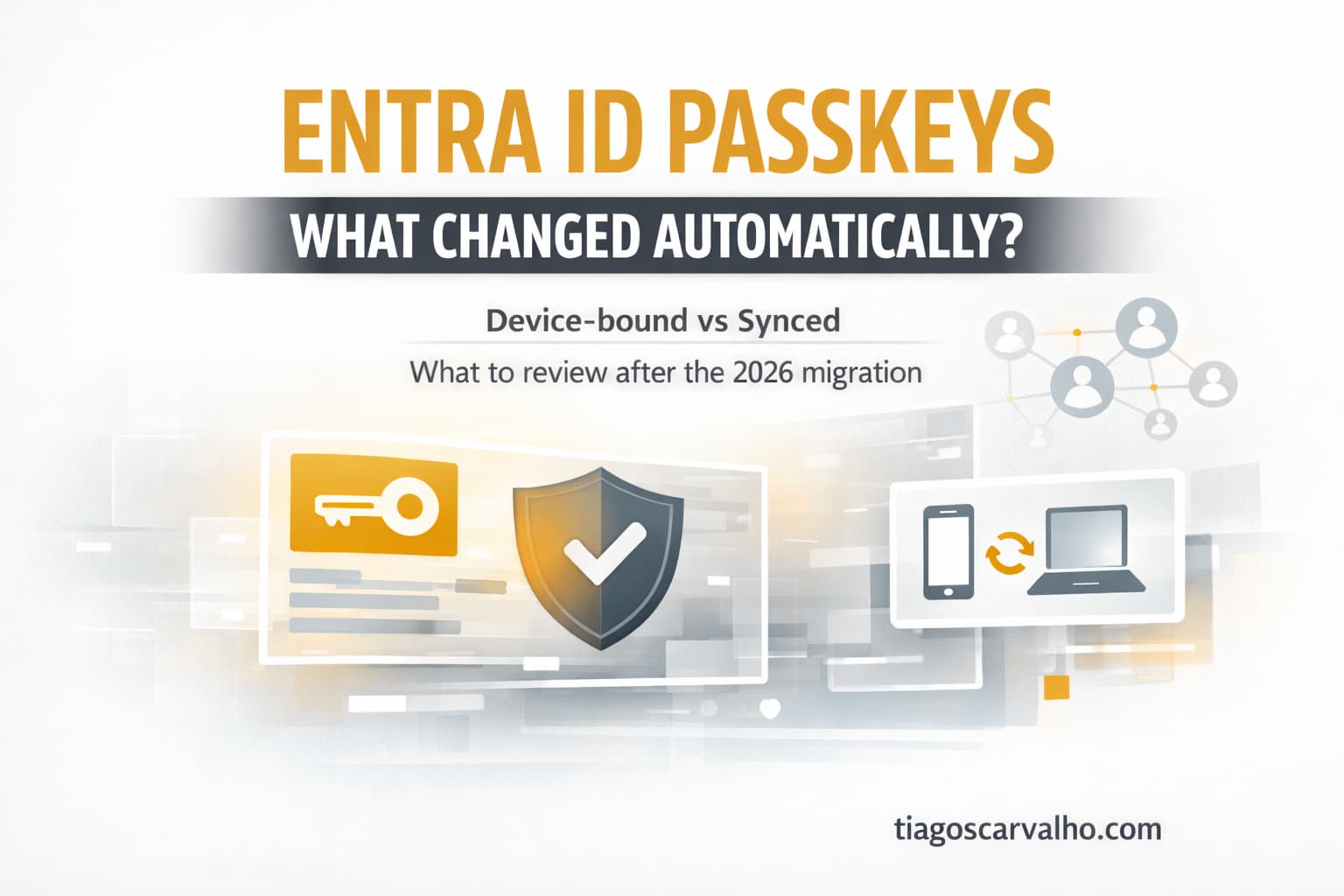
Microsoft Entra ID passkey profiles reached General Availability in March 2026. The change replaced the existing flat Passkey (FIDO2) authentication method configuration with a profile-based model that supports group-level targeting, a new passkeyType property, and explicit control over device-bound versus synced passkeys.
For tenants that had Passkeys (FIDO2) already enabled and did not manually opt in to passkey profiles before the automatic migration window, Microsoft migrated the existing configuration into a Default passkey profile — starting in April 2026. The migration preserves existing user targeting and key restrictions, but the defaults applied may not match the security posture you intended, particularly around synced passkeys and registration campaign behaviour.
This article covers what changed, which tenants are affected, what the migration did to your configuration, and the specific settings to review and adjust now that passkey profiles are active.
passkeyType property is new and critical. It controls whether users can register device-bound passkeys, synced passkeys, or both. The value assigned during auto-migration depends on your attestation settings at the time of migration — not a choice you explicitly made. Review it.passkeyType defaults that may have changed passkey behaviour in your tenant — particularly whether synced passkeys are now allowed — without requiring any admin action.Timeline — what happened and when
-
Early March 2026GA rollout begins — worldwidePasskey profiles and synced passkeys reach General Availability. Admins can opt in to passkey profiles manually. Existing FIDO2 configurations remain unchanged until the automatic migration window.
-
Late March 2026GA rollout complete — worldwideAll worldwide commercial tenants have access to passkey profiles. Opt-in still voluntary.
-
Early April 2026Automatic migration begins — worldwideTenants with Passkeys (FIDO2) enabled that have not opted in are automatically migrated to passkey profiles. Existing FIDO2 settings migrate to a Default passkey profile. Registration campaign changes apply to Microsoft-managed tenants.
-
Late May 2026Automatic migration complete — worldwideAll affected worldwide commercial tenants are now using passkey profiles.
-
April–June 2026GCC / GCC High / DoDGA begins in early April 2026. Automatic migration begins in early June 2026 and completes late June 2026.
Device-bound vs synced passkeys — what the distinction means
The passkeyType property introduced with passkey profiles makes the distinction between these two models explicit and configurable. Understanding the difference matters for choosing the right profile settings.
What the automatic migration changed in your tenant
If your tenant was automatically migrated, here is exactly what happened to each part of your configuration.
passkeyType set to allow both device-bound and synced passkeys. If your security policy requires device-bound only — hardware keys, no cloud-synced passkeys — you need to update the Default passkey profile explicitly. The migration did not change your attestation setting, but it did set passkeyType based on it.What to review now
Most tenants only need to review a handful of settings — but those settings matter. The three areas below cover the changes most likely to have an operational impact.
1 — Check passkeyType in your Default passkey profile
Navigate to Entra admin center → Protection → Authentication methods → Passkeys (FIDO2) → Passkey profiles. Open the Default passkey profile and check the passkeyType setting. Confirm it matches your intended security posture: device-bound only, synced only, or both. If the value does not match your intent, update it now — this is the most operationally important review item.
2 — Check your registration campaign if it was Microsoft-managed
If your registration campaign was in Microsoft-managed state, verify whether users have started receiving passkey registration prompts. Check the Authentication methods activity report for a spike in passkey registrations. If you want to control the rollout more carefully — targeting only specific groups or continuing to push Authenticator — switch the campaign from Microsoft-managed to Enabled state and configure the target explicitly.
3 — Review Conditional Access policies that reference authentication strength
Passkey profiles change the underlying FIDO2 configuration schema. If you have Conditional Access policies that enforce phishing-resistant MFA or specific authentication strengths, verify they still evaluate correctly after the migration. Pay particular attention to policies that require compliant or managed devices — synced passkeys enabled on personal devices can create authentication failures if those devices are not compliant.
Configure passkey profiles — beyond the Default
The Default passkey profile covers all users not targeted by a custom profile. For most organisations, creating at least one additional profile for privileged accounts is worth doing now that the profile-based model is in place.
passkeyType to Device-bound only, enable attestation enforcement, and restrict AAGUIDs to approved hardware key models. Assign to Global Admins, Privileged Role Admins, and Security Admins. Privileged accounts should not use synced passkeys from cloud providers.Conditional Access — what to verify
Passkey profiles change the FIDO2 configuration schema but are designed to be backwards-compatible with Conditional Access. There are two scenarios worth explicitly verifying.
Review checklist
- Confirm whether your tenant was auto-migratedCheck Message Center for MC1221452 and review whether Passkeys (FIDO2) was enabled in your tenant before March 2026. If it was enabled, your tenant was migrated. Navigate to Entra admin center → Protection → Authentication methods → Passkeys (FIDO2) and confirm passkey profiles are now active.
-
Review passkeyType in the Default passkey profileOpen the Default passkey profile and check the
passkeyTypesetting. If your attestation was not enforced at migration time,passkeyTypewill be set to allow both synced and device-bound. Confirm this matches your intended posture — if you require device-bound only, update the profile now. - Check registration campaign state and targetIf your campaign was Microsoft-managed, verify whether the target authentication method has shifted to passkeys (FIDO2) and whether the broader user targeting has caused unexpected registration prompts. Switch to Enabled state if you need explicit control over rollout scope and timing.
-
Create a separate profile for privileged accounts with device-bound onlyCreate a custom passkey profile with
passkeyTypeset to device-bound only, attestation enforced, and AAGUID restrictions for approved hardware key models. Assign it to Global Admins, Privileged Role Admins, and other high-value accounts. - Verify Conditional Access policies that reference authentication strengthTest that phishing-resistant MFA or FIDO2-specific CA policies still evaluate correctly after the migration. Particularly check policies that combine authentication strength with device compliance requirements.
- Review synced passkey behaviour against device compliance policiesIf synced passkeys are now enabled (passkeyType allows both), identify whether users can authenticate from personal devices where the passkey syncs. If your CA policies require device compliance, determine whether this creates an authentication path that then hits a compliance block.
- Update helpdesk runbooks and user communicationsIf the registration campaign now targets a broader user group, helpdesk may receive tickets about unexpected passkey registration prompts. Brief the support team on what passkeys are, why users are seeing prompts, and how to assist with registration. Update any user-facing documentation that references MFA methods.
- Review authentication methods activity report for anomaliesEntra admin center → Protection → Authentication methods → Activity. Check for spikes in passkey registrations around the migration window and confirm the registrations look legitimate — expected users, expected locations. Flag unexpected registration patterns for investigation.
- Document your intended passkey posture for standard users vs privileged accountsThis is the central architectural decision: which users get device-bound only, which get synced allowed, and which hardware models are approved. Document it explicitly so the configuration can be reviewed, updated, and handed over without ambiguity. Passkey profile settings are easy to change — the posture decision behind them should not be implicit.
- Microsoft Learn — Enable passkeys (FIDO2) in Entra ID
- Microsoft Learn — Passkeys (FIDO2) in Entra ID — concept
- Microsoft Learn — Enable passkeys in Microsoft Authenticator
- Microsoft Learn — Authentication strength — Conditional Access
- Microsoft Learn — FIDO2 compatibility and supported configurations