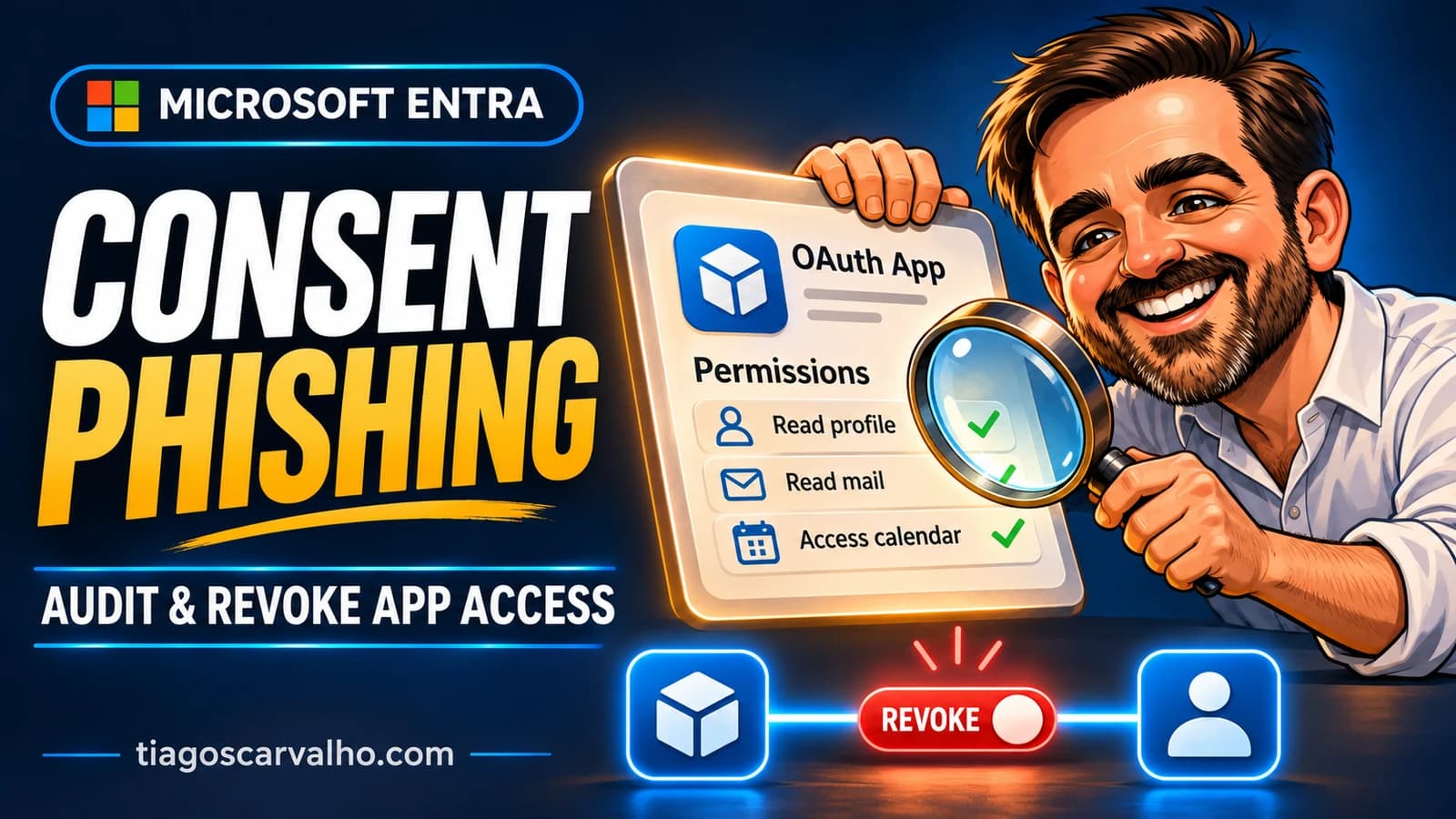
A user calls the help desk after clicking Accept on a Microsoft permissions screen. The first question I would ask is which application they approved and what it can now do. A successful sign-in tells us who authenticated. The permission grant tells us who can act, on whose behalf and against which resource.
We followed one internal application and one standard account from consent to revocation. The app could read the pilot’s own Microsoft Graph profile even though the pilot could not find the app in My Apps. After we removed the individual grant, Microsoft asked for permission again. The lab below shows where to find the grant, which five fields to check before removing it, and how to verify the result.
1. Read the tenant policy
In the Microsoft Entra admin center, open Entra ID → Enterprise apps → Consent and permissions → User consent settings. Record the selected option and any additional checkboxes. We found Let Microsoft manage your consent settings selected, with consent for popular mail clients enabled. That exception applies to the clients and permissions Microsoft lists. It does not establish that a newly registered application can read mail.
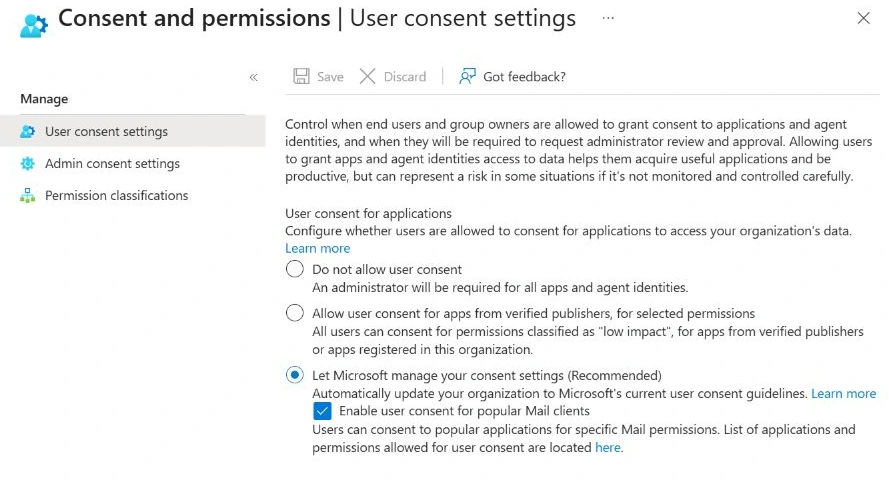
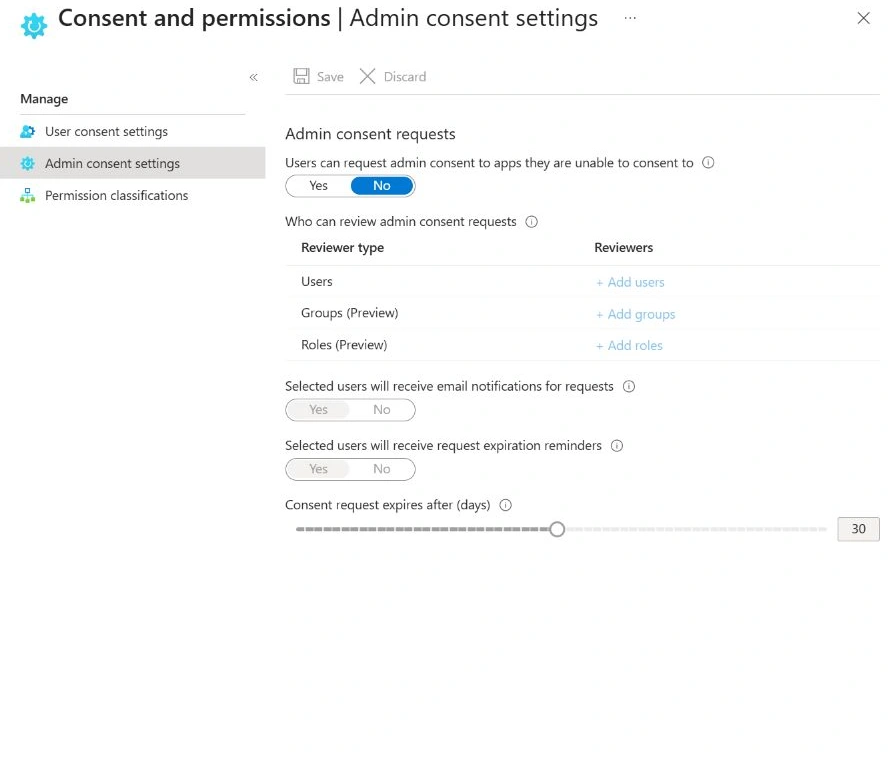
Open Admin consent settings. Our tenant had No selected for user requests. If Entra requires administrator approval, the pilot user cannot submit a request through that workflow. In a tenant with the workflow enabled, capture the request and reviewer’s decision separately. Approving on behalf of the whole organization expands the scope beyond this pilot.
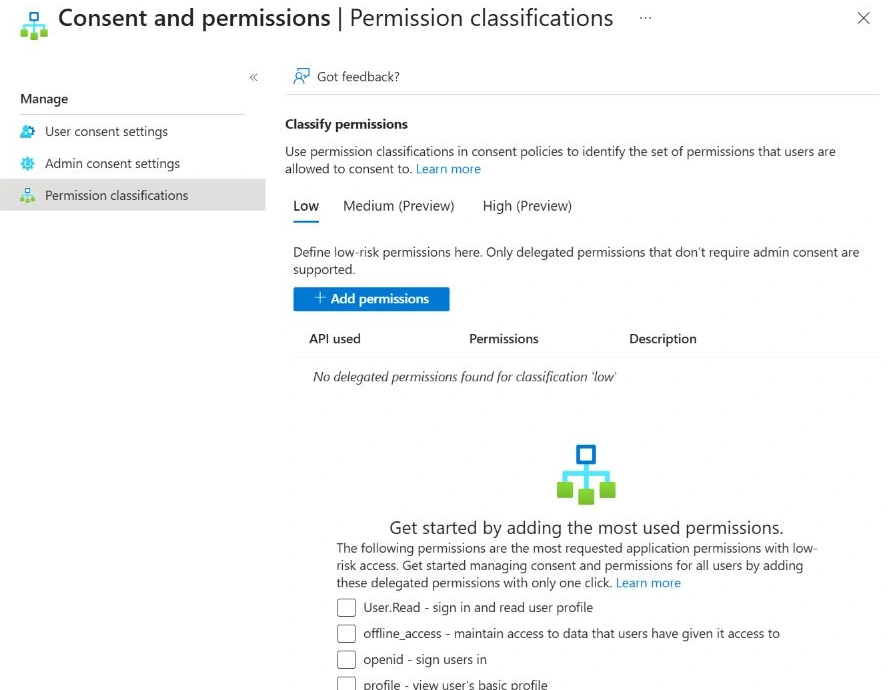
Under Permission classifications → Low, we found no manually classified delegated permissions. This list and the Microsoft-managed policy answer different questions. Read the classification list alongside the selected policy, and test the application to establish the effective result. A change to the default consent setting affects future consent operations across the tenant. Existing grants require a separate review.
2. Register a single-tenant test application
Use separate sessions for the admin and the pilot account. You need permission to register a local application, read its enterprise application and view the relevant audit logs. The pilot account must be a member without an administrator role. For the downloadable client, use a current Node.js LTS release on a machine with access to Microsoft sign-in and Graph, and an available local port 61741.
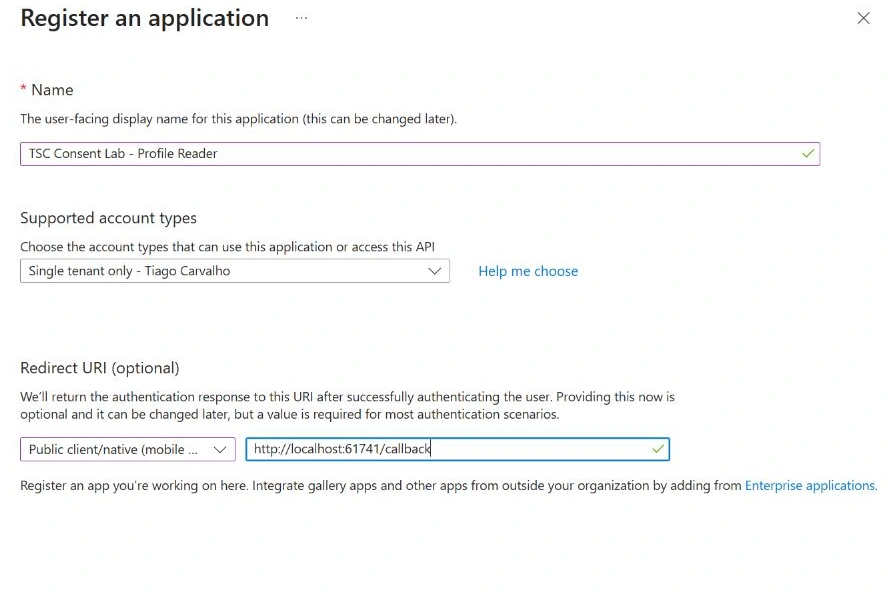
- Go to Entra ID → App registrations → New registration. Give the app a distinctive lab name and choose Single tenant only.
- Set the redirect platform to Public client/native (mobile & desktop) and the URI to
http://localhost:61741/callback. Register the application. This loopback client uses the authorization code flow with PKCE. - In API permissions, verify that the only configured API permission is Microsoft Graph User.Read · Delegated. The pilot needs no client secret. Record the Application (client) ID and Directory (tenant) ID privately.
- On Overview → Managed application in local directory, open the enterprise application and record its Object ID. The registration and its service principal share a client ID, but have distinct object IDs. Use the enterprise application’s Object ID in the inventory script.

3. Establish what has actually been granted
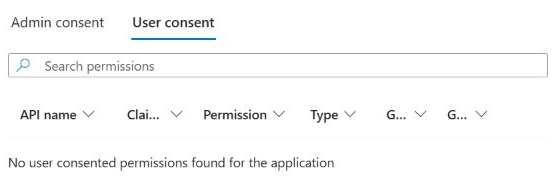
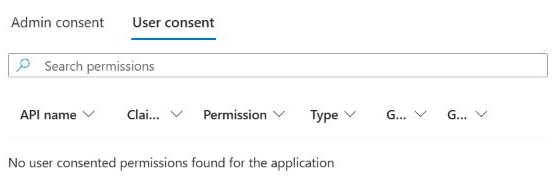
Open Enterprise apps → the exact lab application → Permissions. Check both Admin consent and User consent. Before the pilot signed in, both views were empty. Keep the before image, the UTC time and the enterprise application Object ID together. Another app can have the same display name.
| Record | What it establishes | What to inspect |
|---|---|---|
| Configured API permission | The application declares that it wants a permission. | Resource, permission name and delegated or application type. |
| Delegated grant | The client can request the listed scopes on behalf of a user. Access also depends on that user’s rights. | Principal identifies one user. AllPrincipals covers users throughout the tenant. Check the client service principal, resource, principal ID and scopes. |
| Application role assignment to the client service principal | The client has an app role on the resource. For Microsoft Graph application permissions this is app-only access. | Resolve the role ID against the resource service principal’s appRoles. User or group assignments to a client application answer a different question. |
4. Sign in as the pilot user
Download the local pilot client. Set these values in PowerShell on the test machine. The client listens on loopback, requests User.Read, keeps the token in memory and compares the returned account with the pilot UPN. The result page shows the outcome without displaying the UPN or token.
$env:LAB_TENANT_ID = '<directory tenant ID>'
$env:LAB_CLIENT_ID = '<application client ID>'
$env:LAB_PILOT_UPN = '<standard pilot account UPN>'
node .\Start-ConsentPilot.mjs
Open http://localhost:61741/ in the pilot browser profile and select Start initial test. Sign in directly with Microsoft. Match the account, application and permission before accepting. If the prompt asks to read messages or files, or to consent on behalf of the organization, stop and check the client ID and requested scopes. A separate line about maintaining access can appear with delegated consent. The retest below shows the wording we saw.
If user consent is allowed, capture the prompt before accepting. The positive control is an HTTP 200 for GET /v1.0/me?$select=userPrincipalName with the pilot account match set to true. Then refresh the app’s User consent view. If Entra requires an administrator, capture that page and determine whether the configured workflow permits a request. A blocked test establishes a prevention result. It does not exercise revocation.
5. Trace the grant back to the app
The enterprise app now showed one user with delegated Microsoft Graph User.Read. Opening the user count matched the pilot account. The Admin consent tab remained empty. Using the existing grant in a fresh authorization flow, our client read the pilot’s own profile at 08:50 UTC on 4 November 2026.
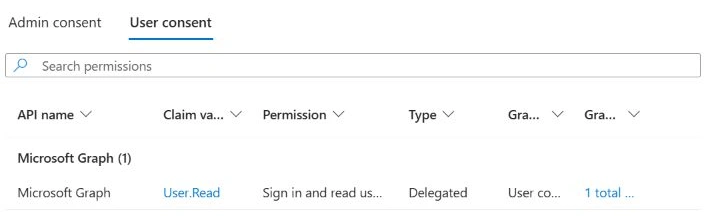
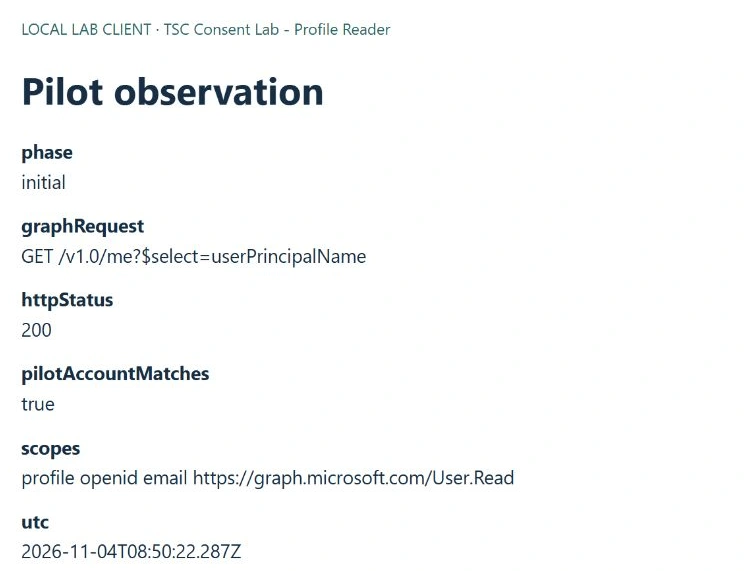
The response also listed openid, profile and email. These are identity scopes. The email scope concerns the signed-in user’s email address. Reading messages would require a mailbox permission. The operation we verified was a single read of the pilot’s own profile.
In the application’s Audit logs, set a time window around the run. Look for consent and delegated permission grant activity, open the event and compare its target, actor, time and modified properties with the client and service principal IDs you recorded. Inspect Sign-in logs for the same app and pilot identity. Record the time zone and result of each search. A sign-in event alone cannot establish what API operation occurred.
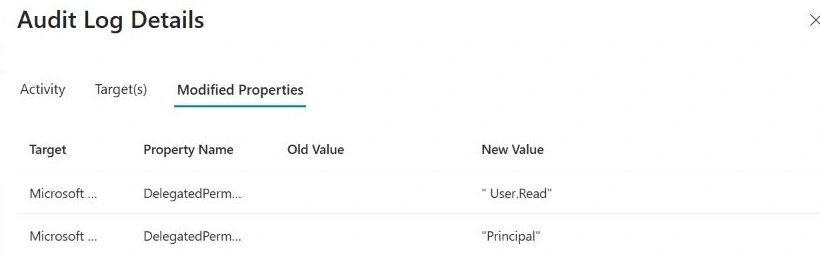
At 08:43 UTC the application log recorded Consent to application and Add delegated permission grant, both successful. For the latter event, Modified Properties showed User.Read and Principal. We compared its principal ID to the pilot identity and the service principal ID to the enterprise application. A separate entry at that time concerned an app role assignment to the user. Its presence alone would not establish the Graph scope.
For an incident, also check the publisher, owners, service principal state, all delegated grants and app roles, and the business reason for each permission. An empty search can reflect an incorrect time window, reporting delay, retention or missing access. Microsoft Graph activity logs, where already configured, can help investigate subsequent API calls. The local client records the outcome of each profile request.
Download the read-only grant inventory. An administrator runs it with a separate, approved reporting identity and Microsoft.Graph.Authentication. The reporting client needs delegated Directory.Read.All for the delegated grant listing and a supported directory role such as Directory Readers. Keep this tenant-wide read permission separate from the pilot application’s User.Read.
Open a second PowerShell window so the pilot client can keep running. Set the tenant ID and enterprise application Object ID recorded in step 2. For the pilot’s Object ID, open Entra ID → Users → the pilot account → Overview. Keep this window open for step 6.
[guid]$tenantId = '<directory tenant ID>'
[guid]$enterpriseAppObjectId = '<lab enterprise application object ID>'
[guid]$pilotUserObjectId = '<pilot user object ID>'
Connect-MgGraph -TenantId $tenantId -Scopes 'Directory.Read.All' -ContextScope Process -ErrorAction Stop
$rows = @(.\Get-ConsentGrantInventory.ps1 -TenantId $tenantId -ServicePrincipalId $enterpriseAppObjectId -ErrorAction Stop)
$rows | Format-Table GrantType, Audience, Resource, Permission
The script follows pagination and returns delegated grants and app role assignments. Empty output on a completed run means it found no records in those two Graph collections. A 403 means the collection could not be read. Use -AllApplications only for an intended tenant inventory. Treat the output as internal information.
Find the individual grant for the pilot and Microsoft Graph. The fixed application ID below identifies Microsoft Graph across tenants. ResourceObjectId identifies its service principal in your tenant. In the output, ApplicationClientId is the registration’s application ID, while ClientServicePrincipalId is the Object ID that Graph calls clientId on a delegated grant. The identifier to remove is GrantId. An application role has a separate AppRoleAssignmentId.
$pilotGrants = @($rows | Where-Object {
    $_.GrantType -eq 'Delegated' -and $_.Audience -eq 'Principal' -and
    $_.ClientServicePrincipalId -eq $enterpriseAppObjectId -and
    $_.UserObjectId -eq $pilotUserObjectId -and
    $_.ResourceApplicationId -eq '00000003-0000-0000-c000-000000000000'
})
$pilotGrants | Format-List ApplicationClientId, ClientServicePrincipalId, ResourceObjectId, Audience, UserObjectId, Permission, GrantId
Continue only when there is one row and its complete permission value is User.Read. Keep its GrantId and the five fields with the UTC time in the incident record. If the row is missing or differs from the pilot, stop here.
6. Remove the pilot grant and try again
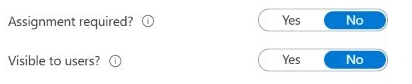
First check Enterprise apps → the lab application → Properties. On our new app, assignment was optional and Visible to users? was set to No. An application can be enabled for sign-in without a tile in My Apps. The admin can locate it by its service principal Object ID.
We searched My Apps as the pilot and found no result for the lab name, even after the successful profile read. Searching for a tile would have missed a live grant.
For a personal grant visible to the pilot, open My Apps → the lab app’s menu → Manage your application → Revoke Permissions. Verify that the permissions were granted personally and the app ID matches. For an admin investigation, the Entra Permissions page shows user grants, while Microsoft Graph can remove a specific delegated grant. Read and record the exact grant first. A single grant object can contain several scopes. Removing it removes every scope on that object.
Switch from reporting to an authorized administrator
For the administrative route, use an approved Graph PowerShell client with admin consent for the delegated permission DelegatedPermissionGrant.ReadWrite.All. Sign in as an operator with an active supported Entra role, such as Cloud Application Administrator. These privileges belong to the operator’s administrative session. The lab application keeps only User.Read. In our recorded run the administrative client already had the broader Directory.ReadWrite.All. The example below uses Microsoft’s least-privileged permission for deletion.
In the same PowerShell window, disconnect the reporting identity and start a new process-scoped Graph session. Check the account and tenant displayed against the intended administrator and lab tenant. If the permission has not been approved or the role is inactive, stop and use your normal approval process.
Disconnect-MgGraph -ErrorAction Stop | Out-Null
Connect-MgGraph -TenantId $tenantId -Scopes 'DelegatedPermissionGrant.ReadWrite.All' -ContextScope Process -ErrorAction Stop
Get-MgContext | Select-Object Account, TenantId, Scopes
Re-read the one grant before deleting it
Run the following as one block. It retrieves the grant by the ID from step 5 and checks the live client, resource, consent type, user and full scope. Enter the GrantId from your incident record to confirm removal. If any check fails, leave the grant in place and investigate. A successful DELETE returns HTTP 204.
& {
    $ErrorActionPreference = 'Stop'
    $context = Get-MgContext
    if ($context.TenantId -ne $tenantId -or $context.AuthType -ne 'Delegated' -or
        $context.Scopes -notcontains 'DelegatedPermissionGrant.ReadWrite.All') {
        throw 'Check the tenant and the administrative Graph session.'
    }
    if ($pilotGrants.Count -ne 1 -or $pilotGrants[0].Permission -cne 'User.Read') {
        throw 'Expected one personal grant containing only User.Read.'
    }
    $row = $pilotGrants[0]
    if (-not $row.GrantId -or -not $row.ResourceObjectId) { throw 'Missing grant or resource ID.' }
    $uri = 'https://graph.microsoft.com/v1.0/oauth2PermissionGrants/' + [uri]::EscapeDataString($row.GrantId)
    $grant = Invoke-MgGraphRequest -Method GET -Uri $uri -OutputType Hashtable
    if ($grant.id -cne $row.GrantId -or $grant.clientId -ne $enterpriseAppObjectId -or
        $grant.resourceId -ne $row.ResourceObjectId -or $grant.consentType -ne 'Principal' -or
        $grant.principalId -ne $pilotUserObjectId -or $grant.scope -cne 'User.Read') {
        throw 'The live grant does not match the pilot record.'
    }
    if ((Read-Host 'Enter the GrantId to revoke') -cne $grant.id) { throw 'Removal cancelled.' }
    Invoke-MgGraphRequest -Method DELETE -Uri $uri -StatusCodeVariable httpStatus
    "DELETE returned HTTP $([int]$httpStatus)"
}
Disconnect the administrative session with Disconnect-MgGraph. Refresh Enterprise apps → the lab application → Permissions → User consent and check the removal event in Audit logs.
In our pilot, Graph returned 204 No Content at 09:16:58 UTC. The enterprise app’s audit log recorded Remove delegated permission grant with status Success in the same second. After refreshing Permissions, the User consent list was empty. The Admin consent list was also empty.
Return to the local client and select Start post-revocation test. Use the same account and app. The client starts a new authorization code flow and does not force a consent prompt. In our run, Microsoft displayed Permissions requested and identified the lab application. One line described signing in and reading the profile. Another described maintaining access to data the user had granted. Microsoft documents that this wording can appear with delegated consent. To receive a refresh token from the v2.0 endpoint, a client must explicitly request offline_access. Our request specified only the Microsoft Graph User.Read scope.
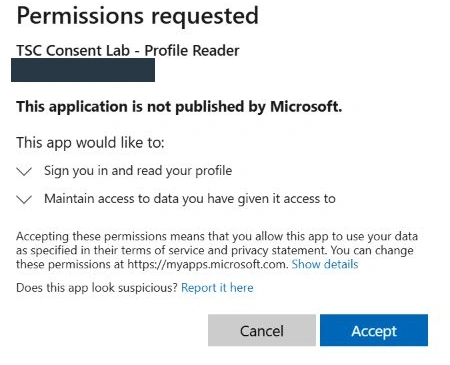
Choose Cancel to keep the permission revoked. At 09:20 UTC the client received consent_required and AADSTS65004 (user declined consent). It did not call /me. We refreshed User consent again and confirmed the grant was still absent. This tests a new authorization request. The lifetime of an access token issued before removal was outside the scope of the run.
When retiring the lab, stop the local listener, verify both grant views and complete the application’s normal retirement process. In a real incident, preserve the audit evidence and assess whether to disable the application, revoke sessions or investigate access to specific resources under your response process.
7. Lab results
| Check | Observed in this tenant |
|---|---|
| Tenant consent policy | Microsoft-managed user consent selected. The popular mail client option was enabled. |
| Admin requests and classification | User requests were off. The Low classification list contained no delegated permissions. |
| Lab registration | Single-tenant public client registered. Microsoft Graph User.Read was the only configured permission. |
| Starting grant inventory | Both the Admin consent and User consent views for the new enterprise app were empty. |
| Creation audit | The application-scoped audit log recorded Add service principal with status success. |
| Effective grant | User consent listed delegated User.Read for one user. Opening the count identified the pilot. Admin consent remained empty. |
| Consent audit | Consent to application and Add delegated permission grant succeeded at 08:43 UTC. The latter recorded the Principal consent type and User.Read. |
| Pilot profile read | Verified 4 November 2026 at 08:50 UTC. The fresh GET /me returned HTTP 200 and the expected pilot identity. |
| Pilot's My Apps search | A search by lab name returned no result. The application's Visible to users setting was No. |
| Targeted removal | 09:16:58 UTC. Graph returned HTTP 204 after the operator verified the pilot, app, Graph resource, Principal consent type and User.Read scope. Entra recorded Remove delegated permission grant with status Success. |
| New authorization request | Microsoft displayed Permissions requested for the same user and app. At 09:20 UTC, Cancel returned consent_required / AADSTS65004. The client did not attempt a profile read. |
| Final grant state | The User consent tab remained empty after a refresh following the cancelled request. The Admin consent tab was also empty after removal. |
For a reported incident, two pieces of evidence answer different questions. The grant identifies the access that was authorized. The audit history and resource activity help establish what happened with that access.
Microsoft references
- Protect against consent phishing
- Configure how users consent to applications and Manage app consent policies
- Configure the admin consent workflow
- Authorization code flow with PKCE and identity scopes and permissions
- Application consent grant investigation playbook
- Review permissions granted to enterprise applications
- Edit or revoke application permissions in My Apps
- Fields and identifiers of a delegated grant and Microsoft Graph resource application ID and permissions
- List delegated permission grants, list app role assignments and delete a delegated grant
- Microsoft Entra authentication error codes